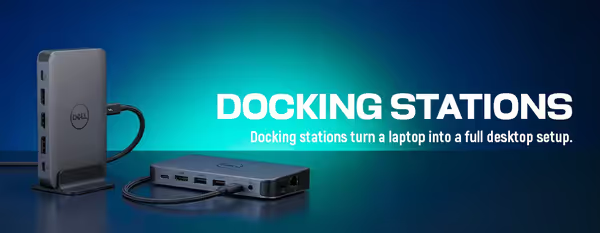
Docking Stations 🔗
USB-C Docking Stations (11)


How to Choose a Docking Station
The right dock depends on three things: your laptop's port type, how many monitors you want to run, and whether you need the dock to charge the laptop too. Start with what your laptop supports, then match the ports you actually use. The guide below covers the decisions that catch people out.
A USB-C dock uses your laptop's USB-C video output and suits most everyday setups with one or two monitors. A Thunderbolt dock carries more bandwidth, so it handles multiple high-resolution monitors and fast external SSDs better, but your laptop must have a Thunderbolt port to get those benefits. Buy Thunderbolt only if your laptop supports it.
This depends on the dock and your laptop together. The dock provides the video outputs (HDMI, DisplayPort), but the laptop's USB-C or Thunderbolt port sets how many displays and what resolution it can actually output. Check your laptop's display-output spec, then choose a dock with matching outputs.
Many docks deliver power back to the laptop over the same cable, so one connection both docks and charges. Make sure the dock's power output meets your laptop's charging needs — a thin ultrabook needs less than a gaming or workstation laptop. If the dock can't supply enough, you'll still need the original charger.
Look past the headline count and check the mix: HDMI or DisplayPort for your monitors, enough USB-A and USB-C for your peripherals, Gigabit Ethernet for stable wired internet, and a 3.5mm jack if you use wired audio. An SD card slot is handy for photographers. Buy for the devices you own, not the longest spec sheet.
USB-C and Thunderbolt docks work across both Windows laptops and MacBooks, but the exact monitor and charging behaviour can differ by machine. Apple's external-display support varies by model, and some Windows laptops limit Thunderbolt features. Check your specific laptop model against the dock's stated support before buying.