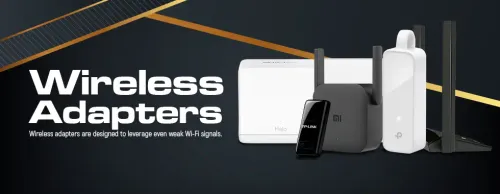
Wireless Adapters — Add Wi-Fi to Any PC 📶
Wi-Fi & Bluetooth Adapters (7)


How to Choose a Wireless Adapter
The right adapter depends on the PC, the distance to your router, and the Wi-Fi standard your router actually supports. There's no point buying a Wi-Fi 6E card if your router only does Wi-Fi 5 — the adapter falls back to the slower standard. Work out your router's capability first, then match the form factor to the machine.
USB adapters plug into any port, move between machines easily and suit laptops or quick upgrades. PCIe cards fit an internal slot in a desktop and usually offer larger external antennas and more consistent throughput. For a permanent desktop far from the router, a PCIe card is the stronger choice; for portability, go USB.
Match the adapter to your router. Wi-Fi 5 (ac) is fine for everyday browsing and HD streaming. Wi-Fi 6 (ax) adds better performance on busy networks with many devices. Wi-Fi 6E opens the 6GHz band for less congestion, but only helps if your router supports 6E too — otherwise the adapter drops to the older standard.
Partly. A better adapter with stronger antennas improves reception at your PC, but it can't create signal that isn't reaching the room. If the router is far away or behind thick walls, you may also need to reposition the router or add a range extender. The adapter helps most when the PC's own card is the weak link.
Dual-band (2.4GHz + 5GHz) is the standard sweet spot — 2.4GHz reaches further, 5GHz is faster over shorter distances. Tri-band adapters add a second 5GHz or a 6GHz band to reduce congestion in device-heavy homes. For most desktops, a good dual-band adapter is plenty.
Most adapters install with a simple driver, and many are plug-and-play on current Windows versions. If you run an older OS or Linux, check the chipset is supported before buying. PCIe cards may need a free slot and, in some cases, a spare power header for built-in heatsinks or RGB.