Laptop Productivity Guide
The accessories that actually change — how you work, in priority order.
Hub before mouse. Mouse before monitor. Monitor before keyboard. Skip the cooling pad. The ordering is what most lists get wrong — and it's what decides whether your spend pays back in productivity or sits in a drawer.
- per category
- R500-R5k
- dual-monitor lift
- +30%
- 2 to skip
- 6 essentials
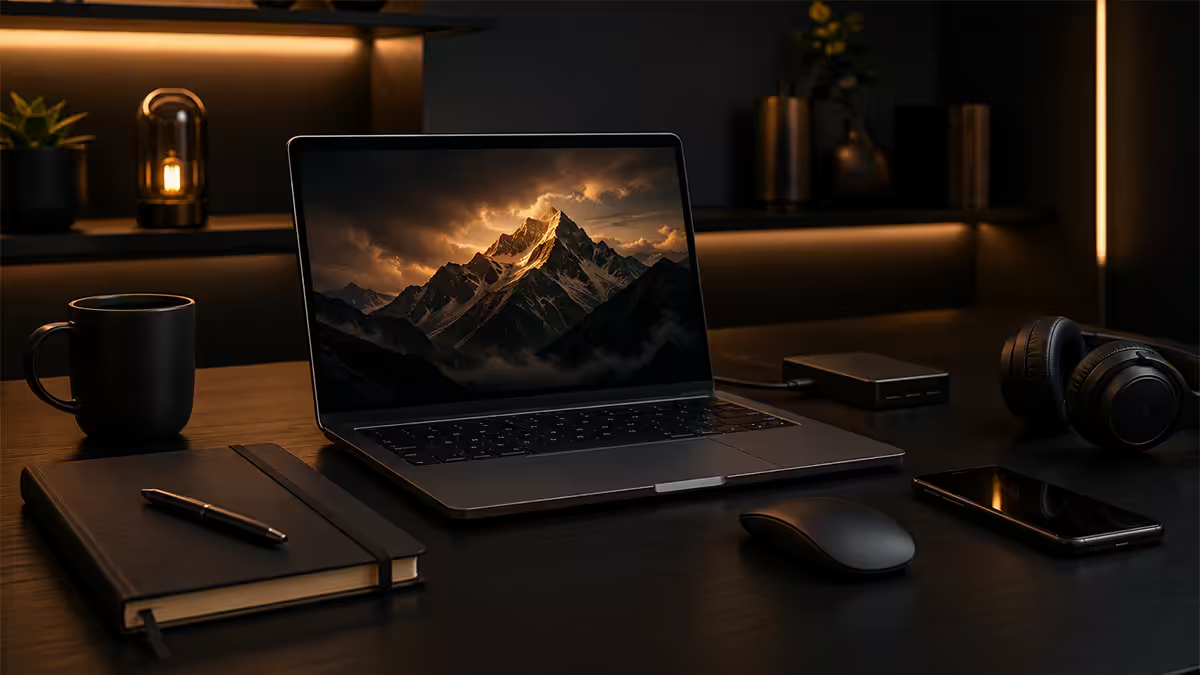
The USB-C hub is the first accessory, full stop
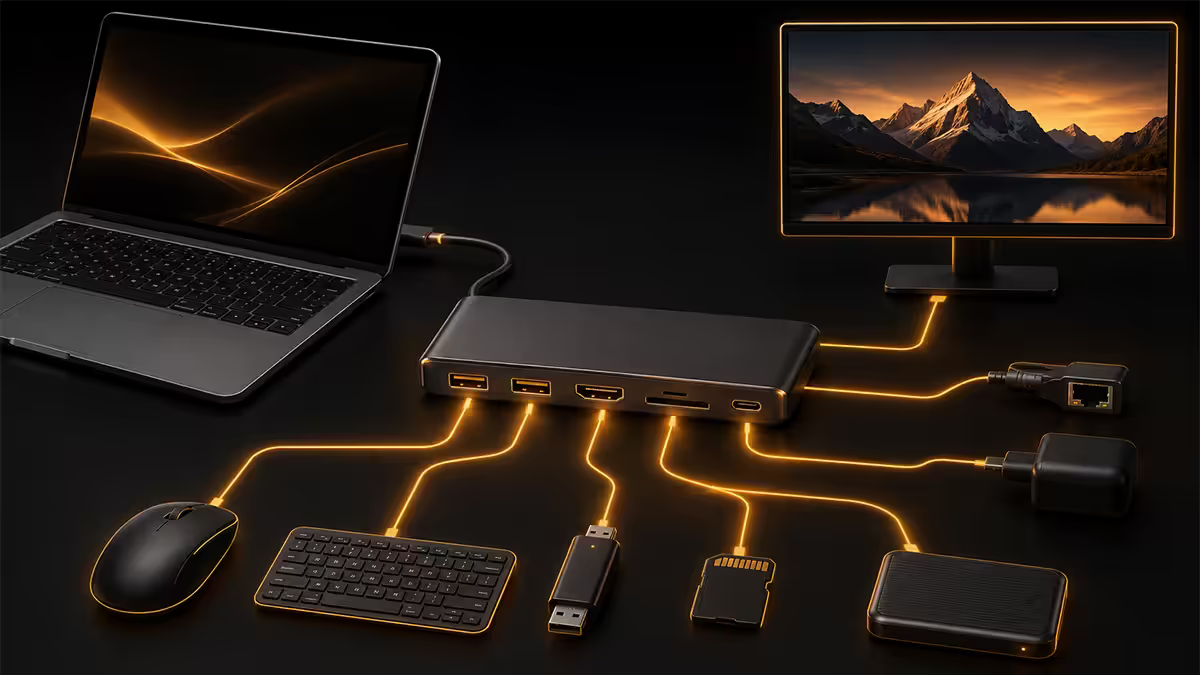
Open any 2026 thin-and-light laptop and count the ports. MacBook Air: three (charger + 2 USB-C). Dell XPS 13: four (charger + 2 USB-C + audio). ThinkPad X1 Carbon: marginally better. Plug in a USB-C charger and a single external monitor and you've used everything. There's no room for a webcam, a printer, a USB headset, an SD card reader for camera offloads, or your phone's charging cable.
A good USB-C hub turns that one port into HDMI, two-or-three extra USB-A, an SD card slot, sometimes Ethernet, and crucially — pass-through power so your laptop still charges while the hub is connected. One cable goes into the laptop. Everything else plugs into the hub. When you leave the desk, you unplug one cable and walk away.
| Tier | Pick | SA price |
|---|---|---|
| Budget hub (5 ports) | Ugreen 5-in-1 / Baseus 6-in-1 | R600-R800 |
| Mid (7-9 ports + PD) | Anker 555 PowerExpand 8-in-1 | R1,200-R1,500 |
| Full Thunderbolt dock | CalDigit TS4 / OWC TB4 Dock | R6,500-R8,500 |
| Travel ultra-compact | Anker 543 USB-C Hub (7-in-1) | R900-R1,100 |
External monitor — the single biggest productivity lift
Decades of workplace research land on the same number: a second screen adds 20-40% productivity for knowledge work. Not because you do more — because you stop alt-tabbing. Email on the left, doc on the right. Slack visible while you work. Stack Overflow next to your code editor. The cognitive cost of context switching is real and a second monitor cuts it in half.
Desk monitor (the obvious upgrade): a 24-27 inch 1440p panel from Samsung, LG, Dell or BenQ in the R3,500-R5,000 bracket is the standard sweet spot in 2026. USB-C input with 65-90W power delivery means one cable charges the laptop and carries video — no separate charger needed at the desk.
Portable monitor (the road warrior pick): ASUS ZenScreen MB16ACE, Mobile Pixels Trio, ESPRESSO 15 — 15-inch USB-C panels that fold flat and slide into a laptop bag. R3,500-R6,000 in SA depending on resolution and brand. The Mobile Pixels Trio is the most useful — it magnetically attaches to the side of your laptop screen, giving you dual-monitor anywhere.
Mouse — the Logitech MX line solves it
Trackpad-only is fine for casual use. Spend a full day editing spreadsheets, photo retouching, or moving objects around in Figma and your wrist will tell you about it. A good external mouse pays back its cost in a week of avoided tendon strain.
The Logitech MX line is the boring, correct answer in 2026. Three picks based on use case.
- MX Master 3S (R1,800-R2,200): the desk king. Larger ergonomic shape, MagSpeed scroll wheel that switches from ratchet to free-spin, sculpted thumb rest, 70-day battery. The right mouse for a fixed workstation.
- MX Anywhere 3S (R1,300-R1,600): the travel pick. Smaller, lighter, fits in a laptop bag. Tracks on glass (yes, really — no mat needed). The right mouse if your laptop moves between coffee shops, home, office.
- MX Vertical (R2,000): the ergonomic outlier. Holds your wrist at 57°, dramatically reducing forearm strain. Steep learning curve (1-2 weeks). The right mouse if you've started getting wrist pain.
Apple Magic Mouse (R1,800): beautiful, gesture-rich, and the charging port is still on the bottom in 2026 which is genuinely embarrassing. Buy only if you're deep in macOS and use the multitouch gestures heavily.
External keyboard — only if you type heavy
Most modern laptop keyboards are good. MacBooks, ThinkPad X1, Dell XPS, ROG laptops — all ship with keyboards that are perfectly adequate for typing. An external keyboard is only worth buying if (a) the laptop lives docked at a stand so you're typing on the laptop keyboard at a poor angle, or (b) you spend most of the day writing code or long documents and your fingers tell you they want more travel.
Two picks dominate the desk-keyboard market:
- Logitech MX Keys S (R2,200-R2,500): low-profile membrane with scissor-switches. Quiet, fast, backlit, multi-device pairing. The mouse-line companion. The right keyboard for shared spaces, open offices, and meetings.
- Keychron K7 Pro / K3 Pro (R2,500-R3,200): low-profile mechanical with hot-swap switches. The mechanical that's actually portable. Clickier than the MX Keys but vastly more satisfying for heavy typing. The right keyboard for a home office.
If you do want a full-size mechanical for desk use, the Keychron K10 Pro or Logitech MX Mechanical are both excellent. R3,200-R3,800 in SA.
Anker GaN charger + a long USB-C cable
The charging brick that came in the laptop box is bulky, has a short cable, and was designed before GaN (gallium nitride) chargers existed. A 2026-era 65W GaN charger from Anker, UGREEN or Baseus is one-third the size, half the weight, and charges at the same speed.
The sizing rule of thumb:
- 65W: covers MacBook Air, M-series MacBook Pro 14, Dell XPS 13, ThinkPad X1 Carbon, Surface Laptop, every ultrabook. The default pick.
- 100W: needed for MacBook Pro 16, Dell XPS 17, business laptops with discrete graphics under load.
- 140W: reserved for gaming laptops and mobile workstations. Anker 737 covers it.
Cable matters as much as the brick. Buy a braided USB-C to USB-C cable at 2m length, 100W rated. Anker, UGREEN and Belkin all make good ones for R250-R400. The 1m cable in the laptop box is too short for any real desk setup — you'll be hunching.
Laptop stand — for the neck, not the laptop
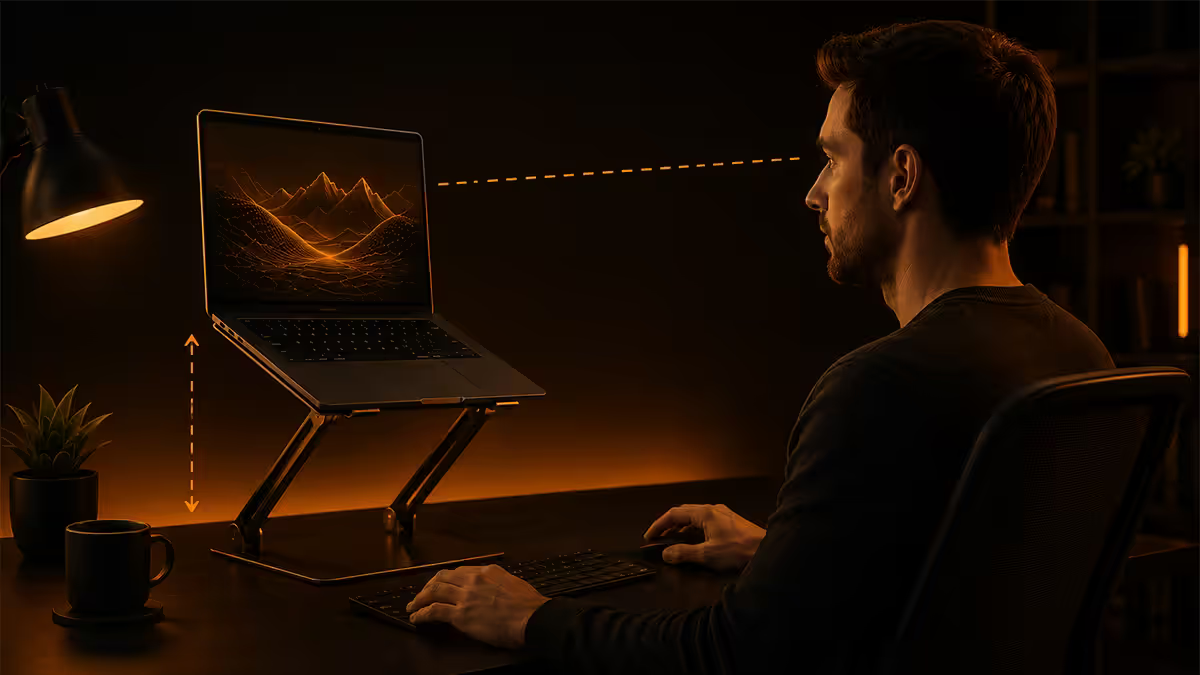
Working from a laptop on a desk is the single worst posture in the modern office. The screen is too low, you tilt your neck down, and four years later your physio is on speed-dial. A laptop stand fixes this in five seconds.
Three picks at different price points:
- Roost Laptop Stand (R1,500-R1,800): the cult favourite. Folds flat to the size of a wallet, raises any laptop to eye level, weighs 170g. The right stand for travel.
- MOFT Z (R900): adhesive stand that lives stuck to the bottom of the laptop. Pops up to four angles. Always with you.
- Rain Design mStand (R1,200): permanent aluminium desk stand. Heavy, immovable, beautiful. The right stand for a fixed desk.
A wooden bookshelf riser from any furniture store does 80% of the job for R150. You can't take it to a coffee shop, and it looks like a wooden bookshelf riser, but if budget is the constraint it works.
Headphones, earbuds & webcam
Headphones for calls: Jabra Evolve2 75 or Jabra Evolve 65 (R3,500-R4,500) — both are MS Teams certified, have boom mics that block keyboard noise, and survive 30+ hours of calls without recharge. Sony WH-1000XM5 (R6k) are better music headphones but worse call headphones.
Earbuds for portability: AirPods Pro 2 (R5,500) if you're on iPhone — instant pairing, transparency mode is genuinely useful in coffee shops. Sony WF-1000XM5 (R5k) if you're on Android. Both have noise cancellation that lets you focus in noisy environments.
Webcam upgrade: any external webcam beats the 720p sensor in most laptops. Logitech C920 (R1,200) is the budget pick that still delivers good 1080p. Logitech Brio (R3,500) goes to 4K with HDR. Insta360 Link (R3,800) adds AI subject tracking — keeps you centred even when you move — which is the genuinely-new useful trick of 2026 webcams.
What to skip
Cooling pads for office work. Modern laptops manage their own thermals; a cooling pad shaves 3-5°C off sustained load while adding fan noise. Only useful if you're gaming on a gaming laptop.
"Ergonomic" wrist rests with cooling gel. A simple foam or leather rest is fine. The R500 gel-filled versions are not measurably better.
RGB anything for productivity. Beautiful for streamers; distracting for spreadsheets. Buy MX Keys, not a backlit gaming keyboard with rainbow LEDs.
"Privacy filter" plastic overlays. They make the screen 30% dimmer at your own viewing angle too. If you genuinely need a privacy filter (open-plan with sensitive data), buy a quality magnetic one (3M Gold for MacBooks, ~R1,800) — not the R300 stick-on cheap ones.
Wireless charging mats for the desk. Cool in theory; slower than USB-C in practice. Skip and use the saved money on a longer braided cable.
Common laptop-accessory mistakes
Buying everything at once. Hub → monitor → mouse → stand → keyboard, in that order, over 3-6 months. Each upgrade reveals what the next one should be.
Buying the cheapest USB-C hub on Takealot. Cheap hubs throttle bandwidth — your external monitor will flicker, your USB drive will copy at half speed, the hub will overheat. Spend R800 minimum.
Picking a 4K 24-inch monitor. 4K at 24" needs OS-level scaling to read. 1440p at 24-27" is sharper-looking, easier on the GPU, cheaper, and the genuine sweet spot for productivity.
Skipping the laptop stand. The cheapest accessory with the biggest long-term health impact. R900 of MOFT Z saves you R1,500/month of physio in five years.
Key takeaways
- USB-C hub first. Anker 555 (R1,200-R1,500) or UGreen 5-in-1 (R600-R800) — pass-through power is non-negotiable.
- External monitor is the single biggest productivity lift — 20-40% measurable gain. 24-27" 1440p, R3,500-R5,000.
- MX Master 3S for desk, MX Anywhere 3S for travel. Both track on glass — no mat needed.
- Laptop stand is the cheapest accessory with the biggest long-term health impact. MOFT Z (R900) or Roost (R1,800).
- Skip the cooling pad for office work. Skip the wireless mouse mat. Skip RGB-everything for serious productivity.
Frequently asked questions
What is the most important laptop accessory for productivity?
A USB-C hub or dock. Modern thin-and-lights have 2-3 ports; one hub turns that into HDMI + multiple USB + SD + pass-through power. R600-R1,500 in SA.Do I really need a second monitor for productivity?
Yes — 20-40% measurable productivity gain across decades of research. 24-27" 1440p desk monitor (R3k-R5k) or portable USB-C panel (R3,500-R6k) for travel.Should I buy a mechanical keyboard for productivity?
Only if you type heavy or want the tactile feedback. Logitech MX Keys (R2,500) is just as fast for typing speed and quieter for shared spaces. Mechanical wins on feel and longevity.Are laptop cooling pads actually worth it?
For office work, no. 3-5°C improvement at best, often offset by added fan noise. Useful only for gaming laptops under sustained load.What size USB-C charger do I need?
65W covers MacBook Air, M-series MacBook Pro 14, Dell XPS 13, ThinkPad X1, every ultrabook. 100W for MacBook Pro 16 and high-end gaming laptops. Anker GaN 65W (R900-R1,200) is the universal pick.Logitech MX Master 3S vs MX Anywhere 3S — which mouse?
Master for fixed desk (bigger, longer battery, ergonomic). Anywhere for travel (fits in laptop bag, tracks on glass). Both come from the same Logitech MX line and share button feel.Do I need a laptop stand?
Yes if you work from a laptop more than 4 hours a day. Raising the screen to eye level prevents neck strain. Roost (R1,800) for portability, MOFT Z (R900) for stuck-on convenience.What webcam is better than the laptop's built-in one?
Almost any external 1080p webcam. Logitech C920 (R1,200) for budget. Logitech Brio (R3,500) for 4K. Insta360 Link (R3,800) for AI auto-tracking.
Get the Evetech app
Exclusive app-only prices, daily flash sales, and free delivery on orders over R4,000 — download the app and start saving.