MacBook Monitor Guide
How to choose a monitor for your MacBook. — Retina, not regret.
Plug a R3,000 1080p panel into a MacBook Pro and the difference is instant — text looks fuzzy beside the laptop screen. Choosing the wrong monitor for macOS sabotages the entire setup. Here's the spec that matters.
- retina target
- >200ppi
- single-cable
- 90W PD
- price range
- R7k-R32k
Pixel density — the number that actually matters
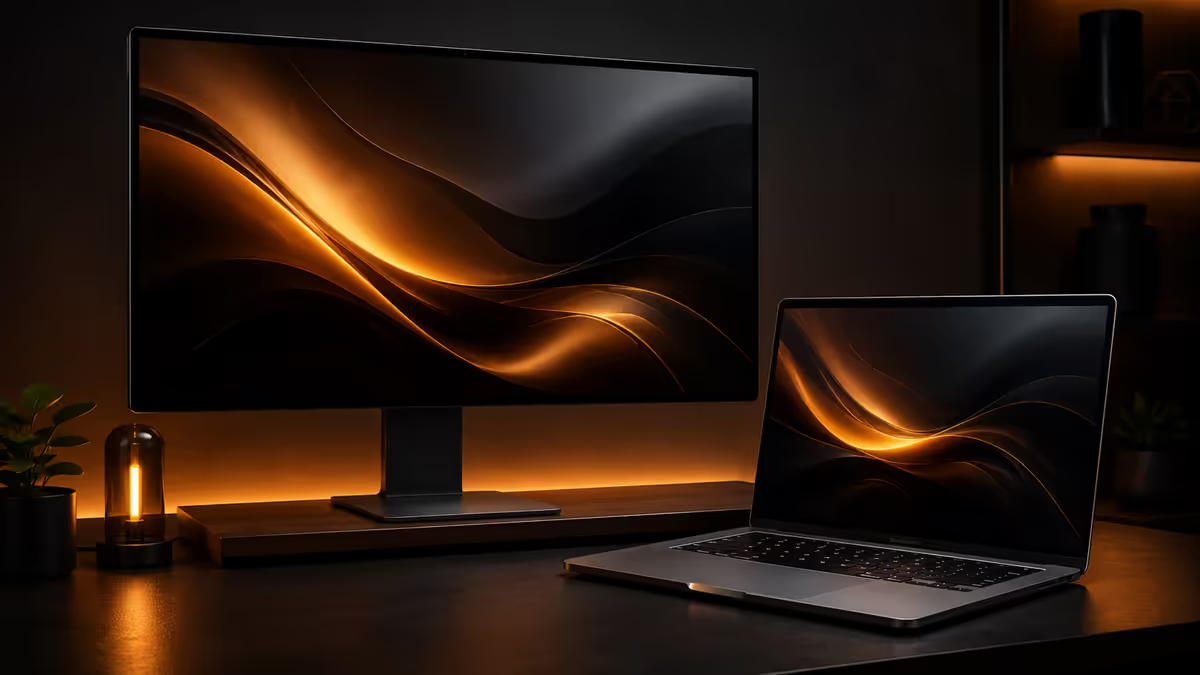
Apple's "retina" branding describes one specific thing: a pixel density high enough that you can't see individual pixels at normal viewing distance. For a desktop monitor at arm's length, that's roughly 200 pixels per inch (ppi).
The MacBook Pro 14" runs 254ppi natively. The MacBook Air M3 is 224ppi. Plug into a sub-200ppi external monitor and the contrast is jarring — text looks crisp on the laptop and fuzzy on the external display, side by side.
| Monitor | PPI | Retina-class? |
|---|---|---|
| 5K 27-inch (5120x2880) | 218 ppi | Yes — matches MacBook |
| 4K 24-inch (3840x2160) | 184 ppi | Near retina, sharp text |
| 4K 27-inch (3840x2160) | 163 ppi | Sub-retina but usable with scaling |
| 4K 32-inch (3840x2160) | 138 ppi | Visibly less crisp than MacBook |
| 1440p 27-inch (2560x1440) | 109 ppi | Fuzzy beside MacBook screen |
| 1080p 24-inch (1920x1080) | 92 ppi | Skip entirely |
The honest trade-off: true 5K retina monitors are expensive in SA (R20,000+) and few brands make them. 4K 27-inch monitors at 163ppi sit just under the retina threshold but render crisply with macOS's font smoothing and 1.5x scaling. For almost every MacBook user, 4K 27" is the sweet spot — visibly sharper than 1440p, half the price of 5K.
5K vs 4K vs 1440p — honest comparison
Resolution alone doesn't tell the story — size matters because it determines pixel density. A "4K monitor" can range from 184ppi (excellent) to 138ppi (mediocre) depending on screen size.
5K at 27 inches — the gold standard
218ppi matches MacBook's built-in display almost exactly. Text crispness is identical when looking back and forth. Premium choice for designers, photo editors and writers who stare at text all day. Limited brand selection in SA: Apple Studio Display (R32,000+), LG UltraFine 27MD5KL (R22,000-R26,000, sometimes harder to source).
4K at 27 inches — the value pick
163ppi is below retina but renders cleanly with macOS scaling. The price-to-quality tier where most MacBook owners should buy. Wide selection: LG 27UP850N, LG UltraFine 27UN880, Samsung Smart Monitor M8, Dell U2723QE, BenQ PD2705U. R7,000-R15,000.
4K at 32 inches — productivity, with caveats
More screen real estate but only 138ppi. Text isn't retina-crisp but the extra space helps multi-window workflows. Worth considering if you primarily do spreadsheet, code or video editing work where space matters more than pixel sharpness.
1440p — actively bad for MacBook
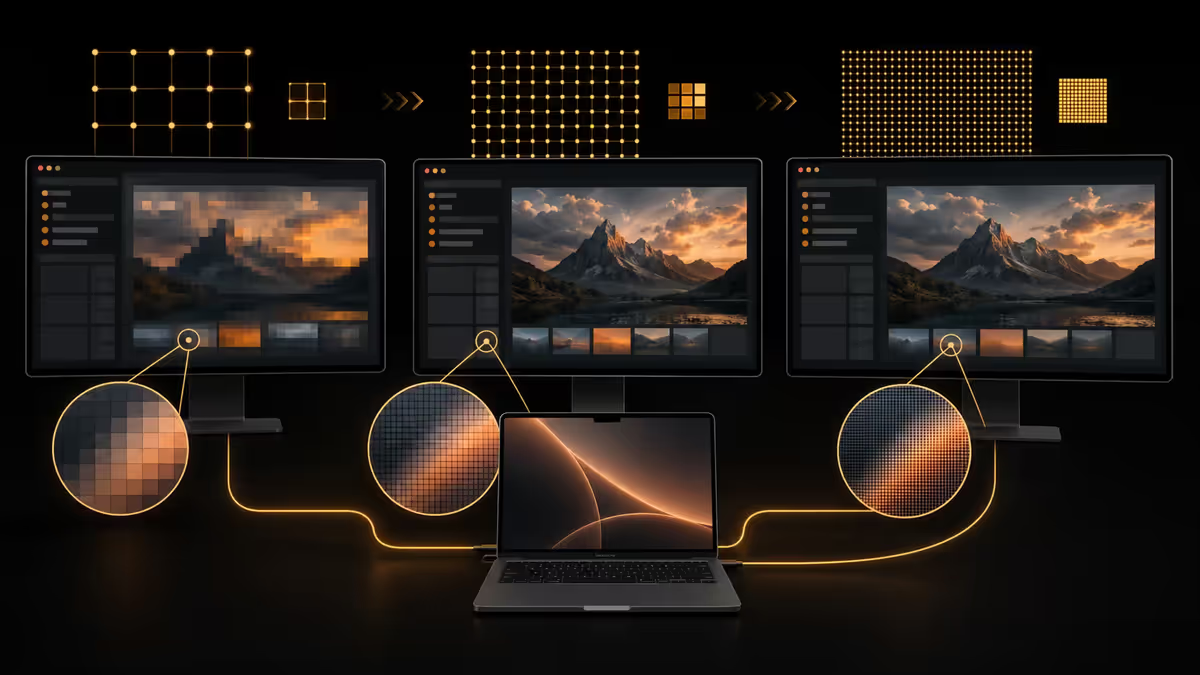
109ppi looks fuzzy beside the laptop screen. Workable for gaming Windows PCs, but a downgrade for MacBook use. Skip unless on a tight budget — and even then, a smaller 1080p panel or no second monitor often serves better than a bad 1440p.
USB-C and Power Delivery — single-cable setup
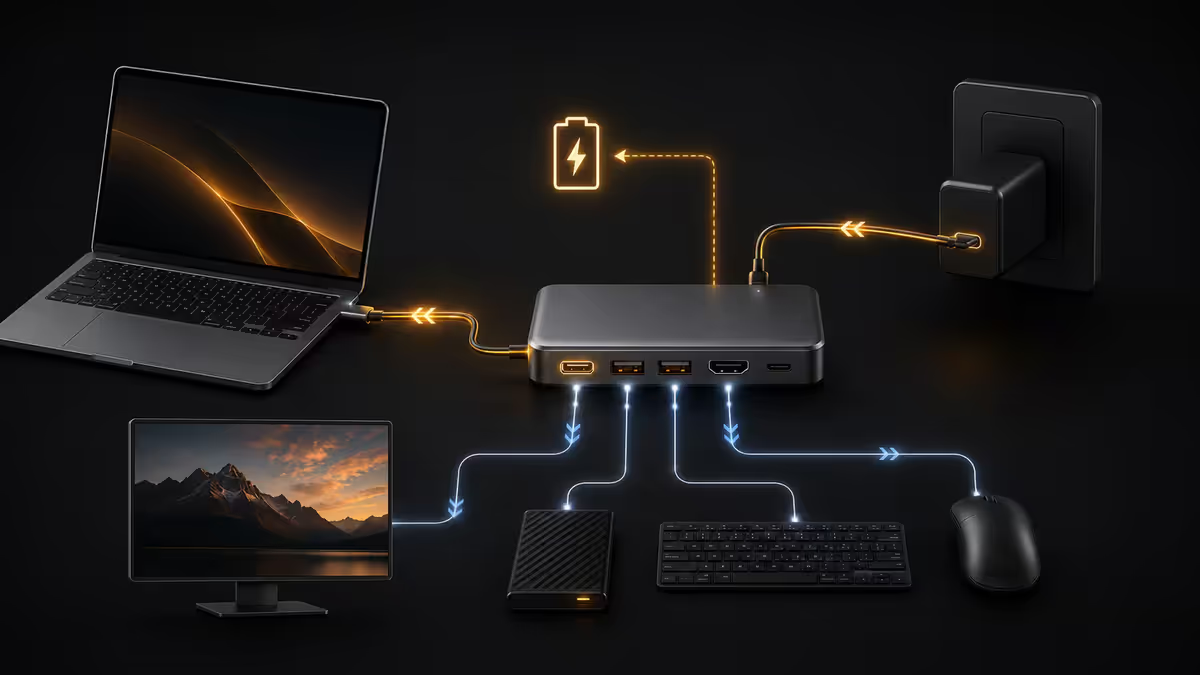
Modern MacBook monitors should connect with a single USB-C cable that simultaneously carries video, USB data, and power to charge the laptop. This is the killer feature — no separate MagSafe brick on your desk, just one cable.
The PD wattage you need:
- MacBook Air M2/M3 (13"/15"): 35-67W. A 65W PD monitor charges adequately.
- MacBook Pro 14" M3/M4: 70-96W. Aim for 90W PD minimum.
- MacBook Pro 16" M3/M4 Pro/Max: 140W via MagSafe ideal. 96W via USB-C works but charges slowly under heavy load.
Look for monitors advertising specific wattage — vague "USB-C charging" can mean as little as 15W. Reputable manufacturers state the PD wattage clearly in spec sheets. The LG UltraFine 27UN880 delivers 96W, the Samsung Smart Monitor M8 delivers 65W, the Apple Studio Display delivers 96W.
macOS scaling sweet spots
macOS handles external monitors very differently from Windows. Understanding scaling modes prevents the "everything looks weird" first impression.
On a 4K 27-inch monitor, use 1.5x scaling — System Settings → Displays → Scaled → "Looks like 2560x1440". macOS renders the desktop at native 4K (sharp text) but sizes UI elements as if it were a 1440p monitor. You get the sharpness of 4K with the workspace of 1440p. Apple recommends this mode by default for a reason.
Other useful scaling modes:
- 4K 27", "Looks like 1920x1080" (2x): Everything is huge. Useful for accessibility or distant viewing.
- 4K 27", "Looks like 3008x1692": More workspace but text starts to look small.
- 4K 27", native 3840x2160: Text is uncomfortably small for most people. Only useful for spec sheets and 1:1 pixel preview work.
- 5K 27", "Looks like 2560x1440": Native retina rendering. No scaling required.
HDR — honest take
"HDR-ready" appears on every monitor spec sheet from R3,000 up. For MacBook owners, HDR matters in two narrow cases and not at all in most.
HDR matters if:
- You edit HDR video for delivery (Final Cut Pro, DaVinci Resolve targeting HDR10 or Dolby Vision).
- You edit HDR photos for prints or HDR display delivery.
- You watch a lot of HDR content (Apple TV+, Netflix HDR) on the external display rather than on the laptop screen.
HDR doesn't matter for: coding, writing, browsing, standard photo editing, productivity work. A good SDR monitor with accurate sRGB and P3 coverage beats a cheap "HDR" monitor at every productivity task.
Avoid the HDR400 trap. "DisplayHDR 400" certification is essentially marketing — the contrast and peak brightness aren't real HDR. Genuine HDR requires DisplayHDR 600 or higher, ideally with local dimming. The MacBook's mini-LED display does proper HDR; matching that on an external requires R30,000+.
Ultrawide for MacBook — when it works
An ultrawide monitor (34"+ at 21:9 or 32:9) offers workflow benefits but rarely matches MacBook retina density.
Ultrawide works for:
- Coding with multiple panes — editor, terminal, documentation, browser preview side-by-side.
- Spreadsheet work with multiple sheets visible simultaneously.
- Video editing timelines — Premiere, Final Cut and DaVinci all benefit from horizontal real estate.
- Replacing a dual-monitor setup with a single curved panel.
The pixel density problem: standard ultrawides are 3440x1440 at 34" = 110ppi. That's a 1440p-equivalent density next to your MacBook's 254ppi screen. The text contrast is noticeable.
The rare exception: LG's 40WP95C is 5K2K (5120x2160) at 40" = 140ppi. Still not retina, but visibly sharper than standard ultrawides. R28,000-R35,000 in SA. The Samsung Odyssey OLED G9 49" runs 5120x1440 = 109ppi — workflow king but not text-sharp.
Recommended picks by use case
| Use case | Pick | SA price |
|---|---|---|
| Best value 4K 27" | LG 27UP850N or Dell U2723QE | R7,000-R10,000 |
| Premium 4K with PD | LG UltraFine 27UN880 or Samsung Smart Monitor M8 | R10,000-R15,000 |
| 5K retina pick | LG UltraFine 27MD5KL | R22,000-R26,000 |
| The Apple aesthetic | Apple Studio Display | R32,000+ |
| Productivity ultrawide | LG 40WP95C 5K2K | R28,000-R35,000 |
| Colour-critical work | BenQ PD2705U or Eizo CG2700S | R14,000-R45,000 |
| Budget MacBook Air pairing | Dell S2722QC 4K 27" | R6,500-R8,500 |
Across <strong>the MacBook accessory orders</strong> we've shipped, the most common monitor return reason isn't quality — it's the wrong scaling expectation. Customers buy a 4K 27" monitor expecting Studio Display sharpness, then complain that text "isn't as crisp as the laptop." We now ship 4K monitors with a printed quick-start showing how to set 1.5x scaling and adjust ClearType-equivalent font smoothing. <strong>Almost every "fuzzy text" complaint disappears after one scaling change</strong>. If you've bought a monitor and the text looks wrong, the fix is usually two clicks in System Settings, not a return.
Behind the Build · From our service bench
Key takeaways
- Target above 200ppi for retina-class text — 5K 27" is the gold standard, 4K 27" is the value pick.
- USB-C with 90W Power Delivery gives single-cable setup. Match wattage to your MacBook model.
- Use macOS 1.5x scaling on 4K 27" — sharpness of 4K, workspace of 1440p.
- Skip 1440p and 1080p — they look fuzzy beside the MacBook's built-in display.
- Studio Display is excellent but R32,000+. LG and Samsung 4K alternatives deliver 90% for half the price.
Frequently asked questions
What pixel density should I target for a MacBook external monitor?
Over 200ppi for retina-class text. 5K at 27" hits 218ppi; 4K at 27" sits at 163ppi (usable but sub-retina); 1440p at 109ppi is too low.5K vs 4K vs 1440p — what's best for MacBook?
5K retina is the gold standard. 4K 27" is the value pick. 1440p is a step backwards from MacBook screens and feels fuzzy.Do I need USB-C with Power Delivery on a MacBook monitor?
Yes for clean single-cable setup. 90W PD for MacBook Pro 14"; 65W minimum for MacBook Air.Is the Apple Studio Display worth buying?
Excellent display but R32,000+. LG UltraFine 27UN880 and Samsung Smart Monitor M8 deliver 90% of the experience at half the price.Will HDR matter for MacBook work?
Only if you edit HDR video or photos for delivery. For productivity, good SDR with accurate sRGB beats cheap "HDR400" panels.What macOS scaling should I use for a 4K 27-inch monitor?
1.5x — System Settings → Displays → Scaled → "Looks like 2560x1440". Sharpness of 4K with workspace of 1440p.Is an ultrawide monitor good for MacBook?
Yes for productivity workflows. Standard 34" 3440x1440 is only 110ppi — looks softer than MacBook screen. LG 40WP95C is the rare retina-adjacent ultrawide.How much should I budget for a MacBook monitor in SA?
R7,000-R10,000 for solid 4K. R10,000-R15,000 for premium 4K with USB-C PD. R20,000-R32,000 for 5K retina.
Get the Evetech app
Exclusive app-only prices, daily flash sales, and free delivery on orders over R4,000 — download the app and start saving.