Display Glossary
What is a nit? — Monitor brightness, plainly explained.
The spec sheet says 400 nits, the box says HDR1000, the panel sustains 250, your room is sunlit. Four numbers, one unit, and a fair bit of marketing static. Here's what nits actually measure and how many you genuinely need.
- = 1 nit
- 1 cd/m²
- typical desktop
- 250-400
- real HDR floor
- 600+
What a nit actually is
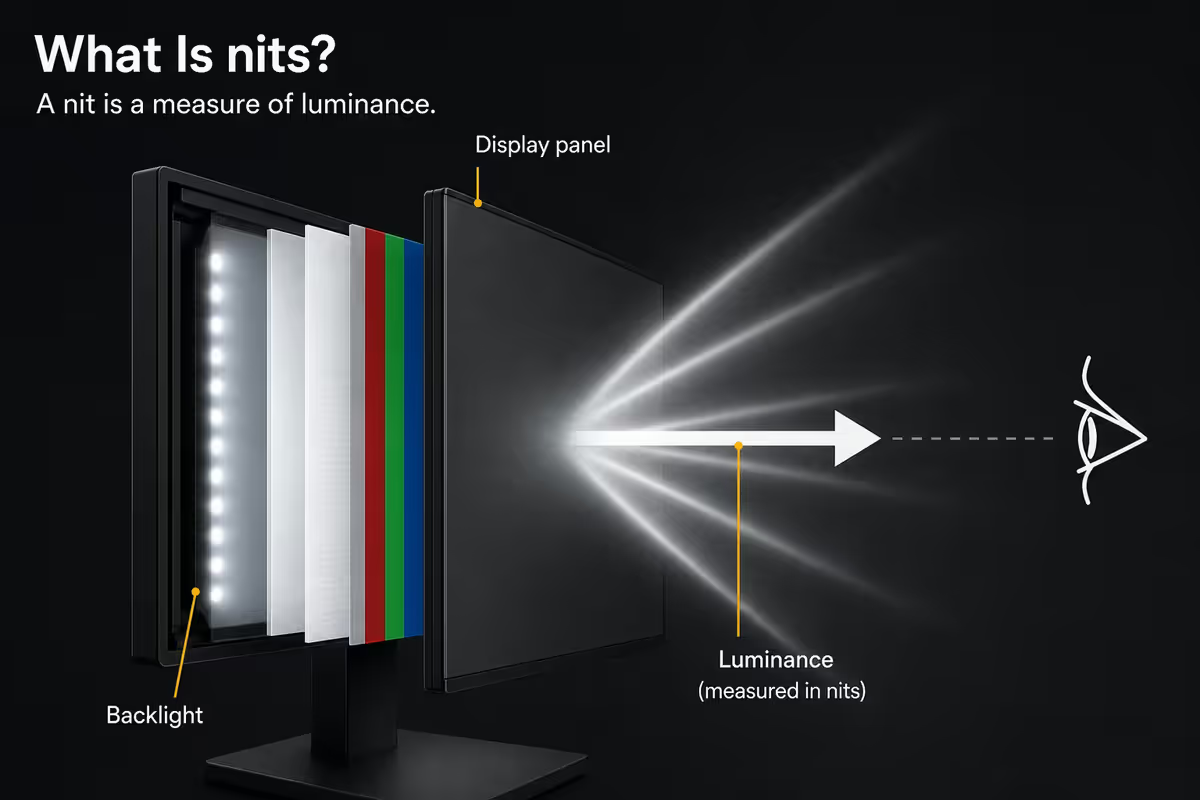
A nit (symbol: nt) is the standard unit of luminance — a measurement of how much light a surface emits in your direction. One nit equals one candela per square metre (1 cd/m²). The name comes from the Latin nitere, meaning "to shine".
If that sounds abstract, here's the intuition. A candela is roughly the brightness of a single household candle. A square metre of pixels each glowing like a candle would produce one nit. Real monitors range from about 200 nits on a budget office panel to 1400 nits on a premium HDR gaming monitor — so anywhere from 200 to 1400 candles per square metre of screen, evenly distributed.
For context across other surfaces you see every day:
| Surface | Typical luminance | Notes |
|---|---|---|
| Midday sky, looking sideways | 8,000-10,000 nits | Why a 600-nit phone still looks dim outside |
| White paper under fluorescent office light | 100-200 nits | A 250-nit screen matches this perfectly |
| Sunlit white wall (indoor) | 500-1,500 nits | Why a sunlit desk needs a brighter monitor |
| The moon (full) | ~6,000 nits | HDR1400 monitor approaches lunar brightness |
| A standard candle flame | ~10,000 nits at the flame itself | But over a tiny area — total light is low |
Typical desktop monitor brightness in 2026
Modern desktop monitors fall into a fairly predictable brightness band depending on price and use case.
| Nits | Use case |
|---|---|
| 200 nits | Budget office |
| 250 nits | Standard office |
| 300 nits | Mainstream IPS |
| 400 nits | Quality gaming / HDR400 |
| 600 nits | HDR600 / real HDR floor |
| 1000 nits | HDR1000 / proper HDR |
| 1400 nits | HDR1400 / current peak |
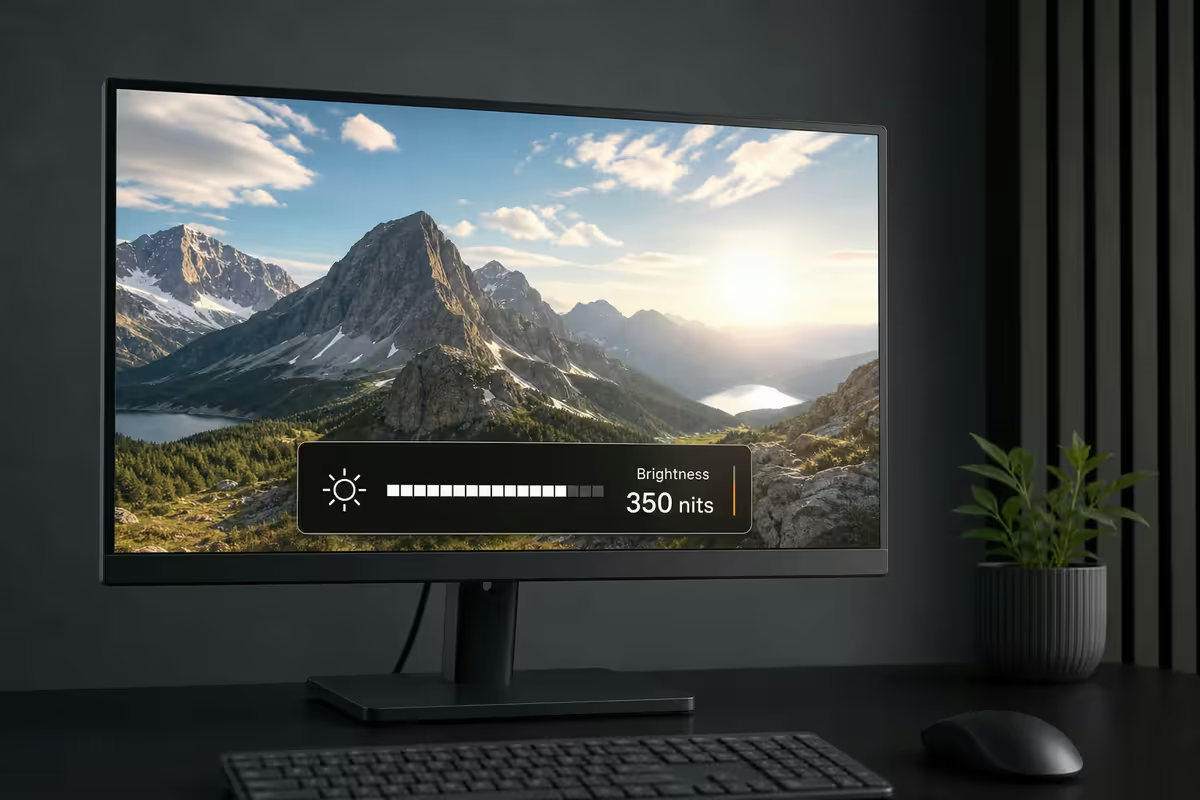
The sweet spot for most buyers sits at 350-450 nits. That's bright enough for sunlit SA rooms, comfortable for evening gaming, and won't burn the retinas off you in a dim study at night. Below 250 nits feels noticeably dim outside dedicated cave-dark gaming setups; above 600 nits is overkill unless you're actually watching HDR content or using the monitor in direct sun.
HDR400, HDR600, HDR1000, HDR1400 — what the numbers mean
The number suffixed to HDR on a monitor's box is the peak brightness in nits required by the VESA DisplayHDR certification programme. The tiers exist because HDR (High Dynamic Range) needs real headroom to display the bright highlights its colour grading was made for — a sunlit window in a film, the glint off armour in a game, a sparkler in a music video.
| Tier | Peak nit requirement | Honest assessment |
|---|---|---|
| HDR400 | 400 nits peak | Marketing HDR. Minor improvement over SDR. Skip if HDR matters. |
| HDR500 / 600 | 500-600 nits peak | Entry-real-HDR. Visible upgrade over SDR. Practical minimum. |
| HDR1000 | 1000 nits peak | Genuine HDR with proper highlights. The target for HDR gaming. |
| HDR1400 | 1400 nits peak | Premium tier. Future-proofed for HDR mastering and bright HDR content. |
| DisplayHDR True Black 400 / 600 | 400-600 nits + OLED-grade blacks | OLED-specific. Lower peak, perfect blacks compensate. |
HDR400 is the trap. Many "HDR-supported" monitors carry only the HDR400 badge. They accept the HDR signal and display something, but without enough peak brightness or local dimming the highlights look flat — often worse than the same content in SDR. If HDR is a feature you actually care about, the floor is HDR600. The aim is HDR1000 or DisplayHDR True Black on OLED.
OLED and the Automatic Brightness Limiter (ABL)
OLED panels are the brightness exception that confuses spec-sheet readers. Every OLED pixel emits its own light, which gives perfect blacks and per-pixel local dimming. But OLED pixels are organic compounds with thermal and power limits — you can't run every pixel at maximum brightness simultaneously without overheating the panel and shortening its life.
The solution is ABL (Automatic Brightness Limiter). When too many bright pixels are lit at once, the panel dims them as a group. Practical results:
- A full-screen white spreadsheet on an OLED might display at 250 nits sustained — much less than the marketed peak.
- A dark HDR scene with a few highlight pixels (lamp post in a night street, an explosion in a dark cave) can hit the full 1000+ nit peak on those pixels alone.
- A 25% white window on a dark background sits somewhere in between — typically 500-700 nits on a current OLED.
This is why OLEDs are extraordinary for HDR gaming and movies (highlights pop where they need to) and merely decent for sustained-white productivity work (a wall of Excel can look dim). It's not a defect, it's the physics — but a buyer who works full-screen on white documents 8 hours a day should consider a high-brightness IPS or QD-IPS panel instead of OLED.
Peak brightness vs sustained brightness
This is the single most useful distinction to learn before reading a monitor spec sheet.
Peak brightness is the maximum nits the monitor can achieve in a small portion of the screen — typically measured as a 10% area "window" against a black background. This is what manufacturers quote when they say "1000 nits peak". An OLED with a 1000-nit peak might only sustain 250 nits across the full screen.
Sustained brightness is what the monitor delivers across the entire screen continuously — the figure that matters for full-page reading, white document editing, photo work and bright HDR scenes with lots of sky or snow.
LCD-based monitors (IPS, VA, QD-IPS) generally have peak and sustained brightness close together — a 400-nit LCD will sustain close to 400 nits across the full panel. OLED panels show the biggest gap, sometimes 4-5x between peak and sustained.
SA ambient light reality — what your room is doing to your display
South African homes get a lot of light. North-facing windows, big openings to gardens, polished tile floors that reflect the sky, double-volume living rooms with skylights. The same monitor that looks perfect in a Cape Town basement struggles in a Pretoria sunroom at 2pm.
Brightness targets by SA room reality:
- Dim study, curtains closed, evening only: 200-300 nit monitor is plenty. Anything brighter at default settings will hurt your eyes.
- Standard home office, single window with blinds: 300-400 nits sustained. Most mainstream monitors handle this fine.
- Open-plan living area or kitchen office, lots of natural light: 400-500 nits sustained. Look for anti-glare matte panels too.
- North-facing study with direct sun on the desk: 500-600 nits sustained, anti-glare, position monitor perpendicular to window. Or close the blinds.
- Patio / outdoor laptop use: 600-1000 nits, glossy or anti-reflective coating, and accept that direct sunlight will still wash out anything.
The other half of the ambient equation is the wall behind the monitor. A monitor on a white wall in bright daylight needs more brightness than the same monitor on a charcoal-grey wall — your eyes are constantly adapting to the surrounding luminance, and a screen that's much dimmer than its surround feels unreadable.
Brightness and eye strain — what actually matters
A common misconception is that brighter screens cause more eye strain. The reality is more interesting: eye strain comes from mismatch between screen brightness and ambient light, not from absolute brightness.
A 400-nit screen in a dim bedroom causes pupil constriction, glare and headaches within an hour. The same 400-nit screen in a daylit office is comfortable. A 200-nit screen in bright sunlight forces the eyes to squint and over-process — also fatiguing — while the same 200-nit screen in a candle-lit room is restful.
Practical guidance for less eye strain:
- Match screen brightness to ambient light — most monitors are too bright at default settings.
- Aim for screen luminance roughly equal to a white sheet of paper on your desk under the same light.
- Use the monitor's auto-brightness sensor if it has one, or set brightness manually morning vs evening.
- Avoid placing the monitor with a bright window directly behind it — the high-contrast frame is hard on the eyes.
- Take the 20-20-20 break (every 20 min, look at something 20 feet away for 20 seconds) regardless of brightness.
Calibration targets — set your brightness lower than you think
Out of the box, almost every monitor ships at 80-100% brightness — far higher than ergonomically optimal for typical use. Calibration software and authoritative ergonomic guidance both recommend much lower targets.
| Use case | Brightness target | Why |
|---|---|---|
| Office work, normal interior lighting | 120-160 nits | Matches white paper under office light; ergonomic standard. |
| Photo / video editing (sRGB) | 160 nits exactly | Industry calibration target for accurate colour judgement. |
| Gaming in normal home lighting | 200-300 nits | Bright enough for visual punch without straining. |
| Gaming in a dim "cave" setup | 120-180 nits | Eye-friendly for long sessions. |
| HDR content viewing | Auto / panel default in HDR mode | The HDR signal handles brightness; don't override. |
| Daylit room, anti-glare panel | 250-350 nits | Matches bright ambient without overdrive. |
Key takeaways
- One nit equals one candela per square metre. Typical desktop monitors deliver 250-400 nits at maximum.
- HDR400 is marketing HDR. HDR600 is the practical real-HDR floor. HDR1000+ is proper HDR territory.
- OLED ABL dims sustained full-screen white — spectacular for HDR highlights, less ideal for all-day white documents.
- For SA rooms with daylight: 400+ nits sustained and an anti-glare matte coating. For dim caves: 250-300 is plenty.
- Eye strain comes from mismatch — calibrate office work to 120-160 nits and gaming to 200-300 nits.
Frequently asked questions
What is a nit in monitor brightness terms?
A nit is the standard unit of luminance — one nit equals one candela per square metre (1 cd/m²). It measures how much light a monitor emits toward your eyes.How many nits is a typical desktop monitor?
250-400 nits for standard desktop. Budget office screens sit at 200-300; mainstream IPS at 300-400; HDR-certified gaming and creator panels reach 500-1400 peak.What do HDR400, HDR600, HDR1000 and HDR1400 actually mean?
VESA DisplayHDR certification tiers — the number is the peak brightness in nits required. HDR400 is entry-level (often disappointing), HDR600 is the practical real-HDR floor, HDR1000 is true HDR with proper highlights, HDR1400 is the current premium tier.What is OLED ABL and why does it matter?
Automatic Brightness Limiter. OLED panels can hit 1000+ nits on small bright areas but must dim when too many pixels are bright at once. Spectacular for HDR highlights, can dim full-screen white spreadsheets — normal OLED behaviour, not a defect.Is peak brightness the same as sustained brightness?
No. Peak is the maximum in a small (10%) area; sustained is what the panel can hold across the full screen. LCDs keep these close; OLEDs can differ 4-5x. Always check sustained brightness reviews before buying.How many nits do I need for a bright room in South Africa?
For a sunlit room: 400+ nits sustained with anti-glare matte coating. For an open-plan north-facing room: 500-600 nits. For laptop use outdoors: 600+ nits. Dim bedrooms and shaded studies: 250-300 nits is plenty.When does paying for 500+ nits actually matter?
For HDR content (600+ peak nits to display highlights as intended), outdoor laptop use (600-1000 nits for sunlight readability), or very bright sunrooms / north-facing windows. For evening gaming or normal office work, 300 nits is plenty.How does monitor brightness affect eye strain?
Eye strain comes from mismatch between screen and ambient light, not absolute brightness. Calibrate down to 120-160 nits for office work and 200-300 for gaming. Most monitors are too bright at factory defaults.
Get the Evetech app
Exclusive app-only prices, daily flash sales, and free delivery on orders over R4,000 — download the app and start saving.