Office Monitor Buying Guide
The office monitor that earns its desk space. — 27 inch. 1440p. IPS. Done.
You'll spend more hours staring at this thing than at most of your friends. The 2026 office monitor decision is less about pixels and more about the height of your eyes, the cable hanging off your laptop, and whether your neck still works at 50.
- sweet spot
- 27"
- resolution
- 1440p
- mid-tier baseline
- R6,500
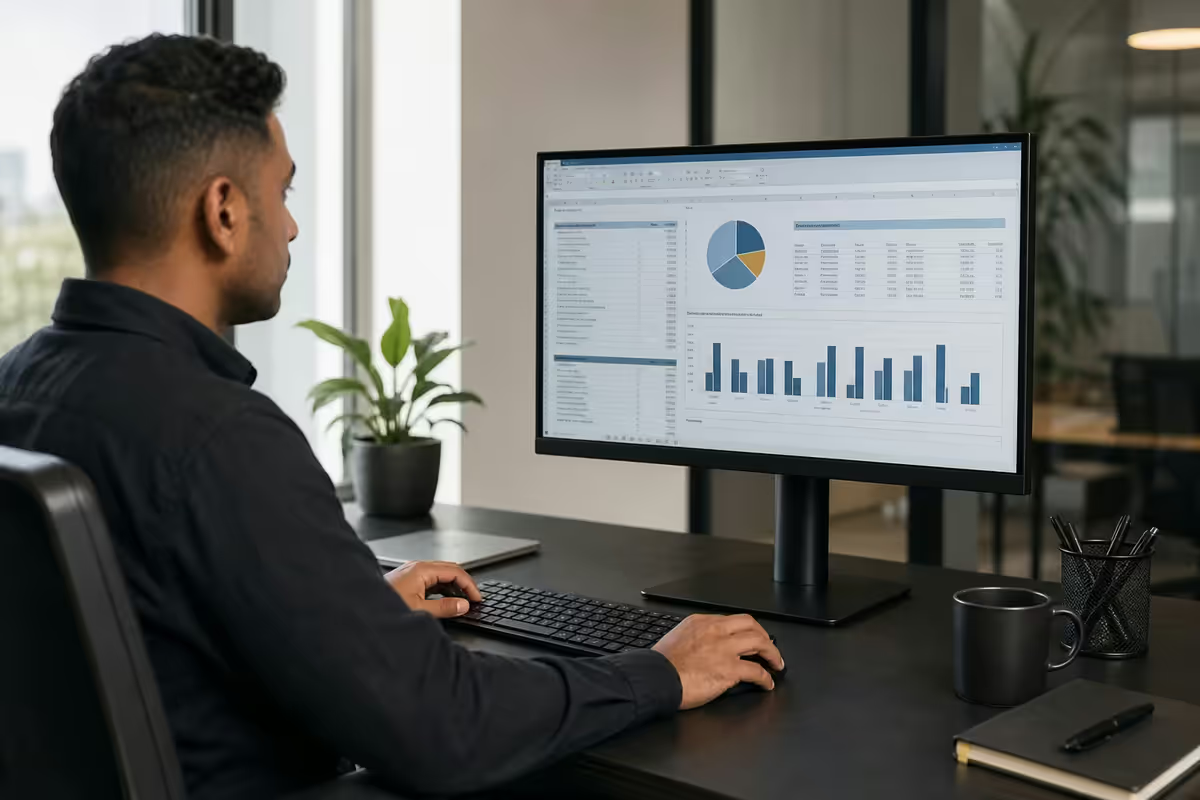
Ergonomics first — the part everyone skips
Buy the perfect panel and mount it badly and you'll have neck pain by month three. The single most important variable in office monitor selection isn't the panel — it's the stand. Specifically, the stand's height adjustment range, tilt, swivel and ideally pivot (rotation to portrait orientation).
The proper ergonomic setup: top of the visible screen area at or slightly below eye level when you're seated normally, screen tilted 10-20° backwards, an arm's length (roughly 50-70 cm) from your face. For most adults that means the centre of the screen sits about 15-20 cm above the desk surface, which is higher than the fixed stands on most budget monitors can manage.
What to insist on:
- 130 mm or greater height adjustment — covers the range of seated heights you'll have over multiple workers.
- -5°/+25° tilt — most stands offer this; some budget ones don't tilt at all.
- Swivel — handy for ad hoc screen sharing with someone next to you.
- VESA 100×100 mounting — even if you don't use it now, lets you switch to a monitor arm later.
Why 27 inch 1440p is the sweet spot
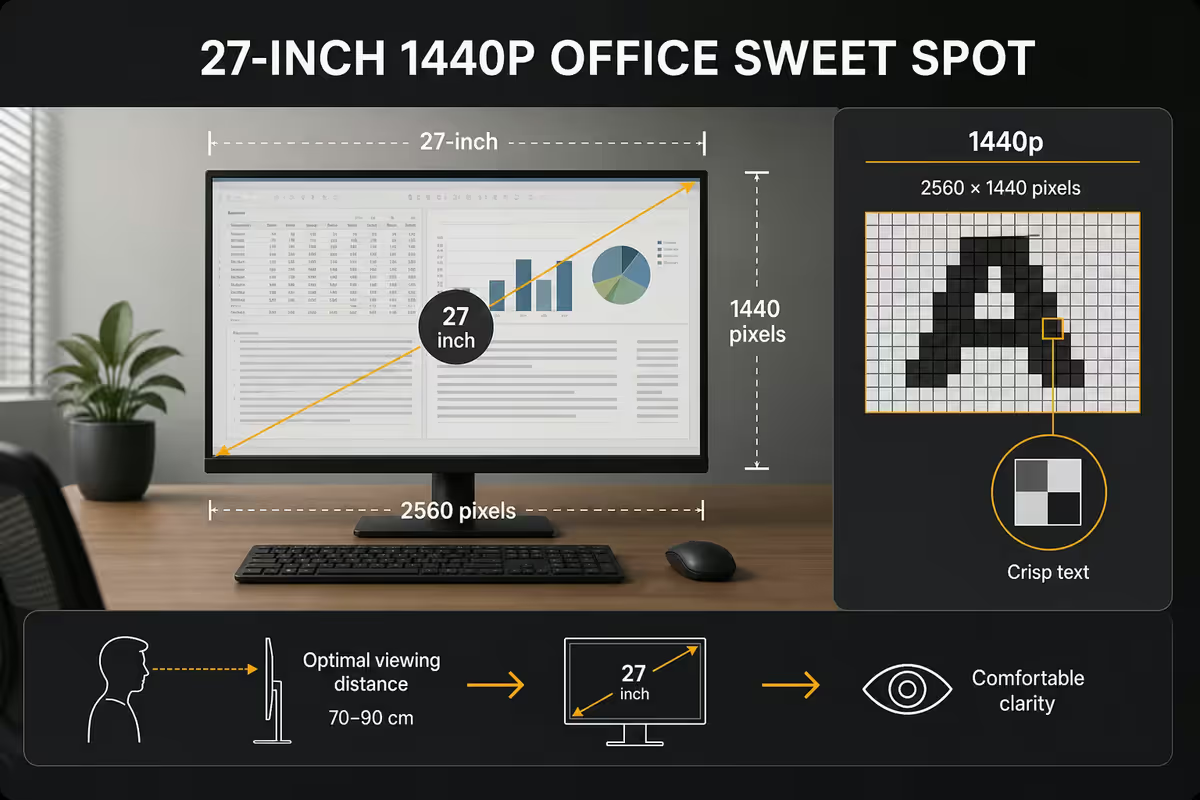
For office work in 2026, 27 inch with 2560×1440 resolution (1440p, also called QHD) is the right answer for the largest single bucket of users. Here's why each variable lands where it does.
27 inch is the size where you can comfortably display two A4-width documents side-by-side without squinting, but it's still small enough to fit on a typical desk and not require head-swivelling to read the corners. 24 inch is too cramped for modern split-screen workflows; 32 inch makes the edges feel far away unless you sit further back than most desks allow.
1440p on 27 inch gives roughly 109 pixels per inch — sharp text, smooth lines, no scaling weirdness in Windows, ChromeOS or macOS. 4K (3840×2160) on 27 inch is technically sharper but pushes Windows into display scaling territory (typically 150% scaling), which still causes layout issues in a small number of legacy desktop apps. 1080p on 27 inch is grainy enough that text edges look pixellated — it's the wrong combination in 2026 and not worth saving R500 for.
| Size + resolution | Pixel density | Office verdict |
|---|---|---|
| 24" 1080p | 92 ppi | Grainy text. Too small. |
| 27" 1080p | 82 ppi | Avoid — visibly pixellated |
| 27" 1440p | 109 ppi | Sweet spot — sharp, spacious |
| 27" 4K | 163 ppi | Premium. Needs Windows scaling. |
| 32" 1440p | 92 ppi | Spacious but text looks soft |
| 32" 4K | 138 ppi | Best big-screen office choice |
| 34" 21:9 ultrawide (3440×1440) | 110 ppi | Replaces dual monitors |
IPS is the only sensible panel for office work
There are three current LCD panel technologies. For office work the choice is straightforward.
IPS (in-plane switching) is the right answer. Best viewing angles — text stays readable even from the side, which matters when someone leans over to look at your screen. Most colour-accurate, which matters for any visual work including reviewing photos in an email, looking at a Figma file shared by a colleague, or any kind of design or research work. Consistent backlight uniformity, which is the unsung property that makes long days of reading documents feel less tiring.
VA (vertical alignment) panels offer deeper blacks and higher contrast — great for media, less great for documents. Text rendering on VA can feel slightly softer than IPS, especially on smaller fonts. Acceptable but not optimal for office work.
TN (twisted nematic) panels are fast and cheap. Terrible viewing angles. Colours shift visibly when you tilt your head. Avoid for any office monitor in 2026.
OLED is becoming available in 27 inch office sizes (LG, Samsung in late 2025/2026) but text-clarity concerns with sub-pixel rendering on Windows mean OLED isn't yet the right choice for an office monitor specifically. For media and gaming yes; for an 8-hour spreadsheet day not quite.
Why 100Hz refresh matters even for office work
"You don't need high refresh rate for office work" is one of those received-wisdom truths that's only half-true. Yes, you don't need 240Hz to write emails. But the jump from 60Hz to 100Hz is genuinely felt in office workflows in two specific ways.
First, scrolling smoothness. A long Word document, a Confluence page, a Slack conversation — these all scroll past your eyes hundreds of times a day. At 60Hz the scrolling motion is staccato; at 100Hz it's noticeably smoother and your eyes track it with less fatigue. After a week on 100Hz, going back to 60Hz feels jerky.
Second, cursor and window movement. Dragging windows around the desktop, moving the mouse cursor across the screen, opening and closing modal dialogs — all of these look and feel more responsive at higher refresh rates. The cumulative effect is less subliminal eye strain over an 8-hour workday.
The diminishing returns kick in fast. 100Hz vs 144Hz is barely noticeable for office work. 144Hz vs 240Hz is invisible unless you're gaming. Aim for 100Hz minimum on a new office monitor purchase in 2026 — it's now standard at the R6,500+ tier and adds maybe R400 to the price at the R3,500 tier.
USB-C 90W power delivery — the WFH game-changer
If your work setup involves a laptop that you dock at a desk during the day and undock when you go to a meeting (or home), a USB-C monitor with 90W Power Delivery transforms your daily life. One cable from the monitor to your laptop carries: video signal, USB peripherals (keyboard, mouse, webcam through the monitor's USB hub), ethernet if the monitor has a built-in port, audio to monitor speakers, and 90W of charge to keep the laptop topped up.
You plug in one cable. You unplug one cable. No more separate HDMI plus USB-A plus power brick plus ethernet shuffle every time you sit down. The productivity gain — measured in saved seconds and avoided cable jams — accumulates into hours per month.
What to check before buying:
- USB-C with DisplayPort Alt Mode — not all USB-C ports carry video. Look for "USB-C (DP Alt Mode)" in specs.
- 90W or higher PD — covers most current MacBook Pro 14" and Windows ultrabooks. 65W is fine for MacBook Air and lighter laptops. 100W is needed for MacBook Pro 16" or workstation laptops.
- Built-in USB hub — at least 2 USB-A downstream, ideally one USB-C and ethernet too.
- Use the right cable — a high-quality USB-C cable rated for the wattage and video. Some monitors ship with a bad cable; replace it with a properly-rated one if you have docking issues.
KVM switches — for the two-laptop life
If you work across two computers — a work laptop and a personal one, or two work laptops for different clients — a KVM (keyboard, video, mouse) switch lets you share a single monitor, keyboard and mouse between them with one button press.
Many premium monitors in 2026 have a built-in KVM: plug both laptops into the monitor via USB-C and HDMI, plug the keyboard and mouse into the monitor's USB hub, and the monitor's input button cycles between the two computers, automatically switching the peripherals too. No separate KVM box needed. Brands worth looking for: Dell U-series, BenQ EW/PD, LG UltraFine, Eve Spectrum.
If you're using a non-KVM monitor, a standalone KVM box (IOGEAR, Aten, Sabrent) runs R1,200-R3,500 in SA depending on resolution support. Worth it if you genuinely work across two machines daily. Skip if you only occasionally connect a second laptop — just plug it in directly when you need it.
Aspect ratio — 16:9 vs 16:10 vs 21:9
Most monitors are 16:9 (1920×1080, 2560×1440, 3840×2160). It's the standard, it matches your laptop's screen, and it's what every UI is designed around. Pick this unless you have a specific reason not to.
16:10 monitors (1920×1200, 2560×1600) are slightly taller — better for documents, code, long emails. They're rare in 2026 but a small group of premium monitors (Apple Studio Display, BenQ PD3220U, Dell UP3221Q) offer 16:10. Worth seeking out if your work is text-heavy.
21:9 ultrawide (3440×1440 on a 34 inch panel) replaces dual monitors with one continuous canvas. Excellent for: financial spreadsheets that scroll horizontally, video editing timelines, software development with code + terminal + browser side by side, and online meetings (Zoom on the left, reference docs on the right). Less ideal for: small desks (34 inch ultrawide takes 80 cm of desk width), media consumption (films get black bars), and anyone who prefers separate windows on separate screens.
Don't buy ultrawide as your first office monitor without seeing one. The form factor takes adjustment and isn't right for everyone. If you do go ultrawide, get 3440×1440 or higher — 2560×1080 ultrawides have poor pixel density and look soft.
SA price tiers — what you actually get
R3,000 budget tier
At this price you're getting a 24 inch 1080p IPS panel with a basic fixed stand (tilt only, no height adjustment), one HDMI input and possibly DisplayPort. 60-75Hz refresh. Adequate for a part-time WFH setup, a kid's homework desk, or a temporary monitor while you wait for the right one. Examples: AOC 24B2XH, Samsung S31C, Acer V247Y.
R6,500 mid-tier (the sweet spot)
At this tier you get the 27 inch 1440p IPS sweet spot, height-adjustable stand (130 mm range), tilt + swivel + sometimes pivot, 100Hz refresh, HDMI + DisplayPort + USB-C (sometimes with 65W PD), and a small USB hub. This is the right purchase for the majority of WFH setups. Examples: Dell P2725HE, BenQ GW2790QT, AOC Q27V5N, Samsung ViewFinity S6.
R12,000+ prosumer tier
At this tier you start seeing 27 inch 4K, 32 inch 4K, premium colour calibration (ΔE<2 out of the box for design work), USB-C with 90W or 100W PD, built-in KVM, daisy-chain ports (DP-out for connecting a second monitor without a second cable to the laptop), eye-care certification (TÜV Eyesafe). Examples: Dell U2723QE, LG UltraFine 32UN880, BenQ PD2725U, Samsung ViewFinity S9.
| SA tier | What you get | Best for |
|---|---|---|
| R3,000 | 24" 1080p IPS, fixed stand | Temporary, kids, part-time WFH |
| R6,500 | 27" 1440p IPS, height adj., 100Hz, USB-C 65W | Full-time WFH sweet spot |
| R9,500 | 27" 1440p USB-C 90W, KVM, ergonomic stand | Two-laptop WFH |
| R12,000+ | 27"/32" 4K, colour calibrated, 100W PD, KVM | Designers, video, prosumer |
| R18,000+ | 34" 21:9 ultrawide, premium IPS, KVM, ergonomic | Spreadsheet/dev power users |
Key takeaways
- 27 inch, 1440p, IPS, 100Hz, height-adjustable — the office monitor spec sweet spot in 2026.
- Ergonomics first. The stand matters more than the panel. VESA mount + third-party arm if the original stand is weak.
- USB-C 90W power delivery is the WFH game-changer — one cable docking transforms daily life.
- SA price tiers: R3k budget, R6.5k mid-tier sweet spot, R12k+ prosumer with KVM and dock.
- Skip ultrawide and curved as a first office monitor. Skip TN panels entirely. OLED isn't quite there for office text yet.
Frequently asked questions
What size monitor is best for office work?
27 inch is the sweet spot for office work in 2026. Large enough to comfortably fit two documents side-by-side without squinting, small enough that you don't have to swivel your head to read the corners. 32 inch becomes useful only at 4K resolution for spreadsheet-heavy work; 24 inch is too cramped for most modern workflows.What resolution should an office monitor be?
1440p (2560×1440) on a 27 inch panel is the productivity sweet spot — sharp text without scaling weirdness, plenty of screen real estate, fits any laptop GPU. 4K (3840×2160) on 27 inch requires display scaling that introduces edge cases in some Windows apps; 4K on 32 inch is excellent if budget allows. 1080p on 27 inch makes text grainy and isn't worth buying in 2026.Do I need an IPS panel for office work?
Yes. IPS panels offer the best viewing angles (text stays readable from the side), the most colour-accurate image (matters for any visual work), and the most consistent backlight uniformity (matters for documents). VA panels have deeper blacks but poorer text rendering. TN panels are fast but have terrible viewing angles. For office work, IPS is the only sensible choice.Why is 100Hz refresh rate useful even for office work?
Higher refresh rates reduce eye strain over an 8-hour workday by making scrolling, cursor movement and window dragging visibly smoother. The difference between 60Hz and 100Hz feels significant after a week; the difference between 100Hz and 144Hz is small for office work. Any modern productivity monitor should be 75Hz minimum, 100Hz preferred.What is USB-C 90W power delivery and why does it matter?
A monitor with USB-C 90W (or higher) Power Delivery can connect to a modern laptop via a single USB-C cable and carry video, USB peripherals, ethernet (if the monitor has a hub) AND charge the laptop simultaneously. Replaces three or four cables with one. Critical for any WFH setup where you dock and undock a laptop daily.What aspect ratio should I choose — 16:9 vs 16:10 vs 21:9?
16:9 (1920×1080, 2560×1440) is the standard and what 90% of monitors are. 16:10 (1920×1200, 2560×1600) is taller — better for documents and code, increasingly rare. 21:9 ultrawide (3440×1440) replaces dual monitors with one curved panel — excellent for spreadsheets, video calls plus reference docs, and developers. Choose ultrawide only if your desk is wide enough and you actually want one connected screen.Should I get a curved monitor for office work?
Curved is only worth paying for at 32 inch and above, or on 21:9 ultrawide panels. On 27 inch flat is fine and arguably better for text rendering. A 32 inch 4K curved monitor at a 1500R curvature is excellent for spreadsheet work. A 24 inch curved monitor is a waste — the curve is too gentle to matter.What is a KVM switch and do I need one?
A KVM (keyboard, video, mouse) switch lets you share one monitor, keyboard and mouse between two computers (typically a work laptop and a personal desktop or second work laptop). Many premium monitors now have a built-in KVM that switches via the monitor's input button. Useful if you work across two machines daily — a productivity multiplier.
Get the Evetech app
Exclusive app-only prices, daily flash sales, and free delivery on orders over R4,000 — download the app and start saving.