Monitor Hardware Explainer
What is monitor overdrive.
That OSD slider labelled Trace Free, AMA or just Response Time isn't cosmetic. It's a voltage boost that physically forces sluggish liquid crystals to switch states faster — and ruins motion the moment you crank it too far.
- typical OSD
- 3 levels
- OLED native
- ~0.1ms
- safe default
- Middle
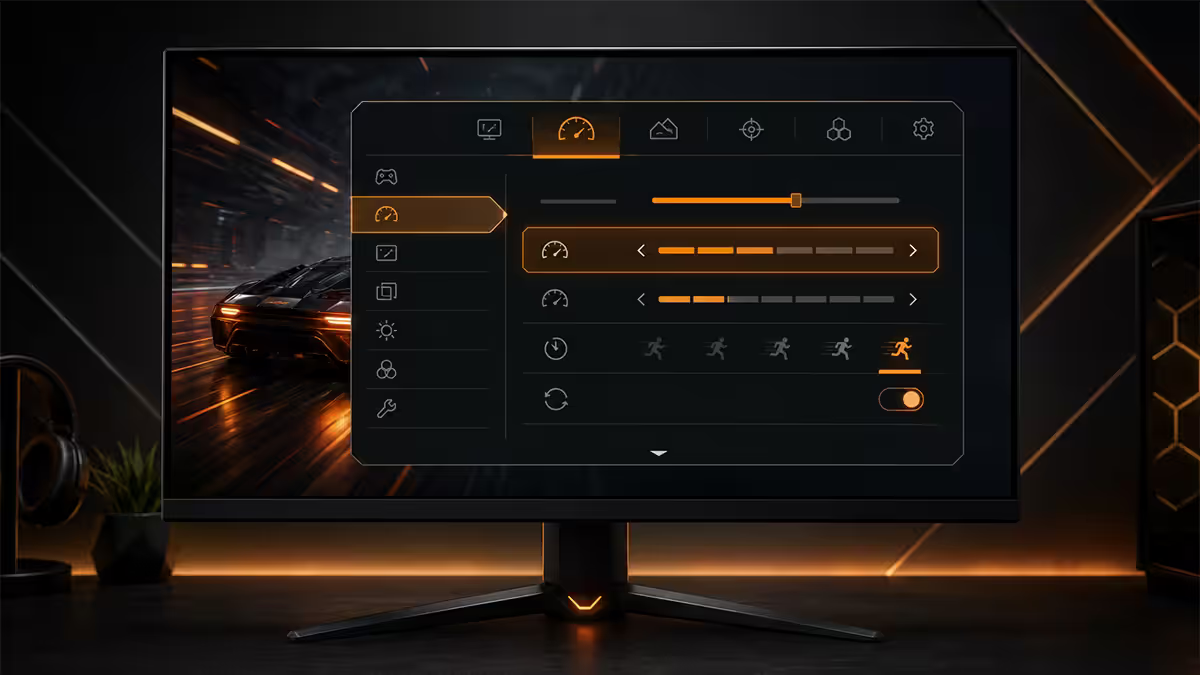
What overdrive actually is
An LCD pixel is a liquid crystal cell that physically rotates to let more or less backlight through. Rotation takes time — for VA panels, naturally 8-15ms; for IPS, 3-8ms; for TN, 1-4ms. At 240Hz a frame lasts 4.16ms, so most LCD pixels can't fully finish their colour change before the next frame demands a new one.
Overdrive solves this by briefly applying more voltage than the target colour actually requires. The extra voltage accelerates the liquid crystal rotation. Once the pixel reaches the target colour, voltage drops back to normal. It's the LCD equivalent of slamming the accelerator to launch a car, then easing off the moment you hit the right speed.
This is done invisibly by the monitor's scaler / TCON chip using a lookup table: for every from-colour to to-colour transition, it knows how much extra voltage to apply for how many microseconds. Manufacturers tune these tables per panel. The OSD overdrive slider tells the TCON which lookup table to use — Conservative, Aggressive or somewhere in between.
The trade — ghosting vs inverse ghosting
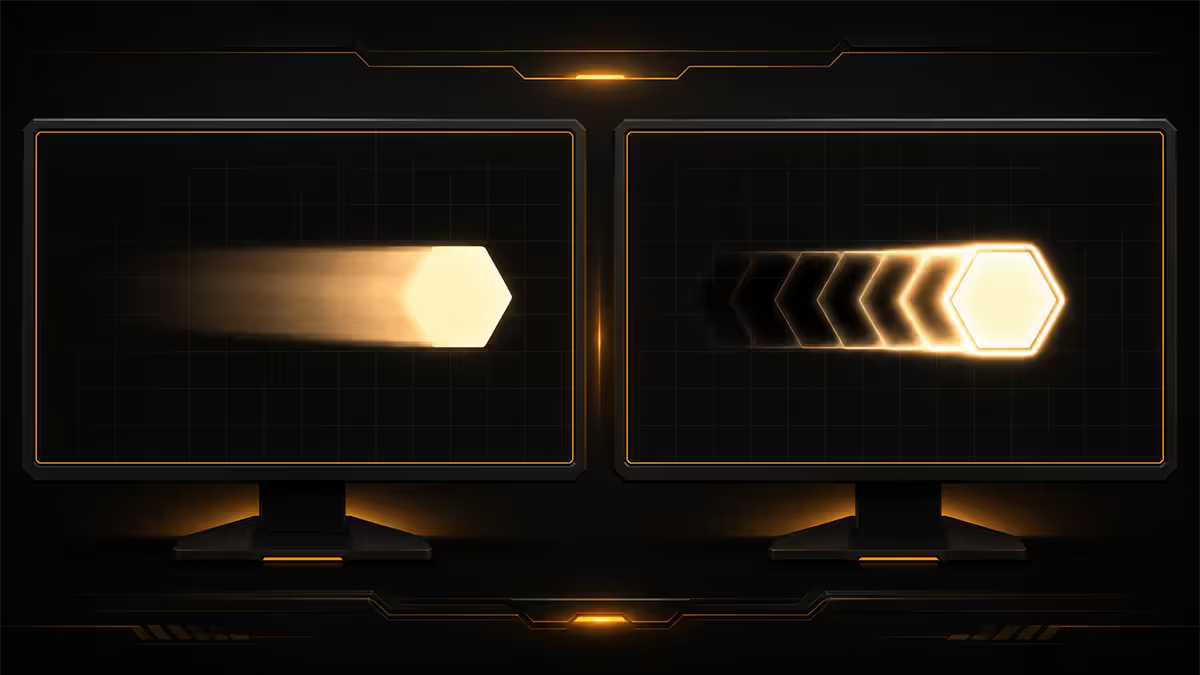
Overdrive creates two competing artefacts. Too little overdrive and pixels don't finish their colour transition before the next frame. You see a dark trail behind moving objects — classic ghosting. Too much overdrive and pixels overshoot their target colour entirely. You see a bright halo or corona behind moving objects — inverse ghosting.
Of the two, inverse ghosting is usually more visually distracting. A faint dark ghost is easy to ignore; a bright bloom or corona behind every moving element is impossible to unsee once you've noticed it. This is why manufacturers usually leave the default overdrive setting conservative — they'd rather you see mild ghosting than constant overshoot.
| Artefact | Caused by | Looks like |
|---|---|---|
| Ghosting (smearing) | Overdrive too low / off | Dark trail behind moving object |
| Inverse ghosting (overshoot) | Overdrive too high | Bright halo / corona behind motion |
| Clean transition | Correct overdrive level | Minor faint trail, no halo |
The OSD levels — what each does
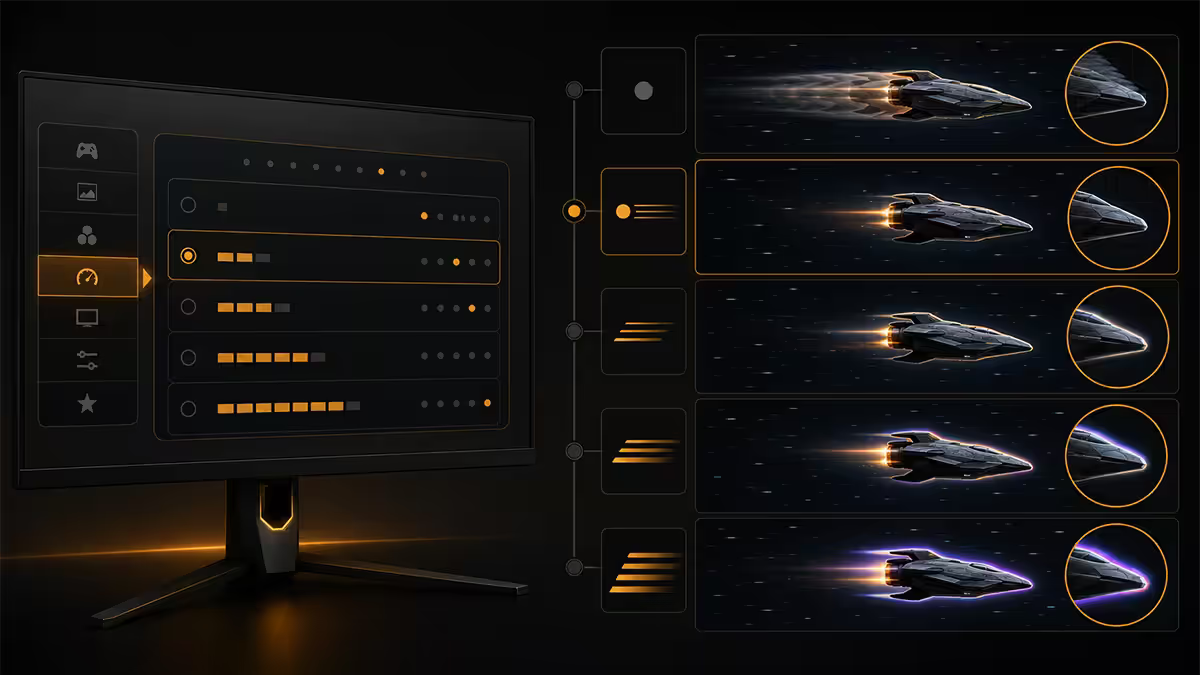
Most monitors offer three or four overdrive presets. The naming varies but the underlying behaviour is consistent:
- Off / None. No voltage boost. Pixels move at native panel speed. VA panels look smeary; IPS looks acceptable but slow at high refresh; TN already fast enough to be usable.
- Normal / Standard / Level 1-2. Conservative boost. The intended default. Cuts most visible ghosting without overshoot artefacts. Correct for ~80% of IPS gaming monitors.
- Fast / Faster / Level 3. Aggressive boost. Sharper pixel response at the cost of mild overshoot. Useful for VA panels where Normal is still too slow. On many IPS panels this introduces visible coronas.
- Extreme / Fastest / Level 4-5. Maximum boost. Almost always produces severe inverse ghosting. Marketing setting — measured well in synthetic tests, looks terrible in motion. Avoid unless your panel is exceptional.
A useful rule of thumb: the second-from-top setting is what manufacturers actually wish you'd use. The top setting exists for the spec sheet and benchmark screenshots.
Why each brand calls it something different
There is no industry standard for what to call overdrive. Every monitor maker has its own marketing term, often unrelated to what its competitor uses for the same feature:
| Brand | OSD label | Scale |
|---|---|---|
| ASUS / ROG | Trace Free | 0-100, recommended 60 |
| MSI | Response Time | Normal / Fast / Fastest |
| LG / UltraGear | Response Time | Off / Fast / Faster |
| Samsung Odyssey | Response Time | Standard / Faster / Fastest |
| BenQ / Zowie | AMA (Advanced Motion Accelerator) | Off / High / Premium |
| Gigabyte / AORUS | Overdrive | Off / Balance / Speed / Picture Quality |
| Acer / Predator | Over Drive | Off / Normal / Extreme |
| Dell / Alienware | Response Time | Fast / Super Fast / Extreme |
Same mechanism, eight different vocabularies. The takeaway: don't try to compare overdrive settings across brands by name — compare by behaviour. The middle option in any list is the safest default.
OLED has no overdrive — and doesn't need it
If you're shopping for monitors in 2026 and seeing OLED options (LG 27GS95QE, ASUS PG27UCDM, MSI MPG 271QRX), here's the part that matters: OLED panels have no overdrive setting. There's nothing in the OSD to adjust because the technology doesn't need it.
Each OLED pixel is a self-emissive organic diode. Switching states (on / off / colour change) takes 0.03 to 0.1 milliseconds — effectively instant compared to LCD. There's no liquid crystal to rotate, no voltage boost to engineer, no inverse ghosting to worry about. The pixel response is the same regardless of which colours it's transitioning between.
This is why OLED motion clarity is in a different league — and why "0.03ms response time" is a real spec, not marketing fluff. It also means you don't need to read Rtings overdrive verdicts on OLED reviews; there's nothing to tune.
Reading Rtings overdrive verdicts
Rtings.com publishes the most rigorous overdrive analysis available — better than any manufacturer claim. Every monitor review includes a Response Time at Max Refresh Rate chart and a recommended overdrive setting. Here's how to read it:
- Recommended OD setting. The single most useful number. They test every overdrive level and pick the one minimising overshoot while still cutting ghosting. Set your OSD to that. Done.
- CMA (Cumulative Moving Average). Average response time across all measured transitions. Lower is better, but only useful in context with overshoot.
- Overshoot percentage. How far past target colour pixels overshoot. Above ~12% means visible inverse ghosting.
- Pursuit camera photos. The end-of-review motion photos showing what your eye actually sees during motion. The clearest visual proof of which overdrive setting works.
If you can't find a Rtings review: hardware-monitor reviewers like Hardware Unboxed, Monitors Unboxed and TFT Central publish the same analysis. The "recommended overdrive" verdict is the line you actually need.
Roughly <strong>one in four monitor warranty enquiries</strong> we handle starts with the customer reporting "ghosting" — and on most of those, the panel is fine and the customer simply has overdrive set wrong. The default out-of-box mode is often the conservative one and people crank it to Extreme thinking "more = better motion." We talk them down to Normal / Fast (middle setting), the bright coronas vanish, and the unit ships back to them perfectly happy. The setting that looks the best is almost never the one labelled "Fastest" on the box.
Evetech Hardware Team — From our service bench
When to enable overdrive vs leave it off
Enable overdrive (middle setting) on:
- Any IPS or VA gaming monitor — the default Normal / Standard is correct.
- Any monitor where you regularly run within ~30% of the maximum refresh rate.
- Anywhere you see visible smearing or ghost trails during normal use.
Turn overdrive off (or down to lowest) on:
- Monitors with no variable overdrive when you run far below max refresh (60fps on a 240Hz panel often shows worse overshoot).
- Colour-critical work where any artefact ruins the workflow (rare — most overdrive overshoot only shows during motion anyway).
- Anywhere you see bright coronas, halos or "reverse ghosts" with overdrive on. Drop one level and re-test.
Don't bother touching overdrive on OLED. There's no setting to adjust.
Key takeaways
- Overdrive is a voltage boost that forces LCD pixels to switch states faster than their native response.
- Too low = dark ghost trails; too high = bright inverse-ghost coronas. Middle setting is the safe default.
- Brand labels vary (Trace Free, AMA, Response Time) — pick the second-from-top option on any scale.
- OLED has no overdrive — pixels switch in ~0.1ms natively. Nothing to adjust.
- Rtings publishes the recommended overdrive setting for every monitor — trust their verdict over the box claim.
Frequently asked questions
What is monitor overdrive?
A voltage boost applied by the monitor's TCON to make LCD pixels switch colours faster than their native response time. It reduces ghosting but can introduce overshoot artefacts when set too high.What is inverse ghosting?
A bright trail or halo behind moving objects caused by pixels overshooting their target colour. It only appears when overdrive is set too aggressively. More distracting than normal ghosting.What overdrive level should I use?
The middle setting on most monitors — labelled Normal, Standard, Fast or level 60. VA panels often need one notch higher. Check Rtings for the panel-specific recommendation.Why do monitor makers use different names for overdrive?
No industry standard exists. ASUS uses Trace Free, MSI uses Response Time, BenQ uses AMA, Gigabyte uses Aim Stabilizer. Same mechanism, different vocabularies.Does OLED have overdrive?
No. OLED pixels are self-emissive and switch states in 0.03-0.1ms natively. There's nothing to accelerate. No overdrive setting exists in OLED monitor OSDs.Does overdrive work at all refresh rates?
Fixed overdrive is tuned for max refresh and can overshoot at lower rates. Monitors with variable overdrive (G-Sync Compatible / Adaptive Sync) adjust the boost dynamically. Without it, fixed settings can look worse at 60Hz than at 240Hz.How do I read Rtings overdrive verdicts?
Look for the Recommended OD Setting line. They test every level and pick the one with the lowest overshoot. Use that. The pursuit camera photos visually confirm the choice.When should I turn overdrive off completely?
When you see persistent inverse ghosting at the lowest enabled level, when running far below max refresh on a panel without variable overdrive, or for colour-critical work where any motion artefact is unacceptable.
Get the Evetech app
Exclusive app-only prices, daily flash sales, and free delivery on orders over R4,000 — download the app and start saving.