Troubleshooting · No Signal diagnostic
No display? Fix it, in five steps. — Cable. Port. GPU. RAM. Board.
PC powers on, fans spin, but the monitor stays black. Eight times out of ten it's a cable in the wrong port or a GPU that nudged loose during transit. Here's the decision tree we use on our service bench.
- cable/port mistakes
- ~70%
- full diagnostic tree
- 5 steps
- typical fix time
- 10 min
Step 1 — Cable and port check
Sixty per cent of "my PC won't display" tickets we see start and end at this step. The fix takes thirty seconds and almost no one tries it first.
The mistake: plugging the monitor's HDMI or DisplayPort cable into the motherboard's video output (the top group of ports on the rear of the case) instead of the GPU (the bottom group, near where the graphics card sticks out of the rear). The motherboard ports only work if your CPU has integrated graphics and your BIOS is configured to enable the iGPU output. By default, when a discrete GPU is installed, the motherboard ports are inactive.
For a brand-new build that's never displayed, this is the most common mistake by an order of magnitude. For an existing build that was working yesterday and now isn't, it's still worth a 5-second visual check — desk shuffles and cable-tug accidents happen.
While you're checking, also verify:
- HDMI version matches — a cheap 1.4 HDMI cable won't deliver 4K 144 Hz. For high-refresh gaming, use DisplayPort 1.4 (or HDMI 2.1 for 4K 120 Hz+).
- Both cable ends fully seated. HDMI in particular works loose with thermal cycling and shelf-shake.
- The cable itself is not dead. Swap with a known-good cable if one is around. This is shockingly common with budget HDMI cables that lasted 18 months and quietly failed.
Step 2 — Monitor input source
Most monitors do not auto-switch reliably between input sources. A monitor with HDMI 1, HDMI 2 and DisplayPort inputs will sit on whatever source it was last using — which is often HDMI 1 even if your PC is connected to DisplayPort.
The fix: use the monitor's physical input button or OSD (on-screen display) menu to cycle through sources until you find the live one. Most monitors have this on the rear-right or under the bezel as a joystick or button cluster.
Worth also checking:
- Monitor power cable. Sometimes the monitor itself isn't on. The power LED should be steady (PC connected and signal received) or breathing/blinking (waiting for signal).
- Monitor connected to a powered USB hub. Some monitors require their own power, not USB hub power, to drive the panel — disconnect and reconnect direct to mains.
- Display has a USB-C / DP Alt mode primary input. If your monitor accepts USB-C input, the source selector might be on USB-C by default even though you cabled HDMI.
Step 3 — Reseat the GPU
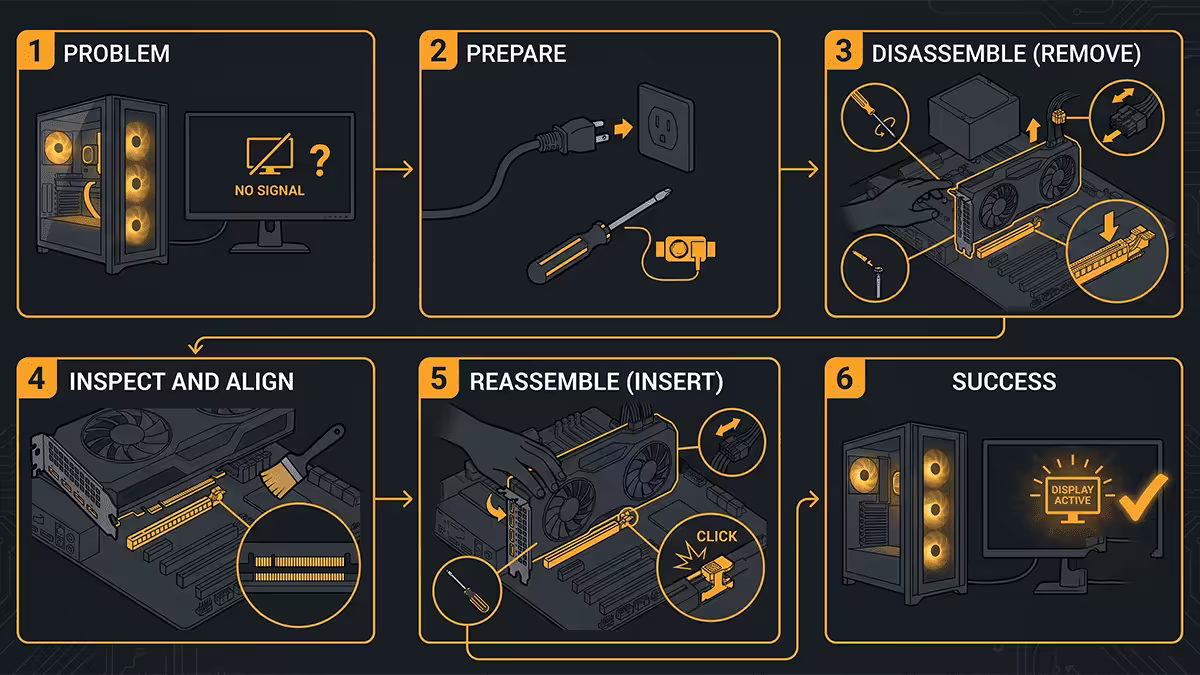
GPUs travel poorly. The full weight of a 4070 or 4080 hangs off a single PCIe slot retention clip, and the long lever of the card creates enough leverage during shipping or desk-moves to nudge the contacts free. We see this constantly on builds shipped countrywide — the customer powers on, no display.
Reseat procedure
- 1
Power off and unplug
Power off and unplug the PC from the wall. Press and hold the power button for 10 seconds to drain residual capacitor charge. - 2
Lay the case on its side
Lay the case on its side. This stops gravity working against you when removing the GPU. - 3
Unscrew the backplate
Unscrew the two backplate screws holding the GPU bracket to the case. - 4
Disconnect PCIe power cables
Disconnect any PCIe power cables from the GPU (8-pin, 12VHPWR for high-end NVIDIA cards). - 5
Press the retention clip and remove GPU
Press the PCIe slot retention clip down (rear of the slot, usually black or white plastic). Lift the GPU out gently and evenly. - 6
Inspect the contacts
Inspect the gold contact fingers. If dirty, wipe gently with 99% isopropyl alcohol on a microfibre cloth. - 7
Reinsert GPU
Reinsert vertically, pressing evenly along the top edge of the card. The retention clip should snap back up audibly. If it doesn't, the GPU isn't fully seated. - 8
Reattach power and power up
Reattach power cables — these must click. Reinstall the bracket screws. Power up.
Step 4 — RAM and the POST sequence
If the cable and port are correct and the GPU is fully seated and you still have no display, the next suspect is RAM. RAM that has worked loose, or RAM in the wrong slots, or RAM that lost its memory training, can all cause the BIOS to fail POST silently. The PC powers on, fans spin, no beep, no display.
Single-stick test
Power off and unplug. Remove all RAM sticks except one. Place the remaining stick in slot A2 (the second slot from the CPU — most boards label it; if not, count slots and use the second of four). Power up. If display returns, you have a RAM problem — add sticks one at a time to find the failed module or the slot that won't take a second stick.
If display still doesn't return with one stick in A2, try the same stick in B2 (the fourth slot from the CPU). Some boards prefer slightly different "preferred dual-channel" pairs. The B650 Tomahawk wants A2/B2; some Z790 boards prefer A2/B2 as well. Check your manual or the small labels on the slot.
Memory training reset
AM5 boards do a full memory training cycle on first boot with new RAM or after BIOS update — this takes 30-90 seconds with the fans spinning and no display. If this is a new build or first boot after RAM upgrade, wait at least 2 minutes before assuming POST failure.
Step 5 — Read the beep codes or Q-LED
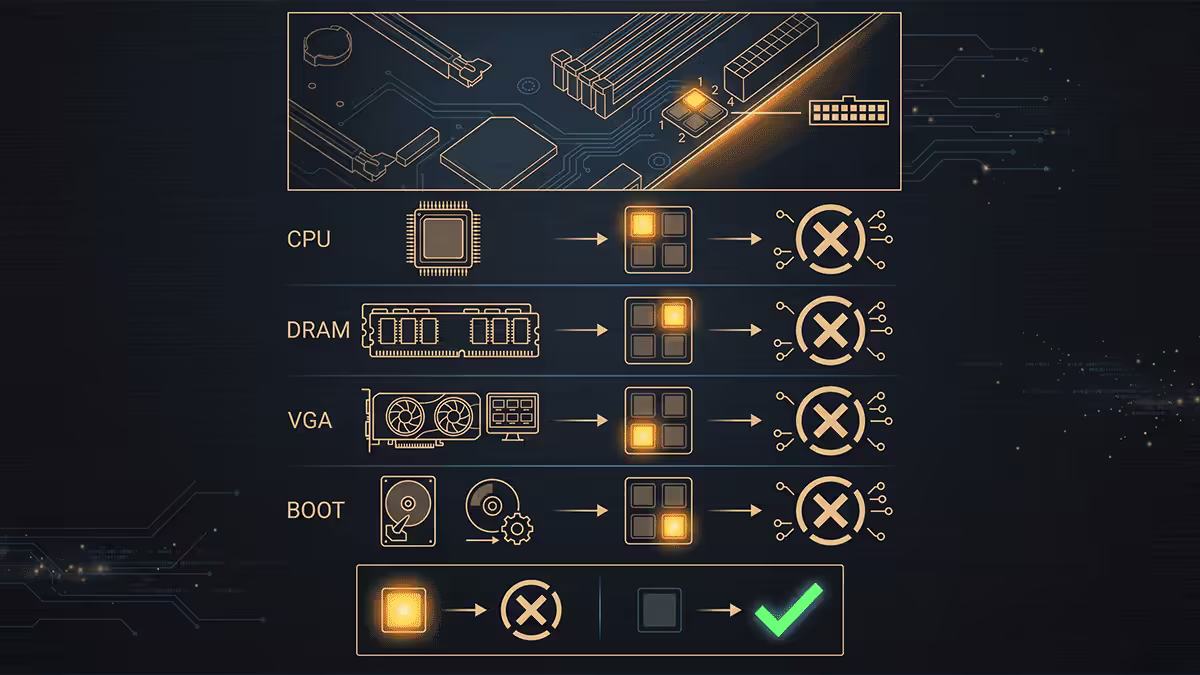
Every motherboard tries to tell you what's wrong. Most do it through Q-LED indicators these days; older boards used a small speaker that played beep code patterns.
Q-LED indicators
Look at the motherboard near the rear I/O for four small LEDs labelled CPU, DRAM, VGA, BOOT (sometimes BOOT is labelled "GPU" or "BOOT_DEV"). During boot, each lights up briefly. Whichever LED stays lit when POST stalls is the failed component:
- CPU LED stays lit: CPU not detected, CPU power cable (EPS) not connected, or CPU is unsupported by current BIOS. Update BIOS via Flashback or check the EPS 8-pin cable next to the CPU socket.
- DRAM LED stays lit: RAM not detected, wrong slot, or training failure. Reseat and try one stick in A2.
- VGA LED stays lit: GPU not detected. Reseat GPU; check PCIe power cables; try the iGPU output if your CPU supports it.
- BOOT LED stays lit: POST completed but boot drive not detected. SSD/NVMe issue, not display issue. (You'd actually see display in this case.)
Beep codes (older boards / with installed speaker)
If your board has a piezo speaker (often included in the accessory bag — typically you need to plug it into the front panel header), beep code interpretation:
- 1 long + 2 short: Video card issue. Reseat GPU.
- 1 long + 3 short: Video memory issue. GPU likely failing.
- Continuous beeps: RAM not detected. Reseat.
- 1 short followed by display: Normal POST. Everything fine, you missed the boot.
Step 6 — Fans spin but no display
A specific failure mode worth its own section: the PC powers on, all fans spin (CPU, GPU, case), but the monitor shows nothing and there's no POST beep or Q-LED activity. This is the most common stuck-state we see.
The most likely culprits in order:
- EPS 8-pin (CPU power) not connected. Look near the top-left of the board for the 8-pin or 4+4 connector. If unplugged, fans spin (24-pin powers them) but the CPU never receives power. Plug it in.
- GPU not fully seated. See step 3.
- RAM not seated correctly. See step 4.
- BIOS hung due to bad settings. Clear CMOS — remove the silver coin battery for 60 seconds, then reinstall.
- CPU unsupported by current BIOS. A new Ryzen 9000 chip on an unflashed B650 board needs BIOS Flashback first. This is a known buyer trap.
Step 7 — When the GPU or motherboard is actually dead
You've checked the cable, the port, the monitor input, you've reseated the GPU and the RAM, you've cleared CMOS, you've tried the iGPU output if available, and Q-LED still tells you VGA or CPU is failing. At this point you need a known-good swap test.
Diagnosing a dead GPU
If the iGPU output works (using the motherboard HDMI/DP) and the discrete GPU output doesn't, your GPU is the suspect. Swap the GPU into a known-working PC, or bring it to a service centre. Don't continue swapping cables and ports — that's confirmed at this point.
If your CPU does not have an iGPU (e.g. Ryzen 9 7900X3D in some configurations, or any "F" suffix Intel like Core i7-14700F), borrow another GPU to confirm the chassis works. If the borrowed GPU displays, yours is dead. If not, the chassis is the issue.
Diagnosing a dead motherboard
If no LED on the board lights at all when power is applied, even briefly, check that the PSU is delivering power — test with a paperclip jumper on the green/black wires of the 24-pin connector, or use a known-working PSU. If the PSU works and the board still does nothing, the board is likely dead. Common causes: failed CMOS battery (cheap fix, R45 SR2032), VRM failure, or BIOS chip corruption (recoverable on boards with USB BIOS Flashback).
No-display diagnostic by symptom
| Symptom | Most likely cause | First action |
|---|---|---|
| Power on, fans spin, monitor "No Signal" | Cable in motherboard not GPU | Move cable to GPU output |
| Power on, fans spin, monitor blank (no "No Signal") | Monitor input source wrong | Cycle input on monitor |
| Power on, fans spin, no POST beep, no display | RAM or GPU not seated | Reseat both |
| VGA Q-LED stays lit | GPU not detected | Reseat + check PCIe power |
| DRAM Q-LED stays lit | RAM not detected | One stick in A2 slot |
| CPU Q-LED stays lit | CPU power or unsupported chip | Check EPS + BIOS Flashback |
| Was working, suddenly not after Windows update | Display driver failure | Safe Mode, reinstall GPU drivers |
| Power button does nothing | PSU or front-panel wiring | Paperclip-test PSU |
Key takeaways
- Cable in the GPU output, not the motherboard — fixes 60% of no-display issues immediately.
- Cycle the monitor's input source. Most monitors don't auto-detect cleanly.
- Reseat the GPU with case on its side. Retention clip should snap audibly.
- One stick of RAM in slot A2 isolates a RAM or slot problem.
- Q-LED tells you which component failed POST. Read it before swapping parts.
Frequently asked questions
Why does my PC turn on but the monitor shows no signal?
The four most common causes are: the cable is plugged into the wrong port (motherboard iGPU output instead of the GPU); the GPU has worked loose during transit; the RAM has shifted and POST is failing silently; or the BIOS POST is hung. Work the diagnostic tree in this order — check ports, reseat GPU, reseat RAM one stick at a time, listen for POST beeps or check Q-LED indicators.Should I plug HDMI into the motherboard or the GPU?
Always plug into the GPU (graphics card) — the bottom group of ports when the case is upright. The motherboard ports (top of the rear I/O) only work if your CPU has integrated graphics AND your BIOS is configured to use them. The single most common no-display problem on new builds is plugging into the motherboard by mistake. Look for the GPU's three HDMI/DisplayPort outputs near the bottom of the rear of the case.My PC fans spin but there is no display. What does this mean?
Fans spinning means the PSU is delivering power, but it does not mean the CPU is running. Common causes: GPU not fully seated in PCIe slot, RAM not seated correctly in slot, CPU power cable (EPS 8-pin or 4+4) not connected, or the CPU itself has failed POST. Listen for beep codes from the motherboard or check Q-LED indicators (the small lit dots labelled CPU, DRAM, VGA, BOOT on the board) to identify which component is failing.What are POST beep codes and how do I read them?
POST (Power-On Self-Test) beep codes are short tones the motherboard plays through a speaker during boot to indicate failures. One long + two short = video issue, one long + three short = video memory issue, continuous beeping = RAM not detected. Most modern boards do not include a speaker — they use Q-LED debug lights instead. Some include a 2-digit POST code display showing hex codes (00=POST complete, 55=memory error, b0=boot device error).How do I reseat my GPU correctly?
Power off and unplug the PC. Lay the case on its side. Press the PCIe slot retention clip down (usually black or white plastic at the rear of the slot). Remove the GPU. Inspect contact gold fingers for dirt — wipe with 99% isopropyl alcohol on a microfibre cloth if needed. Reinsert until the retention clip snaps back up audibly. Reattach PCIe power cables and verify they're fully seated. Power up.How do I tell if my motherboard is dead or just the BIOS is hung?
Clear CMOS by removing the silver coin battery for 60 seconds (or pressing the Clear CMOS button on the rear I/O if present). Reinstall and boot with only one stick of RAM in slot A2 and no GPU. If the board POSTs, the issue is RAM, GPU or CPU configuration. If still nothing, test the PSU with a paperclip jumper or a known-working PSU. If the board does nothing with confirmed good PSU, CPU and RAM, it's the board.My display worked yesterday but not today. What changed?
Likely a loose connection rather than a failed component. Check: monitor cable seated at both ends (HDMI in particular works loose during desk shuffles), monitor input source selected correctly (most monitors don't auto-detect well), monitor power cable, and the GPU power cables inside the case. Recent Windows updates can also cause graphics driver issues that look like display failure — boot into Safe Mode by holding Shift while clicking Restart to verify.When should I take my PC to a service centre?
If you've worked the full diagnostic tree (cable, reseat GPU, reseat RAM single-stick, clear CMOS, try iGPU output) and there's still no display, the failed component is likely the GPU, CPU or motherboard — diagnosis requires swap-testing with known-good parts. Take the PC to a service centre. In Centurion bring it to our service bench; elsewhere in SA most reputable PC shops will diagnose for R250-R450 and credit the diagnostic fee against any repair.
Get the Evetech app
Exclusive app-only prices, daily flash sales, and free delivery on orders over R4,000 — download the app and start saving.