PC Temperature Guide
Monitor your PC temperatures. — Spot trouble before it costs you frames.
A PC that quietly thermal-throttles costs you 15-30% performance you've paid for. The fix isn't more cooling — it's noticing. MSI Afterburner running in the corner of your screen is the difference between catching the dust build-up in week three and replacing a fried CPU in year three.
- CPU target
- < 85°C
- GPU target
- < 80°C
- the standard
- Afterburner
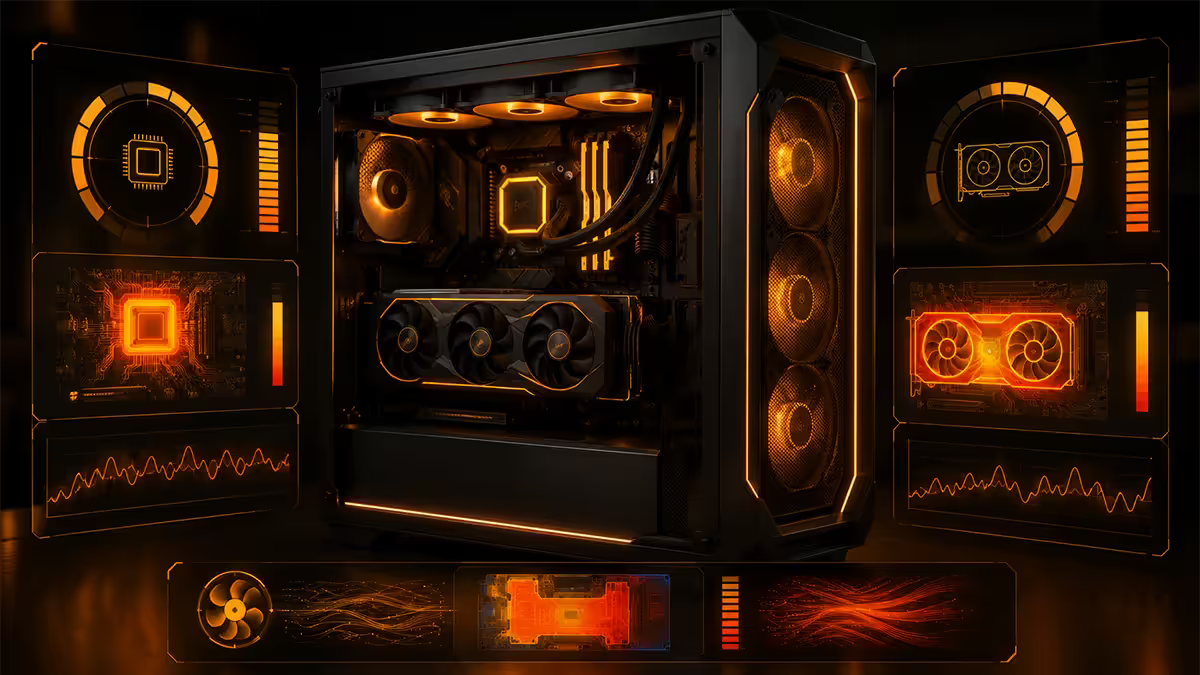
Target temperatures by component
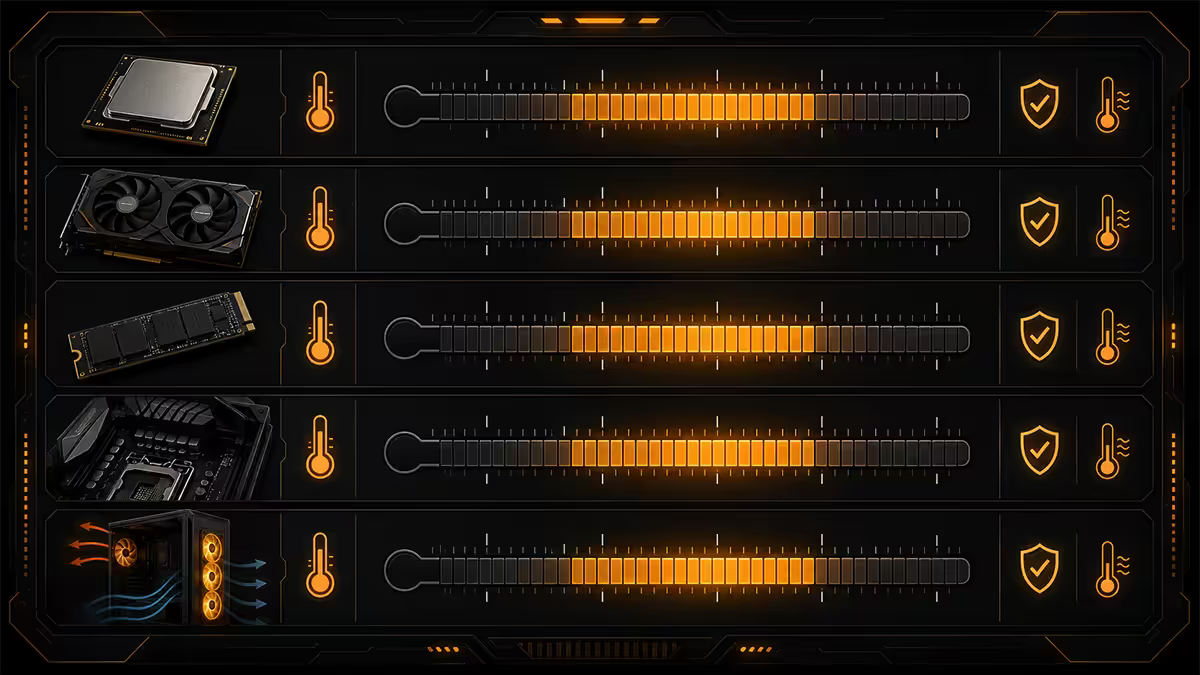
Before you measure anything, know what you're aiming for. Modern PC components have wider thermal envelopes than older hardware — Ryzen 9 and Core Ultra 9 chips are designed to push to their TJmax (95°C-100°C) under sustained load and throttle automatically rather than fail. That said, sustained operation deep in the throttle zone shortens lifespan and gives up performance.
| Component | Healthy gaming temp | Throttle / concern |
|---|---|---|
| CPU (Ryzen 7/9, Core Ultra 7/9) | 65-80°C sustained | 90°C+ sustained |
| CPU brief spikes | 85-90°C OK | Sustained > 90°C |
| GPU (RTX 40/AMD RX 7000) | 60-78°C sustained | 85°C+ sustained |
| GPU memory (VRAM) | Up to 95°C | 105°C is hot-spot junction limit |
| NVMe Gen 4 SSD | 40-65°C | 70°C+ throttles |
| NVMe Gen 5 SSD | 50-75°C (with heatsink) | 80°C+ throttles |
| Motherboard VRMs | 60-85°C | 95°C+ thermal alarm |
| Case ambient (intake air) | 28-35°C | 40°C+ means airflow problem |
Why these numbers matter: a CPU sitting at 92°C will still work — the chip protects itself by reducing clock speed. You're paying for the cooling performance but getting throttled clocks. Keeping the CPU under 85°C means the chip can run at full boost continuously, which is what you've paid for.
MSI Afterburner + RTSS — the standard setup
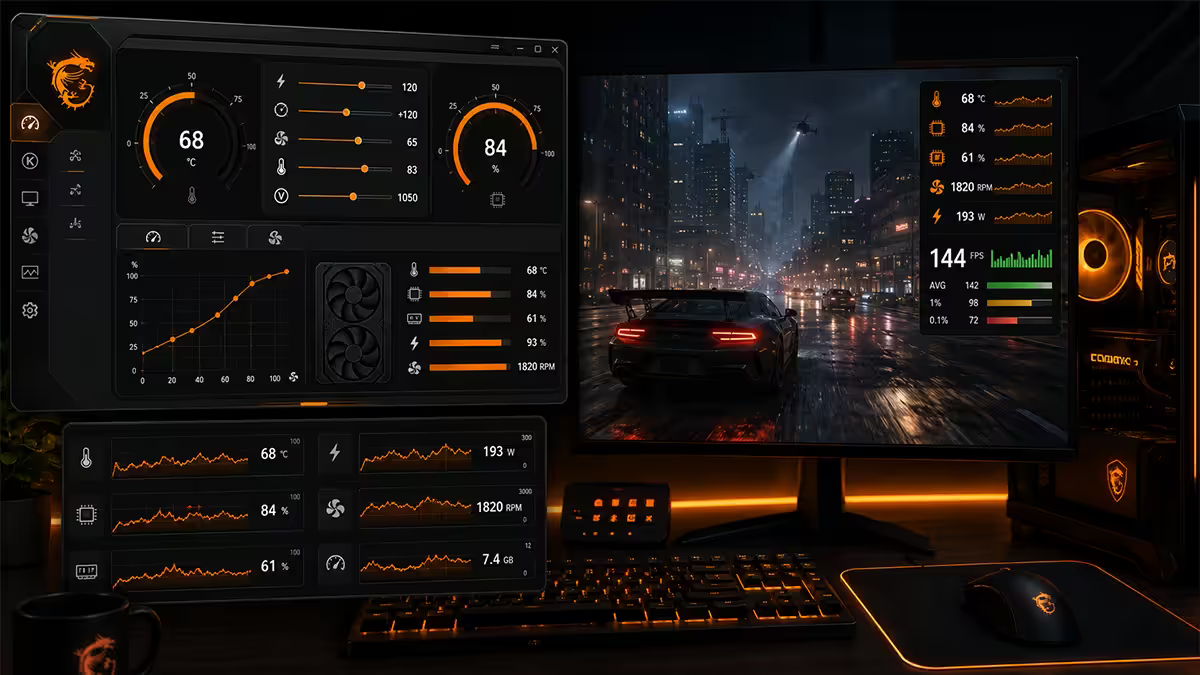
If you only install one monitoring tool, install MSI Afterburner. It bundles RivaTuner Statistics Server (RTSS) which provides the in-game overlay. It's free, lightweight, works equally well with NVIDIA and AMD GPUs despite the MSI branding, and supports every common sensor in modern PCs.
Installation:
- Download from msi.com/page/afterburner (avoid third-party download sites — they sometimes bundle adware).
- During installation, both Afterburner and RTSS are offered. Install both — they work as a pair.
- First launch: allow it to detect your GPU and read default sensor list.
Configuration for monitoring (not overclocking):
- Open Settings → Monitoring tab.
- Tick the sensors you want to see live, then tick "Show in On-Screen Display" for the same sensors.
- Recommended sensors: GPU temperature, GPU usage, GPU power, GPU clock, CPU temperature, CPU usage, RAM usage, Framerate, Frametime.
- On the On-Screen Display tab, configure a toggle hotkey (Alt+O is common).
HWiNFO64 for deep monitoring
Where MSI Afterburner gives you the common gamer-relevant sensors, HWiNFO64 reads every sensor your hardware exposes — including VRMs, individual core temperatures, chipset, all SSD temperatures, and motherboard-specific sensors that other tools miss.
When to use HWiNFO64:
- Diagnosing an overheating issue — find which component is actually the problem.
- Tuning fan curves — see VRM temps when adjusting motherboard fan headers.
- Checking secondary NVMe SSDs that don't show in Afterburner.
- Logging long sessions — HWiNFO64 has the best CSV export for after-the-fact analysis.
- Verifying you're not throttling — HWiNFO64 explicitly flags PROCHOT and Thermal Throttle status.
What HWiNFO64 isn't for: in-game overlay (it can do this but Afterburner is better), occasional checks (the data wall is overwhelming if you're not used to it).
GPU-Z and Core Temp — specialist tools
GPU-Z (TechPowerUp). The standard for GPU-specific deep inspection. Shows GPU memory junction temperatures (which Afterburner sometimes doesn't), individual hot-spot temps, ASIC quality and VBIOS info. Best used as an occasional diagnostic rather than a daily overlay.
Core Temp. Minimal CPU-only temperature tool with a tiny resource footprint. Shows per-core temperatures and TJmax. Useful on lower-spec systems where running Afterburner + RTSS adds measurable overhead, or as a sanity check on Afterburner's CPU readings.
NZXT CAM, Corsair iCUE, ASUS Armoury Crate. Vendor utilities ship as branded monitoring tools. They work fine for their respective ecosystems but are heavier than Afterburner and lock you into the vendor's universe. If you have an all-Corsair build, iCUE is fine. For a mixed build, Afterburner is more universal.
In-game overlay configuration
A well-configured overlay is invisible until you need it. A bad overlay is so distracting you'll disable it permanently. Aim for the former.
Recommended layout (top-left corner, small):
- Line 1: FPS, frame time (e.g. "144 fps · 6.9 ms")
- Line 2: CPU temperature and usage ("CPU 78°C · 42%")
- Line 3: GPU temperature and usage ("GPU 74°C · 87%")
- Line 4: GPU power and VRAM ("220W · 8.2/12 GB")
Colour-code the values:
- Green for safe ranges (CPU < 85, GPU < 80, FPS at target).
- Yellow for caution (CPU 85-90, GPU 80-85, FPS dipping below 80% of target).
- Red for problem (CPU > 90, GPU > 85, frame time spikes).
Afterburner supports per-sensor colour thresholds — configure them once and the overlay becomes self-explanatory. You glance at it, see all green, and forget about it until something changes colour.
Thermal throttling — how to spot it
Thermal throttling is the silent killer of PC performance. The hardware protects itself by reducing clock speed, your benchmarks drop 15-30%, and you don't know why frame rates degraded over the last six months unless you're watching.
Spot CPU throttling:
- Open MSI Afterburner monitoring and watch CPU clock speed during sustained load (10 minutes of Cyberpunk 2077 or 5 minutes of Cinebench R23 multi-core).
- A Ryzen 7 7700X is rated for 5.4 GHz boost. If it's stuck at 4.2-4.5 GHz while CPU temp sits at 90°C+, you're thermally throttling.
- A Core Ultra 9 285K is rated for 5.7 GHz boost. Stuck at 4.8 GHz while at 95°C+ means throttling.
- HWiNFO64 explicitly shows "Thermal Throttling: Yes" in its CPU section when active.
Spot GPU throttling:
- RTX 4070 Super rated for 2475 MHz boost. Stuck at 2200 MHz while GPU at 83°C+ means thermal throttling.
- The simpler check: GPU power draw. If the card is rated for 220W TDP and only pulling 180W under heavy load, something is throttling — usually thermal but sometimes power.
- RTX 40-series specifically flags "Perf Cap Reason: Thermal" in GPU-Z when active.
When temperatures exceed targets
If Afterburner shows you're routinely hitting throttle temps, work through the diagnosis in order — most issues resolve in the first two steps.
Step 1 — clean dust. Front intake filters, CPU heatsink fins, GPU fans, PSU intake. A 12-month-old PC has visible dust accumulation that adds 5-15°C to component temps. A vacuum on low setting plus a soft brush handles 95% of dust issues. Don't use compressed air at full pressure — it can spin GPU fans backwards and damage bearings.
Step 2 — check case airflow direction. Front and bottom fans should pull cool air in. Top and rear fans should push hot air out. A common mistake is reversing the rear fan accidentally — undo that with a screwdriver, fans have direction arrows printed on the chassis.
Step 3 — tune the fan curve. Default fan curves are conservative (quiet at low temps, ramp slowly). For sustained gaming, configure a more aggressive curve in BIOS (Asus AI Suite, Gigabyte SIV) or use Fan Control software. Aim for 50% fan speed at 50°C ramping to 100% at 75°C — that's a balance of audible-but-not-distracting and thermally aggressive.
Step 4 — repaste CPU if 3+ years old. Arctic MX-6 (R200-R280) is the right paste. Pea-sized dot, the cooler spreads it. Can drop CPU temps 5-10°C on systems with aged paste.
Step 5 — undervolt CPU and GPU. Slight voltage reductions (50-100mV on CPU, -50 to -75mV offset on GPU) can drop temps 5-10°C with no performance loss. Requires comfort with BIOS / Afterburner curves and time to validate stability.
Step 6 — lower in-game settings. Ray tracing and ultra-high resolutions are the heaviest thermal load. Dropping from 4K Ultra to 1440p High in modern titles often drops GPU temps 5-8°C while preserving most visual quality.
SA summer reality — ambient impact
International tech reviews report temperatures from climate-controlled labs at 20-22°C ambient. Gauteng summer indoor ambient often sits at 28-34°C, and Cape Town summer afternoons reach 26-30°C. Coastal humid summer days can be worse than dry interior heat for thermal performance because the heat transfer to ambient air is slower.
Practical impact:
- A 1°C rise in ambient adds approximately 1°C to CPU and GPU temps under sustained load.
- A PC reviewed at 75°C GPU in a 22°C lab will read 85°C+ in a 32°C SA living room.
- Summer thermal throttling that doesn't exist in winter is normal — plan for the worst case.
What SA gamers should do differently:
- Plan fan curves for summer. A curve that's fine in July (winter) may overheat in January. Set the aggressive curve year-round and accept slightly noisier winters.
- Mesh-front cases are essential. Solid-glass-front cases that look beautiful in cool climates struggle in 32°C ambient. Lian Li Lancool, Corsair 4000D Airflow, Fractal North XL — mesh-fronted.
- Air-conditioned game rooms make a difference. Running the AC at 22-24°C during long gaming sessions can lower component temps 8-12°C versus an ambient summer afternoon.
- Position the PC away from windows. Direct afternoon sun on a glass-side PC raises internal ambient dramatically. Move the desk a metre back if you can.
Benchmark stress testing
To verify your cooling can handle worst-case load, run targeted stress tests with monitoring active. The right tools depending on what you want to stress:
| What you want to stress | Tool | Run time |
|---|---|---|
| CPU peak heat (sustained all-core) | Cinebench R23 multi-core | 10-minute loop |
| GPU peak heat (rasterisation) | 3DMark Time Spy stress test (20 loops) | ~15 minutes |
| GPU peak heat (real-world max) | Furmark donut stress (use with caution) | 10 minutes |
| CPU + GPU together (full system) | OCCT Power Test or Cyberpunk 4K Ultra RT | 30 minutes |
| SSD thermal verification | CrystalDiskMark 16GB sequential write loops | 10 minutes |
| RAM stability and heat | Karhu RAM Test or MemTest86 | 1+ hour |
Important — in-game temps are usually lower than benchmark temps. Cyberpunk at 4K Ultra RT is one of the few games that approaches benchmark-level sustained load. Most games (CS2, Valorant, Apex Legends, Fortnite) run components meaningfully cooler than synthetic benchmarks. If you pass a 10-minute Cinebench at acceptable temps, your CPU is fine for any game.
Common mistakes
Panicking at brief temperature spikes. A CPU briefly hitting 92°C during a single intense moment is normal. Sustained 90°C+ over 10 minutes is the problem. Don't react to one-frame spikes.
Comparing your temps to international reviews directly. 22°C climate-controlled lab vs 32°C SA living room produces 10°C of legitimate ambient delta. Compare your delta-over-ambient instead — a CPU running 50°C above ambient is fine regardless of where you live.
Running Afterburner monitoring but ignoring the overlay. The overlay only helps if you actually look at it. Set it visible during your first 5 minutes of every session.
Replacing the cooler before cleaning dust. Dust adds 5-15°C. A new cooler on a dust-clogged case is wasted money. Always clean first, evaluate after.
Disabling fans to make the PC quieter without checking temps. Common mistake from new builders who find the default fan curve loud. Quieter is fine until the chip cooks. Re-tune curves with monitoring active, not by ear.
Running Furmark on a brand-new GPU. Furmark generates unrealistic worst-case loads that modern GPUs don't experience in real games. New AMD and NVIDIA cards can even detect Furmark and throttle protectively. Use 3DMark stress test or actual game benchmarks instead.
Trusting the case-included fans long-term. Bundled case fans are usually competent but rarely premium. After 12-18 months of dust accumulation, replacement Noctua, Arctic P12 or Phanteks T30 fans can drop temps 3-6°C alone. A budget upgrade worth considering at the 2-year mark.
Key takeaways
- Targets: CPU under 85°C sustained, GPU under 80°C sustained. Brief spikes 5°C higher are fine.
- MSI Afterburner + RTSS is the standard — free, lightweight, works on NVIDIA and AMD. Install it on day one.
- Spot throttling by watching clocks vs rated boost — clocks dropping at high temps = thermal throttle.
- SA summer ambient (28-34°C) runs components 5-10°C hotter than international reviews. Plan for it.
- If overheating: dust → airflow → fan curve → paste → undervolt → settings, in that diagnostic order.
Frequently asked questions
What are safe PC temperatures while gaming?
CPU under 85°C sustained, GPU under 80°C sustained. Brief spikes 5°C higher are normal. Modern chips designed for 90-95°C TJmax — they'll throttle to protect themselves.What is the best free software to monitor PC temperatures?
MSI Afterburner + RTSS is the standard. HWiNFO64 for deep sensor data (VRMs, all SSDs). GPU-Z for GPU specifics. Core Temp for CPU-only minimal footprint.How do I set up MSI Afterburner overlay?
Settings → Monitoring → tick sensors and "Show in On-Screen Display". Common ones: CPU/GPU temp + usage, GPU power, RAM, FPS, frame time. Top-left, small font.How do I know if my PC is thermal throttling?
Clock speeds dropping below rated boost while temps are at 90°C+ for CPU or 83°C+ for GPU. HWiNFO64 flags it explicitly.Is 80°C too hot for a GPU while gaming?
Upper end of comfortable, not dangerous. RTX 40 and RX 7000 cards rated for 90-95°C continuous. Aim for under 80°C for longevity and fan noise.Does SA summer ambient temperature affect PC temps?
Yes — every 1°C of ambient adds about 1°C to component temps. SA summer 28-34°C means 5-10°C hotter than 22°C lab reviews. Plan fan curves for summer.How often should I check my PC temperatures?
Once a month — 30-minute gaming session with overlay visible, note peak temps. After dust cleaning or repaste, verify the drop. Daily monitoring only for chasing issues.What should I do if my PC is overheating while gaming?
Diagnostic order: clean dust → check airflow direction → tune fan curve → repaste (if 3+ yrs old) → undervolt → lower settings. Most issues resolve at steps 1-2.
Get the Evetech app
Exclusive app-only prices, daily flash sales, and free delivery on orders over R4,000 — download the app and start saving.