Overheating Troubleshooting Guide
PC overheating — find the cause, fix it.
Six causes. Ranked by frequency.
- CPU warning
- 85°C
- damage zone
- 100°C+
- #1 cause
- Dust = 41%
Normal vs warning temperatures
Before fixing, set the baseline. Here's what modern CPUs and GPUs are supposed to do.
| State | CPU (Ryzen / Core Ultra) | GPU (RTX 50 / RX 9000) |
|---|---|---|
| Idle (desktop) | 30-45°C | 35-50°C |
| Light load (browsing, video) | 45-60°C | 50-65°C |
| Gaming (typical) | 60-80°C | 65-80°C |
| Warning zone | 85-90°C | 83-88°C |
| Throttle / damage | 95-100°C | 95°C+ |
Important context for modern chips: Ryzen 7000/9000 are designed to run up to 95°C as part of normal boost behaviour — they aren't "broken" at 90°C if they hold there briefly. But sustained 90°C+ during regular gaming indicates the cooling solution is undersized or dirty.
How to measure your temperatures
You can't fix what you can't see. Install a monitor tool and watch real-world numbers.
- HWInfo64 — free, most detailed. Shows every sensor — CPU per-core, GPU edge + hotspot, motherboard VRM, NVMe controller, RAM temps. Best diagnostic tool.
- MSI Afterburner + RivaTuner Statistics Server — free. In-game overlay showing CPU and GPU temperatures live while you play.
- AIDA64 Extreme — paid (~R600 perpetual). Industrial-grade monitoring and stress-test combo.
- Core Temp — free, lightweight, CPU only. Good for a quick check.
The right test: log temps during 30 minutes of actual gaming, not a benchmark. Real gaming represents your real thermal load. Idle temps tell you almost nothing.
How overheating shows up — symptom progression
Overheating doesn't go from "fine" to "destroyed" in one step. There's a progression:
- Stage 1 — Loud fans. Fans ramp to maximum trying to cool the chip. PC sounds like a vacuum cleaner during gaming. CPU is in 80-85°C zone consistently.
- Stage 2 — Thermal throttling. CPU/GPU drops clock speeds to stay below thermal limit. Frame rates drop, stutter appears, work apps slow down. Chip hits 90°C+.
- Stage 3 — Crashes / BSOD / shutdowns. Chip protection trips and either crashes the OS or hard-cuts power. Hits 95-100°C peaks.
- Stage 4 — Permanent damage. Repeated extreme thermal cycling degrades silicon over months/years. Capacitors fail. VRMs blow. Rare but real if overheating goes unfixed for 6+ months.
The 6 causes — ranked by frequency
In our experience supporting tens of thousands of PCs from our Centurion warehouse, overheating service tickets break down as:
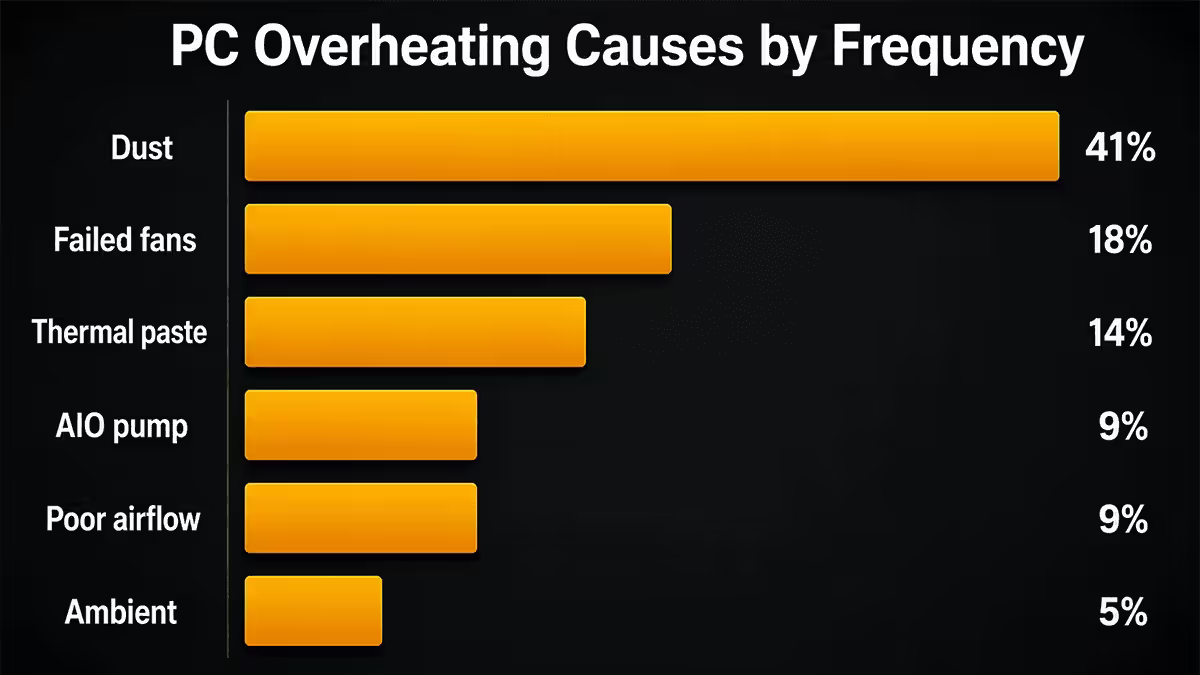
| Cause | Frequency | Typical fix time |
|---|---|---|
| Dust accumulation | Most common | 30 minutes |
| Failed / dying fans | Common | 15 minutes (per fan) |
| Dried thermal paste | Common | 45 minutes |
| AIO pump failure | Occasional | Full AIO replacement |
| Poor case airflow | Occasional | 1-2 hours (add fans / change case) |
| Ambient temperature | Occasional | Environmental fix |
| Other (PSU, RAM, VRM) | Rare | Varies |
Fix 1: Compressed air cleaning
If your PC is more than 6 months old and you've never cleaned it, this is your first move. Dust clogs heatsink fins, blocks fan intake, and silently strangles thermal performance over months.
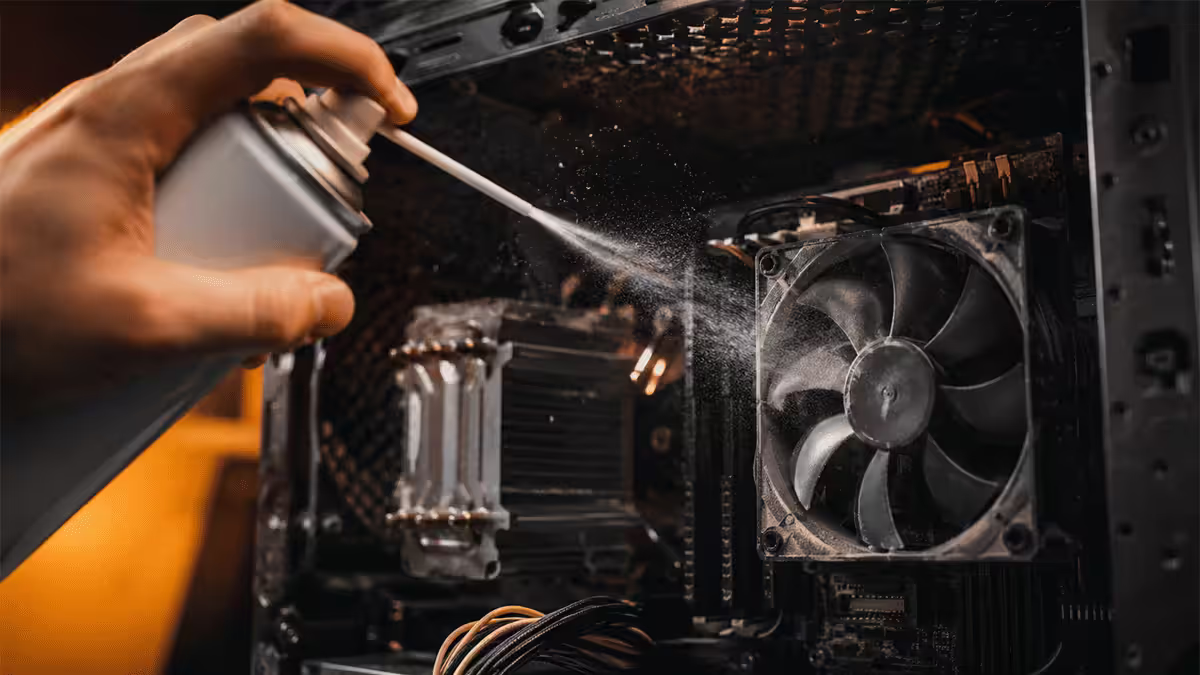
What you need: a can of compressed air (~R120-R200 at Game, Builders, takealot) or a small electric duster (~R600-R1,200, reusable, much better). Microfibre cloth. A screwdriver for side panels.
Procedure:
- Power off PC, unplug from wall, hold power button 5 seconds to discharge
- Move PC outside or onto a balcony — this is going to be dusty
- Remove both side panels
- Hold each fan blade still while blasting (free-spinning fans can over-spin and damage bearings)
- Blast CPU heatsink fins from multiple angles — get into the deep fins
- Blast GPU heatsink from all sides — most dust lives here
- Blast PSU fan, case filters, AIO radiator fins
- Wipe loose surface dust with microfibre cloth
- Reassemble, plug in, test temps
Done well, this drops temperatures 10-25°C on a previously-uncleaned PC. The single highest-leverage thing you can do.
Fix 2: Replace failed or dying fans
Fans use sleeve, ball or fluid-dynamic bearings. All wear out — typically 3-7 years for budget fans, 7-10+ for premium fans. Signs of failure:
- Grinding or clicking noise. Bearings are dying. Replace soon — they'll fully fail within months.
- Fan visibly slower than its neighbours at the same PWM setting.
- Fan not spinning at all. Worst case — the chip behind it is running on residual airflow only.
- Vibration that wasn't there before. Unbalanced bearing.
Replacement: match the size (120mm is standard, some cases use 140mm). Match the connector (4-pin PWM is modern standard; 3-pin DC is older). Good SA picks: Arctic P12 (R150 each), Noctua NF-A12x25 (~R400, premium), be quiet! Pure Wings 3 (~R200).
Fix 3: Reapply thermal paste
Modern quality thermal paste lasts 3-5 years. Cheap paste or paste that ran hot for years can dry, crack and lose contact area. Symptoms: CPU temps gradually climbing 5-10°C above baseline over 1-2 years.
Procedure (full guide in our thermal paste application article):
- Remove CPU cooler (release mount mechanism, lift straight up)
- Clean old paste off IHS and cooler with 99% isopropyl alcohol on lint-free cloth
- Apply pea-sized dot of fresh paste (Arctic MX-6, Thermal Grizzly Kryonaut, Noctua NT-H2) to centre of IHS
- Remount cooler with even pressure on all corners
- Boot, run stress test, verify temps dropped
Expected improvement on a 3-year-old paste job: 5-15°C drop. Worth it.
Fix 4: Test the AIO pump
All-in-one liquid coolers have a pump that circulates fluid between the cold plate and radiator. Pumps fail silently — fans keep spinning, looks normal externally, but the cold plate stops moving heat to the radiator.
How to test:
- Run a CPU stress test (Prime95 or AIDA64 FPU test) for 60 seconds
- Carefully touch the radiator — should be noticeably warm to hot
- If radiator stays cold while CPU is at 90°C+, pump is dead
- Listen at the pump head — healthy pump makes a quiet whirring
Fix: most AIOs are sealed units — pump can't be replaced separately. Full AIO swap. Buy a quality replacement (Arctic Liquid Freezer III, NZXT Kraken Elite, Lian Li Galahad II) with warranty. Expected SA pricing R2,500-R6,500 depending on size and brand.
Fix 5: Improve case airflow
A clean PC with good fans can still overheat if case airflow is fundamentally bad. Signs: case interior feels hot to touch, GPU and CPU both running hot even after cleaning.
Minimum airflow setup:
- 3 intake fans at the front bringing cool air in
- 1 exhaust fan at the rear pushing hot air out
- Optional: 1-3 top exhaust fans for heat-rises efficiency
- Slight positive pressure (intake CFM > exhaust CFM) keeps dust out
Case choice matters a lot: mesh-front cases (Lian Li LANCOOL III, Fractal Pop Air, Hyte Y60 mesh variants) easily out-cool glass-front cases by 5-10°C on the same components. If your glass-front case is running hot and you can't fix it, swap the case — bigger impact than upgrading CPU cooler.
Fix 6: Ambient cooling
Your CPU runs at ambient temperature plus delta-T. If ambient room temperature is 30°C (typical SA summer afternoon in an unconditioned room), your CPU runs 8-12°C hotter than it would on a 22°C autumn day at the same workload. Physics — there's no fix in the case itself.
Practical fixes:
- Air conditioning the room during gaming sessions — best fix
- Schedule heavy workloads at night when ambient is cooler
- Open windows + ceiling fan — reduces ambient 3-6°C in many SA homes
- Desk fan blowing across PC intake — feeds cooler air to the intake fans
- Keep PC off carpets — carpet insulates the bottom intake on most cases
Software fix: Undervolting
Undervolting is the single best software-only fix for overheating. Modern CPUs and GPUs ship with conservative voltage curves to guarantee stability on the worst silicon. Most chips can run 10-20% lower voltage at the same clock speeds — temperatures drop 8-15°C with zero performance loss.
For AMD Ryzen CPUs:
- Open BIOS → AMD Overclocking → Curve Optimizer
- Set "All cores" curve offset to -20
- Save, boot to Windows, run Cinebench R23 multi-thread
- If stable, try -25 then -30 to find your chip's limit
- If crashes, back off 5 points
For NVIDIA GPUs:
- Open MSI Afterburner, Ctrl+F to open voltage-frequency curve editor
- Find your target clock (e.g., 2700 MHz)
- Drag that voltage point up so it locks the GPU at that clock at lower voltage
- Flatten everything to the right of that point
- Apply, test stability with 3DMark Time Spy stress test
Software fix: Custom fan curve
Most motherboards ship with conservative fan curves that prioritise quiet operation — meaning fans don't ramp up until the CPU is already at 70°C+. Aggressive custom curves keep components cooler at the cost of more noise.
Suggested aggressive curve (BIOS or Fan Control software):
- 30°C → 30% PWM
- 50°C → 50% PWM
- 65°C → 75% PWM
- 80°C → 100% PWM
A free tool worth installing: Fan Control (open-source on GitHub) — far more capable than Windows or motherboard fan control utilities. Lets you build curves linked to any sensor, even multi-source averages.
SA summer considerations
Summer in Highveld, Lowveld, KwaZulu-Natal and Western Cape regularly produces 28-35°C daytime ambient — and indoor temperature in unconditioned rooms often exceeds that. This adds 8-15°C to your component temps over autumn/winter conditions.
SA-specific summer playbook:
- Pre-summer service: deep clean dust, reapply thermal paste if it's 3+ years old, replace any aging fans
- Schedule heavy gaming sessions at night (after 9pm) when ambient drops 5-8°C
- Air-conditioned rooms always win — even a single-room aircon makes a measurable difference
- Watch for load shedding gaming — running PC on UPS power during outage in a closed warm room compounds the heat problem
- Don't position PC against a north-facing wall that gets direct sun — wall heat radiates into the case
Common mistakes
Buying a bigger cooler before cleaning the dust. The R3,000 Noctua isn't going to outperform a clean R1,500 cooler. Clean first, then assess whether you actually need to upgrade.
Letting fans spin freely while blasting compressed air. Free-spinning fans over-spin past their rated RPM and can damage bearings or generate back-EMF that fries fan controllers. Always hold blades still.
Using a vacuum cleaner. Vacuums generate static electricity that can damage components. Use compressed air or electric duster only.
Ignoring early symptoms. The fan-noise stage gives you weeks of warning. Acting then is a 30-minute fix; ignoring until shutdowns happen often means dried paste + dust + AIO issues compounding.
Buying a glass-front case for a high-end build. Looks great, cools poorly. If you must have one, ensure it has bottom intake fans and a roomy front gap for air to enter through the sides.
Trusting case fan-controller defaults. Stock fan curves are tuned for silence, not cooling. Set an aggressive custom curve — accept slightly louder operation for 8-12°C lower temps.
Key takeaways
- CPU above 85°C or GPU above 83°C during gaming = problem. 95-100°C = thermal throttle/damage.
- Dust is the #1 cause (41%) — compressed air cleaning every 4-6 months resolves most cases.
- Six causes: dust 41%, failed fans 18%, dried paste 14%, AIO pump 9%, airflow 9%, ambient 5%.
- Undervolt for 8-15°C drop with no performance loss — AMD Curve Optimizer, NVIDIA Afterburner.
- SA summer adds 8-12°C ambient — schedule deep cleans in spring, gaming at night during heatwaves.
Frequently asked questions
What CPU temperature is too hot?
Modern CPUs handle up to ~95°C, but 85°C is the warning zone and 95-100°C triggers throttling. Sustained 90°C+ during normal gaming indicates a cooling problem.What GPU temperature is too hot?
65-80°C is normal gaming load. 83°C+ is warning, 95°C is throttle. Hotspot temps run 10-15°C higher than edge and can still be normal.What is the number one cause of PC overheating?
Dust accumulation on heatsink fins and fans — around 41% of overheating tickets. Compressed air cleaning every 4-6 months resolves most.How do I check my PC's temperatures?
HWInfo64 (most detail), MSI Afterburner (in-game overlay), AIDA64 (paid, thorough). Test during 30-minute real gaming sessions.How often should I clean dust from my PC in South Africa?
Every 4-6 months. Carpeted rooms, pets, dusty regions push to every 3 months. Don't go past 12 months — dust bonds to fins and temps creep up gradually.Should I undervolt my CPU and GPU?
Yes — usually 8-15°C drop with zero performance loss. AMD's Curve Optimizer for Ryzen, MSI Afterburner V/F curve for NVIDIA GPUs.Does SA summer heat really affect my PC?
Yes — significantly. Ambient + delta-T physics: 30°C room means 8-12°C hotter CPU than a 22°C autumn day. Aircon, night-time gaming, intake fan boost helps.Can a failed AIO pump cause overheating?
Yes — and dangerously, since fans keep spinning so it looks normal. Test by touching radiator during stress test — should be warm. Cold radiator + 90°C+ CPU = dead pump.
Get the Evetech app
Exclusive app-only prices, daily flash sales, and free delivery on orders over R4,000 — download the app and start saving.