Laptop Troubleshooting
How to fix laptop overheating.
Hot laptop, loud fan, sudden FPS drops in games that ran fine six months ago. Almost always one of four things — dust, dried paste, a wrong fan curve, or running in a warm Joburg room. All four are fixable in an afternoon.
- undervolt headroom
- 5-12°C
- normal load temp
- ~95°C
- DIY repair cost
- R250-R600
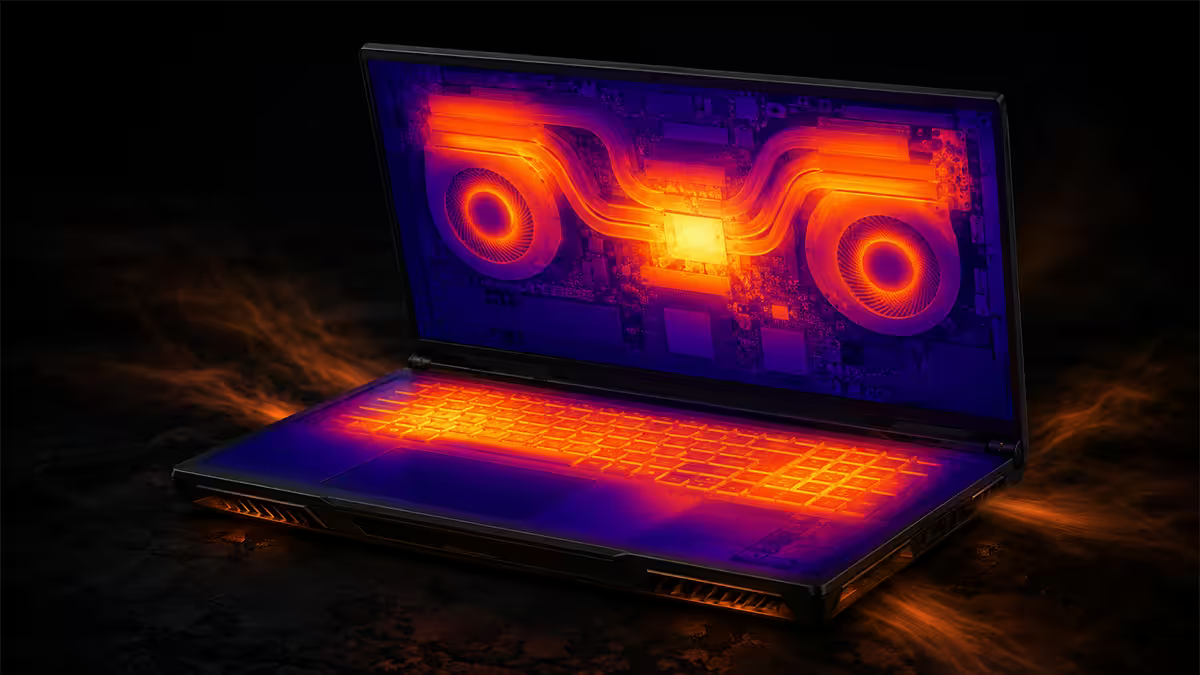
First, see what's actually happening
Before changing anything, install HWiNFO64 (free) and run it in Sensors-Only mode. Open a game or a synthetic load and let it run for 15-20 minutes. Then check three numbers in the CPU and GPU sections:
- Current temperature — what the silicon is sitting at right now.
- Maximum temperature — the highest point the silicon hit during your test.
- Thermal throttling (CPU section, "Core Effective Clocks" vs "Core Clocks") — if the effective clocks drop below the requested clocks, the chip is throttling.
For modern thin gaming laptops, 95°C under sustained load is normal. The chip designers tuned the chassis specifically to run there because pushing closer to 100°C harms reliability. The real signs of a problem are sustained 100°C+ with active throttling, idle temps above 60°C, or temps that have crept up 10°C+ over the last 6 months at the same workload.
| Reading | Healthy | Problem |
|---|---|---|
| Idle CPU temp | 35-55°C | Above 60°C consistently |
| Sustained load CPU | 85-95°C | 100°C+ with throttling |
| GPU under gaming load | 75-87°C | Above 90°C sustained |
| Fan noise change | Steady curve match | Suddenly louder than before |
Step 1 — Clean the dust (the big one)
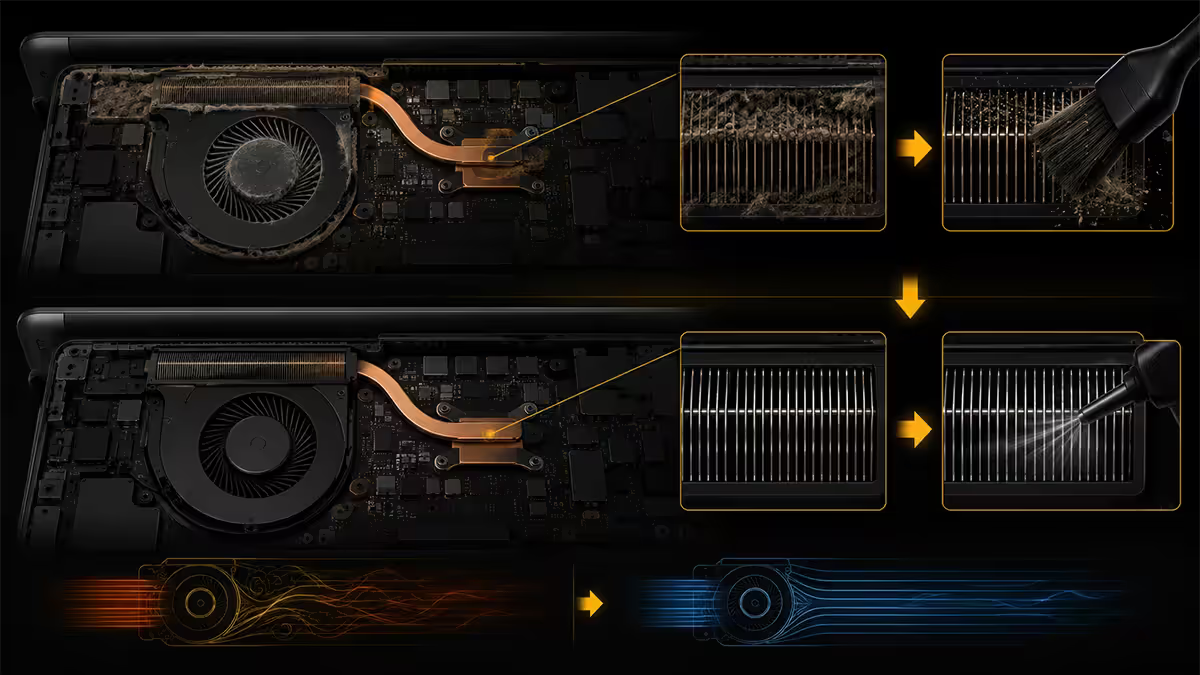
Heatsink fins pack with dust over 1-2 years of normal use. The fan still spins at full RPM, the airflow path is still clear, but the air can no longer transfer heat into the fins because they're insulated by a felt-like layer of dust. This single fix accounts for the majority of laptop overheating cases we see.
What you need: a can of compressed air (R80-R120 at any office supplies store), a wooden toothpick or skewer, a microfibre cloth, and 20 minutes.
Procedure:
- Power off the laptop, unplug it, and disconnect the battery if it's user-accessible.
- Identify the intake vents (usually on the bottom) and exhaust vents (usually on the rear or sides).
- Use the toothpick to physically hold the fan blades still through the exhaust vent. This is critical.
- Hold the can upright, position the straw 10-15 cm from the exhaust vent, and blow short bursts.
- Dust will eject through the intake vents on the bottom — do this outdoors or over newspaper.
- Repeat from the intake side, again holding the fan blades still.
- Wipe the keyboard and chassis with the microfibre cloth.
When canned air isn't enough
For laptops 3+ years old or where canned air doesn't visibly improve temps, you need to open the chassis. Most ASUS ROG, Lenovo Legion, HP Omen and Acer Predator laptops have YouTube teardown guides specific to the model — search "[laptop model] teardown" before buying anything. With the bottom panel off, you can vacuum out the heatsink fins directly (held still) and see if any fan has visible bearing damage.
Step 2 — Fix the fan curve
Every gaming laptop ships with multiple performance modes — Silent, Balanced, Performance, Turbo. Most users never change them. The Balanced default is tuned for battery life and quiet, not gaming temps. Switching to Performance or Turbo mode when gaming typically drops CPU temps 5-12°C because the fans get permission to ramp up earlier and harder.
| Laptop brand | App to use | Mode to pick |
|---|---|---|
| ASUS ROG / TUF | Armoury Crate | Performance or Turbo |
| Lenovo Legion | Lenovo Vantage / Legion Toolkit | Performance / Custom |
| HP Omen / Victus | MyHP / Omen Gaming Hub | Performance |
| Dell / Alienware | Dell Power Manager / Alienware Command Center | Performance / Ultra |
| MSI Gaming | MSI Center | Extreme Performance |
| Razer Blade | Razer Synapse | Custom Boost |
| Acer Predator / Nitro | PredatorSense | Turbo |
| Business laptops (ThinkPad / Latitude / EliteBook) | NoteBook FanControl (open source) | Custom curve |
In the vendor app, look for the fan curve editor specifically — many of them let you drag temperature/RPM points. A useful starting curve: idle below 50°C = fans at minimum RPM; 60°C = 40% RPM; 75°C = 65% RPM; 85°C = 90% RPM; 92°C = 100% RPM. This keeps the laptop quiet at light loads and aggressive once games kick in.
Step 3 — Elevation and airflow
A laptop sitting flat on a desk pulls intake air from a 5mm gap underneath the chassis. On carpet or a couch cushion the gap closes entirely and intake airflow drops to almost zero. The simplest fix anyone can apply in 60 seconds: tilt the back of the laptop up 15-25 mm with literally anything to hand — two textbooks, a pencil case, a folded magazine.
The tilt does two things — opens up the rear intake gap and angles the keyboard for more comfortable typing. A proper laptop stand (R200-R500 at Takealot, Loot or Faithful-to-Nature) accomplishes the same thing with adjustable height and a stable base.
A cooling pad with built-in fans (R400-R900 in SA) helps more on chunky gaming laptops with full mesh-bottom intakes — 6-10°C improvement is realistic. On thin ultrabooks with tiny intake vents, a cooling pad delivers 2-4°C at most because the chassis simply can't pull more air through small slots.
The under-rated trick: a R300 desk fan blowing directly across the laptop bottom often outperforms a R900 cooling pad. It moves a lot more air than a cooling pad's small fans and doesn't tie up a USB port.
Step 4 — Undervolt (free thermal headroom)
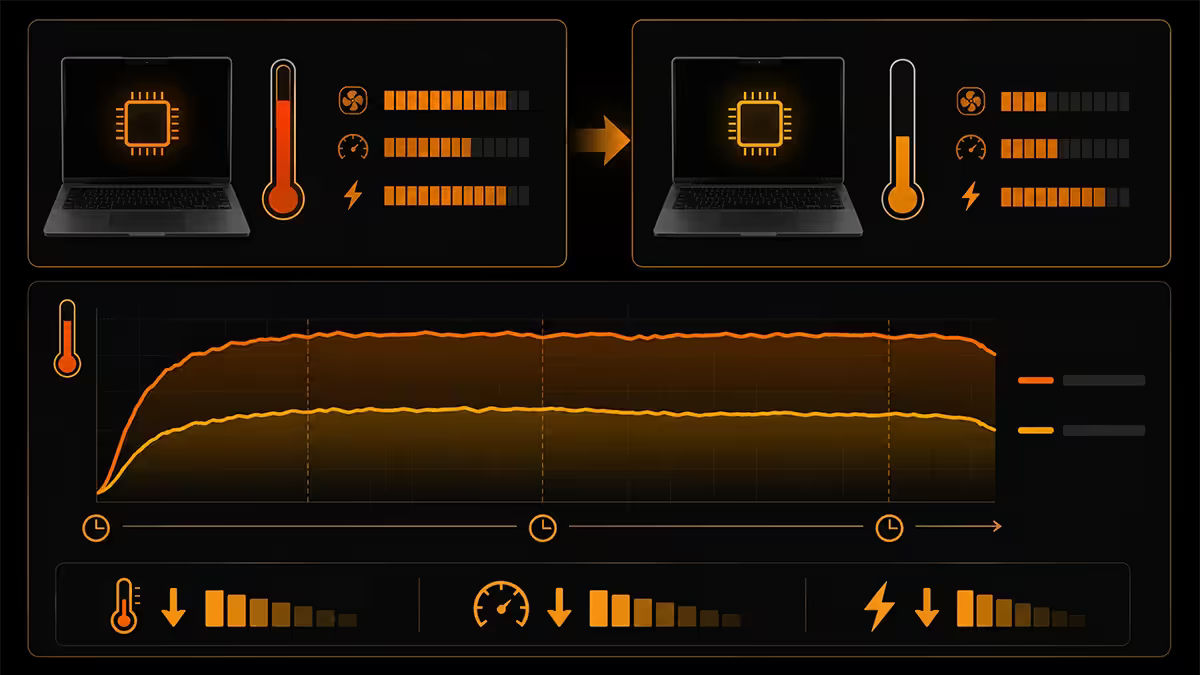
Modern Intel and AMD mobile CPUs ship with conservative voltage tables — the chip works at a specific voltage range across its core count, and laptop OEMs leave a buffer to guarantee stability across silicon variance. You can usually reclaim 50-100 mV of that buffer without any loss of performance, dropping CPU temps 5-12°C and stretching battery life by 10-20% in the process.
For Intel CPUs (Core i5/i7/i9 11th-14th gen): use ThrottleStop. Open it, go to FIVR, tick "Unlock Adjustable Voltage", drop CPU Core and CPU Cache offsets by -50 mV each, hit Apply. Run Cinebench R23 for 10 minutes. If stable, repeat with -75 mV. Don't go past -100 mV unless you know the silicon lottery is in your favour. Note: 12th gen and newer Intel chips have firmware that may lock voltage adjustment — check your motherboard BIOS.
For AMD Ryzen CPUs: use Universal X86 Tuning Utility (UXTU) for Ryzen 6000/7000/8000-series mobile, or the older Ryzen Controller for earlier generations. Both let you drop voltage offset and TDP, with the same -50 mV starting point. Save profile to apply at boot.
For NVIDIA GPUs: use MSI Afterburner. Open the Voltage/Frequency Curve Editor (Ctrl+F), find the point on the curve where the GPU runs under load, drag it left and down (lower voltage at same clock speed), apply, save profile. Easier on RTX 30/40-series than on RTX 20-series.
Step 5 — Repaste (when everything else fails)
If the laptop is 3+ years old and the previous steps haven't dropped sustained temps below 95°C, the factory thermal paste has dried out or pumped out. Repasting is the most impactful single intervention — typically 8-15°C improvement on a laptop with 3-4 years of pump-out — but it also requires opening the chassis fully.
What to use: the laptop community has moved toward PTM7950, a phase-change thermal pad that melts at operating temperature and re-solidifies when cold. The key advantage over traditional paste: PTM7950 doesn't pump out under the rapid thermal cycling that laptops experience (idle to load and back, dozens of times an hour). PTM7950 lasts the life of the laptop.
The strongest traditional alternative is Thermal Grizzly Kryonaut. It performs marginally better than PTM7950 immediately after application but degrades over 12-18 months in laptops as it pumps out. For a laptop, PTM7950 is the better long-term choice.
Don't forget the thermal pads on VRAM, VRMs and other components. Many gaming laptops have 4-8 thermal pads beyond the main CPU/GPU dies, often degraded after 3+ years. Replace with high-conductivity pads (Thermal Grizzly Minus Pad 8 or Gelid Solutions Extreme, 1mm and 1.5mm thicknesses). Match the thickness of what came out — too thin loses contact, too thick prevents the heatsink from seating.
The SA summer reality
A laptop's ability to dissipate heat is dictated by the temperature difference between its silicon and the ambient air. A laptop that runs 90°C in a 22°C aircon-cooled office in Cape Town will run 96°C in a 28°C unaircon room in Pretoria — same workload, 6°C hotter. There's nothing wrong with the laptop. It's physics.
SA-specific things that help:
- Gaming in the cooler part of the day. 22:00-08:00 in Joburg is typically 6-10°C cooler than midday. A laptop that throttles at 14:00 in January often runs fine at 21:00.
- Direct airflow from a fan or aircon outlet. Position the laptop where the room's air movement crosses the rear exhaust vent. A small desktop fan on low pointed at the laptop's underside is the cheapest effective intervention.
- Don't game in direct sunlight. A windowsill laptop in a south-facing Joburg lounge can hit 40°C ambient from sun heating alone. Move it.
- Load shedding (now rare in 2026 but not extinct). When the laptop's been running on inverter/UPS during long stages and ambient room temp has climbed because aircon was off, expect 4-8°C worse thermal performance than usual.
When the laptop has genuinely reached end-of-life
There's a point where no amount of paste, cleaning, undervolting or cooling pads will save a laptop:
- Physical chassis damage. Hinges have cracked the case open. Intake vents are bent so they no longer seal flush against the bottom panel. The chassis has warped from being sat on or dropped.
- Permanent fan bearing failure. Replaced the fan once already and the new one is also rattling within months. The motherboard is sending bad PWM signals or the chassis is misaligned.
- 5+ years old, fully serviced, still throttling. Modern thin-and-light gaming laptops have a designed thermal lifetime. By year 5 the chassis paint has thinned around the vents, the thermal pads have been replaced once already, the fans are second-generation, and the chip silicon has lost some efficiency from electromigration. No fix is coming.
At that point, the rational call is upgrading. A 2026 mid-range gaming laptop with RTX 4060 mobile and Ryzen 7 8845HS delivers more sustained performance than a 2020 RTX 2070 Max-Q ever could, runs cooler in the same room, and costs around R22,000-R28,000 in SA.
Key takeaways
- Dust is the most common cause. Canned air with the fan blades held still fixes the majority of cases.
- Switch the vendor app to Performance or Turbo mode for gaming. Free 5-12°C drop on most laptops.
- Undervolt the CPU and GPU. 50-100 mV offset, no performance loss, 10-15°C combined drop.
- If repasting, use PTM7950 phase-change pad — it doesn't pump out under laptop thermal cycling.
- 95°C under load is normal for thin gaming laptops. Worry about 100°C+ sustained, or high idle temps.
Frequently asked questions
Why is my laptop suddenly overheating?
Most cases — dust in the heatsink, dried-out paste, or a new heavier workload. Start with HWiNFO64, then canned air, then consider repaste if the fix doesn't hold.Is it safe to use canned air on my laptop?
Yes — hold the can upright, 10-15 cm from the vent, use short bursts. Always hold the fan blades still with a toothpick while blowing or you risk damaging the bearing.What thermal paste should I use to repaste my laptop?
PTM7950 phase-change pad (R250) is the laptop-community choice — doesn't pump out. Thermal Grizzly Kryonaut works too. Never liquid metal on a laptop.How do I check my laptop's fan curve?
Vendor apps — Armoury Crate (ASUS), Lenovo Vantage, MyHP Omen, Dell Power Manager, MSI Center. Business laptops without vendor control — use NoteBook FanControl (open source).Will a cooling pad actually help?
Yes on chunky gaming laptops (6-10°C). Less so on slim ultrabooks (2-4°C) because the intake vents are tiny. A R300 desk fan often beats a R900 cooling pad.What's a safe CPU temperature for a laptop?
95°C under sustained load is normal for thin gaming laptops. Worry about sustained 100°C+ with throttling, or idle temps above 60°C.Does undervolting actually help laptop temperatures?
Significantly. ThrottleStop (Intel) or UXTU (AMD) plus MSI Afterburner Curve Editor (GPU). 50-100 mV offset, 10-15°C combined drop, no performance loss.When is it time to give up and replace the laptop?
Physical chassis damage, permanent fan bearing failure even after replacement, or a 5+ year old fully-serviced laptop still throttling. Chassis design has hit its limit.
Get the Evetech app
Exclusive app-only prices, daily flash sales, and free delivery on orders over R4,000 — download the app and start saving.