Laptop Troubleshooting
How to fix a laptop that won't charge.
80% of "laptop won't charge" calls turn out to be the charger, the cable, or something jammed in the port. The other 20% is a real problem — and the diagnostic order matters because going backwards wastes time and money.
- fixable at home
- 80%
- in correct order
- 5 steps
- SA repair range
- R0-R2.8k
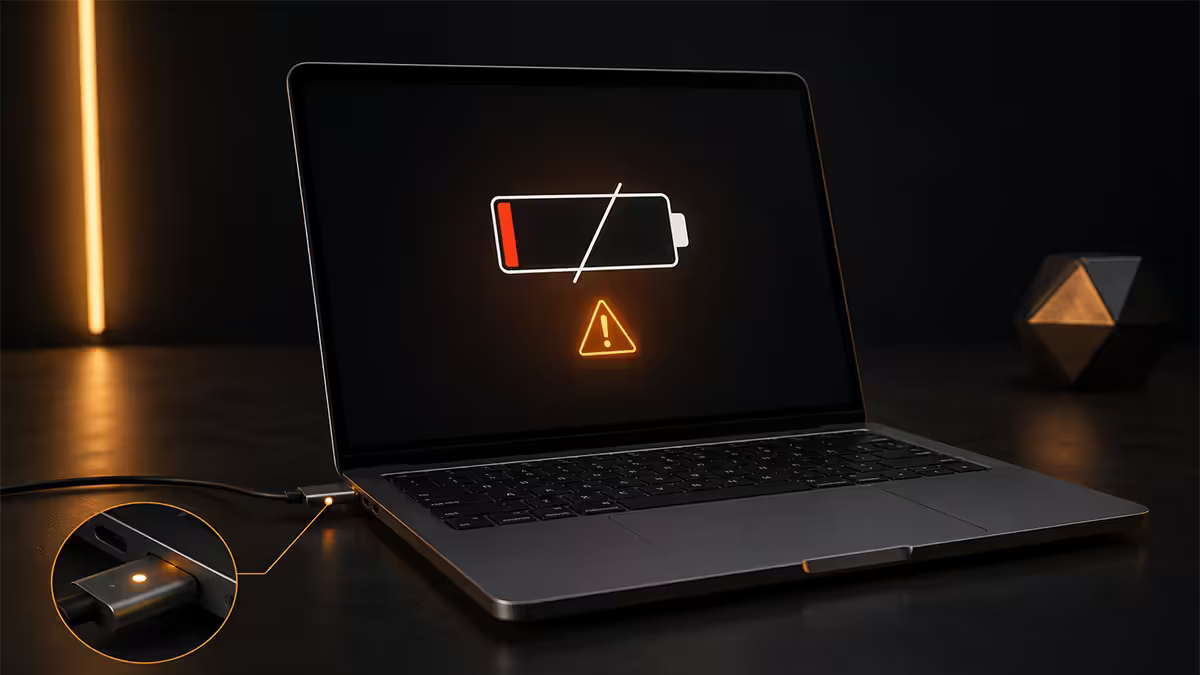
Step 1 — Test the charger first
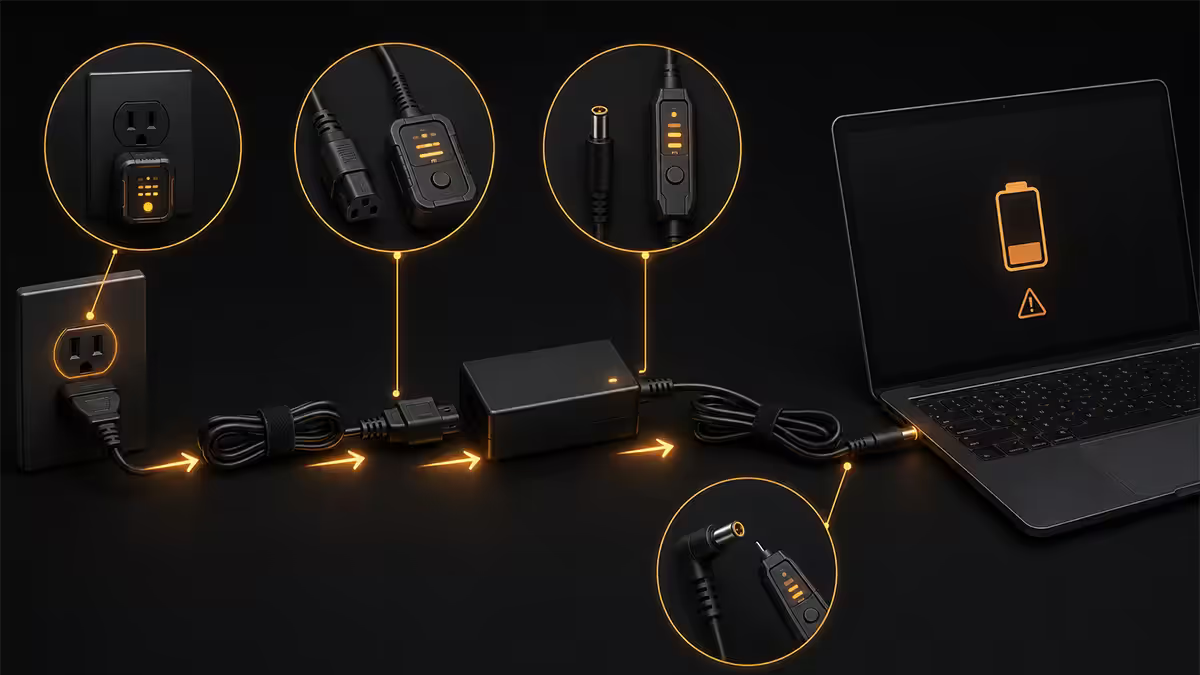
The charger brick is the most common failure point on a "won't charge" laptop. Internal capacitors degrade, cables fray at the strain relief, and the DC barrel or USB-C tip wears down with insertion cycles.
Visual checks first:
- Status LED on the brick — most chargers have a small LED. If it's off when plugged into the wall, the brick itself is dead or there's a power issue at the wall.
- Cable damage — look at the strain relief points (where cable meets brick, where cable meets tip). Frayed insulation, bent connectors, or kinks indicate dying cables.
- USB-C tip cleanliness — check for bent pins or oxidation on the tip.
If you have a multimeter: set to DC voltage and measure between the centre pin and the outer ring of the barrel (or pins 1 and 4 of a USB-C connector). Output should match the rated voltage (typically 19-20V for barrel chargers, 5V/9V/15V/20V negotiated for USB-C PD) within 5% on no-load.
If you don't: the simplest test is to swap in a known-good charger of matching wattage and connector. Borrow one. Or buy a USB-C PD power meter from Takealot (R200-R400) — it sits between the charger and the laptop and shows live wattage delivery.
Step 2 — Clean the charging port
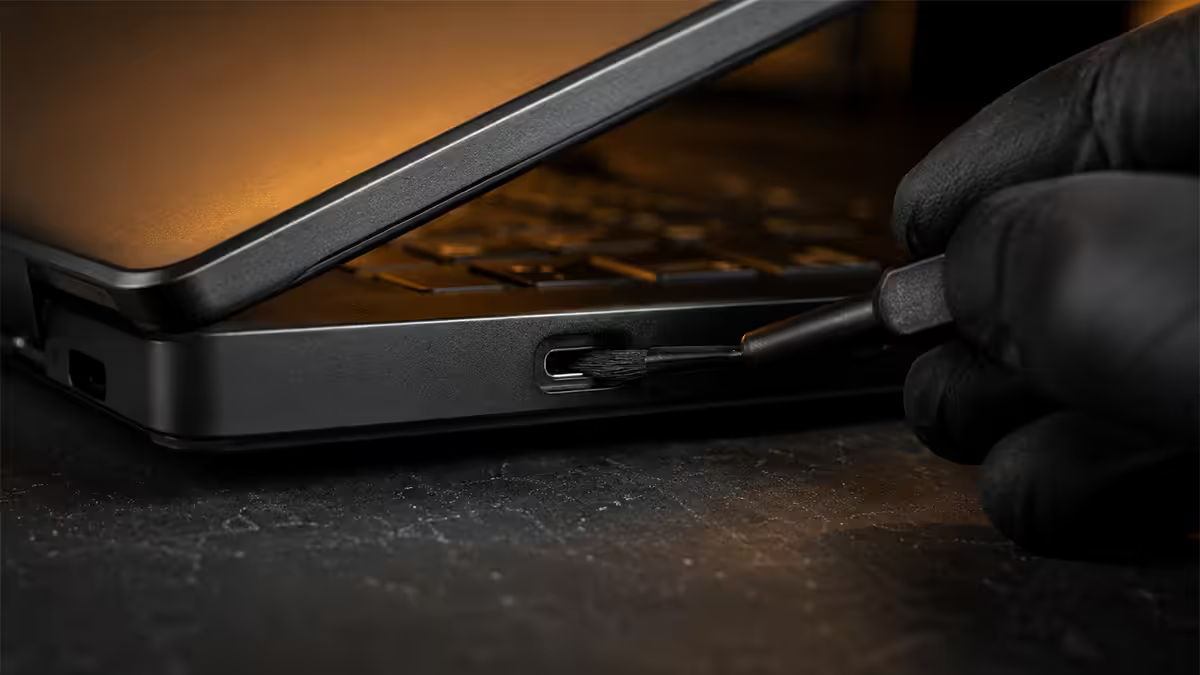
Charging ports — especially USB-C — accumulate lint, dust and oxidation. The connector may "feel" seated when it isn't actually making contact with the inner pins.
Procedure:
- Power off completely. Unplug everything. For laptops with removable batteries, take the battery out.
- Look into the port with a torch. You'll often see compressed lint at the back. On USB-C, look for bent pins.
- Compressed air in short bursts. Hold the can upright, use 1-2 second bursts angled at 45 degrees into the port. Do NOT hold the trigger continuously — propellant can spray liquid into the port.
- Wooden toothpick for stubborn lint. A dry toothpick gently scrapes back-to-front. Never use a metal pin, paperclip or needle — touching live pins together shorts the charge circuit.
- 99% isopropyl alcohol on a nylon brush for oxidation on USB-C pins. Brush gently, let dry 60 seconds before reconnecting.
Step 3 — Check battery health (the truth)
If the charger is good and the port is clean but the laptop still says "plugged in, not charging" — your battery may have crossed the threshold where the firmware refuses to charge it for safety.
Windows — generate a battery report:
- Open Command Prompt as administrator (Start, type cmd, right-click, Run as administrator).
- Type:
powercfg /batteryreportand press Enter. - The report is saved to your user folder. Open the HTML file in any browser.
- Look at Design Capacity vs Full Charge Capacity. If current full charge is below 70% of design, the battery is degraded and may refuse to take charge.
- Check Cycle Count. Most laptop batteries are rated for 500-1000 cycles. Past 1000, they're on borrowed time.
Mac — System Information:
- Hold Option, click the Apple menu, choose System Information.
- In the sidebar, select Power.
- Look at Cycle Count (Apple rates most MacBook batteries at 1000 cycles) and Condition (Normal / Replace Soon / Service Recommended).
- For richer detail, install coconutBattery (free, coconut-flavour.com) — shows current capacity vs design, manufacture date, and historical health.
If the battery is below 60-65% of design capacity, the laptop's power management may refuse to charge it as a safety measure. Replacement is the fix.
Step 4 — Reinstall the AC adapter driver
Roughly 15% of "won't charge" cases on Windows turn out to be a corrupted Microsoft AC Adapter or ACPI battery driver. Windows reports the battery isn't getting power even though the hardware is fine.
The fix takes 2 minutes:
- Right-click the Start button, choose Device Manager.
- Expand the Batteries category.
- Right-click Microsoft AC Adapter → Uninstall device.
- Right-click Microsoft ACPI-Compliant Control Method Battery → Uninstall device.
- Reboot.
- Windows reinstalls both drivers automatically on boot. Plug the charger in and watch for the charging indicator.
If charging resumes, the issue was driver state. If not, move on.
Step 5 — BIOS / firmware update
Charge-circuit firmware bugs are rare but real. Lenovo, Dell, HP and ASUS have all shipped BIOS updates in the last 18 months that fixed "battery stuck at 0%" issues on specific models.
How to update:
- Dell: dell.com/support → enter Service Tag → Drivers → BIOS update.
- HP: support.hp.com → enter Serial → BIOS — System Firmware.
- Lenovo: support.lenovo.com → ThinkPad / IdeaPad model → BIOS / UEFI.
- ASUS: asus.com/support → enter model → BIOS / Firmware.
- Acer / MSI / Razer: similar — manufacturer's support site with model number.
BIOS updates require a partially charged battery (or AC connection) to begin. If the battery is dead AND not charging, you may need to plug into a different working USB-C port (some laptops have multiple PD inputs) or use the original Windows recovery USB to flash from there.
MacBook specifics — MagSafe wear and Apple Silicon quirks
MacBooks add a few specific failure modes worth knowing.
MagSafe 3 connector wear: on M1/M2/M3/M4 MacBooks (2021+), the magnetic charge connector can lose magnetism after 2-3 years of daily plug/unplug. The connector still "snaps" weakly but doesn't make solid contact. Apple sells replacement cables (R900-R1,200) — diagnose by trying a different MagSafe cable.
SMC reset (Intel Macs): on pre-Apple-Silicon MacBooks, an SMC reset clears the System Management Controller which handles charging. Shut down → press Shift + Control + Option (left side) + Power for 10 seconds → release → boot normally. Apple Silicon Macs handle this automatically on shutdown.
USB-C charging on M-series MacBooks: all USB-C ports support PD charging, but the spec requires 60W+ for MacBook Pro and 30W+ for MacBook Air. Lower-wattage chargers will charge while idle but the menu bar shows "Not Charging" while running heavy workloads — the GPU drains faster than the charger fills.
Repair vs replace — the SA cost calculation
| Fault | DIY / repair cost | Time to fix |
|---|---|---|
| Charger brick replacement (compatible) | R350-R800 | Same day |
| Charger brick (genuine OEM) | R900-R1,800 | 1-3 days |
| Port cleanout (DIY) | R0 | 15 min |
| USB-C port replacement (board solder) | R1,200-R2,200 | 3-7 days |
| Battery replacement (compatible) | R600-R1,400 | Same day |
| Battery replacement (genuine OEM) | R1,800-R2,800 | 1-5 days |
| MacBook battery (Apple authorised) | R2,500-R4,500 | 3-7 days |
| Motherboard charge-circuit repair | R2,500-R3,500 | 5-14 days |
| Surface battery (whole-unit swap) | R4,500+ | 7-14 days |
Common mistakes
Jumping to "the battery is dead" without testing the charger. The most expensive component to replace, and 60%+ of the time it's not the actual problem.
Using a metal pin to clean the port. A paper clip or sewing needle inside a live USB-C port shorts the data and power lines and can fry the charge controller. Always wooden, always laptop powered off.
Buying a generic charger to "test" without checking wattage. A 45W charger plugged into a 65W laptop will register as "charging" but the laptop drains under any load. False negative — you may conclude the laptop is broken when it was the underspec replacement charger.
Skipping the driver step. It's free and takes 2 minutes. If a paid service shop fixed your charging issue with a driver reinstall, you're paying R350-R500 for what you could've done at home.
Paying for board-level repair on an old laptop. If the laptop is more than 4-5 years old and worth under R6,000 second-hand, a R3,000+ charge-circuit repair rarely makes sense. Sell for parts, buy a replacement.
Key takeaways
- Test the charger first — it's the most common failure point. Swap or measure with a multimeter.
- Clean the port with compressed air and a wooden toothpick. Never metal. Power off first.
- Run powercfg /batteryreport on Windows or check System Information on Mac. Below 70% design capacity = replace.
- Reinstall Microsoft AC Adapter and ACPI Battery drivers from Device Manager. Free fix in 2 minutes.
- If repair exceeds 40% of the laptop's current value, replace instead of fixing.
Frequently asked questions
Why is my laptop plugged in but not charging?
Most common: failed charger brick (33%), dirty port (22%), degraded battery (18%), driver issue (12%), motherboard charge-circuit failure (10%). Test the charger first.How do I test if my laptop charger is faulty?
Multimeter on DC volts at the tip, should match rated voltage within 5%. Or swap with a known-good charger of matching wattage. USB-C power meters (R200-R400) show live wattage.How do I clean my laptop charging port?
Power off. Compressed air in short bursts angled at 45°. Wooden toothpick for stubborn lint. 99% isopropyl on a nylon brush for oxidation. Never metal, never water.How do I check my laptop battery health?
Windows: powercfg /batteryreport in admin Command Prompt. Mac: hold Option, click Apple menu, System Information, Power. coconutBattery (free) gives Mac detail.Can a Windows driver issue stop charging?
Yes. Uninstall Microsoft AC Adapter and ACPI-Compliant Control Method Battery from Device Manager, then reboot. Windows reinstalls automatically. Resolves a fair share of cases.Is using a third-party USB-C charger safe?
Only at matching wattage and from certified brands (Anker, Baseus, UGREEN, Belkin). Under-spec chargers trickle-charge and may damage the charge circuit over time. Avoid R150 generics.What does it cost to replace a laptop battery in SA?
Compatible Dell/HP/Lenovo/ASUS batteries R600-R1,400. OEM R1,800-R2,800. MacBook R2,500-R4,500 via Apple authorised. Surface usually whole-unit swap R4,500+.When should I just buy a new laptop instead of fixing?
When repair exceeds 40% of the laptop's current equivalent value. A R3,500 repair on a R6,000 laptop doesn't pay back. On an R18,000 laptop, it does.
Get the Evetech app
Exclusive app-only prices, daily flash sales, and free delivery on orders over R4,000 — download the app and start saving.