Laptop Maintenance Guide
How to clean your laptop properly.
Most laptop "deaths" in SA are slow thermal strangulation by dust, not catastrophic failure. Quarterly cleanouts add years to a thermal-limited machine. Here's the technique that doesn't void warranties or over-spin fans.
- IPA ratio
- 70-99%
- SA cleanout
- 3 months
- basic clean
- 15 min
Power off + disconnect battery
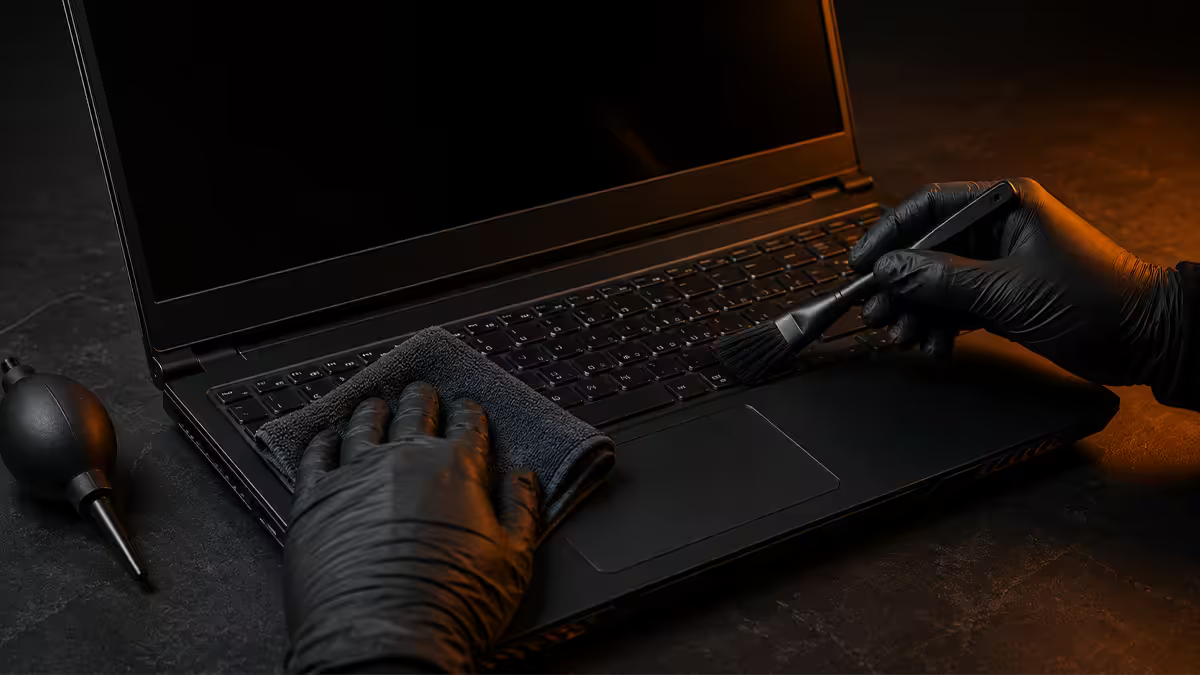
Before any cleaning beyond an exterior wipe-down, fully power off the laptop — Shift+Restart on Windows for a clean shutdown, not Sleep. Disconnect the AC charger. For internal cleaning, disconnect the battery (most modern ultrabooks require unscrewing the bottom panel; older laptops often have a removable battery pack).
Why this matters: Sleep mode keeps voltage live on components. A drop of cleaning fluid on a powered component or a fan over-spun by compressed air on a live system can short circuits permanently. The 30 seconds spent disconnecting protects an R20,000–R40,000 laptop from preventable damage.
Lay the laptop on a soft, non-static surface — a microfibre cloth on a wooden desk works. Avoid carpet (static buildup) and steel benches (scratching). Have your tools laid out within reach so you're not fumbling with the laptop open.
Screen — IPA, microfibre, no pressure
Modern laptop screens (matt IPS, OLED, MiniLED) have anti-reflective coatings that scratch easily under firm pressure or abrasive material. The right approach is gentle but effective:
- 70% isopropyl alcohol on a clean microfibre cloth — apply to the cloth, never spray the screen directly.
- Wipe in straight lines from one edge to the other, then turn the cloth and do the next strip. Don't use circular motions — they smear and trap residue.
- Light pressure only. If the cloth isn't picking up dirt at light pressure, the cloth is dirty — flip it or get a fresh one. Don't press harder.
- Wait 30 seconds for the IPA to fully evaporate before closing the laptop or powering on.
Alternative — dedicated screen cleaner. Whoosh!, iKlear, BinkleyKid, or LCDClean spray plus microfibre is foolproof for those uncomfortable with IPA. R150–R250 in SA for a bottle that lasts a year.
Keyboard — pry, brush, IPA on cloth
Laptop keyboards collect skin oils, dust and the occasional crumb. Two methods, depending on how deep the clean:
Surface cleaning (monthly):
- Turn the laptop upside down with the screen at 90° (so the keyboard faces down). Tap gently on the back to dislodge loose particles.
- Use a soft brush (a 5mm to 10mm artist's brush, or a dedicated keyboard cleaning brush) to flick particles out from between keys.
- Wipe across the keys with a microfibre cloth lightly dampened with 70% IPA. The IPA dissolves skin oils that water-only cloths can't lift.
Deeper cleaning (quarterly):
- Use short compressed-air bursts between rows of keys to displace deeper dust. Keep the can upright — tilted cans release liquid propellant which can damage components.
- For desktop mechanical keyboards (not laptop): individual keycaps can be pried with a keycap puller for thorough cleaning. Do NOT pry laptop keys — modern laptop keycaps clip into delicate scissor mechanisms that break under prying force.
- If a key is sticky from spilled liquid: a tiny drop of IPA applied with a cotton swab between adjacent keys, worked in by repeatedly pressing the key, often resolves it without disassembly.
Fans & heatsink — the real performance gain
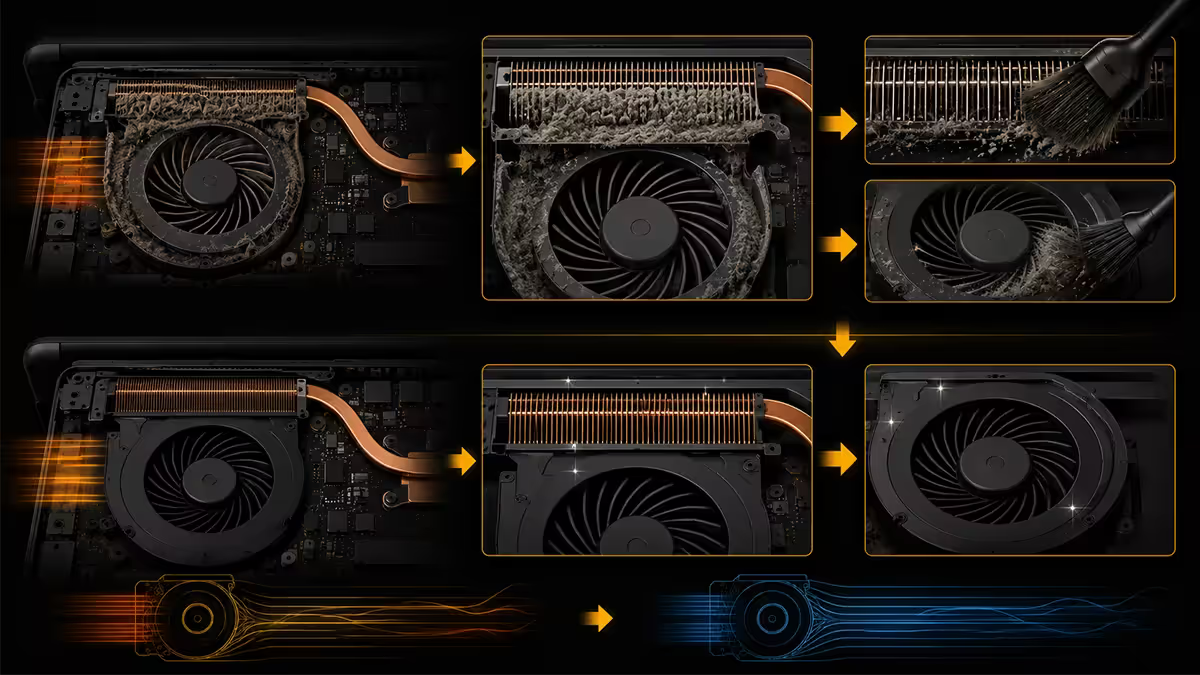
This is where laptop cleaning genuinely earns its keep. Dust accumulating on heatsink fins is the #1 cause of thermal throttling in 2–4 year old SA laptops. A 15-minute cleanout can drop temperatures 10–15°C and add years of useful life.
Method 1: External (no disassembly)
- Place a small vacuum cleaner (or shop-vac with reduced suction) at the exhaust grille.
- Puff short compressed-air bursts into the intake grilles (usually the bottom or sides).
- Critically: hold the fan blades stationary with a toothpick or wooden skewer pushed through the grille while you blow air. Free-spinning the fans from compressed air over-spins the motor beyond its rated RPM and damages the bearings.
- Repeat 3–5 cycles until the dust extracted at the vacuum end drops to near zero.
Method 2: Bottom panel removal (every 2-3 years, deeper clean)
- Look up your laptop's service manual or iFixit guide for the exact bottom panel screw pattern. Photograph every screw position.
- Use a precision screwdriver set (most laptops use Torx T5 or Phillips #00) — wrong driver shape strips screws and turns a 30-minute job into a 3-hour disaster.
- With the bottom panel off, use compressed air at close range on the heatsink fins, fan housing and intake mesh. Direct the dust outward, away from other components.
- Wipe the fan blades with a microfibre cloth lightly dampened with IPA — the oily film that builds up there is part of why fan noise increases over time.
- Reassemble: every screw back in its exact original position. Laptop screws vary by length and the wrong screw in the wrong hole damages the chassis.
Thermal paste — check, sometimes refresh
If you've already opened the bottom panel and the laptop is 3+ years old, this is the right time to evaluate the CPU/GPU thermal paste. Don't repaste a brand-new or under-warranty laptop — opening the heatsink usually voids warranty and the factory paste is fine for the warranty period.
Signs the paste needs refreshing:
- CPU temperatures running 10°C+ above factory baseline at the same workload (use HWMonitor or HWiNFO to track).
- Thermal throttling during basic tasks (Word, browser tabs) when it didn't before.
- Laptop now 3+ years old AND used in dusty environment AND being kept rather than replaced.
If repasting:
- Unscrew the heatsink — screw order matters. Most laptops indicate the tightening order with numbers (1-2-3-4); unscrew in reverse.
- Gently lift the heatsink straight up. If it's stuck, the old paste has bonded — twist very gently to break the seal, never pry.
- Clean both CPU/GPU die and heatsink cold plate with 99% IPA on a lint-free cloth. Wipe in straight lines, repeat until cloth comes away clean.
- Apply a small pea-sized dot of fresh paste (Arctic MX-6, Thermal Grizzly Kryonaut, Noctua NT-H2) to the centre of each die. For laptops with multiple dies under one heatsink (CPU + GPU), small dots on each.
- Lower the heatsink straight down. Tighten screws in factory order (1-2-3-4), with cross-pattern tightening to seat evenly.
Recovery: 5–15°C cooler at the same workload, less fan noise, reduced thermal throttling. Worth 30–45 minutes of careful work for a laptop you intend to keep another 2–3 years.
Exterior wipe-down — discipline beats deep clean
The most cost-effective cleaning routine is regular, light exterior maintenance — not occasional deep cleans.
Weekly: microfibre cloth + small spray of 70% IPA, wipe down lid, palmrest, trackpad. Takes 60 seconds. Removes skin oils that otherwise build into stubborn film.
Monthly: add screen wipe-down and keyboard surface clean (above). 5 minutes total.
Quarterly (SA standard): add external fan cleanout (Method 1 above). 15–20 minutes. Drops temps, extends laptop life.
Every 2–3 years: bottom-panel deep clean and thermal paste check (Method 2). 30–60 minutes. Only if confident with screwdrivers.
What NOT to use — common destroyers
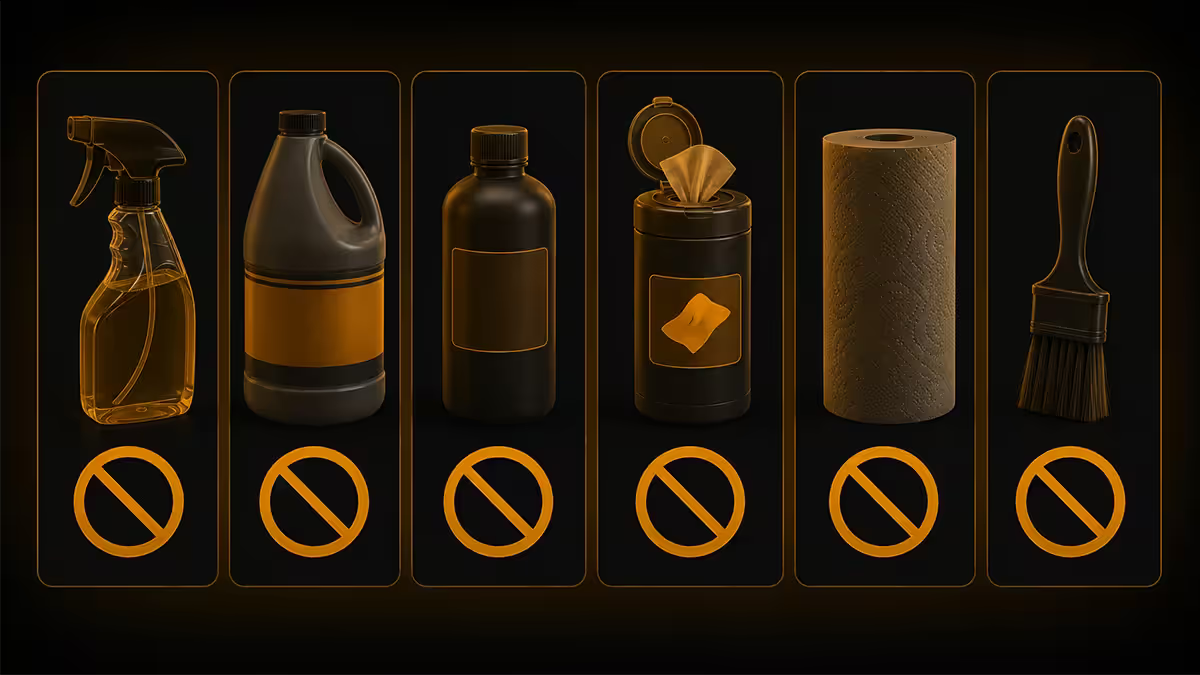
More laptops are damaged by wrong cleaning products than by neglect. The list of things to keep away:
| Don't use | What it damages | Use instead |
|---|---|---|
| Windex / window cleaner | Anti-reflective coating, plastic bezels | 70% IPA + microfibre |
| Paper towel / kitchen roll | Scratches screen, anti-glare layer | Microfibre cloth |
| Methylated spirits | Leaves residue (denatured with additives) | Isopropyl alcohol (IPA) |
| Soaking-wet cloth | Moisture seepage into keyboard, ports | Lightly damp microfibre |
| Acetone, nail polish remover | Dissolves plastic, rubber, paint | IPA |
| Multi-surface household cleaner | Detergent residue, coating damage | Dedicated screen cleaner or IPA |
| Bleach | Discolouration, corrosion | Never bleach electronics |
| Domestic vacuum at full power | Static damage to components | Compressed air + reduced-suction vacuum |
| Tilted compressed air can | Liquid propellant on components | Always keep can upright |
Key takeaways
- Power off + disconnect AC + ground yourself before any internal work. Don't clean with the system live.
- 70-99% isopropyl alcohol on a microfibre cloth — apply IPA to cloth, never directly to screen.
- Compressed air: keep can upright, hold fan blades stationary, vacuum-extract dust at exhaust.
- Quarterly external clean for SA dust. Every 2–3 years internal with paste refresh if 3+ years old.
- Never use Windex, paper towel, methylated spirits, multi-surface cleaner, or a tilted air can.
Frequently asked questions
How often should I clean my laptop in South Africa?
Weekly exterior wipe, monthly keyboard + screen, quarterly internal fan cleanout. SA's dust climate accelerates accumulation versus the annual schedule recommended in Northern Hemisphere guides.What ratio of isopropyl alcohol should I use?
70% for routine cleaning, 99% for sensitive electronics like circuit boards or thermal paste cleanup. Below 70% IPA contains too much water. Never use methylated spirits — additives leave residue.Should I power off the laptop before cleaning?
Yes — fully shut down, disconnect AC, and (for internal work) disconnect the battery. Sleep mode keeps voltage live on components.How do I clean a laptop screen without damaging it?
70% isopropyl on a microfibre cloth (apply to cloth, not screen), wipe in straight lines, light pressure. Avoid Windex, ammonia cleaners and paper towels.Is compressed air safe for laptops?
Yes with technique. Keep the can upright (tilting releases liquid propellant), use short bursts, and hold fan blades stationary with a toothpick to prevent motor over-spin damage.How do I clean dust out of the heatsink without taking the laptop apart?
Vacuum at the exhaust grille while puffing compressed air into the intake. Dust gets sucked out rather than pushed deeper. Blowing alone just relocates dust further inside.What should I never use to clean a laptop?
Windex, paper towel, methylated spirits, soaking-wet cloths, acetone, multi-surface cleaners, bleach, tilted compressed air cans. All cause specific, predictable damage.When should I repaste the CPU thermal paste on a laptop?
Every 3–4 years, or when temps climb 10°C+ above baseline, or after disassembly. Don't repaste new or under-warranty laptops — opening usually voids warranty and factory paste is fine.
Get the Evetech app
Exclusive app-only prices, daily flash sales, and free delivery on orders over R4,000 — download the app and start saving.