Troubleshooting · Diagnostic Guide
How to fix monitor flickering.
Most monitor flicker isn't a dying panel. It's a half-seated DisplayPort latch, a stale GPU driver, or a Windows refresh-rate fallback that's nudging your panel out of its sweet spot. We rank causes by likelihood so you fix it fastest.
- cable or driver fix
- ~70%
- causes ranked
- 9
- swap-port test
- 30 sec
Reseat the cable — both ends
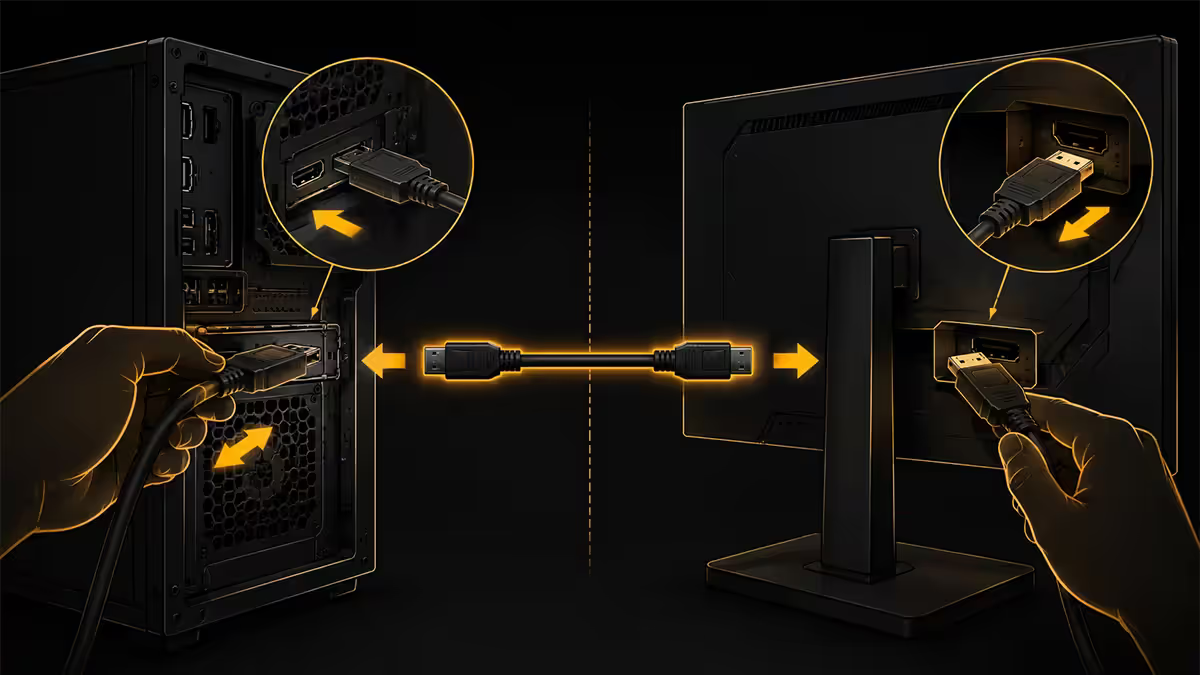
This fixes more monitor flicker than every other step combined. DisplayPort cables in particular have a tiny spring-loaded latch that loosens over time, especially after the cable has been bent behind a wall-mounted panel or pulled by a moving monitor arm. A half-seated DP cable produces classic intermittent black-frame flicker, often when you move the desk or tap the panel.
The procedure: power off the monitor, fully unplug the DisplayPort or HDMI cable from both the monitor and the GPU. Press the DP latch (small button on the connector) before pulling. Inspect the connector for bent pins. Reseat firmly until you hear the click. Power on.
If reseating doesn't resolve it, try a different known-good cable. Cheap "high refresh" cables from generic suppliers are a common SA flicker cause — they advertise 240Hz support but fail under sustained bandwidth. For 4K 144Hz+ or 1440p 240Hz+ you need a certified DP 2.1 UHBR or HDMI 2.1 cable.
Refresh rate mismatch in Windows
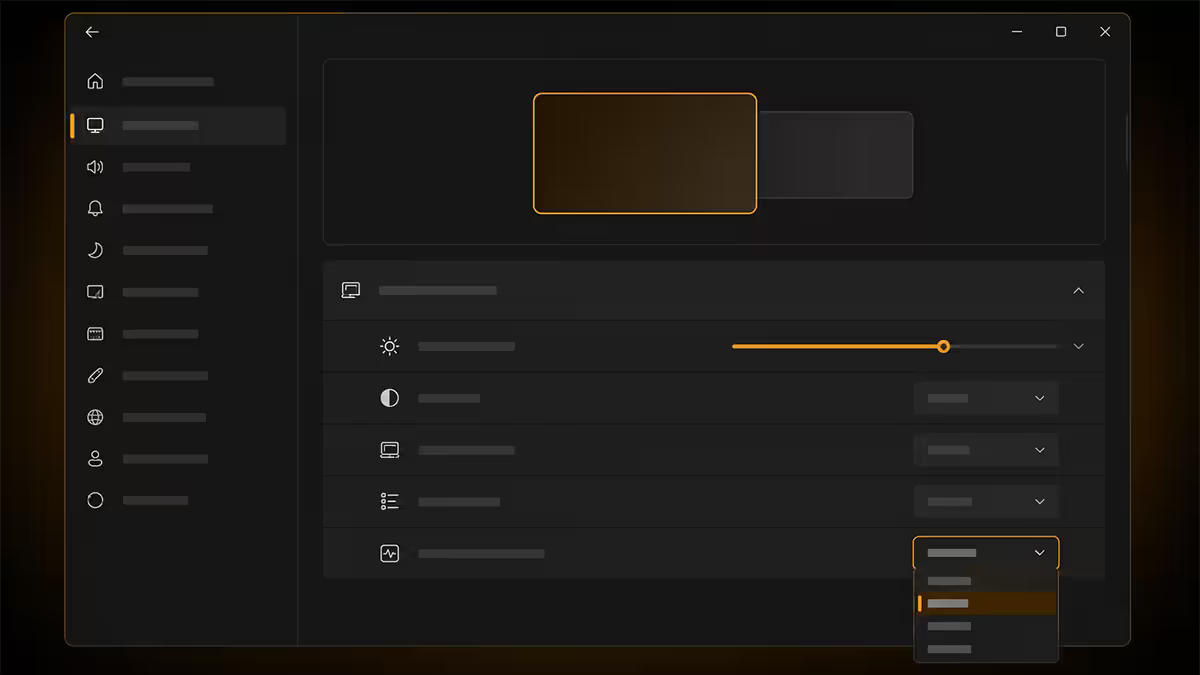
Windows 11 sometimes silently drops your monitor refresh rate to 60Hz after a driver update, sleep cycle, or HDR toggle. If your 144Hz panel runs at 60Hz, the panel's pixel response was tuned for 144Hz timing — at 60Hz it can produce visible brightness oscillation that feels like flicker.
Check it: Settings > System > Display > Advanced display > Refresh rate. Confirm it matches your panel's native (usually 144Hz, 165Hz, 240Hz or 360Hz). If it's at 60Hz despite the dropdown showing higher options, the cable is likely the limiting factor — go back to step 1.
For VRR / G-Sync displays the refresh rate should match what NVIDIA Control Panel or AMD Adrenalin reports — not always the same as Windows. Cross-check both. If they disagree, the driver hasn't fully applied the EDID negotiation.
GPU driver clean install with DDU
Stacked GPU drivers (especially after an upgrade from one card to another, or several version updates in a row) accumulate registry junk that produces erratic timing — and erratic timing on a high-refresh display looks like flicker.
The fix is a clean reinstall using Display Driver Uninstaller (DDU):
- Download DDU from Guru3D and the latest NVIDIA or AMD driver from the manufacturer's site.
- Disconnect from the internet (so Windows doesn't auto-install a generic driver during the process).
- Boot to Safe Mode: Settings > System > Recovery > Advanced startup > Restart now > Troubleshoot > Advanced > Startup Settings > Restart > 4.
- Run DDU. Choose your GPU vendor. Click "Clean and Restart".
- After restart, install the fresh driver. Reconnect to the internet.
Total time: 20-25 minutes. On our service bench this sequence resolves a large share of the flicker complaints that step 1 (cable) didn't already fix.
G-Sync / FreeSync range issue (LFC)
When VRR-enabled games dip below the monitor's lower variable refresh limit (typically 48Hz on G-Sync displays, 30-48Hz on FreeSync displays), Low Framerate Compensation (LFC) takes over. LFC doubles or triples each frame so the panel can run at twice the game's frame rate while VRR stays active.
When LFC kicks in or out repeatedly — common in CPU-bottlenecked games where frame times spike — you'll see brief brightness flicker. This is a known VRR boundary behaviour, not a panel fault.
Fixes:
- Cap your FPS in-game above the LFC threshold so frame rates never dip there. For most G-Sync panels that means staying above 50 fps.
- Lower graphics settings to keep frame times stable.
- Disable VRR for that specific title if flicker persists despite caps. Use NVIDIA Control Panel > Manage 3D Settings > Program Settings to disable per-game.
- For G-Sync Ultimate displays, enable "G-Sync + V-Sync" both in NVIDIA Control Panel — this smooths LFC transitions on capable panels.
Overdrive set too aggressive
Many gaming monitors offer multiple overdrive (OD) levels — typically labelled Normal, Fast, Faster or High in the OSD. At the highest overdrive setting, the panel applies extra voltage to speed pixel transitions. Pushed too far, this causes inverse ghosting (a brighter trailing edge) which on a moving image can look like local flicker.
Check it: drop overdrive one level (e.g., from Faster to Fast). If the flicker reduces or disappears during fast motion, OD was the culprit. Most monitors are calibrated correctly at their middle OD setting.
For variable refresh rate monitors, look for a setting called "VRR overdrive" or "OD with G-Sync" — many panels need this enabled or disabled depending on the panel's specific design. Check the manufacturer's quickstart or RTINGS review for the recommended setting on your model.
PWM dimming at low brightness
Some monitors dim brightness by rapidly cycling the backlight on and off — Pulse Width Modulation (PWM). At high brightness levels (above ~50%) the on-time is long enough that PWM is invisible. At low brightness (10-30%), the off-time becomes long enough that sensitive viewers perceive a clear flicker, especially in peripheral vision.
If your monitor only flickers at low brightness:
- Raise brightness above 40-50%. Adjust contrast or use Windows' Night Light to reduce overall harshness instead.
- Enable the monitor's "Flicker-Free" or "Anti-Flicker" mode if available (most premium gaming monitors have this).
- Replace the monitor with one that uses DC dimming (most modern OLEDs, IPS panels from BenQ EW series, ASUS ProArt and Eve products).
If you're chronically tired or migraine-prone after long PC sessions, PWM is worth investigating. TestUFO's PWM test (testufo.com/flicker) confirms whether your panel uses PWM.
HDR toggle flicker
HDR mode changes backlight zone behaviour. On monitors with local dimming, the dimming algorithm constantly adjusts brightness per zone in response to scene content. On borderline-quality FALD (full-array local dimming) panels, the algorithm hunts — adjusts back and forth — producing visible brightness flicker that's most noticeable on white text against a dark background.
Fixes:
- Disable local dimming for SDR content. Most monitors let you toggle it independently of HDR.
- Use HDR400 or HDR600 settings rather than HDR1000+ if your panel is borderline; the dimming algorithm is less aggressive at lower peak nits.
- Update monitor firmware. HDR algorithms have improved with firmware updates on Samsung Odyssey, LG UltraGear and ASUS ROG panels over the past 18 months.
- For productivity/desktop work, switch HDR off entirely. Windows HDR is still not ideal for SDR content.
Multi-monitor refresh conflicts
Running a 144Hz primary alongside a 60Hz secondary used to be a real problem on NVIDIA cards — the GPU's display controller would fall back to 60Hz on both panels during VRR transitions or during workload spikes. The 2023 NVIDIA driver branch substantially fixed this but it still resurfaces on older cards or after a driver corruption.
Quick test: disconnect the secondary monitor. If flicker on the primary stops, you've confirmed it's the mixed-refresh issue.
Fixes:
- Set both monitors to the same refresh rate — even if it means dropping the primary to 120Hz to match. Painful but reliable.
- Connect the secondary monitor via USB-C or a different output type than your primary; the GPU treats them as independent timing domains.
- Update to the current NVIDIA driver branch (576.xx+ as of mid-2026).
- For AMD Radeon, similar fix — driver branch 25.x.x handles mixed-refresh better than older 23.x branches.
The swap-port diagnostic
When the easy fixes don't resolve it, you need to isolate the fault. The swap-port test takes about 30 seconds and answers "is it my monitor or my PC?" definitively.
Test 1 — swap monitor input: Most monitors have two or more video inputs (DP, HDMI 1, HDMI 2, USB-C). Move the cable to a different input on the same monitor and switch the OSD to that input. If flicker stays — it's the cable, GPU or driver. If flicker shifts behaviour or disappears — the original input port on the monitor is at fault.
Test 2 — swap monitor: Plug the same cable into a different monitor (a friend's panel, your TV, another panel from work). If the second monitor flickers too — the cable or GPU is the cause, not the panel. If the second monitor is clean — your monitor is at fault.
Test 3 — swap GPU output: If your GPU has more than one output (most do), move the cable to a different output on the GPU. If flicker stops, the original GPU port may be damaged. Note which output and avoid it; this happens but is uncommon.
Key takeaways
- Cable reseat or swap fixes ~40% of monitor flicker. Always start here.
- DDU clean GPU driver install resolves a further ~25%. Use vendor drivers, not Windows Update.
- Refresh rate fallback to 60Hz is a silent killer — check Windows display settings.
- VRR/G-Sync flicker is almost always the LFC boundary — cap FPS above the threshold.
- Swap-port test isolates panel vs cable/GPU in 30 seconds. RMA only after 1-8.
Frequently asked questions
Why is my monitor flickering?
The top three causes, in order of likelihood: (1) loose or damaged DisplayPort or HDMI cable — reseat both ends and try a known-good cable. (2) GPU driver corruption — clean install via DDU then current NVIDIA or AMD driver. (3) Refresh rate mismatch — make sure Windows is set to your panel's native refresh, not a fallback like 60Hz.Is my monitor dying or is it the cable?
The 'swap port' diagnostic answers this in 30 seconds. Move the cable to a different input on the same monitor — if flicker stays on the new input, it's the cable or GPU. If flicker shifts behaviour or disappears, it was the original port. Then try a different monitor on the same cable; if that monitor also flickers, the cable or GPU is at fault, not the panel.Why does my monitor flicker only at low brightness?
PWM (Pulse Width Modulation) dimming. Many monitors dim brightness by rapidly cycling the backlight on and off — at low brightness levels the off-time is long enough that sensitive viewers perceive flicker. Fix it by raising brightness above ~40%, switching to a Flicker-Free / DC-dimming monitor, or enabling the monitor's anti-flicker mode if available.Why does my monitor flicker with G-Sync or FreeSync on?
Almost always the VRR range edge. When frame rates dip below the monitor's lower VRR limit (typically 48Hz), LFC (Low Framerate Compensation) doubles frames — and if the GPU's frame timing is unstable near that boundary, you'll see brief brightness flicker. Fix it by raising frame rates above the LFC threshold, capping FPS within the stable VRR range, or disabling VRR on titles where this happens repeatedly.Does HDR cause monitor flickering?
Yes — especially on monitors with local dimming. HDR toggles change backlight zone behaviour and on borderline-quality panels the dimming algorithm hunts, producing visible brightness shifts that look like flicker. Fix it by disabling local dimming, switching HDR off for SDR content, or using HDR400/600 settings instead of HDR1000+ if your panel allows it.Why does my second monitor flicker only when both are on?
Refresh rate conflict between mixed-rate displays — a common cause when one monitor is 144Hz and the other is 60Hz. The GPU sometimes struggles to maintain stable timing across both outputs simultaneously, particularly on older NVIDIA cards. Fix it by setting both monitors to the same refresh rate, or updating to the latest GPU driver which generally handles mixed refresh rates better.How do I do a clean GPU driver install?
Download Display Driver Uninstaller (DDU) from Guru3D and the latest NVIDIA or AMD driver from the manufacturer's site. Boot into Safe Mode (Windows 11: Settings > Recovery > Advanced startup > Restart now > Troubleshoot > Advanced > Startup Settings > 4). Run DDU and choose 'Clean and Restart'. After reboot install the fresh driver. Takes about 20 minutes and resolves a huge proportion of flickering issues.Should I send my monitor for repair if flickering persists?
Only after exhausting cable, driver and refresh-rate fixes. If swap-port and swap-monitor tests confirm the panel itself is at fault, and the monitor is under warranty (most premium panels carry 3-year warranties in SA), RMA via the retailer. Out-of-warranty repair for a backlight or T-CON board replacement typically runs R1,500-R4,500 — usually only worth it for monitors over R8,000.
Get the Evetech app
Exclusive app-only prices, daily flash sales, and free delivery on orders over R4,000 — download the app and start saving.