Hardware Explainer
What is a GPU bottleneck? — And why it's usually a good thing.
"My PC is bottlenecked" is one of the most-Googled gaming-PC fears and one of the most misunderstood. Most of the time, the GPU sitting at 99% is exactly what you paid for.
- gpu = working
- 99%
- different problem
- 95%+ CPU
- shifts the limit
- Resolution
What a GPU bottleneck actually means
Every frame your PC renders involves both CPU and GPU work. The CPU prepares draw calls — instructions telling the GPU "render this object here with this shader." The GPU executes those draw calls — shading, texturing, lighting and outputting pixels.
A bottleneck exists when one of these components can't keep up with the other. The slower component is sitting at near-100% utilisation while the faster one waits, idle. There are always two flavours:
- GPU bottleneck: GPU at 95-100%, CPU has headroom. Adding faster CPU won't help — GPU is the limiter.
- CPU bottleneck: a CPU core (or several) at 95-100%, GPU at 50-70%. Adding a faster GPU won't help much — CPU is the limiter.
In gaming, GPU bottleneck is the expected and desirable state for most scenarios. It means you're extracting full value from the most expensive component in your PC. The GPU is doing all the work it can, and FPS will scale directly with future GPU upgrades. CPU bottleneck is generally the more problematic state — it suggests a mismatch where your CPU can't feed the GPU fast enough.
How to diagnose with MSI Afterburner
Diagnosing a bottleneck takes 5 minutes of setup, then 60 seconds in any game. The tools are free.
Step 1: Install MSI Afterburner + RivaTuner. Download the official package from msi.com — it installs both Afterburner (GPU monitoring + overclocking) and RivaTuner Statistics Server (the on-screen display engine). Both are completely free regardless of GPU brand. AMD Radeon and Intel Arc GPUs work perfectly too, despite the name.
Step 2: Configure the on-screen display (OSD). In Afterburner, click Settings → Monitoring tab. Enable and tick "Show in On-Screen Display" for these specific values:
- Framerate — your current FPS
- GPU usage — single percentage
- GPU memory usage — MB used vs total
- CPU usage — overall percentage
- CPU usage per thread — critical for spotting single-core CPU bottlenecks
- RAM usage — MB used vs total
Step 3: Launch a game at your normal settings. Play 5-10 minutes of typical gameplay. Note the OSD readings during demanding moments — combat, busy scenes, dense crowds.
Step 4: Interpret the results:
| What you see | Diagnosis | Action |
|---|---|---|
| GPU 95-100%, no CPU core above 85% | Classic GPU bottleneck | Normal — only act if FPS is too low |
| One CPU core 95-100%, GPU 50-70% | CPU bottleneck (single-thread) | Lower CPU settings or upgrade CPU |
| All CPU cores 80%+, GPU 50-70% | Multi-thread CPU bottleneck | Heavy simulation game — fewer NPCs/lower draw distance |
| GPU memory usage = total VRAM | VRAM bottleneck | Lower texture quality or upgrade GPU |
| RAM near 100%, frame time spikes | RAM bottleneck (masquerading) | Close background apps or add RAM |
| Both CPU and GPU under 70% | FPS cap, V-Sync, or low-quality settings | Check in-game settings + driver overrides |
Alternative tools: HWInfo64 (more detailed sensor monitoring), CapFrameX (best for frame-time analysis), or PresentMon (Microsoft's own tool, very accurate). For most users, MSI Afterburner is the easiest and most-documented option.
Why GPU bottleneck is usually a good thing
The intuition that "bottleneck = bad" is wrong in the GPU case. Here's why GPU at 99% during gaming is exactly what you want:
1. You're getting full value from your GPU. A R23,500 RTX 5080 sitting at 50% utilisation while a slow CPU holds it back is genuinely wasted money. The same GPU at 99% is doing exactly what you paid for.
2. Your CPU isn't a bottleneck. CPU bottleneck is much harder to fix — you typically need a new CPU, often with a new motherboard and RAM. GPU bottleneck only requires lower settings, upscaling, or a GPU upgrade — much more flexibility.
3. Upgrading the GPU will directly scale your FPS. When you're GPU-bottlenecked at 87 FPS, replacing your RTX 4070 with an RTX 5080 will give you roughly the percentage uplift the GPU benchmark shows — clean and predictable.
4. Settings adjustments work as expected. Lower graphics settings → more FPS, in proportion. Higher graphics settings → less FPS. Predictable cause and effect. A CPU-bottlenecked system sees almost no FPS change from lowering settings, which is genuinely frustrating.
Resolution shifts the bottleneck
This is the most important concept in bottleneck analysis — and the source of much confusion. Increasing resolution shifts the bottleneck toward GPU. Decreasing resolution shifts it toward CPU.
Why this happens: the CPU's per-frame workload (draw calls, game logic, physics, audio) is largely independent of resolution. The CPU does roughly the same work to render a frame at 1080p as it does at 4K. The GPU's per-frame workload is proportional to resolution — 4K requires roughly 4× the pixels of 1080p, meaning 4× the shading work.
Result: at 1080p, the GPU finishes its work quickly and waits for the CPU's next batch of draw calls. CPU becomes the limiter. At 4K, the GPU is overwhelmed and the CPU has nothing to do but wait. GPU becomes the limiter.
| Configuration | Resolution | Likely bottleneck |
|---|---|---|
| Ryzen 5 5500 + RTX 5070 | 1080p | CPU (under-powered for this GPU) |
| Ryzen 5 5500 + RTX 5070 | 1440p | Mixed — partial GPU bottleneck |
| Ryzen 5 5500 + RTX 5070 | 4K | GPU |
| Ryzen 7 9700X + RTX 4060 | 1080p | Mixed — close to balanced |
| Ryzen 7 9700X + RTX 4060 | 1440p | GPU |
| Ryzen 9 9950X + RTX 5090 | 4K + path tracing | GPU (always — RT is GPU-heavy) |
| Ryzen 9 9950X + RTX 5090 | CS2 at 1080p competitive | CPU (low-res esports stress CPU) |
This is why benchmark methodology matters. Hardware reviewers test CPUs at 1080p (to isolate CPU performance — minimal GPU load) and GPUs at 4K (to isolate GPU performance — minimal CPU load). When you read "CPU X is 10% faster than CPU Y at 1080p," that gap likely vanishes at 4K because the GPU becomes the limit.
CPU bottleneck — the genuine problem
If GPU bottleneck is "PC working as intended," CPU bottleneck is the version that actually deserves the panic that "bottleneck" usually triggers.
Symptoms of CPU bottleneck:
- One CPU core (sometimes two) sitting at 95-100% in the OSD, while GPU shows 50-70%.
- FPS plateaus regardless of graphics settings — dropping from Ultra to Low gives barely any FPS gain.
- Frame time spikes during dense scenes (more NPCs, more physics, busy combat).
- Stuttering in specific game scenarios (city centres in Cities Skylines, large battles in Total War, multiplayer servers with high player counts).
- Esports titles (CS2, Valorant, Overwatch) that should be hitting 240+ FPS sitting at 120-180.
Most common cause: mismatched CPU + GPU pairing. A Ryzen 5 5500 (R2,800) paired with an RTX 4070 Super (R12,500) is the classic budget-build mistake — the CPU costs 22% of the GPU but limits its performance by 30-50% in many games. A balanced build pairs roughly equivalent tiers: budget GPU with budget CPU, enthusiast GPU with enthusiast CPU.
The fix is expensive. Upgrading CPU usually requires a new motherboard (different socket) and often new RAM (DDR4 → DDR5). That's a R12,000-R20,000+ upgrade path. The lesson: pair components correctly the first time. Our CPU + GPU pairing guide covers this in detail.
DLSS and frame generation impact
Upscaling (DLSS, FSR, XeSS) and frame generation (DLSS 3/4 Frame Gen, FSR 3) materially change the bottleneck picture. Most players don't realise this.
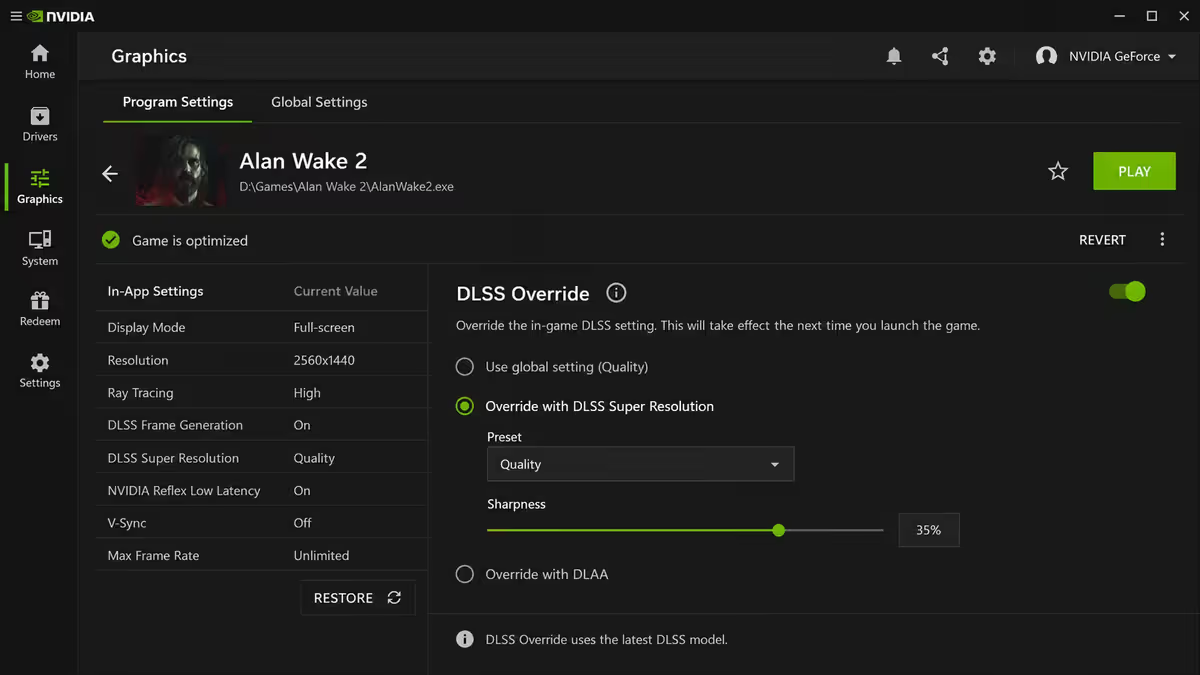
Upscaling (DLSS, FSR, XeSS): the game renders at a lower internal resolution (say 1080p) and the GPU's tensor cores or shader cores upscale to your display resolution (say 1440p). The result is dramatically less GPU work — typically 30-50% GPU load reduction at the same display resolution. This often shifts you from GPU-bottlenecked to CPU-bottlenecked because the CPU is still doing the same draw call work for what's effectively a 1080p frame.
Frame generation (DLSS 3/4 FG, FSR 3 FG): the GPU's optical flow accelerator generates AI-predicted frames between real frames, roughly doubling perceived FPS. Frame generation has minimal CPU impact (it runs entirely on GPU), so it actually relieves CPU bottleneck — generating two display frames for every one frame the CPU prepares. This is why frame generation is so transformative in CPU-bottlenecked scenarios like Microsoft Flight Simulator.
Practical implication: if you turn on DLSS Performance mode in a game and your FPS doesn't improve as expected, check your OSD. You may have shifted into a CPU bottleneck — your GPU now has spare capacity but the CPU can't deliver more draw calls. Enabling frame generation on top is often the right next step.
Ray tracing's bottleneck impact
Ray tracing — and especially path tracing (Cyberpunk 2077's Overdrive Mode, Alan Wake 2 with full RT, Indiana Jones Path Tracing) — is so GPU-intensive that it firmly anchors the bottleneck at GPU regardless of CPU strength.
A single ray-traced reflection requires the GPU to trace rays into the scene, intersect them with geometry, fetch materials, and shade. Path tracing simulates real-world light bouncing — millions of rays per frame. Even an RTX 5090 paired with a Ryzen 9 9950X will sit at 100% GPU and 30% CPU when path tracing is enabled at 4K.
What this means for your build budget: if ray tracing is a priority (you play Cyberpunk, Alan Wake 2, Black Myth Wukong, Indiana Jones with RT on), weight your budget toward GPU, not CPU. An RTX 5070 + Ryzen 5 9600X is a better RT-gaming build than an RTX 5060 + Ryzen 7 9700X at the same price.
What this means for diagnosis: if you enable ray tracing and your FPS tanks, you've added GPU work, not CPU work. Don't blame the CPU. The fix is either lower RT settings (Medium RT instead of Ultra), DLSS upscaling (renders RT at lower internal res), or accepting lower FPS as the cost of RT visuals.
How to fix a GPU bottleneck — five options
Most readers reach this guide wanting a fix, not a diagnosis. Five options in order of cost, from free to R55,000+.
1. Lower graphics settings — Free
The cheapest fix. Drop Ultra → High. Disable ray tracing. Lower shadow quality (huge GPU saving). Lower volumetric fog and screen-space reflections. Texture quality has minimal FPS impact unless you've exhausted VRAM. Free, instant, often the only fix needed for a slight FPS shortfall.
2. Lower resolution — Free
Dropping from 1440p to 1080p reduces GPU load 40-50% and usually doubles FPS. Visual quality drops noticeably but if your monitor scales properly it's still very playable. Useful as a temporary fix while saving for a GPU upgrade.
3. Enable DLSS / FSR / XeSS upscaling — Free
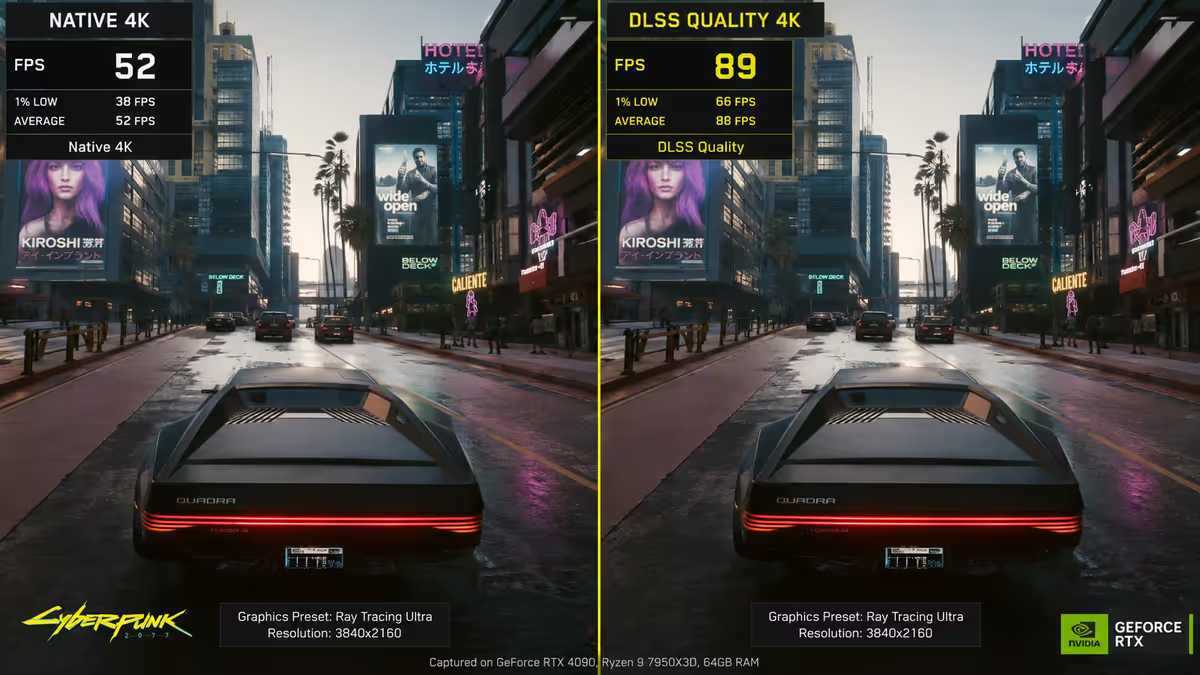
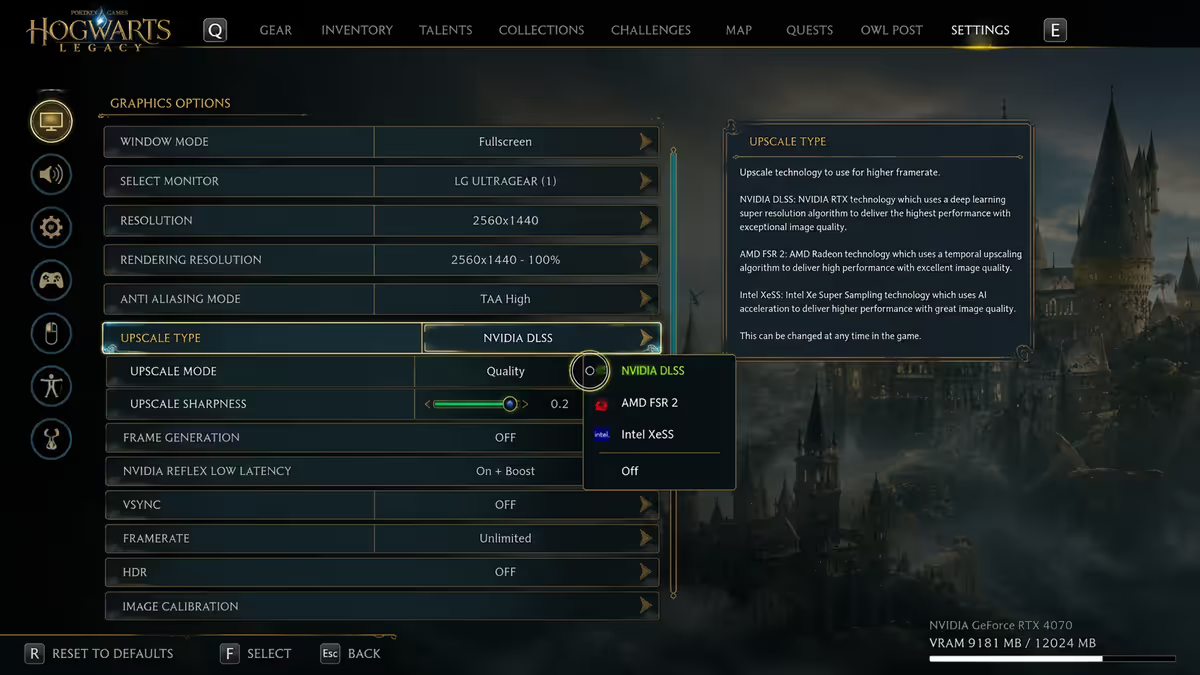
Set the upscaler to Quality or Balanced mode. The game renders at lower internal resolution then upscales — typically 30-60% FPS gain with minimal visual quality loss. DLSS Quality on RTX cards is genuinely difficult to distinguish from native resolution in most games. FSR Quality on AMD cards is close but slightly softer. XeSS Quality on Intel Arc is excellent on the latest version.
4. Enable frame generation — Free (if supported)
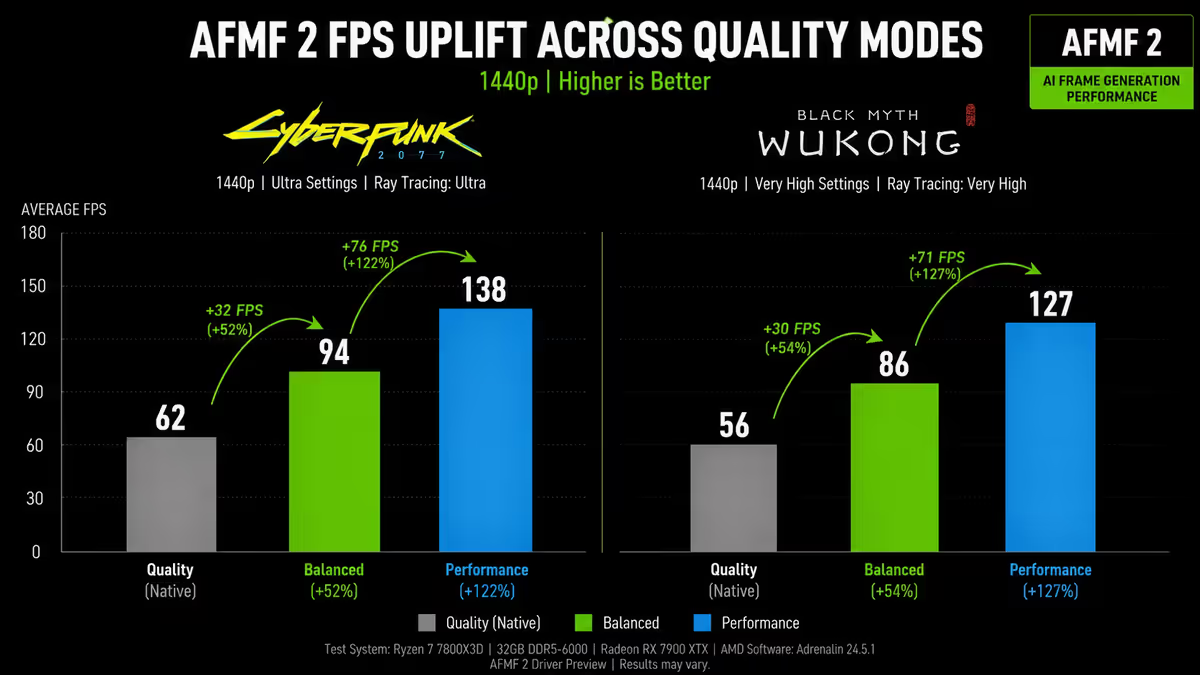
DLSS 3/4 Frame Gen (RTX 4000/5000 series), FSR 3 Frame Gen (RX 7000/9000 series), and Intel XeSS-FG (Arc B-series) generate AI frames between rendered frames. Roughly doubles perceived FPS smoothness. Requires the game to support it. Combined with upscaling, can turn 60 FPS into a perceived 130+ FPS. Some latency added — use only when base FPS is already 50+ for best feel.
5. Upgrade your GPU — R7,500-R55,000
The expensive but correct fix when the previous four don't get you to your target FPS. The honest decision criterion: if you've enabled DLSS Quality + maxed reasonable settings and your FPS is still well below your monitor's refresh rate at your target resolution, you've genuinely outgrown your GPU. Upgrade.
When to actually upgrade the GPU
Hardware upgrades are expensive in SA. Be honest about whether you need one. A GPU upgrade is the right move when:
- Your FPS at your target resolution + settings is materially below your monitor's refresh rate (e.g. 144Hz monitor, you're hitting 70 FPS).
- You've already tried DLSS Quality, lowered shadow settings and disabled ray tracing — no further improvement available without compromising visuals you care about.
- You've upgraded your monitor to a higher resolution and your GPU can't drive it (common when upgrading 1080p → 1440p or 1440p → 4K).
- VRAM is your bottleneck specifically (texture quality forced low, GPU memory at 100% in OSD).
- A specific game you love is unplayable at your standards and a GPU upgrade is the documented fix.
A GPU upgrade is NOT the right move when: you're already hitting 100+ FPS at your resolution. Your "bottleneck" is the GPU sitting at 99%. Your CPU is the actual limit (different upgrade entirely). You haven't tried DLSS or settings adjustments yet. Your monitor is 60Hz (you don't need more FPS than your display can show).
Per-game examples
Cyberpunk 2077 (1440p Ultra, no RT, RTX 4070 + Ryzen 7 7700X): GPU at 99%, CPU at 55%. Classic GPU bottleneck — perfectly balanced for this hardware. Enable RT Overdrive and FPS drops 60% → GPU still bottlenecked, just more so. Enable DLSS Quality → FPS jumps 50%, GPU still at 95%, CPU rises to 70%. Working as designed.
Counter-Strike 2 (1080p Low, competitive settings, RTX 5070 + Ryzen 5 5500): GPU at 45%, single CPU core at 100%. Classic CPU bottleneck — esports titles at low res are notoriously CPU-bound. The RTX 5070 here is wasted; upgrading to RTX 5080 would do nothing. Solution: upgrade CPU.
Microsoft Flight Simulator 2024 (1440p High, RTX 4080 + Ryzen 9 7950X): CPU cores 70-90%, GPU at 80%. Mixed bottleneck — MSFS is famously CPU-heavy due to scenery streaming and physics. DLSS Frame Generation transformative here — perceived FPS doubles while CPU load stays flat.
Total War: Warhammer 3 (4K Ultra, massive battle, RTX 5090 + Ryzen 9 9950X): CPU cores 75-85%, GPU at 88%. Mostly GPU-bound but battles with thousands of units push CPU. Lower unit detail or smaller armies relieve CPU; lower resolution or DLSS relieve GPU.
Valorant (1080p competitive, RTX 4060 + Ryzen 5 7600X): GPU at 30%, CPU cores at 40%. Neither bottlenecked — Valorant is so light that even modest hardware exceeds the FPS cap. The 240 FPS limit is the bottleneck, not the components. Remove the cap and FPS jumps to 450+.
Common bottleneck-analysis mistakes
Assuming GPU at 99% is bad. The single most common misunderstanding. GPU at 99% during gaming is the desired state for almost every scenario.
Looking only at total CPU percentage. Games often bottleneck a single CPU core while overall CPU shows 30-40%. Always enable per-thread monitoring in MSI Afterburner. A core at 100% with overall CPU at 35% is a single-thread CPU bottleneck — the worst kind.
Using online "bottleneck calculator" websites. They produce garbage. Real bottleneck analysis depends on resolution, settings, game choice and monitor refresh rate. No website can tell you definitively. Run MSI Afterburner in your actual games — that's the only authoritative answer.
Ignoring the monitor. A 60Hz monitor caps your perceived FPS at 60 regardless of what the OSD shows the GPU producing. There is no benefit to your GPU rendering 200 FPS if your display can only show 60 of them. Monitor upgrade may be the actual fix.
Misdiagnosing RAM bottleneck as CPU bottleneck. Systems with insufficient RAM (16GB on a heavy modern game with background apps) page memory to disk, causing CPU to wait on slow storage I/O. CPU shows high usage that looks like CPU bottleneck — but the actual bottleneck is RAM capacity. Add RAM, problem disappears.
Storage bottleneck on HDD systems. Games with heavy asset streaming (open world titles, Final Fantasy XIV, Forspoken's famous case) on HDD storage cause stutters that look like CPU spikes. The actual bottleneck is storage I/O. NVMe SSD upgrade fixes it; nothing else does.
Comparing your bottleneck to a YouTube reviewer's. Their PC, game version, drivers, resolution and settings differ from yours. A YouTuber reporting GPU bottleneck at 1440p Ultra means nothing for your 1080p Medium experience.
Key takeaways
- GPU at 99% during gaming is almost always working as intended — you're getting full GPU value.
- CPU bottleneck (one core at 100%, GPU at 50-70%) is the genuine problem — much harder to fix.
- Diagnose with MSI Afterburner + RivaTuner — free, takes 5 minutes to set up, 60 seconds to read.
- Higher resolution shifts bottleneck toward GPU; lower resolution shifts toward CPU. DLSS shifts toward CPU.
- Five fixes in order: lower settings → lower resolution → DLSS/FSR → frame generation → upgrade GPU.
Frequently asked questions
What is a GPU bottleneck?
When your GPU is at 99-100% utilisation and the CPU has spare capacity. Counter-intuitively, this is usually the desired state for gaming — you're extracting full value from your GPU.How do I check if I have a GPU bottleneck?
Install MSI Afterburner + RivaTuner, configure the OSD to show CPU per-thread, GPU usage, GPU memory and FPS. Play your game and check: GPU 95%+, CPU under 85% per core = GPU bottleneck.Is a GPU bottleneck bad?
No, in most gaming scenarios it's the expected state. Only a problem if your FPS isn't high enough for your monitor refresh rate at your target settings.How do I fix a GPU bottleneck?
In order of cost: lower settings → lower resolution → enable DLSS/FSR/XeSS → enable frame generation → upgrade GPU. Try the free options first.What is a CPU bottleneck and how is it different?
CPU bottleneck: one CPU core at 95-100% while GPU sits at 50-70%. Symptoms: FPS plateaus regardless of settings. Fix requires CPU upgrade (often motherboard + RAM too).Does resolution affect GPU bottleneck?
Yes, dramatically. Higher resolution increases GPU load (shifts toward GPU bottleneck). Lower resolution reduces GPU load (shifts toward CPU bottleneck).Does DLSS or FSR affect bottlenecks?
Yes. Upscaling reduces GPU load 30-50%, often shifting to CPU bottleneck. Frame generation runs on GPU and relieves CPU bottleneck. Used together they can transform the bottleneck picture.Does ray tracing change which component bottlenecks?
Yes, massively. Ray tracing (especially path tracing) is so GPU-intensive that it firmly anchors bottleneck at GPU regardless of CPU. RT-focused builds should weight budget toward GPU.
Get the Evetech app
Exclusive app-only prices, daily flash sales, and free delivery on orders over R4,000 — download the app and start saving.