Troubleshooting · BSOD
Blue Screen of Death.
— Read the code. Find the driver. Fix it in 10 minutes.
- caused by drivers
- 70%
- to diagnose with minidump
- 10 min
- to fix most cases
- R0
What BSOD actually is
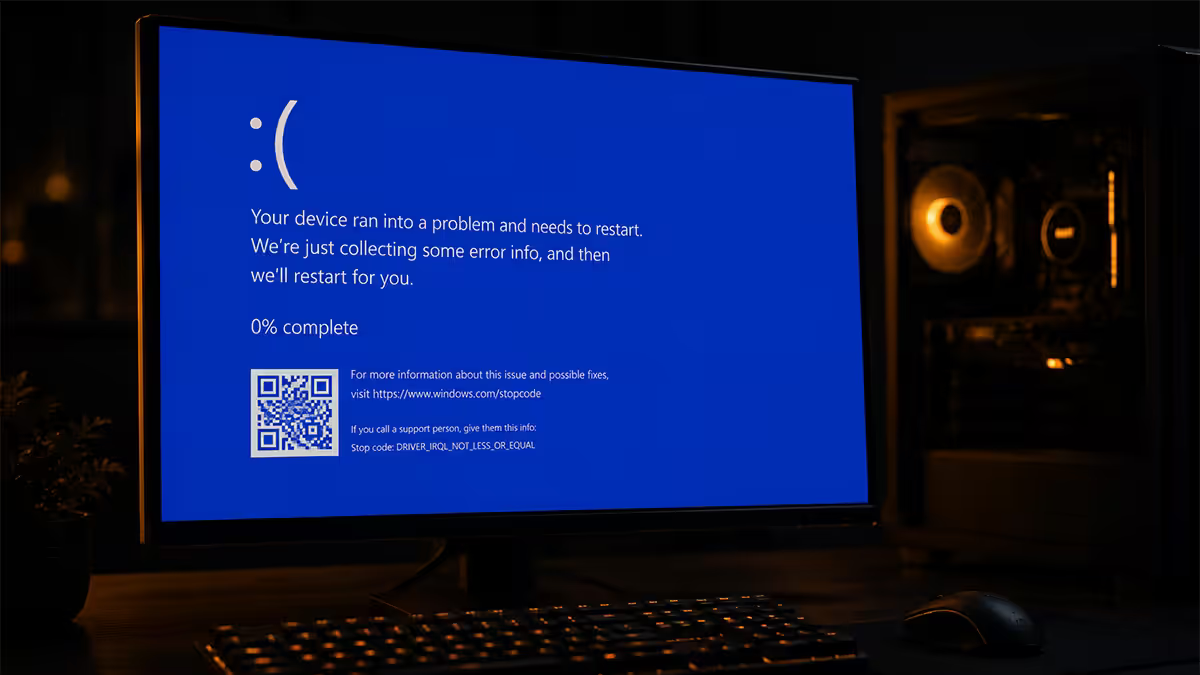
A Blue Screen of Death is a kernel panic — Windows discovering an error severe enough that continuing would corrupt data, so the OS halts the entire system as a protective measure. The blue screen isn't punishment; it's Windows pointing precisely at what failed.
Modern BSODs (Windows 8 through Windows 11) show four useful things on screen:
- The sad emoticon — purely cosmetic.
- The error description — plain English summary, e.g. "Your PC ran into a problem".
- The stop code — the actual diagnostic, e.g.
DRIVER_IRQL_NOT_LESS_OR_EQUAL. This is the line that matters. - The QR code — links to Microsoft's documentation page for that specific stop code.
The first move when you see a BSOD is to photograph the screen with your phone. Windows reboots automatically after 30-60 seconds and the stop code disappears. Without that photo, you're guessing.
The blue screen isn't the problem. It's the system trying to tell you what the problem is.
Why the stop code matters more than the colour
Common stop codes and what they actually mean
There are over 500 documented BSOD stop codes. In real-world tickets, ten codes account for the large majority of the BSODs we see. Knowing these by sight saves you hours of diagnostic guesswork.
| Stop code | Usual cause | First fix |
|---|---|---|
| DRIVER_IRQL_NOT_LESS_OR_EQUAL | Driver bug or outdated driver | Read minidump, update that driver |
| PAGE_FAULT_IN_NONPAGED_AREA | Bad RAM or driver writing wrong address | MemTest86 + minidump |
| MEMORY_MANAGEMENT | Bad RAM, unstable XMP/EXPO, undervolt | Disable XMP, test, run MemTest86 |
| CRITICAL_PROCESS_DIED | Corrupted Windows system files | sfc /scannow + DISM repair |
| SYSTEM_SERVICE_EXCEPTION | Driver issue (often graphics) | Update or rollback GPU driver |
| KERNEL_SECURITY_CHECK_FAILURE | Driver corruption or RAM issue | MemTest86, then driver scan |
| IRQL_NOT_LESS_OR_EQUAL | Driver or hardware fault | Read minidump first |
| WHEA_UNCORRECTABLE_ERROR | CPU error — overheating, overclock, hardware | Disable OC, check temps |
| VIDEO_TDR_FAILURE | GPU driver timeout | Clean GPU driver reinstall (DDU) |
| NTFS_FILE_SYSTEM | Drive corruption or failing SSD/HDD | chkdsk + SMART check |
| UNEXPECTED_KERNEL_MODE_TRAP | Overheating or unstable overclock | Check temps, disable OC |
| BAD_POOL_HEADER | Driver issue, occasionally RAM | Driver investigation via minidump |
Notice the pattern: most stop codes point at drivers first. The minidump tells you which one.
Reading the minidump — your single most useful tool
Every time Windows BSODs, it writes a small crash dump to C:\Windows\Minidump\. The file is named by date — e.g. 052026-12468-01.dmp. You don't need WinDbg or kernel debugging expertise; a free tool does it for you.
Method 1: WhoCrashed (the easy way)
Download WhoCrashed (free version, Resplendence software). Run it. It opens every minidump on your system, identifies the offending driver in plain English, and tells you which company makes it. Total time: 90 seconds.
A typical WhoCrashed report looks like:
- "This was probably caused by the following module: nvlddmkm.sys (NVIDIA Windows Kernel Mode Driver)"
- "This was probably caused by the following module: Realtek HD Audio Driver (RTKVHD64.sys)"
- "This was probably caused by the following module: ntoskrnl.exe" (means Windows itself — usually RAM or storage)
Method 2: BlueScreenView (NirSoft)
If you want more control, BlueScreenView shows every minidump in a list with the offending driver, stop code, parameters and call stack. Free, portable, no install.
Method 3: Event Viewer
Open Event Viewer → Custom Views → Administrative Events. Filter by date. Look for "BugCheck" events. These contain the stop code and parameters, even if you didn't see the BSOD screen directly (it can happen during sleep or unattended).
Driver vs hardware — the critical first decision
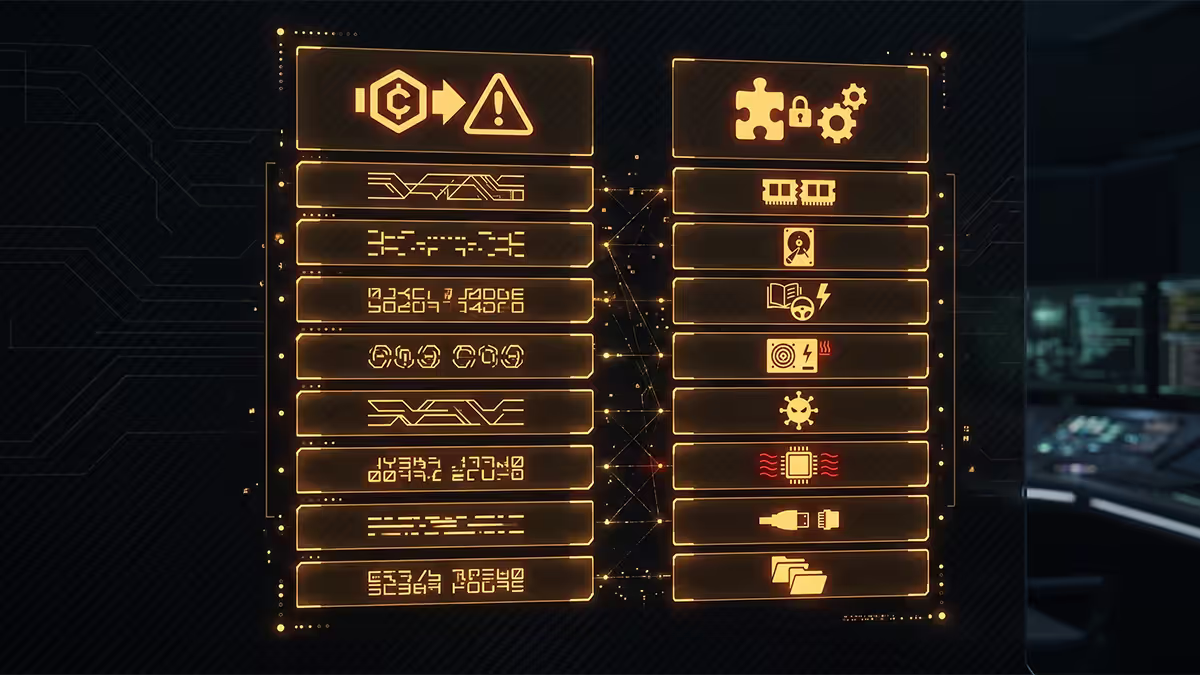
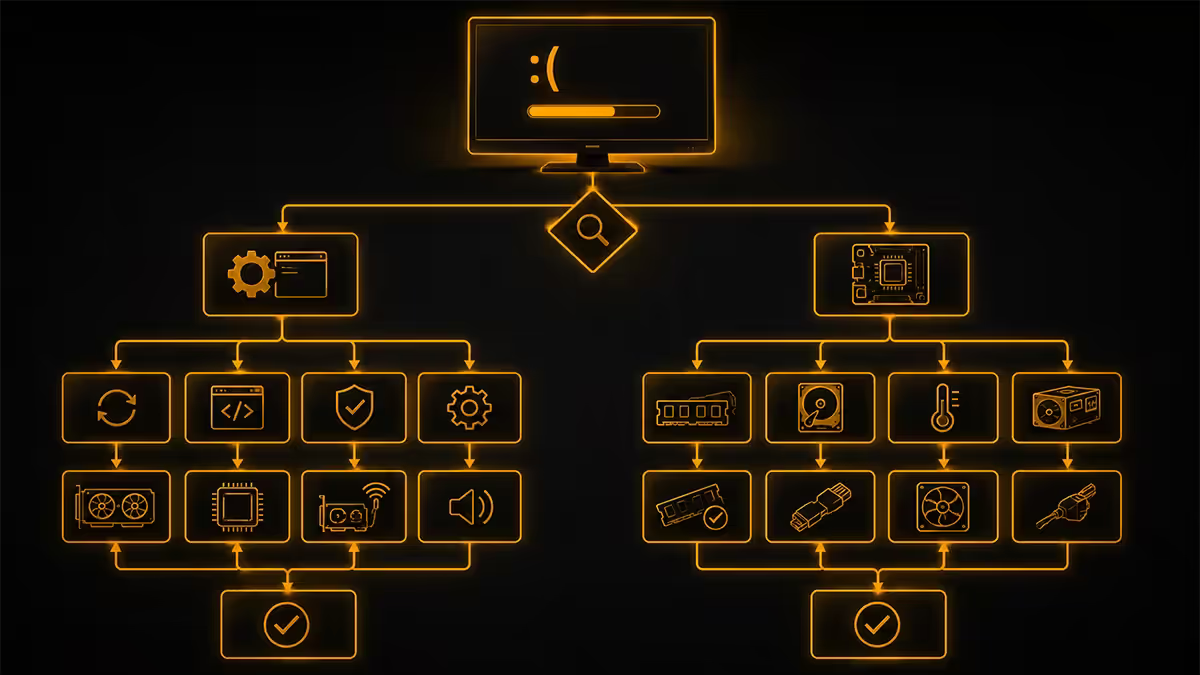
Before you spend money on parts or time on a reinstall, you need to know: is this software (driver, Windows) or hardware (RAM, storage, GPU, CPU)? The minidump pattern usually tells you.
Pointing at a driver
- The minidump consistently names the same
.sysfile across multiple crashes. - The crashes are correlated with specific activities (gaming, watching video, plugging in USB devices).
- Updating or rolling back a recent driver coincides with the BSODs starting.
Fix path: Update the driver from the manufacturer's site (not Windows Update — it's often months behind). For GPU drivers, use DDU (Display Driver Uninstaller) in safe mode, then install the latest stable driver clean.
Pointing at hardware
- The minidump names
ntoskrnl.exeormemory_corruptionwithout a specific driver. - Stop codes are MEMORY_MANAGEMENT, PAGE_FAULT_IN_NONPAGED_AREA or WHEA_UNCORRECTABLE_ERROR.
- Crashes happen at random — no pattern.
- The system also has secondary symptoms: random reboots without BSOD, file corruption, failed Windows updates.
Fix path: Diagnostic tests for each subsystem (see next section).
RAM, GPU and storage diagnostic flow
RAM test (the most common hardware culprit)
Use MemTest86 (free, bootable USB). Download from memtest86.com, write to USB with their imaging tool, boot from it. Let it run at least 4 full passes — that's typically 6-10 hours. Any error means the stick (or one stick) is bad.
If MemTest finds errors:
- Test each stick individually to identify the bad one.
- Test in different DIMM slots — sometimes the slot is the problem, not the RAM.
- Try with XMP/EXPO disabled — if errors disappear, the kit is unstable at rated speed.
GPU test
If BSODs are video-related (VIDEO_TDR_FAILURE, crashes during gaming or 3D apps), test the GPU specifically:
- Run FurMark or 3DMark Time Spy stress test for 20+ minutes. Watch for artifacts or crashes.
- If you have a spare GPU, swap it in. Crashes gone = old GPU faulty.
- Check HWiNFO64 for GPU temperatures hitting 90°C+ under load — that's thermal failure, not the chip itself.
Storage test
If BSODs cluster around NTFS_FILE_SYSTEM or you've seen disk errors:
- Run
chkdsk /f /rfrom an admin command prompt — schedules a check on next reboot. - Open CrystalDiskInfo — it reads SMART data. Anything other than "Good" on your boot drive needs investigation.
- For NVMe SSDs, check the manufacturer's tool (Samsung Magician, WD Dashboard, Crucial Storage Executive) for firmware updates and health.
The diagnostic flow — what to do, in order
- 01
Photograph the stop code
Before the screen disappears. This is the single most important diagnostic data point. - 02
Boot, install WhoCrashed
Run it. Read the report. Note the offending .sys driver if there is one. - 03
Search "stop_code + driver_name"
e.g. "DRIVER_IRQL nvlddmkm.sys" — almost every BSOD has a documented community fix. - 04
Update or roll back the named driver
Get the driver from the manufacturer (NVIDIA, AMD, Realtek, Intel) — not Windows Update. Use DDU for GPU drivers. - 05
If no driver named — disable XMP/EXPO & overclocks
Reboot into BIOS, turn off any RAM XMP/EXPO profile and any CPU overclock or undervolt. Use the system on stock settings for 24-48 hours. - 06
Run MemTest86 overnight
4+ passes minimum. Any error = bad RAM stick or slot. - 07
Check storage and temperatures
CrystalDiskInfo for SMART, HWiNFO64 for CPU/GPU temps. Anything over 90°C under load is a problem. - 08
Repair Windows files
Open admin Command Prompt. Runsfc /scannow, thenDISM /Online /Cleanup-Image /RestoreHealth. Reboot. - 09
In-place repair install
If still crashing, download the Windows ISO, mount it, run setup.exe, choose "Keep personal files and apps". Fixes most lingering system file issues without losing data. - 10
Clean install or RMA
Last resort. Full clean Windows install, then RMA if BSODs persist on fresh OS.
When to RMA and when to reinstall
Clean install Windows when:
- You've eliminated driver and hardware as causes through the steps above.
- The PC was passed down or bought second-hand with an existing Windows install — start fresh.
- A Windows update or major driver install corrupted the OS beyond
sfcrepair. - BSODs persist across multiple replacement components — Windows is the only constant.
RMA the hardware when:
- MemTest86 reports any error — RMA the RAM kit (most have lifetime warranty).
- SMART reports failures or wear levels on storage — RMA the SSD/HDD.
- The GPU produces artifacts in FurMark or fails 3DMark consistently.
- Clean Windows install on fresh hardware still BSODs — likely motherboard or PSU. Take the system to a workshop with parts swap capability.
Key takeaways
- Photograph the stop code immediately. Without it, you're blind.
- WhoCrashed on the minidump tells you the offending driver in 90 seconds.
- 70% of BSODs are driver issues — GPU, audio, network, storage drivers most often.
- MEMORY_MANAGEMENT and PAGE_FAULT codes usually mean RAM — disable XMP and run MemTest86 4+ passes.
- Reinstall Windows last, not first. sfc /scannow and an in-place repair fix more than people expect.
Frequently asked questions
What does Blue Screen of Death actually mean?
A kernel-level error so serious Windows halts the system to prevent data corruption. The stop code on screen tells you which subsystem failed.What is the most common cause of BSOD?
Drivers — the majority of cases. GPU, storage, network and audio drivers in that order. Bad RAM is the next biggest cause, then storage faults.How do I find out what caused my BSOD?
Read the minidump in C:\Windows\Minidump using WhoCrashed (free) or BlueScreenView. The .sys file named is your culprit. Cross-reference with the stop code for a fix.What does DRIVER_IRQL_NOT_LESS_OR_EQUAL mean?
A driver tried to access memory at the wrong interrupt level — almost always a driver bug. Read the minidump to identify which one, then update or rollback.What does PAGE_FAULT_IN_NONPAGED_AREA mean?
Windows read corrupt data from RAM. Run MemTest86 first. If RAM is clean, treat as a driver issue using the minidump.What does MEMORY_MANAGEMENT mean?
RAM issue or unstable XMP/EXPO/overclock. Disable XMP first, test stability, then run MemTest86 4+ passes if still crashing.What does CRITICAL_PROCESS_DIED mean?
Core Windows file corrupted. Run sfc /scannow and DISM /Online /Cleanup-Image /RestoreHealth in admin command prompt. If that fails, in-place repair install.Should I reinstall Windows after a BSOD?
Not first. Most BSODs are fixed by updating a driver. Reinstall only after driver, RAM, storage and sfc/DISM repair have all been ruled out.