Troubleshooting · Display
Fix screen tearing. — Without the V-Sync input-lag penalty.
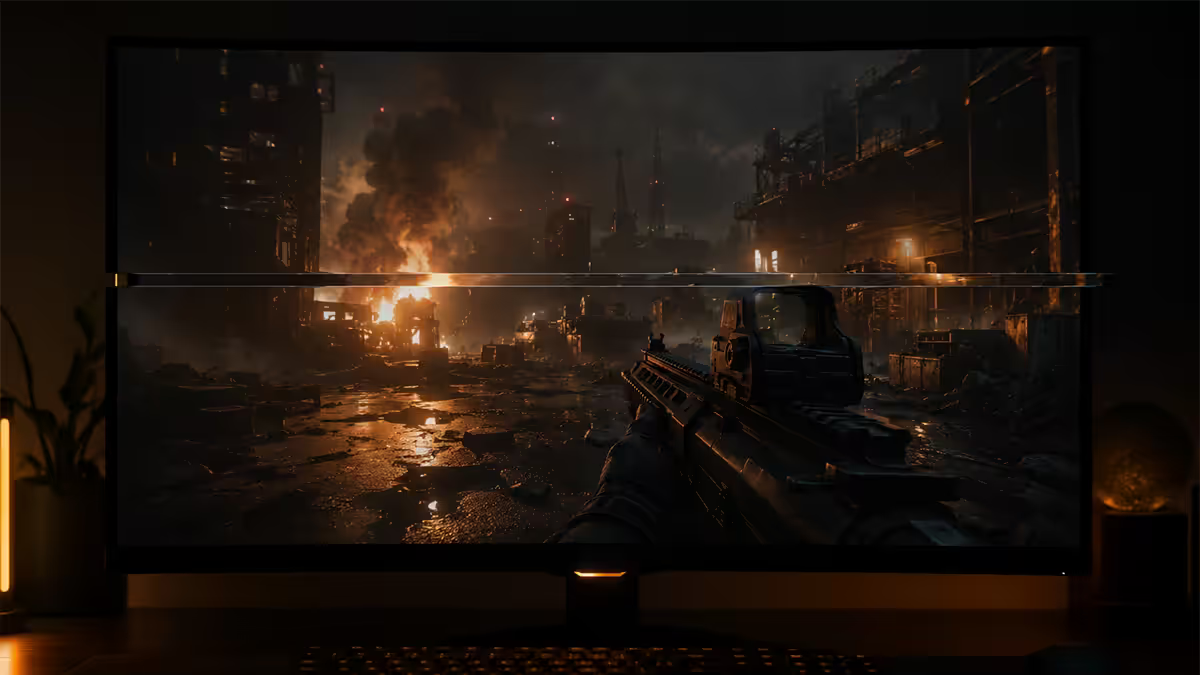
The horizontal seam tearing across your gameplay isn't your monitor failing — it's a small mismatch between your GPU's output and the panel's refresh. Modern adaptive sync solved this. Most people just haven't switched it on.
- typical fix
- 3 min
- FPS cap rule
- Hz - 3
- added at idle
- 0 lag
What screen tearing actually is
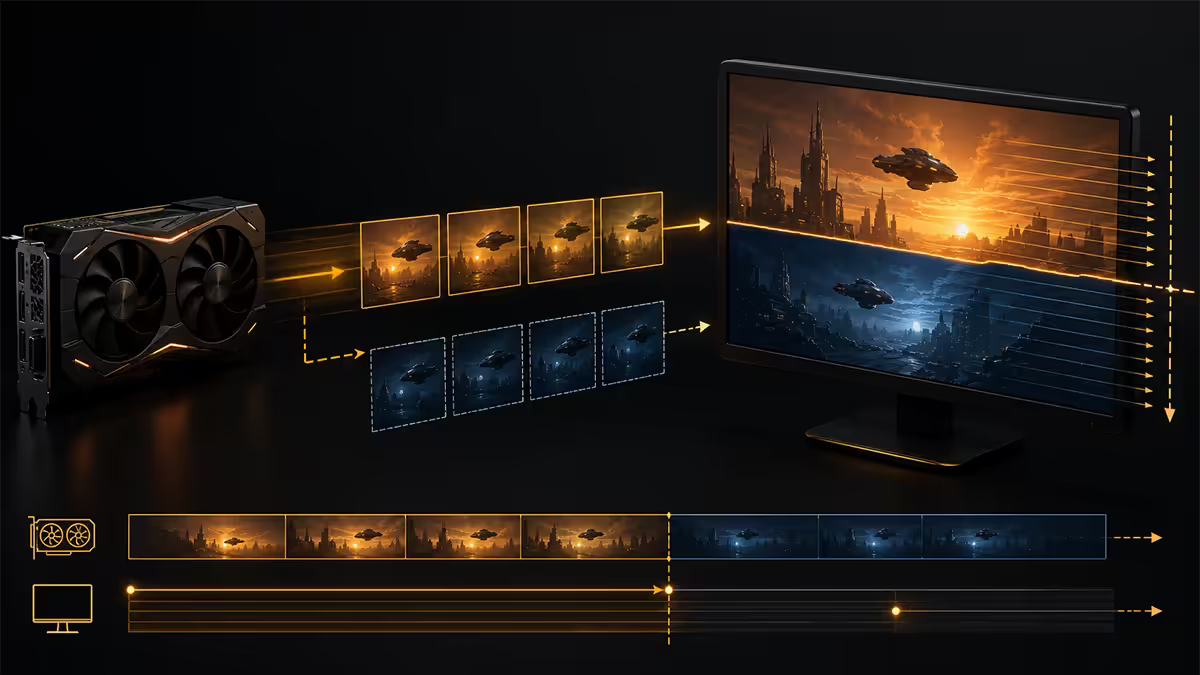
A monitor is constantly drawing your screen from top to bottom — line by line. A 144Hz panel completes that drawing pass 144 times per second. The GPU separately renders frames as fast as it can, then hands them to the monitor. When the GPU delivers a brand new frame partway through the monitor's drawing pass, the panel uses the new image for the lines it hasn't drawn yet and keeps the old image for the lines it already drew.
The result is a visible horizontal seam where the two frames meet. Above the seam you see the older frame; below it you see the newer one. In a fast camera pan or any action with sharp vertical edges, that seam is glaringly obvious. This is screen tearing — and the fix is conceptually simple: make sure the GPU only hands over complete frames at the exact moment the monitor is ready to receive them.
Two old solutions exist:
- V-Sync — make the GPU wait for the monitor (eliminates tearing but adds input lag).
- FPS cap — keep the GPU output below the monitor's Hz (reduces tearing but doesn't eliminate it on its own).
And one modern one:
- Adaptive sync (G-Sync / FreeSync / VRR) — make the monitor wait for the GPU. The panel's refresh rate becomes variable inside a defined range and matches whatever the GPU delivers. No tearing, no input-lag penalty.
G-Sync and FreeSync — the modern answer
Adaptive sync (the umbrella term) is the only fix worth starting with in 2026. The panel adjusts its refresh moment-to-moment so the GPU never hands over a frame in the middle of a draw cycle. Result: no tearing, no input lag.
Three flavours you'll see on monitor boxes:
- G-Sync (NVIDIA) — proper hardware G-Sync uses an NVIDIA module in the monitor; G-Sync Compatible certifies third-party VRR panels NVIDIA tested as working. Both work fine.
- FreeSync (AMD) — open standard. FreeSync Premium and Premium Pro add minimum-Hz and HDR requirements.
- VESA Adaptive-Sync — vendor-neutral. Works with NVIDIA, AMD and Intel GPUs.
How to enable it (NVIDIA): open NVIDIA Control Panel → Display → Set up G-Sync → tick "Enable G-Sync, G-Sync Compatible" → tick "Enable for fullscreen mode" (or both modes if you also play borderless). Confirm your panel is selected in the lower list. Hit Apply.
How to enable it (AMD): open AMD Software → Display → toggle FreeSync to "On" for the relevant panel.
How to enable it (Intel Arc): Intel Graphics Software → Display → enable "Adaptive Sync" for the panel.
You also need to verify the monitor itself has adaptive sync enabled in its on-screen menu. Some panels ship with VRR off by default — a one-line setting deep in a sub-menu has stopped a lot of tearing complaints.
The Hz-minus-3 cap rule
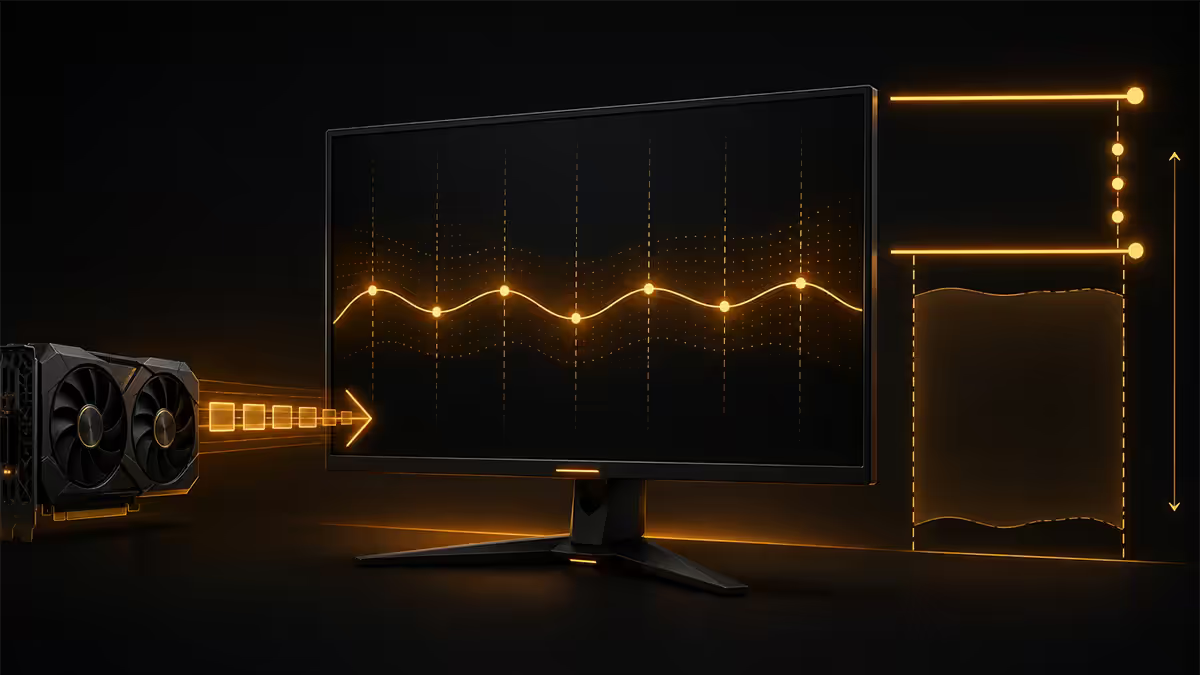
Adaptive sync only works inside the panel's VRR range — typically 48Hz to its maximum refresh rate. If your GPU pushes more frames per second than the panel's top end, adaptive sync drops out and tearing returns (or V-Sync forcibly engages and adds latency).
The solution: cap your in-game FPS just below the panel's maximum. The widely-used recipe is monitor Hz minus 3:
- 144Hz panel → cap at 141 FPS
- 165Hz panel → cap at 162 FPS
- 240Hz panel → cap at 237 FPS
- 360Hz panel → cap at 356 FPS
- 480Hz panel → cap at 477 FPS
Where to set the cap: in the game's own settings if possible (most modern titles have an FPS limit option). If the game doesn't expose one, use NVIDIA Control Panel's "Max Frame Rate" option per-game, or AMD Adrenalin's "Frame Rate Target Control." Game-level caps usually have the lowest added latency.
A few games (CS2, Valorant) need a console command to cap FPS reliably. Search the game's wiki for the exact command — they're well documented for every competitive title.
Exclusive fullscreen vs borderless
Borderless windowed mode routes the game through Windows' Desktop Window Manager (DWM). DWM has its own compositor — its own forced V-Sync-like layer — which can cause subtle tearing or interfere with adaptive sync.
Exclusive fullscreen bypasses DWM entirely. The GPU sends frames directly to the monitor, adaptive sync engages cleanly, and overlays like Discord and Steam are the only thing competing for attention. For competitive gaming and any title where tearing matters, exclusive fullscreen is the right choice.
Two real-world caveats:
- Multi-monitor users sometimes prefer borderless because Alt-Tab is instant. That convenience comes with a small tearing risk.
- Windows 11 24H2 substantially improved DWM's handling of adaptive sync — most modern games now sync correctly in borderless. If you're on an older Windows build, update before doing anything else.
V-Sync, Fast Sync and Enhanced Sync
V-Sync still has a role even in the adaptive-sync era — as a backstop. NVIDIA's accepted best-practice is: adaptive sync ON in the control panel, V-Sync ON in the control panel, V-Sync OFF in every individual game, FPS capped Hz-minus-3.
Why this combination works: adaptive sync handles tearing inside the VRR window. The FPS cap keeps you inside that window. V-Sync as a backstop catches the rare moment your FPS briefly spikes past the cap — instead of tearing, the GPU waits one frame.
Fast Sync (NVIDIA) and Enhanced Sync (AMD) are older alternatives — they let the GPU render uncapped and the panel pulls only the most recent complete frame each refresh. They prevent tearing without V-Sync's hard wait, but they need your FPS to be significantly higher than the refresh rate (typically 2× or more) to feel smooth. With modern adaptive sync available, Fast Sync and Enhanced Sync are now niche options — useful only on non-VRR panels where V-Sync lag is unbearable.
HDR-related tearing
HDR pipelines on Windows have historically been fragile, especially around adaptive sync. The 2026 Windows 11 24H2 build solved most issues but not all. If you only see tearing in HDR mode, here's what's likely:
First, test with HDR off. If tearing disappears, the issue is the HDR pipeline — not the panel or the game.
Things to update or check:
- Monitor firmware. Most premium HDR panels (LG, Samsung, Alienware) ship firmware updates that fix HDR-VRR issues. Check the manufacturer's support page for your specific model.
- GPU driver. NVIDIA and AMD both ship HDR fixes regularly; ensure you're on the latest stable driver.
- Windows build. Confirm you're on 24H2 or later — earlier builds have known HDR-VRR conflicts.
- HDMI 2.1 vs DisplayPort. If your panel supports both, DisplayPort generally has fewer HDR-VRR edge cases than HDMI 2.1.
When drivers are the actual problem (DDU clean reinstall)
If you've enabled adaptive sync, capped FPS, switched to fullscreen, and tearing persists — the GPU driver itself is likely corrupted or holding stale settings. The clean reinstall takes 20-30 minutes and fixes a disproportionate number of stubborn tearing issues.
Tools:
- DDU (Display Driver Uninstaller) — free utility from Wagnardsoft. Removes every trace of the existing driver, including hidden registry entries and INF files.
- The latest GPU driver installer from NVIDIA / AMD / Intel — download before you start so you're not without graphics drivers.
The clean reinstall procedure:
- 1
Download.
Get the latest stable driver from the manufacturer's site and DDU from Wagnardsoft. - 2
Boot into Safe Mode.
Settings → System → Recovery → Advanced startup → Restart now → Troubleshoot → Advanced options → Startup Settings → Restart → press 4 for Safe Mode. (Skip if DDU explicitly states current Windows allows in-system run — Safe Mode remains the cleanest path.) - 3
Run DDU.
Select your GPU vendor (NVIDIA / AMD / Intel) → "Clean and restart." DDU will remove every driver artefact and reboot. - 4
Install the fresh driver.
Once back in normal Windows, run the driver installer. Choose Express install — let it set defaults. Reboot when prompted. - 5
Re-enable adaptive sync.
Open NVIDIA Control Panel / AMD Adrenalin / Intel Graphics Software and re-enable G-Sync / FreeSync / Adaptive Sync (your previous settings were wiped).
Key takeaways
- Screen tearing happens when the GPU and monitor refresh rates are mismatched. Adaptive sync solves it cleanly.
- Enable G-Sync / FreeSync / VESA Adaptive-Sync in your GPU control panel, and verify it's on in the monitor's OSD too.
- Cap in-game FPS at the panel's Hz minus 3 — 141 on 144Hz, 237 on 240Hz, 477 on 480Hz.
- Use exclusive fullscreen wherever possible. Set V-Sync ON in the driver, OFF in the game.
- If everything fails, DDU clean reinstall in Safe Mode fixes the most stubborn cases.
Frequently asked questions
What causes screen tearing in PC games?
Screen tearing happens when the GPU sends a new frame to the monitor while the monitor is still in the middle of drawing the previous one. You see a horizontal seam — the top half is the older frame, the bottom is the new one. The root cause is a mismatch between the GPU's frame output rate and the monitor's refresh rate.What's the fastest way to stop screen tearing?
Enable G-Sync (NVIDIA) or FreeSync (AMD/Intel/most modern panels) in the GPU control panel, plus cap your in-game FPS to your monitor's refresh rate minus 3 (e.g. 141 FPS for a 144Hz panel). This combination eliminates tearing without the input lag penalty of V-Sync.Does V-Sync stop screen tearing?
Yes, V-Sync eliminates tearing by forcing the GPU to wait for the monitor's refresh cycle before sending a new frame. The cost is added input lag — typically 8-30ms depending on the game — and stuttering if the GPU can't sustain the target frame rate. In 2026, V-Sync is the last resort, not the first answer.Should I cap my FPS to fix tearing?
Yes — capping in-game FPS to your monitor's refresh rate minus 3 (the "Hz minus 3 rule") keeps the GPU output inside the adaptive-sync range. For a 144Hz panel, cap at 141; for 240Hz, cap at 237. This prevents the GPU from briefly overshooting the panel's VRR window, which would cause tearing or force V-Sync to engage.What is Fast Sync or Enhanced Sync?
Fast Sync (NVIDIA) and Enhanced Sync (AMD) are GPU-level options that prevent tearing without V-Sync's lag penalty — but only when your FPS is significantly higher than your refresh rate (typically 2x or more). They let the GPU render uncapped, then display only the most recent complete frame at each refresh. Modern adaptive sync (G-Sync/FreeSync) has largely replaced them.Does borderless fullscreen cause tearing?
Sometimes. Borderless windowed mode routes the game through Windows' Desktop Window Manager (DWM), which adds a forced V-Sync-like layer. On Windows 11 24H2 and later, the auto-HDR pipeline and DWM are usually well-behaved. If you're seeing tearing only in borderless fullscreen, switch the game to exclusive fullscreen — adaptive sync works most reliably there.Can a GPU driver problem cause screen tearing?
Yes. Corrupted drivers, incompatible driver versions, or leftover files from previous installs can all cause tearing or break adaptive sync. The reliable fix is a clean reinstall using DDU (Display Driver Uninstaller) in Safe Mode, followed by a fresh download of the latest NVIDIA, AMD or Intel driver. This is a 30-minute job that fixes a surprising number of stubborn tearing issues.Does HDR cause tearing or sync issues?
It can. HDR pipelines on Windows 11 occasionally have intermittent issues with adaptive sync, particularly on first-gen HDR400 panels or older Windows builds. If you only see tearing in HDR mode, test with HDR disabled — if it goes away, update your monitor firmware, GPU driver and Windows. The 2026 Windows 11 24H2 build fixed most HDR-VRR conflicts.
Get the Evetech app
Exclusive app-only prices, daily flash sales, and free delivery on orders over R4,000 — download the app and start saving.