Troubleshooting · CTD Diagnostic
Games crashing to desktop? — Walk the diagnostic tree. Don't guess.
A crash to desktop is a clue, not a verdict. Every CTD leaves a fingerprint in Event Viewer that points at exactly which subsystem failed. This is the diagnostic order the techs at our service bench follow every day.
- software cause
- ~75%
- app · driver · hw
- 3 layers
- full diagnostic
- 30 min
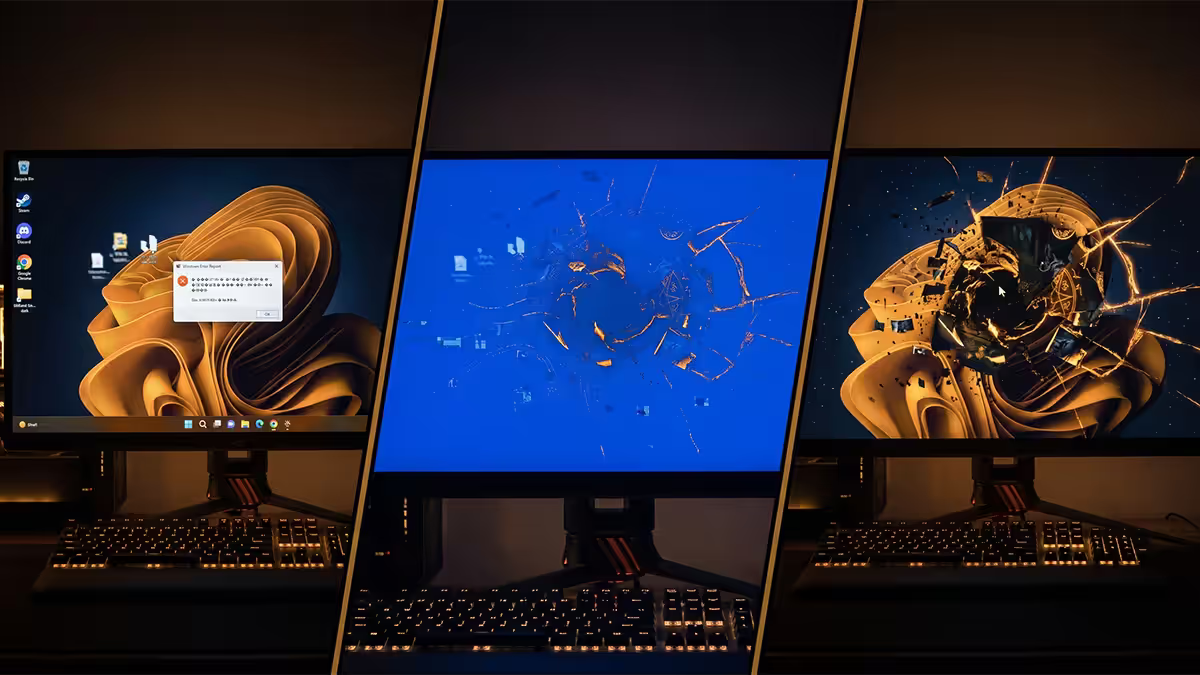
CTD vs BSOD vs freeze — three different signals
Before you start fixing, classify the failure. The three common crash shapes each point at a different layer of the stack and need different diagnostic paths.
| Symptom | Likely layer | First place to look |
|---|---|---|
| Crash to desktop (CTD) | Application / driver | Event Viewer · Application log |
| Blue Screen of Death (BSOD) | Kernel / hardware driver | WhoCrashed or BlueScreenView dump analysis |
| Full freeze / hang | Power, thermal, or GPU compute hang | HWInfo64 logging temps & voltages |
| Black screen + GPU reset | GPU driver / unstable OC | Event Viewer · System log · nvlddmkm or amdkmdag warnings |
| System reboot (no warning) | PSU sag or motherboard fault | HWInfo64 12V rail logging |
If the game tile closes, the desktop is visible, and you can immediately interact with Windows — that's a CTD. If the screen turns blue with a stop code, that's a BSOD. If the screen freezes and the system needs a hard power-cycle, that's a hang. Each one has its own diagnostic tree; this guide covers CTD.
Reading Event Viewer — your first move
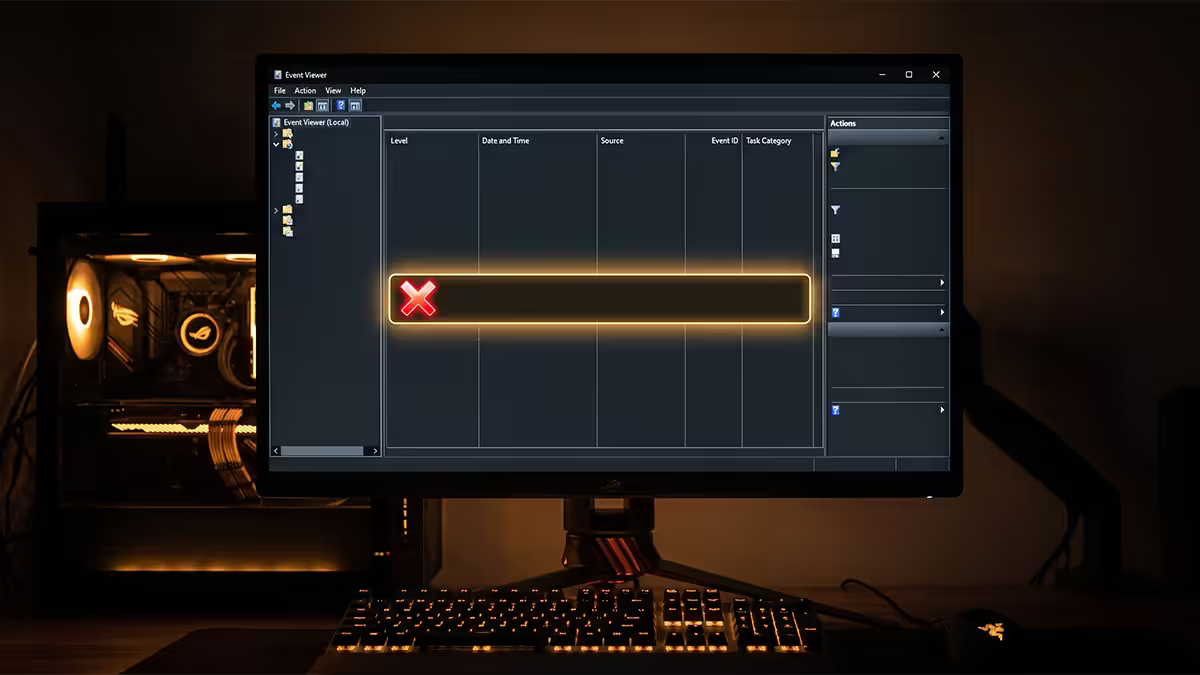
Windows logs every application crash to Event Viewer. Most users never check it and miss the entire diagnostic shortcut.
Open Event Viewer: press Win+R, type eventvwr.msc, hit Enter. Expand Windows Logs → Application. Look for entries with red error icons around the time of your crash. Two event types matter:
- Event ID 1000 — Application Error. Lists the faulting application name, exception code, and (critically) the faulting module.
- Event ID 1001 — Windows Error Reporting (WerFault). Often includes a crash dump path and bucket ID you can use to search for known crashes.
The faulting module name is the diagnostic gold. Common modules and what they mean:
nvwgf2umx.dll/nvoglv64.dll— NVIDIA driver. DDU clean and reinstall the latest driver.amdxc64.dll/atig6txx.dll— AMD driver. Same DDU treatment.d3d12.dll/d3d11.dll— DirectX. Run the DirectX End-User Runtime Web Installer.VCRUNTIME140.dll— Visual C++ Redistributable mismatch. Install the latest VC++ Redist 2015–2022 x64.KERNELBASE.dll/ntdll.dll— generic OS module, usually means the actual fault was elsewhere. Look at the exception code (0xC0000005 = access violation, often RAM or driver-related).vgc.exe/vgk.sys— Riot Vanguard. Check for Vanguard updates or test a game without it.EasyAntiCheat.exe/EasyAntiCheat_x64.sys— EAC. Reinstall via the game's anti-cheat repair option.
Verify game files — the cheap first fix
A corrupted game file, broken shader cache or interrupted patch is the cheapest fix in the entire toolkit. Always do this before touching drivers or hardware.
By storefront:
- Steam: right-click the game → Properties → Installed Files → Verify integrity of game files.
- EA App: My Collection → right-click game → Repair. Notoriously needs running twice on Battlefield titles.
- Battle.net: gear icon next to Play → Scan and Repair.
- Epic Games: ... menu on the game tile → Manage → Verify.
- Ubisoft Connect: game page → ... menu → Verify files.
- Xbox / Microsoft Store / Game Pass: right-click → Manage → Repair.
Also nuke the game's shader cache directory if you know where it lives. NVIDIA caches at %LOCALAPPDATA%\NVIDIA\DXCache and %LOCALAPPDATA%\NVIDIA\GLCache. AMD at %LOCALAPPDATA%\AMD\DxCache. Per-game caches live under each game's AppData\Local\[GameName]. Wiping these forces a clean rebuild; many shader-recompile-related crashes disappear after this.
Overlays and anti-cheat — common silent killers
Overlays inject their UI into the game's rendering pipeline. Anti-cheat drivers hook the kernel. Both are well-known crash sources, especially after a Windows update or game patch.
Disable in this order, one at a time:
- MSI Afterburner / RTSS — close completely from the system tray. RTSS is a known crash trigger on certain UE5 titles and Valorant.
- NVIDIA GeForce Experience overlay — settings → In-game overlay → off.
- Discord overlay — User Settings → Game Overlay → toggle off.
- Steam overlay — Steam settings → In-Game → uncheck Steam Overlay.
- Xbox Game Bar — Settings → Gaming → Xbox Game Bar → off.
- Razer Synapse, Logitech G Hub, Corsair iCUE — try closing the peripheral stack briefly to see if it changes behaviour.
Anti-cheat conflicts to watch for:
- Riot Vanguard — runs kernel-level. Conflicts with Hyper-V, some Windows Sandbox configs, and occasionally MSI Afterburner. Vanguard issues require the Riot anti-cheat repair tool from Riot Client.
- Easy Anti-Cheat (EAC) — used by Fortnite, Apex Legends, Elden Ring, Rust. Each game ships its own EAC repair tool; check the game's install directory for
EasyAntiCheat_EOS_Setup.exeor similar. - BattlEye — used by Arma, Rainbow Six Siege, PUBG, Tarkov. BE_Service.exe issues respond to the in-game launcher's repair option.
DDU clean GPU driver install
A standard GPU driver "upgrade" through GeForce Experience or Radeon Software does not remove the old driver fully. Crashes that survive a normal driver reinstall often need a proper clean install with Display Driver Uninstaller (DDU, free from Wagnardsoft).
The DDU sequence:
- Download the latest driver from NVIDIA or AMD. Don't install yet.
- Download DDU. Extract to a folder.
- Boot Windows into Safe Mode (Settings → System → Recovery → Advanced startup → Restart now → Troubleshoot → Advanced options → Startup Settings → F4).
- Run DDU. Select GPU vendor. Click Clean and shut down. Don't pick "clean and restart" — you want the system off so it can't auto-install old drivers from Windows Update on boot.
- Boot back into normal Windows. Install the freshly-downloaded driver. Custom Installation → tick "Perform a clean installation" inside the installer too, for belt-and-braces.
This wipes the driver from the registry, removes orphaned files in C:\Windows\System32\DriverStore, and clears NVIDIA shader cache. A surprising share of CTDs that "couldn't possibly be the driver" disappear after a proper DDU pass.
GPU overclock and undervolt stability
Your GPU OC or undervolt may benchmark stable but fail in specific game shader patterns. This is the most common single CTD cause we see on enthusiast builds.
Test approach: set the GPU back to stock clocks (MSI Afterburner → Reset, or just close Afterburner and let it run at default boost). Play for a few sessions. If crashes disappear, your OC isn't actually stable.
From stock, dial overclocks back in cautiously:
- Reduce GPU core offset by 30–50 MHz from your previous OC.
- If you undervolt with a curve, raise the voltage point by 25–50 mV.
- VRAM overclocks are particularly fragile in 2026 (GDDR6X especially) — pull memory clock back by 100–200 MHz.
- Re-test with a shader-heavy title (Cyberpunk 2077 with Path Tracing, Black Myth: Wukong, Hellblade 2). 3DMark stability tests don't catch all real-game instability.
RAM and XMP / EXPO instability
XMP (Intel) and EXPO (AMD) profiles overclock your RAM beyond JEDEC defaults. Most kits hit their advertised speed; some kits-board-CPU combinations don't. RAM instability shows as random CTDs, application errors with 0xC0000005 access violations, and corruption that varies day-to-day.
Test sequence:
- Download MemTest86. Create a bootable USB.
- Boot from USB. Run one full pass (about 30–45 min for 32GB DDR5). Any errors mean your XMP/EXPO isn't stable.
- If errors appear: in BIOS, drop to the next-lower profile (e.g., DDR5-6000 to DDR5-5600), or run JEDEC default (DDR5-4800). Re-test.
- For Ryzen 7000/8000/9000 EXPO at 6000+ MT/s: manually set FCLK to 2000 MHz (1:1 with 6000 UCLK). Auto-FCLK is a known instability source on some boards.
- For DDR5 above 6400 MT/s with 4 DIMM sticks: this is generally unsupported; drop to 2 DIMM sticks if you have a problem.
If MemTest86 errors persist even at JEDEC defaults, that's a dead stick. RMA the kit — most SA retailers (Evetech, Wootware, Rebel Tech) honour memory warranties via the brand distributor with relatively quick turnaround.
Page file and DirectX runtime
Two quick checks that catch a surprising share of "memory-shaped" CTDs:
Page file. Modern games (Cyberpunk 2077, Stalker 2, Starfield, Hogwarts Legacy) commit far more virtual memory than they actively use. If your page file is set too small or — worse — disabled following bad YouTube advice from 2018, the game request fails and the engine crashes out.
Fix: Settings → System → About → Advanced system settings → Performance Settings → Advanced → Virtual memory Change. Tick Automatically manage paging file size for all drives. Reboot. Done.
DirectX runtime. Some titles bundle their own DX runtime in a _CommonRedist folder. Run the included DXSETUP.exe once. Also install the Microsoft DirectX End-User Runtime Web Installer separately — it's still required by certain D3D9-era titles and many older Unreal Engine games.
Visual C++ Redistributables. A missing or corrupted VC++ Redist is responsible for a lot of "missing DLL" CTDs. Install the latest Microsoft Visual C++ Redistributable for Visual Studio 2015–2022 x64 (and x86, for older titles).
When it's actually hardware
If every software check passes and crashes persist, hardware is on the table. The four real hardware suspects:
PSU sag. When the GPU pulls a heavy transient under load (Lovelace and Blackwell GPUs are notorious for 2x–3x sub-millisecond power spikes), a marginal PSU dips its 12V rail enough to trigger a GPU reset. Symptom: CTD or black-screen-then-desktop exclusively during heavy-load moments (boss fights, dense particles, ray-traced reflections). Test with HWInfo64 logging 12V min/max. Anything dropping under 11.4V transient is suspect. Borrow a higher-wattage, higher-quality PSU and retest.
Dying GPU VRAM or core. Symptom: visual artefacts (textures glitching, polygons stretching) appearing before or alongside CTDs. Try the GPU in a known-good system — if artefacts move with the GPU, the card is failing. Within warranty: RMA. Out of warranty: it's bench-test or replace.
Thermal failure. If crashes worsen after 30–60 minutes of gameplay and clear after a system cool-down, that's thermal. Check fan speeds with HWInfo64. Clean dust from intake filters and the GPU heatsink. Repaste an aged CPU if temps exceed 90°C.
Dead RAM (despite MemTest86 passing once). Run MemTest86 for 4–8 hours overnight. Subtle errors that don't appear in one pass sometimes show in extended runs. Also try one DIMM at a time if you have multiple sticks.
Key takeaways
- Open Event Viewer first — the faulting module pinpoints which subsystem failed.
- Verify game files before touching drivers. It's the cheapest fix in the toolkit.
- DDU clean and reinstall GPU driver — fixes a huge share of "unfixable" CTDs.
- Test GPU at stock clocks. XMP/EXPO with MemTest86. Disable overlays one by one.
- If every software step passes and crashes persist, the suspects are PSU sag, dying VRAM, thermal failure or a marginal RAM stick.
Frequently asked questions
What's the difference between CTD, BSOD and a freeze?
CTD (crash to desktop) means the game exits cleanly to Windows — usually an application-level fault, often GPU driver, anti-cheat, or game code issue. BSOD (blue screen) is a kernel-level fault — typically RAM, storage controller, or driver kernel module problem. A freeze is a hang where the system stops responding but doesn't reboot — usually a hardware power delivery, thermal or GPU compute hang. Each points to a different layer of the diagnostic tree.How do I read Event Viewer to find what crashed?
Open Event Viewer (Win+R, eventvwr.msc), expand Windows Logs > Application, and filter for events from the time of the crash. Look for 'Application Error' (event ID 1000) — the faulting module name (e.g., nvwgf2umx.dll = NVIDIA driver, d3d12.dll = DirectX 12) tells you which subsystem failed. 'WerFault' entries also include crash dumps. The faulting module is often a 90% diagnostic short-cut.Could my GPU overclock be causing the crashes?
Yes — GPU OC instability is one of the most common CTD causes, especially undervolts that look stable in benchmarks but fail under specific game shader loads. Run the game at stock GPU clocks for a few sessions. If crashes stop, your OC isn't stable. MSI Afterburner's overlay itself can also cause some games to crash (Vanguard, certain UE5 titles) — try disabling Afterburner entirely as a separate test.My game crashes after I set XMP / EXPO RAM profile — what now?
XMP/EXPO instability is the #2 cause of game CTDs we see. Run MemTest86 from a USB stick for one full pass. If errors appear, your XMP profile isn't stable on your kit. Try reducing the frequency by one tier (e.g., DDR5-6000 to DDR5-5600) or loosen the timings by one step. On Ryzen, EXPO at high frequencies sometimes needs FCLK manual tuning to be stable.How do I do a clean GPU driver install with DDU?
Boot Windows into Safe Mode, run Display Driver Uninstaller (DDU, free from Wagnardsoft). Select your GPU brand, choose 'Clean and shut down'. Restart, install the latest driver freshly from NVIDIA/AMD. This wipes corrupted driver files, broken registry entries and conflicting old driver components — fixes a surprisingly large share of crashes that survive normal driver reinstalls.Should I verify game files before troubleshooting hardware?
Always — it's the cheapest fix in the toolkit. Steam: right-click the game > Properties > Installed Files > Verify integrity. EA App: My Collection > game tile > settings > Repair. Battle.net: gear icon > Scan and Repair. Epic: ... menu > Manage > Verify. A corrupt shader cache or game file is faster to fix than any hardware test.Is my page file too small for crashes that mention memory?
Possibly. Modern games (Cyberpunk 2077, Hogwarts Legacy, Starfield, Stalker 2) can request more committed memory than physical RAM during heavy moments. Windows uses the page file as overflow. Set the page file to 'System managed size' on the boot drive — if you've set it to a tiny custom size or disabled it (a popular bad tip from old YouTube videos), restoring system-managed often fixes mysterious CTDs in games that load huge assets.When is it actually hardware — RAM, PSU or GPU dying?
Hardware diagnosis: (1) MemTest86 errors mean dead RAM — RMA the kit. (2) Crashes that happen exclusively at high GPU load with PSU under-spec'd point to PSU sag — try the GPU on a known-good build or a higher-wattage PSU. (3) GPU artefacts (textures glitching, polygons stretching) before crashes mean dying VRAM or core. (4) Crashes that worsen as the system warms up point to a thermal issue — check fan speeds, dust levels and case airflow. Most CTDs are software — but persistent CTDs that survive every software fix in this guide warrant a hardware swap test.
Get the Evetech app
Exclusive app-only prices, daily flash sales, and free delivery on orders over R4,000 — download the app and start saving.