Troubleshooting Guide
PC freezing & crashing. — Stop guessing. Diagnose properly.
Random freezes, BSODs and unexpected reboots have a root cause — almost always one of six things. This guide walks you through finding it instead of throwing parts at the problem.
- cover almost every case
- 6 culprits
- solved without parts
- 70%
- memtest finds most RAM faults
- 1 pass
Triage by symptom — what does your crash actually look like?
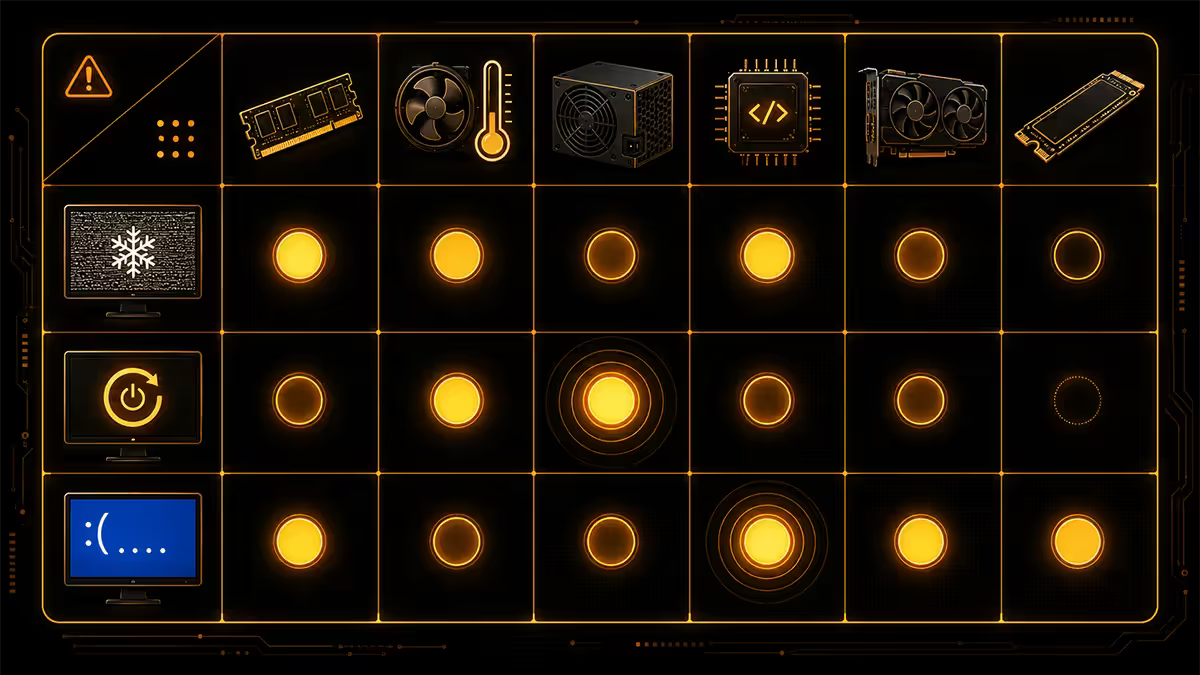
Crashes aren't all the same. The exact symptom narrows the suspect list dramatically before you touch any tool.
Hard reboot without warning — no BSOD, screen just goes black and the PC restarts. Strongest predictor: PSU, severe thermal throttle-to-shutdown, or critical CPU instability (commonly an unstable XMP/EXPO RAM profile).
Blue Screen of Death (BSOD) — Windows shows a stop code (e.g. MEMORY_MANAGEMENT, IRQL_NOT_LESS_OR_EQUAL, PAGE_FAULT_IN_NONPAGED_AREA). The stop code is your best clue. Most BSODs trace to driver issues or bad RAM.
Hard freeze with audio loop — screen locked, cursor stuck, last second of audio looping. Usually a driver hang (GPU or audio) or a kernel-mode resource lock. Often resolves with a single reboot, but recurring instances mean a driver-level problem.
Soft freeze (PC unfreezes after 5-30 seconds) — system becomes unresponsive briefly then recovers. Most often storage-related (failing SSD/HDD sector retries) or background process spike. Open Task Manager during the freeze to confirm.
Graphical artefacts then crash — visible texture corruption, random coloured pixels, screen flickers before lockup. GPU is the suspect, often a dying card or an unstable overclock/undervolt.
Crashes only under load — gaming, rendering, stress testing. Light desktop use is fine. Strong indicator: PSU under-spec or failing, or a thermal limit being hit under sustained load.
Reading Event Viewer like a technician
Windows logs every significant system event. After a crash, Event Viewer often points straight at the cause.
To open it: press Win + X and select Event Viewer, or run eventvwr.msc. Expand Windows Logs in the left pane and click System.
Filter the noise: right-click the System log → "Filter Current Log…" → tick Critical and Error → set "Logged" to "Last 7 days." This shows only the events that likely correspond to your crashes.
Sources to recognise:
- Kernel-Power, Event ID 41 — unexpected shutdown. The PC died without telling Windows it was dying. PSU, thermal, or motherboard.
- WHEA-Logger — hardware error. Bad RAM, unstable XMP, dying CPU, or PCIe link issue.
- Display — GPU driver crash. The driver reset to recover from a hang (TDR — Timeout Detection and Recovery). Repeated entries = GPU instability or bad driver.
- volmgr or disk — storage problem. SMART errors, bad sectors, or disk timeouts.
- BugCheck — BSOD record with the exact stop code. Cross-reference the stop code to narrow the cause.
Reading the timestamps is just as useful. If your crashes always happen around the same time, look at scheduled tasks, Windows Update history, or scheduled antivirus scans for correlations.
Reliability Monitor — the friendlier view
If Event Viewer feels too dense, Reliability Monitor is Windows' built-in graphical version. Run perfmon /rel from the Start menu or search "Reliability."
It shows a calendar timeline with red X marks on days that experienced crashes, hangs, or significant errors. Clicking a date shows the events from that day in plain English — "Application crash: Steam.exe" or "Hardware error: Memory test."
It also tracks a "stability index" score from 1-10. A score dropping over weeks indicates a degrading system; a sudden cliff at a specific date often correlates to a driver update, a Windows update, or a hardware install.
RAM and memtest86
RAM is the single most common root cause of intermittent freezes in modern Ryzen and Core Ultra systems, almost always because of unstable XMP/EXPO profiles.
First quick check: reboot into BIOS, disable XMP/EXPO (often labelled "DOCP" on ASUS AMD boards), and run the system at JEDEC default RAM speed for 24 hours. If freezes stop entirely, the memory profile was the culprit. Either re-enable XMP at a lower frequency, update your motherboard BIOS to a newer AGESA, or replace the RAM with a tested-stable kit.
For a definitive RAM test: use memtest86 (memtest86.com — free). Download the imager, write the bootable image to a USB stick, plug it into the PC, and boot from USB (F11 or F12 at startup). memtest86 runs outside Windows and tests every byte of memory.
A single error in any of the test patterns means the RAM is unstable or one of the modules is failing. Run at least one full pass — typically 1-2 hours for 16-32 GB. Most genuine faults appear in the first pass; some marginal failures take overnight to manifest.
If memtest86 fails with multiple DIMMs installed: remove all but one and re-test each module individually. This identifies whether a specific module is faulty or whether you have a slot or memory controller issue.
When to suspect the GPU
GPU-caused crashes have a distinctive signature: they happen during 3D workloads, often with visible visual symptoms, and Event Viewer logs Display source entries with TDR errors.
Tell-tale GPU symptoms:
- Graphical artefacts (random coloured pixels, texture flashing, lines across the screen) before a crash.
- Black-screen crashes specifically during games or 3D rendering while desktop use is fine.
- "Display driver stopped responding and has recovered" notifications in Windows.
- Crashes in specific games that historically ran fine on this hardware.
Quick diagnostic flow for GPU:
- 1
Clean the driver
Run DDU (Display Driver Uninstaller) in Safe Mode to fully clean the driver. - 2
Reinstall fresh
Install the latest stable GPU driver fresh — for NVIDIA Studio drivers if Game-Ready has been crashing; for AMD Adrenalin try the previous WHQL build. - 3
Stress test
Run FurMark or 3DMark Stress Test for 20-30 minutes. Watch temps stay under 85°C and watch for visual corruption. - 4
Interpret results
If artefacts appear during stress test, the GPU is genuinely failing. If not, the issue is likely driver- or game-specific.
Memory faults on GPU VRAM are a common subtle failure on 4-6 year old cards. They show as artefacts in specific games (especially high-VRAM-usage titles) while light workloads are fine. There's no DIY fix — VRAM faults require board-level repair or replacement.
When to suspect the PSU
PSU faults are harder to diagnose because software has no direct visibility into PSU health. You diagnose by elimination.
Strong PSU suspicion when:
- Hard shutdowns under heavy load (gaming or rendering) — no BSOD, instant black.
- Repeated Event ID 41 in Event Viewer with no other meaningful errors.
- The PSU is over 5-6 years old, or it's lower wattage than your current GPU recommends.
- The PSU is a no-name brand or rated 80+ White or Bronze in a high-power build.
- Crash frequency increases when ambient temperatures rise (Highveld summers especially).
The definitive PSU test is to borrow a known-good unit (ideally with at least 100W more headroom than your current PSU and 80+ Gold rated or higher) and run the system for a week with the borrowed PSU. If freezes stop, the original is faulty or under-spec.
Capacitor aging is the typical failure mode for a PSU older than 5-6 years. The unit may pass idle just fine but fail under transient load spikes — exactly the scenario a high-end GPU creates during gaming.
Temperature checks — CPU, GPU, VRM
Modern CPUs and GPUs have aggressive thermal-throttling firmware, so temperature-caused crashes are less common than they were a decade ago. But when they happen, they tend to be severe.
Useful tools: HWiNFO64 (most comprehensive), HWMonitor (simpler), MSI Afterburner (GPU-focused), and CoreTemp (CPU-focused). Run one of these in the background while gaming for 30 minutes.
| Component | Healthy under load | Concern threshold |
|---|---|---|
| CPU (Ryzen 7000/9000) | 75-90°C | Sustained 95°C+ |
| CPU (Core Ultra / 13th-14th) | 70-90°C | Sustained 100°C+ |
| GPU (RTX / RX) | 65-80°C | Sustained 85°C+ |
| VRM (motherboard) | 50-75°C | Sustained 90°C+ |
| NVMe SSD | 40-65°C | Sustained 75°C+ |
Common causes of thermal issues: dust-blocked heatsink fins (especially in Highveld dust environments), dried-out thermal paste on a 3+ year old build, failing AIO pump, dead case fan, or simply incorrect cooler size for the CPU (e.g. a stock cooler trying to handle a Ryzen 9).
For dust cleaning, see our dedicated guide on PC dust removal. For thermal paste replacement, see our thermal paste guide. Both are linked at the bottom of this page.
When storage is failing
Failing SSDs and HDDs cause distinctive freeze patterns. The system becomes briefly unresponsive (1-5 second freezes), often during file operations or app launches, and Task Manager shows 100% disk usage on one drive without obvious software activity.
Run CrystalDiskInfo (free, CrystalMark.info) to check SMART status. Any drive showing "Caution" or "Bad" needs replacement before it dies completely. Common SMART warning indicators:
- Reallocated Sectors Count — non-zero on HDD or rising on SSD means the drive is hiding bad sectors.
- Pending Sectors Count — sectors waiting to be remapped. Non-zero is a strong warning.
- Wear Levelling Count / Percentage Used — SSD-specific. Above 80% indicates the drive is approaching its rated endurance.
- Power-on Hours — combined with the above, a drive over 30,000 hours with rising error counts is reaching end-of-life.
NVMe drives can fail abruptly in a way SATA drives rarely do — suddenly disappearing from BIOS between boots. If a recent system has started randomly losing boot drive recognition, run a SMART scan and back up data immediately.
The full freeze/crash decision tree
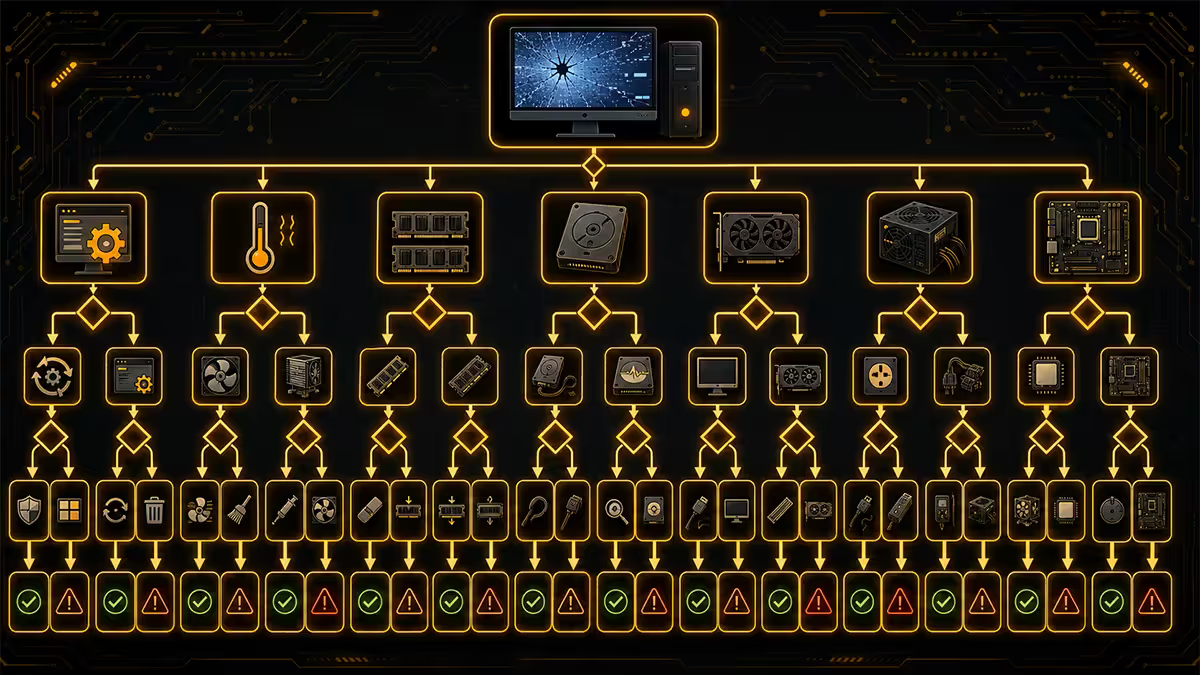
Combining the above into a fast diagnostic flow:
- 1
Symptom check
What does the crash look like? Hard reboot, BSOD, soft freeze, artefacts, or load-only? - 2
Event Viewer + Reliability Monitor
Filter System log for Errors. Identify Kernel-Power, WHEA-Logger, Display, BugCheck, or disk sources. Note timestamps. - 3
First-pass software fixes
Windows Update + reboot → DDU + reinstall latest stable GPU driver → BIOS to defaults (disable XMP/EXPO) → uninstall recent peripheral software. - 4
Memtest86 (1-2 hour pass)
Any errors → bad RAM or unstable profile. Re-test individual modules. - 5
Temperature audit
30 minutes gaming with HWiNFO64. CPU, GPU, VRM, NVMe all in healthy ranges? - 6
Storage health
CrystalDiskInfo SMART scan on every drive. Replace any showing Caution or Bad. - 7
Swap test (PSU + GPU)
If above all clean and freezes persist, borrow a known-good PSU and known-good GPU one at a time to isolate.
90% of intermittent freezes are solved by Step 4 or earlier. Step 7 is the last resort and almost always identifies the culprit if it's hardware.
Tools you should have on hand
| Tool | Purpose | Cost |
|---|---|---|
| HWiNFO64 | Real-time sensor monitoring (CPU, GPU, VRM, temps, voltages) | Free |
| memtest86 | Bootable RAM stability tester | Free |
| CrystalDiskInfo | SMART-based storage health check | Free |
| DDU (Display Driver Uninstaller) | Clean GPU driver removal in Safe Mode | Free |
| FurMark / 3DMark Stress Test | GPU stress & stability testing | Free / R200 once-off |
| Cinebench R23 / R24 | CPU stress & thermal testing | Free |
| Spare 16GB USB stick | For memtest86 bootable image | R80-R150 |
Key takeaways
- Diagnose by symptom first — hard reboot vs BSOD vs soft freeze each point to different culprits.
- Event Viewer + Reliability Monitor solve most cases without touching hardware. Filter for Critical/Error.
- Disable XMP/EXPO and run JEDEC default RAM speeds as a free 5-minute diagnostic. Solves ~35% of intermittent freezes.
- Run memtest86 for at least one full pass before suspecting any other hardware.
- Hard shutdowns under load + Event ID 41 = strong PSU suspicion. Borrow a known-good unit to confirm.
Frequently asked questions
What is the most common cause of PC freezing?
In our service intake, the most common single cause is unstable RAM — bad XMP/EXPO settings, mismatched DIMMs, or a failing module. Second most common: GPU driver issues after a recent update. Third: thermal throttling. Start with memtest86, then check temps, then audit recent driver updates.How do I read Windows Event Viewer for crash causes?
Win + X → Event Viewer. Expand Windows Logs > System. Filter by Error and Critical. Look for Kernel-Power (event 41 = unexpected shutdown), WHEA-Logger (hardware errors), Display (GPU driver crashes). Timestamps tell you exactly when the system died.What does memtest86 do and how do I run it?
memtest86 tests RAM modules for stability errors Windows can't catch. Download free from memtest86.com, write to USB, boot from USB (F11/F12), run for one full pass (1-2 hours for 16-32 GB). A single error means failing RAM or unstable profile.How do I know if my PSU is the problem?
Three indicators: random hard shutdowns under heavy load (no BSOD); repeated Kernel-Power Event 41 in Event Viewer; PSU is 6+ years old or under-spec for your GPU. Borrowing a known-good PSU is the only definitive test.How do I know if my GPU is failing?
Graphical artefacts under load, black-screen crashes specifically in 3D workloads, TDR errors in Event Viewer. Run FurMark or 3DMark Stress Test for 20-30 minutes — if it artifacts or crashes, GPU is suspect. Check temps stay below 85°C.Can a failing SSD cause my PC to freeze?
Yes — random short freezes (1-5 sec) when the OS tries to read a failing sector. Check Task Manager during a freeze. Run CrystalDiskInfo for SMART status; Caution or Bad means replacement needed. NVMe can fail abruptly — sudden BIOS disappearance is common.What temperatures cause thermal-throttling crashes?
Modern CPUs throttle at 90-95°C and rarely crash below 100°C. GPUs throttle at 83-85°C and rarely crash below 95°C. Persistent temps above safe range indicate dust-blocked heatsink, dried paste, or failing fan/pump.What should I try first when my PC keeps freezing?
Five steps: Windows Update + reboot → roll back GPU driver via DDU → BIOS to defaults (disable XMP/EXPO) → memtest86 → monitor temps. This sequence solves about 70% of intermittent freeze cases without further hardware testing.
Get the Evetech app
Exclusive app-only prices, daily flash sales, and free delivery on orders over R4,000 — download the app and start saving.