Troubleshooting · 11-step diagnostic
How to fix WiFi dropping on PC. — The 11-step order that actually finds the culprit.
Random disconnects mid-game. Mid-stream stutter. The signal bar reads full but the latency graph reads gibberish. There's a specific order to fix this — and the USB 3.0 trap nobody warns you about.
- diagnostic order
- 11 steps
- full audit
- ~20 min
- typical fix cost
- R0-R1,200
Step 1 — Distance and interference audit
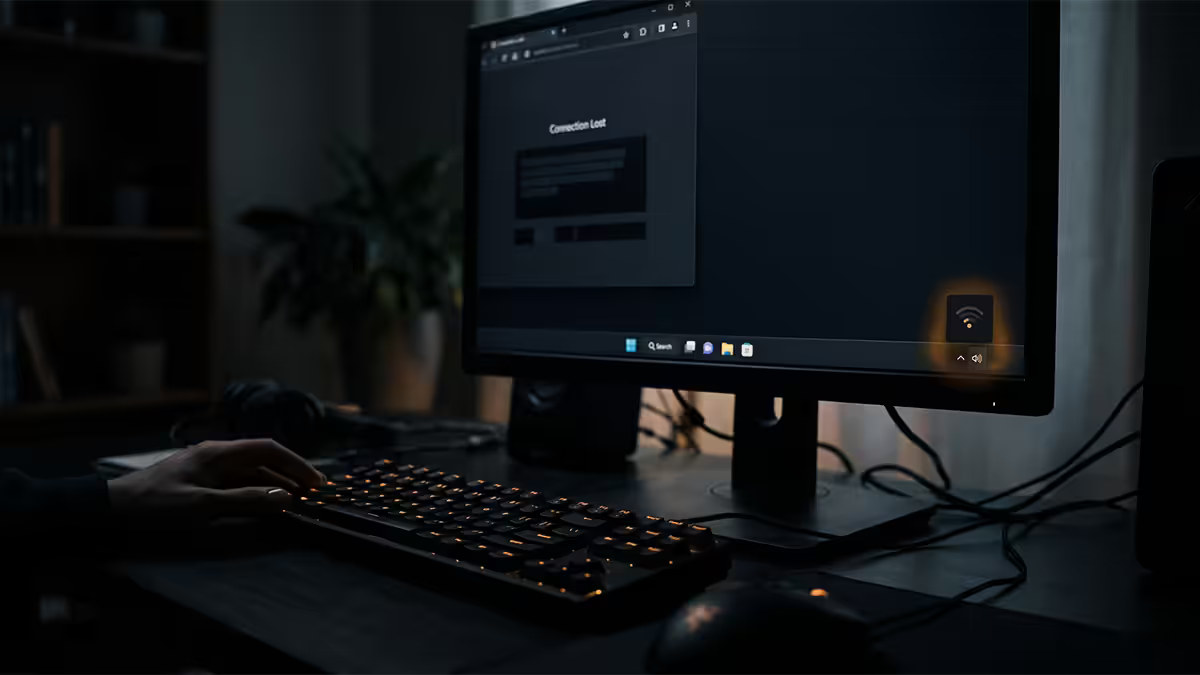
Before changing any settings, do a 60-second physical audit. The single biggest cause of "WiFi dropping" complaints is the PC being too far from the router, or having something blocking the line of sight.
- Walls between PC and router — every brick wall halves 2.4 GHz signal strength and quarters 5 GHz. Concrete and metal mesh are worse.
- Microwave ovens — actively destroy 2.4 GHz when running. If drops correlate with cooking, this is your culprit.
- Bluetooth speakers / headphones — share the 2.4 GHz band and collide with WiFi packets.
- USB 3.0 external drives next to the WiFi adapter — covered in detail below.
- The router itself — has it overheated, shifted behind a metal cabinet, or had the antennas knocked sideways?
Sketch your room. If your PC is more than two walls or 8-10 metres from the router, no software setting will rescue you — the physics has spoken. Either move the router, run an Ethernet cable, or accept that you need a mesh node or powerline adapter.
Step 2 — Switch to 5 GHz or 6 GHz
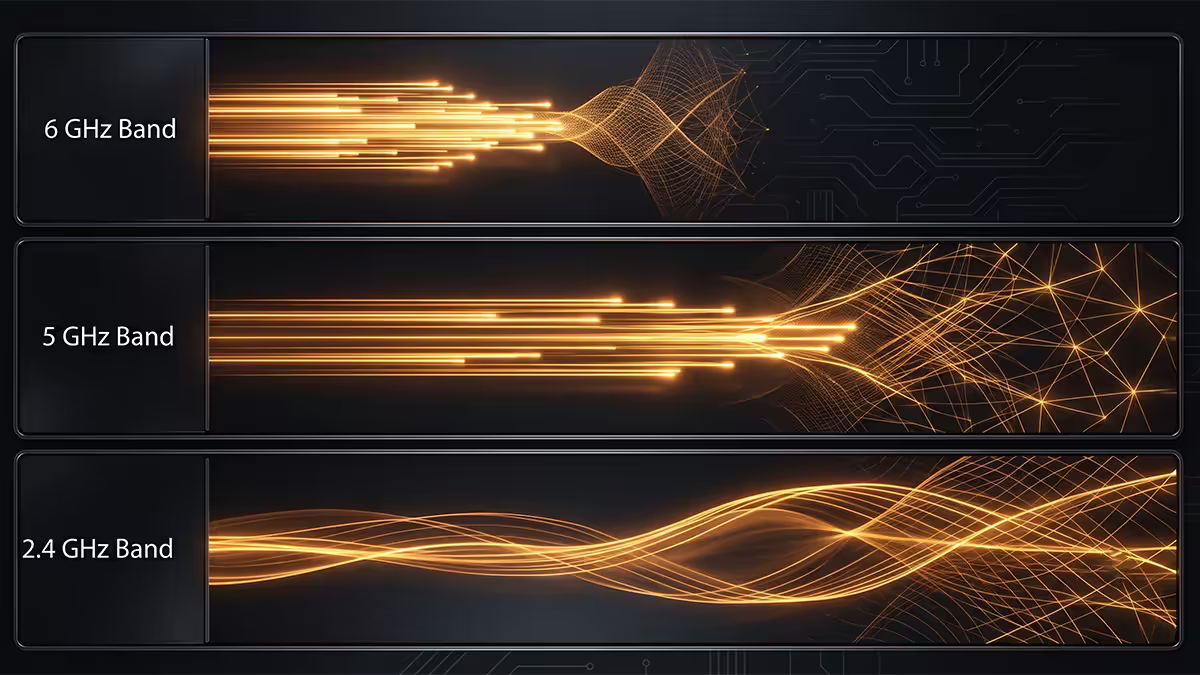
If your router broadcasts both 2.4 GHz and 5 GHz (most modern dual-band routers do), check which band your PC is currently connected to. If your gaming PC is on 2.4 GHz, switching to 5 GHz fixes about half of all "WiFi dropping" complaints by itself.
How to switch: open your router admin page (usually 192.168.0.1, 192.168.1.1 or 192.168.8.1). Some routers broadcast the two bands as separate SSIDs ("MyWiFi" and "MyWiFi_5G") — connect to the 5G one. Others combine them under "band steering" — disable band steering temporarily and split the SSIDs so you can force-pick.
| Band | Strength | Best for |
|---|---|---|
| 2.4 GHz | Long range, wall penetration | Far rooms, low-bandwidth IoT |
| 5 GHz | Fast, less congested | Gaming PC, streaming, normal range |
| 6 GHz (WiFi 6E / 7) | Fastest, almost empty spectrum | Same room as router, high-bandwidth use |
Step 3 — Find a clean channel
WiFi channels are like radio frequencies. Your neighbours' routers are screaming on the same channels as yours, and they all interfere with each other. In a SA suburb or estate, the 2.4 GHz band is usually catastrophically congested.
Install WiFi Analyzer (free on the Microsoft Store) or Acrylic WiFi Home. Scan for nearby networks and look at the graph. You'll see overlapping signals across every 2.4 GHz channel. Your router needs a channel where it has the strongest signal in its neighbourhood.
On 2.4 GHz, only channels 1, 6 and 11 don't overlap with each other. Pick whichever of those is least busy in your scan. On 5 GHz, there are 25 channels but DFS channels (52-144) can be unstable if there's nearby weather radar — try non-DFS channels (36, 40, 44, 48) first.
Most routers do channel auto-selection but get it wrong about half the time, especially in dense residential areas. Manual channel selection is a 2-minute fix that lasts months.
Step 4 — Update the router firmware
Most SA WiFi routers haven't been firmware-updated since they were unboxed. Manufacturers ship fixes for connection stability, security and WiFi 6/6E features long after the hardware launches. Check yours.
Log into the router admin page → System → Firmware Upgrade. Cross-reference the version on screen with the manufacturer's support page (TP-Link, Asus, Netgear, Mikrotik, Huawei, etc.). If yours is more than 12 months out of date, update — it's a 5-minute process and frequently resolves intermittent drops.
ISP-supplied routers (Vumatel ONT, Openserve, Rain LTE/5G modems) usually update automatically — but the ISP often disables WiFi-tuning options. If you're stuck on a locked-down ISP router, the best move is to put it into bridge mode and run your own router (Asus, TP-Link Archer, Mikrotik) behind it.
Step 5 — The USB 3.0 interference trap
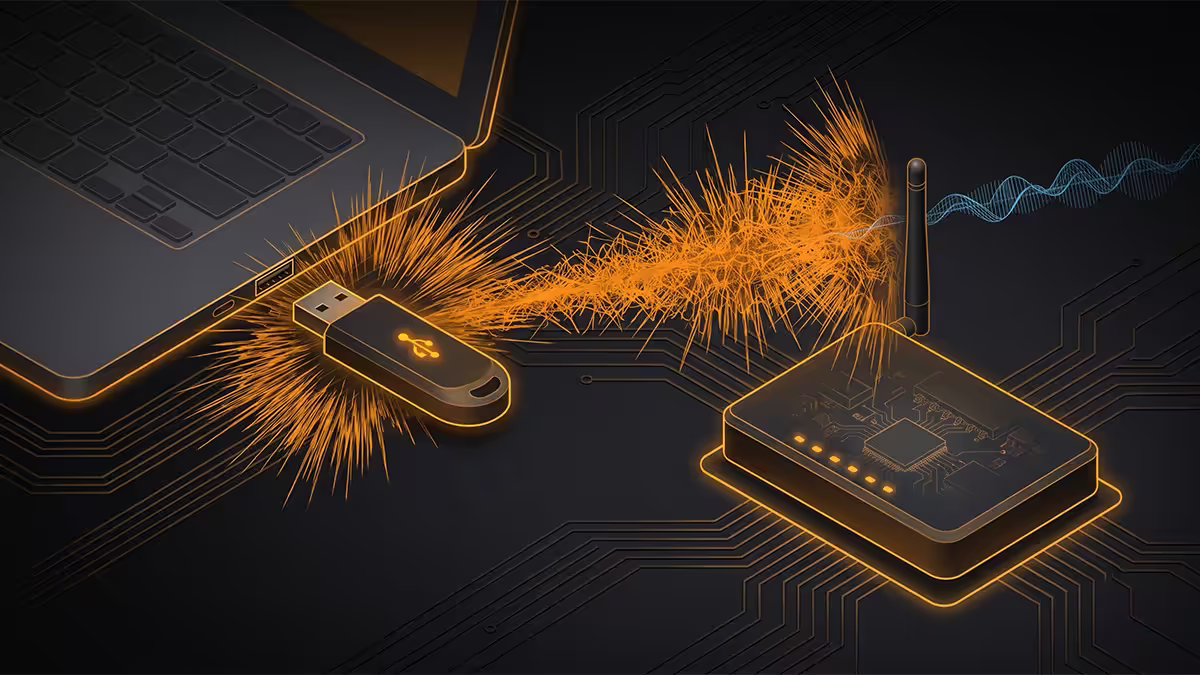
This one catches people every week. USB 3.0 and USB-C devices emit RF noise centred around 2.4-2.5 GHz — which sits exactly on top of 2.4 GHz WiFi. It's a documented Intel and Realtek phenomenon. The official Intel whitepaper is genuinely titled "USB 3.0 Radio Frequency Interference Impact on 2.4 GHz Wireless Devices".
Symptoms: WiFi is fine until you plug in an external drive, headset dongle or phone — then it drops within minutes. Or your laptop WiFi works perfectly until you connect to a USB-C dock.
- Switch to 5 GHz — far enough away from USB 3.0 noise to be immune. Best fix.
- Move the USB 3.0 device at least 30 cm from the WiFi adapter / laptop.
- Use shielded USB 3.0 cables — cheap unshielded cables leak more.
- Use a USB 2.0 port for the noisy device (mice, keyboards, charging cables don't need USB 3 speed).
- Move your USB WiFi dongle away from the PC's USB 3.0 ports — a USB extension cable solves this.
Step 6 — Clean-reinstall the WiFi driver
Outdated or corrupted WiFi drivers are the second most common cause of drops on PCs that worked fine yesterday. Windows Update sometimes installs a generic Microsoft driver that overrides the manufacturer's optimised one — fine for a basic connection, terrible for stability.
- Identify your WiFi chip — Device Manager → Network adapters → right-click your WiFi → Properties → Driver tab. Note the manufacturer (Intel, Realtek, Killer/Rivet/Intel, MediaTek, Qualcomm).
- Download the latest driver directly from Intel.com, Realtek.com or RivetNetworks.com — not from your motherboard vendor. Motherboard driver downloads are often a year out of date.
- Uninstall the existing driver — Device Manager → right-click → Uninstall device → tick "Delete the driver software for this device".
- Reboot.
- Install the new driver from the manufacturer installer.
- Disable driver updates in Windows Update — Settings → Windows Update → Advanced options → "Receive updates for other Microsoft products" → off. Stops Windows overwriting your good driver next month.
Step 7 — Disable WiFi power management
Windows aggressively sleeps the WiFi adapter to save battery — which makes sense on a laptop and is catastrophic on a desktop. The setting is on by default for both and is a notorious cause of drops.
Fix: Device Manager → Network adapters → right-click your WiFi → Properties → Power Management tab → uncheck "Allow the computer to turn off this device to save power". Click OK. Reboot.
On laptops, also check Windows Settings → System → Power & battery → WiFi power saving mode → set to "Maximum performance" while plugged in. This single setting has rescued thousands of "WiFi keeps dropping" complaints with zero hardware changes.
Step 8 — When to swap WiFi hardware
If you've worked through steps 1-7 and still drop, the hardware itself is suspect. There's a clear hierarchy of swap options ranked by cost and effectiveness.
| Swap | SA cost | When to choose |
|---|---|---|
| USB WiFi 6 / 6E dongle with antenna | R400-R900 | Quick test if motherboard WiFi is suspect |
| PCIe WiFi 6E / 7 card (Intel AX210, AX411) | R800-R1,800 | Best speed + range for desktop PCs |
| Mesh node (TP-Link Deco, Asus ZenWiFi) | R2,500-R6,000 | Far-room PC, multi-storey home |
| Powerline adapter (TP-Link AV2000) | R1,200-R2,200 | Carries Ethernet over electrical wiring — when WiFi just won't reach |
| Ethernet cable + cable run | R200-R1,500 | The bulletproof fix. Always best where physically possible |
| New router (Asus, TP-Link Archer) | R2,000-R8,000 | If router is 5+ years old or ISP-supplied |
Honest recommendation: if your PC can be reached by an Ethernet cable, run one. Even a 15-metre Cat 6 cable taped around the skirting board is the most reliable, lowest-latency network connection possible. If that's not an option, a PCIe WiFi 6E card or quality USB dongle is the next-best path.
Key takeaways
- Audit distance and interference first — physics beats every software setting if you're too far away.
- Switch to 5 GHz or 6 GHz — solves about half of all WiFi drop complaints by itself.
- USB 3.0 emits RF noise on 2.4 GHz. Move noisy USB devices, switch bands, or use USB 2.0.
- Clean-reinstall WiFi driver from Intel/Realtek directly. Disable power management.
- Hardware swap order: USB dongle → PCIe card → mesh node → Ethernet cable run.
Frequently asked questions
Why does my WiFi keep dropping only on my PC?
Three culprits cover 90%: USB 3.0 interference, Windows power management sleeping the adapter, and outdated WiFi drivers. Work through them in that order.Does USB 3.0 really interfere with WiFi?
Yes — documented Intel and Realtek issue. USB 3.0 emits RF noise around 2.4 GHz. Switch to 5 GHz to be immune, or move noisy USB devices away.Should I use 2.4 GHz, 5 GHz or 6 GHz WiFi?
5 GHz for gaming and productivity. 2.4 GHz only for far-room IoT. 6 GHz if both router and PC support WiFi 6E/7.How do I find a less congested WiFi channel?
Install WiFi Analyzer (free, Microsoft Store). On 2.4 GHz pick the least-busy of channels 1, 6 or 11. On 5 GHz, try non-DFS channels 36, 40, 44 or 48.Should I update my WiFi adapter driver?
Yes — but from the chip manufacturer (Intel, Realtek, Killer), not Windows Update or motherboard vendor. Uninstall the old driver before installing.My laptop WiFi keeps disconnecting — is it the antenna?
If drops correlate with screen angle, yes — hinge-routed antenna cables crack with age. Replacement R500-R1,500 in SA, or use a USB WiFi dongle.Will a USB WiFi dongle fix my drops?
Often yes. WiFi 6 / 6E dongles with external antennas from TP-Link, Asus or Netgear (R400-R1,200). PCIe cards are even better if you have a free slot.Why does WiFi drop right after a Windows update?
Windows Update overwrote your good driver with a generic Microsoft one. Reinstall the proper Intel/Realtek driver and disable driver updates in Windows Update advanced settings.
Get the Evetech app
Exclusive app-only prices, daily flash sales, and free delivery on orders over R4,000 — download the app and start saving.