Mac Fix · WiFi
MacBook WiFi acting up. — Diagnose, swap DNS, pick a clean channel.
Dropping the connection mid-Zoom, slow Spotify, stuck Slack. WiFi problems on a MacBook usually look identical regardless of cause — but the fix is almost always one of five specific things, in this order.
- non-overlap 2.4 GHz
- 1, 6, 11
- DNS to remember
- 1.1.1.1
- USB-C 2.5 GbE in SA
- R450+
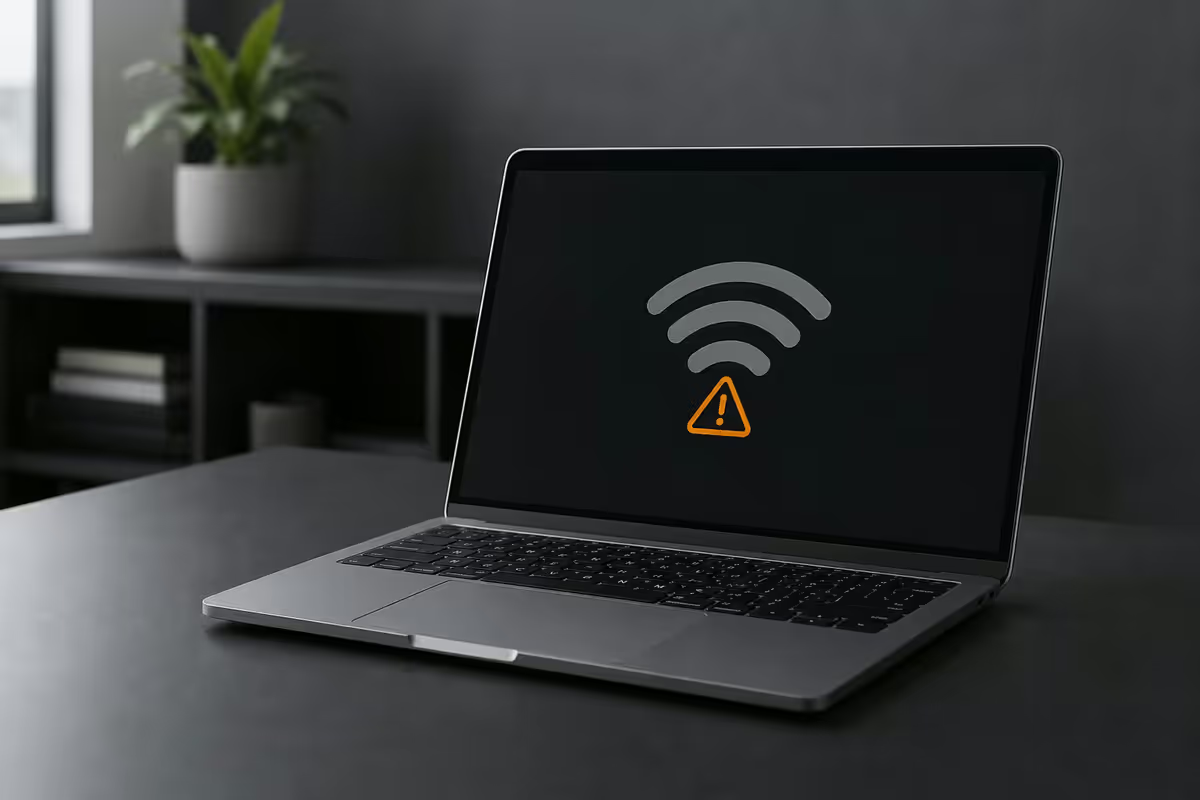
Diagnose before you reset anything
The first thing to do is gather real signal data, not guess. macOS exposes more diagnostic info than most users realise — but it's hidden behind an Option-click.
Option-click the WiFi menu icon. Hold Option (Alt) and click the WiFi icon in your menu bar. The expanded panel shows the actual SSID joined, channel, channel width, transmit rate, signal level (RSSI) and noise. This is gold.
| Signal level (RSSI) | Quality | Notes |
|---|---|---|
| -30 to -50 dBm | Excellent | Right next to the router |
| -50 to -65 dBm | Good | Normal working range |
| -65 to -70 dBm | OK | Light browsing fine, video calls iffy |
| -70 to -80 dBm | Poor | You'll feel drops |
| Below -80 dBm | Unusable | Move closer or add a mesh node |
Wireless Diagnostics — the deep-dive tool. Cmd+Space → "Wireless Diagnostics" → Enter. Click Continue. The Assistant guides you through monitoring the connection. Once the monitor is running, hide it (don't quit) and let it capture for an hour through your usual work, then come back to Window → Performance and Window → Sniffer. The Assistant also generates a /var/tmp/WirelessDiagnostics-*.tar.gz report on your Desktop — that's the file Apple Support asks for.
NVRAM and SMC resets — myth on Apple Silicon
If you've Googled "MacBook WiFi fix" in the last decade, every article will tell you to reset NVRAM (Cmd-Option-P-R at boot) and SMC. That advice is from the Intel era. It doesn't apply to Apple Silicon.
On M1, M2, M3, M4 MacBooks Apple unified the system controller logic into the SoC. There's no separate SMC chip to reset. The tiny amount of NVRAM that still exists (for things like boot device selection) is reset automatically on each boot when needed.
What actually replaces the old reset rituals on Apple Silicon:
- Just restart. Apple menu → Restart. That clears the equivalent transient state.
- If WiFi config is stuck, use System Settings → Network → WiFi → Details → Forget This Network, then rejoin from scratch.
- If networking generally is misbehaving, delete
/Library/Preferences/SystemConfiguration/contents and restart. macOS rebuilds them. (Back up first.)
On Intel MacBooks (2019–2020 Pro, all 2018 Air and earlier) the NVRAM/SMC resets are still real and occasionally help.
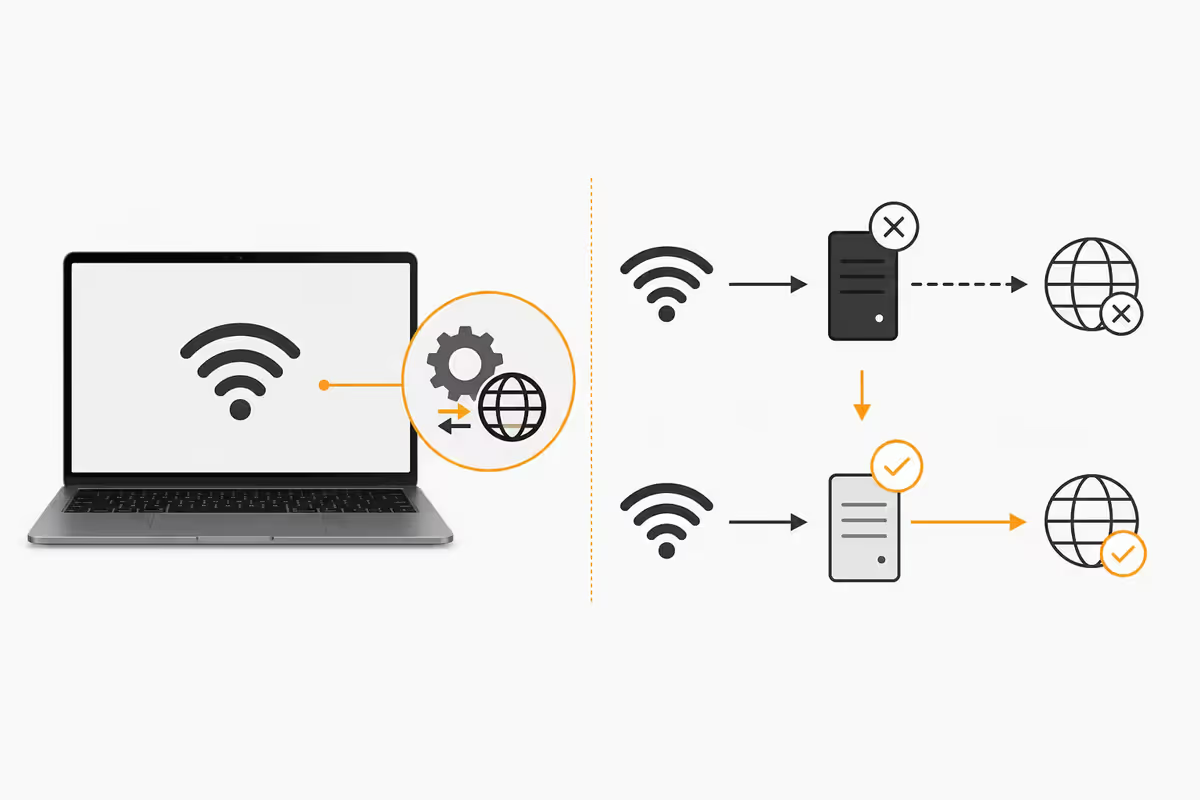
DNS swap — the underrated WiFi fix
In SA, the "my WiFi is slow" complaint is often actually "my DNS is slow." If pages load slowly and feel sluggish but speed tests look fine, DNS is your culprit.
Why ISP DNS often disappoints in 2026: SA ISP DNS servers are overloaded during peak hours, particularly during load-shedding when half the country reconnects in waves. Cloudflare's 1.1.1.1 and Google's 8.8.8.8 are anycast services — geographically near you, low-latency, properly maintained.
How to change Mac DNS:
- System Settings → Network → WiFi → click Details on your current network
- Click the DNS tab
- Click + and add
1.1.1.1 - Click + again and add
1.0.0.1as backup - Push any ISP DNS entries to the bottom or remove them
- Click OK
Test the swap: open Terminal, type dig cnn.com (or any heavy site) — the answer should arrive in under 50ms. Open Safari and load a few heavy pages. You'll feel the difference within seconds.
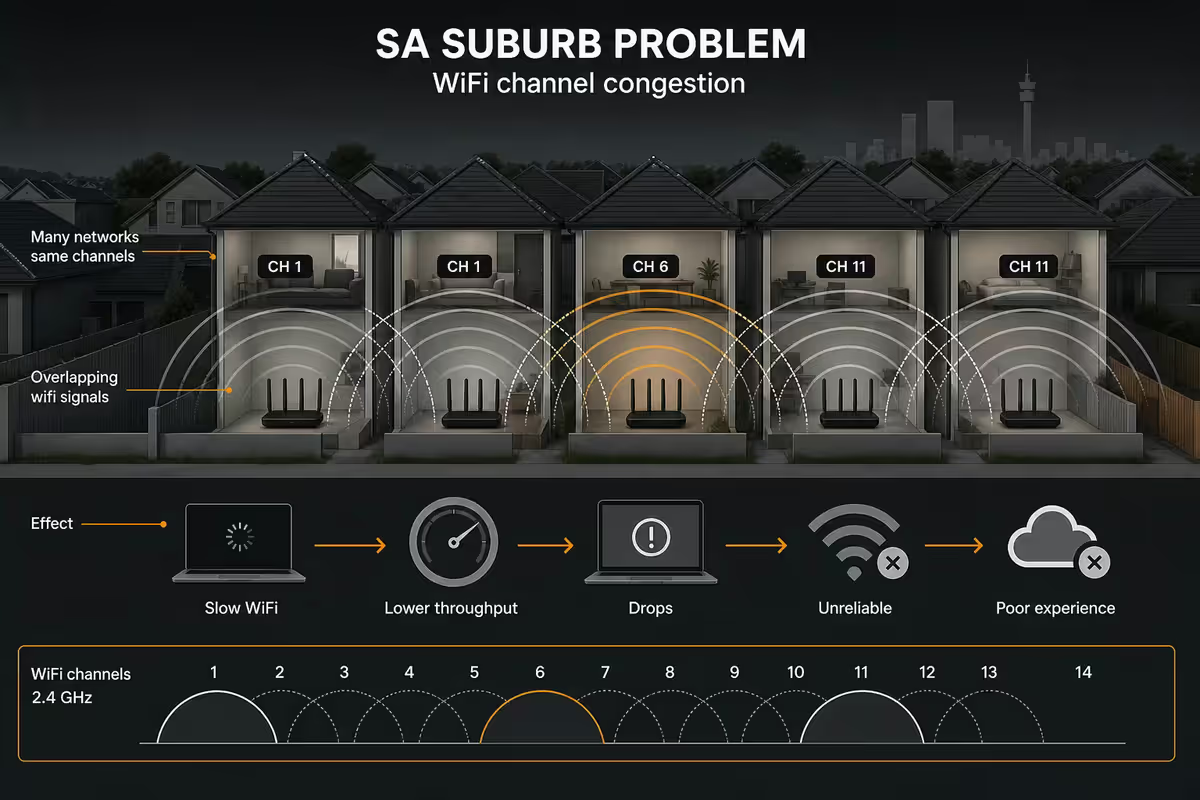
Channel congestion — the SA suburb problem
In dense suburbia (Centurion, Sandton, Sea Point, anywhere with townhouse density) you're competing with 15–30 other WiFi networks in earshot. The 2.4 GHz band only has three non-overlapping channels worldwide: 1, 6 and 11. Everything else partially overlaps.
How to see what your neighbours are using:
- WiFi Explorer Lite — free on Mac App Store. Shows every nearby network's channel, signal strength and security.
- WiFi Analyzer — free on iOS/Android. Useful from your phone walking around the house finding dead spots.
- Wireless Diagnostics → Window → Scan — built-in macOS scanner. Less pretty than the apps but free and right there.
Pick a clean channel: on 2.4 GHz, switch your router to the least-used of channels 1, 6, 11. On 5 GHz, channels 36, 40, 44, 149 are usually clean in SA (49, 153, 157, 161 also fine). On 6 GHz (WiFi 6E and WiFi 7), every channel is currently clean — there are very few WiFi 6E devices in SA suburbs.
5 GHz vs 6 GHz toggle. If your router supports WiFi 6E (Asus ZenWiFi, TP-Link Deco XE75, Netgear Orbi 9 Series) and your Mac is M3 or newer, force-prefer the 6 GHz band. It's faster and uncontested. Older MacBooks (M1, M2) max out at WiFi 6 (5 GHz only).
WPA2 vs WPA3 — the auth issue
Some routers shipped after 2022 default to WPA3-only security. macOS handles WPA3 fine on the surface, but a small percentage of router firmwares negotiate badly with Apple's WiFi stack — connection drops every few minutes, slow re-auth, occasional "incorrect password" pop-ups despite the password being right.
Diagnostic check: Option-click the WiFi icon. If you see "Security: WPA3 Personal" and you're experiencing drops, this could be it.
Fix at the router: log into your router admin (usually 192.168.1.1 or 10.0.0.1) and set Security Mode to WPA2/WPA3 Transitional or WPA2 only. The transitional mode lets WPA3-capable devices use WPA3 and falls back gracefully. WPA2-only sacrifices the WPA3 security upgrade but eliminates the auth dance.
Bluetooth interference and other 2.4 GHz noise
2.4 GHz shares its band with Bluetooth, microwave ovens, some baby monitors, older video doorbells and old cordless phones. If your WiFi drops specifically when you're using AirDrop, Magic Mouse, AirPods Max, or the microwave is on — that's classic 2.4 GHz interference.
The fixes:
- Move your laptop's WiFi to 5 GHz or 6 GHz (different band entirely).
- Use Bluetooth peripherals on lower-power modes when possible.
- Keep MacBook at least 1m from the microwave during heavy WiFi use.
- Replace ancient 2.4 GHz cordless phones with DECT 6.0 models (1.9 GHz band).
USB-C ethernet — when WiFi gives up
Some days WiFi just isn't going to work — a load-shedding wave hits, your router reboots and won't fully come back, you're stuck on slow conference WiFi and have a critical Zoom call. Ethernet over USB-C is the answer.
What to buy:
| Use case | Pick | SA price |
|---|---|---|
| Travel essential, 1 Gbps | Anker USB-C to Gigabit Ethernet | R450–R650 |
| Home/office, 2.5 Gbps | UGREEN USB-C 2.5 GbE | R650–R900 |
| Multi-port hub with ethernet | CalDigit TS4 or Anker 575 | R2,500–R6,500 |
| Built-in dock station | Belkin Connect Pro Thunderbolt 4 Dock | R8,500+ |
Setup: plug in. macOS auto-detects and prefers ethernet. Done. No drivers, no config, no restart. Pull the cable and macOS falls back to WiFi seamlessly. Many MacBook users keep an Anker USB-C ethernet in their travel bag as their "Zoom-call insurance" — it's saved more interviews than any other accessory.
Common WiFi troubleshooting mistakes
Resetting NVRAM/SMC on Apple Silicon. Doesn't do anything. Wastes a reboot. Restart instead.
Blaming the Mac before checking the router. Power-cycle your router for 30 seconds before touching Mac settings. Easily resolves a quarter of "MacBook WiFi" tickets we see.
Trusting speed tests over real-world feel. Speed tests report peak throughput on a clean burst. If pages still feel slow despite "200 Mbps" reported, the issue is DNS, latency or packet loss — not bandwidth.
Forgetting and re-adding the network for everything. The "Forget Network" nuke is the right move for stuck auth/credential issues, but it loses your network's saved priority and any custom DNS you set. Use it deliberately.
Buying a mesh system instead of fixing channel congestion. Mesh routers are great if you have a big house with dead spots. They don't help if your problem is 12 neighbours all on channel 6 — that needs a channel change, not more access points.
Key takeaways
- Option-click WiFi icon for channel + RSSI. Better than -65 dBm is normal.
- Wireless Diagnostics from Spotlight — Window → Logs → WiFi shows every drop.
- Skip NVRAM/SMC resets on Apple Silicon — they don't apply. Just restart.
- Cloudflare 1.1.1.1 DNS fixes a third of all SA "slow WiFi" tickets.
- USB-C 2.5 GbE adapter (R450–R900) ends WiFi anxiety for Zoom days.
Frequently asked questions
Why does my MacBook keep dropping WiFi?
Usually channel congestion (2.4 GHz neighbours), DNS timeouts, or WPA3 negotiation issues. Run Wireless Diagnostics for the exact failure mode.How do I run WiFi diagnostics on a Mac?
Cmd+Space → "Wireless Diagnostics" → Enter. The Assistant captures everything. Also Option-click the WiFi icon for instant channel/signal data.Should I reset NVRAM or SMC to fix MacBook WiFi?
Not on Apple Silicon. M-series Macs don't expose NVRAM/SMC resets — restart is the equivalent. Only Intel Macs benefit from the old reset rituals.How do I change my Mac's DNS to fix slow WiFi?
System Settings → Network → WiFi → Details → DNS tab → add 1.1.1.1 and 1.0.0.1 (Cloudflare). Push ISP DNS down or remove.What WiFi channel should my router be on?
2.4 GHz: 1, 6 or 11 (the non-overlapping channels). 5 GHz: 36, 40, 44 or 149 — usually clean. 6 GHz: any channel currently uncontested in SA.Why does my Mac WiFi work but the internet doesn't?
DNS or ISP path issue. Test with Terminal: ping 1.1.1.1. If that works, swap DNS to Cloudflare. If not, restart the router.Does AirDrop slow down my WiFi?
Briefly, yes — AirDrop uses the WiFi radio for the P2P link. After transfer, internet returns to normal. Persistent slowness from AirDrop isn't normal.When should I use USB-C ethernet on a MacBook?
For Zoom, big uploads, live streaming and load-shedding-heavy areas. R450–R900 USB-C 2.5 GbE adapter ends WiFi anxiety.
Get the Evetech app
Exclusive app-only prices, daily flash sales, and free delivery on orders over R4,000 — download the app and start saving.