Mac Fix · Battery
MacBook battery draining fast. — Diagnose in 60 seconds. Fix in an afternoon.
The culprit is almost always one of five things — and Activity Monitor will show you which in under a minute. The harder question is whether it's a fixable software issue or a battery near end-of-life.
- capacity = service flag
- 80%
- target cycle count
- 1,000
- SA battery replacement
- R3,500+
The 60-second diagnosis
Before changing settings or worrying about hardware, check two macOS surfaces. Together they tell you 90% of the story.
1. Battery Usage History (last 24 hours). System Settings → Battery → Last 24 Hours. You'll see a graph of screen-on vs screen-off battery use. A normal day looks like a gentle slope while in use, plateaus while sleeping. A bad day shows steep drops during screen-off — meaning something kept the Mac awake.
2. Activity Monitor → Energy. Cmd+Space, type "Activity Monitor", switch to the Energy tab, click the Energy Impact column header to sort descending. The top 3-5 processes are your battery enemies. Anything consistently above 50 is heavy; consistently above 100 is critical.
The usual energy-impact suspects
After tens of thousands of battery tickets, the 2026 leaderboard barely changes.
| Process | Why it's draining | Fix |
|---|---|---|
| Google Chrome | 30+ tabs with active JS | Memory Saver, or Safari |
| Slack | Stuck WebSocket, old version | Quit & relaunch, update |
| Microsoft Teams | Background sync loop | Sign out, restart Teams |
| Spotify | Always-on player + scrobble | Quit when not in use |
| Zoom | Background launcher daemon | Quit Zoom completely |
| Adobe CC Daemon | Cloud sync + updater polling | Disable autostart |
Chrome remains the chief offender in 2026 — even with Memory Saver enabled. Safari on Apple Silicon is genuinely 30-50% more energy-efficient. If your work doesn't require Chrome-specific extensions (DevTools workflows, specific corporate tools), switch your daily browser to Safari and you'll feel the difference within hours.
The “first 24 hours” drains
If you've just installed macOS Sequoia, recovered from Time Machine, restored to a new MacBook, or run a major OS update — the first 24 hours look like the battery is broken. They're not.
Spotlight reindex (mds_stores process). macOS rebuilds its search index after major changes. Expect mds_stores to run at 80-200 Energy Impact for 4-24 hours, eating battery and warming the chassis. Solution: plug in, leave it overnight.
Time Machine first backup (backupd process). Initial full backup to a new external SSD takes 4-12 hours depending on data size. During that window the disk and SSD subsystem stay busy. Solution: plug in and let it complete.
Photos library upload/optimise. Fresh iCloud Photos sync re-processes your library locally for face recognition, scene detection and HDR optimisation. Takes 12-48 hours on big libraries. Solution: plug in overnight for 2-3 nights.
App reinstall + first launch settling. Many apps trigger first-run optimisation tasks (Adobe, Microsoft 365, Xcode, Final Cut). Expect 2-4 hours of unusual battery drain. Solution: launch each app once on power before going battery-only.
kernel_task — the heat throttle
If Activity Monitor shows kernel_task at 200-400% CPU and your MacBook chassis feels hot, you're not seeing a bug — you're seeing macOS protecting itself.
What kernel_task actually does: when internal temperature sensors hit a threshold, macOS spawns kernel_task to “use” CPU cycles that the real workload can't access — forcing throttling and pushing heat down. It looks like a runaway process. It's actually a thermostat.
Root causes (in order):
- Blocked vents. Mac on a soft surface (bed, couch, lap with blanket). Move to a hard flat surface.
- USB-C peripheral negotiating power badly. Cheap docks and hubs sometimes push wattage into the Mac that triggers thermal protection. Unplug everything; reintroduce one at a time.
- Dust in vents. Mac three years old or more, fans can't move air. Service centre clean (R450-R600 at Evetech).
- External display at 4K/60Hz over USB-C. Driving big displays warms the chassis. Lower the refresh rate to 30Hz if you don't need 60.
- Failing fan. Rare but possible. macOS can't spin a dead fan. Service centre diagnosis.
On Apple Silicon (M1/M2/M3/M4) kernel_task heat issues are far less common than on Intel-era MacBooks — the chips run cooler at idle and load. If you're on an Intel MacBook Pro (2018-2020) seeing kernel_task drain regularly, it's a known pattern and worth considering an upgrade.
The settings that buy back hours
Apple ships sensible defaults but a few are worth changing for maximum battery.
Optimised Battery Charging — ON. System Settings → Battery → Battery Health → click the (i) → enable. Holds charge at 80% when macOS predicts long plug-in stints, tops up to 100% before your usual unplug. Extends total battery lifespan 20-30%.
Low Power Mode — Only on Battery. System Settings → Battery → Low Power Mode → Only on Battery (or Always if you're aggressive about it). Drops CPU frequency, dims display slightly, pauses background tasks. Apple Silicon MacBooks gain 2-4 extra hours of light use.
Display brightness — auto + adaptive. System Settings → Displays → Automatic brightness ON, True Tone ON. The display is the single biggest power draw on a MacBook. Even 20% brightness reduction extends battery 30-45 minutes.
Bluetooth peripherals review. Magic Trackpad, Magic Mouse, AirPods Pro and external keyboards all drain via the Mac's Bluetooth radio. Disconnect what you're not using. Wake-on-Bluetooth keeps the radio listening.
Auto-launch apps audit. System Settings → General → Login Items & Extensions. Remove anything you don't need launching at boot — Spotify, Discord, Adobe daemon, Microsoft helpers.
Keyboard backlight — adaptive. Backlight on at 100% in a lit room is pure waste. Let macOS adapt it, or turn it off when not needed (Touch ID strip → keyboard brightness).
Reading your Battery Health
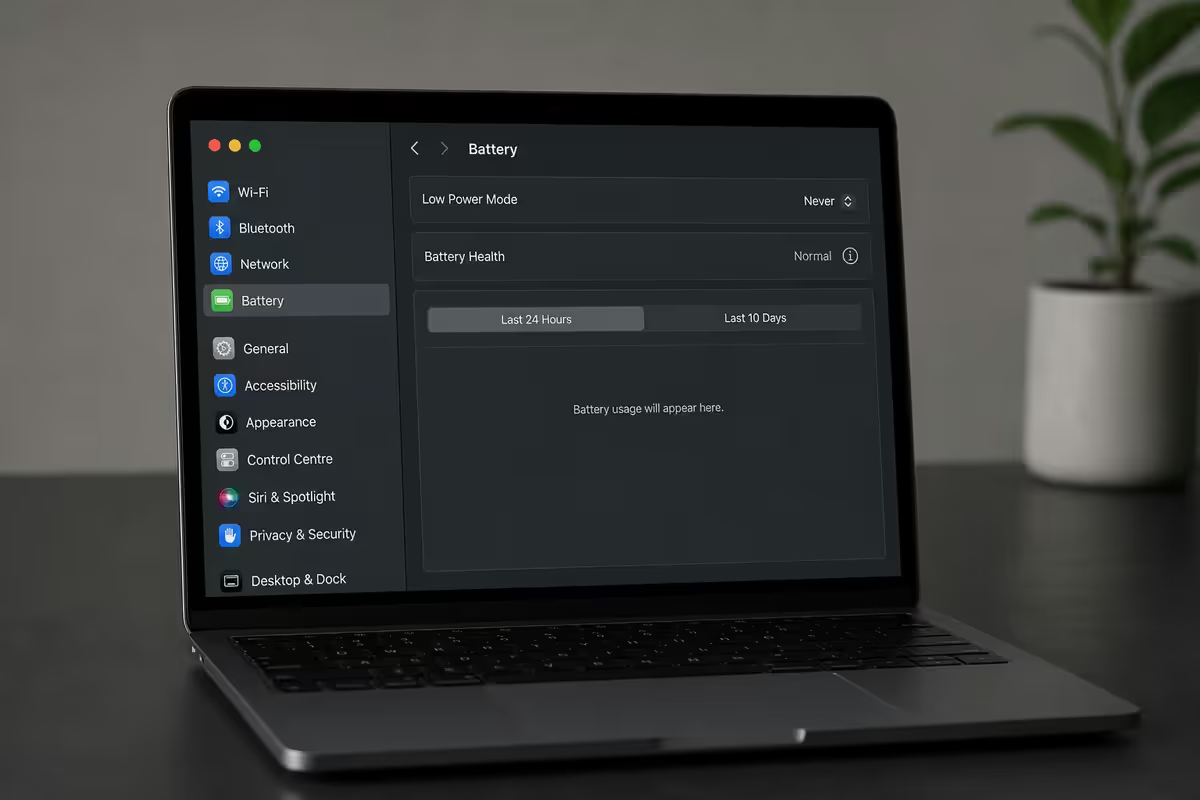
System Settings → Battery → Battery Health. Click the (i) icon for the full panel.
Maximum Capacity (% of original). Apple Silicon MacBooks ship with a target of 1,000 cycles to 80% capacity. Typical degradation:
- Year 1: 96-99% capacity, 150-300 cycles
- Year 2: 92-96% capacity, 350-500 cycles
- Year 3: 85-92% capacity, 550-750 cycles
- Year 4: 78-88% capacity, 750-950 cycles
- Year 5+: 70-85% capacity, 1000+ cycles
“Service Recommended” warning. macOS shows this when capacity drops below 80% or when the battery starts holding charge erratically. It's not urgent — your Mac is still safe — but you'll feel the runtime drop and battery replacement is the right call.
Cycle Count. System Settings → General → About → System Report → Power → Cycle Count. Each full discharge (or two half discharges) = 1 cycle. A Mac with 600 cycles and 88% capacity is healthier than one with 200 cycles at 78% capacity.
Battery replacement — SA cost in 2026
| Model | SA cost (AASP) | Turnaround |
|---|---|---|
| MacBook Air 13" (M2/M3/M4) | R3,500 | 3-5 business days |
| MacBook Air 15" (M3/M4) | R3,800 | 3-5 business days |
| MacBook Pro 14" (M3/M4 Pro/Max) | R4,500 | 5-7 business days |
| MacBook Pro 16" (M3/M4 Pro/Max) | R5,500-R6,500 | 5-7 business days |
| AppleCare+ in-warranty | R0 (covered) | 3-5 business days |
| Intel MacBook Pro 2018-2020 | R4,500-R6,000 | 7-10 days (parts sourcing) |
Common battery mistakes
Calibrating “by deep discharge.” Modern Apple Silicon Macs don't benefit from full discharges — that advice is from the nickel-cadmium era. Discharging below 5% repeatedly is actively bad for lithium-ion lifespan.
Disabling Optimised Battery Charging “to get full charge.” Holding at 100% accelerates battery wear. Optimised Charging is correct — leave it on.
Closing all apps to “save battery.” macOS pages out idle apps from CPU. An idle Safari window costs less than the launch energy of reopening it five minutes later. Close apps because they're misbehaving, not as a battery ritual.
Using cheap USB-C chargers. A bad charger that doesn't negotiate PD properly causes the Mac to throttle, draw inefficiently, and run warm. Stick to Apple's own brick, or reputable third-party (Anker, Belkin, UGREEN) with proven PD compliance.
Key takeaways
- Activity Monitor → Energy → sort by Energy Impact. The culprit is at the top.
- Chrome, Slack, mds_stores, backupd — the top four offenders almost every time.
- kernel_task = heat throttle. Check vents, accessories, dust before assuming hardware.
- Optimised Charging ON, Low Power on battery, brightness auto. Free hours.
- Below 80% Maximum Capacity = battery replacement time. R3,500-R6,500 at SA AASP.
Frequently asked questions
Why is my MacBook battery draining so fast?
In 2026, the top three culprits are: (1) Chrome with 30+ tabs eating 40-60% of energy impact, (2) Spotlight reindex burning CPU silently in the background for the first 24 hours after macOS install or major update, and (3) kernel_task fighting heat from blocked vents or a USB-C peripheral negotiating power badly. Open Activity Monitor → Energy and sort by Energy Impact descending. The worst offender is usually obvious within 10 seconds.How do I check what's draining my MacBook battery?
System Settings → Battery → Last 24 Hours shows a screen-on / screen-off graph. Then open Activity Monitor → Energy tab and sort by Energy Impact column. Anything consistently above 50 is a heavy drain. The 12-hour Average Energy Impact column matters more than instantaneous — a brief 200 spike during a build is fine, a constant 80 from Slack is not.Is kernel_task draining my battery normal?
kernel_task is macOS's CPU throttle that runs hot when the system is hot — it's the kernel pretending to use CPU to slow the real CPU down and force cooling. If you see kernel_task at 200-400% in Activity Monitor, your Mac is overheating. Check: blocked vents (Mac on bed/couch), dust in vents, a hot USB-C accessory, or a failing fan. On Apple Silicon kernel_task heat issues are far less common than on Intel Macs.Should I close Chrome tabs to save battery?
Yes — or switch to Safari for battery-focused sessions. Chrome in 2026 is still 30-50% less energy-efficient than Safari on Apple Silicon. Each open tab with active JavaScript (Gmail, Slack, Linear, YouTube) draws CPU even in the background. Use Chrome's Memory Saver to suspend inactive tabs, or use Safari as your default for browsing and Chrome only when you need it for specific work.Does Optimised Battery Charging really help?
Yes — turn it on. Optimised Battery Charging holds your charge at 80% when macOS predicts you'll be plugged in for a long time (like overnight), then tops up to 100% before your usual unplug time. Holding lithium-ion batteries at 100% accelerates wear; keeping them around 80% extends total lifespan by 20-30%. System Settings → Battery → Battery Health → Optimised Battery Charging.What is Low Power Mode and when should I use it?
Low Power Mode drops CPU frequency, dims the display slightly and pauses background tasks. On Apple Silicon MacBooks it typically buys 2-4 extra hours of light browsing or video battery. Use it on travel days, in load-shedding, or when you're nowhere near a charger. Set it to auto-enable below 30% in System Settings → Battery → Low Power Mode → Only on Battery.How much does an Apple battery replacement cost in South Africa?
In 2026 at Apple Authorised Service Providers (AASP) including Evetech: R3,500 for MacBook Air (M2/M3/M4), R4,500 for 14" MacBook Pro, R5,500-R6,500 for 16" MacBook Pro. AppleCare+ covers battery replacement when capacity drops below 80%. Without AppleCare+ you pay out-of-pocket but the work is genuine Apple parts with 90-day warranty on the work.When is it time to replace the MacBook battery?
Three triggers: (1) System Settings → Battery → Battery Health says "Service Recommended" — macOS is telling you outright. (2) Maximum Capacity has dropped below 80% — usually around 800-1,000 cycles. (3) Real-world battery time has halved versus when new. Apple Silicon MacBooks typically reach 80% capacity around year 4 of normal use; Intel-era MacBooks degraded faster.
Get the Evetech app
Exclusive app-only prices, daily flash sales, and free delivery on orders over R4,000 — download the app and start saving.