Mac Fix · Storage
Your MacBook is out of storage. — Reclaim 100-300 GB in an afternoon.
"Your disk is almost full" is the most annoying notification macOS ships with — partly because the fix isn't where Apple suggests, and partly because the real culprit is hidden in folders you've never opened.
- typical recovery
- 100-300 GB
- free space target
- 15-20%
- 2 TB SSD in SA
- R2,200+
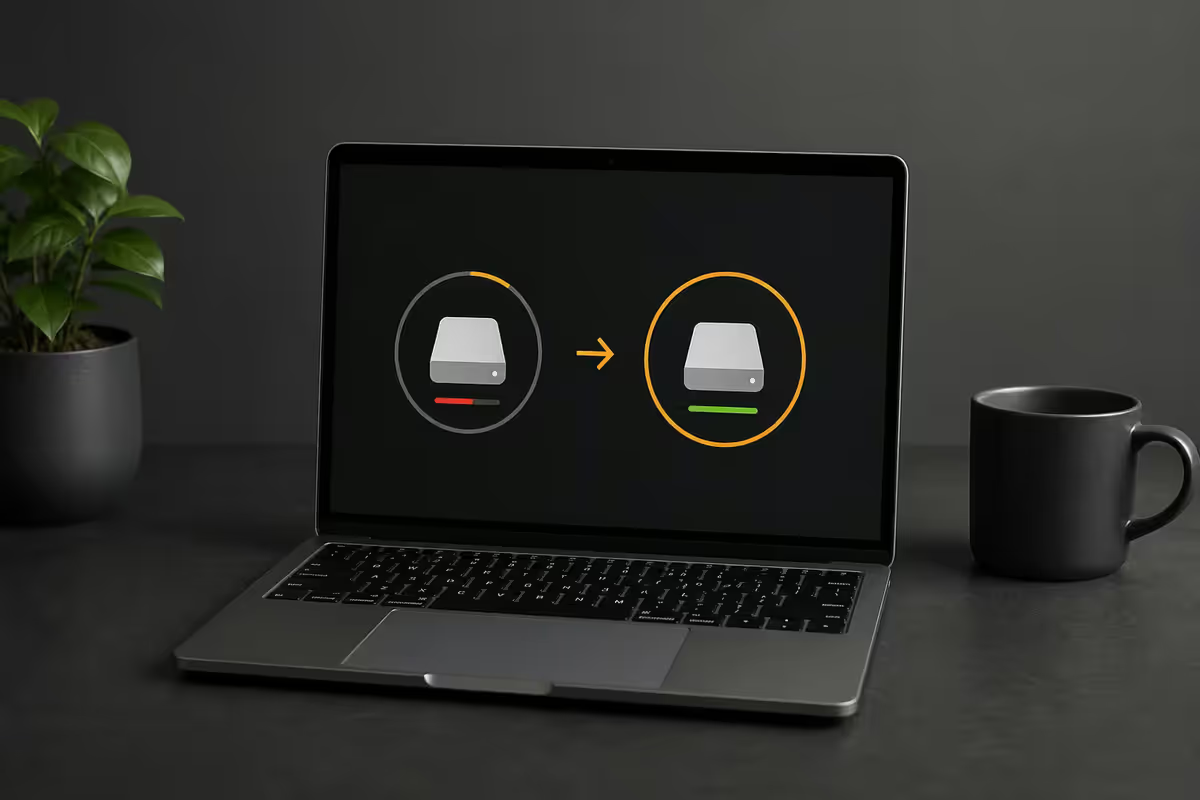
Storage Management — the one-click wins
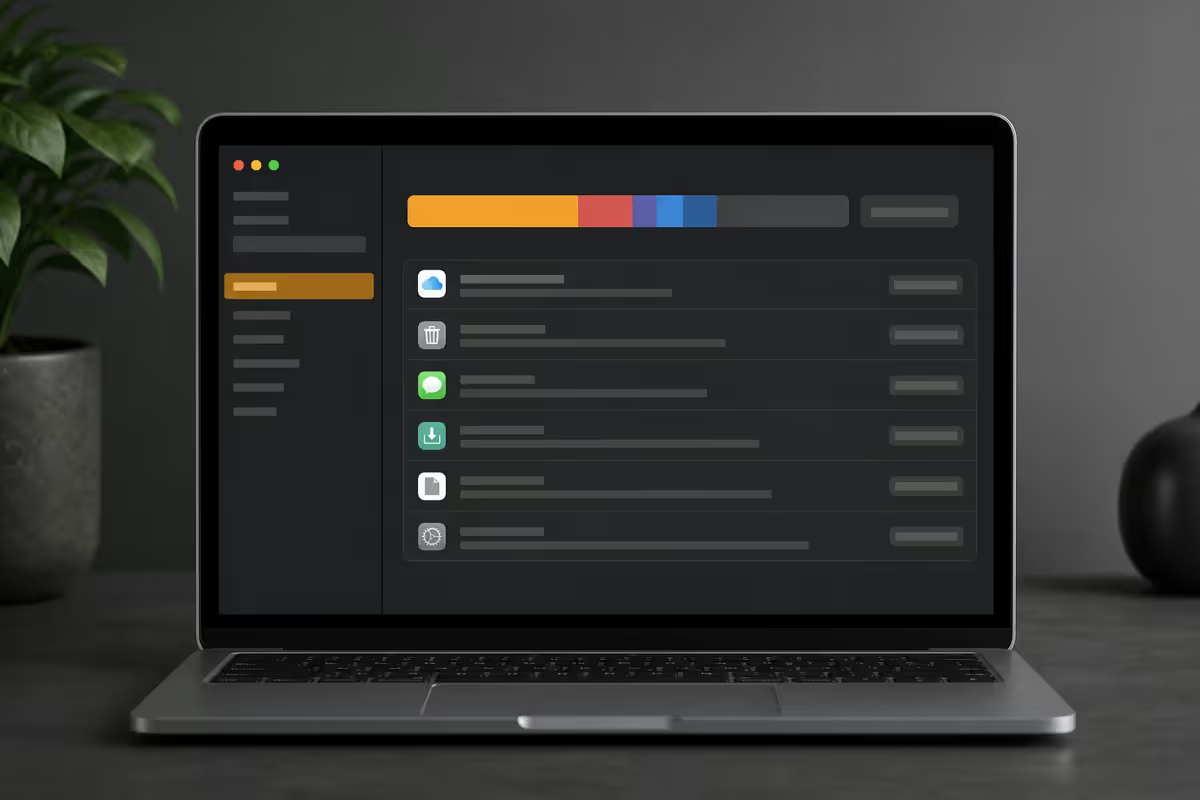
Apple buries the best built-in cleanup tool four layers deep. Open System Settings → General → Storage. Wait 10-30 seconds for the bar to populate, then look at the Recommendations panel.
| Recommendation | Typical recovery | Worth enabling? |
|---|---|---|
| Store in iCloud | 50-200 GB | Yes — if you have iCloud+ storage |
| Optimize Storage | 5-30 GB | Yes, always |
| Empty Trash Automatically | 2-15 GB | Yes |
| Reduce Clutter (Documents review) | 10-50 GB | Yes — surfaces forgotten big files |
Optimize Storage removes watched Apple TV purchases, old email attachments and offline Apple Music after you've finished with them. It works without iCloud and reclaims space automatically going forward.
Store in iCloud requires an iCloud+ plan (R39 / R79 / R349 per month for 50 GB / 200 GB / 2 TB) and enables Desktop & Documents sync — every file in those two folders gets backed to iCloud and evicted from local storage when not used recently.
Hunt down the big files
Storage Management groups everything by category, but the real wins come from finding individual giant files — old project archives, forgotten 4K video clips, downloaded installers, ChatGPT/Claude export bundles.
Two free methods built in:
- Storage → Documents → Large Files. Lists everything over 100 MB sorted by size. Click the X next to anything you no longer need. This catches obvious wins — old DMG installers, video exports, archive ZIPs.
- Spotlight size search. Hit Cmd+Space, type
size:>500MB. Spotlight surfaces every file matching, across the entire drive.
The third-party heavy hitters:
- DaisyDisk (R250 once-off, Mac App Store). Scans your entire drive and shows every folder as a coloured sunburst, sized proportionally. Drill into any segment to find the gigabyte hog. The R250 typically pays for itself in 90 seconds.
- GrandPerspective (free, open source). Same idea, treemap visualisation instead of sunburst. Less polished but free and effective.
- OmniDiskSweeper (free, OmniGroup). Old-school list view sorted by size — fast, no graphics. Best for engineers who just want the data.
The hidden cache culprits
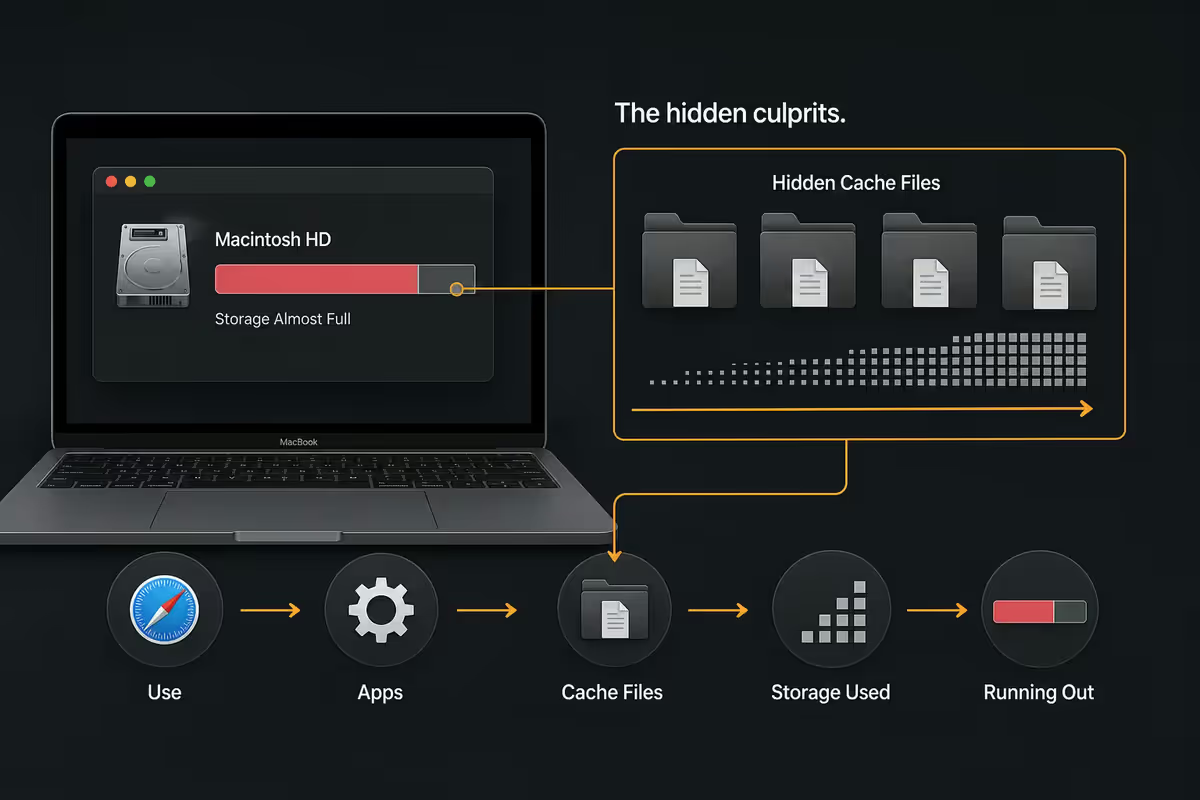
Macs hoard caches. Most are auto-managed but a handful grow unchecked and never self-clear.
Xcode and iOS Simulator (developers). The biggest single offender we see on developer Macs. Open Xcode → Settings → Components and remove old simulator runtimes (each 8-12 GB). In Terminal run xcrun simctl delete unavailable to purge orphaned simulators. Then nuke ~/Library/Developer/Xcode/DerivedData — Xcode rebuilds it on next compile. Typical recovery: 40-90 GB.
Spotify offline cache. Settings → Storage → Remove all downloads, or set offline storage cap to 5 GB. Routinely hoards 30-50 GB on power users.
Apple Music offline. Music app → Settings → Files → Optimise Storage, with minimum free space slider set to 50 GB. The app then drops downloads automatically as your drive fills.
Mail attachments. Mail → Settings → Accounts → your account → Mailbox Behaviours → Download Attachments: Recent (instead of All). Then File → Rebuild on each mailbox. 5-25 GB recovery on heavy email users.
Downloads folder. Open Finder → Downloads, sort by Size, scroll. The DMG installers, leaked Zoom recordings and PDF receipts add up faster than anyone expects.
Trash. Empty it. Then empty Mail's Trash separately. Then Photos' Recently Deleted album (Photos → View → Recently Deleted → Delete All).
iCloud Drive Desktop & Documents — the ongoing fix
If you're going to keep using a 256 GB or 512 GB MacBook for years, the long-term fix is iCloud Drive Desktop & Documents sync combined with Optimize Mac Storage.
How it works: macOS syncs your Desktop and Documents folders to iCloud. Files you haven't opened in weeks are evicted from local storage — only a placeholder thumbnail with a tiny cloud-download icon remains. Click the file and macOS pulls it back in seconds.
Setup: System Settings → [your name] → iCloud → Drive → Turn on Desktop & Documents Folders. Then in Storage settings, enable Optimize Mac Storage. Wait a few hours for the first sync (size-dependent).
What this gives back: 50-200 GB typical on a working MacBook with 3-5 years of accumulated Desktop screenshots and Documents project files. Everything's still browsable, still searchable in Spotlight, still backed up — just not occupying SSD bytes.
The trade-off: you need enough iCloud+ storage. R79/month for 200 GB is fine for most people. R349/month for 2 TB covers heavy users and family sharing.
External SSD — the project archive play
Some files don't belong in iCloud. Raw 4K footage, RAW photo archives, virtual machine images, finished project ZIPs — gigabyte files you want fast access to but rarely touch. The answer here is a portable USB-C SSD.
What you want in 2026:
- USB-C, USB 3.2 Gen 2 (10 Gbps) minimum. Real-world read/write 950-1,050 MB/s. Fast enough for 1080p video editing direct from drive.
- 2 TB capacity. The sweet spot on price-per-GB. 1 TB fills too fast; 4 TB is overkill unless you're a video professional.
- Bus-powered, no external power brick. All modern portable SSDs hit this — beware older 2.5" enclosures.
- Solid recovery brand: Samsung T7 / T7 Shield, Crucial X9 / X10 Pro, SanDisk Extreme V2. Avoid no-name Amazon brands — failure rates and firmware quality are noticeably worse.
The setup: format it APFS (Apple File System) in Disk Utility. Create a folder structure that mirrors your project flow — /Archive/2024, /Archive/2025, /Active, /Media-Library. Move finished projects off your Mac quarterly. The SSD lives in your bag for travel projects or on your desk as a dock-attached archive drive.
SA pricing — internal vs external vs cloud
| Storage option | Pick | SA price |
|---|---|---|
| iCloud+ 50 GB | Cloud — light user | R39 / month |
| iCloud+ 200 GB | Cloud — most users | R79 / month |
| iCloud+ 2 TB | Cloud — heavy / Family Sharing | R349 / month |
| Portable SSD 1 TB | Samsung T7 / Crucial X9 | R1,400-R2,200 |
| Portable SSD 2 TB | Samsung T7 Shield / Crucial X9 | R2,200-R3,500 |
| Portable SSD 4 TB | Samsung T7 Shield / SanDisk Extreme V2 | R4,500-R6,500 |
| Apple internal upgrade 512→1 TB at purchase | Apple Store SA | R7,500 |
| Apple internal upgrade 1→2 TB at purchase | Apple Store SA | R14,000 |
Common storage cleanup mistakes
Deleting macOS system files manually. Anything in /System or /Library (root, not your user Library) is system-managed and protected by SIP. Don't fight it. The free space appears flagged as "System Data" — and largely cannot be reduced manually.
Trusting "Mac cleaner" tools blindly. CleanMyMac, MacKeeper, MacBooster and friends overreach. They delete language files, cached install media you actually need, and quarantine working app data. If you must use one, use it conservatively and verify each item before deletion.
Forgetting the Photos library. ~/Pictures/Photos Library.photoslibrary can quietly reach 200+ GB. Enable iCloud Photos with Optimise Mac Storage to evict full-resolution originals while keeping the searchable database local.
Buying internal storage at Apple-purchase. Apple charges R7,000-R14,000 to bump internal storage tiers. The same money buys a 4 TB external SSD plus iCloud+ for two years. Plan for offload, not internal.
Letting the drive fill below 5%. macOS uses free SSD space for swap files and updates. Below 5% free, you'll see beachballs, failed software updates and slow app launches. Keep 15-20% free as a working target.
Key takeaways
- System Settings → General → Storage → Recommendations. One click. 20-80 GB typical.
- DaisyDisk or GrandPerspective to visualise where the gigabytes actually live.
- Xcode DerivedData, Spotify offline, Photos library, Downloads — the usual cache suspects.
- iCloud Drive Desktop & Documents + Optimize Mac Storage = ongoing 50-200 GB offload.
- 2 TB portable SSD (R2,200-R3,500) for project archive — cheaper than internal upgrade.
Frequently asked questions
How do I free up space on my MacBook fast?
System Settings → General → Storage → Recommendations. Run all four. Then empty Downloads, Mail attachments and Trash. That's 20-80 GB in one sitting on most Macs.What is taking up so much space on my Mac?
Usually Xcode caches (developers), Spotify offline downloads (30-50 GB), Photos library, Downloads folder and Mail attachments. DaisyDisk visualises it in 60 seconds.Does iCloud Drive actually save space on my Mac?
Yes — enable Desktop & Documents sync plus Optimize Mac Storage. Files you haven't opened recently get evicted to iCloud, leaving placeholder icons. Reclaims 50-200 GB on working MacBooks.How do I find large files on my Mac?
Storage → Documents → Large Files (built-in) or DaisyDisk (R250) for a sunburst treemap. Free alternative: GrandPerspective.Should I get an external SSD for my MacBook?
Yes — for project archives, finished video and rarely-touched media. 2 TB USB-C SSD runs R2,200-R3,500 in SA vs Apple's R7,000+ to upgrade internal storage.Can I delete the Xcode and iOS Simulator caches?
Yes. Remove old simulator runtimes in Xcode Settings → Components, run xcrun simctl delete unavailable in Terminal, clear ~/Library/Developer/Xcode/DerivedData. 40-90 GB recovery typical.What's the difference between Optimize Storage and iCloud Drive?
Optimize Storage removes Apple-controlled cache (TV purchases, music). iCloud Drive offloads your own files (Desktop, Documents). Use both together.How much free space does macOS need to run smoothly?
15-20% of your SSD. Below 10% you'll see beachballs and failed updates. Below 5% apps crash on save.
Get the Evetech app
Exclusive app-only prices, daily flash sales, and free delivery on orders over R4,000 — download the app and start saving.