MacBook Keyboard Fix
Fix a MacBook keyboard not working. — One key. All keys. Or Cmd+Space.
Most "broken" MacBook keyboards aren't broken. They're a stuck accessibility toggle, an accidental input-source switch, or a USB-C handshake that needs a power cycle. The hardware-vs-software question is settled in 30 seconds with an external keyboard.
- USB-C test
- 30 sec
- are software
- ~85%
- SA top-case swap
- R8.5-18k
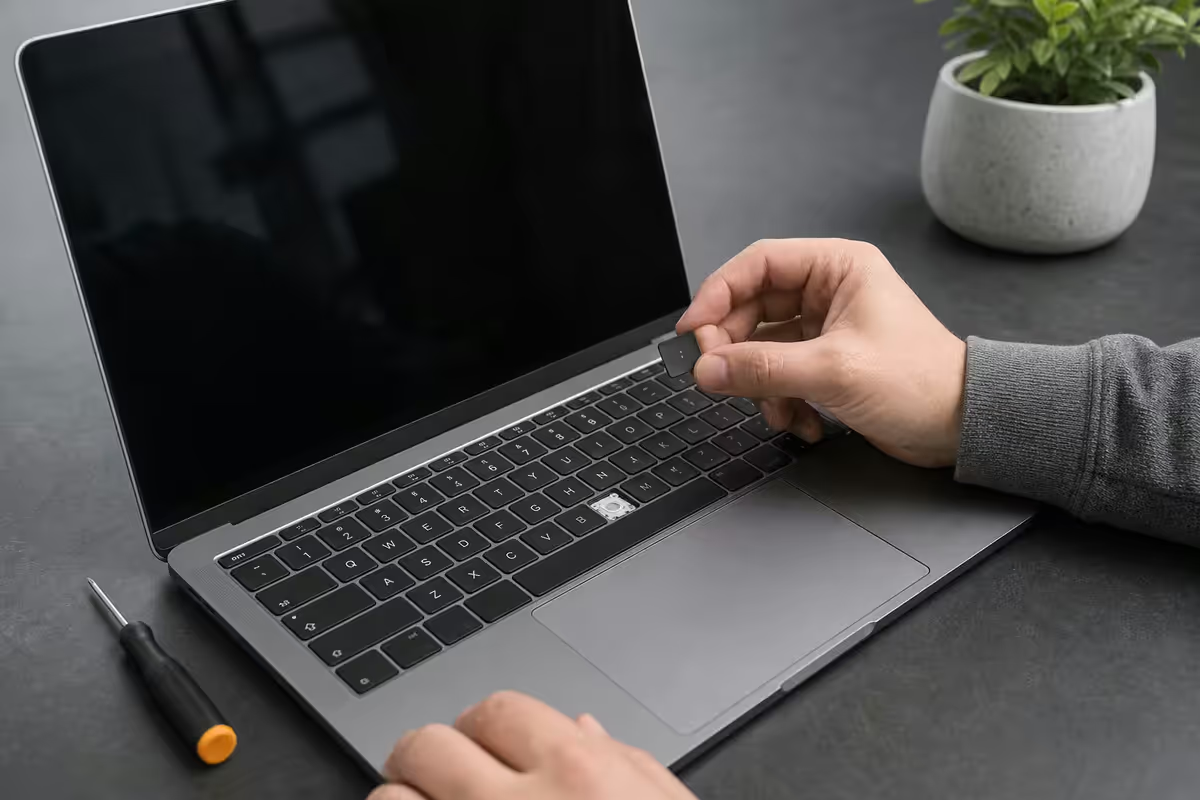
Single key vs all keys — the first question
Before anything else, decide which problem you have. The fixes diverge entirely from this single question.
| Symptom | Most likely cause | First fix |
|---|---|---|
| One key dead | Debris or worn switch | Compressed air at 75° |
| One row dead | Flex cable / membrane | External test, then service |
| All keys dead | Software, input source, accessibility | External keyboard test |
| Keys type wrong characters | Wrong input source (Cmd+Space) | Menu bar → Input Sources |
| Keys feel slow / unresponsive | Slow Keys accessibility | Accessibility → Keyboard |
| Modifier keys (Cmd/Shift) sticking | Sticky Keys accessibility | Accessibility → Keyboard |
If only one key is dead, it's almost certainly mechanical. If multiple or all keys are dead, the issue is almost certainly software. Cross-reference these against the external-keyboard test in the next section to be sure.
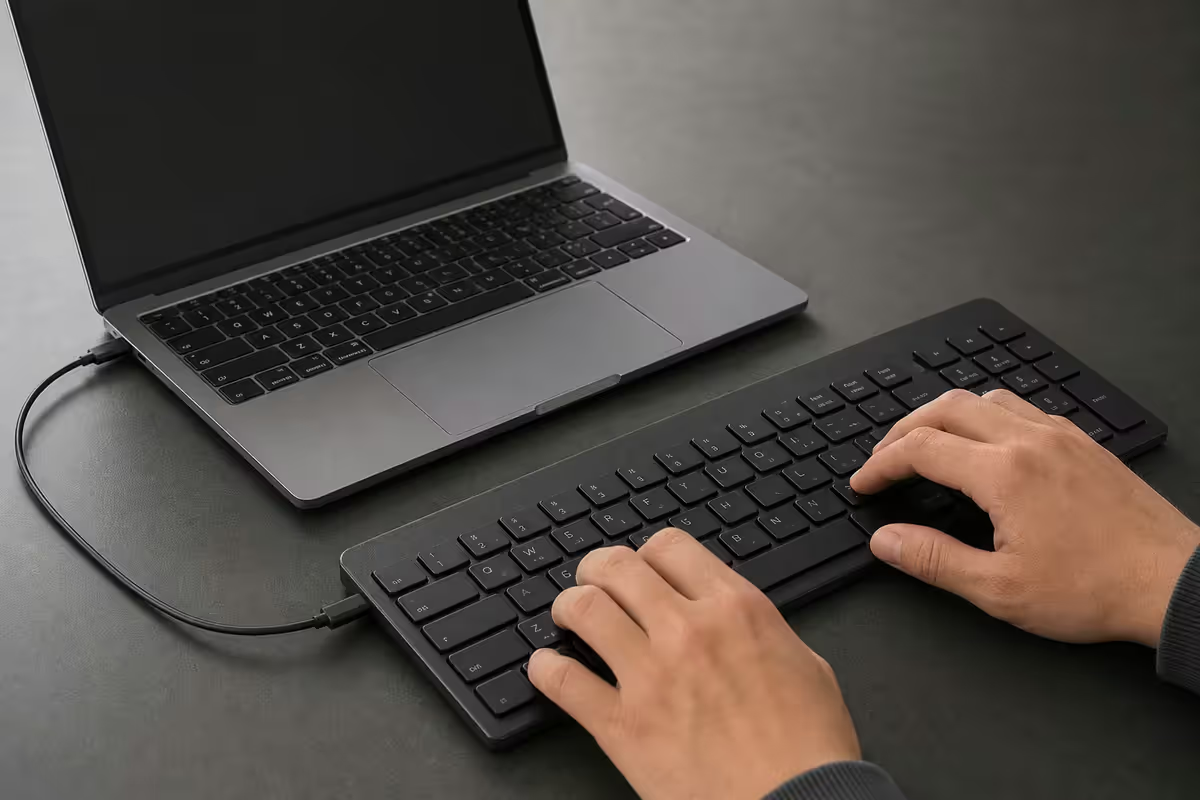
USB-C external keyboard test — 30-second diagnosis
This single test rules in or out hardware faster than anything else. Any cheap wired USB-C keyboard works — a Logitech K580, an Apple Magic Keyboard with the Lightning/USB-C cable, even a Razer with its cable plugged straight in.
The logic:
- External works, built-in doesn't → built-in keyboard hardware fault or accessibility toggle blocking it. Run through Sticky/Slow Keys, then book service.
- Neither works → system-wide software issue. Restart fully, boot into Recovery, test in Recovery.
- Both work normally → no fault. You're done. Likely a transient app hang you've already recovered from.
If you don't have a USB-C keyboard handy, a USB-A keyboard with a USB-C dongle works identically — the Mac sees both as standard HID devices.
Bluetooth interference — the silent saboteur
If you use a Bluetooth Magic Keyboard alongside the built-in, both keyboards send key events to macOS. A flaky Bluetooth connection can intercept and drop key presses you think the built-in is failing on.
To test: open System Settings → Bluetooth, disconnect every paired keyboard. Try the built-in again. Many "broken" built-in keyboards turn out to be a Magic Keyboard half-paired under the desk in another room.
2.4 GHz interference is also worth ruling out — USB 3 hubs, microwaves, and dense Wi-Fi environments degrade Bluetooth. Move the MacBook away from USB-C hubs and try again.
Did you accidentally hit Cmd+Space?
This is the most overlooked cause. Cmd+Space is mapped to Spotlight by default, but if you have more than one input source installed (English SA + Pinyin, English SA + Arabic, English SA + Afrikaans variants), macOS often reassigns Cmd+Space to switch input sources instead.
The symptom: your keys still register, but they type characters you don't recognise or do nothing visible at all. The keyboard isn't broken — you've switched to a layout that's mapped differently.
To fix:
- Click the input source flag in the menu bar (top-right corner). Select your normal layout — usually "U.S." or "British" or "ABC".
- Open System Settings → Keyboard → Input Sources. Remove any layouts you don't use deliberately.
- Under System Settings → Keyboard → Keyboard Shortcuts → Input Sources, untick "Select the previous input source" if you only use one layout. This restores Cmd+Space to Spotlight permanently.
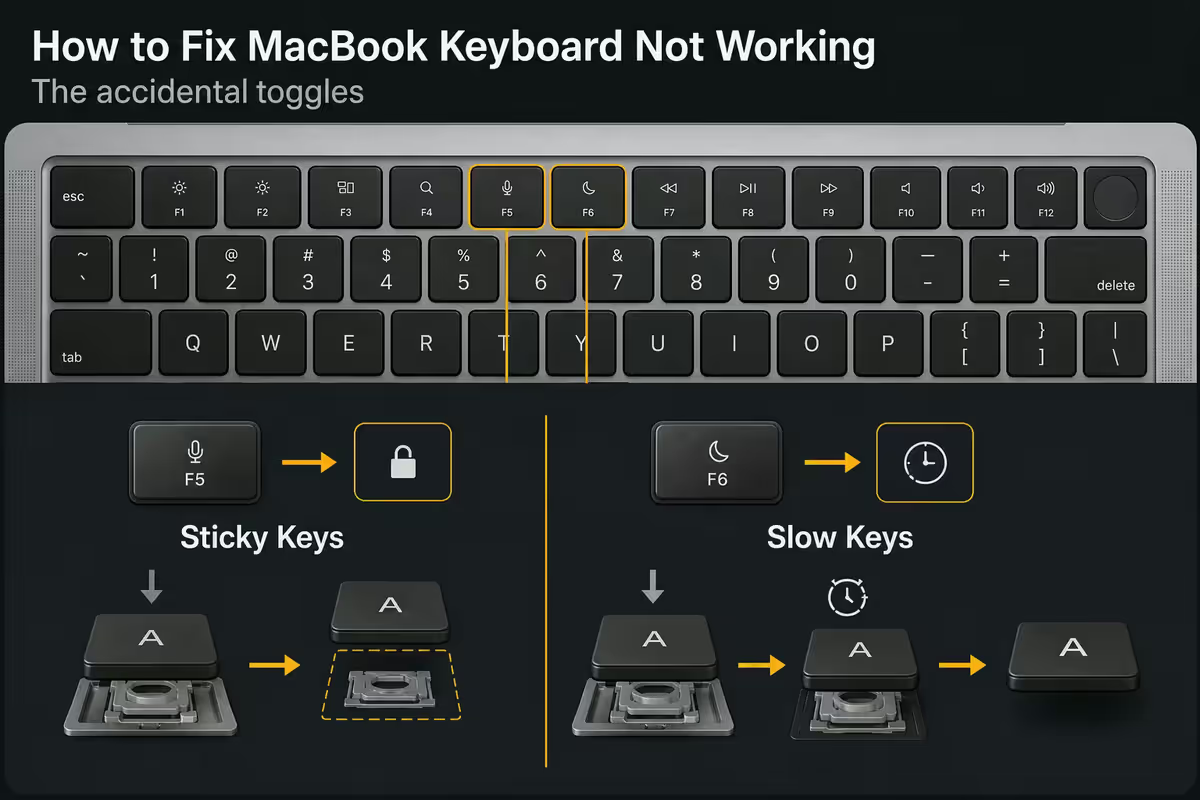
Sticky Keys and Slow Keys — the accidental toggles
macOS has accessibility features that change keyboard behaviour for users who need them. They're toggled by pressing Shift five times (Sticky Keys) or via the Accessibility Shortcut (Option+Cmd+F5). Hit either accidentally and your keyboard behaves like it's broken.
Sticky Keys: lets you press modifier keys (Shift, Cmd, Option, Control) one at a time instead of holding them. Symptom — modifier keys appear to "lock" or you keep activating shortcuts you didn't mean to.
Slow Keys: requires you to hold a key down for a delay (default 0.5 seconds) before it registers. Symptom — typing feels unresponsive, missed keys, the keyboard "ignores" quick taps.
To turn both off: System Settings → Accessibility → Keyboard → Hardware. Toggle Sticky Keys and Slow Keys to off. While you're there, untick "Press Shift five times to toggle Sticky Keys" so you can't trigger it again by accident.
The virtual keyboard fallback
If your keyboard is genuinely dead and you can't type your Apple ID password to do anything else, the on-screen Accessibility Keyboard lets you click letters with the trackpad.
To enable without typing: click Apple menu → System Settings → Accessibility → Keyboard → Accessibility Keyboard → on. A floating keyboard appears. Click letters with the trackpad to log in, send urgent messages, and book your repair.
SMC reset — Intel only
If you're on an Intel MacBook (2020 or earlier — Air, Pro 13" 2020 Intel, Pro 16" 2019), the System Management Controller handles keyboard backlight, power and some HID behaviour. An SMC reset clears a surprising range of keyboard and trackpad issues.
Intel MacBook with T2 chip (most 2018-2020):
- Shut down fully.
- Press and hold Shift (right) + Option (left) + Control (left) for 7 seconds.
- While still holding those, also press and hold the power button for another 7 seconds.
- Release all four keys, wait a few seconds, press power to boot.
Apple Silicon MacBooks (M1, M2, M3, M4) have no SMC. The equivalent fix is a full power cycle — Apple menu → Shut Down, wait 30 seconds, power on. Apple Silicon handles power management through firmware that resets on full shutdown, so a clean shut-down-then-cold-boot covers the same ground as an Intel SMC reset.
AppleCare and iStore SA keyboard replacement cost
Modern MacBook keyboards are bonded to the chassis — the keyboard, battery and top case are a single service part. You don't replace "a keyboard" anymore; you replace the entire top case.
| Model | Top-case swap (out of warranty) | AppleCare+ service fee |
|---|---|---|
| MacBook Air M2 (13") | R8,500 - R10,500 | R1,890 |
| MacBook Air M3 (13" / 15") | R9,500 - R12,000 | R1,890 |
| MacBook Pro M3 (14") | R12,000 - R14,500 | R1,890 |
| MacBook Pro M3 Max / M4 (16") | R14,500 - R18,000 | R1,890 |
| Butterfly-era 13" Pro (2016-2019) | R10,500 - R13,500 | Expired |
AppleCare+ is worth it if you're keeping the MacBook three or more years and use it daily. The break-even point is typically a single keyboard or battery service — both of which cost more than three years of AppleCare+ premiums combined.
External keyboards that pair perfectly with a MacBook
| Use case | Pick | SA price |
|---|---|---|
| Direct Apple integration | Apple Magic Keyboard with Touch ID + Numeric Keypad | R4,500 - R5,200 |
| Best mechanical (typing) | Keychron Q1 Pro / Q3 with Mac legends | R3,800 - R5,500 |
| Best wireless multi-device | Logitech MX Keys S for Mac | R2,400 - R2,800 |
| Budget multi-OS | Logitech K580 Slim | R900 - R1,100 |
| Emergency USB-C test keyboard | Any cheap wired USB keyboard + USB-C adaptor | R250 - R400 |
Key takeaways
- Single dead key = mechanical. All keys dead = software. Decide which before troubleshooting.
- USB-C external keyboard test rules in or out hardware in 30 seconds.
- Check Cmd+Space input swap and Sticky/Slow Keys before assuming hardware.
- Apple Silicon has no SMC — full shut down + 30 sec wait is the equivalent reset.
- Butterfly-era (2016-2019) 13" Pros fail and only fix with R10k-R13k top-case swap.
Frequently asked questions
Why is my MacBook keyboard not working at all?
Usually software, accessibility toggle, or input source swap. Plug a USB-C external keyboard in — if it works, the issue is software. Check Sticky Keys, Slow Keys, and the menu-bar input source.Why is only one key on my MacBook not working?
Almost always debris or a worn switch. Tilt the MacBook 75° and blow compressed air under the key from multiple angles. Butterfly-era machines (2016-2019) often fail at single keys and need top-case replacement.How do I test if my MacBook keyboard is hardware or software?
Plug a USB-C wired keyboard in. External works + built-in fails = built-in hardware. Both fail = system software. Boot into Recovery (hold power on Apple Silicon) to confirm.Did I accidentally switch language input on my MacBook?
Cmd+Space toggles input sources if you have multiple installed. Click the input flag in the menu bar to switch back. System Settings → Keyboard → Input Sources to remove unused layouts.How do I reset the SMC on a MacBook?
Intel: Shift + Option + Control (left) + power for 10 sec. Apple Silicon: no SMC — full shutdown, wait 30 sec, cold boot covers the same ground.What do Sticky Keys and Slow Keys do?
Sticky Keys lets modifier keys be pressed sequentially. Slow Keys requires holding keys for a delay before they register. Both in System Settings → Accessibility → Keyboard.How much does an AppleCare MacBook keyboard replacement cost in SA?
Out of warranty: R8,500-R18,000 depending on model (Air M2 cheapest, Pro 16" most expensive). AppleCare+ service fee R1,890. Replacement is a full top-case swap, not just the keyboard.Should I use the virtual keyboard as a fallback?
Yes — System Settings → Accessibility → Keyboard → Accessibility Keyboard. Click letters with the trackpad to log in and book service. Also confirms the fault is keyboard hardware, not system.
Get the Evetech app
Exclusive app-only prices, daily flash sales, and free delivery on orders over R4,000 — download the app and start saving.