MacBook Trackpad Fix
Fix a MacBook trackpad not working. — Force Click. Phantom clicks. A bulging battery.
The modern MacBook trackpad doesn't click — it pretends to, with a Taptic Engine and a pressure threshold. When that simulation goes wrong, you get phantom clicks, dead clicks, jumpy cursors, or worse: a trackpad that's visibly bulging because the battery underneath is swelling.
- click pressure
- 3 levels
- stop now
- Bulge =
- SA top-case + battery
- R5.5–18k
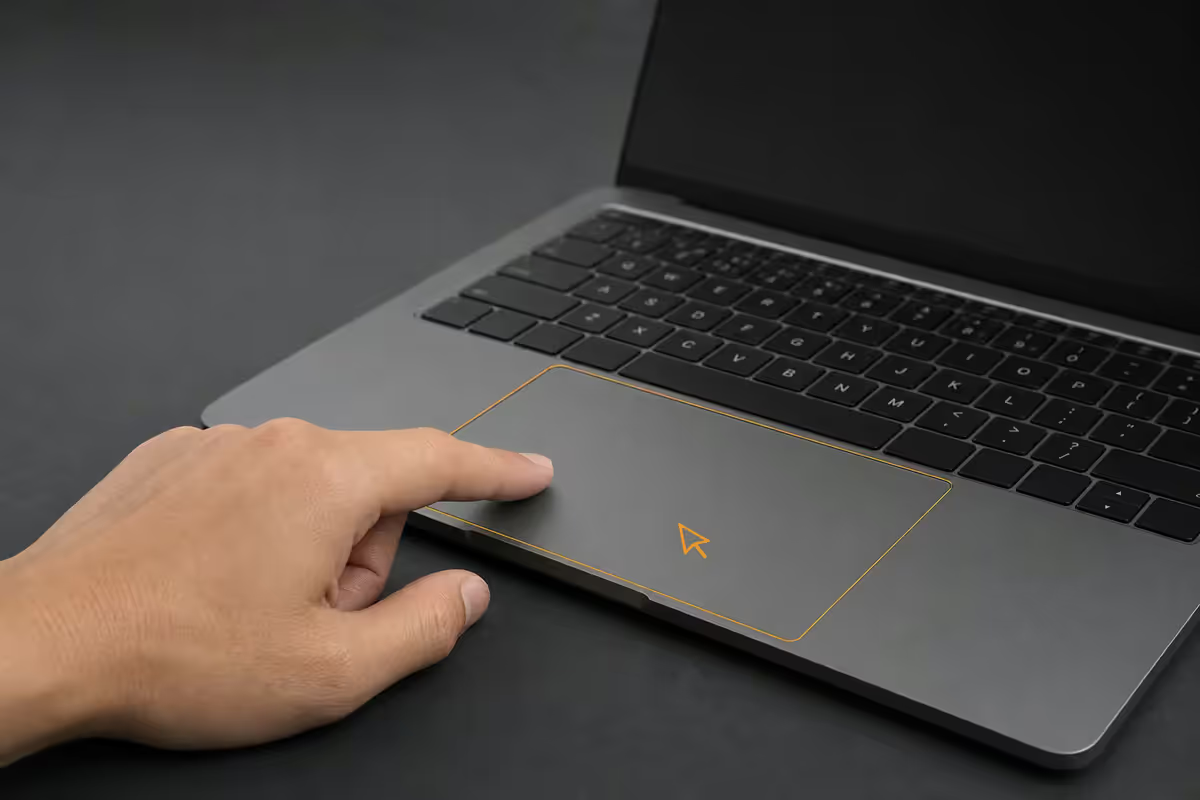
First: is your trackpad bulging upward?
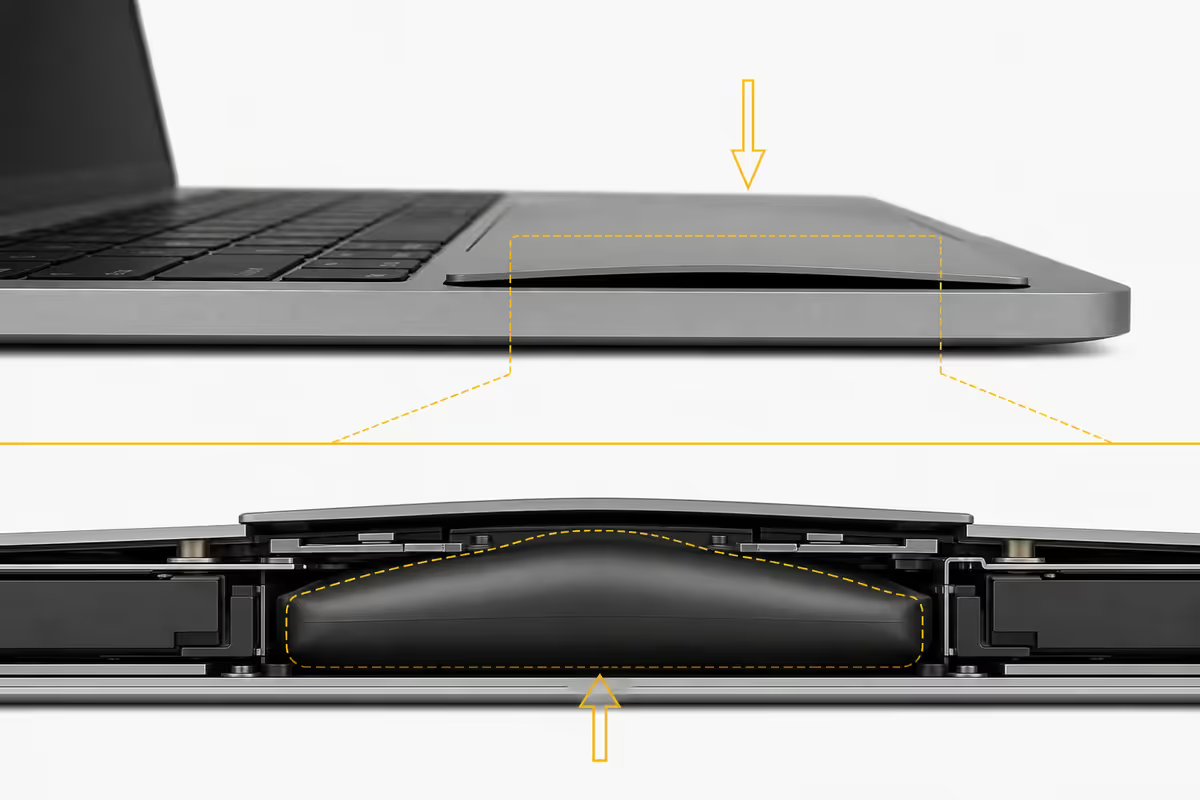
Before any troubleshooting, run your fingertip across the trackpad surface. Is it perfectly flat, or is it raised in the middle and pushing upward against your finger? Place the MacBook on a flat surface and check from a low angle — even a 1mm bulge is visible.
A visibly raised trackpad means the Lithium-ion battery underneath is swelling. This is the single most important thing on this page. Swollen batteries are a fire risk, a chemistry-failure risk, and they will eventually rupture if ignored.
Battery service at iStore SA replaces the battery and top case together (they're bonded). Air models run R5,500–R8,500; Pro models R7,500–R12,000. AppleCare+ subscribers pay the R1,890 incident fee. If this is your symptom, you can skip the rest of the troubleshooting — book the appointment now and come back to this guide for context.
USB mouse test — the diagnostic shortcut
If the trackpad is flat, your next step is the USB-mouse test. Any cheap USB-C or USB-A mouse with a dongle works. The logic is identical to the keyboard external test:
- Mouse works, trackpad doesn't → trackpad hardware fault or a software toggle blocking it.
- Neither works → system-wide issue, restart fully and boot into Recovery to confirm.
- Both work normally → no fault. Likely a transient HID issue that's now resolved.
A Bluetooth Magic Mouse will also work for the test, but a wired USB mouse rules out a second variable. If you only have Bluetooth, that's fine — just power-cycle the mouse before testing.
Force Click and the click pressure setting
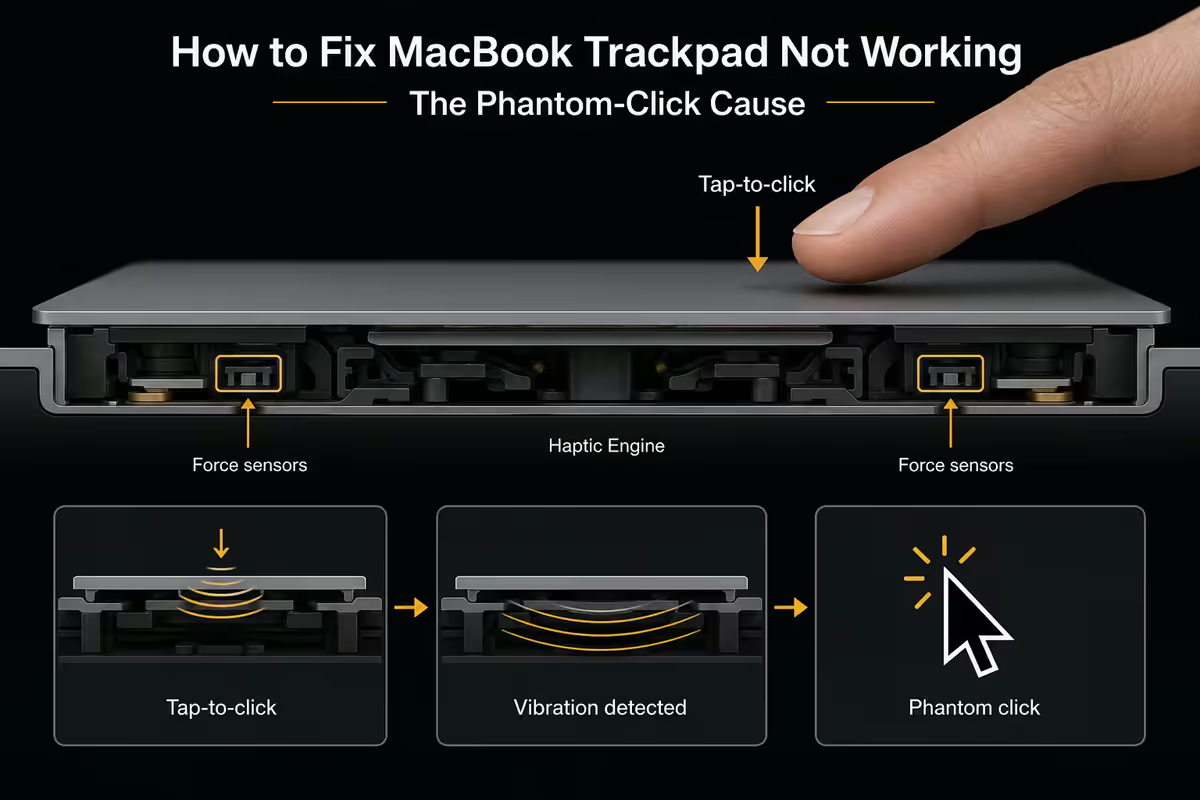
Since 2015, MacBook trackpads have used Force Touch — a Taptic Engine vibrates to simulate a click while a pressure sensor reads how hard you're pressing. There are three pressure levels: tap (light contact, registers position), click (medium press, registers click), and Force Click (deep press, triggers extra actions).
If clicks suddenly stop registering, the most common cause is the click pressure setting being too high — you're pressing as you always did but no longer crossing the threshold.
To fix:
- Open System Settings → Trackpad → Point & Click.
- The "Click pressure" slider has three positions: Light, Medium, Firm.
- Move it to Light temporarily. Test clicking. If clicks register now, you've found the issue.
- Move back up one step at a time until you find the level that feels right and still registers reliably.
To disable Force Click entirely: in the same panel, uncheck "Force Click and haptic feedback". This removes the second-stage pressure threshold and disables actions like deep-press look-up. Many users find Force Click confusing and prefer it off.
Tap-to-click — the phantom-click cause
Tap-to-click means a light tap (no press) registers as a click. It's off by default. If you've enabled it (or someone has), the palm of your hand resting on or near the trackpad can trigger constant phantom clicks — opening menus, selecting text, dragging windows you didn't mean to drag.
To check and disable: System Settings → Trackpad → Point & Click → uncheck "Tap to click". If phantom clicks stop immediately, that was your problem.
If you prefer tap-to-click because it's lighter on your fingers, leave it enabled and instead adjust your typing posture — keep palms hovering rather than resting on the chassis around the trackpad.
Bluetooth interference and dual-pointer chaos
Like keyboards, the trackpad sends pointer events to macOS — and so does any paired Magic Mouse or Magic Trackpad in range. If both send conflicting positions, the cursor jumps unpredictably.
To rule out: System Settings → Bluetooth → disconnect every paired pointer device. Test the trackpad alone. If the jumpy behaviour disappears, you've found it — your Magic Mouse was active under a stack of papers somewhere.
2.4 GHz interference from USB 3 hubs is a real culprit. If you have a Thunderbolt or USB-C dock pumping out data, try moving the MacBook 30cm further from it.
Gesture conflicts and the over-customised trackpad
macOS lets you customise trackpad gestures heavily — three-finger swipes, four-finger Mission Control, edge swipes for Notification Centre. Conflicts arise when you map something that overlaps with default gestures.
If swiping or scrolling behaves unexpectedly: System Settings → Trackpad → More Gestures. Reset any custom assignments by ticking and unticking each gesture once — this re-applies the default. If a third-party app like BetterTouchTool is installed, quit it and test if the issues clear; if they do, the gesture conflict is in BetterTouchTool's mapping, not in macOS.
Accessibility Mouse Keys — the silent override
If "Mouse Keys" is enabled in Accessibility, the numeric keypad controls the cursor instead of the trackpad. On MacBooks without a number pad this often manifests as a totally unresponsive trackpad — the cursor only moves when you press 8, 4, 6, 2.
To check: System Settings → Accessibility → Pointer Control → Alternative Pointer Actions → uncheck "Mouse Keys" if enabled. While you're there, also check "Enable Slow Keys" hasn't bled into pointer behaviour.
SMC reset on Intel, full power cycle on Apple Silicon
If the trackpad is intermittently dead or laggy, SMC handles HID enumeration and Taptic Engine power on Intel Macs. A reset clears latent state.
Intel MacBooks with T2:
- Shut down fully.
- Hold Shift (right) + Option (left) + Control (left) for 7 seconds.
- Add the power button and hold all four for another 7 seconds.
- Release everything, wait 5 seconds, press power to boot.
Apple Silicon has no SMC. Shut down fully, wait 30 seconds, cold boot. Firmware re-initialises on cold boot and clears the equivalent state.
iStore SA trackpad and battery service cost
The trackpad is bonded to the top case along with the keyboard and battery — replacing one means replacing all three. If the battery is the actual culprit, you'll be quoted for top-case service either way.
| Service | Out-of-warranty SA price | AppleCare+ fee |
|---|---|---|
| Battery only (Air M2/M3) | R5,500 – R7,500 | R1,890 |
| Battery only (Pro M3/M4) | R7,500 – R10,500 | R1,890 |
| Top case (trackpad + keyboard + battery) Air | R8,500 – R12,000 | R1,890 |
| Top case (trackpad + keyboard + battery) Pro 14" | R12,000 – R14,500 | R1,890 |
| Top case Pro 16" M3 Max / M4 | R14,500 – R18,000 | R1,890 |
| Independent (non-Apple) battery swap | R3,200 – R4,800 | N/A |
External trackpads and mice that pair with a MacBook
| Use case | Pick | SA price |
|---|---|---|
| Native macOS gestures externally | Apple Magic Trackpad (white or black) | R2,800 – R3,600 |
| Best general-purpose mouse | Logitech MX Master 3S for Mac | R2,200 – R2,600 |
| Compact wireless | Apple Magic Mouse | R1,900 – R2,400 |
| Budget travel mouse | Logitech M650 | R650 – R850 |
| Emergency USB test mouse | Any wired USB mouse + USB-C dongle | R200 – R350 |
Key takeaways
- Check for a bulging trackpad first — a visible bulge = swollen battery = stop using immediately.
- USB mouse test rules trackpad hardware in or out in 30 seconds.
- Click pressure dialled to Firm causes most "dead click" reports — try Light first.
- Tap-to-click + a heavy palm = phantom clicks. Disable to verify.
- iStore SA top-case service R8.5k–R18k; independent battery swap R3.2k–R4.8k out of warranty.
Frequently asked questions
Why is my MacBook trackpad not clicking?
Modern MacBook trackpads (2015+) use Force Touch — a Taptic Engine simulates a click rather than a mechanical hinge. If clicks stop working, check System Settings → Trackpad → Click pressure (some users dial it too high and miss the threshold). If pressure is normal and clicks still fail, restart fully (or SMC reset on Intel) — the Taptic Engine resets with the firmware. If clicks remain dead, it's a hardware fault; plug a USB mouse in to verify the rest of the trackpad gestures still work.Why is my MacBook trackpad bulging upward?
A visibly raised trackpad means the battery underneath is swelling. Stop using the MacBook on your lap, back up your data immediately, and book a service appointment today. A swollen Lithium-ion battery is a fire risk — Apple replaces the battery and trackpad together as part of a top-case service. Do not press down on the trackpad to flatten it. At iStore SA, swollen-battery service runs R5,500–R8,500 on Air models and R7,500–R12,000 on Pros, depending on year.How do I test if my MacBook trackpad is hardware or software?
Plug a USB-C or USB-A mouse into the MacBook. If the mouse cursor moves normally but the trackpad doesn't, the issue is trackpad hardware or a software toggle blocking the trackpad. If neither works, the issue is system-wide — restart and boot into Recovery Mode to test. If the trackpad works in Recovery but not in macOS, it's user-account software (a stuck process or a settings file); if neither works in Recovery, it's hardware.How do I turn off Force Click on a MacBook?
System Settings → Trackpad → Point & Click → uncheck 'Force Click and haptic feedback'. Force Click is the deeper press that triggers extra actions (look up word, peek at link). Some users find the second pressure threshold confusing and prefer disabling it. Disabling Force Click also disables the slight haptic resistance you feel at the click threshold — many users either love or hate this. Try it for a week before deciding permanently.Why does my MacBook trackpad cursor jump randomly?
Three common causes. (1) Wet or dirty trackpad surface — wipe with a slightly damp lint-free cloth and dry thoroughly. (2) Bluetooth interference if a Magic Mouse or Magic Trackpad is paired and within range. (3) Accessibility 'Mouse Keys' enabled (System Settings → Accessibility → Pointer Control) — disable if you didn't intentionally enable it. If none of these fix it and the cursor still jumps with a USB mouse plugged in, the issue is system-wide and may need an SMC reset or macOS reinstall.What is tap-to-click on a MacBook?
Tap-to-click means a light tap registers as a click without the press-down. It's off by default on MacBooks (you have to press the trackpad to click). Enable it from System Settings → Trackpad → Point & Click → 'Tap to click'. Some users prefer it, some hate it. If your trackpad seems to be clicking randomly, you may have tap-to-click enabled accidentally and the palm of your hand is triggering it. Disable it and the phantom clicks usually stop.How do I reset SMC for trackpad issues on a MacBook?
On Intel MacBooks (2020 and earlier): shut down, hold Shift + Control + Option (left side) + power for 7 seconds, then continue holding all four for another 7 seconds, release, then power on. On Apple Silicon (M1, M2, M3, M4) there is no SMC — full shutdown and 30-second wait covers the same ground. SMC reset clears Taptic Engine calibration and HID enumeration issues that can make the trackpad feel broken.How much does a MacBook trackpad replacement cost in South Africa?
The trackpad is bonded to the top case along with the battery and keyboard — Apple service replaces the entire assembly. At iStore SA in 2026, top-case replacement runs R8,500–R12,000 on Air models and R12,000–R18,000 on MacBook Pros depending on year and screen size. If the trackpad failure is from a swollen battery, the service is a single visit and covers both. AppleCare+ subscribers pay R1,890 service fee for accidental damage covered events.
Get the Evetech app
Exclusive app-only prices, daily flash sales, and free delivery on orders over R4,000 — download the app and start saving.