Windows 11 Factory Reset
How to factory reset your PC. — Cloud download. Forty minutes. Fresh again.
Windows 11 has two paths: Reset This PC (built-in, comfortable) and Media Creation Tool (a true clean slate). Most users only need the first. Here's how to choose, and what to back up before you press the button.
- total time
- 30-90 min
- cloud download
- ~4 GB
- rollback window
- 30 days
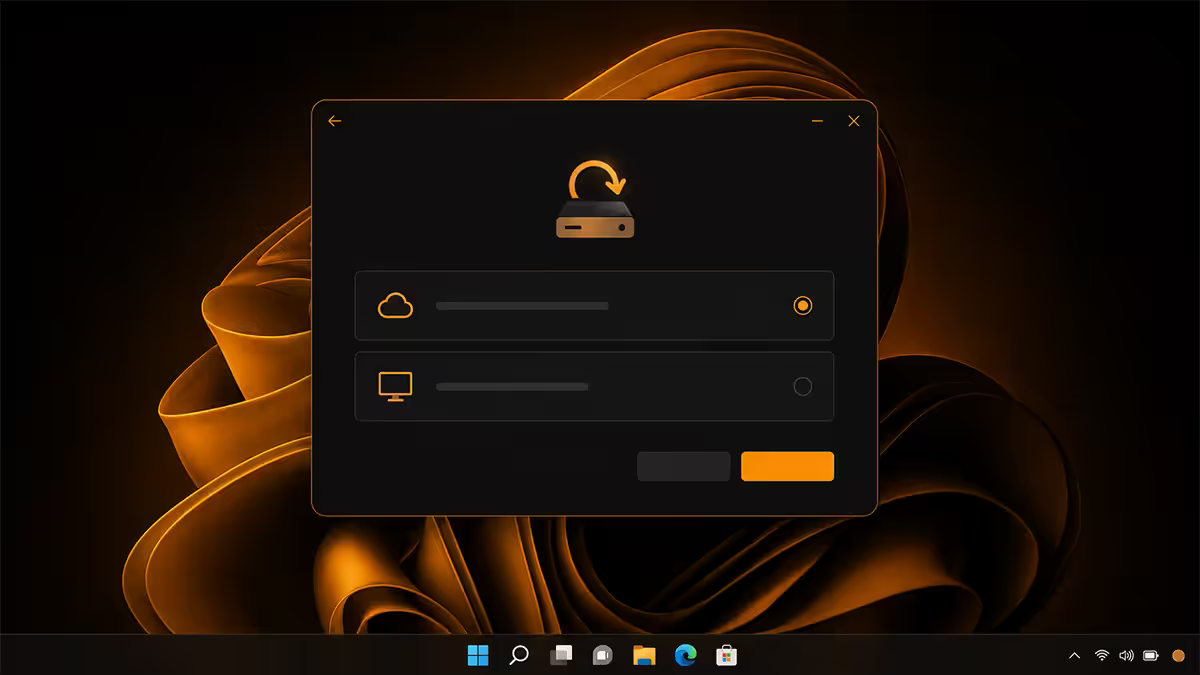
Back up before you press the button
Even "Keep my files" can fail mid-reset and leave a half-broken Windows that needs a fresh install anyway. Treat every reset as if it might wipe everything, because occasionally one does.
The non-obvious things to back up:
- Documents, Desktop and Pictures folders — they live inside your user profile and are easy to forget. Copy to an external drive or OneDrive.
- Browser bookmarks and saved passwords — export from Chrome/Edge/Firefox, or sign into the browser's sync account before resetting.
- Game saves not in Steam Cloud — Witcher 3, older Bethesda games, GOG titles, many indies. Locations vary (search "C:\Users\YourName\Documents\My Games" or the game's AppData folder).
- 2FA authenticator codes — back up Authy or Microsoft Authenticator before reset, otherwise you'll lock yourself out of every account you secured with TOTP.
- License keys for paid software — Adobe Creative Cloud signs in fine, but standalone apps like older Office, JetBrains, Affinity, perpetual licenses all want keys re-entered.
- BitLocker recovery key (see dedicated section below).
Reset This PC — step by step
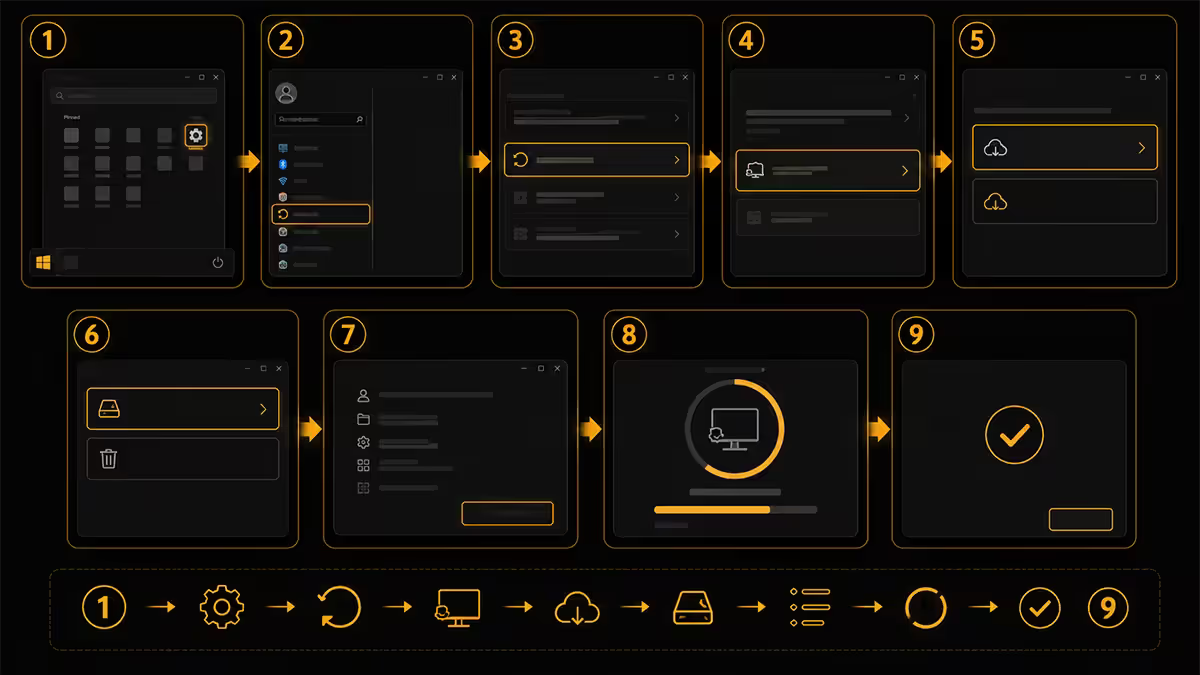
Reset This PC is Windows 11's built-in reinstaller. It reuses your current Windows installation as a starting point and reverts it to a fresh state.
- Open Settings (Win + I).
- Go to System → Recovery.
- Under "Recovery options", click Reset PC.
- Choose Keep my files or Remove everything (see next section).
- Choose Cloud download or Local reinstall.
- Review the summary, confirm, and let it run. 30-90 minutes depending on disk speed and cloud download size.
- The PC will reboot several times. Don't interrupt it — even if it seems stuck for 20+ minutes, leave it alone unless 2 hours have passed with no disk activity.
You'll come back to the Windows out-of-box experience — same as a brand new laptop. Sign in with your Microsoft account, install drivers, reinstall apps, restore files.
Keep vs Remove · Cloud vs Local
Four combinations, but the right one is usually obvious.
| Scenario | Pick | Why |
|---|---|---|
| Slow PC, weird errors, want to fix | Keep files + Cloud | Wipes apps and reg rot, preserves data, fresh OS image |
| Severe malware suspected | Remove all + Cloud | Don't trust your user files either |
| Selling, gifting, returning the PC | Remove all + Cloud | Full wipe with secure data option |
| Slow internet, simple OS bug | Keep files + Local | Faster, no download — accepts some risk |
Cloud download pulls a fresh ~4GB Windows 11 image from Microsoft. It guarantees clean files even if your existing system files are damaged. On uncapped fibre this is invisible; on capped or shaped connections it might burn data, so check your package.
Local reinstall uses your existing Windows files as the source. Faster (no download), but if file corruption is part of what you're fixing, it inherits the problem and the reset may finish "clean" while still showing the original symptom. Default to cloud unless internet cost matters.
The 30-day rollback reality
After Reset This PC, Windows keeps your previous installation in a folder called C:\Windows.old. For 30 days you can go to Settings → System → Recovery → Go back and roll back.
In practice the rollback is fragile. It works reliably for in-place feature updates (Win11 23H2 to 24H2 etc.) but is much less reliable after a full reset — drivers, profiles, encryption state and updates all complicate the rollback. Treat it as an emergency parachute, not a planned escape route.
If you're happy after a few days, delete Windows.old via Settings → System → Storage → Cleanup recommendations or via the classic Disk Cleanup tool. This reclaims 15-30GB.
Media Creation Tool — true clean install
Reset This PC is convenient. A USB-based fresh install is properly clean. Use this when you need the strongest reset possible.
When you need it
- Reset This PC failed mid-process and the OS is now broken.
- Symptoms keep returning after Reset This PC — likely deeper file corruption.
- You want zero Windows.old residue and no inherited registry state.
- Migrating between editions (Home → Pro) or between language versions.
- Selling and want the next owner to see a true OOBE.
Step by step
- On any working PC, visit microsoft.com/software-download/windows11 and download Media Creation Tool.
- Insert a USB drive of 8GB or larger (it'll be wiped).
- Run the tool, accept the license, choose Create installation media (USB flash drive), pick your language and edition, select the USB. Let it write.
- Plug the USB into the target PC. Boot to the boot menu — usually F12, F8 or Esc at power-on (depends on motherboard). Select the USB.
- When Windows Setup loads, click Install → Custom install → at the partition page, delete every partition on the system drive → select the unallocated space → Next.
- 25-40 minutes later you're at OOBE. Sign in, install drivers from your motherboard/laptop vendor's site.
BitLocker — the precaution everyone skips
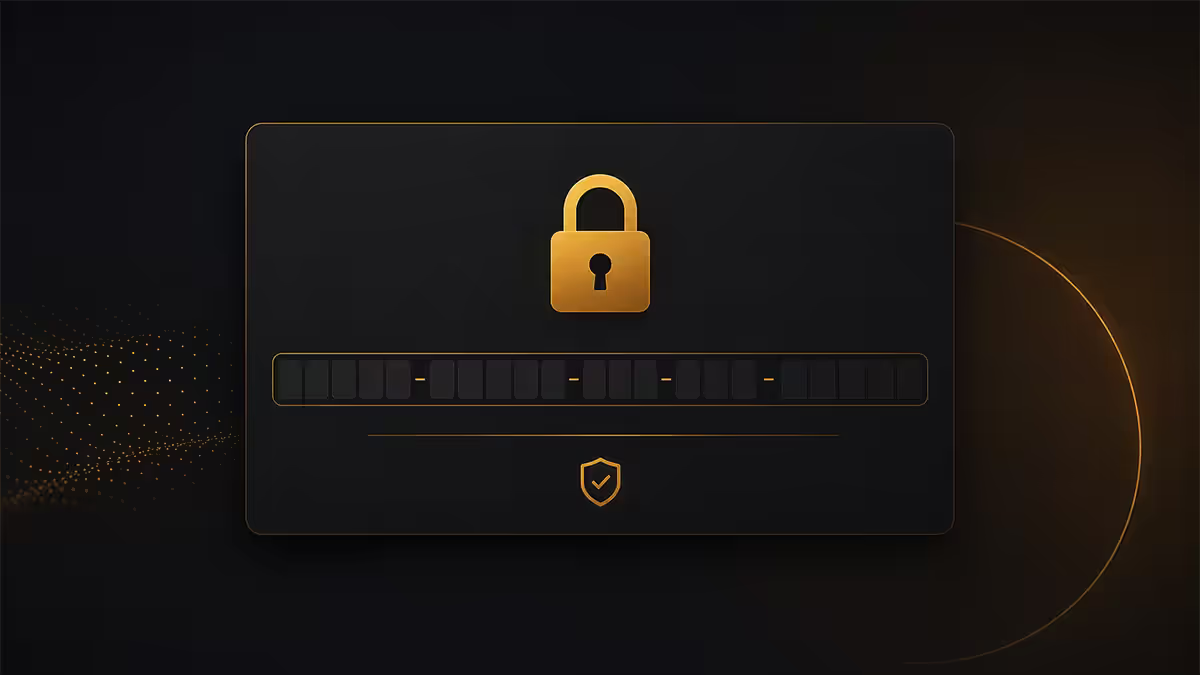
Since Windows 11 24H2, BitLocker is enabled by default on most Microsoft-account installations on PCs with a TPM. Many users don't realise their drive is encrypted until a reset prompts for the recovery key — at which point, if they don't have it, the data is unrecoverable.
Find your BitLocker key now
- On the device you're about to reset, open Command Prompt as Administrator and run
manage-bde -status. Look at Protection Status: "Protection On" means BitLocker is active. - If it's active, visit account.microsoft.com/devices/recoverykey on any device, sign in with the Microsoft account tied to the PC, and screenshot or print every key shown.
- For domain-joined PCs (work laptops), the key may be in Azure AD or Active Directory — check with IT before you reset.
- For local-account installs, the key may only exist on a printout you generated at setup time. If you don't have it and BitLocker is on, decrypt the drive (Settings → Privacy & security → Device encryption → off) before resetting.
When a reset doesn't fix it — it's hardware
A fresh Windows install with current drivers should be fast, stable and quiet. If symptoms persist after a true clean install via Media Creation Tool, the fault is hardware.
Hardware suspects by symptom:
| Symptom after fresh install | Likely hardware cause | Test |
|---|---|---|
| Random reboots, blue screens | Faulty RAM or PSU | Windows Memory Diagnostic, swap PSU |
| Very slow boot, sluggish app loads | Failing SSD | CrystalDiskInfo SMART check |
| Frozen mouse for seconds, stuttering | Disk I/O storms, failing SSD | Task Manager disk activity, SMART |
| Crashes under load only | Overheating CPU or GPU | HWiNFO64 temp monitoring during stress |
| USB devices disconnect randomly | USB controller or PSU rail | Try different ports, swap PSU |
Driver and software setup after reset
After any reset, Windows 11 will pull most drivers via Windows Update — but not all, and not always the latest. For best performance:
Custom desktop: visit your motherboard manufacturer's support page (ASUS, MSI, Gigabyte, ASRock), download the chipset driver, audio driver, LAN driver, and BIOS updates for your specific board model. Install in that order. Then GPU driver: NVIDIA app or AMD Adrenalin.
Laptop: visit the laptop vendor's support page (HP, Dell, Lenovo, ASUS, Acer, etc.) and download the model-specific driver bundle. These include hotkey drivers, fingerprint readers, fan controllers and other things Windows Update will miss.
Prebuilt desktop: the system builder's support page (Evetech, Wootware, MWave, etc.) has the per-build driver bundle. Use this rather than chasing each component vendor separately.
Key takeaways
- Settings → System → Recovery → Reset This PC is the entry point. Keep files + Cloud for most fixes.
- Always grab your BitLocker recovery key from account.microsoft.com first — locked drives won't unlock without it.
- Cloud download (~4GB) beats local reinstall for cleanliness. Local only if you're data-constrained.
- The 30-day rollback is fragile after full reset — treat it as a parachute, not a plan.
- If symptoms survive a Media Creation Tool fresh install, it's hardware — stop reinstalling and test.
Frequently asked questions
How do I factory reset Windows 11?
Settings → System → Recovery → Reset PC. Pick Keep my files or Remove everything, then Cloud download or Local reinstall. 30-90 minutes start to finish.Should I choose cloud download or local reinstall?
Cloud for almost everyone — a fresh ~4GB image from Microsoft. Local reuses your existing files, which is faster but may inherit corruption you're trying to fix.What's the difference between Keep my files and Remove everything?
Keep my files wipes apps and settings but preserves documents and photos. Remove everything wipes the lot — use it before selling or for severe malware.What about the 30-day rollback?
Reset This PC creates a Windows.old folder for rollback within 30 days, but the rollback is fragile after full reset. Treat it as a safety net only.How do I do a clean install with Media Creation Tool?
Download Media Creation Tool from Microsoft, write an 8GB+ USB, boot the target PC from the USB, delete all partitions during setup, install fresh. 25-40 minutes after USB boot.Do I need my BitLocker recovery key before resetting?
Yes. Get it from account.microsoft.com/devices/recoverykey before resetting. If the system asks for the key and you don't have it, you're locked out permanently.What should I back up before resetting?
Documents, Desktop, Pictures, browser bookmarks and passwords, 2FA authenticator codes, game saves outside Steam Cloud, license keys for paid software.What if Reset This PC doesn't fix the problem?
Try a Media Creation Tool clean install. If symptoms persist after that, the fault is hardware — failing RAM, SSD, PSU or overheating CPU. Run diagnostics.