Troubleshooting · Malware Removal
How to remove malware from your PC. — The full playbook. No paid call-centre needed.
Most "infections" can be removed in 90 minutes with free tools and one Safe Mode reboot. The trick is doing the steps in the right order — and knowing the moment to stop and reinstall Windows instead.
- typical removal
- 90 min
- first + second opinion
- 2 scanners
- free tools
- R0
The warning signs you actually have malware
PCs slow down for a lot of reasons that aren't malware — failed M.2 cache, drive almost full, thermal throttle, browser tabs eating RAM. Before you commit to the cleanup sequence, look for the actual fingerprints of infection. Any single sign on its own is usually coincidence. Two or more together moves you firmly into "I have something."
| Symptom | What it usually means | Likelihood |
|---|---|---|
| Browser homepage / search changed without consent | Browser hijacker / extension malware | High |
| Popup ads on sites that don't have ads | Adware injection | High |
| CPU fans roaring at idle, no foreground app | Cryptominer running in background | High |
| Slow boot · 2-3× longer than last week | Could be malware autorun or just M.2 wear | Medium |
| Antivirus disabled or won't open | Active malware blocking defence | Very high |
| Files renamed with strange extension | Ransomware | Very high |
| New toolbar / unknown extension in browser | Adware bundler | High |
| Redirected search results in Google | DNS hijack or browser hijacker | High |
A fast pre-check before the deep clean: open Task Manager (Ctrl+Shift+Esc) and sort by CPU. Anything pulling 20-90% with a generic name you don't recognise (random letters, hidden path under C:\Users\[you]\AppData) is your prime suspect.
Boot to Safe Mode with Networking
Safe Mode loads Windows with only essential drivers and services. Most malware can't start in Safe Mode because the registry keys and scheduled tasks it relies on are skipped. With Networking enabled, you can still download fresh scanner definitions.
In Windows 11 (and Windows 10):
- Click Start → Power.
- Hold Shift and click Restart.
- From the recovery menu, choose Troubleshoot → Advanced options → Startup Settings → Restart.
- When the PC reboots into the boot menu, press 5 for Safe Mode with Networking.
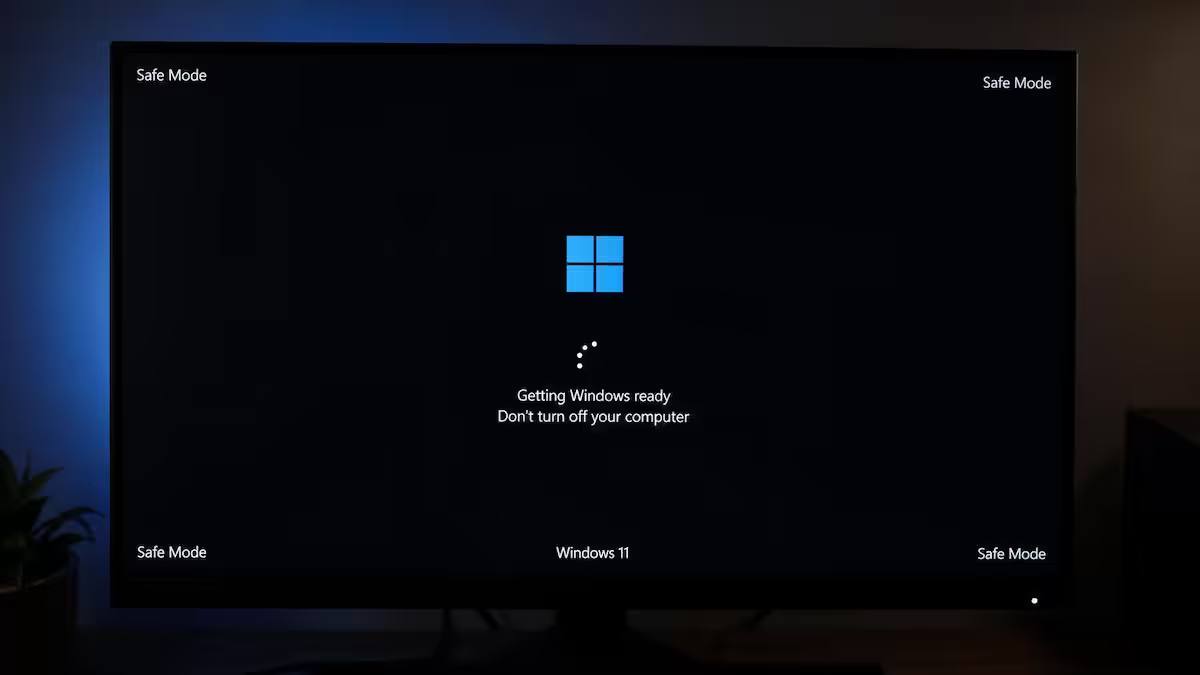
You'll know you're in Safe Mode because the corners of the screen will display "Safe Mode" and the wallpaper will be black. Network access works; Defender starts; most malware is asleep.
Run the scanners — first pass and second opinion
No single scanner catches everything. The reliable approach is to run two unrelated engines back-to-back. Each catches signatures the other misses.
Pass 1 · Malwarebytes Free
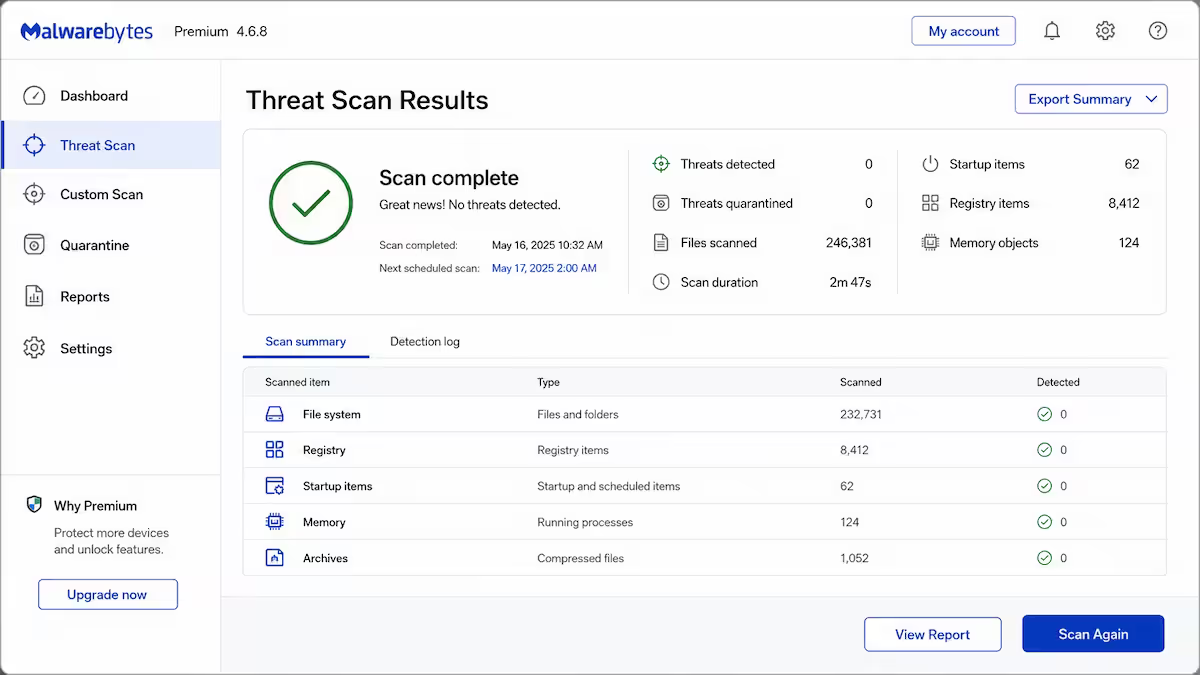
Download Malwarebytes Free from malwarebytes.com (avoid mirrors). Install, let it auto-update definitions, and run a Threat Scan. The first pass takes 10-30 minutes depending on drive size. Quarantine everything it flags, then reboot — still in Safe Mode if possible.
Pass 2 · ESET Online Scanner
After reboot, download ESET Online Scanner. It pulls fresh definitions each run, doesn't conflict with Malwarebytes or Defender, and catches things the first pass missed. Run the full scan (30-60 minutes). Quarantine or delete whatever it finds. Reboot.
Why this order works
- Malwarebytes excels at PUPs, browser hijackers, adware — the noisy stuff producing your visible symptoms.
- ESET excels at trojans, rootkits, less-common payloads — the quieter stuff persisting in the background.
- Defender stays on as the always-on shield throughout.
Reset the browser — hijackers hide in extensions
Even after scanners clean executable files, browser-level infections persist as extensions. Reset every browser you've used since the symptoms started.
Chrome
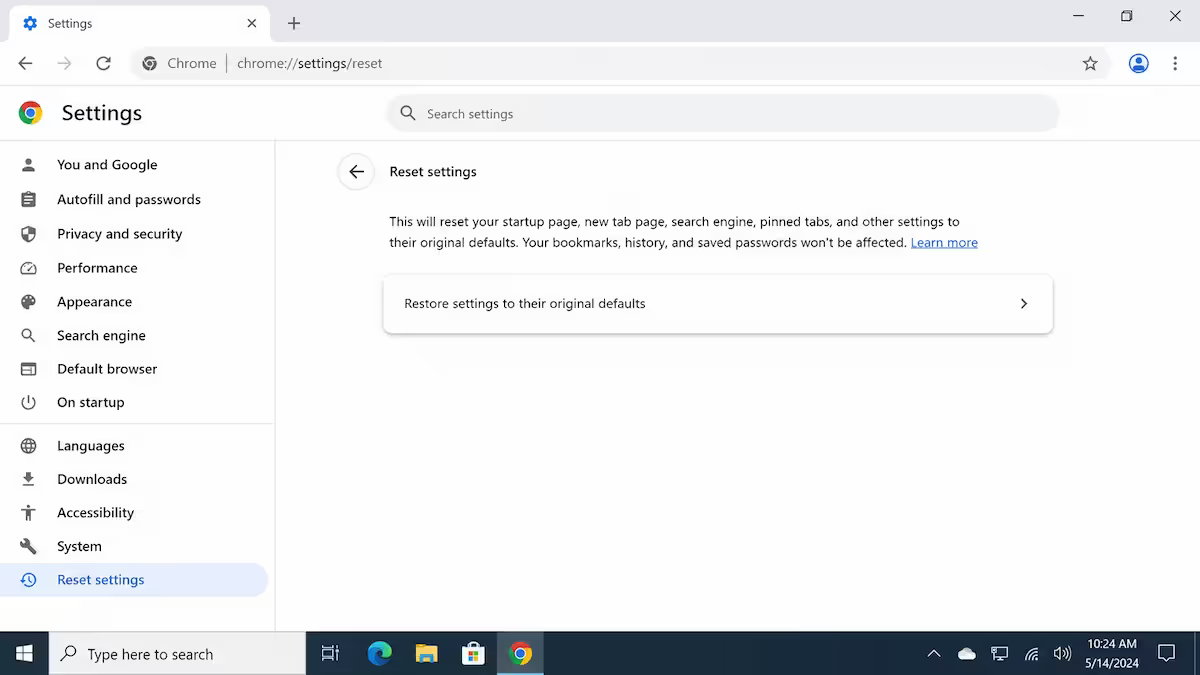
Settings → Reset settings → Restore settings to their original defaults. This re-enables Safe Browsing, restores the default homepage, disables every extension, and clears cookies for site-data permissions. Bookmarks and passwords are preserved.
Edge
Settings → Reset settings → Restore settings to default values. Identical effect to Chrome.
Firefox
Help → More troubleshooting information → Refresh Firefox. Slightly more aggressive — also resets toolbar layout and removes most user data except bookmarks, passwords and history.
After the reset: manually re-enable extensions one by one, and only the ones you genuinely recognise and trust. The single most common reinfection vector after a clean is a malicious extension you re-enabled because the name sounded familiar.
Persistence audit — startup, Task Scheduler, hosts
Modern malware rarely lives only as an EXE on disk. It registers persistence mechanisms — autostart entries that re-launch it after reboot. Even after scanners delete the payload, the persistence mechanism survives and downloads a fresh copy.
Startup apps
Open Task Manager → Startup apps (Win+R, taskmgr, Startup tab). Disable anything you don't recognise or that has no publisher name. Be especially suspicious of items pointing to AppData\Roaming or AppData\Local\Temp.
Task Scheduler — the most-missed vector
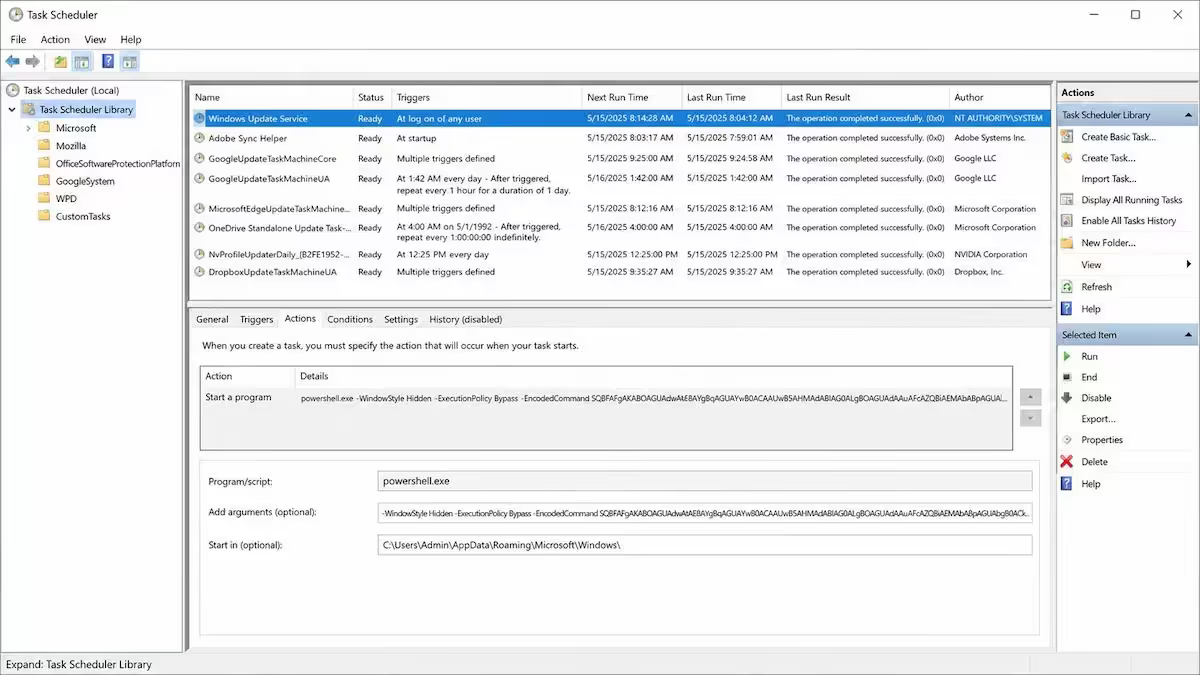
Modern malware persists via scheduled tasks more often than via Startup. Open Win+R → taskschd.msc. Click Task Scheduler Library on the left, then check every subfolder. Look for:
- Tasks with random alphanumeric names ("xK9pQrT2", "UpdateCheck_8h2f").
- Tasks that run PowerShell with encoded commands (action shows
-EncodedCommand). - Tasks pointing to executables in
AppData,ProgramData, or temp folders. - Tasks with no description and a trigger of "every 30 minutes" or "at logon".
Right-click each suspicious task → End → Delete. If you're unsure, screenshot the Actions tab first so you can search the path or filename online.
Hosts file check
Some malware hijacks DNS via the hosts file — redirecting google.com or your bank's domain to a fake server. Open Notepad as Administrator, then open C:\Windows\System32\drivers\etc\hosts. A clean hosts file has only comments (lines starting with #) — anything else is either a custom block you added yourself or a hijack. Delete the offending lines and save.
When to stop cleaning and reinstall Windows
Cleaning is the right answer in most cases. But there are five scenarios where a fresh Windows install is faster, safer and more certain:
- Scanners detect active rootkits or bootkits. These live below the operating system; cleaning while booted is unreliable.
- You can't get scanners to update or run, even in Safe Mode. Aggressive defence-killer malware is in play. Reinstall.
- Files have been encrypted by ransomware. Do not pay. Wipe, restore from your backup. If you don't have a backup, the files are gone — accept it and start fresh.
- Banking credentials, email passwords, or remote-access tools may have been compromised. Even a "clean" PC can't give you certainty. Reinstall, then change every password from a different device first.
- Multiple scans clean different things each pass. You're chasing a moving target. Reinstall is faster than 6 hours of triage.
Windows 11 reinstall from a USB takes 30-45 minutes. Drivers come down automatically. Restore documents from your backup or cloud drive after the install — never restore an executable from before the infection.
Prevention — staying clean after the clean
Reinfection rates are high. Most repeat infections we see come from one of the same four behaviours:
- Running EXE files from Telegram, Discord, WhatsApp forwards. The single largest infection vector in SA today. A free game / crack / "movie viewer" link from a stranger is malware more often than not.
- Clicking through UAC prompts without reading them. If the publisher field says "Unknown" or a random Chinese-character string, click No. This catches almost every drive-by installer.
- Reusing the same password everywhere. Stolen creds from one breach unlock email, banking, social. Use a password manager — Bitwarden is free.
- Disabling Windows Defender to run a crack. If the website tells you to disable your antivirus, the file is malware. Without exception.
Beyond behaviour: keep Windows fully updated, keep your browser auto-updating, run a monthly Malwarebytes Free on-demand scan, and turn on SmartScreen in Edge / Defender Application Guard. These are free, take 60 seconds to enable, and stop the next infection before it lands.
Key takeaways
- Two unrelated scanners back-to-back — Malwarebytes then ESET — catches what one alone misses.
- Boot to Safe Mode with Networking before scanning — most malware stays dormant there.
- Reset every browser to defaults. Hijackers persist as extensions even after EXEs are gone.
- Audit Task Scheduler — the most-missed persistence vector. Delete anything random-named or pointing to AppData.
- Ransomware, rootkits, or compromised banking credentials = reinstall Windows. Cleaning gives no certainty.
Frequently asked questions
How do I know if my PC has malware?
Common warning signs: noticeably slower boot, browser home page changed without permission, popup ads appearing on non-ad sites, CPU fans running hot at idle, new toolbar in the browser, unfamiliar startup items, antivirus disabled or unreachable, files renamed or encrypted, redirected search results. Any single sign can be coincidence; two or more together is high probability of infection.Is Windows Defender enough to remove malware?
Windows Defender (Microsoft Defender) is excellent at preventing infection but less reliable at removing established malware that already has hooks into the system. For active removal, run a dedicated on-demand scanner like Malwarebytes Free first, then a second-opinion scanner like ESET Online Scanner. Defender stays as the always-on shield.Should I boot into Safe Mode to remove malware?
Yes for stubborn infections. Safe Mode with Networking loads Windows with only essential drivers, which prevents most malware from running and lets your scanner detect and quarantine files it normally can't touch. Hold Shift while clicking Restart in Windows 11, then Troubleshoot → Advanced options → Startup Settings → Restart → press 5 for Safe Mode with Networking.What is the best free malware scanner?
Malwarebytes Free is the standard first-pass scanner — fast, deep, and good at detecting recent threats. Run it first. ESET Online Scanner is the ideal second-opinion tool — it downloads fresh definitions each run and catches things Malwarebytes misses. Both are free and SA-accessible from official sites. Avoid sites offering 'free downloads' of paid antivirus products — many are themselves bundlers.How do I reset my browser after a malware infection?
Chrome: Settings → Reset settings → Restore settings to their original defaults. Edge: Settings → Reset settings → Restore settings to default. Firefox: Help → More troubleshooting information → Refresh Firefox. Then manually remove every extension you don't recognise. Browser hijackers persist as extensions even after malware files are removed.What is the Task Scheduler persistence vector?
Modern malware commonly persists by registering a hidden scheduled task that re-launches the infection after every reboot or every 30 minutes. Open Task Scheduler (Win+R, taskschd.msc), check the Task Scheduler Library and every subfolder, and delete any tasks with random names, suspicious actions (PowerShell scripts, paths to AppData), or no description. This step catches the persistence layer that scanners frequently miss.When should I reinstall Windows instead of trying to clean it?
Reinstall when: scanners detect active rootkits or bootkits, you cannot get scanners to update or run even in Safe Mode, files have been encrypted by ransomware (don't pay), banking credentials may have been stolen and you need certainty, multiple scans clean different things on each pass. Reinstall is faster than 6 hours of triage and gives certainty that triage cannot.How do I prevent malware reinfection?
Keep Windows and browsers fully updated. Don't run EXE files from Telegram, Discord links, WhatsApp forwards or torrents. Verify the publisher on every UAC prompt before clicking Yes. Use a password manager so you never re-type credentials on a phishing clone. Keep Windows Defender on and Malwarebytes Free installed for monthly on-demand scans. Avoid 'free crack' downloads — they are the single largest reinfection vector.