Gaming Performance Guide
Optimize Windows 11 for gaming. — 10 tweaks. 20 minutes. 15-25% more FPS.
Most "Windows 11 gaming optimisation" YouTube videos are 20 minutes of registry placebos. This is the actual list — what moves the FPS counter, what doesn't, and the order to do it in.
- that actually matter
- 10 tweaks
- FPS uplift typical
- 15-25%
- total time
- 20 min
Why Windows tweaks matter (and which ones are placebos)
Windows 11 ships with sensible defaults for office work, light browsing and the average laptop user. It does not ship optimised for gaming — and the gap between default and optimised is bigger than most builders realise. On a typical mid-range build, we routinely see 15-25% more FPS and noticeably tighter frame-time graphs from a 20-minute pass of the right settings.
The catch: most YouTube "Windows 11 optimisation" videos are stuffed with placebo tweaks that do nothing measurable — disabling telemetry, hacking registry keys for "ultra performance mode", removing Bing search, throttling network packets. We've benched the popular ones in our service workshop and the FPS delta is consistently within margin-of-error noise.
The list that follows is the short version of what we apply to every gaming PC that leaves our Centurion warehouse. Five tweaks do 90% of the work; the rest are quality-of-life polish. If you only do the first three sections (Game Mode + HAGS, VBS off, Ultimate Performance plan), you've captured most of the gain.
Game Mode and Hardware-Accelerated GPU Scheduling
Two toggles, both in Settings, both free, both should be on for every gaming build.
Game Mode: Settings > Gaming > Game Mode > On. This prevents Windows Update from installing drivers in the background while you're playing and deprioritises non-gaming background processes when a game has focus. The average FPS gain is small (1-3%), but it prevents the worst stutter scenarios — a Windows Update kicking off mid-raid is no joke.
Hardware-Accelerated GPU Scheduling (HAGS): Settings > System > Display > Graphics > Change default graphics settings > toggle "Hardware-accelerated GPU scheduling" to On. This lets the GPU manage its own video memory directly instead of round-tripping through the CPU scheduler. On modern hardware (RTX 30/40/50 series, AMD RX 6000/7000/9000 series) this delivers 2-5% more FPS and meaningfully better 1% lows. Restart after enabling.
If you have an older GPU (GTX 10 series, RX 500 series, or anything pre-2020) test before and after — HAGS occasionally regresses performance on older silicon. Most users on current-gen cards see clean uplift.
VBS and Memory Integrity — the biggest single gain
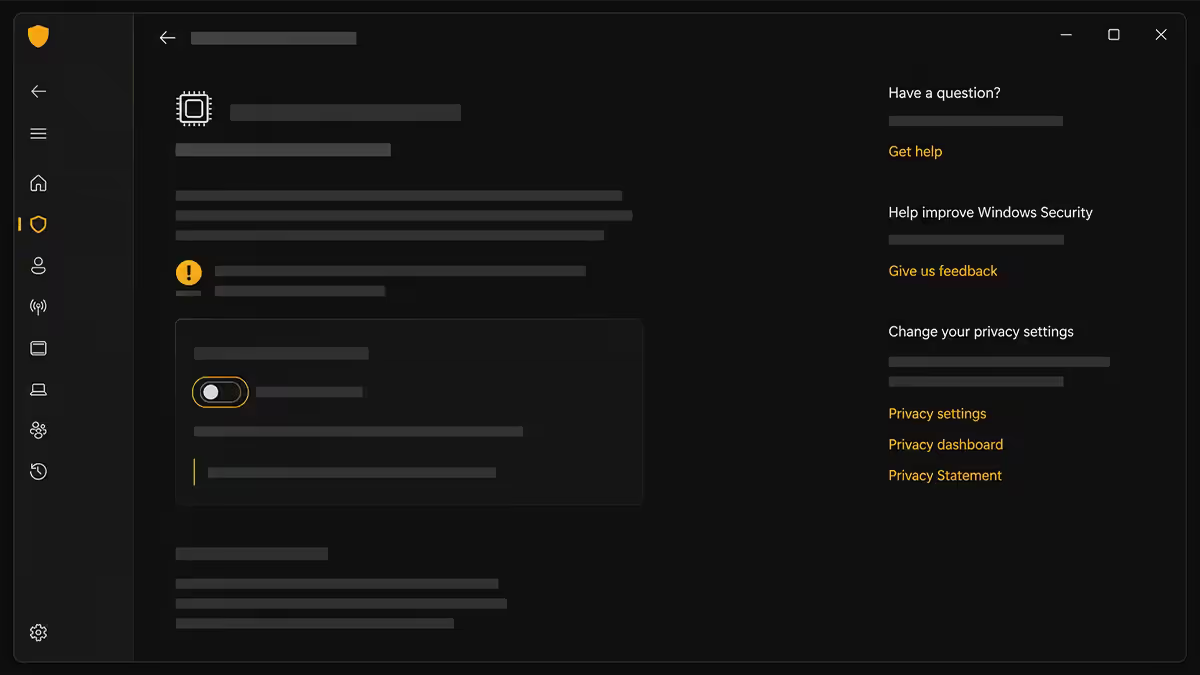
Virtualization-Based Security (VBS) and its companion Memory Integrity / Hypervisor-Protected Code Integrity (HVCI) are Windows 11 security features that isolate critical system processes in a virtualised container. They protect against advanced kernel-mode malware. They also cost 5-15% gaming performance in CPU-bound scenarios.
On a dedicated gaming PC running games, Discord and a browser, the security trade-off is minor — modern Defender, basic browsing hygiene and not running pirated installers covers 99% of the threat model VBS protects against. On a work laptop handling client data, leave them on.
Check status: press Win+R, type msinfo32, look for "Virtualization-based security" near the bottom of the System Summary. If it says "Running" with services enabled, you're paying the FPS tax.
Disable Memory Integrity: Settings > Privacy & Security > Windows Security > Device Security > Core Isolation Details > toggle Memory Integrity to Off. Restart.
Disable VBS fully (if still running): Win+R, type gpedit.msc, navigate to Computer Configuration > Administrative Templates > System > Device Guard > "Turn On Virtualization Based Security" > set to Disabled. Restart and re-check msinfo32 — should show "Not enabled".
Power plan — unlock Ultimate Performance
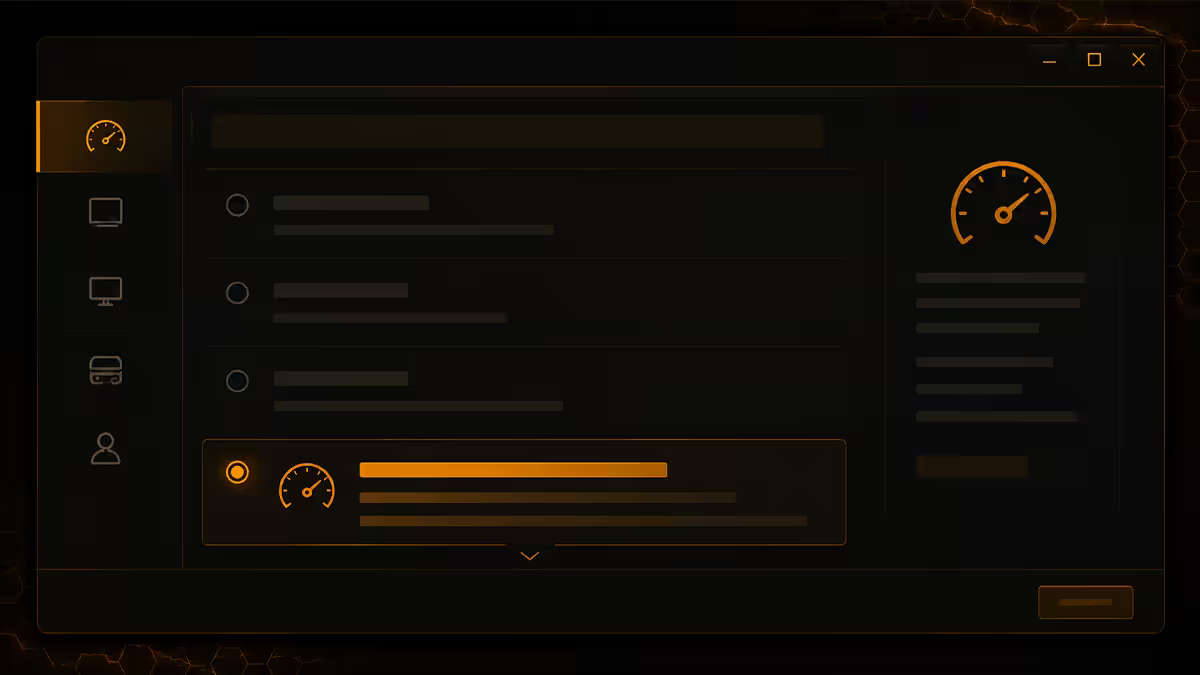
Windows 11 ships with Balanced as the default power plan. Balanced is fine for laptops and energy bills. For a desktop gaming PC on mains power, it actively hurts performance by parking CPU cores during light load transitions and slowing boost-clock ramp-up.
The Ultimate Performance plan is hidden by default but exists in Windows 11 — Microsoft just didn't surface it. Unlock it with one PowerShell command:
powercfg -duplicatescheme e9a42b02-d5df-448d-aa00-03f14749eb61
Run that in PowerShell (admin), then open Control Panel > Power Options and select "Ultimate Performance". Done. On desktops the typical gain is 1-3% average FPS and 5-10% better 1% lows — that 1% lows improvement is the part you actually feel, because it's the difference between a smooth frame-time graph and one with micro-stutter spikes.
Laptops on battery: leave on Balanced. Ultimate Performance shreds battery life and most laptop power delivery isn't designed for sustained max draw. When plugged in for gaming, switching to Ultimate Performance is fine; switch back to Balanced before unplugging.
GPU driver settings — the bits that move the needle
Driver tweaks vary by GPU vendor but the principles are the same: update to the latest game-ready driver, set power mode to maximum performance, disable in-game overlay bloat you don't use, and verify Resizable BAR is enabled.
NVIDIA (RTX 30/40/50 series)
Install the NVIDIA app (replaces the old GeForce Experience as of 2024) — it's free, includes driver updates, the overlay, and the new optimisation profile system. Set Power Management Mode to "Prefer Maximum Performance" via NVIDIA Control Panel > Manage 3D Settings > Global Settings. Enable "Low Latency Mode: On" (not Ultra unless you're playing competitively — Ultra can introduce micro-stutter). Verify Resizable BAR is on via the System Information panel in NVIDIA Control Panel.
AMD (RX 6000/7000/9000 series)
Install AMD Adrenalin — the latest WHQL release. Enable Anti-Lag+ in supported games (Adrenalin > Gaming > Anti-Lag). Set the global graphics profile to "Gaming" rather than "Default". Verify Smart Access Memory (AMD's Resizable BAR) is on under Performance > Tuning. Disable Radeon Image Sharpening globally unless you specifically want it — it's a per-game setting better.
Startup apps — the silent FPS thief
A fresh Windows 11 install runs lean. Six months later, your startup list has eight to fifteen extra entries — Spotify, Discord, OneDrive, Adobe Creative Cloud, the Epic Games Launcher, the EA App, Razer Synapse, Logitech G HUB, Corsair iCUE, the Riot Client, and at least one update agent per peripheral brand you own.
Each costs a few hundred MB of RAM, a percent or two of CPU during light load, and contributes to the slow-boot, slow-shutdown feeling. None of them need to launch at startup. You can launch them manually when needed.
Open Task Manager (Ctrl+Shift+Esc) > Startup apps tab. Sort by "Status: Enabled". For each entry, decide: do I need this running 100% of the time? If no — right-click, disable. You can always re-enable later.
Things you can almost always disable: peripheral RGB software (it'll still apply your last profile from boot), launcher clients (Epic, EA, GOG, Battle.net — launch them manually when you want to play), cloud sync clients (OneDrive, Dropbox — manual sync once a day is fine), Adobe Creative Cloud, Spotify, the Skype Meet Now agent, and any "Update Checker" service for hardware drivers.
Keep enabled: antivirus (Defender if you have nothing else), Steam if you live in it, Discord if you always have it open, and any official OEM control software for your laptop/desktop power management (Lenovo Vantage, ASUS Armoury Crate, MSI Center for fan curves).
Advanced tweaks (optional, worth doing)
Disable Xbox Game Bar background process
Xbox Game Bar is the FPS counter and capture overlay that pops up with Win+G. Even if you never open it, it runs background services that occasionally cause stutter. Settings > Gaming > Xbox Game Bar > Off. If you want a better overlay, install MSI Afterburner + RivaTuner Statistics Server — it's the gold standard, more customisable, and has lower overhead.
Fullscreen exclusive vs borderless windowed
Fullscreen exclusive is still the lowest-latency mode for competitive shooters (CS2, Valorant, Apex Legends, Overwatch 2). It bypasses the desktop compositor entirely and gives the GPU a direct path to the display. Borderless windowed is now within 1ms of fullscreen thanks to Windows 11's DirectFlip — fine for everything except the most twitchy esports titles.
Verify DirectStorage is active
DirectStorage lets games load assets from NVMe SSDs directly to GPU memory, bypassing the CPU. Supported in games like Forspoken, Ratchet & Clank: Rift Apart, and a growing list. Requires Windows 11, an NVMe SSD with the game installed, and a DirectStorage-enabled game. No setting to toggle — works automatically if all three conditions are met. Verify by running the free DirectStorage Test Tool from Microsoft if you're curious.
Install MSI Afterburner + RTSS
If you want to see FPS, GPU temp, CPU utilisation and frame times overlaid in-game, install MSI Afterburner (free) and the bundled RivaTuner Statistics Server. Configure the overlay layout once and forget it. It also unlocks GPU undervolting — a few mV less GPU core voltage at the same clock speed drops temps 10-15°C with zero FPS loss on most RTX 40-series cards. Worth an hour of setup for the long-term cooler/quieter pay-off.
Common mistakes
Running "optimiser" tools from forums. Tools like "Win11Optimizer", "Atlas OS" debloat scripts and various YouTuber-rebadged registry hack packs frequently break Windows Update, Defender, the Microsoft Store, and Game Pass. Every six months we get a workshop ticket where the customer can't reinstall a game because their Store install is borked. Stick to native Windows settings. Everything in this guide is reachable through the GUI — no registry hacks needed.
Disabling Defender without a replacement. Some optimisation guides suggest disabling Defender for FPS. The FPS gain is nil on modern hardware and you've left the machine wide open. If you're going to disable Defender, install a paid alternative (Bitdefender, ESET) — never disable AV entirely.
Overclocking before optimising. Builders frequently chase 100 MHz of CPU overclock when their VBS is still on and their power plan is Balanced. Software gains compound on top of hardware — do the free Windows tweaks first, then look at overclocking if you still want more.
Believing every Reddit power-user post. "Disable all Windows services in services.msc for max FPS" is the worst advice on r/PCMasterRace. Half the services power features you actively use; the other half are dependencies for Windows Update, Defender and the Microsoft Store. Disabling services without understanding them breaks things you can't easily undo.
Skipping the restart. Several of the tweaks above (HAGS, VBS toggle, power plan change) require a restart to actually take effect. Apply changes, restart, then benchmark — not the other way around.
Key takeaways
- The five tweaks that do 90% of the work: Game Mode on, HAGS on, VBS/Memory Integrity off, Ultimate Performance plan, clean startup list.
- Disabling VBS recovers 5-15% FPS on most builds — biggest single gain. Skip if you play Valorant (Vanguard requires it).
- HAGS is free 2-5% FPS on modern GPUs. Verify after enabling — Windows updates occasionally flip it back off.
- Ultimate Performance plan tightens 1% lows by 5-10% on desktop. Stay on Balanced for laptop battery use.
- Avoid "debloater" scripts and registry hack packs — they break Windows Update and the Microsoft Store more often than they help FPS.
Frequently asked questions
Does optimizing Windows 11 actually improve gaming FPS?
Yes — the right combination delivers 15-25% more FPS on most builds. Biggest gains: disabling VBS, enabling HAGS, switching to Ultimate Performance, cleaning startup apps. About 20 minutes of work.Should I disable VBS and Memory Integrity for gaming?
Yes for dedicated gaming PCs — recovers 5-15% FPS in CPU-bound games. Leave on for work laptops handling sensitive data, or if you play Valorant (Vanguard requires VBS).What is Hardware-Accelerated GPU Scheduling and should I turn it on?
HAGS lets the GPU manage its own memory directly. On RTX 30/40/50 and RX 6000/7000/9000 it delivers 2-5% more FPS with cleaner frame times. Toggle via Settings > System > Display > Graphics.Is Windows Game Mode worth enabling?
Yes. Small (1-3%) FPS gain but eliminates worst stutters from background processes and prevents Windows Update mid-game. Free, takes 10 seconds, no downside.Which power plan should I use for gaming?
Ultimate Performance for desktops on mains power — unlock with PowerShell command then select in Control Panel. Balanced for laptops on battery. Tightens 1% lows by 5-10%.Should I disable startup apps for better gaming performance?
Yes. Open Task Manager > Startup apps and disable anything non-essential. Most Windows 11 installs accumulate 8-15 startup entries within six months — easiest 5-10% gain.Do I need MSI Afterburner if I have NVIDIA app or AMD Adrenalin?
Not strictly. Both NVIDIA app and AMD Adrenalin include overlays. Afterburner is still the best for advanced overlay layouts, undervolting and fan curves — install if you want those.Should I use fullscreen exclusive or borderless windowed mode?
Fullscreen exclusive for competitive shooters (CS2, Valorant, Apex). Borderless windowed for everything else — latency penalty is under 1ms on Windows 11 thanks to DirectFlip.
Get the Evetech app
Exclusive app-only prices, daily flash sales, and free delivery on orders over R4,000 — download the app and start saving.