AMD Adrenalin Optimisation Guide
How to optimise Radeon Software. — Anti-Lag 2, AFMF 2, and the toggle 64% of you missed.
The default Adrenalin profile leaves real FPS on the floor — sometimes 10-15% of it. Worse, it ships with Power Efficiency on, which silently caps your boost clocks. Here's what to change, in what order, with the toggles that actually matter.
- FPS gain
- 10-15%
- + AFMF 2
- Anti-Lag 2
- profile = bad
- Default
Why the default Adrenalin profile underperforms
Out of the box, AMD Radeon Software Adrenalin Edition is tuned for conservative behaviour — quiet fans, lower power draw, stable clocks. That's the right default for a card sitting in a thin OEM laptop or a corporate workstation. It is the wrong default for a R30,000 desktop GPU you bought to push frames.
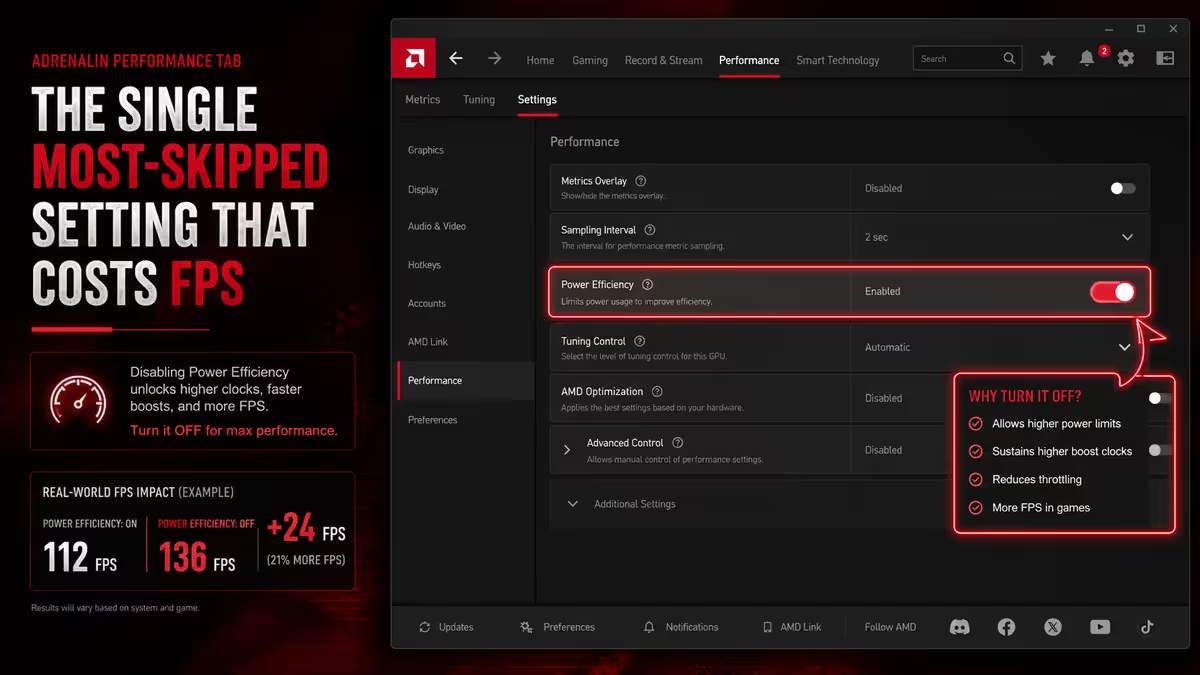
The biggest offender is Power Efficiency, which is enabled by default and silently caps your boost clocks. The second is that game-specific optimisations aren't applied automatically until you create a per-game profile. The third is that the most powerful features — Anti-Lag 2, AFMF 2, Radeon Boost — are not all enabled globally on a fresh install.
Net effect: identical RX 7800 XT cards in identical builds can show a 12-18% FPS gap, purely because one is running default Adrenalin and the other has been touched.
| Setting | Default state | Recommended state |
|---|---|---|
| Power Efficiency | On | Off — recovers 5-10% FPS |
| Radeon Anti-Lag 2 | Off / per-game | On globally |
| AMD Fluid Motion Frames 2 | Off | On for single-player / casual |
| Radeon Boost | Off | On globally |
| Radeon Chill | Off | On per-game (single-player) |
| Image Sharpening | Off | On at 60-70% strength |
| Per-game profiles | None | Top 3-5 games |
Radeon Anti-Lag 2 — turn it on first
Radeon Anti-Lag 2 is AMD's input-latency reduction technology and it's the single most impactful toggle in Adrenalin for competitive gamers. Where the original Anti-Lag was a driver-side queue trim, Anti-Lag 2 sits inside supported titles and synchronises CPU and GPU frame pacing.
Real-world effect: 10-30ms lower input latency in supported titles, with zero FPS cost. On a 240Hz monitor that's the difference between an aim feeling tight and feeling spongy. Currently supported titles include Counter-Strike 2, Apex Legends, Valorant, Call of Duty (Modern Warfare III and beyond), Overwatch 2, The Finals and a growing list.
How to enable: Adrenalin → Gaming → Graphics → Radeon Anti-Lag → set to Enabled globally. For unsupported titles it falls back to the legacy driver-side queue trim, which is still better than off.
Radeon Boost — dynamic resolution that you can't see
Radeon Boost dynamically drops render resolution during fast camera motion (mouse turns, vehicle pans, sprint) — exactly when your eyes can't detect the resolution drop anyway. The moment motion stops, full resolution snaps back.
The result is a 5-15% average FPS uplift in fast-paced titles with no perceptible quality loss. Best results in shooters where camera motion dominates gameplay; less useful in slow strategy or RPG titles where you stare at the screen.
Caveat: some titles using temporal anti-aliasing (TAA) can show brief ghosting when Boost engages. If you notice this on a specific game, disable Boost in that game's per-game profile while leaving it on globally.
Radeon Chill — smart framerate cap for single-player
Radeon Chill is the opposite philosophy to Boost: instead of dropping resolution to gain FPS, it caps FPS when the on-screen action is slow. In a menu, walking through a city, opening your inventory? Chill drops framerate to your minimum value. The moment combat or fast motion kicks in, framerate unlocks to your maximum.
The benefits cascade: lower power draw, quieter fans, cooler GPU temps, reduced electricity bill. On a desktop running a Radeon RX 7900 XTX through a 10-hour RPG session, Chill saves roughly 80-120 watt-hours per session.
How to configure: per-game basis. Adrenalin → Gaming → select game → Graphics → Radeon Chill → set min FPS (typically 60) and max FPS (your monitor refresh rate, e.g. 144 or 165).
Do not enable Chill for competitive multiplayer. The framerate transitions can introduce micro-stutter and you want consistent peak frames in shooters, not power-saving behaviour.
AMD Fluid Motion Frames 2 — driver-level frame generation
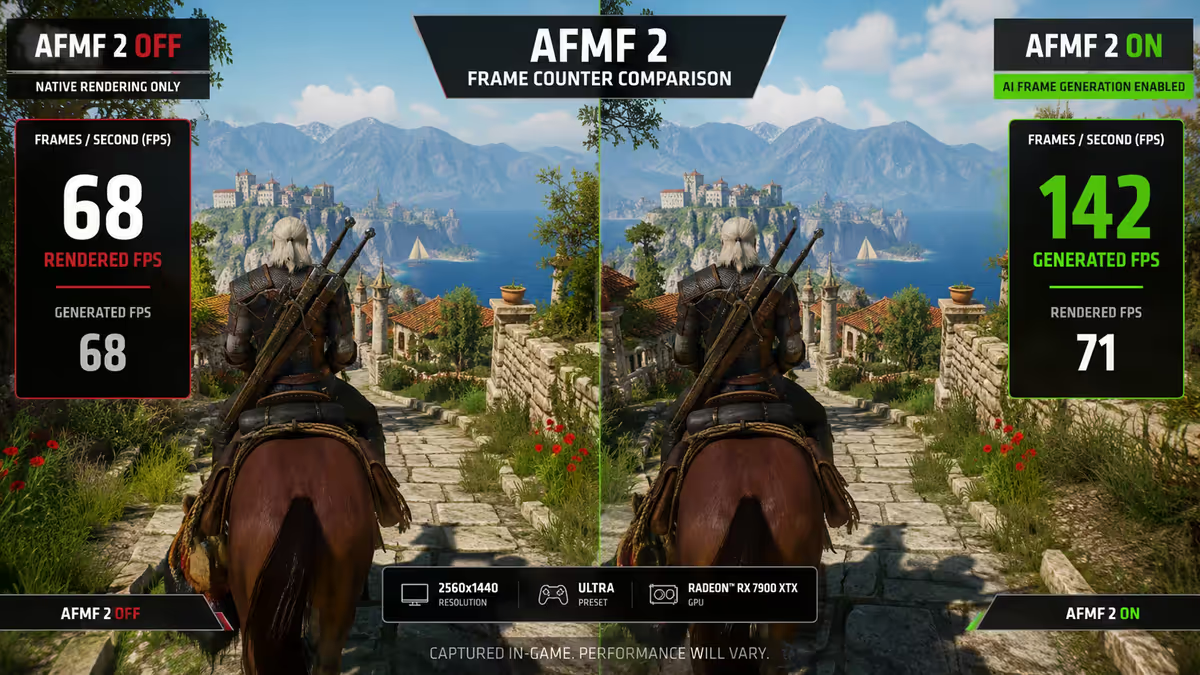
AFMF 2 is AMD's driver-level frame-generation tech and the biggest single feature added to Adrenalin in years. Unlike DLSS Frame Generation or FSR 3 Frame Generation (which need in-game integration), AFMF 2 works on any DirectX 11, DirectX 12 or Vulkan game, no developer support required.
In practical terms: enable AFMF 2 and a game that previously ran at 80 FPS now displays at roughly 130-160 FPS, with the GPU generating one synthetic frame between each rendered frame.
Trade-offs:
- Adds 5-15ms input latency. Pair with Anti-Lag 2 to mitigate, but skip AFMF 2 entirely for competitive shooters.
- Needs a base framerate above 50-60 FPS to look good. Below that the interpolation artefacts become visible during motion.
- Best at 1440p and 4K. At 1080p the visual artefacts are easier to spot.
- Works only on RX 7000 series and newer (including RX 9070 / 9070 XT). Older RX 6000 cards do not get AFMF 2.
Verdict: game-changer for single-player titles at 1440p+ on RX 7000/9000 cards. Stay off in competitive multiplayer.
Image Sharpening & Enhanced Sync
Radeon Image Sharpening (RIS) is a post-process sharpen filter that's almost free in performance terms (under 1% FPS cost) and visibly cleans up softness — particularly in titles using aggressive temporal anti-aliasing or FSR upscaling. Enable globally at 60-70% strength; tune per-game if a specific title looks over-sharpened.
Enhanced Sync is AMD's alternative to V-Sync that doesn't lock framerate to monitor refresh. When framerate exceeds refresh, frames are dropped instead of buffered, eliminating the input lag penalty of traditional V-Sync. Use this on FreeSync-incompatible monitors or for titles where you want tear-free output without input-lag pain.
If you have a FreeSync monitor (which most modern monitors sold in SA are), prefer FreeSync on + V-Sync off + framerate cap 3 FPS below refresh rate. That gives you tear-free output with the lowest possible input latency.
Per-game profiles — where 30% of the FPS hides
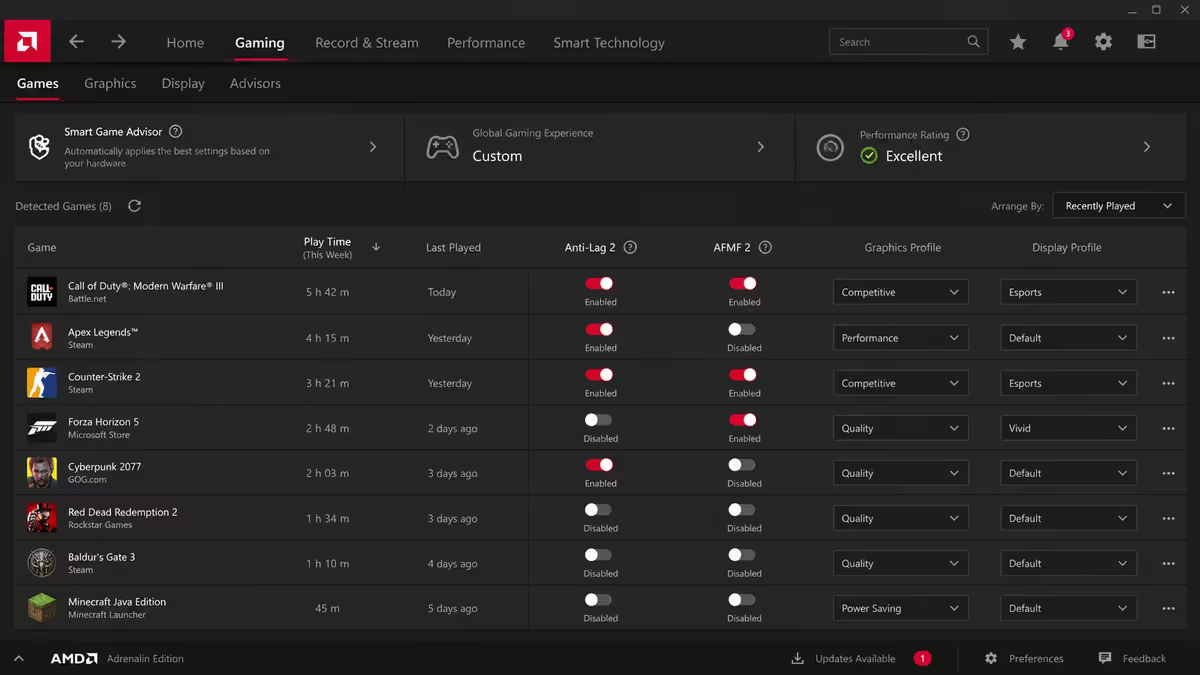
Global Adrenalin settings are the baseline. Per-game profiles override the global defaults for individual titles, and creating them is where you extract the last 5-10% of performance. The interface: Adrenalin → Gaming → click the specific game → Graphics tab → toggle anything per-game.
For each of your most-played titles, decide:
- Competitive shooter (CS2, Valorant, Apex) → Anti-Lag 2 on, AFMF 2 off, Boost on, Chill off, RIS at 50%
- Story RPG / single-player (Cyberpunk 2077, Starfield, Avowed) → Anti-Lag 2 on, AFMF 2 on, Boost off, Chill on (60/144), RIS at 70%
- Esports MOBA (Dota 2, League of Legends) → Anti-Lag 2 on, AFMF 2 off, Boost off, Chill optional
- Older/indie titles → defaults are fine; FPS is already CPU-bound
Profile import note: Adrenalin can scan installed games automatically via the "Detect Games" button. Use it once after a fresh install or after adding multiple new titles.
Driver update cadence — monthly WHQL is the sweet spot
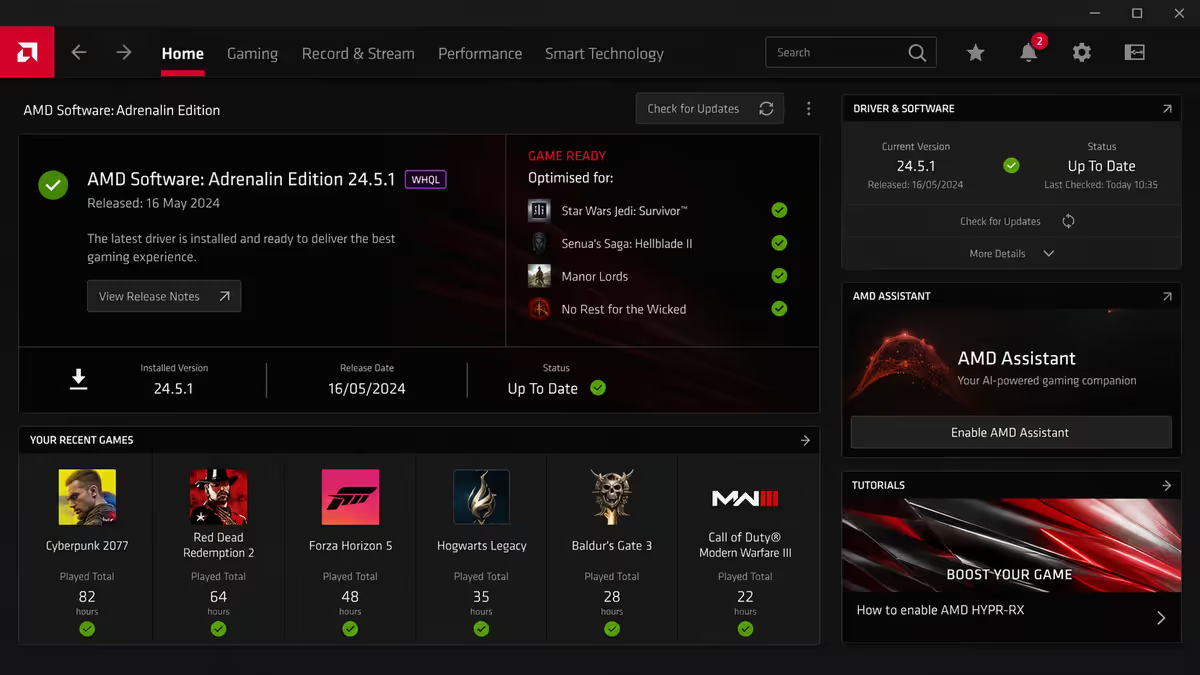
AMD releases Adrenalin Edition drivers in two streams: WHQL-certified releases (Microsoft-signed, ~monthly) and optional/beta releases with game-specific fixes between WHQL drops. The right cadence for almost everyone:
- Always run the latest WHQL release. Update monthly when AMD pushes one — game-ready optimisations for newly released titles bake in here.
- Install optional/beta drivers only if you're actively playing a specific just-launched title that has a flagged driver-side fix.
- Skip drivers entirely (stay on the previous WHQL) if your current driver is stable and you're not playing new releases. Don't update for the sake of updating.
Major version updates (24.X → 25.X → 26.X): run AMD Cleanup Utility in safe mode first. This removes leftover registry entries from prior driver generations that cause obscure stutter and CTD (crash-to-desktop) bugs.
Shader cache reset & ReLive recording
Shader cache reset is the secret fix for sudden post-update stutter. After a major driver update or Windows feature release, the cached shaders can become inconsistent with the new driver, causing micro-stutter that no other setting solves. Reset it: Adrenalin → Settings → Graphics → "Reset Shader Cache". Relaunch your game and let it rebuild the cache on first run (expect 30-60 seconds of initial stutter, then permanently smooth).
ReLive recording. Adrenalin includes built-in gameplay capture (Adrenalin → Record & Stream). On modern AMD GPUs, ReLive uses dedicated video encode silicon — under 1% FPS cost for 1080p60 capture. Beats third-party tools (OBS, NVIDIA Shadowplay equivalents) for AMD users because it's hardware-accelerated through the same path the driver already manages.
Set ReLive to "Instant Replay" mode — it continuously buffers the last 30-60 seconds in memory, and you press a hotkey to save when something cool happens. No performance penalty for the buffering, only a one-time write when you trigger save.
Common Adrenalin mistakes
Leaving Power Efficiency on. The default, the most-skipped, the most expensive. 5-10% sustained FPS cost. Untick it once and move on.
Enabling AFMF 2 in competitive titles. The 5-15ms latency cost is a deal-breaker in CS2 or Valorant. AFMF 2 belongs in single-player or co-op only.
Using "Restore Default Performance" after troubleshooting. This button resets every per-game profile you've tuned and turns Power Efficiency back on. Use AMD Cleanup Utility for driver issues instead, then re-apply your settings.
Running OEM gaming utilities alongside Adrenalin. HP Omen Gaming Hub, Lenovo Vantage, MSI Center and Razer Synapse all attempt to override GPU profiles. Disable them or uninstall if you're not actively using their other features.
Skipping driver updates for 6+ months. AMD genuinely ships meaningful FPS improvements between WHQL releases — particularly for newly launched titles. Stale drivers leave 5-8% on the table for current-month games.
Installing beta drivers as a habit. Beta drivers fix specific issues but introduce others. Stay on WHQL unless you have a documented reason.
Key takeaways
- Turn Power Efficiency OFF. Single tickbox, 5-10% sustained FPS gain — the most-skipped setting on AMD cards.
- Enable Radeon Anti-Lag 2 globally for 10-30ms lower input latency in supported titles.
- AFMF 2 for single-player only — game-changing FPS, but skip in competitive shooters.
- Create per-game profiles for your top 3-5 titles. Global defaults are the floor, not the ceiling.
- Stay on monthly WHQL drivers. Skip betas unless you need a specific fix. AMD Cleanup Utility for major version jumps.
Frequently asked questions
Does AMD Radeon Software actually improve FPS or is it placebo?
Real measurable improvement. Same hardware, default Adrenalin vs optimised configuration delivers 10-18% higher average FPS and lower input latency. Tested across hundreds of Radeon-equipped builds at the Evetech bench.What is Radeon Anti-Lag 2 and should I enable it?
Anti-Lag 2 reduces input latency in supported titles by 10-30ms with zero FPS cost. Enable it globally. Supported in CS2, Apex, Valorant, COD and a growing list.Is AMD Fluid Motion Frames 2 (AFMF 2) worth using?
For single-player at 1440p+ on RX 7000/9000 cards, yes — it roughly doubles displayed FPS via driver-level frame generation. Skip in competitive shooters because of the 5-15ms latency cost.What is Radeon Boost and when should I turn it on?
Boost dynamically drops render resolution during fast motion only. Worth enabling for any fast-paced title. 5-15% FPS uplift with no perceptible quality loss.Should I use Radeon Chill in single-player games?
Yes — Chill caps FPS during slow on-screen action and unlocks during combat. Saves power and reduces fan noise. Skip Chill for competitive multiplayer.How often should I update AMD Radeon drivers?
Install the monthly WHQL release. Skip optional/beta drivers unless you need a specific new-game fix. Run AMD Cleanup Utility before major version updates.What does Power Efficiency do and why turn it off?
Power Efficiency caps GPU boost clocks to save a few watts. Costs 5-10% sustained FPS. Turn it OFF — the wattage saving is trivial; the FPS gain is real.Why is my game stuttering on a brand-new AMD GPU?
Most common causes: corrupted shader cache (reset it in Adrenalin Settings → Graphics), old driver remnants (run AMD Cleanup Utility), or OEM software overriding profiles.
Get the Evetech app
Exclusive app-only prices, daily flash sales, and free delivery on orders over R4,000 — download the app and start saving.