PC Spec Lookup Reference
How to check your PC specs. — Three Windows shortcuts. Three free tools.
Windows shows you what it thinks you need to know. Hardware enthusiasts know the trick: msinfo32 for the summary, CPU-Z for the truth about RAM, GPU-Z for the partner card model, HWiNFO64 for everything else.
- basic summary
- 3 sec
- full readout
- 6 tools
- total cost
- R0
The 30-second checks (built into Windows 11)
If someone just asked "what specs do you have", three shortcuts cover it before the kettle boils.
Settings → System → About shows CPU, RAM, system type and Windows edition. Two clicks, no typing. Good enough for "do I have 16GB or 32GB?"
Windows + R, type msinfo32, Enter. Comprehensive system summary. CPU model, motherboard, BIOS version, RAM total, OS build. The single best built-in tool.
Ctrl + Shift + Esc → Performance tab in Task Manager. Live CPU, GPU, RAM, network and disk activity, with model names for each.
msinfo32 — the full picture in one window
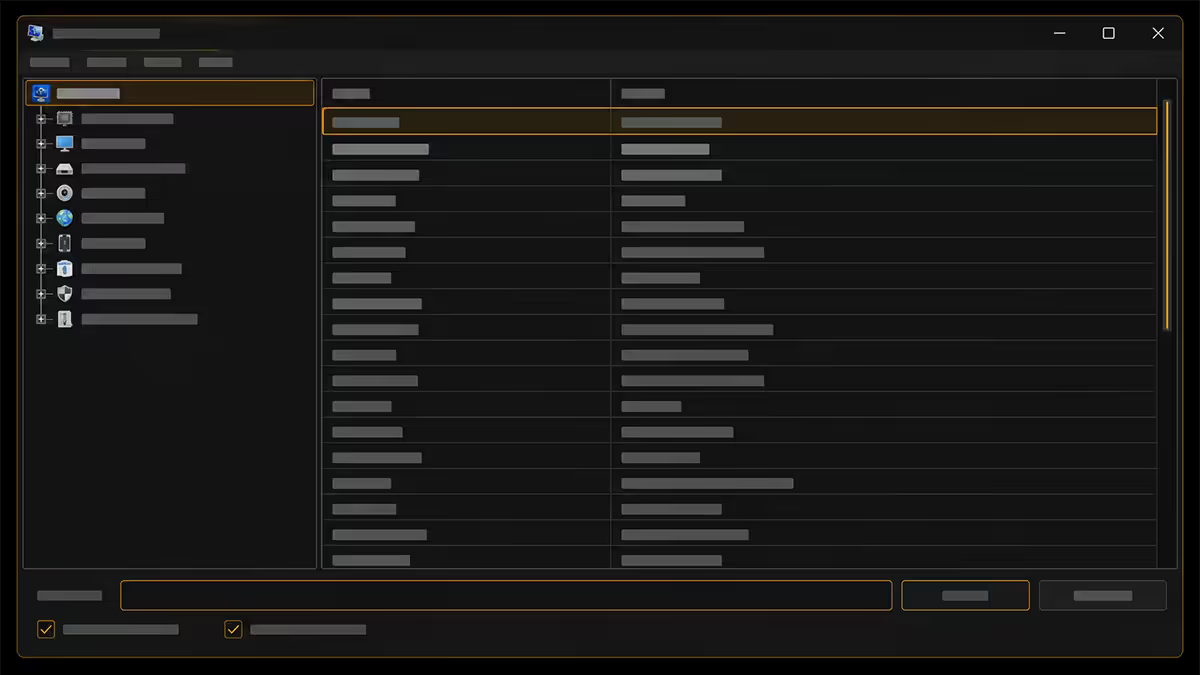
System Information (msinfo32.exe) has been in Windows since the 90s and remains the deepest built-in spec readout. The System Summary screen shows ~30 fields including:
- OS Name and Version — Windows 11 Pro / Home / Enterprise, full build number.
- System Manufacturer / Model — for prebuilt and laptop systems, the exact vendor model.
- BaseBoard Manufacturer / Product — motherboard make and model (for custom desktops).
- Processor — full CPU model name and base clock.
- BIOS Version/Date — useful when updating firmware or chasing bugs.
- Installed Physical Memory (RAM) — total system RAM.
- Virtual memory — current page file size.
- Secure Boot State, BitLocker, TPM — security and encryption flags.
Categories on the left (Hardware Resources, Components, Software Environment) drill deeper — including detected USB devices, audio adapters, network cards, services. It's not pretty, but it's complete.
Task Manager — live with model names
Open Task Manager (Ctrl + Shift + Esc), click the Performance tab, and click each item on the left:
CPU: top-right shows the full CPU model (e.g., "AMD Ryzen 7 9800X3D"), base speed, sockets, cores, logical processors, virtualisation status and cache sizes per level.
GPU 0 / GPU 1: the full GPU model, driver version and date, DirectX version, and current usage broken down by 3D, video encode and video decode. For laptops with both integrated and dedicated GPUs, both are listed.
Memory: total installed, available, in-use, committed, cached, paged and non-paged pool. Form factor (DIMM), DRAM speed in MHz, and number of slots used vs total. Caveat: the MHz shown is DRAM frequency, not the DDR rating — see the RAM section below.
Disk 0 / Disk 1: drive model and current read/write speeds. Multiple disks each have their own pane.
dxdiag — DirectX and display specifics
DirectX Diagnostic (dxdiag.exe) is the standard for game-related spec questions:
- System tab: OS, CPU, total memory, DirectX version, BIOS info.
- Display tab: chip type (GPU), display memory (VRAM), DAC type, driver name and version, refresh rate, DirectX feature levels supported.
- Sound and Input tabs: audio devices and input controllers.
The "Save All Information" button exports a complete dxdiag readout to .txt — game support sites and many indie devs explicitly request this when troubleshooting crashes.
CPU-Z, GPU-Z, HWiNFO64 — when Windows isn't enough
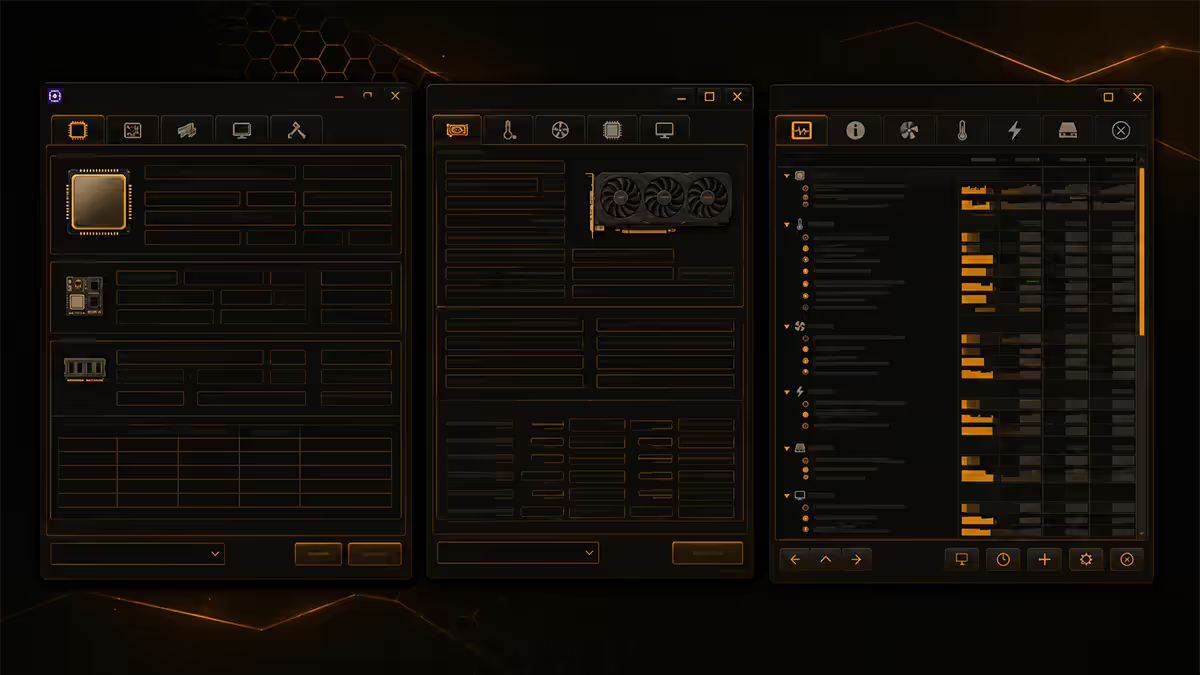
For accurate detail on RAM, motherboard chipset revision, partner GPU branding and live sensor data, three free third-party tools have been the industry standard for over a decade.
CPU-Z (cpuid.com)
Tabs: CPU, Caches, Mainboard, Memory, SPD, Graphics, Bench, About.
Reads CPU model with stepping and revision (important for early-batch chip identification), full cache topology, motherboard manufacturer/model/chipset/BIOS, configured RAM frequency and timings, per-DIMM SPD profile, and a quick CPU benchmark for comparison.
GPU-Z (techpowerup.com)
Reads partner-branded GPU model (e.g., "MSI GeForce RTX 5080 Gaming X Trio"), exact die revision, BIOS version, memory size and type, base/boost/memory clocks, ROPs/TMUs/shaders count, PCIe link speed, DirectX/Vulkan/OpenCL/CUDA capabilities, and live sensor data.
HWiNFO64 (hwinfo.com)
The deepest of the three. Shows every detected sensor on every component — CPU per-core temperatures, package power, voltages, GPU hotspot vs edge temps, fan speeds per header, PSU rail voltages on supported boards, SSD temps and NAND lifecycle counters. The "Sensors" pane is what most tech reviewers run during stress testing.
Why RAM speed needs CPU-Z
This is where Windows quietly lies. Task Manager shows DRAM speed as a single number — say "2400 MHz". A new builder seeing this on a DDR5-6000 kit panics and assumes something is broken.
Two things to know:
1. DDR is double-data-rate. The DDR rating is double the DRAM clock. DDR5-6000 means the DRAM runs at 3000MHz but transfers data on both edges of the clock for 6000 effective transfers per second. So 3000 MHz in Task Manager = DDR5-6000.
2. XMP/EXPO must be enabled in BIOS. Out of the box, DDR5 kits run at JEDEC standard 4800MT/s — not their rated speed. To get DDR5-6000, you must enable the XMP (Intel) or EXPO (AMD) profile in BIOS. Until you do, you're losing 20-25% of memory bandwidth.
Open CPU-Z → Memory tab. You'll see:
- DRAM Frequency: halve to get DDR rating. 3000 MHz = DDR5-6000.
- CAS# Latency (CL): primary timing. CL30 is fast; CL36/40 is mid-range.
- RAS# to CAS# Delay, RAS# Precharge, Cycle Time — secondary timings.
Then check the SPD tab for each DIMM slot. Look at the JEDEC and XMP/EXPO profile rows — these show what the stick is rated to run at. If your CPU-Z Memory tab matches the XMP/EXPO row, you're at full speed. If it matches the JEDEC row, XMP/EXPO is off and you need to enable it in BIOS.
Finding GPU VRAM honestly
"Dedicated graphics memory" vs "Shared graphics memory" in Task Manager catches a lot of users out. Here's what they mean:
- Dedicated GPU memory is the actual VRAM on the graphics card. RTX 5080 = 16GB dedicated.
- Shared GPU memory is system RAM that can be borrowed by the GPU when dedicated memory is full. Usually shown as 50% of system RAM. This is not real VRAM — performance falls off a cliff when games start using it.
- Total GPU memory is the sum, which is misleading.
For laptops with integrated graphics (Iris Xe, Radeon iGPU), there is no dedicated VRAM — the "dedicated" number is just a portion of system RAM that Windows hands the GPU at boot.
GPU-Z's Memory Size field shows true VRAM only. dxdiag's Display tab → Display Memory shows true VRAM. Trust these, not Task Manager's totals.
Motherboard and SSD model
Motherboard
Three reliable ways:
- msinfo32: BaseBoard Manufacturer + BaseBoard Product.
- Command Prompt:
wmic baseboard get product,manufacturer,version. - CPU-Z's Mainboard tab: manufacturer, model, chipset, southbridge, BIOS brand and date.
For laptops, you usually want the laptop model rather than the underlying motherboard model — System Manufacturer + System Model in msinfo32 gives you that (e.g., "Lenovo Legion 5 Pro 16IRX9").
SSD / NVMe
Task Manager → Performance → Disk shows the model name. For the full picture:
- CrystalDiskInfo (crystalmark.info) — model, firmware, total host writes, power-on hours, SMART status (Good / Caution / Bad), temperature.
- Settings → System → Storage → Disks & volumes — model and partition layout in the Windows UI.
- HWiNFO64 → Drives — model plus live read/write throughput and temperature.
Tool quick-reference
| What you want to know | Best tool | Where |
|---|---|---|
| Quick CPU/RAM summary | Settings → System → About | Built-in |
| Full system summary | msinfo32 | Win + R |
| Live performance + models | Task Manager → Performance | Ctrl+Shift+Esc |
| GPU model and VRAM | dxdiag → Display | Win + R |
| True RAM speed and XMP/EXPO state | CPU-Z Memory + SPD | cpuid.com |
| Partner GPU branding | GPU-Z | techpowerup.com |
| Sensors, temps, fan speeds | HWiNFO64 | hwinfo.com |
| SSD health and lifecycle | CrystalDiskInfo | crystalmark.info |
| One-pager screenshot for diagnostics | Speccy (free) | ccleaner.com/speccy |
Key takeaways
- Three seconds: Win + R →
msinfo32→ Enter. The single best built-in spec readout in Windows. - Task Manager → Performance tab gives you live data with model names — CPU, GPU, RAM, disk.
- RAM "speed" in Task Manager is DRAM frequency. Double it for DDR rating. Use CPU-Z to confirm XMP/EXPO is on.
- True VRAM = GPU-Z or dxdiag, not Task Manager's "total" figure which includes shared system RAM.
- CPU-Z + GPU-Z + HWiNFO64 + CrystalDiskInfo = the free toolkit every SA builder runs.
Frequently asked questions
What's the fastest way to check PC specs in Windows 11?
Win + R → msinfo32 → Enter shows CPU, RAM, motherboard, BIOS in one screen. Settings → System → About is two clicks faster for just CPU and RAM. Task Manager → Performance has the same plus live activity.How do I find my exact GPU model and VRAM?
dxdiag → Display tab for chip and display memory. GPU-Z for partner card branding and true VRAM. Task Manager shows VRAM but not partner brand.Why does CPU-Z show different RAM speed than Task Manager?
Both show DRAM frequency in MHz. Halve the DDR rating to get DRAM clock — DDR5-6000 = 3000MHz. CPU-Z also shows timings and SPD profile, so you can verify XMP/EXPO is enabled.How do I find my motherboard model?
msinfo32 shows BaseBoard Manufacturer + Product. Command Prompt: wmic baseboard get product,manufacturer,version. CPU-Z's Mainboard tab is the most reliable.What's the difference between CPU-Z, GPU-Z and HWiNFO64?
CPU-Z reads CPU/RAM/motherboard. GPU-Z does the same for GPUs. HWiNFO64 does both plus live sensors (temps, voltages, fan speeds). All three free, all three safe.Is Speccy still safe to use?
Yes — still free, still functional. Development has slowed but the existing version is fine. Skip the bundled CCleaner offer during install. HWiNFO64 is better-maintained if you want long-term use.How do I find my SSD model and health?
Task Manager → Performance → Disk for the model. CrystalDiskInfo for SMART status (Good/Caution/Bad), temperature, power-on hours and total bytes written.How do I check what version of Windows 11 I have?
Win + R → winver shows version (e.g., 24H2) and OS build. Settings → System → About has the same. msinfo32 shows Home/Pro/Enterprise edition.