Gaming Performance · Recording
How to record gameplay on PC. — Zero-FPS-impact capture. Bitrate math you can trust.
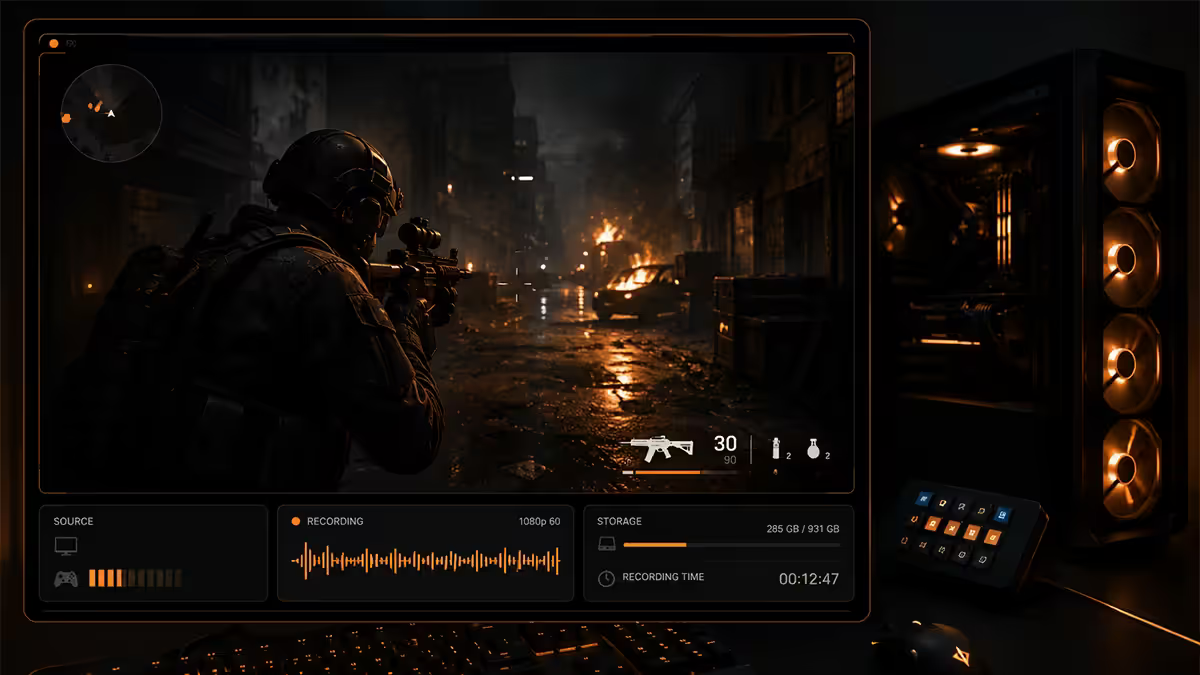
ShadowPlay for instant replay. OBS for the serious work. Game Bar for the desperate moments. The right combo costs you no FPS and produces YouTube-clean clips in three keystrokes.
- FPS hit · NVENC
- 0-3%
- 1 hr · 1440p60
- 27 GB
- instant replay
- 30s
Tool choice — ShadowPlay, ReLive, OBS, Game Bar
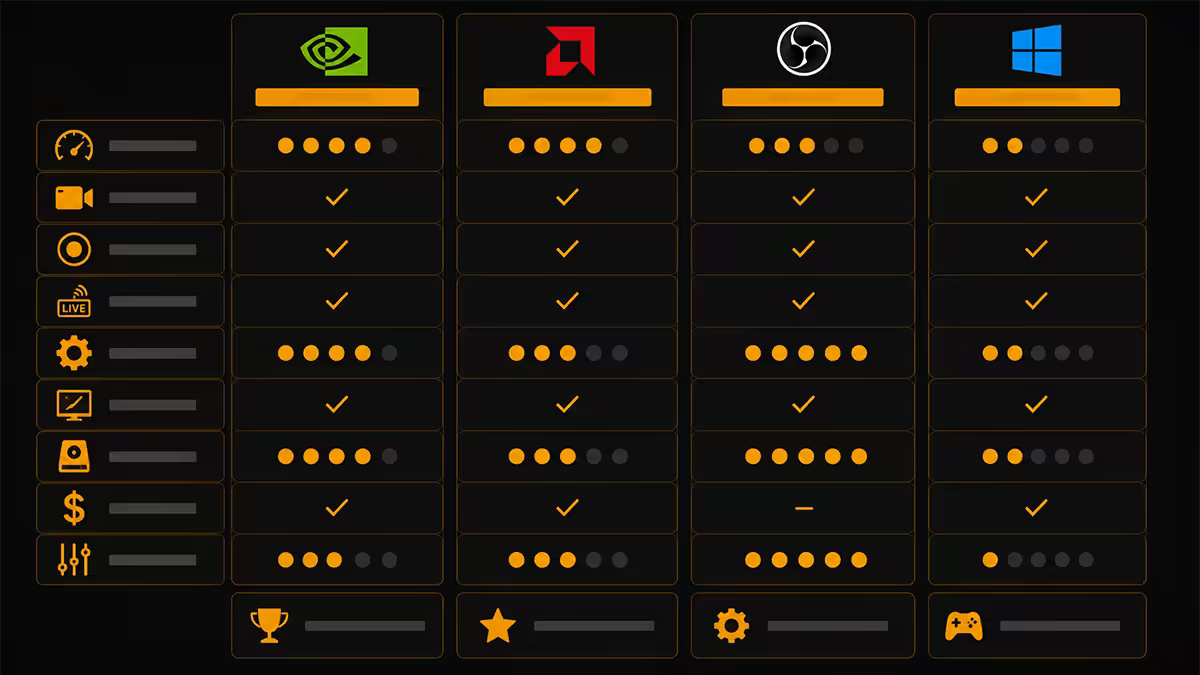
Four tools dominate PC gameplay capture in 2026. None of them is universally best; each fits a use case.
| Tool | Best for | Encoder |
|---|---|---|
| NVIDIA ShadowPlay (NVIDIA App) | Daily capture · instant replay · 95% of NVIDIA users | NVENC |
| AMD ReLive (Adrenalin) | Daily capture · instant replay · Radeon users | AMF |
| OBS Studio | Streaming · multi-source · custom scenes | NVENC / AMF / x264 (choice) |
| Xbox Game Bar | Emergency capture · no GPU vendor app | Falls back to Media Foundation |
ShadowPlay and ReLive are the daily-driver answer. Both are GPU-vendor-bundled, hook directly into the hardware encoder, and offer instant replay. The setup is one toggle in the vendor app. Zero FPS hit. Their downsides are inflexibility — you can't easily layer a webcam over the capture, you can't stream to multiple platforms simultaneously, and the file format choices are limited.
OBS Studio is the answer when you need flexibility: streaming to Twitch / YouTube / Kick simultaneously, layering webcam + alerts + scene transitions, custom resolution scaling, advanced audio routing. It's also the only way to record from a separate display source (NDI from another PC, capture card from a console). The learning curve is real — plan for an hour to configure properly the first time.
Xbox Game Bar in 2026 — useful, with caveats
Xbox Game Bar (Win+G) is bundled with Windows 11 and works without any extra install. In 2026 it's surprisingly capable for quick clips — Game Pass integration shows recent achievements, the Capture widget records on hotkey, and the rolling buffer is bound to Win+Alt+G. The catch: Game Bar's encoder priority can interfere with VRR frame-pacing on some configurations, and it lacks the per-game profiles ShadowPlay offers. Useful as a fallback; not a primary tool.
NVENC vs AMF vs QuickSync — the encoder choice
All modern recording software uses a hardware video encoder built into the GPU or CPU. The encoder choice determines file quality, file size and FPS impact.
NVENC (NVIDIA, RTX 20-series and newer)
The gold standard. NVENC 8th-gen on RTX 40/50 series produces output visually indistinguishable from x264 medium at roughly half the bitrate. Supports H.264, HEVC (H.265) and AV1 (RTX 40+ and 50-series). Negligible FPS impact (0-3%) in third-party testing.
AMF (AMD, RX 7000 and newer)
Was the laggard for years. The 2024-2025 driver overhaul changed that — AMF on RX 7000 and RX 9000 series matches NVENC quality within a 5-10% bitrate margin. AV1 supported on the same generations. Use it without compromise on RDNA 3 and RDNA 4.
QuickSync (Intel iGPU on Core Ultra)
The dark horse. Modern Intel Core Ultra (Arrow Lake, Lunar Lake) integrated graphics include QuickSync XE — quality close to NVENC, dedicated silicon that doesn't compete with the discrete GPU's rendering. Useful even on PCs with a discrete NVIDIA or AMD GPU — set OBS to encode via QuickSync and the discrete GPU is unencumbered.
x264 software encoding
Best quality at low bitrates — historically the streaming gold standard. Costs 10-25% FPS in heavy titles because it eats CPU cycles. Largely obsolete for single-PC gaming recording in 2026; NVENC and AMF have closed the quality gap. Use x264 only on a dedicated streaming PC with capture card.
Bitrate math — what to set, what it costs in storage
Bitrate is the file's bandwidth budget. Too low and the encoder smears motion into blocky artefacts; too high and you've wasted disk space without quality gain. The sweet spot depends on resolution, codec and motion intensity.
| Resolution / FPS | NVENC H.264 | NVENC HEVC | NVENC AV1 |
|---|---|---|---|
| 1080p 60 FPS | 50 Mbps | 35 Mbps | 25 Mbps |
| 1440p 60 FPS | 80 Mbps | 60 Mbps | 40 Mbps |
| 4K 60 FPS | 150 Mbps | 120 Mbps | 80 Mbps |
| 1080p 144 FPS | 100 Mbps | 70 Mbps | 50 Mbps |
| 4K 144 FPS | 300 Mbps | 220 Mbps | 150 Mbps |
HEVC (H.265) is the practical default in 2026 — 35-50% better compression than H.264 at equivalent quality, supported by every modern editor, uploads cleanly to YouTube. Use AV1 if your GPU supports it and you need to save more space (RTX 40/50, RX 7000/9000) — but verify your editor handles AV1 well; Premiere's AV1 timeline support was still uneven through early 2026.
For YouTube upload: record at the recommended upload bitrate, not below it. YouTube re-encodes everything you upload; recording lower forces YouTube to stretch your bitrate over a larger surface, producing worse final quality. YouTube's 2026 upload guidelines: 1080p60 = 12 Mbps minimum, 1440p60 = 24 Mbps, 4K60 = 53 Mbps. Recording at the bitrates above gives YouTube clean source material to work from.
Instant replay — the most underrated feature
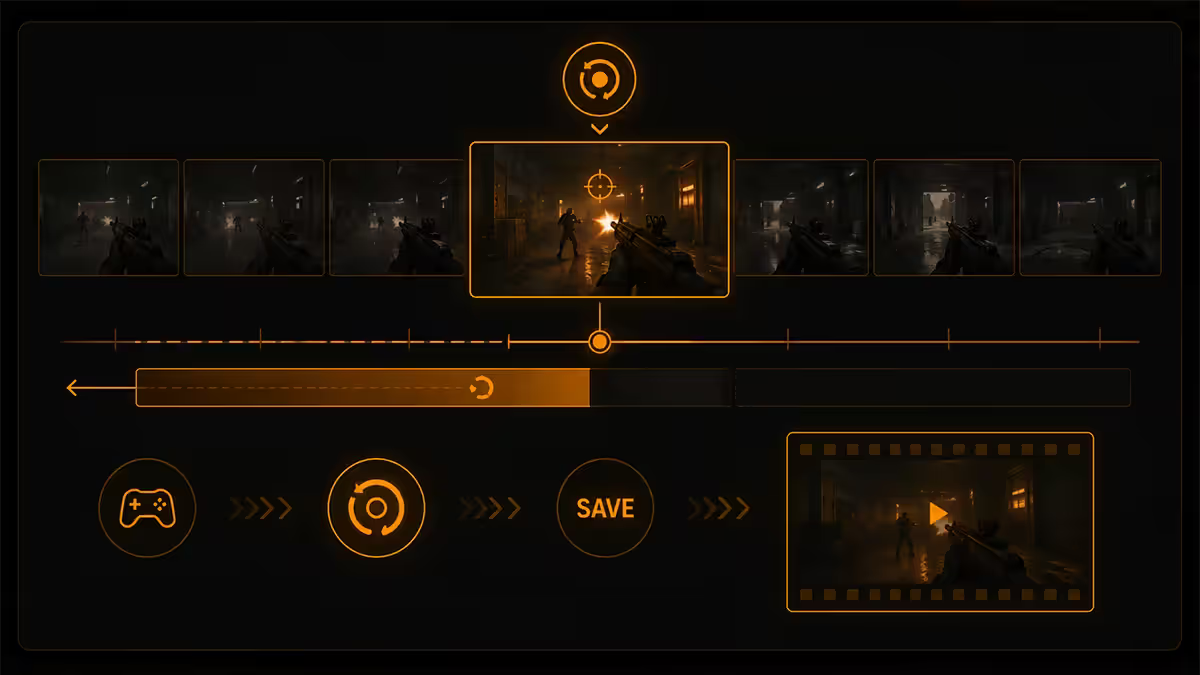
Instant Replay is a rolling buffer that lives in RAM (or disk-cached) while you play. The encoder is always running; the buffer always contains the last N seconds of gameplay. When something memorable happens, you press the save hotkey and the buffer dumps to disk.
Why this matters: the unexpected moments — the perfect clip, the impossible flick shot, the squad wipe — are by definition the ones you weren't already recording. Instant Replay solves that. You're always recording, retroactively.
Default hotkeys (configurable):
- ShadowPlay: Alt+F10 to save the last buffer.
- AMD ReLive: Ctrl+Shift+S to save.
- Xbox Game Bar: Win+Alt+G to save the last 30 seconds.
Recommended buffer: 30-60 seconds for fast-paced action. 5-10 minutes for cinematic moments you might want context for. Longer buffers use more RAM (or disk cache); 60 seconds at 1440p NVENC HEVC uses roughly 500 MB of RAM — trivial on modern systems.
Storage planning — dedicated capture SSD
Recording produces enormous files. Plan accordingly:
- 1080p60 NVENC HEVC at 35 Mbps: 16 GB / hour
- 1440p60 NVENC HEVC at 60 Mbps: 27 GB / hour
- 4K60 NVENC HEVC at 120 Mbps: 54 GB / hour
- 4K144 NVENC HEVC at 220 Mbps: 99 GB / hour
Best practice: record to a separate NVMe SSD from your OS / game drive. Why:
- Recording I/O competes with game asset streaming on the same drive — visible frame-time stutters.
- You can wipe and reformat the capture drive when full without touching games or Windows.
- 500 GB to 2 TB is plenty for active workflow; offload completed projects to a HDD or NAS for archive.
SA-stocked picks in 2026: Kingston NV3 1TB (R900-R1,100), Samsung 990 EVO 2TB (R2,400-R2,800), WD Black SN770 1TB (R1,300-R1,500) — all PCIe 4.0, all fast enough to record 4K144 without buffer drops. Don't waste a PCIe 5.0 drive on capture; the sustained write speed isn't needed.
Audio routing — game, mic, Discord on separate tracks
The biggest editing mistake new creators make: recording everything to one stereo track. If your mic peaks during a clutch moment, you can't fix it in post without re-recording.
The fix: record game audio, microphone, and Discord on separate tracks. Then you can mute, duck, EQ each one independently in editing.
ShadowPlay / ReLive
Open NVIDIA App → Capture → Audio. Enable "Separate both tracks". Game audio lands on Track 1, mic on Track 2. ReLive: Adrenalin → Recording & Streaming → Audio → "Separate audio sources".
OBS Studio
Add Audio Output Capture (Desktop) for game audio and Audio Input Capture (Mic) for your microphone as separate sources. In Advanced Audio Properties, assign each to a different track (Track 1 = game, Track 2 = mic, Track 3 = Discord using a virtual audio cable like VB-Cable). Configure the output to record all tracks: Settings → Output → Recording → Audio Track → check 1, 2, 3.
Across the 200,000+ custom PCs we've shipped from Centurion, the content-creator builds we configure all include the same recommendation: a dedicated 1TB or 2TB NVMe capture SSD separate from the OS drive, and Instant Replay configured on first boot in our welcome script. The cost is R900-R2,500 over the base build. The benefit is zero frame-time stutters from capture I/O, no panicked "the drive is full mid-stream" moments, and a clean workflow for moving raw footage to NAS or cloud after the session. It is the single most consistent upgrade-path advice we give to streamers.
Evetech Hardware Team — From our service bench
Editing pipeline — clip to upload in 15 minutes
The right editor depends on what you're making.
DaVinci Resolve (free) — the serious editor
Broadcast-grade colour, full timeline, no watermarks, runs on Windows / Mac / Linux. The free version is fully featured for most gaming creators — the paid Studio version adds noise reduction, advanced HDR, and faster encoding. Native AV1 and HEVC support in 2026. Learning curve is real (1-2 weeks to get fluent); ceiling is professional broadcast.
Adobe Premiere Pro — the industry default
Subscription only (~R380/month in SA via Adobe CC). Familiar interface, deep YouTube creator ecosystem, plug-in support. Better for creators already in the Adobe ecosystem; otherwise Resolve is the better free alternative.
CapCut — short-form king
Free, fast, template-driven. Auto-captions, beat-sync, vertical 9:16 formats one-click. Built for TikTok / YouTube Shorts / Instagram Reels. Watermark on export unless you disable it in settings. For 30-second clips, faster than Resolve every time.
In-app trim tools — the instant route
ShadowPlay and ReLive ship with basic timeline trim. Cut a 60-second clip out of a 30-minute recording in 30 seconds, upload directly. For most "I just want this clip on Twitter / X" moments, this is enough.
Key takeaways
- ShadowPlay or ReLive for daily capture. OBS Studio for streaming and multi-source. Game Bar for emergencies.
- Hardware encoding (NVENC / AMF / QuickSync) = zero FPS impact. Skip x264 unless you have a dedicated streaming PC.
- HEVC at 35 Mbps (1080p60), 60 Mbps (1440p60), 120 Mbps (4K60) is the practical 2026 default.
- Instant Replay with a 30-60 second buffer captures the moments you weren't ready for. Bind to a thumb button.
- Record to a separate SSD from OS drive. Separate audio tracks for game, mic and Discord.
Frequently asked questions
What is the best free software to record PC gameplay?
NVIDIA ShadowPlay (now part of NVIDIA App) for NVIDIA GPUs — best balance of zero FPS impact, instant replay, and one-click clipping. AMD ReLive for Radeon GPUs delivers the same experience on the AMD side. OBS Studio for advanced needs (multi-source compositing, streaming, custom encoder settings). Xbox Game Bar exists but has rough edges in 2026 — useful for quick clips, not a primary tool.NVENC vs AMF vs QuickSync — which encoder should I use?
NVENC (NVIDIA, RTX 20-series and newer) is the gold standard — visually indistinguishable from x264 medium at half the bitrate, with negligible FPS impact. AMF (AMD, RX 7000 and newer) is now genuinely competitive after the 2024-2025 improvements. QuickSync (Intel iGPU on Core Ultra) is the surprise winner for builds without a discrete GPU. For dedicated GPU gaming PCs, use the GPU's native encoder — NVENC or AMF — not x264.What bitrate should I use to record gameplay?
For local recording: 1080p60 needs 25-50 Mbps (NVENC) or 35-60 Mbps (x264). 1440p60 needs 40-80 Mbps. 4K60 needs 80-150 Mbps. For YouTube upload, recording at YouTube's recommended upload bitrate then letting YouTube re-encode produces better results than recording lower and letting the platform stretch the bitrate. Always record HEVC (H.265) or AV1 when supported by the encoder for the best size-to-quality ratio.How much does gameplay recording reduce FPS?
With a hardware encoder (NVENC, AMF, QuickSync), modern recording costs 0-3% FPS — effectively free in real-world testing. The encoder runs on dedicated GPU silicon that isn't doing render work. Software encoding (x264) on the same CPU running the game can cost 10-25% FPS in heavy titles. For competitive recording, always use hardware encoding; never x264 unless you have a dedicated streaming PC.What is instant replay and how do I use it?
Instant replay is a 30-second to 20-minute rolling buffer kept in RAM while you play. Press the save hotkey (Alt+F10 on ShadowPlay, Ctrl+Shift+S on ReLive, Win+G+G on Game Bar) and the buffer dumps to disk as a clip — capturing what just happened without ever pressing record. Indispensable for capturing unexpected moments. Configure buffer length and quality in NVIDIA App / AMD Adrenalin / Xbox Game Bar.What hard drive space does gameplay recording need?
At 1080p60 NVENC HEVC at 35 Mbps, 1 hour = 16 GB. At 1440p60 at 60 Mbps, 1 hour = 27 GB. At 4K60 at 120 Mbps, 1 hour = 54 GB. Plan for 200-500 GB of dedicated SSD space if you record every session. Record to a separate SSD from the OS drive to avoid frame-time stutters from file I/O contention with the game.How do I record game audio and microphone separately?
In ShadowPlay/ReLive, separate audio tracks are enabled in settings — game audio on Track 1, mic on Track 2, Discord on Track 3. In OBS, add separate Audio Output Capture (Desktop) and Audio Input Capture (Mic) sources and assign each to its own track in Advanced Audio Properties. Separate tracks let you balance mic and game audio in editing without re-recording.What is the best editor for gameplay clips?
DaVinci Resolve (free version) is the most powerful free editor — broadcast-grade colour, full timeline, no watermarks. Adobe Premiere Pro for ongoing creator workflows (paid). CapCut for short-form vertical YouTube Shorts / TikTok / Instagram Reels — fast, template-driven, surprisingly capable. ShadowPlay and ReLive include basic trim-and-share tools good enough for quick clips without ever opening an editor.