Gaming Performance · Latency-first config
Esports settings. Flatten the line. — Reflex on. Vsync off. Cap minus three.
Top fps without low latency is half the picture. The competitive edge comes from flat, predictable frame times and the lowest possible click-to-pixel delay. Here's the per-game recipe.
- Reflex on the cheap
- -25 ms
- cap formula
- -3 fps
- safe polling default
- 1000 Hz
The latency-first mindset
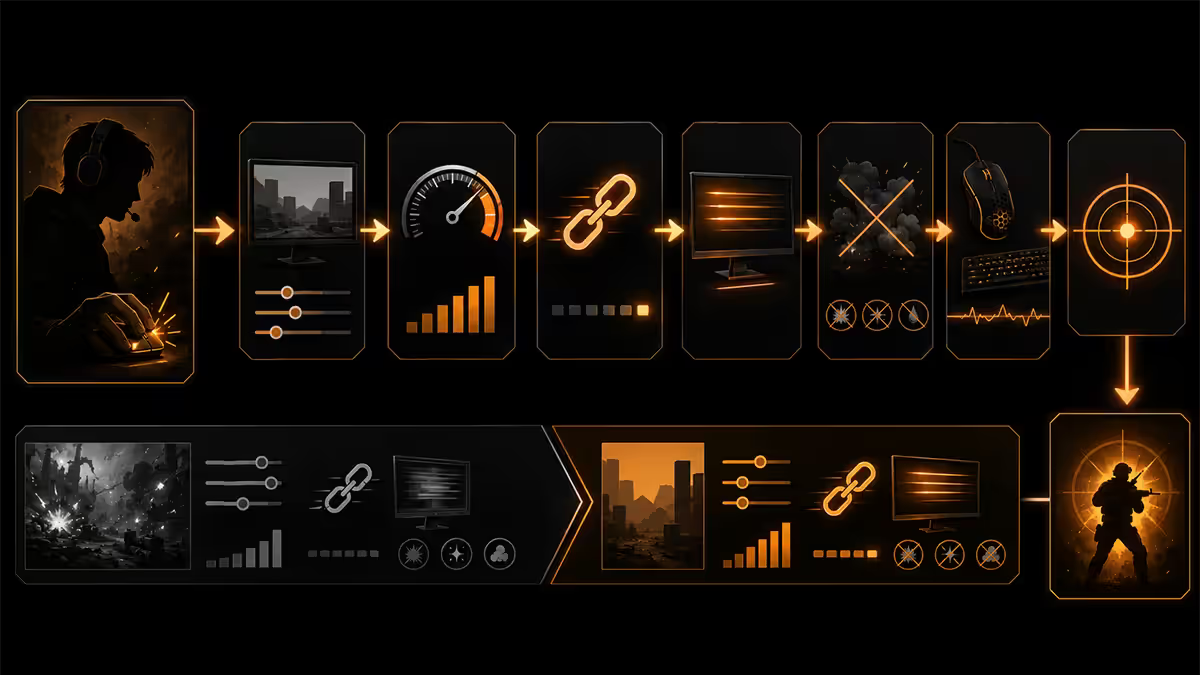
For competitive games, the variable that actually matters is the time between your input — a mouse click, a movement of the wrist — and the response on screen. Everything else (graphics quality, frame rate, even refresh rate to a point) is downstream of that single metric. Total system latency is the headline number, and it's typically 30-80 ms on a default-everything setup. Cut it to 18-28 ms with the right settings and your shots land first against an opponent at the same skill.
Where does the latency come from? Roughly: 1-4 ms in the mouse, 1-2 ms in the cable and USB stack, 2-4 ms in OS input handling, 6-25 ms in game render queue and GPU, 0.5-1 ms in the cable to the monitor, 1-5 ms in the monitor's pixel response. The GPU-side queue is the fattest bucket and the easiest to cut. That's where Reflex and the fps cap formula make their biggest gains.
A second framing that helps. Higher fps is not the goal — flatter frame times are the goal. Going from 200 fps to 240 fps is a 0.83 ms improvement in mean frame time. Going from a 240 fps run with 8 ms 1% lows to a 240 fps run with 4.2 ms 1% lows is a much bigger win in subjective feel and consistent aim. The settings below are designed for flat, predictable frame times — not chart-topping fps numbers.
NVIDIA Reflex & AMD Anti-Lag 2 — enable everywhere
NVIDIA Reflex is a latency-reduction technology built into the game engine that synchronises the GPU's render queue with the actual frame display. It prevents the queue from building up multiple frames ahead of what's on screen, which is the dominant source of perceived input lag. Reflex is available on every RTX 20-, 30-, 40- and 50-series GPU and supported in every major esports title.
The result in numbers: Reflex cuts 10-25 ms of total system latency in supported titles. NVIDIA's lab tests show 20-30% reductions; real measurements with LDAT show similar. There is no cost — it's a software toggle that just works.
AMD Anti-Lag 2 is the equivalent on Radeon RX 6000-series and newer. Anti-Lag 2 (released 2024-2025) finally matched Reflex's per-frame approach instead of the older driver-level approximation, and now delivers similar gains in supported titles. Always enable it.
Where to find the toggle
- Valorant: Settings → Video → Graphics Quality → NVIDIA Reflex Low Latency: On + Boost
- CS2: Settings → Video → Advanced Video → NVIDIA Reflex Low Latency: Enabled + Boost
- Apex Legends: Settings → Video → NVIDIA Reflex: Enabled + Boost
- Fortnite: Settings → Graphics → NVIDIA Reflex Low Latency: On + Boost
- Overwatch 2: Settings → Video → Advanced → NVIDIA Reflex: Enabled + Boost
"On + Boost" vs "On": Boost keeps the GPU at peak clocks rather than letting it drop to power-save in low-load scenes, sacrificing 5-10 W of power for slightly tighter latency. Always select "On + Boost" if your PSU and cooling have headroom (every modern Ryzen 7+ / RTX 4060+ build does).
Vsync OFF and the fps cap formula
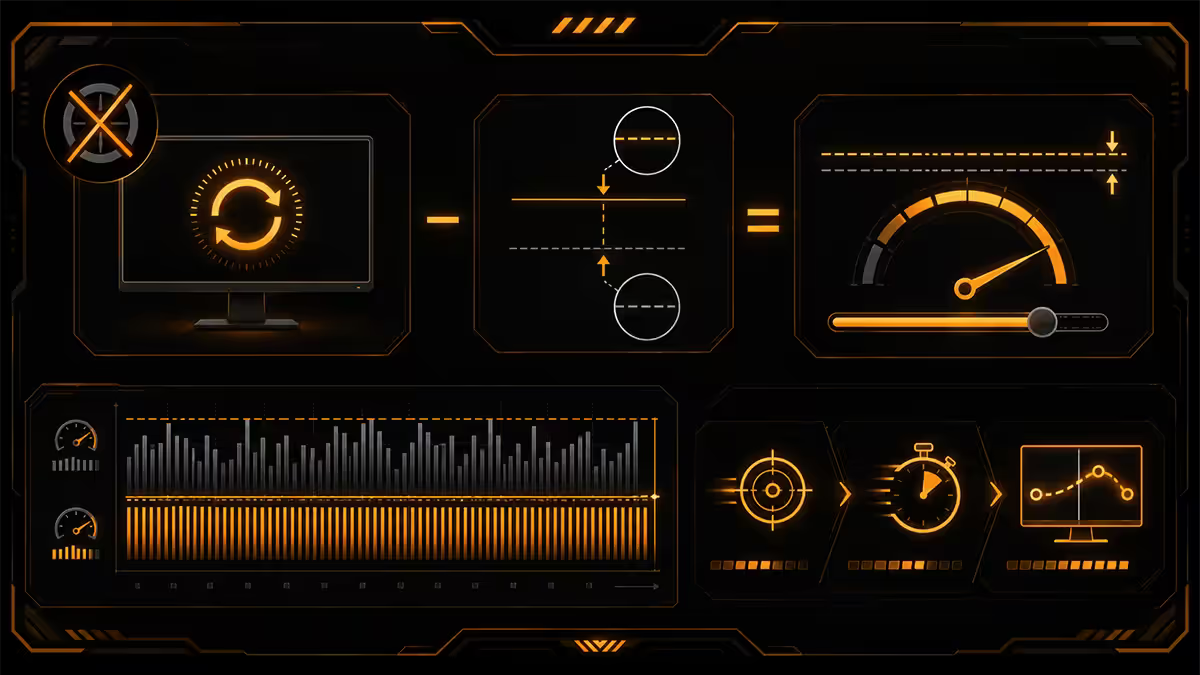
If you remember one thing from this guide, remember the cap formula: set your in-game fps cap to 3 below your monitor's refresh rate. On a 240 Hz monitor, cap at 237. On 165 Hz, cap at 162. On 144 Hz, cap at 141. This is the single most copy-pasted competitive setting on the internet, because it works.
Why it works. With G-Sync or FreeSync enabled, the monitor's refresh adapts to the GPU's render rate as long as fps stays below the panel's max refresh. The moment fps exceeds refresh, G-Sync/FreeSync falls back and Vsync (or screen tearing if Vsync is off) takes over. The 3 fps buffer keeps you safely inside the variable refresh window even with momentary spikes — no tearing, no Vsync latency hit.
The full latency recipe
| Setting | Value |
|---|---|
| In-game V-Sync | OFF |
| In-game fps cap | refresh - 3 |
| NVIDIA / AMD VRR (G-Sync / FreeSync) | ON |
| NVIDIA control panel V-Sync | ON (driver-level) |
| Low Latency Mode | ULTRA (or Reflex preferred) |
| Mouse polling rate | 1000 Hz |
The driver-level Vsync nuance: with G-Sync ON, driver V-Sync ON acts as a safety net that catches the moment fps spikes above the cap. It doesn't add latency inside the VRR window. This is Blur Busters' recommended config and matches what most pro players run.
Fullscreen mode — exclusive vs borderless in 2026
Through 2018-2022 there was a clear latency penalty (3-7 ms) for borderless windowed compared to exclusive fullscreen. Windows would route borderless frames through DWM (Desktop Window Manager), adding a frame of buffering.
In 2026, Windows 11's auto-HDR optimisations and "fullscreen optimisations" have largely closed the gap. Borderless windowed in Windows 11 24H2+ adds 0-2 ms vs exclusive fullscreen on most titles. The historical advice to "always use exclusive fullscreen" is technically still correct but practically less impactful than it was.
The practical pick: exclusive fullscreen if your hardware supports it cleanly, borderless windowed if you stream/alt-tab frequently. Avoid windowed (not borderless) because it routes through DWM with no optimisation path.
Mouse polling rate — 1000 Hz vs 4000 Hz vs 8000 Hz
Polling rate is how often the mouse reports position and click state to the PC. 1000 Hz = once every 1 ms. 4000 Hz = once every 0.25 ms. 8000 Hz = once every 0.125 ms. The theoretical input latency reduction from 1000 to 8000 Hz is 0.875 ms.
The reality on a modern PC. 8000 Hz polling uses 4-8x more CPU interrupt cycles than 1000 Hz. On a Ryzen 5000 or Intel 11th gen system, 8000 Hz polling commonly causes 1-3% fps drops and occasional micro-stutter that defeats the purpose. On a Ryzen 7800X3D, 9800X3D, 9950X or Intel 14700K, the overhead disappears into the CPU's headroom and 8000 Hz works cleanly.
Recommended polling by hardware
- Older mouse / older CPU: 1000 Hz. This is the historic competitive default and remains excellent.
- Modern mouse (Razer Viper V3 Pro, Logitech G Pro X Superlight 2) + modern CPU: Try 4000 Hz first. If clean, try 8000 Hz.
- 240+ Hz monitor + Ryzen 7000/9000 X3D + RTX 4070+: 8000 Hz polling makes sense. Test in a benchmark scene before committing.
Critical: most wireless mice run 1000 Hz when wireless and only go higher when plugged in. If you've paid premium for a high-polling wireless mouse, check the manufacturer's app — there's usually a "high polling wireless" mode that needs explicit enabling.
Graphics settings — low everything (with two exceptions)
The default esports recipe: everything on low, native resolution, no upscaling, no ray tracing. With two specific exceptions.
Exception 1: Textures medium or high
Low texture detail in modern engines often replaces enemy player models with blurry low-resolution versions that blend into the background. Keep textures at medium or high if your VRAM has headroom — it's the difference between seeing a half-camouflaged enemy at range and missing them entirely.
Exception 2: View distance high
View distance controls how far enemy player models and important world objects render. Low view distance can hide enemies you'd otherwise see at long range. Set view distance to high or epic — this costs minimal fps and improves your ability to see enemies first.
What else to dial down
- Shadows: Low. High shadows cost fps and create distractions.
- Anti-aliasing: FXAA or Off. TAA blurs enemy outlines, so avoid.
- Effects / Particles: Low. Reduces visual clutter in fights.
- Ambient occlusion: Off. Visual polish, zero competitive value.
- Reflections: Low or Off. Same.
- Motion blur: Off, always. Makes tracking worse.
- Resolution: Native of your monitor. Esports rarely benefits from upscaling.
Per-game recipes — Valorant, CS2, Apex
Valorant
| Setting | Value |
|---|---|
| Display Mode | Fullscreen |
| Limit FPS Always | ON · refresh -3 |
| NVIDIA Reflex Low Latency | On + Boost |
| VSync | OFF |
| Material Quality | Low |
| Texture Quality | Medium |
| Detail Quality | Low |
| UI Quality | Low |
| Anti-Aliasing | MSAA 2x (or OFF) |
| Bloom / Distortion / First Person Shadows | OFF |
Valorant runs on a heavily-modified Unreal engine and is GPU-light. Even a GTX 1660 hits 300+ fps at these settings. Cap at refresh -3 to keep frame times flat.
Counter-Strike 2
| Setting | Value |
|---|---|
| Display Mode | Fullscreen |
| Max FPS in-game | refresh -3 (e.g. 237) |
| NVIDIA Reflex Low Latency | Enabled + Boost |
| VSync | Disabled |
| Boost Player Contrast | Enabled |
| Multicore Rendering | Enabled |
| MSAA | 2x or 4x |
| Global Shadow Quality | Low |
| Model / Texture Detail | Medium |
| Particle Detail | Low |
CS2 is more CPU-heavy than CS:GO was. A Ryzen 7800X3D / RTX 4070 build hits 300+ fps at native 1440p with these settings. The "Boost Player Contrast" feature genuinely helps spotting enemies — keep it on.
Apex Legends
| Setting | Value |
|---|---|
| Display Mode | Full Screen |
| FPS limit | refresh -3 |
| NVIDIA Reflex | Enabled + Boost |
| V-Sync | Disabled |
| Adaptive Resolution FPS Target | 0 |
| Anti-aliasing | TSAA (best-of-bad-options) |
| Texture Streaming Budget | High |
| Sun Shadow Coverage / Detail | Low |
| Spot Shadow Detail | Low |
| Volumetric Lighting / Dynamic Spot Shadows | Disabled |
| Model Detail / Effects Detail | Medium |
| Ragdolls | Low |
Apex's Source engine has an internal cap at 300 fps. If your monitor is 360+ Hz, you can lift this with the launch option +fps_max 0 and uncap. For most players, 300 fps is the practical ceiling.
Settings recipe by hardware tier
| Hardware tier | Reflex / Anti-Lag 2 | Polling | Resolution |
|---|---|---|---|
| Budget (GTX 1660 / RX 6600) | On (no Boost) | 1000 Hz | 1080p native |
| Mid-range (RTX 4060 Ti / 7700 XT) | On + Boost | 1000 Hz | 1080p or 1440p |
| High-end (RTX 4070 Super / 4080) | On + Boost | 4000 Hz | 1440p native |
| Enthusiast (RTX 4090 / 5080+) | On + Boost | 8000 Hz | 1440p / 4K |
Key takeaways
- Latency, not fps, is the competitive variable. Aim for flat frame times under 6 ms.
- NVIDIA Reflex / AMD Anti-Lag 2 ON + Boost in every supported title. Free 10-25 ms cut.
- In-game Vsync OFF, in-game fps cap = refresh -3, driver Vsync ON, G-Sync/FreeSync ON.
- 1000 Hz polling is the safe default. 8000 Hz only on modern X3D / Intel 14th gen+ rigs.
- Low everything except textures (medium) and view distance (high). See enemies first.
Frequently asked questions
What is the most important setting for esports gaming?
Total system latency — time from mouse click to on-screen reaction. The single biggest lever is NVIDIA Reflex (or AMD Anti-Lag 2), which cuts 10-25 ms by syncing the GPU render queue to the actual frame display.Should I enable Vsync for esports?
In-game Vsync OFF. Cap fps to 3 below your monitor's refresh rate (237 on 240 Hz). G-Sync/FreeSync ON handles tearing without the Vsync latency penalty.What is NVIDIA Reflex and how do I enable it?
Latency-reduction technology that syncs the GPU render queue with frame display, cutting 10-25 ms. Enable in the in-game graphics settings — Valorant, CS2, Apex, Fortnite, Overwatch 2 all support it. Choose "On + Boost".Should I cap my fps?
Yes — cap at 3 below your monitor's refresh rate (237 on 240 Hz, 162 on 165 Hz). Keeps GPU under 99%, prevents render queue build-up, works with G-Sync/FreeSync for tear-free output.What polling rate should I use for esports?
1000 Hz is the safe standard. 8000 Hz adds 0.4-0.8 ms theoretical reduction but costs 4-8x CPU cycles — only viable on Ryzen 7000+ / Intel 13th gen+ with 240+ Hz monitor.What graphics settings should I use for esports?
Lowest everything with two exceptions: textures at medium/high (low textures hide enemies), view distance high (you need to see opponents at range). Shadows low, AA off or FXAA, native resolution.Should I use fullscreen, borderless or windowed mode?
Exclusive fullscreen for lowest latency. Borderless is acceptable on Windows 11 24H2+ (within 0-2 ms of exclusive). Avoid windowed (not borderless) — no DWM bypass.Should I overclock my mouse polling rate to 8000 Hz?
Only on modern X3D / Intel 14th gen+ rigs with 240+ Hz monitor. Test first — if your fps drops more than 5% or you notice stutter, drop back to 4000 or 1000 Hz.
Get the Evetech app
Exclusive app-only prices, daily flash sales, and free delivery on orders over R4,000 — download the app and start saving.