MacBook Shortcuts Reference
MacBook keyboard shortcuts.
— Cmd is everything. Spotlight is the unlock.
- shortcuts categorised
- 150+
- is everything
- Cmd
- you'll use daily
- 10
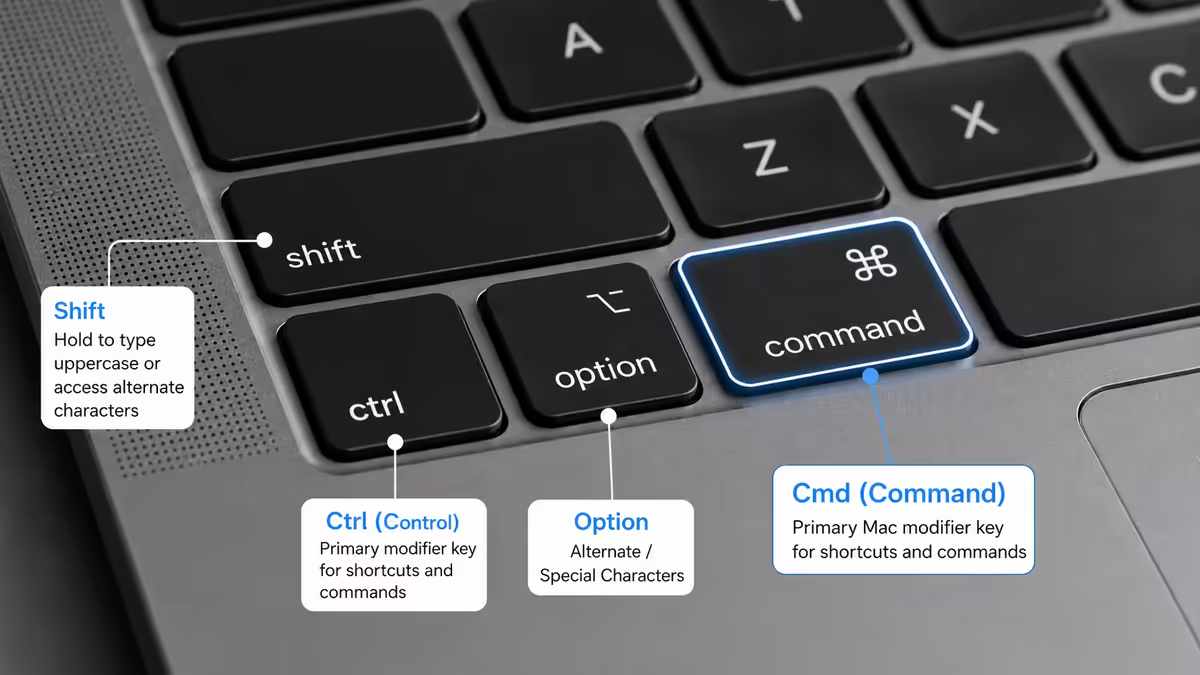
The Cmd key, explained
Every Mac shortcut is built around four modifier keys: Cmd, Option, Shift and Ctrl. Cmd is the primary one — it does what Ctrl does on Windows almost every time.
The Ctrl key on Mac exists but is used mostly for terminal commands, right-click emulation (Ctrl+Click) and a handful of system-level shortcuts. If you're holding Ctrl in everyday clipboard or save operations, you're holding the wrong key.
| Modifier | Mac role | Visual |
|---|---|---|
| Cmd (Command) | Primary modifier — clipboard, save, app actions | ⌘ |
| Option (Alt) | Secondary — alternates, special chars, word-by-word | ⌥ |
| Shift | Modifier — selection, capitalisation, ranges | ⇧ |
| Ctrl (Control) | Terminal, right-click sub, niche shortcuts | ⌃ |
File operations
The everyday clipboard and document shortcuts you'll use within minutes of any work session.
| Action | Shortcut | Notes |
|---|---|---|
| Copy | Cmd+C | Universal clipboard copy |
| Paste | Cmd+V | Universal clipboard paste |
| Paste and match style | Cmd+Shift+Option+V | Strips formatting on paste |
| Cut | Cmd+X | For text. Finder uses Cmd+C then Cmd+Option+V to move files |
| Undo | Cmd+Z | Universal undo |
| Redo | Cmd+Shift+Z | Reverse of undo |
| Select all | Cmd+A | Selects everything in focus |
| Save | Cmd+S | Universal save |
| Save as / duplicate | Cmd+Shift+S | Save copy under new name |
Cmd+P | Opens print dialog | |
| Find | Cmd+F | In-document or in-page search |
| Find and replace | Cmd+Option+F | In documents that support it |
The cut shortcut warning: Cmd+X works for text, but in Finder it does not move files. To move a file in Finder, copy with Cmd+C, then paste-and-move with Cmd+Option+V at the destination. This catches every Windows switcher in the first week.
Window management
Mac window management is fundamentally different from Windows. There's a distinction between quitting an app (closes the whole application) and closing a window (which may leave the app running in the menu bar).
| Action | Shortcut | Notes |
|---|---|---|
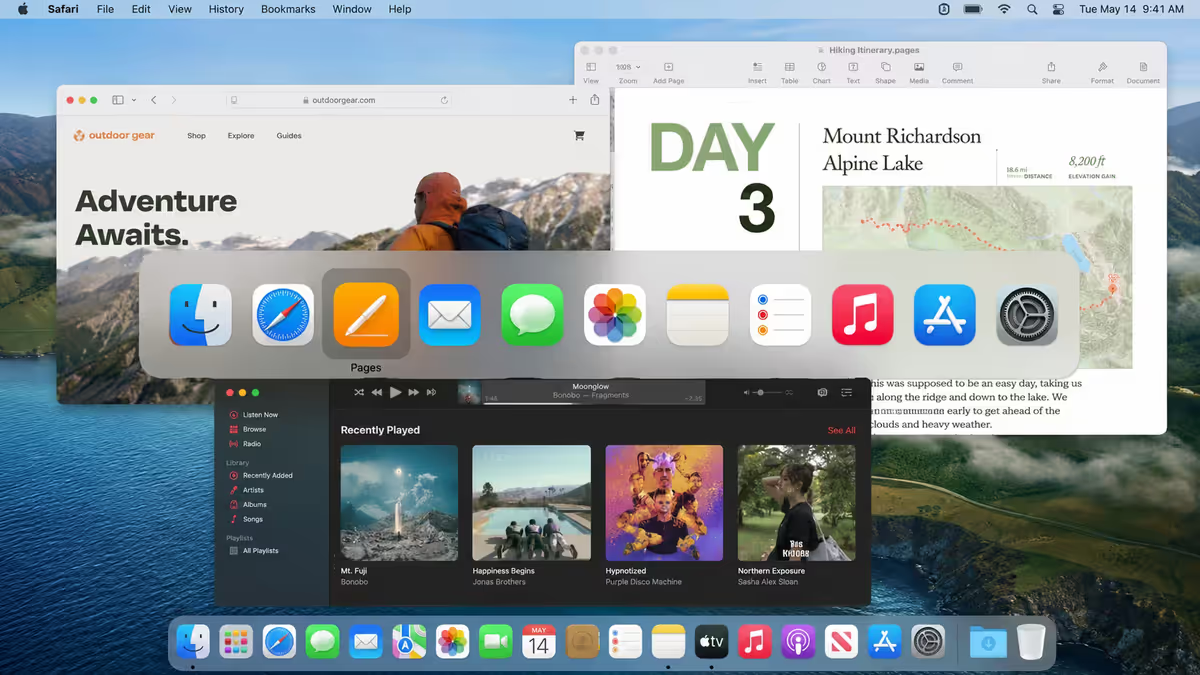
| Switch between apps | Cmd+Tab | App-level, not window-level |
| Cycle windows within current app | Cmd+` | The backtick key |
| Minimise window | Cmd+M | To the Dock |
| Hide current app | Cmd+H | Hides without minimising |
| Hide all other apps | Cmd+Option+H | Focus mode on the active app |
| Close active tab/window | Cmd+W | Tab in browsers, window in apps |
| Close all windows of app | Cmd+Option+W | Closes every window but keeps app running |
| Quit current app | Cmd+Q | Fully exits the application |
| Force-quit dialog | Cmd+Option+Esc | The Mac Ctrl+Alt+Del |
| Mission Control overview | Ctrl+Up | Shows all open windows |
| Show all windows of current app | Ctrl+Down | App Exposé |
| Switch desktops/spaces | Ctrl+Left/Right | Move between virtual desktops |
Finder navigation
Finder is the Mac equivalent of File Explorer, and the shortcuts make navigating folders dramatically faster than mousing.
| Action | Shortcut | Notes |
|---|---|---|
| New Finder window | Cmd+N | Opens at default location |
| New folder in current location | Cmd+Shift+N | Creates "untitled folder", ready to rename |
| New tab in Finder | Cmd+T | Tabbed browsing in Finder |
| Go to parent folder | Cmd+Up | One level up |
| Enter selected folder | Cmd+Down | Open the highlighted item |
| Quick Look preview | Space | Preview without opening — huge time saver |
| Move to Trash | Cmd+Delete | Send selected to Trash |
| Empty Trash | Cmd+Shift+Delete | Permanently delete |
| Empty Trash without confirmation | Cmd+Shift+Option+Delete | Skip the warning |
| Show package contents (right-click) | Ctrl+Click | Mac's "right-click" emulation |
| Get Info on file | Cmd+I | Properties window |
| Duplicate selected | Cmd+D | Creates copy with " copy" suffix |
| Go to specific folder by path | Cmd+Shift+G | Path bar dialog |
| Show hidden files toggle | Cmd+Shift+. | The single most useful Finder hack |
The Space-bar Quick Look is the single most under-used Mac feature. Select any file in Finder, tap Space, and it previews instantly without opening the parent app. Tap Space again to dismiss. This works for images, videos, PDFs, text files, code files and even most office documents.
Screenshots and screen recording
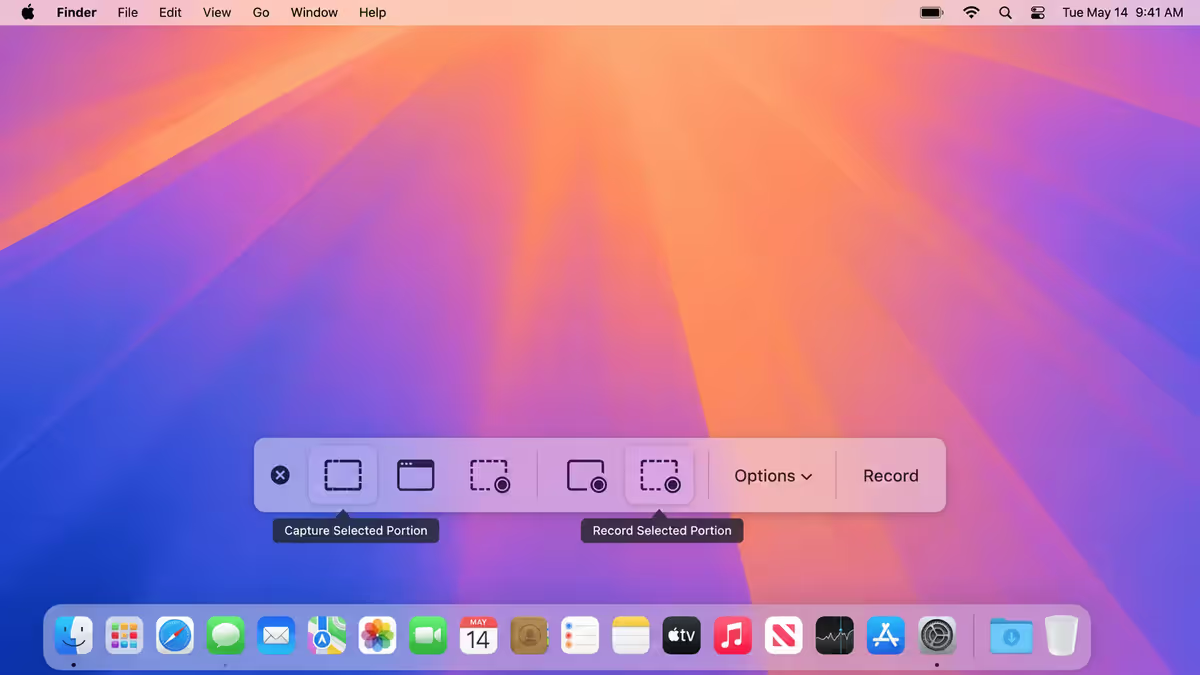
macOS has the best built-in screenshot system of any OS. Four shortcuts cover every case.
| Action | Shortcut | Notes |
|---|---|---|
| Full screen to Desktop | Cmd+Shift+3 | Whole screen, saved to Desktop |
| Selection to Desktop | Cmd+Shift+4 | Drag to select region |
| Window to Desktop | Cmd+Shift+4 then Space | Hover to highlight a window, click to capture |
| Screenshot menu (with recording) | Cmd+Shift+5 | Opens overlay with all options including video |
| Copy to clipboard instead of file | Add Ctrl to any of above | e.g. Cmd+Ctrl+Shift+4 |
| Touch Bar screenshot (older MBPs) | Cmd+Shift+6 | Captures the Touch Bar only |
Spotlight — the most important Mac shortcut
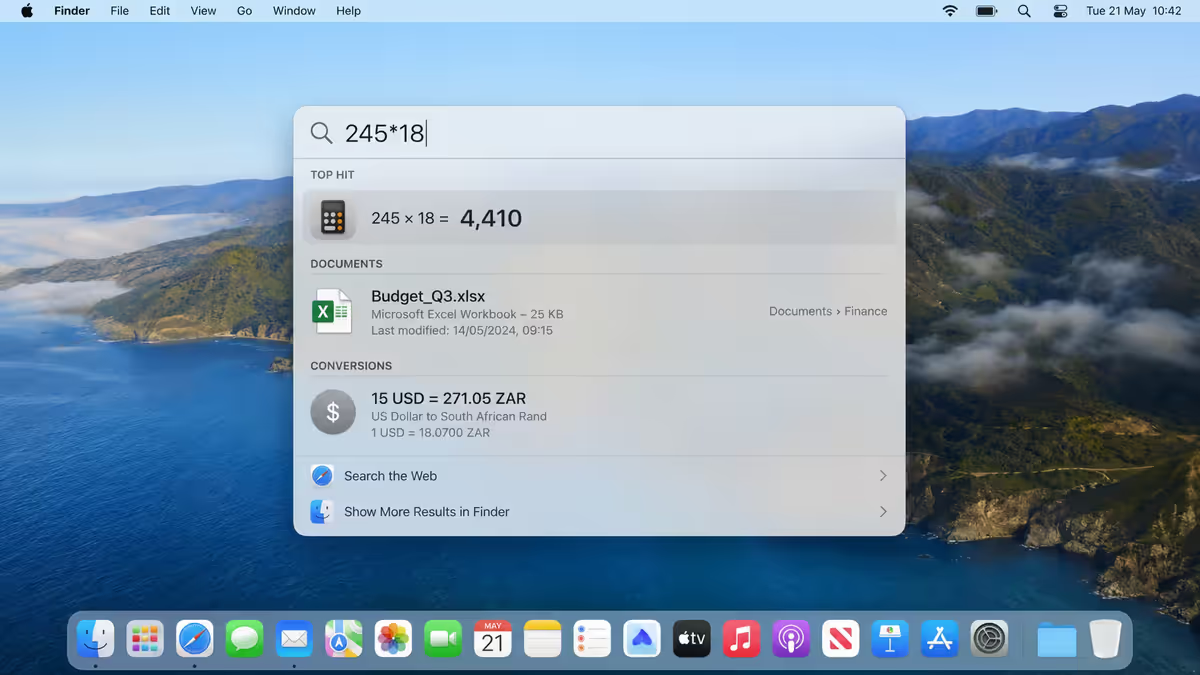
Cmd+Space opens Spotlight. It's a single shortcut. It does everything.
Things Spotlight does without any plugins or third-party tools:
- Launch any app by typing a few letters (replaces opening Applications folder).
- Find any file by name or content — searches inside PDFs, documents, code files.
- Calculator — type any math expression and the answer appears:
1284 * 17.95. - Unit and currency conversion — type
120 USD in ZARor5 miles in km. - Dictionary lookup — type any word for instant definition.
- System Settings shortcut — type
display,bluetooth,networkto jump straight to that setting pane. - Web search — Enter on any unrecognised query opens it in your default browser.
- Quick-open files by name — Cmd+Enter reveals the file in Finder instead of opening it.
Most switchers from Windows take 2-3 weeks to internalise Cmd+Space as their primary entry point. Once it sticks, you stop using the Dock for app launching almost entirely.
System controls
The system-level shortcuts every Mac user should know.
| Action | Shortcut | Notes |
|---|---|---|
| Lock screen | Cmd+Ctrl+Q | Immediate lock — Touch ID to unlock |
| Sleep display | Cmd+Option+Power | Display only, system stays awake |
| System sleep | Cmd+Option+Eject/Power | Full system sleep |
| Force-quit dialog | Cmd+Option+Esc | Lists running apps to kill |
| Force-quit front app | Cmd+Option+Shift+Esc (hold) | Hold 3 seconds to kill active app |
| Log out (quick) | Cmd+Q+Q | Press Q twice while holding Cmd |
| Log out (with confirmation) | Cmd+Shift+Q | Standard log out |
| Show or hide Dock | Cmd+Option+D | Toggle Dock auto-hide |
| Open System Settings | Cmd+, (in any app) | Or Spotlight: settings |
| Switch keyboard layout | Ctrl+Space | If multiple input sources enabled |
| Take Mac into Recovery | Cmd+R (at startup) | For reinstall/repair — Apple Silicon: hold Power |
| Safe Boot (Apple Silicon) | Hold Power, then "Options" | Diagnose extension issues |
Text editing precision
Mac text-editing shortcuts are different from Windows in one critical way: navigation uses Option for word-by-word and Cmd for line-start/end (Windows uses Ctrl for word and Home/End for line).
| Action | Shortcut | Notes |
|---|---|---|
| Move cursor one word | Option+Left/Right | Word-by-word navigation |
| Move to start/end of line | Cmd+Left/Right | Like Home/End on Windows |
| Move to top/bottom of document | Cmd+Up/Down | Jump to start or end |
| Select word | Option+Shift+Left/Right | Extend selection by word |
| Select to line start/end | Cmd+Shift+Left/Right | Select to line boundary |
| Select to document start/end | Cmd+Shift+Up/Down | Mass selection |
| Delete word backwards | Option+Delete | Delete previous word entirely |
| Delete to line start | Cmd+Delete | Wipe everything before cursor on current line |
| Forward delete | Fn+Delete | Delete character to the right (no dedicated Del key) |
| Bold / Italic / Underline | Cmd+B/I/U | Universal in any text app |
| Special character picker | Cmd+Ctrl+Space | Emoji and symbols |
Browser shortcuts (Safari, Chrome, Firefox)
All Mac browsers share the same core shortcuts. These work in Safari, Chrome, Firefox, Arc and Brave identically.
| Action | Shortcut | Notes |
|---|---|---|
| New tab | Cmd+T | Universal |
| Close tab | Cmd+W | Just the current tab |
| Reopen closed tab | Cmd+Shift+T | The most-loved browser shortcut |
| New window | Cmd+N | Fresh window |
| New private window | Cmd+Shift+N | Incognito/private mode |
| Switch to specific tab | Cmd+1 through Cmd+9 | Jumps to tab by position |
| Next/previous tab | Cmd+Option+Right/Left | Cycle through tabs |
| Focus address bar | Cmd+L | Jump to URL bar and select existing |
| Reload page | Cmd+R | Standard reload |
| Hard reload (bypass cache) | Cmd+Shift+R | Force fresh fetch |
| Open developer tools | Cmd+Option+I | Chrome, Firefox, Safari (after enabling) |
| Find in page | Cmd+F | Search current page content |
| Bookmark current page | Cmd+D | Add to bookmarks |
| Back / Forward in history | Cmd+[ / Cmd+] | Or trackpad swipe |
| Zoom in / out / reset | Cmd++ / Cmd+- / Cmd+0 | Universal zoom |
The 10 shortcuts you'll use daily
Of the 150+ shortcuts above, ten carry 80% of real daily use. Memorise these first and add others as you encounter the friction.
| Rank | Shortcut | What it does |
|---|---|---|
| 01 | Cmd+Space | Open Spotlight — your universal entry point |
| 02 | Cmd+C / Cmd+V | Copy and paste |
| 03 | Cmd+Tab | Switch between open apps |
| 04 | Cmd+W | Close the current tab |
| 05 | Cmd+Q | Quit the current app |
| 06 | Cmd+Z | Undo |
| 07 | Cmd+S | Save |
| 08 | Cmd+Shift+4 | Screenshot a region |
| 09 | Cmd+Shift+T | Reopen the tab you just closed accidentally |
| 10 | Cmd+Ctrl+Q | Lock screen when stepping away |
Windows-to-Mac translation map
If you're switching from Windows, this is the cheat sheet. The pattern: replace Ctrl with Cmd for ~90% of shortcuts.
| Windows shortcut | Mac equivalent | Action |
|---|---|---|
Ctrl+C / V / X | Cmd+C / V / X | Copy / Paste / Cut |
Ctrl+Z / Y | Cmd+Z / Cmd+Shift+Z | Undo / Redo |
Ctrl+S / P / F / N | Cmd+S / P / F / N | Save / Print / Find / New |
Alt+Tab | Cmd+Tab | Switch apps |
Alt+F4 | Cmd+Q | Quit app entirely |
Ctrl+W | Cmd+W | Close tab/window |
Ctrl+Alt+Delete | Cmd+Option+Esc | Force quit dialog |
Windows key | Cmd+Space | Spotlight (vs Start menu) |
Print Screen | Cmd+Shift+3/4/5 | Screenshot variants |
Windows+L | Cmd+Ctrl+Q | Lock screen |
F2 (rename) | Return / Enter | Rename in Finder (yes, Return) |
Delete (forward) | Fn+Delete | Forward-delete a character |
Home / End | Cmd+Left/Right | Start/end of line |
Ctrl+Home/End | Cmd+Up/Down | Top/bottom of document |
| Right-click | Ctrl+Click or two-finger trackpad | Context menu |
Common shortcut mistakes
Holding Ctrl instead of Cmd for clipboard operations. The most common Windows-to-Mac muscle-memory error. Ctrl+C on Mac does nothing in most apps. Train your thumb to find Cmd — it sits just left of the spacebar.
Pressing Cmd+W when you meant to quit the app. Cmd+W closes one tab. Cmd+Q quits the whole app. If you're closing tab after tab trying to "close" the app, switch to Cmd+Q.
Pressing Return to open a file in Finder. Return triggers rename, not open. Use Cmd+Down or Cmd+O to open the selected item. Or just double-click.
Using Cmd+X to move files in Finder. Cut works for text but not file management. To move a file: Cmd+C at source, then Cmd+Option+V at destination (the Option key turns paste into move).
Ignoring Spotlight. Most Windows switchers spend their first 3 weeks clicking through the Applications folder to launch apps. The moment you internalise Cmd+Space + type a few letters + Enter, your daily friction drops dramatically.
Not using Quick Look. Selecting any file in Finder and pressing Space previews it without opening the app. Most users discover this years into Mac ownership.
Force-quitting too quickly. Cmd+Option+Esc kills the app without saving. If an app is just sluggish (not actually frozen), give it 30 seconds before nuking. The spinning beachball usually resolves.
Key takeaways
- Cmd replaces Ctrl for ~90% of shortcuts — train your thumb to find it just left of the spacebar.
- Cmd+Space is the single biggest productivity unlock — Spotlight replaces Start menu, calculator and app launcher all in one.
- Cmd+W closes a tab; Cmd+Q quits the whole app — they're not interchangeable.
- Cmd+Shift+3/4/5 covers every screenshot scenario — add Ctrl to copy to clipboard instead of saving.
- In Finder, Return renames and Space-bar previews — both counter-intuitive for Windows switchers but huge time savers once learned.
Frequently asked questions
What is the single most important MacBook keyboard shortcut?
Cmd+Space opens Spotlight — the system-wide search that replaces the Start menu, app launcher, calculator and file finder all in one. Switchers from Windows almost always cite this as the biggest productivity unlock once they internalise it.How do I close just one tab, not the whole window?
Cmd+W closes only the active tab. Cmd+Shift+W closes the whole window. Cmd+Q quits the entire application (not just the window).What is the Cmd key on a MacBook keyboard?
Cmd (Command) is the primary modifier key on Mac — equivalent to Ctrl on Windows for almost every shortcut. Cmd+C copies, Cmd+V pastes, Cmd+S saves, Cmd+Z undoes.How do I take a screenshot on a MacBook?
Cmd+Shift+3 captures the full screen. Cmd+Shift+4 lets you drag a selection. Cmd+Shift+5 opens a menu with screen recording. Add Ctrl to any of these to copy to clipboard instead of saving.How do I switch between apps quickly?
Cmd+Tab cycles through open applications. Hold Cmd and tap Tab repeatedly to cycle forward; Cmd+Shift+Tab cycles backward. To switch between windows within the same app, use Cmd+` (backtick).How do I force quit an app on a MacBook?
Cmd+Option+Esc opens the Force Quit dialog. For the active app, Cmd+Option+Shift+Esc held for 3 seconds force-quits without the dialog. The Mac equivalent of Windows' Ctrl+Alt+Delete.What is the shortcut to lock a MacBook screen?
Cmd+Ctrl+Q locks the screen immediately (password or Touch ID to unlock). The fastest way to lock before stepping away.How do I move the cursor word-by-word?
Option+Left/Right moves the cursor one word at a time. Cmd+Left/Right jumps to the start or end of the current line. Add Shift to either combo to select while moving.
Get the Evetech app
Exclusive app-only prices, daily flash sales, and free delivery on orders over R4,000 — download the app and start saving.