Mac Switching · Translation Guide
Windows shortcuts → Mac translation. — Every Ctrl, Win and Alt mapped.
The hardest part of switching from Windows to Mac isn't the OS — it's the muscle memory. Two weeks of "wait, where's Cmd?" and then it clicks. This guide compresses that two-week curve into a single afternoon of reference.
- core mapping
- Ctrl → ⌘
- to fluency
- ~14 days
- mac-only wins
- ~12
Modifier key mapping — the foundation
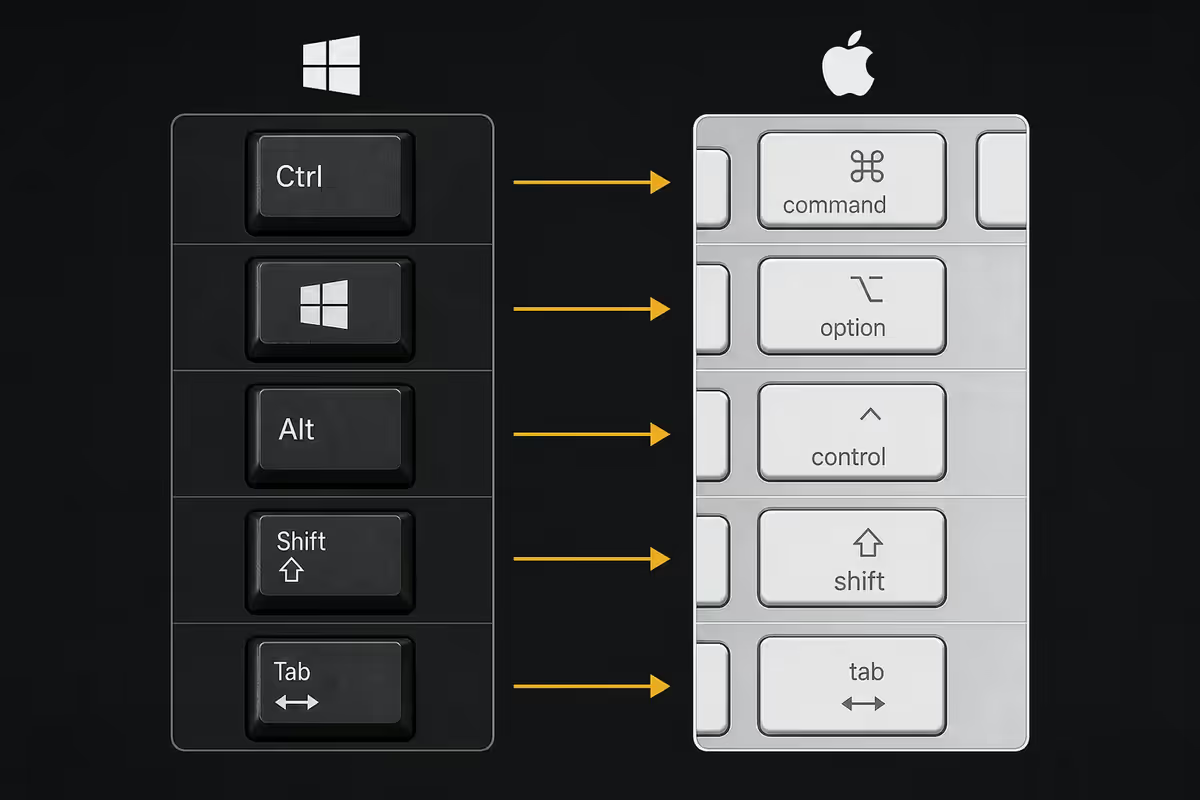
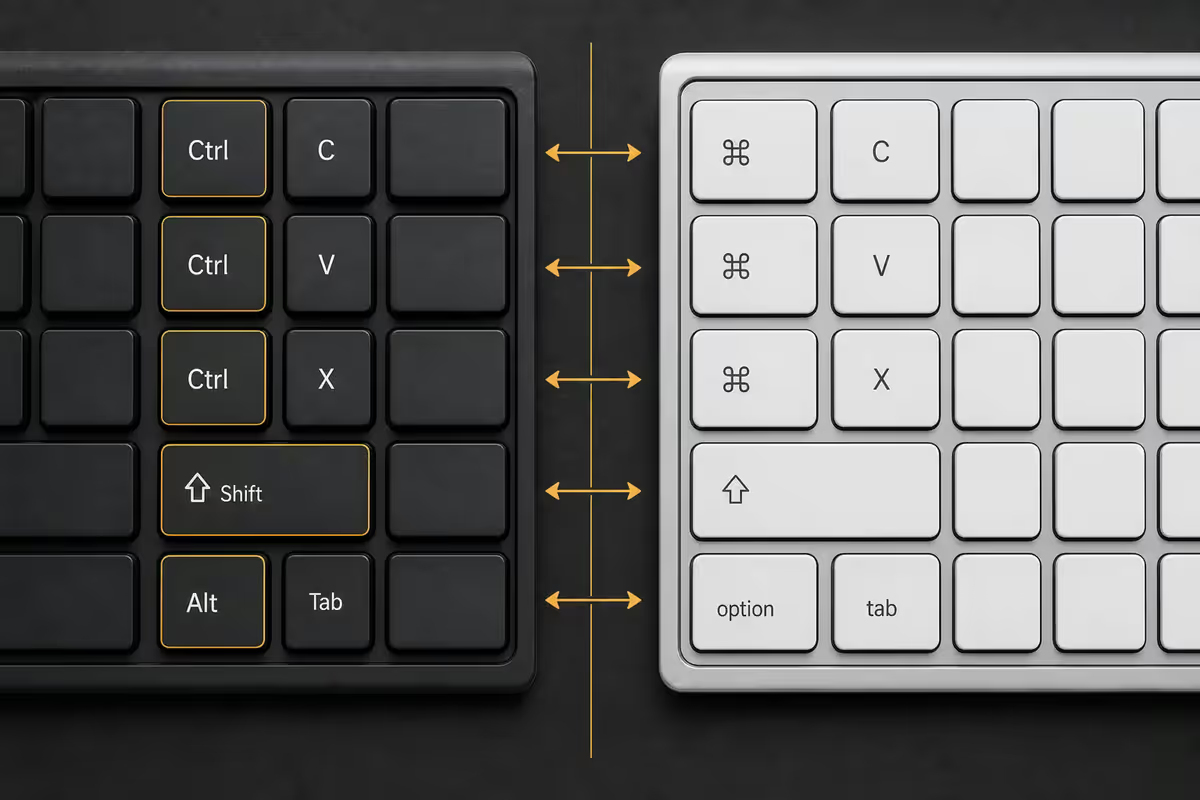
Every Mac shortcut starts with one of four modifier keys. Three have direct Windows analogues. One doesn't. Understanding this mapping unlocks 90% of daily shortcuts in fifteen minutes.
| Mac key | Windows analogue | Role |
|---|---|---|
Command (⌘) | Ctrl | Primary modifier — copy, paste, save, undo, app commands. |
Option (⌥) | Alt | Alternative actions — special characters, modifier behaviour. |
Control (⌃) | Ctrl (rare) | Used for terminal shortcuts, right-click modifier, some system functions. |
Shift (⇧) | Shift | Identical role on both platforms. |
Fn | Fn | Function key modifier. Same role. |
The physical layout is what trips up most switchers. On a Windows keyboard, the bottom-left row reads Ctrl, Fn, Win, Alt, Space. On a Mac, it reads fn, control, option, command, space. The keys you reach for with your thumb (next to spacebar) are different roles. Your left thumb naturally lands on Cmd on Mac, where it would land on Alt on Windows.
This is actually deliberate Apple design — Cmd is the most-used modifier, so it sits where the strongest finger naturally rests. Once your hand adapts (2-3 days), the result is genuinely more ergonomic than the Windows convention.
Daily-use shortcuts — the translation table
These are the shortcuts you use ten times an hour. Memorise this table once and 80% of your workflow translates.
| Action | Windows | Mac |
|---|---|---|
| Copy | Ctrl + C | ⌘ + C |
| Paste | Ctrl + V | ⌘ + V |
| Cut | Ctrl + X | ⌘ + X |
| Undo | Ctrl + Z | ⌘ + Z |
| Redo | Ctrl + Y | ⌘ + Shift + Z |
| Save | Ctrl + S | ⌘ + S |
| Select all | Ctrl + A | ⌘ + A |
| Find in document | Ctrl + F | ⌘ + F |
| New tab (browser) | Ctrl + T | ⌘ + T |
| Close tab | Ctrl + W | ⌘ + W |
| Switch tab (next) | Ctrl + Tab | ⌘ + Option + → |
| Close window | Alt + F4 | ⌘ + W (or ⌘ + Q to quit app) |
| Switch apps | Alt + Tab | ⌘ + Tab |
| Switch windows in app | Alt + Tab | ⌘ + ` (backtick) |
| Open Search / Launcher | Win + S or Win | ⌘ + Space |
| Lock screen | Win + L | ⌘ + Ctrl + Q |
| Open Task Manager / Force Quit | Ctrl + Shift + Esc | ⌘ + Option + Esc |
| Refresh / Reload | F5 | ⌘ + R |
| Open file in folder | Enter | ⌘ + O (Enter renames!) |
| Rename file | F2 | Enter |
| Delete file | Delete | ⌘ + Delete |
Mac-only superpowers — the dozen shortcuts that change everything
These have no Windows equivalent, or the Windows version is significantly weaker. They're the reason many switchers don't go back.
| Shortcut | What it does |
|---|---|
⌘ + Space | Spotlight — universal search. Apps, files, calculations, definitions, web search, conversions ("R5000 in USD", "200 / 7"). Genuinely faster than Windows Search. |
⌘ + Ctrl + Space | Emoji and symbol picker. Insert any emoji or special character anywhere. No third-party app needed. |
⌘ + Ctrl + D | Look Up word under cursor — instant dictionary, thesaurus, Wikipedia, App Store, music. Works in any text field, any app. |
⌘ + Shift + 4 then Space | Capture any single window with drop shadow, instantly. Perfect for documentation screenshots. |
⌘ + Shift + 5 | Full screenshot toolbar with screen recording, timer, area selection, save location options. |
F3 or three-finger swipe up | Mission Control — overview of every window across every desktop. Best multitasking UI on any OS. |
⌘ + H | Hide current app instantly. Cleaner than minimising — the app vanishes from the visible space without going to the Dock. |
⌘ + Option + H | Hide all other apps. Instant focus mode. |
⌘ + , (comma) | Open Preferences for the current app. Universal across virtually every Mac app. |
⌘ + Q | Quit the current app entirely. Different from Cmd+W (close window). |
| Three-finger drag on trackpad | Drag windows by their title bar without holding a click. Requires enabling in Accessibility settings. |
| Four-finger swipe left/right | Switch between virtual desktops (Spaces). Smoother than Win+Ctrl+Left/Right on Windows. |
Spotlight alone is worth the switch. Cmd+Space, type "calc 4000 * 1.15", get R4,600. Cmd+Space, type "spreadsheet", launch Numbers. Cmd+Space, type a contact name, get their phone number and email. It's a command palette for the entire OS.
Screenshots — where Mac genuinely beats Windows
Mac's screenshot tools are years ahead of Windows Snipping Tool. Four core shortcuts cover every capture need:
⌘ + Shift + 3— full screen, saved to Desktop as PNG.⌘ + Shift + 4— drag to select an area. Press Spacebar mid-drag to switch to window capture mode.⌘ + Shift + 4thenSpace— click any window to capture it with its drop shadow. Brilliant for documentation.⌘ + Shift + 5— open the screenshot toolbar. Includes screen recording, area recording, timer, and option to change save location to Documents, Clipboard, Mail, Messages, Notes.
To save to clipboard instead of Desktop (Windows PrtScn behaviour): add Control to any of the above. ⌘ + Shift + Ctrl + 3 copies the full screen to clipboard.
After each screenshot, a thumbnail appears in the bottom-right corner for ~5 seconds. Click it to immediately mark up the screenshot, annotate, crop, share, or drag into another app. This step alone replaces three separate Windows utilities (Snipping Tool, Paint, screenshot annotation apps).
Text navigation — different conventions, similar speed
Mac uses different modifier conventions for cursor and selection navigation. These are the shortcuts you'll use thousands of times daily once they become muscle memory.
| Action | Windows | Mac |
|---|---|---|
| Move to start of line | Home | ⌘ + ← |
| Move to end of line | End | ⌘ + → |
| Move to start of document | Ctrl + Home | ⌘ + ↑ |
| Move to end of document | Ctrl + End | ⌘ + ↓ |
| Jump word left | Ctrl + ← | ⌥ + ← |
| Jump word right | Ctrl + → | ⌥ + → |
| Select to start of line | Shift + Home | ⌘ + Shift + ← |
| Select word | Double-click | Double-click |
| Select line | Triple-click | Triple-click |
| Delete word backward | Ctrl + Backspace | ⌥ + Delete |
| Delete word forward | Ctrl + Delete | ⌥ + Fn + Delete |
The pattern: Cmd controls line/document boundaries, Option controls word boundaries. Once you internalise that split (about a week), text editing on Mac is slightly more elegant than Windows — fewer awkward stretches across the keyboard for Home/End.
Where Mac is genuinely faster
Spotlight (Cmd+Space). Windows Search has improved with Windows 11, but it's still slower, less consistent and less feature-rich than Spotlight. Spotlight does math, conversions, definitions, file content search, app launching, web search and Apple service shortcuts (open Mail, compose Message, start FaceTime) from a single keystroke.
Mission Control (F3). The instant overview of every window across every desktop is unmatched. Windows + Tab on Windows shows recent activity but doesn't lay out all current windows in spatial grid the way Mission Control does.
Three-finger trackpad gestures. Swipe up for Mission Control, left/right for desktop switching, spread for Launchpad, pinch for Show Desktop. The combination is faster than equivalent Windows actions and requires no keyboard shortcut.
Look Up (Cmd+Ctrl+D). Hover over any word, press the shortcut, get dictionary, thesaurus, Wikipedia, App Store, music. Works in every app. Windows has nothing equivalent.
Continuity (Universal Clipboard). Copy a phone number on your iPhone, paste it on your Mac. Copy an image on your Mac, paste it into iPhone Notes. Screen sharing via AirDrop. Hand-off between devices. Windows + Android has equivalents but they're laggier and require more setup.
Hide app (Cmd+H). Vanish the current app without minimising it. The window disappears entirely from screen but the app stays running. Cleaner than the Windows minimise convention. Cmd+Option+H hides every other app — instant focus.
Where Windows still wins
Window snapping (Win + Arrow keys). Snap to half-screen, quarter-screen, maximise, restore — instant, intuitive, no third-party apps required. PowerToys FancyZones extends this with custom zone layouts. macOS Sequoia added native window tiling but it's still slower and less flexible than Windows snapping. This is the single biggest "I miss this" item for switchers.
Print Screen to clipboard. Press PrtScn on Windows, the screen is in your clipboard, paste anywhere. Mac requires Cmd+Shift+Ctrl+3 — the same outcome but four keys instead of one.
Alt + F4 for window close. Direct, single-handed, kills the window immediately. Mac's equivalent (Cmd + W to close window, Cmd + Q to quit app) requires choosing between the two — slight cognitive overhead.
Right-click drag in File Explorer. Drag a file with the right mouse button held to get a contextual menu: move, copy, create shortcut. Mac requires modifier keys for each action (Option to copy, no built-in symlink modifier).
Game launcher integration. Steam, Epic, Battle.net, Xbox Game Pass all integrate deeply with Windows. macOS gaming has improved with Apple Silicon, but the launcher and shortcut ecosystem is still Windows-first.
Retraining muscle memory — the 14-day plan
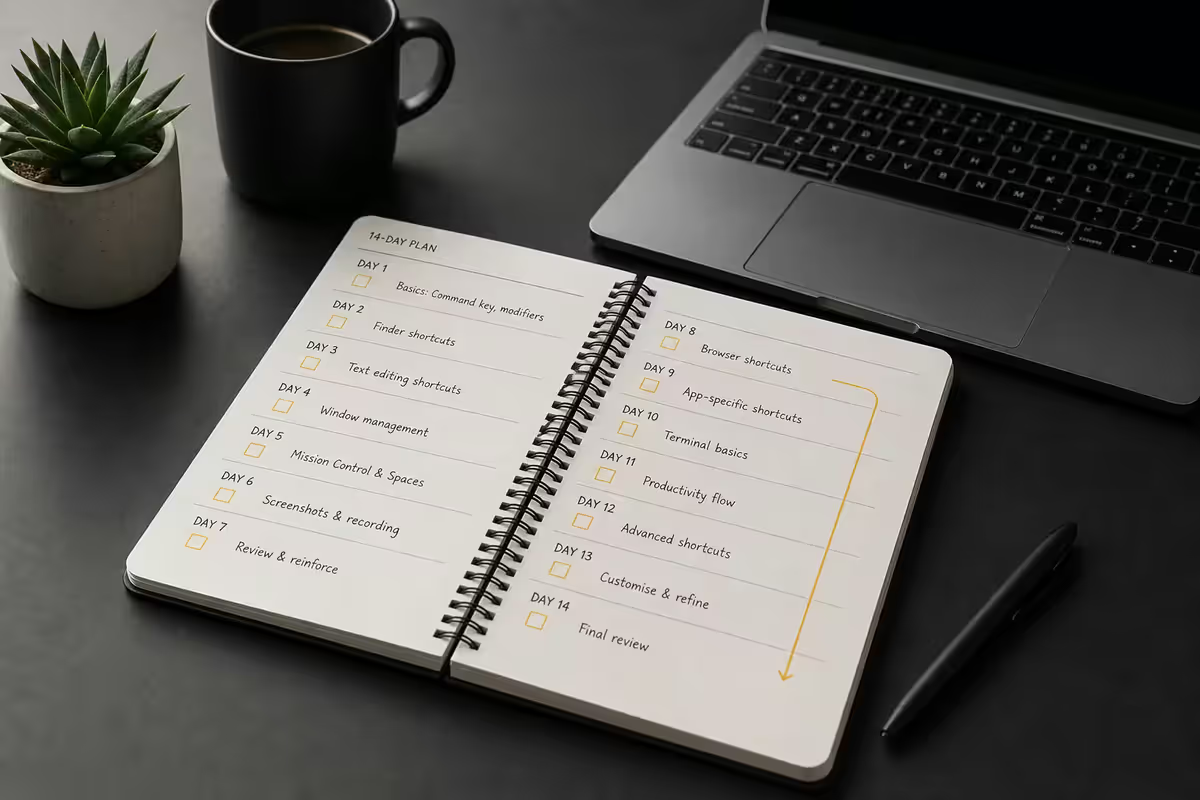
The fastest way to internalise the new shortcuts isn't to "try to remember" — it's to force yourself to use them deliberately for the first two weeks.
- Day 1-3: Print this guide. Stick it next to your monitor. Every time you reach for Ctrl, consciously redirect to Cmd. Your hands will fight you for three days.
- Day 4-7: Stop using the mouse for navigation. Force yourself through Cmd+Tab, Cmd+W, Cmd+Space for everything. You'll be slow. That's fine.
- Day 8-14: Add the Mac-only shortcuts (Cmd+Space, Mission Control, Cmd+Ctrl+D). These are the reasons Mac is genuinely faster — use them to feel the benefit.
- Day 15 onwards: Fluency. You'll occasionally hit Ctrl+C on Mac and Cmd+C on Windows — that's the cost of fluency on both. Worth it.
Key takeaways
- Ctrl maps to Cmd for 90% of shortcuts. Get this and you have most of the OS.
- Cmd+Space (Spotlight) replaces the entire Windows Start Menu + Search + Run experience.
- Cmd+Tab switches apps. Cmd+` switches windows within the current app. Different from Alt+Tab.
- Mac screenshots (Cmd+Shift+3/4/5) are genuinely better than Windows Snipping Tool.
- Fluency takes 7-14 days of deliberate practice. Print this guide, stick it on your monitor.
Frequently asked questions
What's the Mac equivalent of Ctrl on Windows?
Command (Cmd, ⌘). Cmd+C copies, Cmd+V pastes, Cmd+S saves. The physical key sits where Alt sits on Windows — next to spacebar.What's the Mac equivalent of the Windows key?
Cmd+Space opens Spotlight (Mac's universal search and launcher) — the closest equivalent. Cmd+Tab cycles apps, F3 opens Mission Control.How do I take a screenshot on Mac?
Cmd+Shift+3 full screen, Cmd+Shift+4 selected area, Cmd+Shift+5 opens the full screenshot toolbar with recording, timer and save options.Is Cmd+Tab the same as Alt+Tab on Windows?
Functionally similar but Cmd+Tab switches between apps, not windows. Use Cmd+` (backtick) to cycle windows of the current app.What replaces the Right-Click on Mac?
Two-finger tap on the trackpad, or Control+click anywhere. External two-button mice work normally with full right-click support.How do I navigate text faster on Mac?
Cmd+Left/Right for line start/end. Option+Left/Right for word boundaries. Cmd+Up/Down for document start/end. The pattern: Cmd = line/doc, Option = word.Where is Mac genuinely faster than Windows?
Spotlight (Cmd+Space), Mission Control (F3), three-finger trackpad gestures, screenshot tools (Cmd+Shift+5), Look Up (Cmd+Ctrl+D), and Universal Clipboard between Apple devices.Where does Windows still win on shortcuts?
Window snapping (Win+Arrow), Alt+F4, Print Screen to clipboard, and PowerToys FancyZones for custom layouts. macOS Sequoia's native tiling is still slower and less flexible.