Windows to Mac Switching Guide
Migrate from Windows to Mac.
— Inventory first. Migrate second. Adjust third.
Software inventory — the step everyone skips
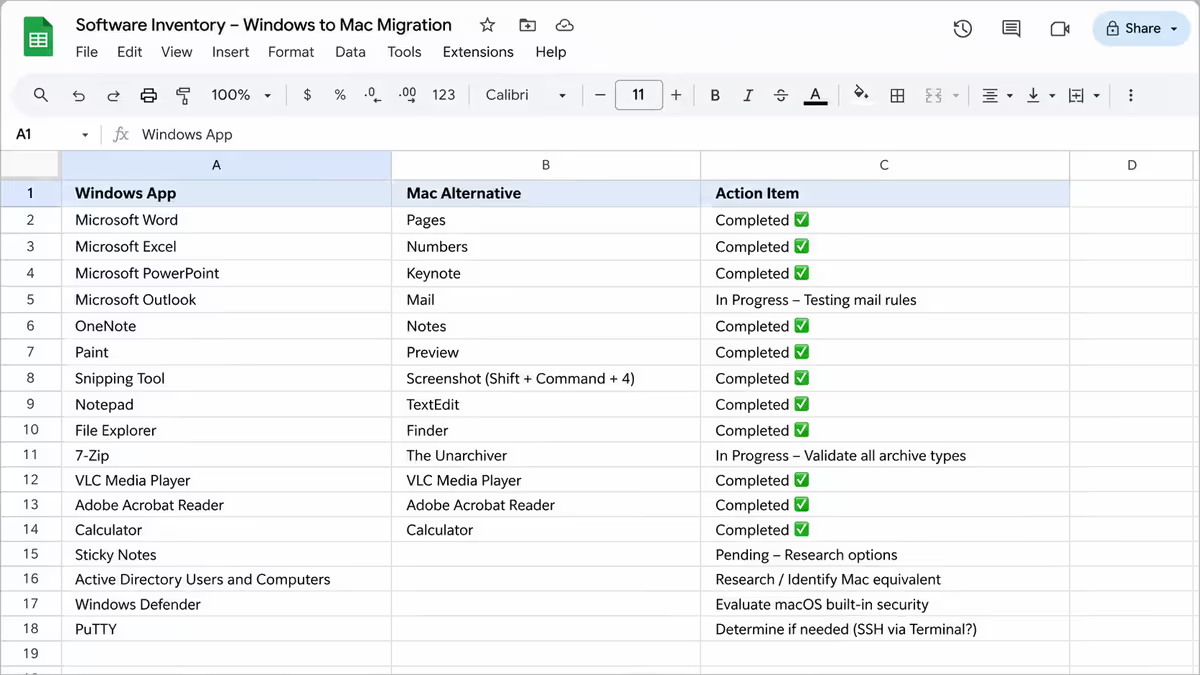
This is the single most important pre-migration step. Do it before purchase, not after. Here's the process:
- Open Windows Settings → Apps → Installed apps. Screenshot or list every installed app.
- For each app, ask three questions: Do I actually use it? (uninstall if no). Does it have a Mac version (search "app name Mac")? If no Mac version, what's the alternative on Mac?
- For your daily-use apps, verify the Mac version supports the same file formats and workflows you depend on.
- For Windows-only critical apps (legacy desktop tools, some accounting/banking/tax software, SA-specific gov platforms), check if there's a web version or if you need to keep a Windows PC/VM around.
The output should be a list with three columns: App name, Mac path (native / web / alternative / unavailable), Action (install on Mac / use web / find alternative / keep Windows for this).
Backup your Windows PC
Before any migration, take a full backup. Two ways:
- Full disk image using Macrium Reflect Free, Veeam Agent or Windows built-in System Image. Restores the entire Windows machine if anything goes wrong.
- Folder-level backup using OneDrive, Google Drive, Dropbox or an external USB drive. Copies your Documents, Pictures, Music, Videos and Downloads folders to cloud or local backup.
Verify the backup is complete and readable before proceeding. The single worst migration outcome is realising mid-process that the backup is incomplete or corrupted.
Apple ID setup with SA region
Your Apple ID is how you sign into iCloud, the App Store, iMessage and FaceTime. The SA region matters for:
- App Store currency (ZAR for SA region).
- Payment methods accepted (SA credit cards, Apple Pay if available, SA gift cards).
- Available apps (a few apps are region-restricted).
- Apple One subscriptions (iCloud+, Apple Music, Apple TV+ — SA pricing).
If you already have an Apple ID: sign in with it on the new Mac. If the region is set to US/UK from years ago when SA wasn't well supported, you can change region in Settings → Apple ID → Country/Region. Change requires zero balance on the existing account and a SA payment method.
If you're creating a new Apple ID: set the country to South Africa during creation. Use a SA-issued credit/debit card or "None" if you're only using free apps initially. SA payment methods include Standard Bank, FNB, ABSA, Capitec, Nedbank, Discovery Bank, Investec.
Migration Assistant — the built-in route
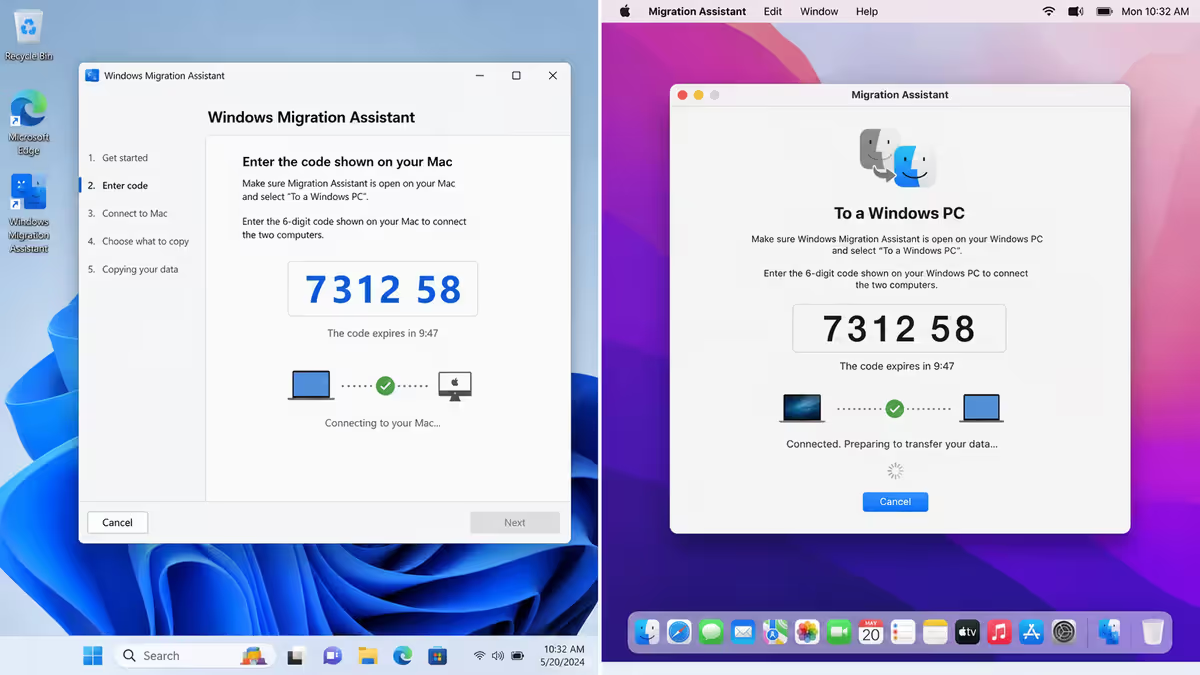
macOS includes a Migration Assistant tool specifically built for moving from Windows. The Windows side needs a small download (Windows Migration Assistant from Apple's site), the Mac side has it built in.
Step-by-step:
- On Windows: download "Windows Migration Assistant" from apple.com/migrate-to-mac. Run it. Close all other applications.
- On Mac: during initial setup, when prompted, choose "From a Windows PC" as the migration source. (If you're past initial setup, run Migration Assistant from Applications → Utilities.)
- Connect both machines to the same Wi-Fi network — or for faster migration, connect them with a USB-C-to-USB-A cable directly (Wi-Fi works fine, cable is 3-5× faster).
- Wait for the Mac to detect the Windows PC (usually under a minute). A confirmation code appears on both screens — verify they match.
- Choose what to transfer: User Account (Documents, Pictures, Music, Videos), Bookmarks, Mail accounts, Contacts, Calendar. Skip anything you don't need.
- Click Continue. Time estimate appears (typically 30-90 minutes for typical user data; longer for huge photo/video libraries).
- Don't touch either machine until complete. The Mac restarts when done. You sign into the migrated user account.
What migrates and what doesn't
| Data type | Migration Assistant transfers it? |
|---|---|
| Documents folder | Yes — fully |
| Pictures folder | Yes — fully |
| Music folder (mp3 files) | Yes — fully |
| Videos folder | Yes — fully |
| Browser bookmarks (Chrome, Edge, Firefox) | Yes |
| Mail accounts (IMAP/POP/Exchange) | Yes |
| Contacts, Calendar | Yes |
| Windows applications (.exe files) | No — incompatible |
| Software licences (one-machine activations) | No — must re-activate on Mac |
| Windows registry tweaks | No — Mac doesn't use the registry |
| iTunes/Apple Music library | Yes — re-link on Mac |
| Photos library (Windows Photos app) | Partial — re-import to Apple Photos |
| Saved passwords (browser) | Partial — via browser sync (Chrome, Firefox, Edge sync) |
Software equivalence — Windows app → Mac equivalent
| Windows app | Mac equivalent |
|---|---|
| Microsoft Office (Word, Excel, PowerPoint) | Same — Microsoft 365 native on Mac |
| Adobe Creative Cloud (Photoshop, Premiere, etc.) | Same — Adobe CC native on Mac |
| Google Chrome / Firefox / Edge | Same — all native on Mac |
| Spotify, Discord, Slack, Zoom, Teams | Same — native Mac apps |
| VS Code, IntelliJ, PyCharm | Same — native Mac apps |
| Notepad++ | BBEdit (free tier), Sublime Text, VS Code |
| IrfanView / FastStone Image Viewer | Preview (built-in), XnView MP |
| Total Commander / Directory Opus | ForkLift, Path Finder |
| OneNote | Apple Notes (free), Bear, Obsidian |
| Snipping Tool / Snip & Sketch | Cmd+Shift+4 (built-in), CleanShot X |
| 7-Zip / WinRAR | The Unarchiver (free), Keka |
| PuTTY | Built-in Terminal, iTerm2 |
| Sticky Notes | Apple Stickies (built-in) |
| Calculator (Windows) | Calculator (built-in, Spotlight does maths too) |
| Paint / Paint.NET | Preview (basic), Acorn, Pixelmator Pro |
| Windows Media Player / VLC | VLC (native Mac), QuickTime (built-in) |
Keyboard shortcut translation
The fundamental rule: Ctrl → Cmd for most shortcuts. The Cmd key (next to spacebar) takes over Windows-Ctrl's role for copy/paste/save/select-all/find/etc.
| Windows shortcut | Mac equivalent |
|---|---|
| Ctrl + C / V / X | Cmd + C / V / X |
| Ctrl + Z / Y | Cmd + Z / Cmd+Shift+Z |
| Ctrl + S | Cmd + S |
| Ctrl + A | Cmd + A |
| Ctrl + F | Cmd + F |
| Alt + Tab | Cmd + Tab |
| Alt + F4 | Cmd + Q (quit app) / Cmd + W (close window) |
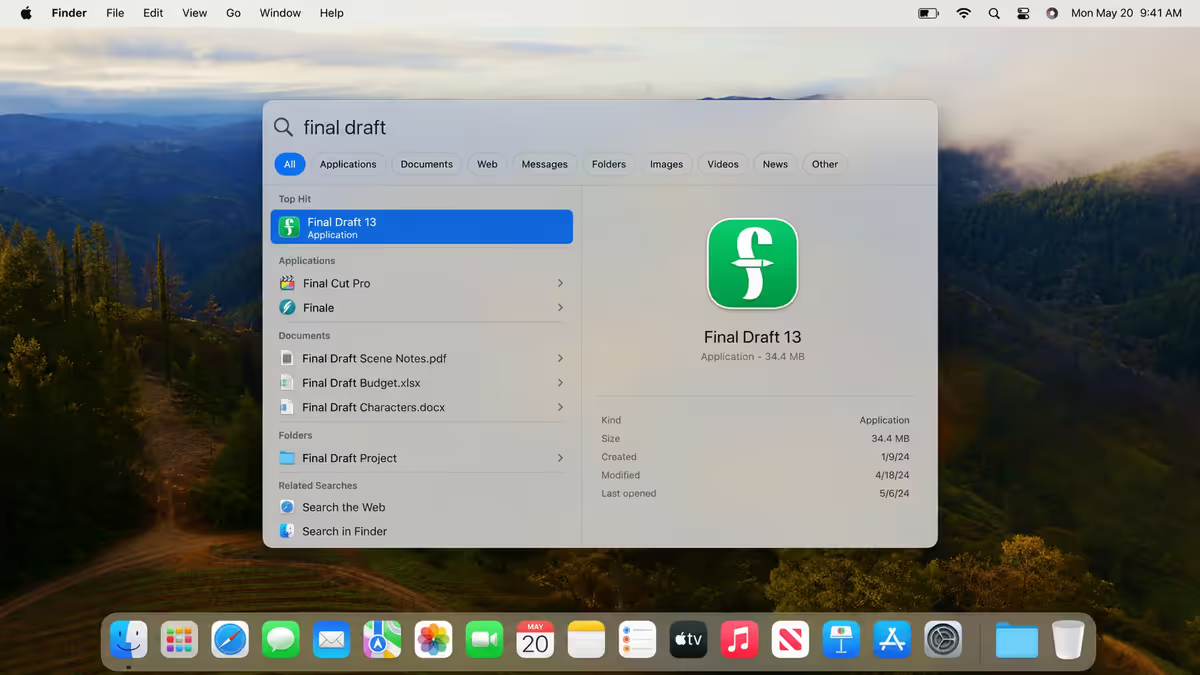
| Windows key (Start Menu) | Cmd + Space (Spotlight) |
| Print Screen | Cmd + Shift + 3 (full screen) / Cmd + Shift + 4 (region) |
| Win + L (lock) | Cmd + Ctrl + Q |
| F2 (rename file) | Return / Enter (in Finder) |
| Delete (forward delete) | Fn + Delete (on most Mac keyboards) |
| Ctrl + Click (right-click) | Cmd + Click ≠ right-click — use two-finger trackpad tap |
Function keys behave differently. By default, the F-row on Mac keyboards is media keys (brightness, volume, etc.). To get true F1-F12 behaviour, hold the Fn key. To make F-keys default to F1-F12, go to System Settings → Keyboard → "Use F1, F2, etc. as standard function keys".
Trackpad gestures — the killer feature
Mac trackpads are widely considered the best in the industry. If you're switching from a Windows laptop, the Mac trackpad will feel transformative within a week. The core gestures:
- Two-finger scroll. Up/down/left/right scroll in any window.
- Two-finger tap. Right-click. (Or single-finger tap with Ctrl held.)
- Three-finger swipe left/right. Switch between virtual desktops (Spaces).
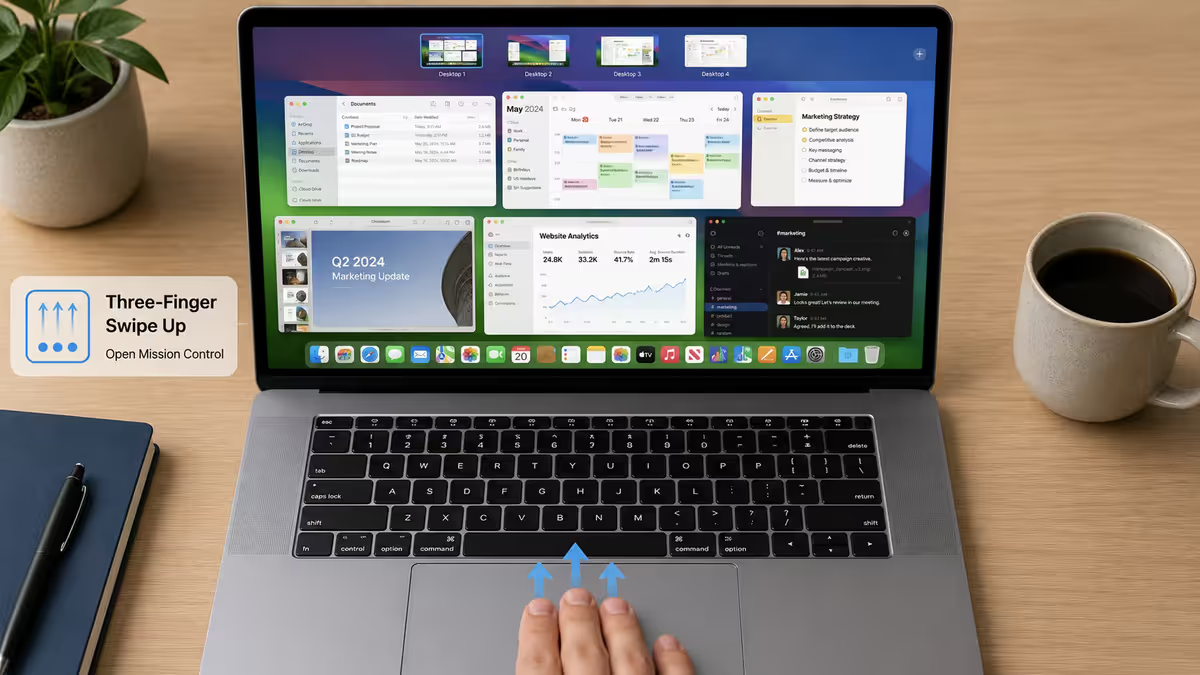
- Three-finger swipe up. Mission Control (shows all open windows).
- Three-finger swipe down. App Exposé (shows all windows of the current app).
- Four-finger pinch. Launchpad (shows all installed apps).
- Four-finger spread. Show Desktop.
- Two-finger pinch. Zoom in/out (in supported apps — Maps, Photos, Safari).
Open System Settings → Trackpad to see the full gesture list with animations. Spend 10 minutes here on day one — it's the best onboarding Apple has built.
File system differences
Three practical differences from Windows to be aware of:
- Case-insensitive but case-preserving (default). "Photo.jpg" and "photo.jpg" are treated as the same file (you can't have both in the same folder), but the case you typed is remembered. Same behaviour as Windows. Easy.
- No drive letters. No C:, D:, E:. Everything lives in a single tree starting at root (/). External drives appear in /Volumes/. Most users only see Finder sidebar entries, never the raw path.
- Hidden files start with a dot. Files like ".bashrc" or ".DS_Store" are hidden by default in Finder. Press Cmd+Shift+. (period) to toggle hidden files visible.
- Resource forks and extended attributes. Mac files can have additional metadata that Windows doesn't see. When transferring files to a Windows machine via USB, Mac may add ".DS_Store" and "._filename" files — harmless artefacts.
Windows habits that hurt on Mac
Maximising every window. On Windows, you maximise windows to fill the screen. On Mac, the green button maximises into full-screen mode (the menu bar hides and the window becomes its own Space). To resize without entering full-screen, double-click the window's title bar or Option-click the green button.
Closing the last window quits the app. On Windows, closing the last window of an app quits the app. On Mac, the app keeps running in the background (dot under the icon in the Dock). To actually quit, use Cmd+Q. This catches every switcher in the first week.
Alt+Tab cycles windows, not apps. On Mac, Cmd+Tab cycles between apps, not individual windows. To cycle windows within an app, use Cmd+~ (tilde). Different mental model, faster once internalised.
Right-click expectation. Right-click still works (two-finger tap on trackpad, or Ctrl+click), but Mac apps often hide functions in menu-bar menus rather than context menus. Look up at the top of the screen — the active app's menu lives there.
Searching with the Start Menu. Spotlight (Cmd+Space) replaces the Start Menu and is dramatically faster. Type an app name to launch it, a file name to open it, a calculation to evaluate it, a unit conversion, a word definition, even Wikipedia lookups. The fastest Mac users live in Spotlight.
SA App Store and payment considerations
The Mac App Store is region-locked to your Apple ID region. For SA users:
- Set Apple ID region to South Africa for ZAR pricing and SA payment methods.
- SA credit/debit cards work for most major SA banks (Standard Bank, FNB, ABSA, Capitec, Nedbank).
- Apple gift cards are available at some SA retailers (Pick n Pay, Game, certain phone shops) for top-up.
- iCloud+ pricing in ZAR — 50GB R15/month, 200GB R45/month, 2TB R145/month (May 2026 pricing, check current).
- Apple Music, Apple TV+ subscriptions billed in ZAR if Apple ID is SA region.
- Some apps are not available in SA store (rare but possible). Workaround: maintain a US Apple ID for those specific apps (separate from your main SA Apple ID), and switch ID just for those downloads.
Behind the Build · From our service bench
- custom PCs shipped from Centurion
- 200,000+
- migration friction: software equivalence
- ~58%
- migration friction: keyboard shortcut adjustment
- ~22%
- migration friction: file system edge cases
- ~12%
- migration friction: Apple ID SA-region payment issues
- ~8%
Common Windows-to-Mac mistakes
Buying the Mac before software inventory. The most common regret. Switcher buys the Mac, discovers a critical Windows-only app has no good Mac alternative, ends up either dual-booting Windows on the side or returning the Mac. Always inventory first.
Trying to use Migration Assistant for apps. Migration Assistant transfers data, not apps. Windows .exe files don't run on Mac. Expect to re-install all your apps from scratch.
Setting up a US Apple ID instead of SA. Some switchers default to US for the larger app catalogue. This creates payment friction (no SA cards accepted) and pricing mismatch (USD vs ZAR). Always set to SA region for SA users.
Fighting the Cmd vs Ctrl change for weeks. Some switchers try to remap Cmd to Ctrl to "feel like Windows". This breaks every Mac convention and creates conflicts. Embrace the change — within 2 weeks, Cmd feels natural.
Skipping the trackpad gesture tutorial. Open System Settings → Trackpad on day one. Spend 10 minutes learning the gestures. Most switchers spend months using the trackpad as a "Windows touchpad with a different texture" and miss the productivity gains entirely.
Key takeaways
- Software inventory before purchase — list every app, find Mac path or alternative, confirm critical workflows before buying.
- Migration Assistant transfers user data over Wi-Fi or USB-C cable in 30-90 minutes. Apps must be re-installed manually.
- Set Apple ID region to South Africa for ZAR pricing, SA payment methods and SA App Store access.
- Ctrl → Cmd is the core shortcut translation. Cmd+Tab cycles apps, Cmd+~ cycles windows. 1-2 weeks to muscle memory.
- Learn the trackpad gestures on day one — three-finger swipes change everything, four-finger pinch reveals Launchpad.
Frequently asked questions
How long does Windows to Mac migration take?
30-90 minutes for file migration via Migration Assistant. 1-3 hours to re-install apps and sign into subscriptions. 1-2 weeks for keyboard and trackpad muscle memory.Will my Windows software run on Mac?
Cross-platform software (Office, Adobe CC, browsers, Slack, Spotify, VS Code) runs natively on Mac. Windows-only apps need a Mac alternative — software inventory before purchase prevents surprises.What is Migration Assistant?
Apple's built-in tool that transfers user data (Documents, Pictures, Music, Videos, bookmarks, mail, contacts, calendar) from a Windows PC to a Mac over Wi-Fi or USB-C. Apps must be re-installed separately.Do I need an Apple ID with SA region?
Yes for buying apps — region determines currency (ZAR for SA), payment methods, and available apps. Free apps work across regions. SA Apple ID is the right choice for SA users.How do keyboard shortcuts translate?
Ctrl → Cmd is the main translation. Cmd+C, Cmd+V, Cmd+Z, Cmd+S, Cmd+A all work like their Windows-Ctrl equivalents. Alt → Option. 1-2 weeks for muscle memory.What replaces Alt-Tab and the Start Menu on Mac?
Cmd+Tab replaces Alt+Tab (cycles apps). Spotlight (Cmd+Space) replaces the Start Menu (search and launch). Mission Control (F3) shows all open windows.What's the most common switching mistake?
Buying the Mac before software inventory. Most switcher friction is software equivalence. Inventory your Windows apps first, find Mac alternatives, then buy.Is the Mac file system case-sensitive?
By default no — case-insensitive but case-preserving (same as Windows). A developer-only case-sensitive option exists but most users shouldn't enable it.