Mac Monitor Buying Guide
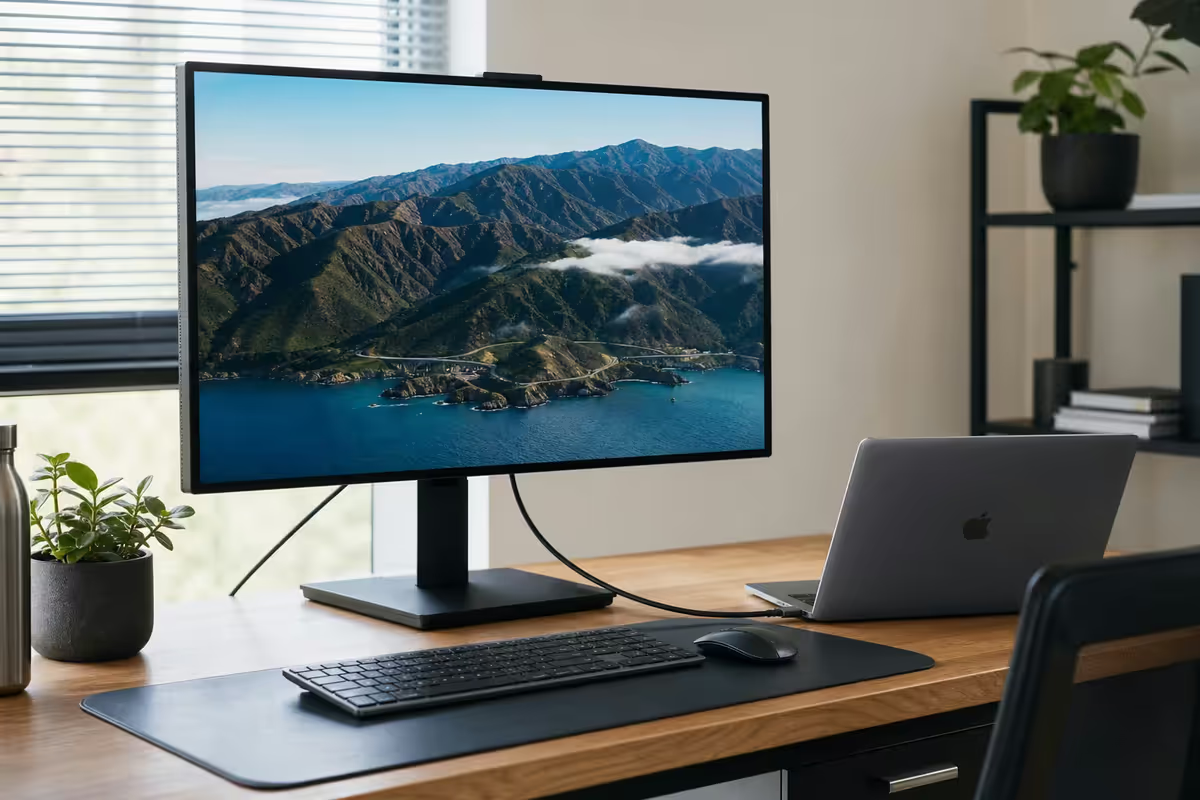
Best monitor for Mac users. — Retina pixels. One USB-C cable.
macOS was designed for 218ppi. Plug a MacBook into a 1440p panel and the text looks soft — not your eyes. Here's the pixel-density target that makes macOS sing, plus the Studio Display alternatives that don't cost R40k.
- retina target
- 200+ ppi
- single-cable PD
- 90W USB-C
- SA price range
- R7k-R42k
4K vs 5K vs 1440p on macOS
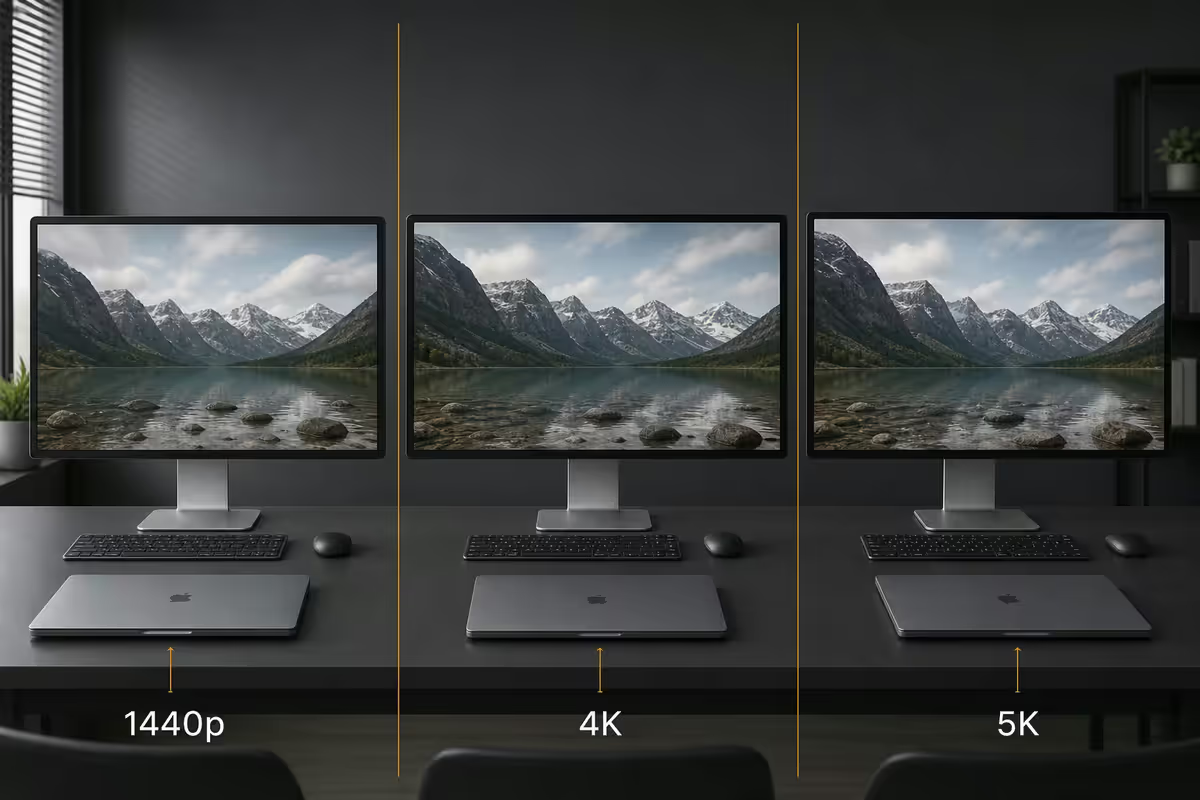
On Windows, a 1440p 27-inch monitor is the productivity sweet spot. On macOS, the same panel looks soft. The difference is how each OS handles fractional scaling — and it changes which resolution you should buy.
| Resolution at 27" | Pixel density | macOS verdict |
|---|---|---|
| 1080p (Full HD) | 81 ppi | Avoid — text looks visibly blurry |
| 1440p (QHD) | 109 ppi | Workable, soft text, not what macOS expects |
| 4K (UHD) | 163 ppi | Sweet spot — sharp enough for daily work |
| 5K | 218 ppi | True Retina — matches Studio Display |
| 6K (32") | 218 ppi | Pro Display XDR territory |
macOS uses integer scaling on Retina-class displays (200+ppi) — every UI pixel maps cleanly to 4 physical pixels, producing the crisp text Apple's hardware is famous for. On sub-200ppi panels, macOS falls back to fractional scaling, which doesn't render text or fine UI elements cleanly. Sub-pixel antialiasing was removed in macOS Mojave (2018), which made low-DPI panels look worse than they used to.
If you've ever plugged a MacBook into a cheap 1440p monitor and thought "why does this look fuzzy?", that's why. The fix is pixel density, not a software setting.
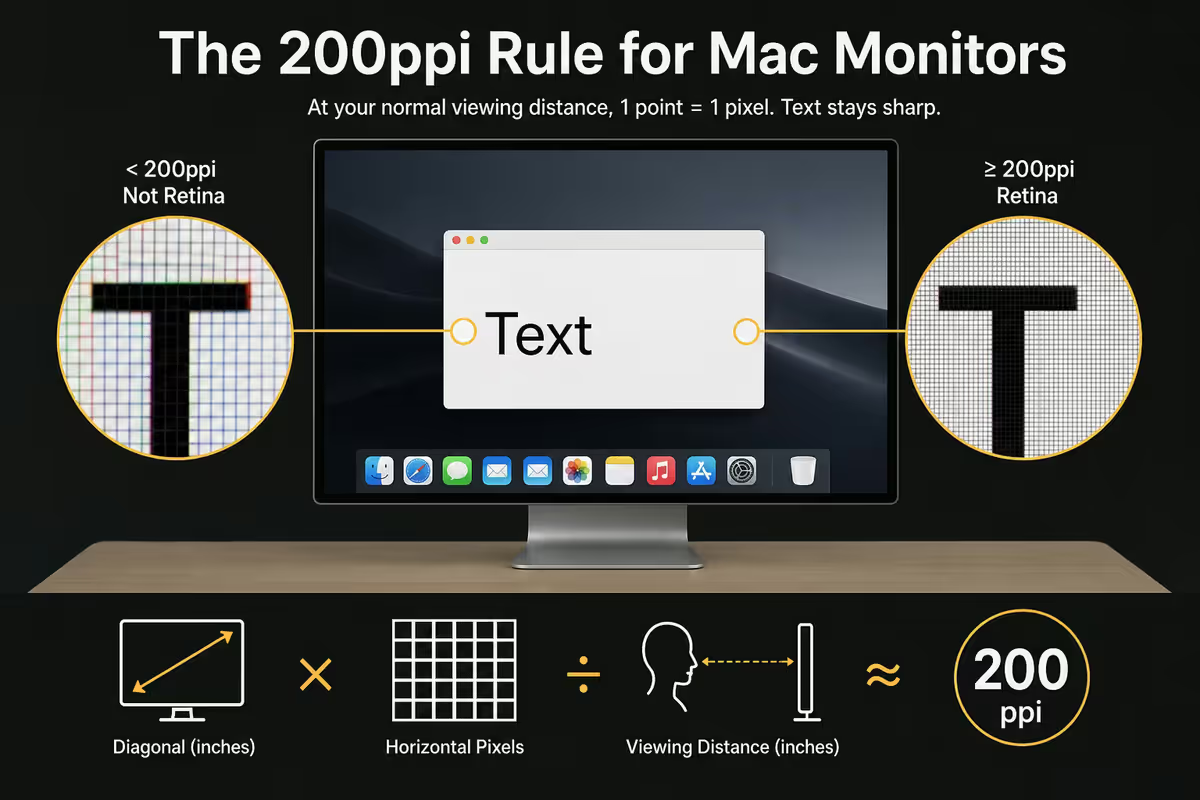
Retina pixel density — the 200ppi rule
Apple's "Retina" branding describes any panel where individual pixels are imperceptible at typical viewing distance. For a desktop monitor at arm's length (around 60cm), that threshold is roughly 200ppi. Below it, you can resolve individual pixels and macOS antialiasing struggles. Above it, text looks printed.
The Studio Display, iMac 24", MacBook Pro Liquid Retina XDR and Pro Display XDR all sit at exactly 218ppi. That's not coincidence — macOS is tuned for this density. When you match it externally, the experience matches the laptop screen.
What 218ppi looks like in practice
- Code editors: SF Mono and JetBrains Mono render with the same sharpness as a printed manual — no anti-aliasing softness.
- Design work: Figma, Sketch and Affinity Designer match the MacBook display, so what you see is what your audience sees.
- Long-form writing: Reading 8-10 hours a day at 163ppi is fine; at 218ppi it's noticeably less fatiguing.
- Photo editing: 100% pixel-peeping shows real edge sharpness rather than display-scaling artefacts.
The honest tradeoff: 4K at 27 inches (163ppi) is genuinely fine for daily work — most Mac users will be happy. 5K (218ppi) is the upgrade that's hard to un-see, but you're paying double for the last 30% of polish.
USB-C and the single-cable workflow
This is the feature that changes how you work with a MacBook. A USB-C monitor with power delivery becomes the docking station — one cable connects display, charge, webcam, ethernet and your peripherals to the laptop.
Walk over with the MacBook, plug in one cable, and your desk setup activates instantly. Walk away, unplug, take everything with you. No dongle dock required.
How much wattage do you actually need?
| MacBook model | Stock charger | Minimum monitor PD |
|---|---|---|
| MacBook Air (M2/M3/M4) | 30W | 60W — full speed, headroom |
| MacBook Pro 14" (M3/M4 Pro) | 70W | 90W — charges at full speed |
| MacBook Pro 14" (M3/M4 Max) | 96W | 96W ideal, 90W workable |
| MacBook Pro 16" (M3/M4 Pro/Max) | 140W | 96W charges (slowly under load), 140W ideal |
Almost no monitors ship with 140W PD yet — even the Studio Display tops out at 96W. For MacBook Pro 16" users running heavy workloads, your monitor will charge the laptop during light use and trickle-charge or hold steady under sustained load. That's acceptable for most people.
Apple Studio Display vs third-party 4K
The Apple Studio Display is the obvious choice — and the obvious price problem. R35,000-R42,000 in SA buys you 218ppi, six-speaker audio, a centred webcam, and the exact macOS-native rendering Apple designed for. It's also a 2022 panel with no HDR, a 60Hz refresh rate, and a height-adjustable stand that costs R7,000 extra.
For roughly the same R35k, you can buy two Dell U2723QE 27-inch 4K monitors and have money left over. Or one Dell plus a Sonos speaker. Or one Dell plus a wide-angle webcam plus a Mac-friendly USB-C dock.
When the Studio Display is the right call:
- You do colour-critical work and need 218ppi for visual parity with the MacBook display.
- You're allergic to cable management and want the single-cable, branded-look workflow.
- You value the all-in-one webcam + speaker package and don't want extras on the desk.
- You're spending the company's money and resale value matters in 3 years.
When a third-party 4K is the right call:
- You also use a Windows or Linux machine and need DisplayPort/HDMI inputs.
- You want HDR for video editing or grading.
- You want KVM features to switch between two computers cleanly.
- You value the savings more than the last 30ppi of sharpness.
HDR, KVM and macOS-specific features
A few macOS-specific behaviours change which features are worth paying for.
HDR support — limited but real
macOS supports HDR on DisplayHDR 600 or higher panels via DisplayPort or Thunderbolt. The implementation is narrower than Windows: HDR shines for video playback (Apple TV+, YouTube HDR, Final Cut grading) but doesn't transform the general desktop. For coding, writing or web design, HDR is irrelevant — don't pay extra for it.
KVM switching
If you have both a MacBook and a separate Windows PC or Mac mini, a monitor with built-in KVM lets you swap between them with one keyboard and mouse. The Dell U2723QE handles this beautifully — one USB-C cable to the Mac, one DisplayPort + USB-B to the PC, swap with a hotkey or menu. Saves a physical KVM box on the desk.
Sidecar & AirPlay
If you have an iPad, Sidecar turns it into a wireless second display — useful for palettes in Photoshop or reference docs while you work. The Samsung Smart Monitor M8 also supports AirPlay 2, so you can mirror from a MacBook or iPhone without any cable. Neither replaces a proper external monitor, but both reduce the need for a second physical screen.
Recommended Mac monitors by use case
| Use case | Pick | SA price |
|---|---|---|
| Best value (most Mac users) | Dell U2723QE 27" 4K | R14,000-R16,500 |
| Budget Mac monitor | LG 27UP650-W 27" 4K | R7,500-R9,000 |
| True Retina pixel density | LG UltraFine 5K 27" | R28,000-R32,000 |
| Apple-purist setup | Apple Studio Display 27" | R35,000-R42,000 |
| Big-screen 4K HDR | BenQ PD3225U 32" 4K | R18,000-R22,000 |
| Smart features + AirPlay | Samsung Smart Monitor M8 32" | R13,000-R16,000 |
| Ultrawide for productivity | LG 40WP95C-W 40" 5K2K | R32,000-R38,000 |
Common Mac monitor mistakes
Buying 1440p because the spec sheet looks similar to Windows-recommended monitors. macOS treats 1440p panels differently. Get 4K or don't bother — the same R8k spent on a sharp 4K beats a fancy 1440p with extra features.
Ignoring USB-C PD wattage. A "USB-C monitor" with 15W PD is a data port, not a charger. Verify the wattage in the spec sheet before buying. For MacBook Pro 14"/16", look for 90W minimum.
Paying for a high refresh rate you don't need. 120Hz is genuinely better for cursor smoothness and pro-motion-style animations, but macOS doesn't benefit from 144Hz+ the way games do. Don't pay R5k extra for a gaming-spec refresh you won't notice.
Buying an ultrawide before checking density. Most ultrawides are 140ppi or lower — below the Retina threshold. The exception is the LG 40WP95C-W and Samsung ViewFinity S9 49". For most Mac users, two 27" 4K monitors side-by-side beats one ultrawide.
Forgetting about the webcam. A Studio Display includes a centred webcam at the top of the panel — the right height for video calls. Third-party monitors don't, so budget R2k-R4k for an external webcam (Logitech MX Brio or Insta360 Link) plus a clip to mount it cleanly.
Key takeaways
- The 200ppi rule — macOS expects Retina density. Skip 1440p, get 4K or 5K at 27 inches.
- Dell U2723QE 27" 4K (R14k-R16.5k) is the right pick for most Mac users in SA.
- USB-C with 90W power delivery turns the monitor into the dock. Don't accept less.
- Studio Display wins on pixel density and aesthetic; Dell wins on price, KVM and HDR.
- Two 27" 4K monitors side-by-side beat one ultrawide for most Mac creative workflows.
Frequently asked questions
What's the best monitor for a MacBook Pro in South Africa?
The Dell U2723QE 27" 4K (R14,000-R16,500) is the right pick for most Mac users. 218ppi feel, 90W USB-C single-cable, KVM. Step up to the LG UltraFine 5K (R28k-R32k) for true Retina density.Is 4K enough for Mac, or do I need 5K?
4K at 27" gives ~163ppi, sharp enough for daily work. 5K gives 218ppi — true Retina, matches Studio Display. 5K is the upgrade you can't un-see for code and design work; 4K is fine for general productivity.Why does my MacBook look blurry on a 1440p monitor?
macOS uses fractional scaling on sub-Retina displays. 1440p at 27" is 109ppi — well below the 200ppi macOS expects. Sub-pixel antialiasing was removed in macOS Mojave, making this worse. Fix: get a 4K or 5K panel.Do I need USB-C power delivery on my Mac monitor?
Yes — USB-C with 90W PD turns the monitor into a docking station, single-cable to your MacBook. MacBook Air needs only 60W. MacBook Pro 14" needs 90W. MacBook Pro 16" wants 96W or higher.Apple Studio Display vs Dell U2723QE — which is better?
Studio Display wins on pixel density (218ppi 5K), build quality, audio and webcam. Dell wins on price (less than half), connectivity, KVM and HDR. For colour-critical purism, Studio Display. For value, Dell.What's the best ultrawide monitor for Mac?
LG 40WP95C-W 40" 5K2K (R32k-R38k) at 140ppi is the best option. Samsung ViewFinity S9 49" gives Studio Display density across a massive canvas. For most Mac users, two 27" 4K monitors side-by-side is better value.Does macOS support HDR on third-party monitors?
Yes, on DisplayHDR 600+ panels via DisplayPort or Thunderbolt. Most useful for video playback and Final Cut grading. Less impactful for general desktop use. Focus on pixel density and USB-C PD instead.What's the cheapest decent monitor for a MacBook?
LG 27UP650-W 27" 4K at R7,500-R9,000 — 163ppi, HDR400, 60W USB-C PD. Samsung ViewFinity S6 27" 4K (R8.5k-R10k) is a close alternative with 90W PD. Don't go below 4K on macOS.
Get the Evetech app
Exclusive app-only prices, daily flash sales, and free delivery on orders over R4,000 — download the app and start saving.