Coding Monitor Buying Guide
Best monitor for coding. — 27" 1440p IPS. End of debate.
Programming monitors aren't gaming monitors. Text rendering matters more than HDR peaks. Subpixel layout matters more than 0.03ms response time. Here's what actually moves you forward.
- sweet-spot size
- 27"
- eye comfort
- 100Hz+
- dev tiers
- R5k-R18k
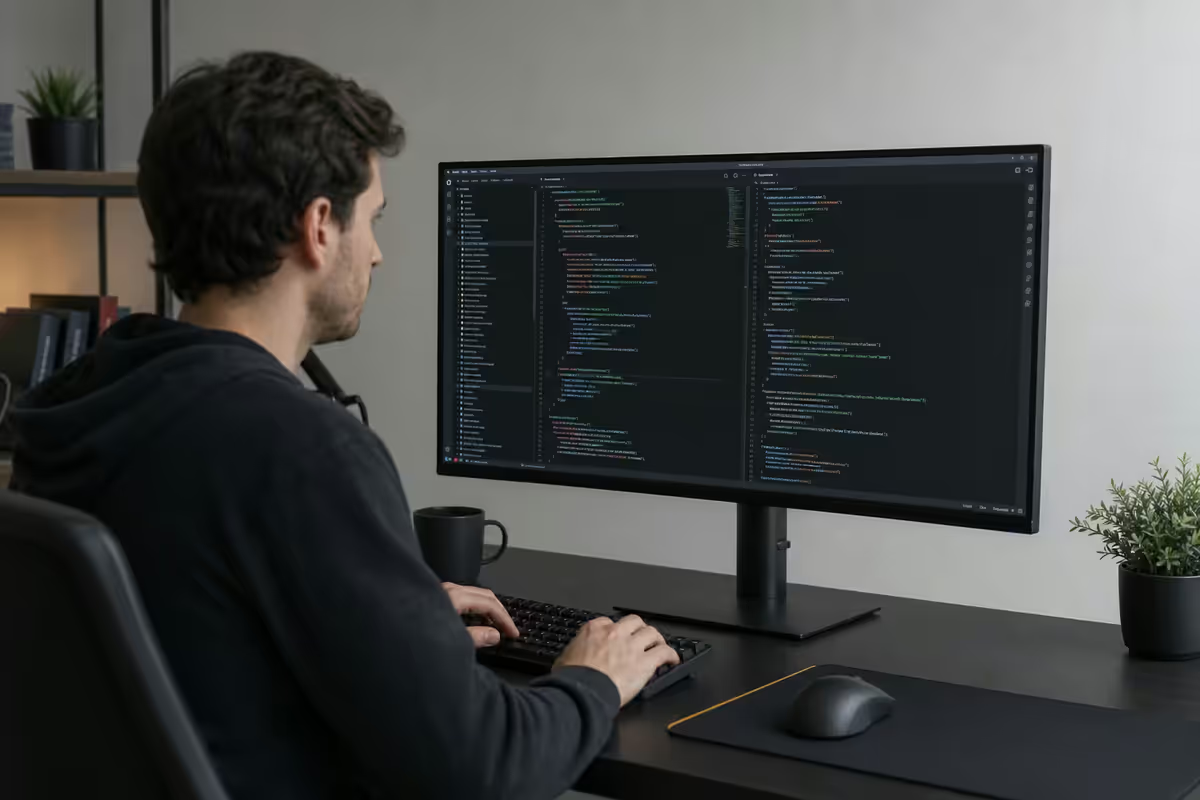
Size and resolution — 27" 1440p or 32" 4K
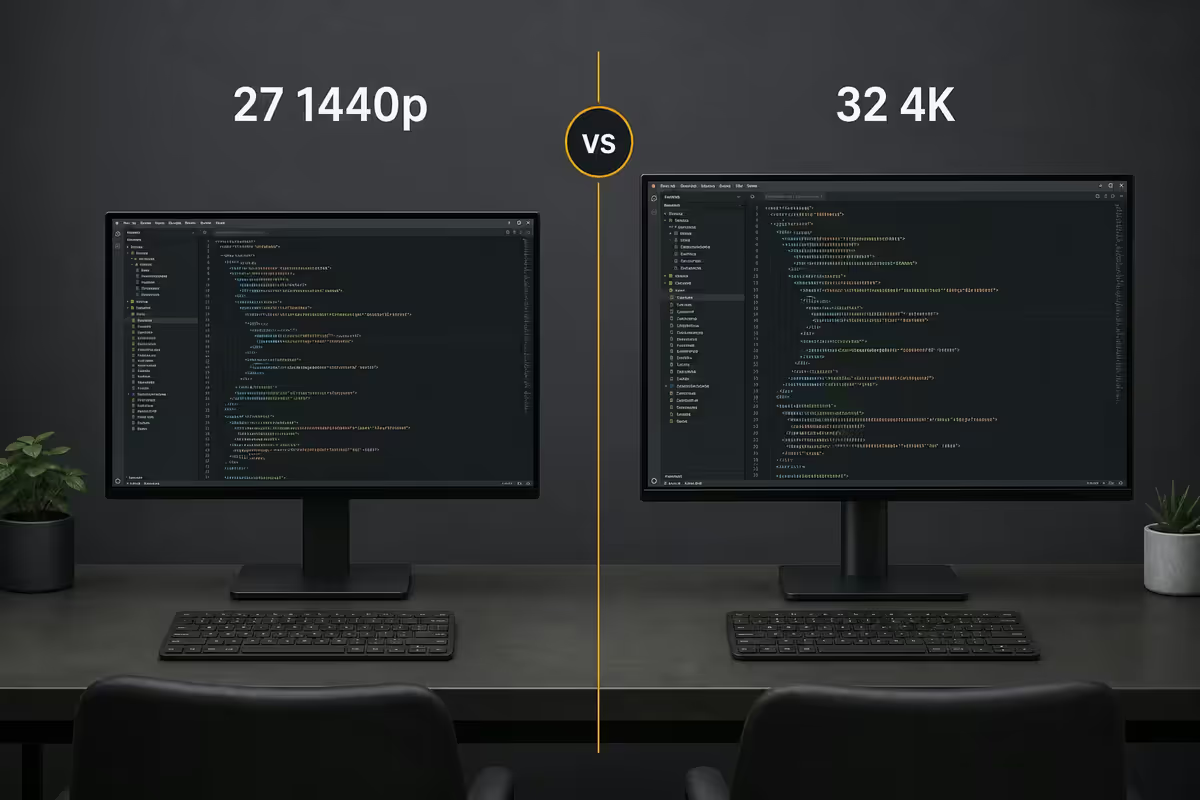
For coding, pixel density and on-screen real estate matter far more than peak brightness or HDR. The two best options in 2026 are well-defined.
27 inch 1440p (2560×1440) hits 109 PPI at native 100% scale. Code is crisp, no Windows scaling weirdness, plenty of room for a wide editor plus a terminal pane. The Goldilocks zone for most developers.
32 inch 4K (3840×2160) hits 140 PPI — sharp without requiring high scaling factors. Most backend devs running it at 100% scale fit two side-by-side editor windows comfortably, plus a terminal at the bottom. The choice for people who want maximum lines on screen.
What to avoid: 24 inch 1080p (too cramped, low PPI of 92), 27 inch 4K (forces fractional scaling that some Linux/terminal apps still handle poorly), and 34 inch flat (the curvature of an ultrawide makes much more sense than flat at that size).
| Size + resolution | PPI | Why it works (or doesn't) |
|---|---|---|
| 24" 1920×1080 | 92 | Too cramped for 2026 stacks — avoid |
| 27" 1920×1080 | 82 | Too low density — text looks chunky |
| 27" 2560×1440 | 109 | The dev sweet spot. No scaling needed. |
| 27" 3840×2160 | 163 | Forces scaling — terminal artefacts |
| 32" 2560×1440 | 92 | Lower density. OK but not great. |
| 32" 3840×2160 | 140 | Excellent. Run at 100% for max lines. |
| 34" 3440×1440 ultrawide | 110 | Great for split-pane workflows |
IPS vs OLED — why dev monitors avoid OLED
QD-OLED and WOLED monitors are stunning for video, photo and gaming. For pure coding, IPS still wins — and the reason isn't burn-in.
Subpixel layout. Standard IPS panels use a clean RGB stripe (red, green, blue vertical stripes per pixel). Text rendering algorithms — Windows ClearType, macOS subpixel AA — assume that layout and produce razor-sharp text.
QD-OLED uses a triangular RGB arrangement. WOLED uses WRGB (white subpixel plus red, green, blue). Neither matches what text-rendering algorithms expect. The result on a code editor: coloured fringing on small text, especially in monospace fonts with very thin verticals. It's most visible on white-on-black themes (which devs love).
The compromise: if you watch a lot of video and game on the same monitor as you code, OLED's contrast and motion clarity are worth the text trade-off. But for 8-hour days writing code, IPS still wins decisively in 2026.
Refresh rate — 100 Hz minimum in 2026
Refresh rate is no longer a gaming-only concern. Scrolling through a 4000-line file at 60 Hz feels jerky compared to the same scroll at 120 Hz. Window-shuffling between an editor and a browser is smoother at higher refresh.
The 2026 dev minimum is 100 Hz. Most decent 27 inch 1440p monitors now ship at 120-165 Hz natively. There's no reason to choose 60 Hz unless you're tied to an old GPU output.
Diminishing returns above 165 Hz. The 240 Hz and 360 Hz numbers are esports concerns. For coding workflow, you'd struggle to distinguish 144 from 240 Hz. Save the money for resolution or a USB-C dock.
Ultrawide vs dual monitors for coding
This is the eternal dev-room argument. Both setups work; the right choice depends on workflow.
Dual 27 inch 1440p is the productivity king for most. Editor on the primary, browser/Slack/terminal on the secondary, with a clean bezel boundary that helps the brain treat them as separate contexts. The secondary monitor in vertical orientation adds a documentation/log pane that's genuinely transformative.
Ultrawide 34 inch 3440×1440 wins for git diff/merge, side-by-side Compare, and devs running two editor windows at once on one continuous canvas. Tools like FancyZones (Windows) and Rectangle (macOS) make ultrawide window management painless.
Avoid the 49 inch super-ultrawide. It looks great in YouTube setup videos but the human field of view doesn't extend to those edges without turning your head. Devs who try them usually end up sectioning them into "three monitors" with FancyZones — at which point three actual monitors would have been better.
Vertical orientation — when it makes sense
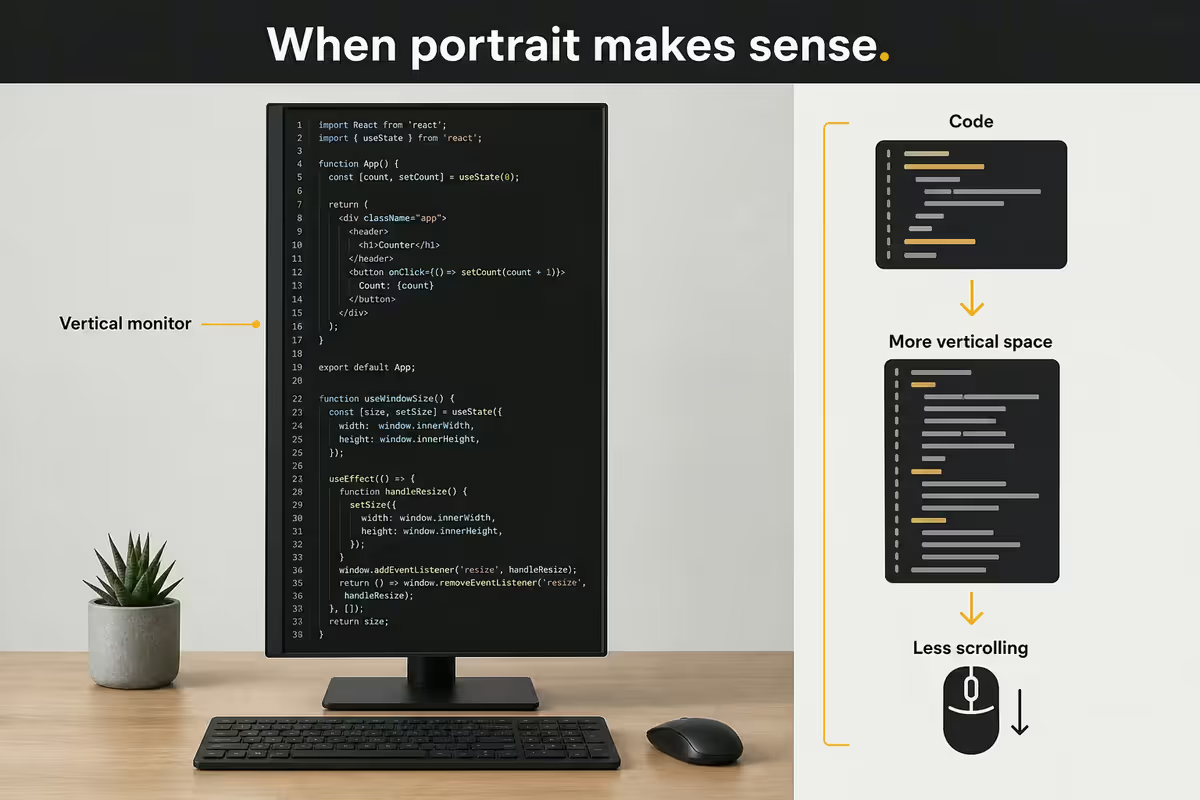
A second monitor in vertical (portrait) orientation is a genuine productivity unlock for specific workflows.
Vertical wins for:
- Reading long markdown files, ADRs and technical documentation.
- Tailing log files and looking at stack traces.
- Slack, Discord or Teams permanent open.
- Reading PRs and pull request diffs.
- Notion, Linear or Jira ticket views.
Don't use vertical for: your primary code editor (most lines are wider than tall), Figma or design tools, video reference.
The classic SA dev setup: a 27 inch 1440p main monitor in landscape, plus a 24 inch 1200p IPS as a vertical second screen. Costs R3,500-R5,000 added to the main monitor and pays back within weeks.
USB-C dock + KVM — the modern dev convenience
If you use a laptop at all — and most SA devs now do, even with a desktop — a USB-C dock monitor transforms the workflow.
What it does: one cable from your MacBook Pro or ThinkPad to the monitor carries display, USB-A peripherals (keyboard, mouse, webcam), ethernet and 90 W+ of charging power. Plug in, work; unplug, leave. No dongle pile, no separate power brick.
KVM-enabled monitors take it a step further. The Dell U2723QE has a built-in KVM — your keyboard and mouse are physically plugged into the monitor's USB ports. Press a button (or use a hotkey) and you switch between your laptop and your desktop tower. The same input devices and the same screen, two different machines.
For SA devs who work hybrid (office laptop + home desktop), KVM saves the daily 30-second swap dance. Worth the R3,000-R5,000 premium over a non-dock monitor.
Top picks & SA price tiers
| Tier | Pick | SA price (June 2026) |
|---|---|---|
| Budget dev (R5k tier) | Samsung S6 27" 1440p IPS 100Hz | R4,800-R5,500 |
| Best value | LG 27QN880-B (27" 1440p IPS, ergonomic arm) | R6,500-R7,500 |
| USB-C dock standard | AOC Q27P3CV (27" 1440p USB-C 65W) | R7,500-R8,800 |
| 4K USB-C dock | Dell P2723QE (27" 4K USB-C dock) | R9,500-R11,000 |
| 4K + KVM (top dev pick) | Dell U2723QE (27" 4K USB-C KVM) | R11,500-R13,000 |
| Ultrawide for diff/merge | LG 34WP65C-B (34" 3440×1440 100Hz) | R10,500-R12,500 |
| Premium 32" 4K | BenQ PD3225U (32" 4K Thunderbolt 4) | R17,500-R19,500 |
| Stacked vertical second | LG DualUp 28MQ780-B (16:18 vertical-bias) | R12,500-R14,500 |
| Vertical second monitor pick | Dell P2422HE (24" 1200p USB-C, rotates) | R5,500-R6,500 |
Key takeaways
- 27 inch 1440p IPS at 100Hz+ is the developer sweet spot. 32 inch 4K is the step up.
- Skip OLED for pure coding — subpixel fringing on small text causes long-day eye strain.
- USB-C dock + KVM transforms hybrid laptop/desktop workflows. Worth the R3-5k premium.
- Dual 27" beats 49" super-ultrawide. Add a vertical 24" second for docs and logs.
- SA tiers: R5k LG 27QN880-B base; R12k Dell U2723QE pro pick; R18k BenQ PD3225U premium.
Frequently asked questions
What's the best monitor size for programming?
27 inch at 1440p is the sweet spot — 109 PPI at native scale, plenty of room for editor plus terminal. 32 inch 4K is the step up. Avoid below 27 inch — cramped — and avoid single panels above 34 inch — neck turning.Is 4K worth it for coding?
At 32 inches, yes — 140 PPI at 100% scale. At 27 inches, 4K forces fractional scaling that causes terminal artefacts. Stay at 1440p if you stay at 27 inches.Should I get an ultrawide or dual monitors for coding?
Dual 27 inch 1440p is best for most. Ultrawide wins for side-by-side diff/merge or two editors on one canvas. Avoid 49 inch super-ultrawide for coding.OLED vs IPS for programming — which is better?
IPS wins. QD-OLED and WOLED subpixel layouts cause coloured fringing on small monospace text. OLED is great for video and gaming but a dev day-long penalty.Does refresh rate matter for coding?
100 Hz is the comfortable minimum in 2026. Scrolling and window-switching is smoother and easier on the eyes. 240 Hz is overkill for coding.Do I need a USB-C dock built into the monitor?
If you use a laptop, yes — one cable for display, USB peripherals, ethernet and charge. KVM-enabled monitors (Dell U2723QE) add hot-swap between laptop and desktop. Worth R2-4k extra.Is vertical orientation useful for coding?
Yes for docs, logs and Slack on a second monitor. Don't use vertical as primary — most code lines are wider than tall.What's the best programming monitor under R10,000 in SA?
Best value: LG 27QN880-B at R6,500-R7,500. Step up: Dell P2723QE 4K USB-C dock R9,500-R11,000. Both are widely stocked in SA.
Get the Evetech app
Exclusive app-only prices, daily flash sales, and free delivery on orders over R4,000 — download the app and start saving.