Troubleshooting · Network
Fix slow internet for gaming.
Half the SA gamers who think they have a slow line actually have a Steam region set to Singapore, a router three rooms away, or Windows Update silently uploading patches mid-match. Here's the proper diagnostic order.
- target ping SA
- < 30 ms
- diagnostic time
- 5 min
- packet loss limit
- < 1%
Start with a wired baseline
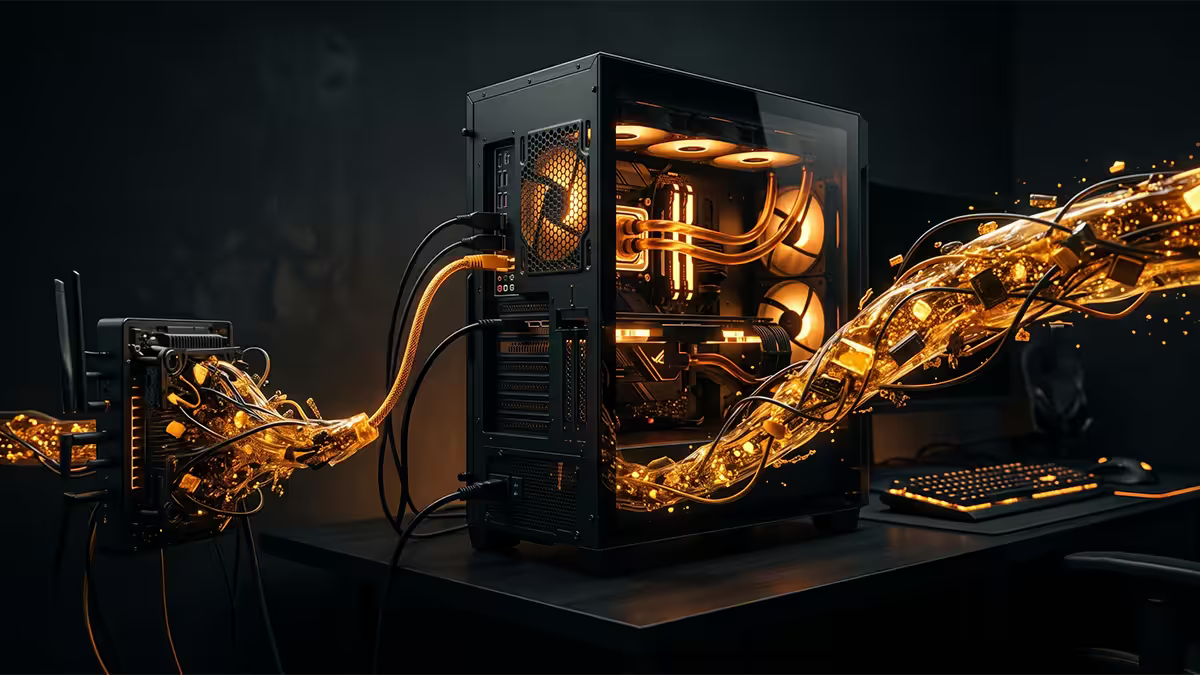
Before changing a single setting, run a wired Ethernet speed test. Plug a cable directly from the router to your PC, disable WiFi temporarily, and run speedtest.net selecting a Johannesburg or Cape Town server. Note three numbers: download, upload, and ping.
This is your ground truth. Every later fix is measured against this baseline.
If wired speed is at or near what you pay for (a 100/100 Mbps line should show 90+ Mbps both directions), your line is fine and your problem is downstream — usually WiFi, drivers, or background traffic. If wired speed is half or less of your paid speed, your problem is upstream — the line, your router, or the ISP.
Then run a ping test. Open Command Prompt and type ping -t 8.8.8.8. Let it run for 60 seconds. You want stable numbers under 30ms with no spikes over 100ms. Variance (jitter) matters more than average ping for online gaming.
Ping vs throughput — the distinction that matters
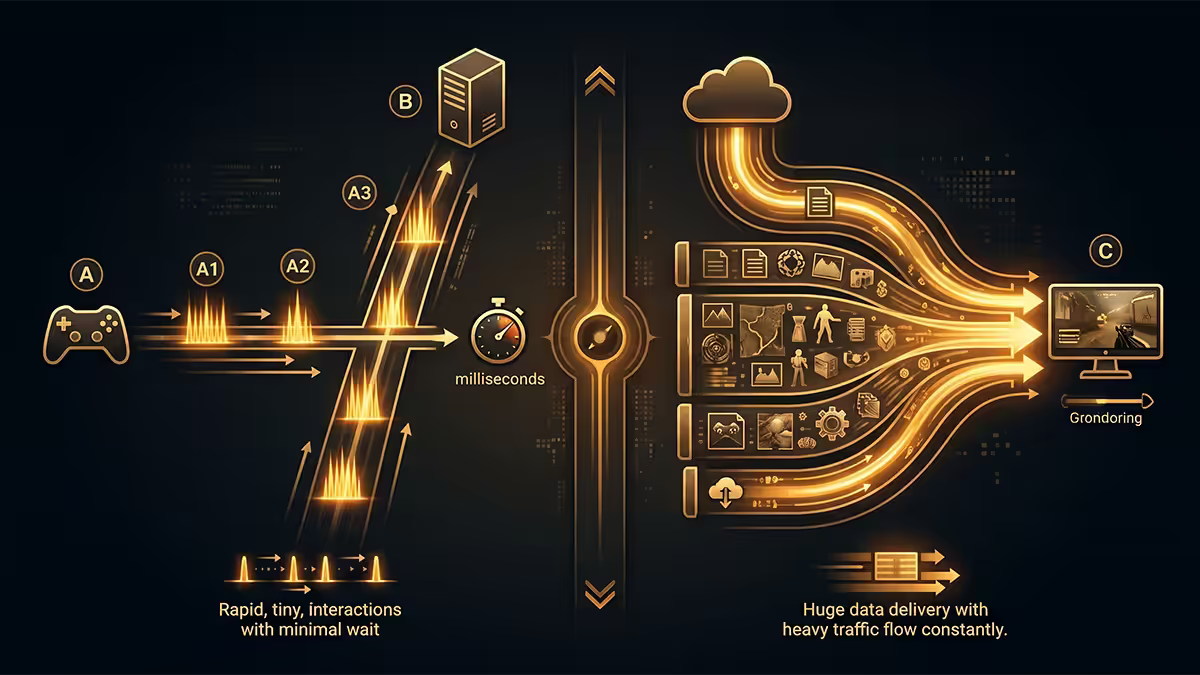
This is the single most-missed concept in gaming network troubleshooting. Speed (Mbps) and ping (ms) are entirely different metrics, measuring different things, with different causes when they go wrong.
Throughput (Mbps) is how much data your line can move per second. It matters for downloads, streaming, and matters very little for gaming once you're above 20-30 Mbps. A 1 Gbps line doesn't make CS2 feel any better than a 100 Mbps line.
Ping / latency (ms) is how long it takes one packet to round-trip between you and the game server. This is what determines how "snappy" gaming feels. A 200 Mbps line with 150ms ping feels worse than a 30 Mbps line with 20ms ping.
Jitter is the variation in ping — when your ping bounces between 25ms and 90ms unpredictably. Jitter is what makes shots not register and movement feel rubber-banded. Stable 60ms beats jittery 20-90ms every time.
Packet loss is when packets fail to arrive. Anything above 1% on a sustained test indicates a real fault — bad cable, router overheating, or ISP routing problem.
| Metric | What it measures | Gaming target SA |
|---|---|---|
| Download Mbps | How much data per second | 50+ Mbps |
| Upload Mbps | How much your PC can send | 20+ Mbps |
| Ping (ms) | Round-trip time to server | < 30 ms local |
| Jitter (ms) | Ping variance | < 10 ms |
| Packet loss (%) | Failed packet arrivals | < 1% |
Router placement — the biggest free win

If your gaming PC connects over WiFi, router placement matters more than router brand or price. The router belongs in the geometric centre of your house, at chest height, with clear line of sight to the rooms where you actually game.
Common SA placement mistakes:
- Router in the lounge cupboard. Wood, glass, and concrete walls absorb 5GHz badly. Two walls between router and PC drops signal 50-70%.
- Router on the floor. WiFi signal radiates in a flattened sphere — chest height roughly doubles useful range.
- Router next to the microwave / fridge / cordless phone. These all emit 2.4GHz interference.
- Router behind the TV. The TV's metal back blocks signal toward where you're sitting.
- Router right next to the gaming PC. Counter-intuitively, too close causes signal saturation issues on some routers. 2-3 metres is ideal.
If your router can't physically move (telco fibre termination is in a fixed location), buy a mesh kit (TP-Link Deco X50, ASUS ZenWiFi, Mercusys Halo H80X) and place a satellite where you game. Mesh adds about 5-15ms ping overhead per hop, which is acceptable for casual gaming but borderline for competitive shooters. Wired backhaul on mesh nodes eliminates the latency overhead.
2.4 vs 5 GHz channels and congestion
If your router broadcasts both 2.4GHz and 5GHz networks (most do), make sure your gaming PC is connecting to 5GHz. Many routers default to a "Smart Connect" mode that uses the same SSID for both and chooses for you — this often picks 2.4GHz for stability reasons that don't matter to gaming.
Separate the SSIDs. Name them "MyHome-5G" and "MyHome-2.4G" so you can manually connect to 5GHz on your gaming PC. Reserve 2.4GHz for IoT devices, security cameras, and anything more than two rooms away.
Channel congestion in flats / townhouses. WiFi Analyser (free Android app or Windows tool) shows you what channels neighbouring routers use. 2.4GHz has only 3 non-overlapping channels (1, 6, 11) — heavily contested in apartment blocks. 5GHz has 25+ channels available in SA, much less congested.
6GHz (WiFi 6E / WiFi 7). Currently empty spectrum in SA. If you have a WiFi 6E or 7 capable router and PC, use 6GHz. Zero neighbour interference, much wider channel widths (160-320 MHz), and the same gigabit-class throughput as 5GHz with cleaner air.
QoS prioritisation
Quality of Service (QoS) tells your router which traffic gets priority when the line is congested. For gamers in shared households, this is essential — without QoS, a flatmate's 4K Netflix stream will spike your ping mid-match every time.
Most modern routers have QoS built in. The interface varies:
- TP-Link Archer series: Advanced → QoS → Enable, set total bandwidth, add gaming PC as "High priority" by MAC address.
- ASUS routers: Adaptive QoS → enable Gaming Mode (uses Trend Micro classification).
- Netgear Nighthawk: Dynamic QoS → enable, the router classifies game traffic automatically.
- MikroTik: requires manual rules — more powerful but steeper learning curve.
- ISP-supplied routers (Webafrica, Octotel, Frogfoot): usually minimal QoS controls. Consider a separate router behind the ISP one.
Enter your actual line speeds correctly in the QoS bandwidth fields. If your line is 100/100 Mbps, enter slightly below — 95/95 — so QoS has headroom to throttle effectively. Entering "Gigabit" when you have a 100 Mbps line means QoS can't actually prioritise anything.
Steam download region and Windows Update DO
Two settings cause more "slow internet" complaints than almost any actual line problem.
Steam download region
Steam routes downloads through regional content servers. South African gamers can pull from Johannesburg or Cape Town servers at 20-40 MB/s. Many accounts default to Europe, Asia, or US, which crawls at 3-5 MB/s over the international link.
Fix: Steam → top-left Steam menu → Settings → Downloads → Download Region. Set to "Johannesburg" or "Cape Town". Restart Steam. Your next download should be 3-5x faster.
Microsoft Store / Windows Update Delivery Optimisation (ms-do)
Windows turns your PC into a peer-to-peer node for Windows updates by default. It uploads pieces of updates to other internet users — eating your upload bandwidth in the background and spiking your ping mid-match. This is often the cause of "random ping spikes I can't explain".
Fix: Settings → Windows Update → Advanced options → Delivery Optimisation → "Allow downloads from other PCs". Set to off, or to "PCs on my local network only" if you have multiple PCs at home.
Xbox, Battle.net, Epic Games and the Microsoft Store all have similar regional / P2P settings. Worth checking each launcher's settings menu once.
ISP reality in South Africa
Genuine ISP throttling is rare on uncapped fibre lines in SA. What feels like throttling is almost always peak-hour congestion at the ISP's international peering points, or an over-subscribed local node.
Test specifically. Run a speedtest to a Johannesburg server, then to a London or US East server. If local is fast and only international is slow during peak, your ISP's international transit is the bottleneck — common for budget providers. If both are slow during peak, your local node is over-subscribed.
VPN can help, sometimes. Counter-intuitively, routing through a paid VPN (ExitLag, Mudfish, NordVPN) can improve ping to overseas game servers by avoiding bad transit routes. The VPN adds ~5ms but skips a slow hop your ISP would have used. Test before committing.
When to call your ISP:
- Wired speed test shows under 50% of paid speed for 3+ consecutive days.
- Ping to local servers consistently exceeds 80ms.
- Packet loss exceeds 1% on a 30-minute test.
- Speed dropped suddenly with no changes on your end.
When you call, have specific data ready: speed test screenshots, ping logs, packet loss tests, times of day, server you're testing against. ISPs respond much faster to "ping to Johannesburg averaged 142ms with 4% packet loss between 19:00-21:00 on 24, 25, 26 May" than to "my internet is slow".
A 5-minute diagnostic checklist
- Plug Ethernet directly from router to gaming PC. Disable WiFi.
- Run speedtest.net selecting a Johannesburg server. Note download / upload / ping.
- Run
ping -t 8.8.8.8in Command Prompt for 60 seconds. Watch for stability. - Open Steam → Settings → Downloads. Confirm region is Johannesburg or Cape Town.
- Settings → Windows Update → Advanced → Delivery Optimisation → switch off PC upload.
- Open Task Manager → Network tab. Confirm no background process is uploading at 20+ Mbps.
- If wired is good but WiFi is bad: separate 2.4 and 5GHz SSIDs, connect PC to 5GHz, check channel with WiFi Analyser.
- If still issues: enable router QoS, prioritise gaming PC MAC address.
- If issues persist on wired during peak: log evidence, call ISP.
Key takeaways
- Wired Ethernet baseline first — separates line problems from WiFi problems.
- Ping (ms) and throughput (Mbps) measure different things. Target sub-30ms local ping.
- Steam download region set to Johannesburg or Cape Town — 3-5x download speed-up.
- Disable Windows Update Delivery Optimisation — stops random ping spikes mid-match.
- Router placement, 5GHz preference, and QoS prioritisation cover 80% of WiFi gaming issues.
Frequently asked questions
Why does my internet feel slow only when gaming?
Gaming traffic is latency-sensitive in a way that streaming and downloads are not. A 200 Mbps line that streams 4K Netflix perfectly can deliver miserable gaming if its ping varies (jitter) or spikes during congested moments. Start by separating speed (Mbps) from latency (ms ping) — they're entirely different problems. A wired Ethernet speed test gives the clean baseline. If wired ping is under 30ms to Johannesburg servers and stable, the problem is your WiFi, your router, or something running in the background.What ping is good for gaming in SA?
Under 30ms to a Johannesburg or Cape Town server is excellent. 30-60ms is good. 60-100ms is playable for most genres but frustrating for competitive shooters. Over 100ms in South Africa means either a routing problem (your ISP isn't peering well), an overseas server connection, or local network issues. Valorant SA, FIFA, CS2 SA all want sub-50ms. Slower-paced games (Civilization, MMOs, single-player) tolerate 100ms+.Should I use 2.4GHz or 5GHz WiFi for gaming?
5GHz always when within range. 5GHz has much wider channels (80-160 MHz), less interference, and higher throughput. The trade-off is shorter range and worse wall penetration. If your gaming PC is in the same room as the router, 5GHz is the obvious choice. If you're two walls away with heavy interference, 6GHz (WiFi 6E/7) is the cleanest option. 2.4GHz is reserved for IoT devices and long-range only — never for gaming.What is the Steam download region setting and why does it matter?
Steam routes downloads through regional content servers. Many SA gamers find their default region set to Europe or Asia, which means downloads come from overseas at 3-5 MB/s instead of from Johannesburg or Cape Town servers at 20-40 MB/s. Open Steam → Settings → Downloads → Download Region and select Johannesburg or Cape Town manually. This single change often quadruples download speeds.What is Microsoft Store delivery optimisation (ms-do) and should I turn it off?
Delivery Optimisation is Microsoft's peer-to-peer Windows update system. Your PC uploads update pieces to other PCs on the internet by default. For gamers this eats upload bandwidth during gameplay, causing ping spikes. Settings → Windows Update → Advanced → Delivery Optimisation → turn off 'Allow downloads from other PCs' or set to 'PCs on my local network only'. Many SA gamers report measurable improvement after this single change.Does ISP throttling happen in South Africa?
Genuine traffic shaping is rare on uncapped fibre lines in SA. What feels like throttling is usually congestion: your ISP's local peering with international content (Steam US, Riot servers, Xbox Live) gets saturated during peak hours 18:00-22:00. Run a speed test to a local Johannesburg server and an international server. If local is fast and international is slow only during peak, it's congestion not throttling. ISPs like Webafrica, Vumatel-side providers and Octotel see this regularly.How do I set up QoS for gaming on my router?
Most modern routers (TP-Link Archer, ASUS, Netgear Nighthawk, MikroTik) have a QoS or 'Gaming Mode' setting that prioritises latency-sensitive traffic. The simplest approach is to enable QoS, set your gaming PC's MAC address as 'high priority', and ensure your upload/download speeds are correctly entered in the QoS bandwidth fields. This stops a flatmate's 4K Netflix stream from spiking your ping during a competitive match.When should I call my ISP?
Call when wired speed tests consistently show under 50% of your paid speed, when ping to local servers exceeds 80ms regularly, or when packet loss is over 1% on a 30-minute test. Most ISPs in SA can run a line test from their end and dispatch a technician for fibre faults. Before calling: run speedtest.net to a Johannesburg server three times, screenshot results, note time of day. ISPs respond faster to specific data than 'my internet is slow'.
Get the Evetech app
Exclusive app-only prices, daily flash sales, and free delivery on orders over R4,000 — download the app and start saving.