Windows Troubleshooting
Windows is slow after the update. — It's almost never "just bloat". Here's the real fix.
Updates ship driver regressions, re-enable disabled startup apps, and interrupt installs that corrupt system files. None of those will fix themselves. The "reinstall Windows" advice on Reddit is correct only for a small minority of cases — wrong for the rest.
- typical fix time
- 30 min
- are GPU driver
- 35%
- rollback window
- 10 days
Step 1 — Identify what changed
Before fixing anything, know what got installed. Windows Update history is your timeline of changes — and 35% of post-update slowdowns trace to a specific entry.
How to view update history:
- Open Settings → Windows Update → Update History.
- Note the most recent Feature update, Cumulative update, or Driver update in the list.
- Match the install date to when the slowdown began — if they line up within 1-2 days, the update is almost certainly the cause.
- Click the update entry → "Learn more" — Microsoft's KB article usually lists known issues for that release.
Pay particular attention to driver updates from Windows Update. Microsoft sometimes pushes older WHQL drivers (especially Intel, Realtek and Conexant audio) that conflict with newer vendor drivers you'd installed manually.
Step 2 — GPU driver rollback (the 35% fix)
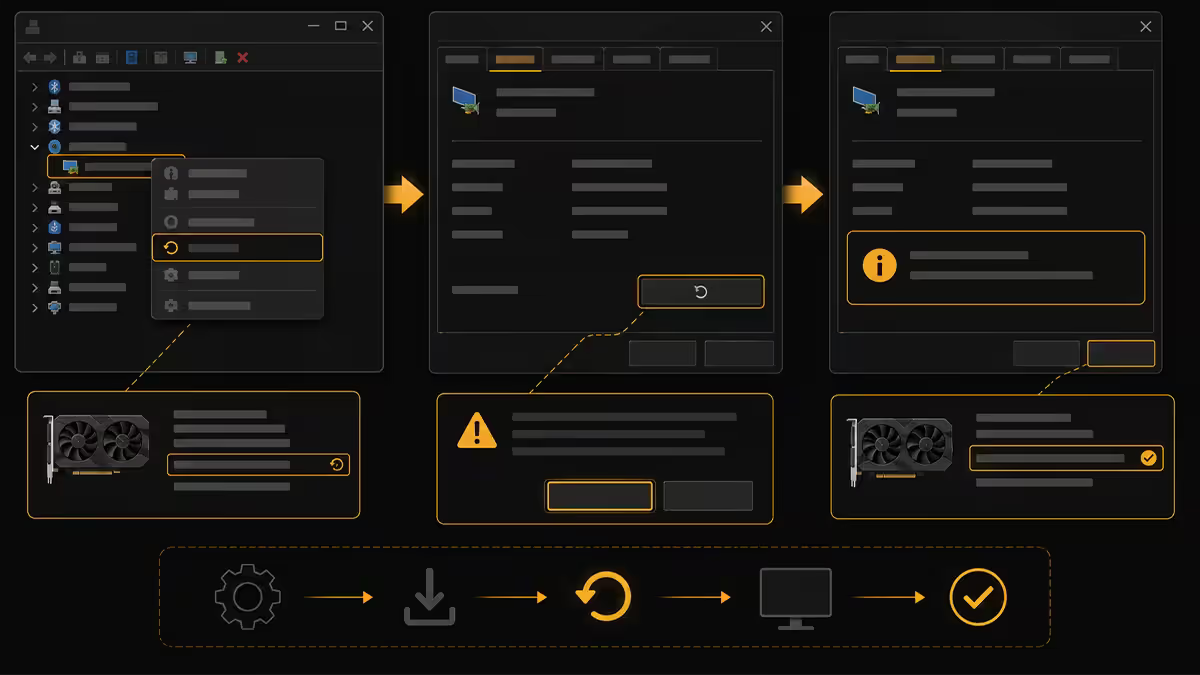
GPU driver regressions are the single most common cause of post-update slowdowns — particularly if gaming fps dropped or video playback became choppy. Windows Update often installs a generic WHQL driver months out of date.
The clean way:
- Download the latest WHQL driver from your GPU vendor directly: NVIDIA: nvidia.com → Drivers → enter your GPU. AMD: amd.com → Support → Auto-Detect or enter model. Intel: intel.com → Graphics drivers.
- Download Display Driver Uninstaller (DDU) from wagnardsoft.com — a free tool that removes graphics drivers completely.
- Reboot into Safe Mode (Settings → Recovery → Advanced Startup → Restart Now → Troubleshoot → Advanced Options → Startup Settings → Restart → press 4 for Safe Mode).
- Run DDU, choose "Clean and do NOT restart" for your GPU vendor.
- Reboot to normal mode. Run the freshly downloaded GPU driver installer. Choose "Clean install" if offered.
- Restart and test.
Step 3 — SFC and DISM repair (the 15% fix)
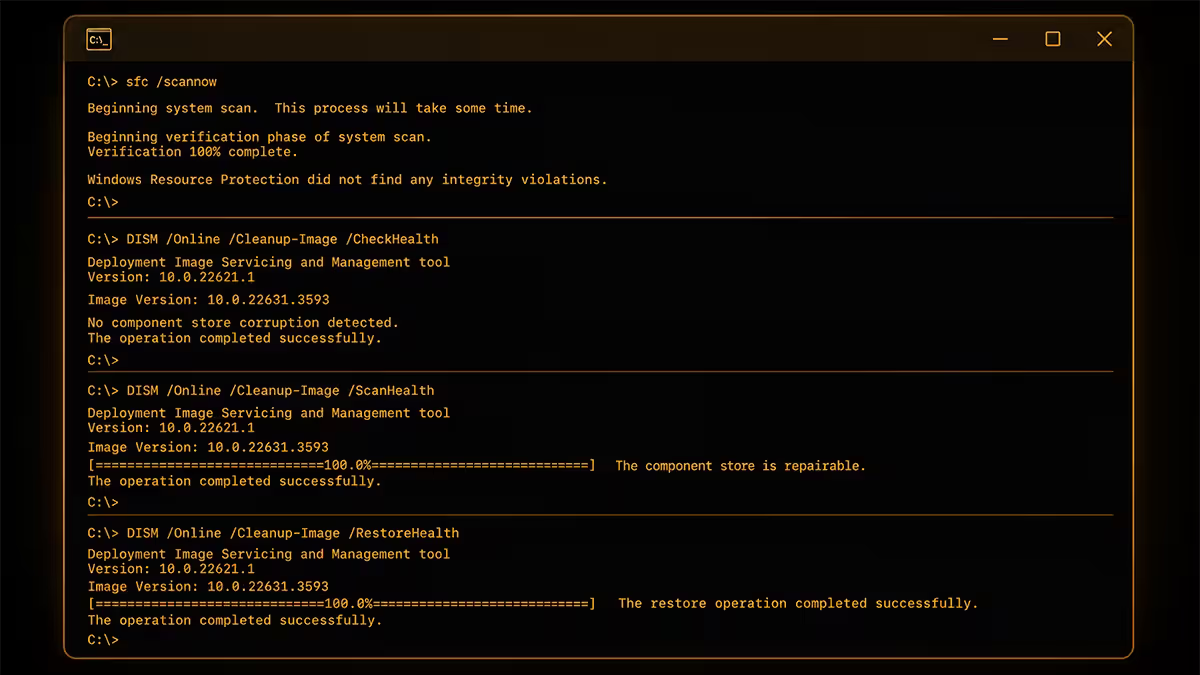
Interrupted updates (power cut, forced reboot, crash mid-install) leave corrupted system files. Windows runs fine for everyday tasks but services stall, processes spawn duplicates, and CPU sits at 50% with nothing visible doing it.
SFC /scannow repairs corrupted system files from a healthy cached copy. DISM /RestoreHealth repairs the cached copy itself. Run them in order — SFC first.
Procedure:
- Right-click Start → Terminal (Admin) or Command Prompt (Admin).
- Type:
sfc /scannowand press Enter. Wait 5-10 minutes for the scan to complete. - If SFC reports "found corrupt files and successfully repaired them" — you're done. If it reports "found corrupt files but could not repair some", continue to DISM.
- Type:
DISM /Online /Cleanup-Image /RestoreHealthand press Enter. Wait 10-20 minutes (it pulls a healthy image from Microsoft). - After DISM completes, run
sfc /scannowagain. SFC can now use the repaired image. - Reboot.
If you're running on an unstable connection or behind a corporate firewall, DISM may fail to download. Use a wired connection or run it overnight to give it time.
Step 4 — Audit startup apps
Feature updates frequently re-enable startup apps you'd previously disabled. OneDrive, Microsoft Teams, Xbox Game Bar overlay, Skype, Spotify — all back at login.
Procedure:
- Press Ctrl + Shift + Esc to open Task Manager.
- Click the Startup Apps tab (left sidebar in Windows 11).
- Click the Startup Impact column header to sort. Anything High Impact is fair game.
- Right-click → Disable for any app you don't actively need launching at login.
Safe to disable for most users:
- Spotify, Steam, Discord, Epic Games Launcher — launch manually when needed.
- Adobe Creative Cloud, Adobe Acrobat — launch on document open.
- Microsoft Teams (if not using daily) — launches via browser/Outlook calendar.
- Skype, OneDrive (if not actively syncing).
- iCloud, Google Drive (same — sync runs when launched).
- NVIDIA GeForce Experience overlay, AMD Adrenalin overlay.
Don't disable: Windows Security, Windows Defender, your antivirus, audio drivers, anything Microsoft-signed under "System".
Step 5 — Page file reset (occasional fix)
The page file is virtual memory on disk. Updates occasionally leave it oversized, fragmented, or in an odd state. Resetting it forces Windows to recreate it cleanly.
Procedure:
- Open System Properties (Win+R, type
sysdm.cpl, Enter). - Advanced tab → Performance → Settings.
- Advanced tab → Virtual Memory → Change.
- Untick "Automatically manage paging file size for all drives".
- Select your C: drive, choose "No paging file", click Set, accept warning.
- Click OK through all dialogs. Reboot.
- After reboot, return to the same dialog. Re-tick "Automatically manage paging file size". Reboot again.
This clears the old pagefile.sys and lets Windows recreate it at the optimal size. Don't leave the page file disabled — Windows uses it as a memory dump location even with abundant RAM.
Step 6 — Game Mode toggle (and Windows Update throttle)
If the slowdown is specific to gaming or live video, two settings matter.
Game Mode: Settings → Gaming → Game Mode → On. This is the 2026 version of Game Mode, not the 2017 version — it actually does something now. Throttles Windows Update during gameplay, prioritises GPU resources, prevents driver installs while gaming.
Update active hours: Settings → Windows Update → Advanced Options → Active Hours → Adjust automatically based on activity. Stops updates from kicking off background downloads while you're using the system.
Background apps: Settings → Apps → Installed Apps → click "..." next to app → Advanced options → Background apps permissions: Never. Do this for the heavy ones (Discord, Spotify, Slack) — they won't lose functionality, just won't poll while not in focus.
When to roll back, when to reinstall
If steps 1-6 haven't restored performance, the choice is between rolling back the update or doing a full reset.
Rollback (within 10 days of feature update):
- Settings → System → Recovery → Go Back. Takes 20-30 minutes. Reverts to your previous Windows version with apps intact.
- Only available within 10 days of a major feature update — Microsoft deletes the rollback files after that to reclaim disk space.
- You can extend the window by running
DISM /Online /Set-OSUninstallWindow /Value:60in admin Command Prompt within the first 10 days — gives you 60 days total.
Uninstall specific cumulative update:
- Settings → Windows Update → Update History → Uninstall Updates.
- Select the problematic KB number, click Uninstall, reboot. Available for most cumulative updates within ~30 days.
Reset This PC (Keep My Files):
- Settings → System → Recovery → Reset This PC.
- Choose "Keep my files". Choose "Cloud download" (downloads fresh Windows from Microsoft, ~5GB) over "Local reinstall" (uses your possibly-corrupted local image).
- Takes 30-45 minutes. Personal files preserved. Applications removed (you'll need to reinstall everything).
- Resolves nearly all software-level issues. If the slowdown persists after this, the issue is hardware (failing SSD, dying RAM, overheating CPU).
Common mistakes
Going straight to reinstall. The dramatic fix. Costs you 2-3 hours of reinstalling apps when a 15-minute driver reinstall would've solved it.
Running "registry cleaner" or "PC optimiser" software. Tools like CCleaner, AVG TuneUp, IObit Advanced SystemCare don't fix update issues. They delete things Windows needs and frequently make matters worse. Microsoft's built-in tools (SFC, DISM, Storage Sense) are what you actually want.
Disabling Windows Update entirely. Tempting but a bad idea. Security patches keep your system safe. The fix is to manage update behaviour (Active Hours, deferring driver updates), not to disable updates wholesale.
Skipping DDU and just running the new GPU driver installer. The new installer doesn't fully remove the previous driver's registry entries. DDU does. Half the "driver reinstall didn't help" complaints are because the underlying corruption was preserved.
Blaming the update when it's been 24 hours. Windows post-install does file indexing, app updates, Defender scans and content delivery for 24-48 hours after a major update. If your system has only been "slow" for one day, give it another day before troubleshooting.
Key takeaways
- Check Windows Update History first — identify which update started the slowdown.
- GPU driver rollback via DDU fixes 35% of post-update performance complaints.
- Run SFC /scannow then DISM /RestoreHealth in admin Command Prompt — repairs corrupted system files.
- Audit Task Manager Startup Apps — updates re-enable apps you'd previously disabled.
- If 7 days post-update still slow, Reset This PC (Keep My Files) takes 30-45 minutes and resolves nearly everything.
Frequently asked questions
Why is Windows slow after a recent update?
GPU driver regression (35%), startup apps re-enabled (20%), corrupted system files (15%), background indexing (12%, resolves in 24-48 hours), genuine OS bug (10%).How do I roll back a Windows update?
Settings → Windows Update → Update History → Uninstall Updates. For feature updates within 10 days: Settings → System → Recovery → Go Back.How do I run SFC and DISM to repair Windows?
Admin Command Prompt. Run sfc /scannow (5-10 min), then DISM /Online /Cleanup-Image /RestoreHealth (10-20 min), then sfc /scannow again. Reboot.Should I rollback my GPU driver after a Windows update?
If gaming or video performance dropped — yes. Use DDU in Safe Mode, then install fresh WHQL driver direct from NVIDIA/AMD/Intel. Block Windows from pushing the old one back.Does Windows Game Mode actually help?
Yes, since 2024 updates. 1-3% average fps but more importantly fewer frame-time stutters. Throttles Windows Update during gameplay. Worth enabling.How do I audit startup apps in Windows 11?
Ctrl+Shift+Esc → Task Manager → Startup Apps tab. Sort by Startup Impact, disable High Impact items you don't actively need.What is page file and should I adjust it after an update?
Virtual memory on disk. Reset by setting to None, rebooting, then setting back to System managed. Don't disable entirely — Windows needs it.When is reinstalling Windows faster than fixing the issue?
After 7 days of failed fixes. Reset This PC (Keep My Files) via Settings → Recovery → choose Cloud Download. 30-45 minutes, files preserved, apps removed.