Troubleshooting · Low FPS
How to fix low FPS. — Diagnose first. Then fix. In that order.
Reddit will tell you to "update drivers and use DLSS". That's the answer when you don't know what's broken. This guide finds out what's actually broken — and then fixes it in the right order, from free easy wins to the hardware swap of last resort.
- typical fix range
- 30→144
- free to upgrade
- 10 steps
- fixed before hardware
- 90%
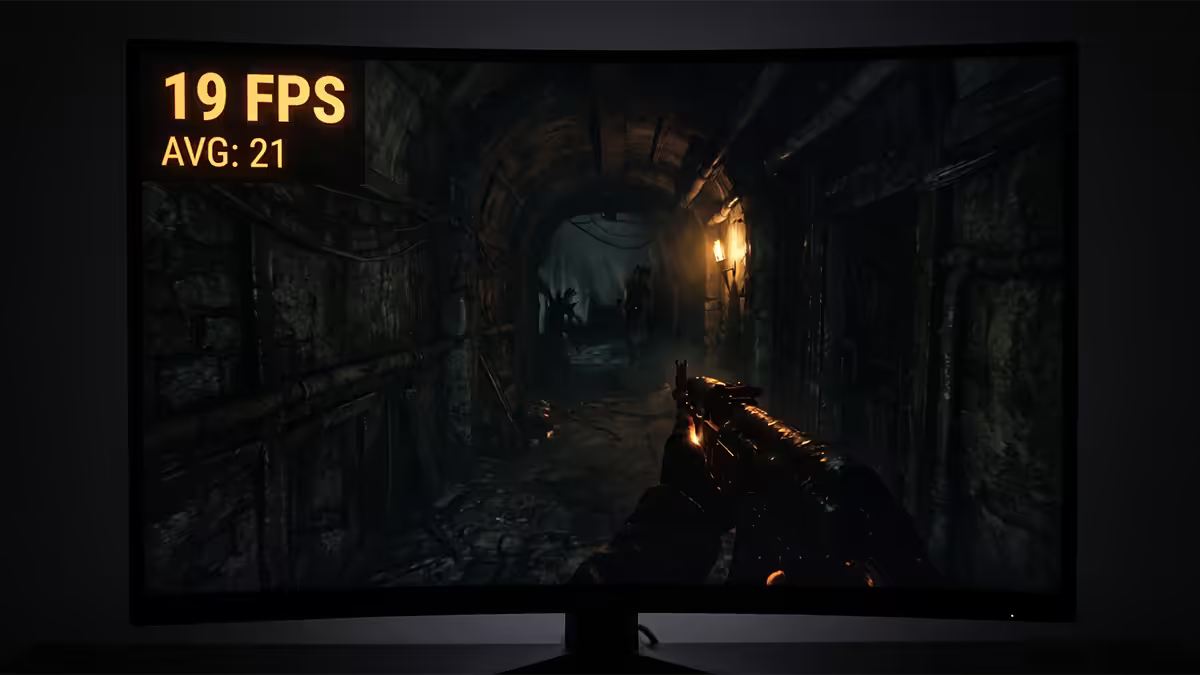
Diagnose first — CPU bound or GPU bound?
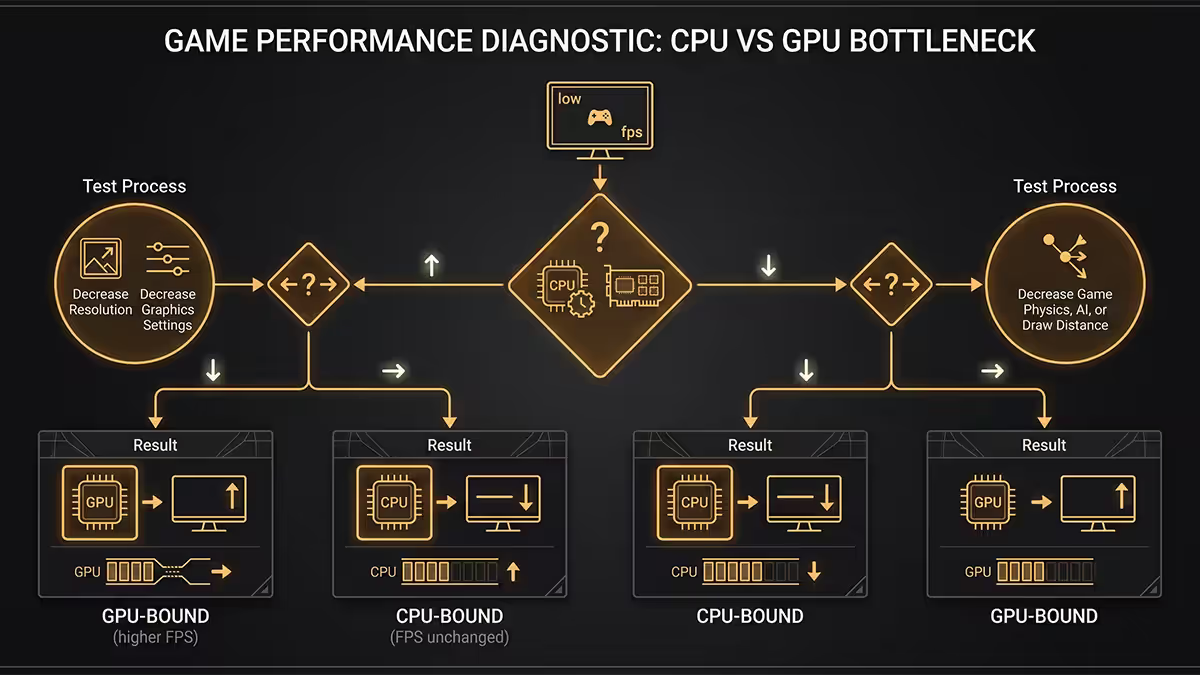
This is the single most important step and the one most guides skip. The same low FPS symptom has two completely opposite fixes depending on which side of your PC is the bottleneck.
Install MSI Afterburner + RivaTuner Statistics Server (RTSS). Both free. Configure the on-screen display to show GPU usage, CPU usage per-thread, FPS, GPU temperature, CPU temperature and VRAM usage. Launch your problem game.
Now watch the overlay during actual gameplay (menus don't count — the engine isn't running):
| What the overlay shows | You are | Right fix |
|---|---|---|
| GPU usage 95-100%, CPU under 90% | GPU bound | Lower settings, enable DLSS/FSR, drop resolution, or upgrade GPU |
| GPU usage 60-80%, one CPU thread at 99% | CPU bound | Disable Chrome/background apps, drop draw distance & physics, enable XMP/EXPO, or upgrade CPU |
| GPU 100%, CPU 100% both | Balanced | Honest hardware limit — DLSS/FSR is your best lever |
| GPU under 60%, CPU under 60% | Stuttering / V-sync / framerate cap | Check in-game cap, V-sync, monitor refresh, power plan |
Why this matters: if you're CPU bound, lowering shadows does nothing. If you're GPU bound, closing Chrome does nothing. People spend hours tweaking the wrong setting because they didn't check the bottleneck first.
The wrong fix on the right symptom is just another symptom. Find the bottleneck, then move.
The single biggest mistake in FPS troubleshooting
Drivers — clean install, not "update"
The "have you updated your drivers" advice is correct, but the way most people update is wrong. Installing a new driver over an old one stacks broken bits. The right approach is a clean install with DDU.
DDU (Display Driver Uninstaller) — the right way
- Download the latest driver from NVIDIA, AMD or Intel directly (not Windows Update — months behind, missing features).
- Download DDU (Display Driver Uninstaller) from Wagnardsoft. Free, portable.
- Reboot into Safe Mode (hold Shift while clicking Restart).
- Run DDU, select GPU, click "Clean and restart".
- System reboots to a generic display driver. Now install the fresh driver normally.
This single step routinely resolves stuttering, micro-stutters and "my FPS used to be higher" complaints — accumulated driver leftovers from years of updates conflict with current builds.
Other drivers that matter for FPS
- Chipset drivers — get directly from AMD or Intel. Particularly important on AM5 (X670, B650) and LGA1851 (Z890, B860) where chipset updates change CPU boost behaviour.
- BIOS firmware — often dramatic on AM5. The AGESA microcode updates through 2024-2025 added significant Ryzen 7000 performance.
- Resizable BAR / Smart Access Memory — check it's enabled in BIOS. Free 2-5% in many games.
In-game settings tier list — what to drop first
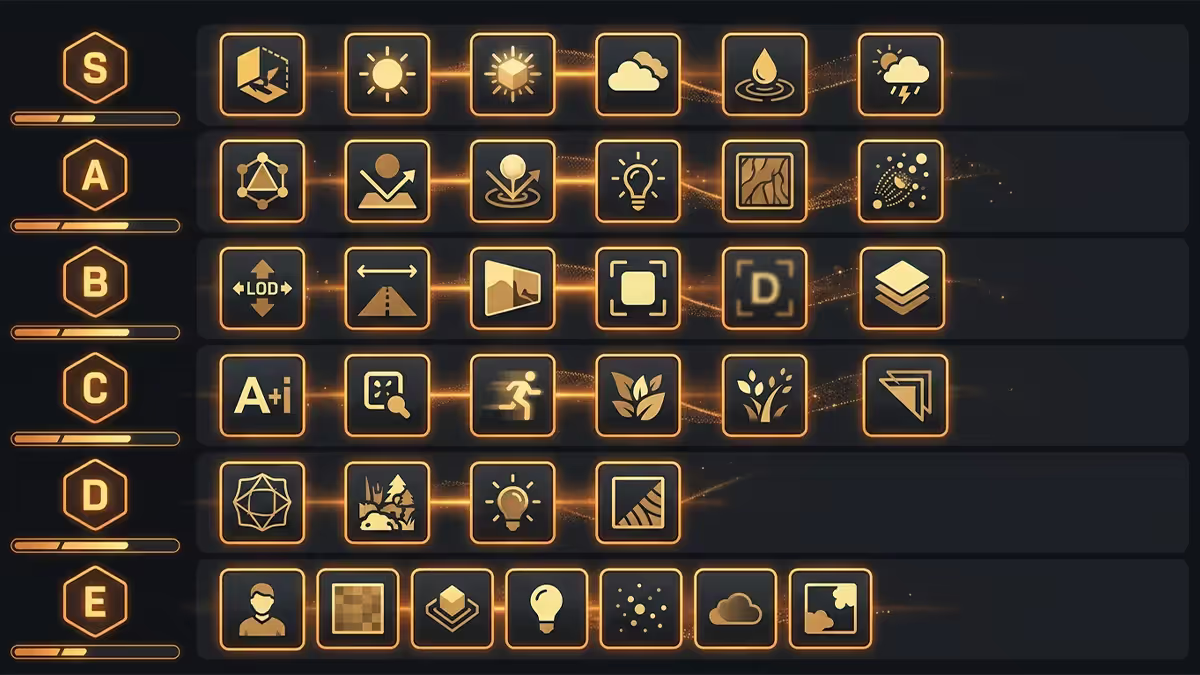
Not all graphics settings are equal. Some cost 30% FPS for a visual difference you'd need to pause and pixel-peep to see. Others cost 5% for a transformative visual upgrade. Here's the honest tier list:
The honest rule: drop F-tier settings first (often 20-30% FPS gained for no real visual loss), then B-tier (another 15-25% for mild loss), and only touch A-tier (textures, AA) if you absolutely have to.
DLSS, FSR and XeSS — the closest thing to free FPS
Upscaling is the single biggest FPS lever modern games offer. The game renders internally at a lower resolution (e.g. 1440p when you're playing at 4K), then an AI model upscales each frame to your monitor's native resolution. Done right, the result is visually equivalent to native rendering — but at the lower resolution's performance cost.
| Tech | Works on | Quality & gain |
|---|---|---|
| NVIDIA DLSS 3 / 4 | RTX 20-series and up only | Gold standard. 30-80% FPS gain at "Quality" preset, near-native visuals |
| NVIDIA DLSS Frame Generation | RTX 40-series and up | Inserts AI-generated frames. Massive FPS gain — but adds input lag, only useful above 60 FPS base |
| AMD FSR 3 / 3.1 | Any GPU (NVIDIA, AMD, Intel) | Universal fallback. 25-70% gain. Some shimmering at low presets, but FSR 3.1 closed most of the gap |
| AMD FSR Frame Generation | RX 6000 / 7000 / RTX | Similar to DLSS FG but more compatible. Same input-lag caveat |
| Intel XeSS 1.3 | Any GPU; better on Intel Arc | Quality between DLSS and FSR. Underrated |
The pick: always use DLSS if you have an RTX card. Use XeSS on older NVIDIA or any AMD if available. Use FSR as the universal fallback. Preset: "Quality" at 1440p and 4K, "Balanced" at 1080p (low base resolution makes upscaling artifacts more visible).
Windows & background apps — the dirty truth
Modern Windows 11 is hungrier than it admits. A clean install idles at 4-5GB RAM and 2-4% CPU just for system services. Add Chrome with twenty tabs, Discord, OBS, Steam, RGB software, peripheral utilities — you're at 30-50% baseline before the game even launches.
The free wins:
- Close Chrome. Every tab is a process. Twenty tabs = 6-12GB RAM and noticeable CPU. Use a separate browser session (Edge or Firefox without your tabs) while gaming.
- Close Discord overlay. The overlay is a CPU and GPU hit by itself. Settings → Game Overlay → off if you don't need it.
- Disable startup apps. Task Manager → Startup → disable anything you don't actually need on boot. RGB software, Razer Synapse, Logitech G Hub, Corsair iCUE all run continuously.
- Set Windows power plan to "Ultimate Performance" or at minimum "High Performance". Default "Balanced" introduces CPU clock-down lag.
- Disable Xbox Game Bar capture — Settings → Gaming → Captures → turn off Background recording. This alone can add 5-10% FPS in CPU-bound titles.
- Enable Hardware-accelerated GPU Scheduling — Settings → Display → Graphics → Default settings. Worth 2-4% in many games.
- Set the game's GPU preference — Settings → System → Display → Graphics → set your game to "High performance" (forces dGPU on hybrid laptops).
Thermal throttling — the silent FPS killer
If your CPU exceeds ~95°C (Intel) or ~90°C (AMD Ryzen 7000/9000 Tj Max), or your GPU exceeds ~85°C sustained, the chip lowers its own clock speed to protect itself. You'll see "thermal throttling" — temperatures plateau because performance has been cut.
How to diagnose thermal throttling:
- Install HWiNFO64 (free). Open the Sensors panel. Look for "CPU Package" and "GPU Hot Spot" temperatures.
- Play your game for 15-20 minutes. Watch the temps.
- Look at "CPU Core Effective Clocks" — if it drops below the rated base clock under load, you're throttling.
- HWiNFO64 explicitly flags "PROCHOT" or "Thermal Throttling" status — yes/no field.
How to fix thermal throttling — in order of effort:
- Clean the PC. Compressed air on radiator fins, heatsink fins, case dust filters. On 2-3 year old PCs in SA, you'll find a thick mat of dust. This single step often drops temps 8-15°C.
- Check fan curves. Default fan curves on most boards prioritise silence. In BIOS or via the board's software, set fans to ramp aggressively above 60°C.
- Verify case airflow. Front intake, top/rear exhaust. Positive pressure (more intake than exhaust). Cables routed out of fan paths.
- Repaste the CPU. On 3+ year old builds, the thermal paste is dried out. Fresh Arctic MX-6 will drop temps 5-10°C. (See our thermal paste guide.)
- Repaste the GPU. Out-of-warranty cards 3+ years old benefit similarly. New cards: don't (voids warranty).
- Upgrade the cooler. If a stock or low-end cooler is on a Ryzen 7/9 or Core i7/i9, that's mismatched. 240mm AIO or premium air (Peerless Assassin, Noctua NH-D15) fixes most thermal issues.
Undervolt and overclock — the unsung heroes
In 2026 the biggest free performance lever isn't overclocking — it's undervolting. Modern CPUs and GPUs ship with conservative voltage curves that allow stability across the worst silicon Intel/AMD/NVIDIA produce. Your specific chip is almost always better than that. Lowering voltage at the same clock means lower temps, which means the chip boosts higher for longer.
CPU undervolt:
- AMD Ryzen 7000/9000: use PBO (Precision Boost Overdrive) with a Curve Optimizer offset of -20 to -30. Tested and proven on every chip we've benched.
- Intel Core Ultra 200S: use Intel XTU. Voltage offset of -50mV to -100mV typically stable. Temperature drops 8-12°C, boost clocks rise.
GPU undervolt:
- NVIDIA: MSI Afterburner — set core voltage offset, drag curve at e.g. 0.875mV to your stock max boost frequency, flatten anything above. Saves 30-60W and runs cooler.
- AMD: Adrenalin software → Performance → Tuning → Manual → undervolt slider. AMD makes this simpler than NVIDIA.
Overclocking — manual overclock headroom on modern CPUs is minimal (CPU is already self-boosting near its limit). GPU overclocks of +100-150 MHz on core and +500-1000 MHz on memory are usually free, but the gains are 3-6%. Save it for after the other steps.
When it's the hardware — the honest moment
All the steps above are about extracting maximum performance from what you have. Eventually that runs out. The honest tell that you've hit the hardware ceiling:
- GPU usage at 95-100% during gameplay.
- Settings already at sensible high (not ultra) with DLSS/FSR Quality enabled.
- Clean GPU driver install, latest stable.
- Temperatures within safe range (CPU under 85°C, GPU under 80°C — no thermal throttling).
- XMP/EXPO enabled, RAM at rated speed.
- Frame rate still below your target.
That's not a settings problem. That's the GPU genuinely reaching its silicon limit. The upgrade is the right answer.
Key takeaways
- Diagnose before you fix. Use MSI Afterburner to identify CPU bound vs GPU bound — the fix differs entirely.
- Three free wins everyone misses: enable XMP/EXPO, do a DDU clean GPU driver install, turn on DLSS or FSR.
- Drop F-tier settings first (volumetrics, motion blur, chromatic aberration) — 20-30% FPS for zero real visual loss.
- Check thermal throttling with HWiNFO64. Dusty PC + dried thermal paste accounts for half the "my FPS dropped" tickets.
- If GPU is at 100% and FPS is still low at sensible settings — it's hardware time, not settings time.
Frequently asked questions
Why are my FPS suddenly lower than they used to be?
Most common: a recent driver or Windows update. Roll back the latest GPU driver as a 60-second test. Other causes: thermal throttling (check temps), reset settings after a patch, background apps, failing PSU.How do I tell if I'm CPU or GPU bound?
Use MSI Afterburner overlay. GPU at 95-100% = GPU bound. One CPU thread at 99% with GPU at 60-80% = CPU bound. The fix differs entirely depending on the answer.What is DLSS and FSR, and which should I use?
AI-assisted upscaling. DLSS is NVIDIA only (RTX-class), highest quality. FSR works on any GPU and is the universal fallback. XeSS is between the two. Use DLSS if you have RTX, otherwise FSR or XeSS.Does Windows Game Mode actually help FPS?
Marginally — 0-3%. Keep it on, but closing Chrome and Discord gets you more.Should I overclock my CPU or GPU for more FPS?
Undervolting is better. Modern chips already boost aggressively at stock. Lower voltage = lower temps = higher sustained boost. PBO Curve Optimizer -20 on Ryzen or -75mV on Intel XTU is usually free.How do I know if my PC is thermal throttling?
HWiNFO64. CPU over 95°C or GPU over 85°C sustained. Watch for clock speed dropping below base under load — the smoking gun.Is enabling XMP / EXPO actually free FPS?
Yes. DDR5 ships at JEDEC base speed until enabled in BIOS. Real-world gain in games: 5-12% on AMD AM5, 3-7% on Intel. Most people we troubleshoot have not enabled it.When is it the hardware, not the settings?
When GPU is at 100% with sensible settings, DLSS/FSR enabled, latest drivers, temps fine. That's the silicon ceiling — upgrade time.
Get the Evetech app
Exclusive app-only prices, daily flash sales, and free delivery on orders over R4,000 — download the app and start saving.