Monitor Mount Explainer
Four holes. One global standard. — VESA mounts explained without the maths anxiety.
The reason any monitor can attach to any arm is a square pattern of four threaded holes on the back. The reason it sometimes goes wrong is people skip the spec sheet. This guide makes sure you don't.
- mm between holes
- 75-600
- screw sizes
- M4-M8
- weight headroom rule
- +20-30%
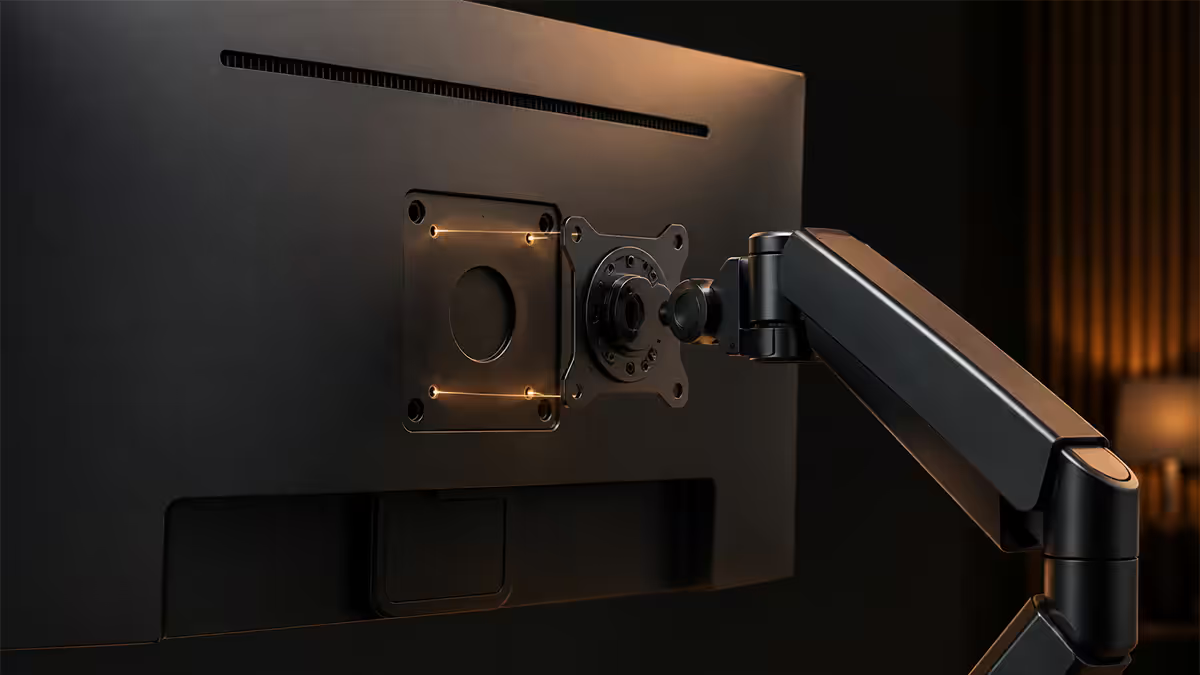
What VESA mount means
VESA stands for the Video Electronics Standards Association — the industry body that publishes display interface standards. In 1997 they introduced the Flat Display Mounting Interface (FDMI / MIS-D), which defined a square pattern of four threaded holes on the back of monitors and TVs to allow interoperable mounting hardware.
The numbers (75×75, 100×100, 200×200) describe the distance in millimetres between adjacent hole centres. The pattern is always a perfect square (or in some larger displays, a rectangle like 200×100 or 400×200).
Why this matters: any monitor with a 100×100 VESA pattern can attach to any arm, wall mount or stand with a 100×100 mounting plate. The standard is global — Samsung, LG, Dell, ASUS, AOC, MSI, BenQ all publish VESA-compliant patterns on monitors that support mounting. The same goes for TVs from Sony, Hisense, TCL and others, just at larger sizes.
The promise: mounting hardware is universal. The reality: you need to confirm your specific monitor's VESA pattern and screw size before buying an arm. Both pieces of information are in the spec sheet.
Common VESA sizes & screw sizes
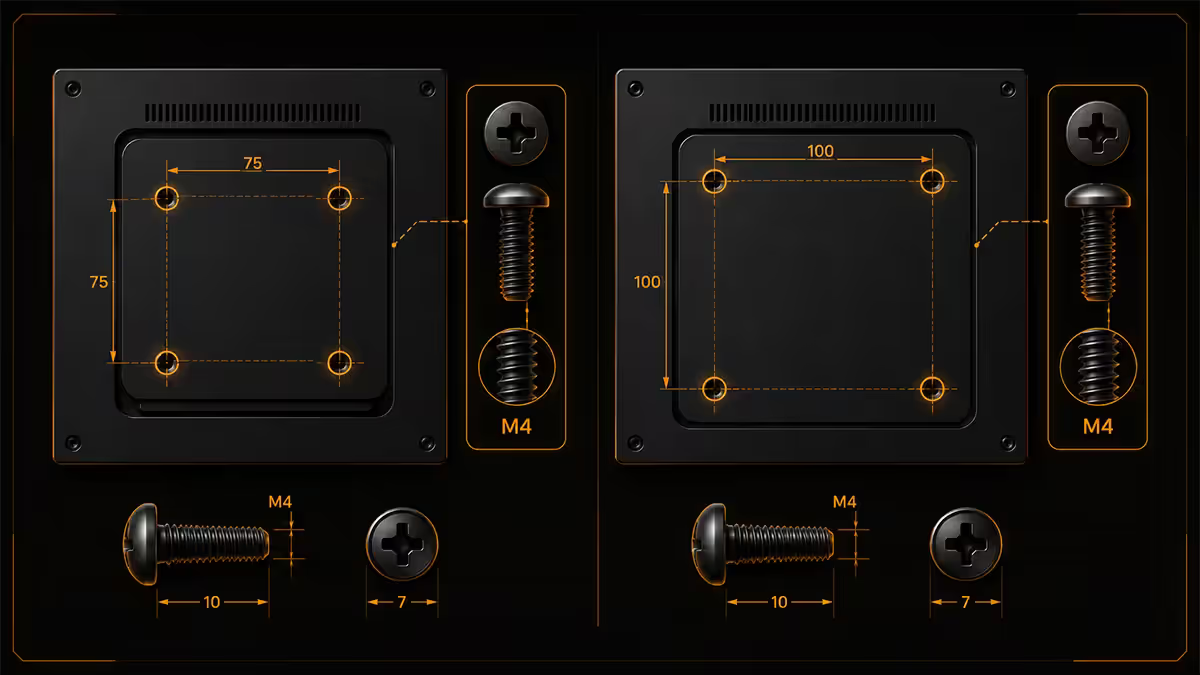
Pattern size scales with display size. Most monitors fall in the small end of the range. TVs sit at the larger end.
| VESA pattern | Typical display size | Screw size |
|---|---|---|
| 75×75mm | Small monitors, portable displays (13-22") | M4 |
| 100×100mm | Mainstream monitors (24-32") | M4 |
| 200×100mm | Some 32-43" monitors | M4 or M5 |
| 200×200mm | Larger monitors, small TVs (32-43") | M5 or M6 |
| 300×300mm | Medium TVs (40-55") | M6 |
| 400×200mm | Some ultrawide TVs and large displays | M6 or M8 |
| 400×400mm | Large TVs (50-65") | M6 or M8 |
| 600×400mm | Very large TVs (65-85") | M8 |
Screw size legend:
- M4 = 4mm diameter — most monitors. Common lengths: 10mm, 12mm, 14mm.
- M5 = 5mm diameter — some larger monitors and small TVs.
- M6 = 6mm diameter — large monitors, medium TVs.
- M8 = 8mm diameter — large TVs.
Screw length matters too. Too short and threads don't engage enough — the screw could pull out under monitor weight. Too long and the screw can punch through the back panel into the display's internals. Spec sheets usually publish the recommended length range (e.g. "M4 × 8-12mm"). Most monitor arms ship a multi-length screw kit covering 8mm to 16mm in 2mm increments.
Weight rating compatibility — the math that matters
Monitor arms are rated for a maximum weight (typically 8kg, 12kg, 16kg, 20kg or 35kg). You need to know your monitor's weight and apply a safety margin.
Step 1: find your monitor's weight. Spec sheets list two weights:
- "Weight with stand" — the box weight, includes the included stand.
- "Weight without stand" — the monitor head only. This is the number you need.
Mainstream 27" 1440p monitors weigh 4-7kg without stand. 32" 4K monitors weigh 6-10kg. 34" ultrawide monitors weigh 6-9kg. 38-49" ultra-wide curved monitors weigh 10-15kg. OLED panels are slightly lighter than equivalent LCD. Curved panels are typically 10-20% heavier than equivalent flat.
Step 2: pick an arm with 20-30% headroom. A 7kg monitor on an 8kg-rated arm is safe but at the limit. The same monitor on a 10kg or 12kg arm has comfortable headroom for years of use, including the load when you push the arm around or extend it fully.
| Monitor weight | Minimum arm rating | Recommended arm rating |
|---|---|---|
| Up to 4kg | 5kg | 6-8kg |
| 4-6kg | 7kg | 8-10kg |
| 6-8kg (most 27" / 32") | 9kg | 10-12kg |
| 8-10kg (32-34" ultrawide) | 12kg | 12-16kg |
| 10-15kg (38-49" ultrawide) | 16kg | 20kg+ |
| TVs 15kg+ | 20kg+ | 35kg+ / dedicated TV mount |
When the monitor has no VESA holes
A growing number of slim consumer monitors skip native VESA holes to keep the back panel thin. Common offenders: some Samsung Smart Monitor models, LG OLED slim editions, some Apple Studio Display configurations, and many ultra-portable displays.
Three options:
- VESA adapter bracket. The bracket attaches to the existing proprietary stand mount or grips the back panel via clamps or adhesive. Brands like VIVO STAND-V012M, AOEYOO, Wali, NB North Bayou make these — R450-R1200 in SA depending on monitor size.
- Manufacturer's official VESA accessory. Samsung sells official VESA adapters for Smart Monitors (R600-R1500). Apple sells a R5000+ VESA Mount Adapter Kit for the Studio Display. Often a premium price but engineered specifically.
- Sit on a riser or laptop stand. If mounting isn't critical, a desk riser can give a monitor that won't VESA-mount most of the ergonomic benefit at much lower cost.
Before buying an adapter, check it lists your monitor model specifically. Generic "fits all monitors" claims often miss specific monitors with unusual back-panel geometry. Check Takealot, Wootware and Evetech product pages for verified-fit lists.
Removing the existing monitor stand
You can't VESA-mount until the included stand is off the monitor. The procedure is similar across most monitors.
Procedure:
- Disconnect all cables (power, display, USB).
- Lay the monitor face-down on a soft, flat surface — a towel on a desk is ideal. Do not let the screen press against anything hard.
- Look at the stand-to-monitor joint. Most modern monitors have a quick-release button or sliding mechanism. Press the button and slide the stand off.
- If there's no quick-release, the stand is held by 2-4 screws. Sometimes visible on the back, sometimes hidden under a removable plastic plate or cover. Unscrew them and lift the stand off.
- The VESA holes are now exposed — usually four threaded holes in a square or rectangle pattern.
Keep the stand and its screws in a labelled bag. If you sell the monitor later, the original stand greatly increases resale value. If you move and your mounting situation changes, you might want to re-fit it.
Arm vs wall vs desk-clamp — picking the mounting type
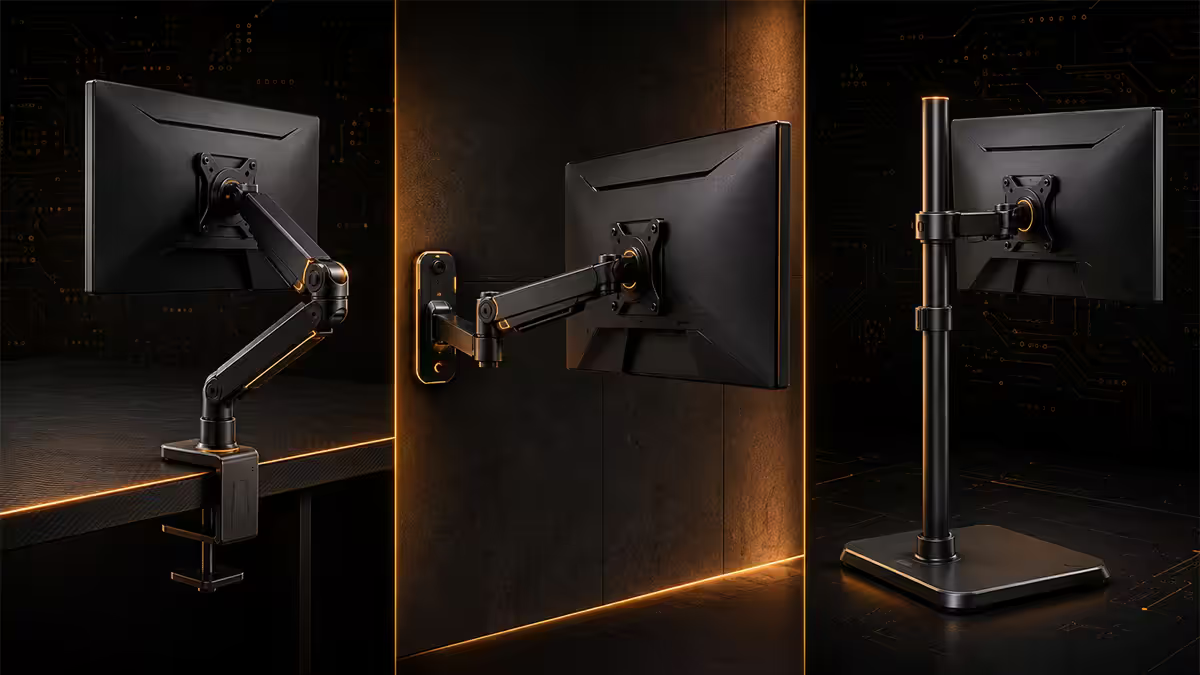
VESA-compatible mounts come in several types. Each has its place.
Desk-clamp monitor arms
The most popular choice for desks. The arm clamps to the edge of your desk, the monitor attaches to the arm's VESA plate. Allows height, tilt, swivel and rotation adjustment. Single arms R600-R2500 in SA. Premium gas-spring arms (Ergotron LX, Humanscale M2.1) R2500-R8000.
Pros: no wall drilling, free up desk space, flexible repositioning, easy to remove. Cons: requires sturdy desk edge (some thin glass desks aren't clamp-rated), adds desk clutter behind monitor, premium arms are expensive.
Dual or triple monitor arms
Designed for multi-monitor setups on a single clamp. Brateck LDA-510 series, North Bayou F195A and Ergotron HX dual arm are popular SA picks. R1500-R5500 for dual, R3500-R8000 for triple. Critical: weight rating is per-arm or total — confirm before buying.
Fixed wall mounts
Cleanest aesthetic. Monitor attaches directly to the wall via a VESA-compliant bracket. Fixed mounts hold the monitor at one position. R300-R1200 in SA.
Pros: no desk footprint, clean look, very secure for large displays. Cons: requires wall drilling and stud-finding, no adjustment after install, harder to remove for cable management.
Tilt-and-swivel wall mounts / full-motion wall mounts
Like fixed wall mounts but with hinges allowing tilt, swivel and pull-out from the wall. R600-R3500 in SA. Great for TVs that need viewing from multiple angles.
Floor stands
Self-standing weighted bases that hold a monitor or TV without attaching to wall or desk. Useful for portable displays, presentation setups, multi-room moves. R1500-R8000+.
Common VESA mounting mistakes
Not checking the spec sheet first. The single biggest mistake. Buying an arm before confirming the monitor's VESA size and weight leads to "this doesn't fit" returns. Spend 60 seconds on the manufacturer's product page before clicking buy.
Ignoring weight headroom. A monitor at the exact rated weight of the arm will sag over years, especially gas-spring arms. Always pick 20-30% above your monitor weight for long-term stability.
Mounting curved or ultrawide without checking depth. Some curved monitors have deep back-panel shapes that won't sit flush against a flat mounting plate. The arm bracket might need spacers from the box. Read the manual.
Using wrong-length screws. Too short and threads don't engage. Too long and the screw punches into the display's internal components. Match the manufacturer-recommended length range in the spec sheet.
Drywall-mounting a wall arm without finding studs. Heavy monitors on drywall-only mounting will pull the anchor out of the wall over time. Always find studs or use toggle anchors rated for the monitor's weight including dynamic load.
Clamping to thin glass or low-quality desks. Monitor arms exert significant clamping force on the desk edge. Thin glass desks or particle-board desks under 19mm can crack or split. Check the desk's tolerance before clamping.
In our internal office setup we fit a great many monitors to arms across our build team and customer-service rooms. Across years of use, the failures we've seen split two ways: arms rated exactly at monitor weight developed sag within a year or two. Arms rated 30%+ over the monitor weight stayed solid for years. The R200-R400 you spend stepping up an arm tier is the smallest insurance policy in your build — and the only one that actually pays off.
Behind the Bench · From our Centurion fit-out
Key takeaways
- VESA is the global standard — square pattern of four threaded holes, measured centre-to-centre in mm.
- Most monitors use 75×75 or 100×100 with M4 screws. Most arms support both patterns on one bracket.
- Always check the monitor's spec sheet for VESA size, weight (without stand) and recommended screw length.
- Pick an arm rated 20-30% above monitor weight — gas-spring arms have a minimum weight too.
- Non-VESA monitors can use adapter brackets (R450-R1200 in SA) — confirm model-specific compatibility before buying.
Frequently asked questions
What is a VESA mount?
The global standard for mounting monitors and TVs — a square pattern of four threaded holes on the back of the display. Common sizes: 75×75, 100×100, 200×200, 400×400mm centre-to-centre.What VESA size does my monitor have?
Check the manufacturer's spec sheet — usually listed as "VESA mount: 100×100" or similar. If you can't find it, measure the four threaded holes centre-to-centre in mm. Most 24-32" monitors are 75×75 or 100×100.What screw size do VESA mounts use?
M4 for most monitors (75×75 and 100×100). M5 or M6 for 200×200 patterns. M6 or M8 for large TV patterns (400×400+). Most arms ship with all common screw sizes and lengths.How do I know if a mount will hold my monitor's weight?
Find your monitor's weight (without stand) in the spec sheet. Pick a mount rated at least 20-30% over that weight. A 7kg monitor wants a 9-10kg+ rated arm for long-term stability.What if my monitor doesn't have VESA holes?
Use a VESA adapter bracket — VIVO, AOEYOO and similar make universal adapters for R450-R1200 in SA. Always confirm the adapter lists your monitor model specifically before buying.Can I VESA mount a curved monitor on a wall?
Yes — the curve doesn't affect the VESA pattern. But some deeply curved monitors (1000R/800R) have unusual back-panel shapes needing spacers from the box. Check the manual.How do I remove the existing monitor stand?
Lay the monitor face-down on a towel. Look for a release button or 2-4 screws on the stand joint. Press the button or unscrew, lift the stand off, VESA holes are exposed.What's the best way to mount a monitor — arm, wall or desk-clamp?
Desk-clamp arms are most versatile — adjustable, no wall drilling, R600-R8000 in SA. Wall mounts are cleaner aesthetically but limit repositioning. Floor stands work for portable / multi-room setups.
Get the Evetech app
Exclusive app-only prices, daily flash sales, and free delivery on orders over R4,000 — download the app and start saving.