External Monitor Setup Guide
Connect your laptop to an external monitor. — One cable. Twice the desktop.
A 27-inch external monitor is the cheapest productivity upgrade on the market — and the cable choice is the only thing that ever goes wrong. Here's exactly what plugs into what.
- extend/duplicate
- Win+P
- USB-C DP1.2 cap
- 4K@60
- scaling 27" 4K
- 150%
HDMI vs DisplayPort vs USB-C vs Thunderbolt
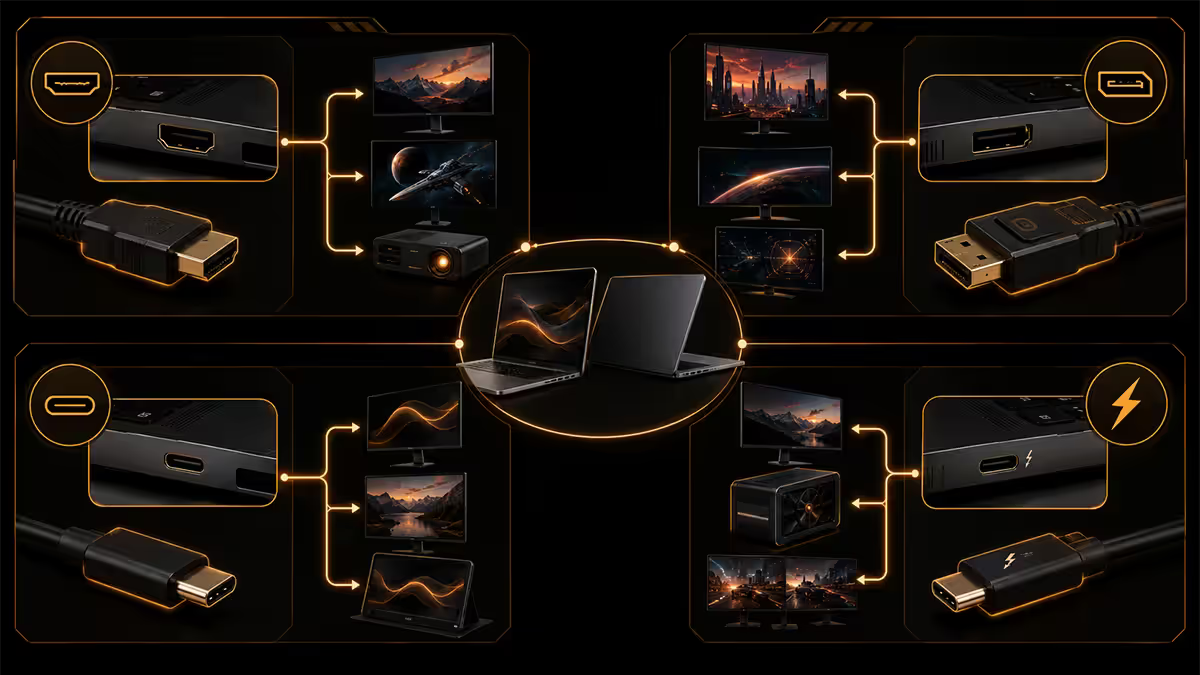
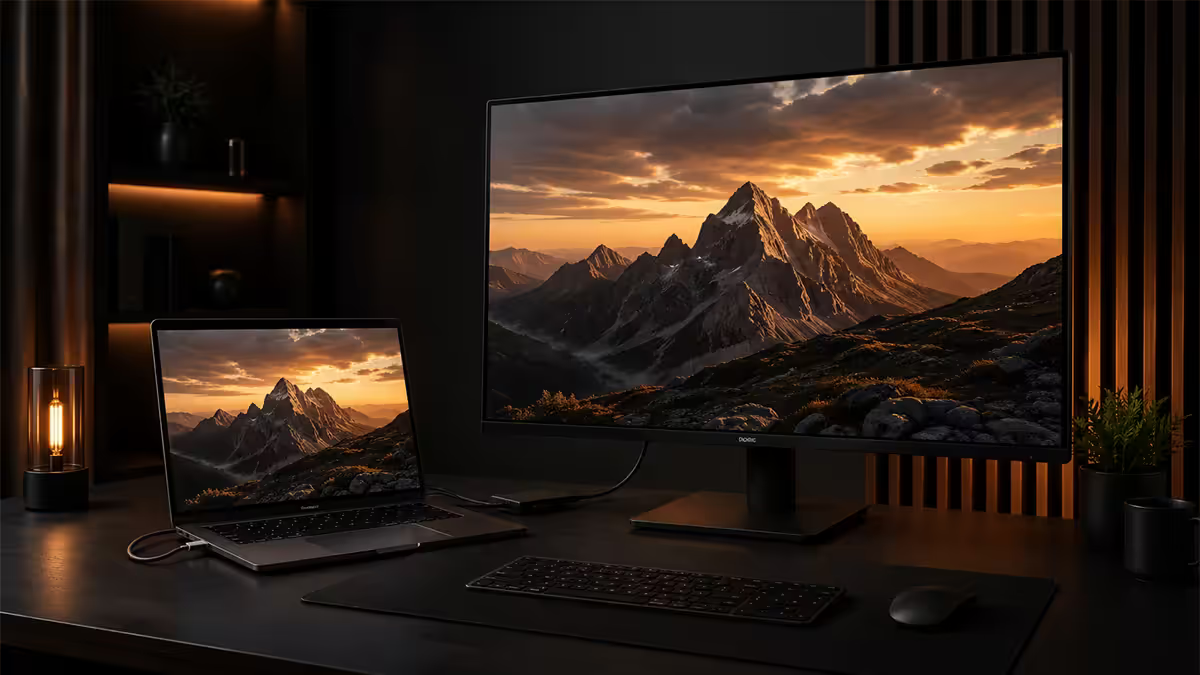
Four cable types cover every modern laptop-to-monitor connection. Use the highest-tier port both ends support — but if any one of these works, you're fine.
| Cable | Max signal (single monitor) | Common on laptops |
|---|---|---|
| HDMI 2.0 | 4K @ 60Hz, 1440p @ 144Hz | Most laptops 2018-2022 |
| HDMI 2.1 | 4K @ 120Hz, 8K @ 60Hz | Gaming laptops 2023+, MacBook Pro |
| DisplayPort 1.4 | 4K @ 144Hz, 1440p @ 240Hz | Workstation laptops, dedicated DP out |
| DisplayPort 2.0 | 4K @ 240Hz, 8K @ 120Hz | Top-tier 2025+ workstation/gaming laptops |
| USB-C DisplayPort 1.2 (Alt Mode) | 4K @ 60Hz | 2019-2022 ultrabooks, MacBook Air M1/M2 |
| USB-C DisplayPort 1.4 (Alt Mode) | 4K @ 120Hz | 2023+ ultrabooks, MacBook Air M3/M4 |
| Thunderbolt 4 / USB4 | Dual 4K @ 60Hz or single 8K | Premium laptops 2022+, all M-series Mac |
| Thunderbolt 5 | Dual 6K @ 60Hz or single 8K @ 120Hz | MacBook Pro M4, top 2026 Intel/AMD laptops |
The USB-C trap: not every USB-C port supports video output. Look for the small DP icon next to the port, the Thunderbolt lightning bolt, or check the laptop spec sheet for "USB-C with DisplayPort". A plain USB-C port without those marks is data-only and won't drive a display, regardless of the cable.
Cable quality matters most for HDMI 2.1. A cheap "HDMI 2.1" cable from an unknown brand may carry the marking but not the bandwidth — and you'll see drops, black flashes or refusal to negotiate above 60Hz. Spend R250-R400 on a certified Ultra High Speed HDMI cable from Anker, UGREEN or Belkin if 4K 120Hz is the target.
Extend vs duplicate vs second screen only
Once the cable is connected and Windows detects the monitor, you choose how it should behave. Press Win+P to open the Project menu:
- PC screen only — laptop display, external off. Useful if you want to disconnect the external without unplugging the cable.
- Duplicate — both screens show the same image. Useful for presentations from a laptop to a projector/TV. Refresh rate caps at the lower of the two displays.
- Extend — the external becomes additional desktop space. This is the default productivity mode and what almost every user wants.
- Second screen only — external on, laptop display off. Use with the laptop closed (clamshell mode) on a dock or stand.
On Mac, the same options live in System Settings → Displays. Click Display Settings, and the layout panel lets you toggle Mirror Displays for duplicate mode.
Swapping the primary monitor
The "primary" monitor is where Windows puts the taskbar, where new windows open by default, and where games launch full-screen. When you add a bigger external monitor, you'll usually want that one as primary.
Windows: right-click desktop → Display settings. Click the monitor you want as primary. Scroll to "Multiple displays" and check "Make this my main display". Drag the monitor boxes to physically arrange them — Windows uses this layout for cursor movement between screens.
Mac: Apple menu → System Settings → Displays. Click Arrange. Drag the white menu bar from one display to the other to set primary.
Refresh rate matching
If your external monitor supports 144Hz and your laptop's display is 60Hz, you don't get the high refresh on the external by default. Windows often picks a "safe" 60Hz on first connect.
To fix: Settings → System → Display → Advanced display. Pick the external monitor from the drop-down. Under "Refresh rate", choose the maximum your monitor supports. If the maximum isn't listed, your cable or output port can't deliver the bandwidth — try a higher-spec cable or a different output (HDMI vs DP).
Why this matters: mouse movement, scrolling, video playback and games all feel smoother at higher refresh. The visible difference between 60Hz and 144Hz is bigger than the visible difference between 1080p and 4K for most people. A 27" 1440p 144Hz feels much more responsive than a 27" 4K 60Hz for productivity.
Per-monitor scaling — the blur fix
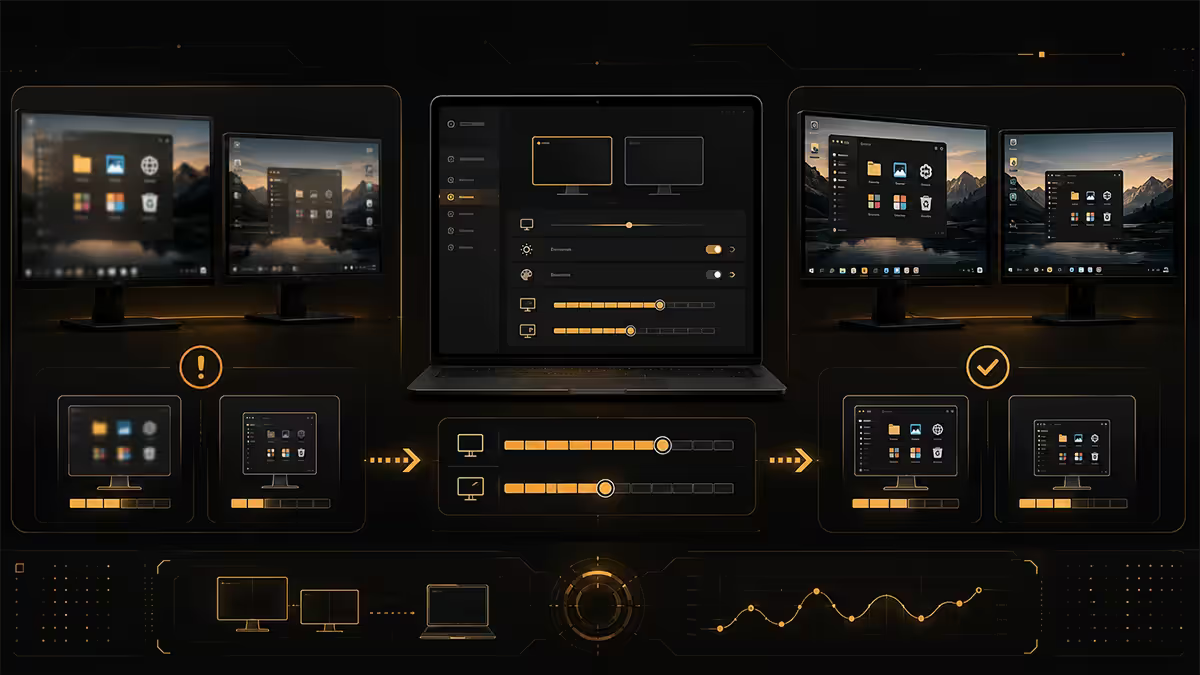
Different displays need different scaling. A 13" laptop display at 1080p might need 100% scaling; a 27" 4K external needs 150% scaling for fonts and UI to be readable. If both are set to the same scale, one will look wrong.
Set scaling per monitor on Windows 11:
- Right-click desktop → Display Settings.
- Click the monitor you want to adjust.
- Under "Scale", choose 100, 125, 150 or 175%.
- Sign out and back in if any apps look blurry after the change.
Recommended scaling for common sizes:
| Display | Recommended scale | Effective workspace |
|---|---|---|
| 13" laptop 1080p | 100% | 1920 × 1080 |
| 14" laptop 1440p / 2K | 125% | ~2048 × 1152 |
| 16" laptop 4K | 175% | ~2194 × 1235 |
| 24" external 1080p | 100% | 1920 × 1080 |
| 27" external 1440p | 100% | 2560 × 1440 |
| 27" external 4K | 150% | ~2560 × 1440 |
| 32" external 4K | 125% | ~3072 × 1728 |
| 34" ultrawide 1440p | 100% | 3440 × 1440 |
4K 60 vs 4K 120 — what your laptop can actually do
A laptop's ability to drive 4K at 120Hz depends entirely on its built-in display output, not its CPU or GPU power.
Can drive 4K @ 120Hz natively: laptops with HDMI 2.1, USB-C DisplayPort 1.4, or Thunderbolt 4/5. This means MacBook Pro M3/M4, recent ThinkPad X1 Carbon, Dell XPS 15/17, ASUS ROG Strix G16, MSI Stealth 16, most 2024+ gaming laptops.
Capped at 4K @ 60Hz: laptops with HDMI 2.0 only, USB-C DisplayPort 1.2 only. This covers most laptops sold 2018-2022, including MacBook Air M1/M2, Surface Laptop 4/5, most HP/Dell/Lenovo consumer ranges.
The dock complication: using a USB-C dock between laptop and monitor reduces available bandwidth. A laptop that can drive a single 4K 120Hz monitor directly may only do 4K 60Hz through a dock, because the dock has to split bandwidth across multiple ports. For 4K 120Hz, connect directly — not through a dock.
Mac connection differences
MacBooks behave a little differently from Windows laptops on external monitors. The big rules.
External display count limits. MacBook Air M1/M2/M3 only support one external display via USB-C. MacBook Air M4 supports two. MacBook Pro M-series (Pro/Max chip) supports two to four externals depending on chip. The M1/M2/M3 Air single-monitor cap is hardware — no dock workaround.
HDMI is HDMI 2.1 on modern MacBook Pro. The dedicated HDMI port on MacBook Pro M2/M3/M4 is HDMI 2.1, capable of 4K 120Hz directly to a monitor or TV without an adapter.
Clamshell mode. Close the laptop lid with external display, external keyboard and power connected, and the Mac drives the external as primary. The internal display sleeps but the Mac stays awake. Unlike Windows you don't have to configure anything for this — it's automatic.
Scaling is "Display arrangement" on Mac. System Settings → Displays → click an external → choose Larger Text or More Space. Mac doesn't expose 100/125/150% directly — instead it renders to a higher virtual resolution and downsamples to the monitor's native resolution.
Troubleshooting common problems
No signal on external monitor. First, check the monitor input source — most monitors have HDMI 1, HDMI 2, DP, USB-C as separate inputs, and they don't auto-detect. Cycle through with the monitor's input button. Then unplug and reconnect the cable. Finally, test the cable with a known-working device.
External shows wrong resolution. Right-click desktop → Display Settings → click monitor → set resolution to "Recommended" or the monitor's native (often 2560×1440 or 3840×2160). If the native option isn't listed, install the monitor driver from the manufacturer site (LG, Samsung, Dell, AOC all publish them).
External monitor flickers. Usually a cable bandwidth issue. Try a different cable, ideally a certified high-bandwidth one. If using HDMI 2.1 at 4K 120Hz, the cable is almost always the culprit — cheap "2.1" cables can't sustain the bandwidth.
Monitor positioned wrong (cursor jumps). Display Settings → drag the monitor blocks until they match how your monitors physically sit on the desk. The corners of the on-screen blocks are where the cursor crosses between displays.
Audio playing from the wrong device. External monitors via HDMI/DP usually expose themselves as an audio output. Right-click the volume icon in the taskbar → Sound settings → choose your laptop speakers, external speakers or headphones explicitly.
Recommended cables and accessories
| Use case | Pick | SA price |
|---|---|---|
| USB-C to USB-C (DP-Alt) | Anker 240W USB-C 2m or UGREEN Thunderbolt 4 cable | R380-R650 |
| USB-C to HDMI (4K 60Hz) | UGREEN USB-C HDMI 2.0 2m | R280-R450 |
| USB-C to DisplayPort 1.4 | Cable Matters USB-C to DP 1.4 cable | R450-R650 |
| HDMI 2.1 Ultra High Speed | Belkin Ultra HD HDMI 2.1 or UGREEN HDMI 2.1 8K | R350-R650 |
| DisplayPort 1.4 cable | UGREEN DP 1.4 8K cable 2m | R280-R450 |
| Single-monitor USB-C hub | Anker 7-in-1 USB-C Hub (HDMI 2.0) | R900-R1,400 |
| Laptop stand (clamshell) | Twelve South BookArc or Rain Design mStand | R900-R2,200 |
| Monitor arm (single) | Mountup Single Arm or NB North Bayou F80 | R550-R1,800 |
Key takeaways
- USB-C DP-Alt or Thunderbolt is the modern default — verify the port has the DP icon or lightning bolt.
- Win+P for extend/duplicate. Extend is what you want almost every time.
- Set per-monitor scaling. 27" 4K = 150%; 27" 1440p = 100%; 13" laptop 1080p = 100%.
- 4K 120Hz needs HDMI 2.1, DP 1.4, or Thunderbolt 4 — check your laptop's output spec before buying the monitor.
- When troubleshooting, check the monitor input source first — fixes 40% of "no signal" issues.
Frequently asked questions
What cable do I use to connect my laptop to a monitor?
USB-C if your laptop port supports DP-Alt or Thunderbolt. Otherwise HDMI 2.0/2.1 or DisplayPort. Match to the monitor's available inputs.Can I use USB-C to connect my laptop to a monitor?
Only if the USB-C port supports DisplayPort Alt Mode or Thunderbolt. Look for the DP icon or lightning bolt next to the port.What is the difference between HDMI and DisplayPort?
HDMI is the consumer/TV standard. DisplayPort is the PC standard with higher bandwidth — DP 2.0 supports 4K at 240Hz vs HDMI 2.1's 4K at 120Hz native.Why does my external monitor look blurry?
Scaling mismatch. Set per-monitor scaling in Settings → System → Display. 27" 4K = 150%; 27" 1440p = 100%.Can my laptop drive a 4K monitor at 120Hz?
Only if it has HDMI 2.1, USB-C DisplayPort 1.4, or Thunderbolt 4. HDMI 2.0 and USB-C DP 1.2 cap at 4K 60Hz.How do I switch between extend and duplicate display?
Win+P on Windows for the Project menu. On Mac, System Settings → Displays → Display Settings and toggle Mirror Displays.Can I close my laptop and use just the external monitor?
Yes. On Windows, set lid-close action to "Do nothing" in Power Options. On Mac, clamshell mode is automatic with external display, keyboard and power.Do I need a docking station to use an external monitor?
No — one cable is enough for one monitor. A dock is for two-plus monitors or when you need ethernet, more USB ports and audio on the same connection.
Get the Evetech app
Exclusive app-only prices, daily flash sales, and free delivery on orders over R4,000 — download the app and start saving.