Docking Station Setup Guide
How to use a docking station.
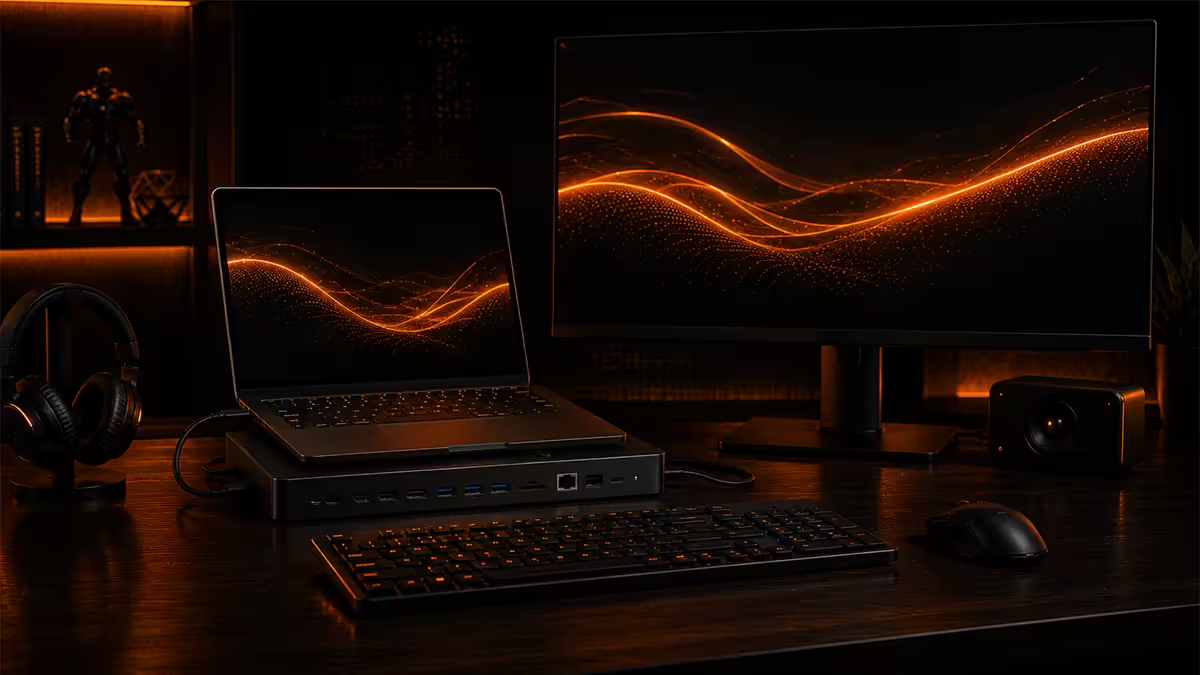
Drop the laptop on the desk, plug in one cable, and you've got two 4K monitors, gigabit ethernet, four USB ports, audio and 100W charging. When it works, it's magic — and the protocol matters more than the brand.
- TB4 bandwidth
- 40 Gbps
- power delivery
- 65-140W
- TB4 dual display
- 2× 4K@60
Thunderbolt 4 vs USB4 vs USB-C DP-Alt
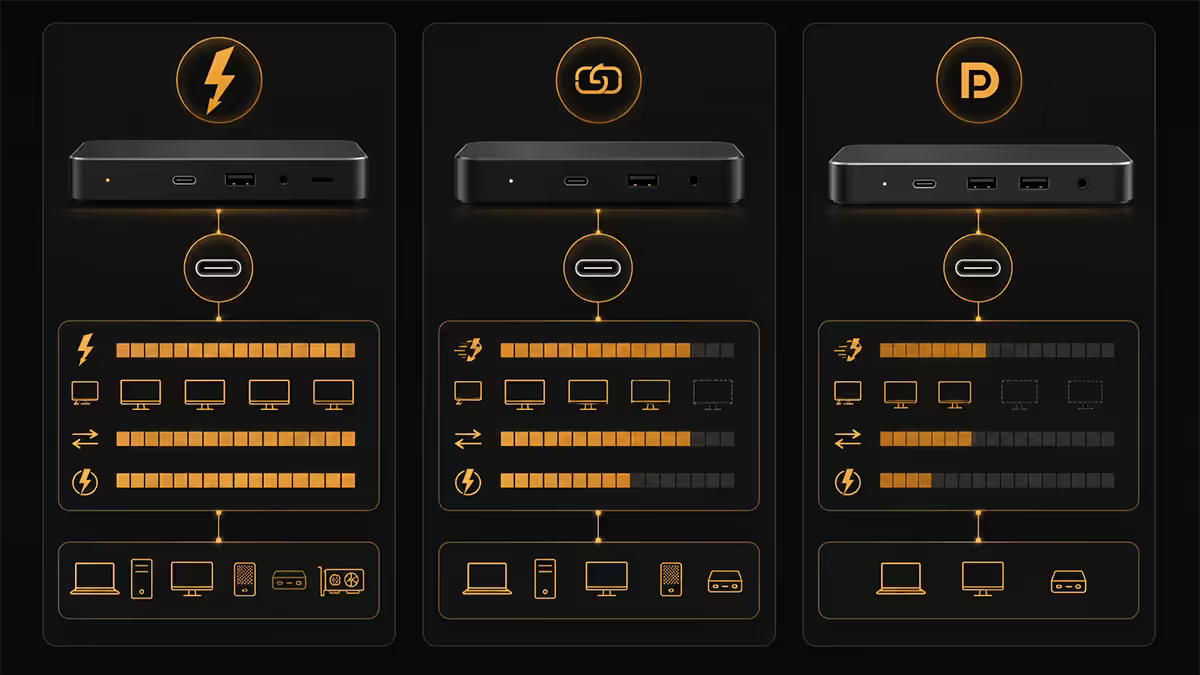
All three use the same physical USB-C port. The difference is the protocol speaking through that port — and the dock has to match what your laptop supports.
| Protocol | Bandwidth & capability | Typical dock cost |
|---|---|---|
| USB-C DisplayPort Alt Mode | 10 Gbps, single 4K 60Hz or dual 1080p | R900-R1,800 |
| USB4 (entry tier) | 20 Gbps, single 4K 60Hz, partial TB compatibility | R2,200-R3,500 |
| USB4 (full tier) | 40 Gbps, dual 4K 60Hz, near-Thunderbolt parity | R3,500-R5,500 |
| Thunderbolt 4 | 40 Gbps, dual 4K 60Hz, Intel-certified, PCIe tunnel | R4,500-R12,000 |
| Thunderbolt 5 | 80-120 Gbps, dual 6K, single 8K 120Hz | R8,000-R15,000+ |
How to know which your laptop supports: look at the USB-C port itself. A Thunderbolt-capable port has the lightning bolt symbol next to it. A DisplayPort-capable port has the DP icon. A plain USB-C port with no symbol is data-only and won't drive video. The laptop spec sheet lists this under "Ports" or "I/O".
The matching rule: a Thunderbolt 4 dock connected to a USB-C DP-Alt laptop only operates as a USB-C DP-Alt dock — you lose the Thunderbolt bandwidth advantage. Conversely, a USB-C DP-Alt dock connected to a Thunderbolt laptop works fine but caps the dock at its native 10 Gbps.
Power delivery — match wattage to laptop
A dock delivering insufficient power to your laptop is the silent killer of a docked setup. The laptop runs, the monitors work, the USB devices show up — but the battery slowly discharges under load because the dock can't supply what the laptop needs.
| Laptop type | OEM charger | Dock PD needed |
|---|---|---|
| MacBook Air M1/M2/M3/M4 | 30-35W USB-C | ≥ 65W |
| Dell XPS 13 / HP Spectre / Surface Laptop | 45-65W USB-C | ≥ 65W |
| ThinkPad T-series / X1 Carbon | 65W USB-C | ≥ 90W |
| MacBook Pro 14" | 70-96W USB-C | ≥ 96W |
| Dell XPS 15 / ThinkPad P-series | 90-130W USB-C | ≥ 100W |
| MacBook Pro 16" | 140W USB-C | ≥ 140W |
| Gaming laptop (RTX 4060/4070) | 180-280W barrel | Dock can't fully power — keep OEM charger |
| Gaming laptop (RTX 4080/4090) | 280-330W barrel | Dock can't fully power — keep OEM charger |
Gaming laptops are the exception — most need 180W+ which exceeds USB-C PD's current 240W cap. Even where dock PD wattage technically matches, the dock typically delivers 100W via USB-C and that's enough to charge the laptop only when idle. Under gaming load, the laptop draws from the battery anyway. Keep the OEM charger plugged in for serious gaming sessions.
Why under-powered docking matters: a laptop receiving 65W when it needs 90W will discharge during normal productivity (multiple Chrome tabs, Teams call, two monitors). You'll find the battery at 30% by mid-afternoon despite "being plugged in" all day. Always over-spec the dock's PD by 15-20W vs the laptop's stated requirement.
Dual 4K — what's real, what's marketing
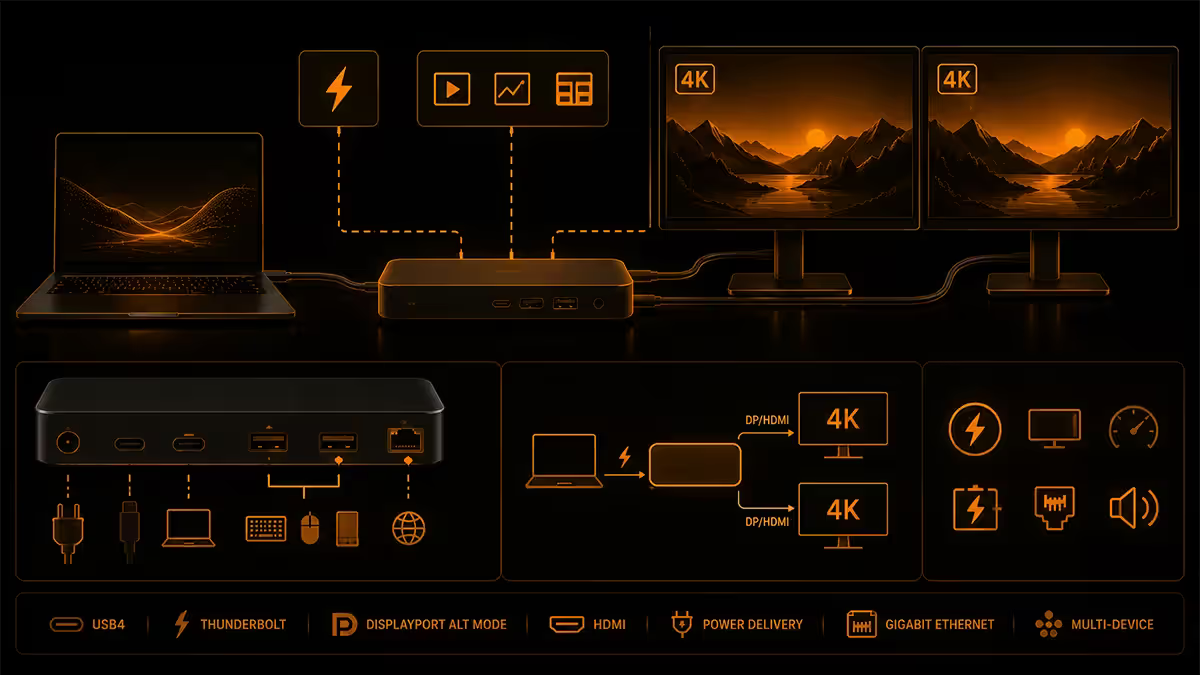
Dock marketing loves "dual 4K" claims. The reality is more nuanced.
Honest dual 4K @ 60Hz on both displays: requires Thunderbolt 4 dock + Thunderbolt 4 laptop + DisplayPort 1.4 or HDMI 2.0 on the displays. CalDigit TS4, Anker Apex Thunderbolt 4, OWC Thunderbolt Hub deliver this reliably.
"Dual 4K" caveat: many USB-C DP-Alt docks advertise dual 4K but the small print shows 4K 60Hz on one display + 4K 30Hz on the other. 4K 30Hz looks juddery for cursor movement and is unusable for video.
"Dual display" caveat: some docks list dual display support but cap at 1080p 60Hz on both. Fine for spreadsheets, painful for any 4K content.
How to verify on a spec sheet: the words you want are "Dual 4K @ 60Hz" or "2 × 4K UHD 60Hz". Anything ambiguous like "dual monitor support" or "up to 4K" without a refresh rate is a hedge.
MST and how multi-display actually works
When a dock drives two monitors from one DisplayPort signal, the protocol underneath is MST — Multi-Stream Transport. MST splits one DisplayPort stream into multiple monitor outputs.
Windows supports MST natively. Plug a dual-monitor dock into a Windows laptop and both monitors light up — Windows sees them as separate displays and you arrange/scale them as if they were directly connected.
macOS does not support MST. Plug a USB-C DP-Alt dual-monitor dock into a Mac and you'll get mirroring or only one display, not extended dual display. This is a deliberate Apple choice and there's no software workaround.
Macs get dual display via Thunderbolt instead. A Thunderbolt 4 dock with two DisplayPort outputs works because each DP signal is driven directly by Thunderbolt — no MST splitting required. This is why all "Mac-compatible dual monitor docks" are Thunderbolt-based.
If you have an Intel Mac (older): the Intel Macs supported MST in limited cases, but every Apple Silicon Mac (M1 forward) does not. For modern Macs, Thunderbolt is required for dual display.
Dock picks by tier
| Tier & use case | Pick | SA price |
|---|---|---|
| Premium Thunderbolt 4 (workstation) | CalDigit TS4 (98W PD, 18 ports) | R8,500-R10,500 |
| Premium Thunderbolt 4 (clean design) | OWC Thunderbolt Hub (11 ports) | R6,500-R8,500 |
| Premium Thunderbolt 4 (compact) | Anker 778 Thunderbolt Docking Station (100W) | R5,500-R7,000 |
| Value Thunderbolt 4 | UGREEN Nexode TB4 (96W) | R4,200-R5,200 |
| USB4 entry tier | Plugable USB-C 4K Dual Display Dock | R3,200-R4,200 |
| USB-C DP-Alt (single monitor) | Anker 7-in-1 USB-C Hub | R900-R1,400 |
| USB-C DP-Alt (dual monitor Windows) | UGREEN 9-in-1 USB-C DP-Alt Dock | R1,500-R2,200 |
| Travel dock (laptop bag) | Anker 555 USB-C Hub or HyperDrive Slim | R750-R1,200 |
Vendor universal docks — Dell, Lenovo, HP, Logitech
Each major laptop OEM ships a "universal" dock designed primarily for their own laptops with the side benefit of working on any USB-C laptop. They tend to be enterprise-grade but pricier per port than independent picks.
Dell WD22TB4 (Thunderbolt 4, 130W PD). The standard issue for Dell Latitude and XPS fleets — robust, reliable, supports dual 4K 60Hz. Pricier than CalDigit TS4 (R7,500-R9,500) but bundled with corporate Dell laptop purchases.
Lenovo ThinkPad Universal Thunderbolt 4 Dock (135W PD). Lenovo's flagship dock, designed around the ThinkPad T/P/X series. Supports dual 4K 60Hz, includes 2.5Gbps ethernet (rare at this tier). R7,000-R9,000 in SA.
HP Universal USB-C Dock G2 (USB-C DP-Alt, 100W PD). An older but still-stocked tier — USB-C only, not Thunderbolt. Good for HP EliteBook fleets where Thunderbolt isn't required. R3,500-R5,000.
Logitech Logi Dock (USB-C DP-Alt, 100W PD). Designed for meetings — built-in conferencing audio with mute button, dual external display support. Pricier per port than alternatives but the meeting hardware adds genuine value. R6,500-R8,000.
Mac docks vs Windows docks — key differences
A "Mac-compatible" dock is fundamentally different from a "Windows-compatible" dock for dual-display use:
- Thunderbolt-based dual display instead of MST — Mac docks must use Thunderbolt to drive multiple monitors.
- No DisplayLink workaround needed for primary use. Some Windows docks include a DisplayLink chip to drive extra displays — Mac driver support for DisplayLink is functional but battery- and CPU-intensive. Skip DisplayLink-based docks for Mac.
- Magsafe is separate. If you use Magsafe charging, the dock cable becomes data-only (no power needed). Many MacBook Pro users keep Magsafe plugged in for the safety break-away feature and run the dock cable for data + monitors only.
- Audio quirks. Some docks present themselves as a USB audio device, fighting macOS's preferred internal audio. Force the audio output device in System Settings → Sound if the wrong speakers play.
Recommended Mac docks: CalDigit TS4 (gold standard), Anker 778 Thunderbolt 4, OWC Thunderbolt Hub, Belkin Pro Thunderbolt 4. Avoid any "USB-C DP-Alt dual monitor" dock — it won't deliver dual displays on Mac regardless of how the box markets it.
First-time setup — the right order
Set up the dock once, properly, and it'll work for years. Rush it and you'll be re-plugging cables for weeks.
- 1
Power the dock first
Plug the dock's power supply into the wall first. Wait for the dock's power LED to light up before connecting anything else. - 2
Connect all peripherals
Connect all your peripherals to the dock: monitors via HDMI/DP, keyboard, mouse, ethernet, headphones, webcam. Leave the laptop unplugged. - 3
Connect laptop to dock
Plug the laptop into the dock with the Thunderbolt 4 or USB-C cable that came with the dock. Use that specific cable — third-party USB-C cables often don't carry enough current for the dock's data lanes. - 4
Wait for detection
Wait 30-45 seconds for the laptop to detect everything. Windows usually plays the device-connect sound multiple times; Mac shows a power-input notification. - 5
Configure displays
Configure displays in Settings → System → Display (Windows) or Apple menu → System Settings → Displays (Mac). Set primary monitor, scaling per display, and refresh rates. - 6
Set lid-close behaviour
Set the laptop lid-close behaviour to keep the system awake. On Windows: Control Panel → Power Options → Choose what closing the lid does → Do nothing on both. On Mac: clamshell mode is automatic with dock + external keyboard + external display.
Key takeaways
- Thunderbolt 4 for dual 4K 60Hz; USB-C DP-Alt for single 4K + ports; USB4 sits between.
- Match dock Power Delivery to laptop charger. Under-spec = laptop discharges under load.
- "Dual 4K" is marketing-loaded — verify "Dual 4K @ 60Hz" not just "dual display".
- macOS does not support MST — Mac dual displays require Thunderbolt-based docks specifically.
- CalDigit TS4, Anker 778, UGREEN Nexode TB4 are SA Thunderbolt picks. Anker 7-in-1 and UGREEN 9-in-1 cover the USB-C DP-Alt tier.
Frequently asked questions
What is the difference between a Thunderbolt 4 dock and a USB-C dock?
Thunderbolt 4 docks deliver 40 Gbps of bandwidth, supporting dual 4K 60Hz monitors plus full data on one cable. USB-C DP-Alt docks deliver 10 Gbps and typically support one 4K monitor or two 1080p monitors. USB4 docks sit between the two — same physical port as Thunderbolt 4 with 20-40 Gbps depending on chip. For dual 4K and reliable performance, Thunderbolt 4 is the safer pick.How much power does a laptop docking station deliver?
Modern docks deliver 65W to 140W of USB-C Power Delivery (PD) to the laptop. 65W is sufficient for ultrabooks and MacBook Air; 90-100W for MacBook Pro 14, ThinkPad T-series and Dell XPS 15; 140W for MacBook Pro 16, gaming laptops and workstation laptops. If the dock's PD wattage is less than your laptop's charger rating, the laptop will slowly discharge under load.Can a docking station drive two 4K monitors?
Yes, but only with a Thunderbolt 4 dock connected to a Thunderbolt 4 host laptop. Both dock and laptop must support Thunderbolt 4. USB-C DP-Alt docks can sometimes claim dual 4K but actually deliver 4K 60Hz + 4K 30Hz, or both at lower resolution. Verify the dock spec sheet specifies dual 4K @ 60Hz.Do I need a Thunderbolt dock for my MacBook Pro?
For dual external 4K monitors, yes — a Thunderbolt 4 dock is required. For single monitor plus accessories, a USB-C dock works fine. The MacBook Pro M2/M3/M4 supports dual external displays natively, but only over Thunderbolt-rated cabling and chips. CalDigit TS4, OWC Thunderbolt Hub and Anker 778 Thunderbolt 4 are the safest picks.What is MST and why does it matter for docks?
MST (Multi-Stream Transport) lets a single DisplayPort signal carry multiple monitor streams. A dock uses MST to drive two monitors from one DisplayPort cable. macOS does not support MST natively — Mac docks use Thunderbolt to drive multiple displays without MST. Windows laptops support MST over DisplayPort or USB-C DP-Alt; this is why some Windows docks can drive dual monitors but the same dock only drives one monitor on a Mac.Can I dock a gaming laptop?
Yes, but the dGPU's video output usually doesn't pass through the dock cleanly. Many gaming laptops have a 'MUX switch' to direct the discrete GPU output through the integrated GPU's USB-C/Thunderbolt port — this works with docks. Without MUX, the dock outputs only the iGPU stream which limits gaming display performance. Check the laptop spec sheet for MUX or Advanced Optimus.Is Magsafe better than a docking station for MacBook?
They solve different problems. Magsafe charges the MacBook (and is safer against trip damage). A dock charges the MacBook plus connects monitors, USB devices, ethernet and audio on one cable. Many MacBook Pro users use both — Magsafe for power, plus a Thunderbolt dock for everything else. The Magsafe-only setup needs separate USB-C cables for displays and accessories.How much does a good laptop dock cost in South Africa?
Entry USB-C DP-Alt docks start at R900-R1,800. Thunderbolt 4 docks range from R3,500 (Plugable, UGREEN, Anker) to R8,000-R12,000 for premium picks (CalDigit TS4, OWC Thunderbolt Hub, Belkin Pro Thunderbolt 4). Universal docks from Dell, Lenovo and HP sit around R4,500-R7,500. Budget under R3,000 if you only need one monitor + USB ports.