Laptop Cooling Pad Buying Guide
How to choose a laptop cooling pad. — Four fans. Eight degrees. Done.
The R650 accessory that drops a thermally throttling laptop back into its proper boost band. Cooling pads do more than the internet gives them credit for — when you pick the right one.
- temp drop
- 8-12°C
- ideal fan config
- 4× 120mm
- SA price range
- R450-R2500
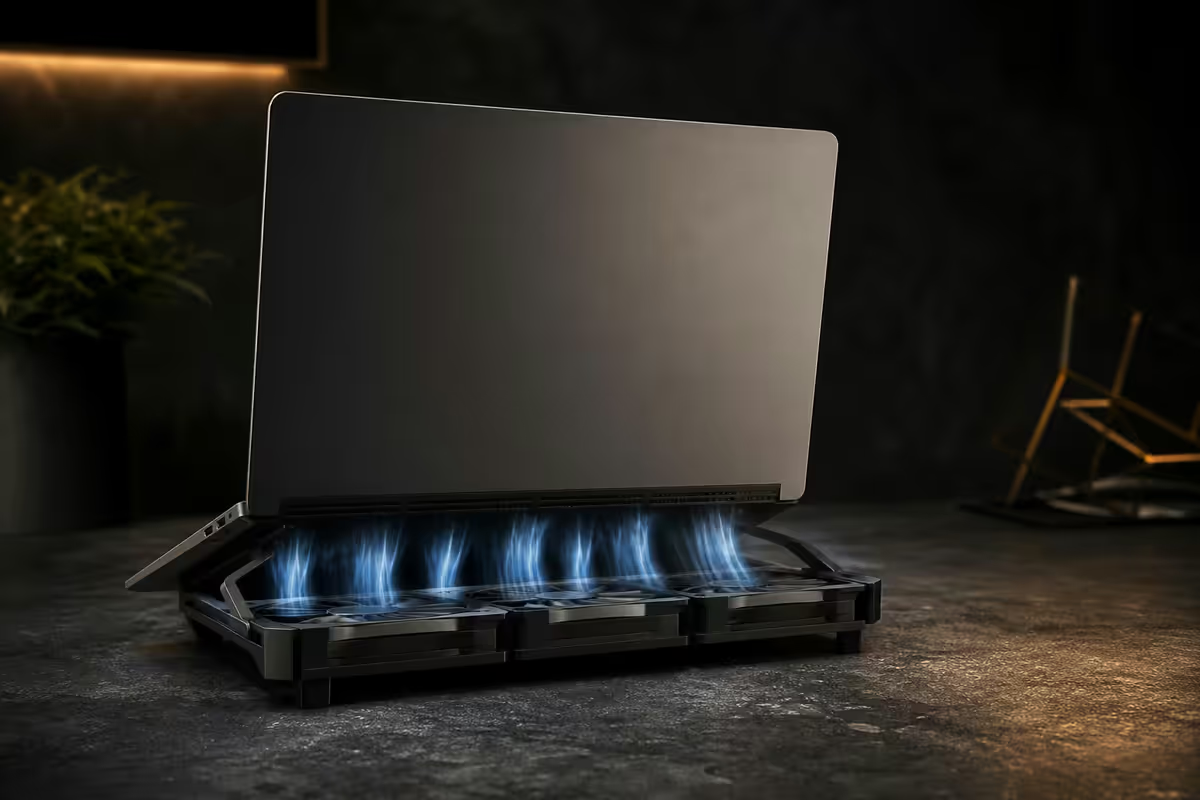
Active fan vs passive elevation
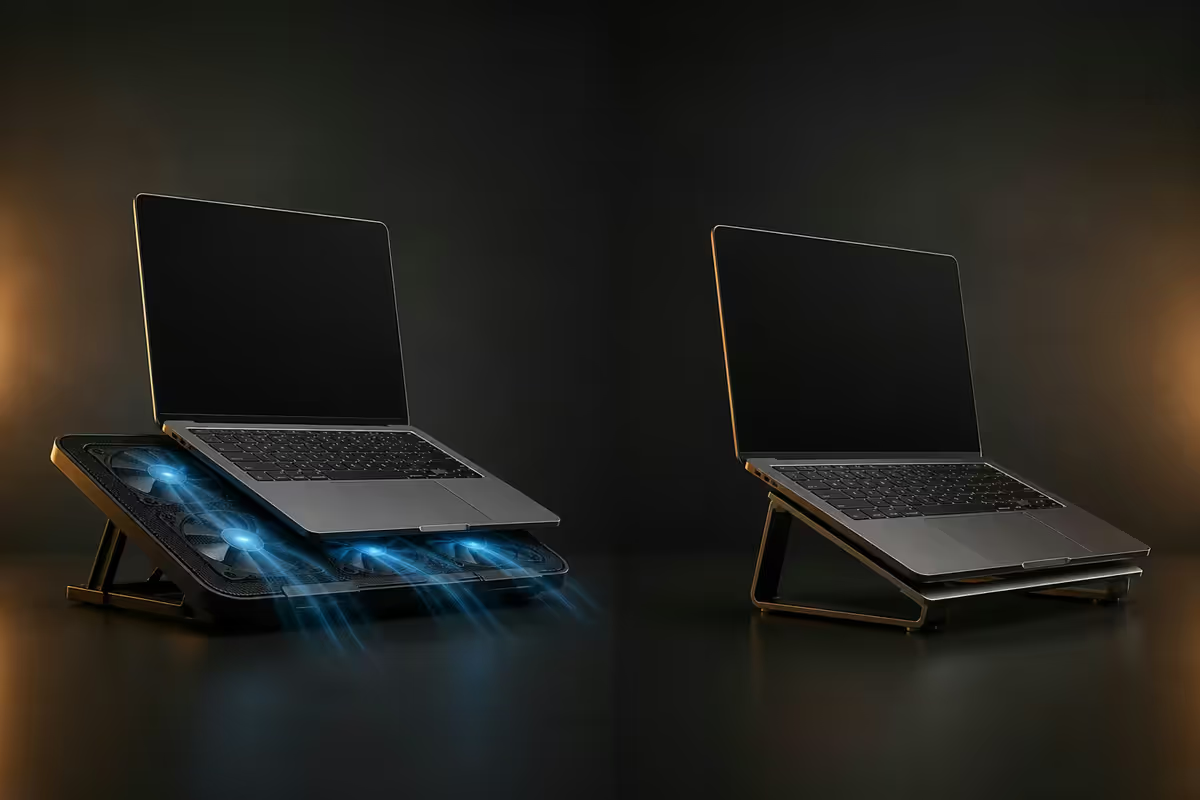
Cooling pads split into two real categories. Pick the wrong category and you've bought the wrong product, regardless of how much you spent.
| Category | Best for | Real-world temp drop |
|---|---|---|
| Passive elevation (no fans) | Ultrabooks, MacBooks, side-vent laptops | 2-4°C |
| Active fan pad (3-5 fans) | Gaming laptops, mobile workstations, bottom-vent laptops | 8-12°C |
| Vacuum / clip-on cooler | Niche — attaches directly to exhaust vent | 10-15°C (loud, fragile) |
Passive elevation pads (aluminium stands like the Rain Design mStand or a basic acrylic riser) work because heat rises. Get the laptop off the desk surface and natural convection moves warm air away from the chassis instead of trapping it. No fans, no noise, no USB port used. The trade-off is the modest temp drop — fine for ultrabooks, insufficient for anything pulling 60W+.
Active fan pads add 3-5 fans positioned beneath the laptop's intake vents. The fans push room-temperature air directly into the laptop's internal cooling system, which raises the temperature delta the internal fans can dump heat into. This is mechanically real — not marketing.
Fan count, fan size and RPM that actually matters
Marketing copy will tell you the number of fans. What matters more is fan size, RPM range and whether the fans line up with your laptop's intake vents. A single 120mm fan moving slowly often outperforms five 70mm fans screaming at maximum RPM.
Three quick rules:
- Four fans is the sweet spot for 15-17 inch gaming laptops — two beneath the CPU heat zone, two beneath the GPU zone.
- Larger fans = quieter at the same airflow. A 120mm fan at 1200 RPM moves the same air as an 80mm fan at 2400 RPM, but the smaller fan is roughly 12 dB louder.
- Variable RPM is worth paying for. Pads with a physical speed dial (Cooler Master NotePal, Targus Chill Mat) let you trade noise for cooling when your workload doesn't need maximum airflow.
Skip single-fan pads under R250. The R200 Amazon-tier units are essentially elevation stands with a tiny fan that won't align with your laptop's intake. You're paying for theatre, not cooling.
Mesh vs aluminium surface
The top surface — what your laptop actually sits on — matters more than people realise. Two materials dominate the market:
Steel or aluminium mesh is the right choice for active fan pads. The mesh is essentially transparent to airflow — fans below push air straight through to your laptop's intake. Most quality pads (KLIM, Kootek, Cooler Master) use this.
Solid aluminium plate is used on passive elevation stands and some premium active pads. The aluminium acts as a heatsink itself — heat from the laptop conducts into the plate and dissipates over a larger surface area. Works well for laptops with full-bottom heat dissipation (MacBooks) but blocks direct airflow on bottom-vented gaming laptops.
Avoid solid plastic surfaces. Plastic is an insulator. A solid plastic surface defeats the entire purpose of a cooling pad — the fans are blowing into a wall. Cheap pads cut costs here.
USB power draw and height-adjustable tilt
Cooling pad fans are tiny by desktop PC standards — they draw 2-4W collectively, well within USB power limits. USB 2.0 supplies 2.5W, USB 3.0 supplies 4.5W, USB-C supplies up to 7.5W on bus power. Any modern laptop port can drive any cooling pad.
The catch: you lose a USB port to power the pad. Better pads include a pass-through USB port — the cable plugs into your laptop, and the pad gives you back a USB-A port for your mouse or storage. Worth seeking out on the spec sheet.
Height-adjustable tilt is the other under-rated feature. A pad that locks at 4-6 angles (typically 5-25°) lets you set an ergonomic typing position while keeping the fans aligned with your laptop's intakes. Cheap pads have a fixed shallow angle that's wrong for both ergonomics and cooling. The KLIM Wind and Havit HV-F2056 both offer multi-position tilt at sub-R800 price points.
The honest take: cooling pads actually work
There's a recurring online opinion that cooling pads are placebo gear. That opinion typically comes from three sources: people testing single-fan R200 pads, people using them on aluminium-chassis MacBooks (where the chassis itself is the heatsink), and people who already had excellent internal cooling.
For the actual target market — plastic-chassis gaming laptops and mobile workstations pulling 60W+ under load — a quality 4-fan active pad reliably delivers an 8-12°C drop on the CPU under sustained gaming or rendering. That's not marginal. That's the difference between a CPU sitting at 95°C and thermally throttling versus 85°C and running its proper boost clock.
Real-world result: your Ryzen 7 / Core i7 laptop holds its boost clock 15-20% longer in extended sessions, meaning frame rates that don't tank after 20 minutes. For laptop gamers and people doing video export on the go, that's transformative.
The catch is realistic expectations. A cooling pad won't make a budget laptop perform like a workstation. It won't fix a clogged dust-filled internal fan. It won't compensate for terrible internal thermal paste. It's a multiplier on existing cooling, not a replacement for it.
Cooling pad vs internal repaste vs undervolt
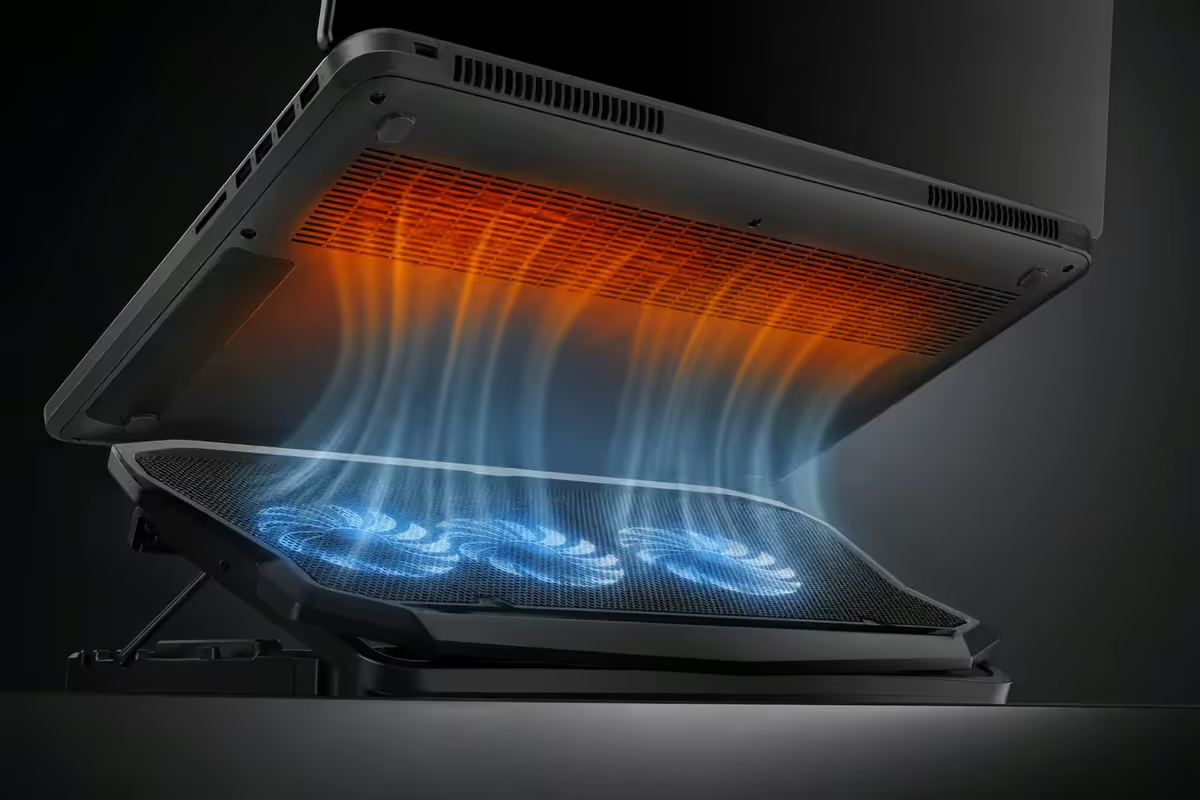
The cooling pad isn't your only option for a hot laptop. If you're committed to lower temps, two other interventions are worth knowing about — and sometimes a combination beats any single approach.
| Intervention | Temp drop | Cost | Effort |
|---|---|---|---|
| Active fan cooling pad | 8-12°C | R450-R2500 | Plug in, done |
| Internal repaste (Arctic MX-6) | 5-10°C | R250 paste | 1-2 hr teardown |
| Undervolt via XTU / Throttlestop / Ryzen Master | 5-12°C | Free | 30 min, chip lottery |
| Passive elevation stand | 2-4°C | R300-R900 | Plug in, done |
| Repaste + cooling pad combined | 12-18°C | R900 | Worth it on older laptops |
Best path for most people: active cooling pad first (zero risk, immediate benefit). If your laptop is more than two years old and still running hot, add an internal repaste using Arctic MX-6. Together you'll recover 12-18°C of thermal headroom — enough to make a thermal-throttled mid-tier laptop feel like a new machine.
Recommended cooling pads by use case
| Use case | Pick | SA price |
|---|---|---|
| Best overall value | KLIM Wind (4× 120mm) | R650-R750 |
| Budget pick | Havit HV-F2056 (3× 110mm) | R450-R550 |
| Bigger laptop (17 inch+) | Kootek X1 (5-fan) | R800-R950 |
| Premium / business | Targus AWE55GL Chill Mat+ | R2200-R2500 |
| Gaming / RGB | Razer Hanbo Chroma | R2400-R2800 |
| Passive elevation (MacBook) | Rain Design mStand or generic aluminium riser | R300-R950 |
| Vacuum clip-on (extreme) | Nuoxi N5 / Coolcold Ice Troll | R450-R650 |
The Mac question — does an aluminium chassis need one?
Honest answer: usually no. The argument for cooling pads gets weaker the more your laptop's chassis is doing the cooling work itself.
Modern MacBook Pros (M-series chips, unibody aluminium) use the entire chassis as a heatsink. Heat from the SoC conducts up through the keyboard deck and out through the bottom panel. The bottom panel runs warm-to-hot because that's the cooling system working as designed — not because there's a thermal problem.
Adding an active cooling pad to a MacBook produces real but small results — typically 2-4°C drop on the SoC under sustained load. Compare that to 8-12°C on a plastic-chassis gaming laptop and you can see why the verdict is "not really worth it" for daily MacBook use.
When a MacBook does benefit:
- Extended 4K video export in Final Cut or Premiere — sustained 30+ minute renders.
- 13-inch MacBook Pro under heavy creative load (smaller chassis, less surface area to dissipate heat).
- Working in a hot environment (Cape Town summer, no aircon).
- The fan-curve becomes audible during normal use and you want it quieter.
The simpler MacBook solution: a passive elevation stand (Rain Design mStand at R900, or any generic aluminium riser at R300). You'll get 90% of the benefit with zero noise, zero USB port consumed, and zero fan to break in a year.
Key takeaways
- KLIM Wind at R650-R750 is the right pick for 95% of gaming and workstation laptop owners — four 120mm fans, mesh surface, adjustable tilt.
- Active fan pads drop CPU temps 8-12°C on plastic-chassis gaming laptops — they work, despite the internet's reputation.
- Passive elevation stands are sufficient for ultrabooks, MacBooks and side-vent laptops. Skip the fans.
- Four 120mm fans beats five 70mm fans — bigger fans run quieter at the same airflow.
- Combine a cooling pad with an internal repaste (Arctic MX-6) for the maximum 12-18°C drop — best value on a thermally throttled laptop.
Frequently asked questions
Do laptop cooling pads actually work?
Yes — active fan pads drop typical gaming laptop CPU temps 8-12°C and GPU temps 5-9°C under sustained load. The "they don't work" line comes from testing R200 single-fan pads on MacBooks. Real pads with 3-5 fans plus elevation are a measurable upgrade.Active fan vs passive elevation — which is better?
Active fan wins for laptops pulling 35W+ (gaming laptops, workstations). Passive elevation drops temps 2-4°C — sufficient for ultrabooks and MacBooks. For bottom-vented gaming laptops, active is roughly 3x more effective.How many fans should a laptop cooling pad have?
Four fans is the sweet spot for 15-17 inch laptops. Three fans cover most 14-15 inch laptops. Avoid single-fan pads under R250 — the fan rarely aligns with your laptop's intake vents. Fan size matters too: 120mm beats 80mm at the same airflow.Is USB power enough to run a cooling pad?
Yes for almost every pad. Cooling pads draw 2-4W; USB 2.0 supplies 2.5W and USB 3.0 supplies 4.5W. The trade-off is one USB port. Better pads include a pass-through USB to give you back a port.Does a MacBook need a cooling pad?
Mostly no. The aluminium chassis is itself the heatsink — fans below produce only 2-4°C drop. A passive elevation stand (Rain Design mStand, R900) gives 90% of the benefit silently. Exception: extended 4K renders on 13-inch MacBook Pro.What's the best budget laptop cooling pad in SA?
Havit HV-F2056 at around R450 — three 110mm fans, USB powered, height-adjustable tilt and surprisingly quiet for the price. Step up to KLIM Wind (R650-R750) for the four-fan configuration if budget allows.How loud are cooling pad fans?
At max RPM, 4-fan pads run 30-40 dB — quiet fridge level. Higher-end pads ship with manual RPM controls to dial down to 22-25 dB. Prioritise larger 120mm fans at lower RPM over multiple small fans at high RPM for noise.What's an alternative to a cooling pad?
Internal repaste with Arctic MX-6 (5-10°C drop, R200-R280), undervolting via XTU or Ryzen Controller (5-12°C drop, free), or a passive elevation stand alone. A repaste plus passive elevation often beats any cooling pad.
Get the Evetech app
Exclusive app-only prices, daily flash sales, and free delivery on orders over R4,000 — download the app and start saving.