Battery Longevity Guide
How to extend laptop battery life.
Lithium-ion batteries don't die from use — they die from being held at 100%. The 80% charge ceiling alone doubles the useful battery lifespan of a laptop that lives plugged in.
- charge ceiling
- 80%
- brightness 60%
- +90 min
- cap loss / yr
- 3-5%
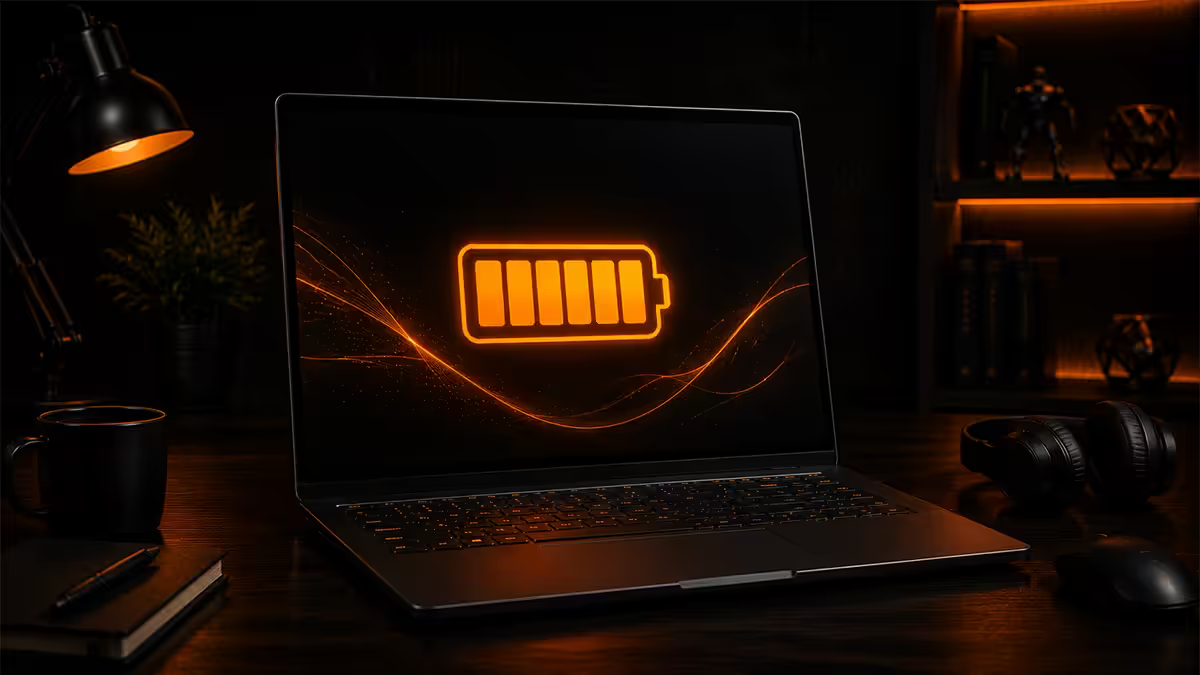
The 80% charge ceiling — biggest single win
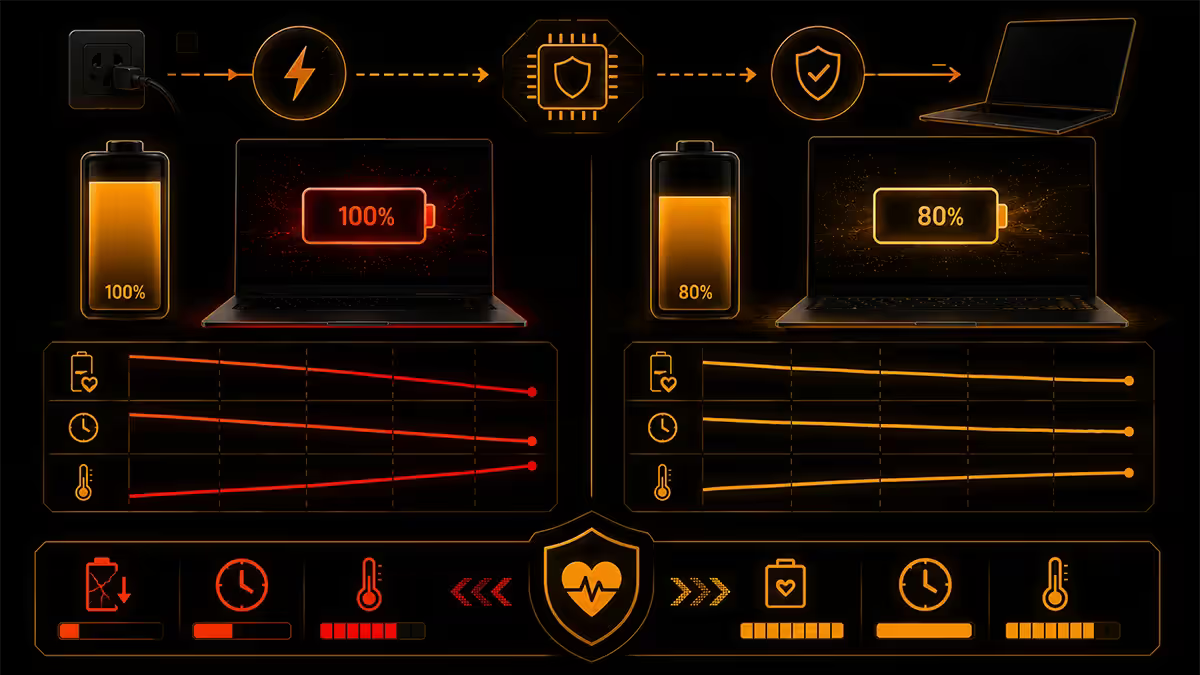
Lithium-ion battery chemistry hates two things: being held at 100% for long stretches, and being run flat to 0%. The single biggest extension you can give a laptop battery is capping the charge at 80% whenever the unit lives plugged in.
Most modern laptops include the feature in their first-party utility. Just enable it.
| Laptop brand | App to use | Where the setting lives |
|---|---|---|
| Lenovo (ThinkPad/Legion/IdeaPad) | Lenovo Vantage | Device → Power → Battery → Conservation Mode |
| Dell (Latitude/XPS/Inspiron) | Dell Power Manager | Battery Information → Custom Charging |
| HP (EliteBook/Spectre/Pavilion) | HP CMD / Command Center | Battery health manager (BIOS toggle) |
| ASUS (ZenBook/ROG/TUF) | MyASUS / Armoury Crate | Battery Health Charging → 80% |
| Apple MacBook | AlDente Pro (R450 once-off) | Set max charge slider to 80% |
| Generic Windows fallback | BatteryLimiter (free) or Battery Mode | Notification when at 80%, plug-out alert |
Why 80%, not 70% or 60%? Going below 80% chases diminishing returns — you give up runtime per cycle for marginal longevity gain. 80% is the documented sweet spot from the same battery-chemistry research that drives EV battery management.
What about overnight charging? Modern laptops won't overcharge — the charge circuit cuts off at 100%. But the battery sits at 100% all night, which is the wear scenario you're avoiding. The 80% cap solves this even if you forget to unplug.
Power profile — Best Efficiency on battery
Windows 11 and macOS both ship with three-stage power profiles. The default on plug-out is usually Balanced — which is leaving runtime on the table.
On Windows 11, click the battery icon, open Power Mode, and select Best Power Efficiency when on battery. This drops CPU base power, throttles background tasks, and dims the screen slightly. The performance penalty is invisible for normal productivity (browser, email, Office) and worth 30-60 minutes of extra runtime.
On macOS, click Apple menu, System Settings, Battery, and enable Low Power Mode when on battery. Achieves the same result on Apple Silicon — caps CPU/GPU peak and reduces fan ramp.
What you should not do: manually force the CPU into a hard frequency cap, disable Turbo Boost in BIOS, or use third-party "ultra power saving" apps that aggressively kill processes. Modern OS power management handles this better than any third-party tool.
Screen brightness and keyboard backlight
Display backlight is the single largest power draw on a typical laptop — often 30-45% of total system power. Cutting brightness is the most leverage you have over runtime per cycle.
The sweet spot for indoor daytime work is 60% brightness — bright enough for full readability, dim enough to make a measurable difference. Dropping from 100% to 60% typically adds 60-90 minutes of runtime on a thin-and-light. Night-time work down at 30-40% adds another 15-30 minutes.
Kill the keyboard backlight when you don't need it. On a typical laptop, the keyboard backlight at full brightness draws 2-4W — meaningful on a 50Wh battery. Set the backlight timeout to 10 seconds and use the dim setting if you need it at all.
Disable adaptive brightness on battery if the auto-dim is too aggressive (or not aggressive enough). The manual fixed brightness usually outperforms the sensor-driven adjustment in mixed lighting.
Force iGPU when on battery
If your laptop has both an integrated GPU (Intel Iris Xe, AMD Radeon Graphics) and a discrete GPU (NVIDIA RTX, AMD Radeon RX), the dGPU is a runtime killer. dGPUs draw 30-90W under load vs the iGPU's 5-15W — a 3-6x power difference.
Modern NVIDIA Optimus and AMD switching graphics drivers handle this automatically for most workloads. But the auto-switch can be too eager to wake the dGPU — opening a YouTube tab can light it up, draining battery for no reason.
How to force iGPU on Windows: Settings, System, Display, Graphics. Add the app and set its preference to Power Saving (iGPU). For NVIDIA cards, open NVIDIA Control Panel, Manage 3D Settings, Program Settings, and set the integrated graphics processor for the app.
Worth forcing iGPU for: Chrome, Edge, Office apps, Teams/Zoom, Spotify, file managers. Leave the dGPU for: games, video editing, CAD, 3D modelling — apps that actually need it.
Sleep vs hibernate — the modern standby trap
If your laptop is dead by morning despite being closed at 60% the night before, you're a victim of Modern Standby — Microsoft's "instant on" feature that keeps Wi-Fi alive in sleep so notifications continue. Great in theory; battery murderer in practice.
Sleep (modern standby): 5-8% drain per hour. 60% battery drops to dead in 8-12 hours.
Sleep (traditional S3): 1-3% drain per hour. 60% lasts 20-60 hours.
Hibernate: 0% drain. Writes RAM contents to disk, powers off completely. Resume takes 8-15 seconds vs sleep's instant wake.
The fix: for overnight or longer storage, use Hibernate. Set the lid-close action to Hibernate (Control Panel, Power Options, Choose what closing the lid does). For short breaks under 2 hours, sleep is fine.
On Mac, the macOS sleep is closer to the old S3 standard — 1-2% per hour typical. macOS doesn't expose Hibernate as a user-facing option, but the OS auto-hibernates after about 3 hours of sleep when battery is low.
The calendar year vs cycle count framing
Cycle count is the most-discussed battery metric and the least useful for predicting end of life. Lithium-ion cells lose 3-5% capacity per calendar year regardless of how many cycles you've put through them. A 4-year-old laptop with 100 cycles has roughly the same capacity loss as one with 500 cycles.
The reframe: cycle count is the ceiling, calendar year is the floor. Whichever happens first kills the battery. A heavy daily-driver might hit 800 cycles by year 4 and need replacement. A lightly-used machine might be at 200 cycles by year 5 but still need replacement because the cells have aged.
How to check battery health
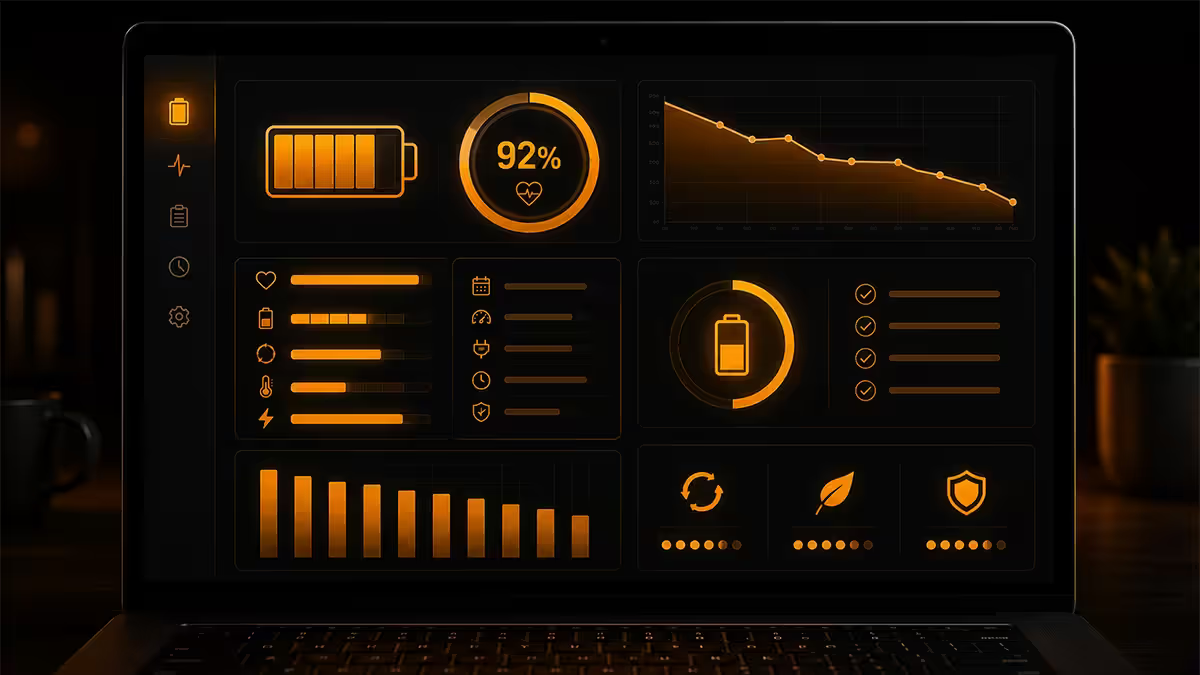
On Windows: open PowerShell (right-click Start, Terminal). Type:
powercfg /batteryreport /output "%USERPROFILE%\battery-report.html"
Press Enter. Open the generated HTML file in your browser. Read three numbers:
- DESIGN CAPACITY — the battery's spec-sheet number.
- FULL CHARGE CAPACITY — what your battery can actually hold today.
- CYCLE COUNT — how many full charge/discharge cycles the battery has done.
Full Charge Capacity divided by Design Capacity gives your battery health percentage. Above 85% is healthy. 70-85% is mid-life. Below 70% is approaching end of useful life.
On Mac: click Apple menu, System Settings, Battery, then Battery Health. Shows cycle count and condition (Normal / Service Recommended). Apple replaces under warranty if capacity is below 80% and cycle count is below 1,000.
Recommended battery tools and accessories
| Use case | Pick | SA price |
|---|---|---|
| 80% cap (Lenovo) | Lenovo Vantage | Free |
| 80% cap (Dell) | Dell Power Manager | Free |
| 80% cap (Mac) | AlDente Pro | R450 once-off |
| Health reporting (Windows) | BatteryInfoView (free) or HWMonitor | Free |
| USB-C 65W charger (travel) | Anker 715 Nano II 65W GaN | R890-R1,100 |
| USB-C 100W charger (workstation) | Anker Prime 100W or UGREEN Nexode 100W | R1,400-R1,800 |
| Power bank (USB-C PD) | Anker 737 (24,000mAh, 140W) or Baseus Blade 100W | R2,200-R3,400 |
| Replacement battery (service) | OEM battery from authorised service centre | R2,500-R5,500 |
Common battery longevity mistakes
"Calibrating" the battery monthly. Letting the battery drain to 0% and recharge to 100% used to be advised for old nickel-based batteries. Modern lithium-ion hates this — both endpoints accelerate wear. Don't calibrate.
Buying a cheap third-party charger. A non-PD or wrongly-spec'd USB-C charger can charge slowly, charge unstably or refuse to charge at all. Pay for a genuine Anker, UGREEN or laptop OEM charger — R900-R1,500 for a quality 65W GaN charger is money well spent.
Leaving the laptop in a hot car. Battery cells permanently lose capacity above 40°C. An SA summer car interior easily hits 60°C+ — a single afternoon can shave 5-10% off design capacity.
Charging through a USB hub or dock that's not PD-compliant. Many cheap USB-C docks deliver 30-45W instead of the 65W+ your laptop needs. The laptop slowly loses charge under load even though it's "plugged in".
Disabling power management features to "boost performance". The default Windows/Mac power profile changes you make for performance on plug-in shouldn't carry over to battery mode. Confirm Best Efficiency is active on battery.
Key takeaways
- Cap charging at 80% via Lenovo Vantage / Dell Power Manager / AlDente — biggest single longevity win.
- Set Power Mode to Best Power Efficiency on battery. Don't manually throttle CPU in BIOS.
- 60% screen brightness adds 60-90 min runtime. Kill keyboard backlight when not needed.
- Force iGPU for browser, Teams/Zoom, Office. Reserve dGPU for games, video editing, CAD.
- Hibernate overnight — Modern Standby sleep drains 5-8% per hour. Calendar year matters more than cycle count for end-of-life planning.
Frequently asked questions
Should I leave my laptop plugged in all the time?
Only with a charge cap of 80%. Without the cap, the battery sits at 100% which accelerates chemical wear.What is the best charge percentage for laptop battery health?
Keep the battery between 20% and 80% for daily use. This band minimises chemical stress on lithium-ion cells.Does the calendar year matter more than cycle count for laptop batteries?
Yes — batteries lose 3-5% capacity per calendar year regardless of cycles. Plan replacement on the year mark, not the cycle count.How do I check laptop battery health on Windows?
Run "powercfg /batteryreport" in PowerShell. Open the generated HTML and compare Full Charge Capacity to Design Capacity for your battery health %.Does turning down screen brightness extend battery life?
Yes — significantly. Display backlight is often 30-45% of total power. Dropping from 100% to 60% can add 60-90 minutes of runtime.Should I use sleep or hibernate?
Sleep for short breaks under 2 hours. Hibernate for overnight or longer storage — zero drain vs Modern Standby's 5-8% per hour.Does the dedicated GPU drain battery faster?
Yes — dGPU draws 30-90W vs iGPU's 5-15W. Force iGPU for browser, Teams, Office, video calls.Is it bad to use my laptop while it is charging?
No. Modern batteries handle simultaneous charging and use fine. Only concern is heat — keep battery temperature below 35°C.
Get the Evetech app
Exclusive app-only prices, daily flash sales, and free delivery on orders over R4,000 — download the app and start saving.