Gaming Laptop Thermals
How to keep your gaming laptop cool. — Five tricks. Ten degrees cooler.
Gaming laptops shed heat from a chassis the thickness of a paperback. Every degree you can pull out of the CPU and GPU translates to higher sustained clocks, smoother frametimes and a chassis that doesn't try to fly itself off the desk.
- undervolt + repaste
- -12°C
- SA dust cycle
- 6 mo
- CPU safe ceiling
- 90°C
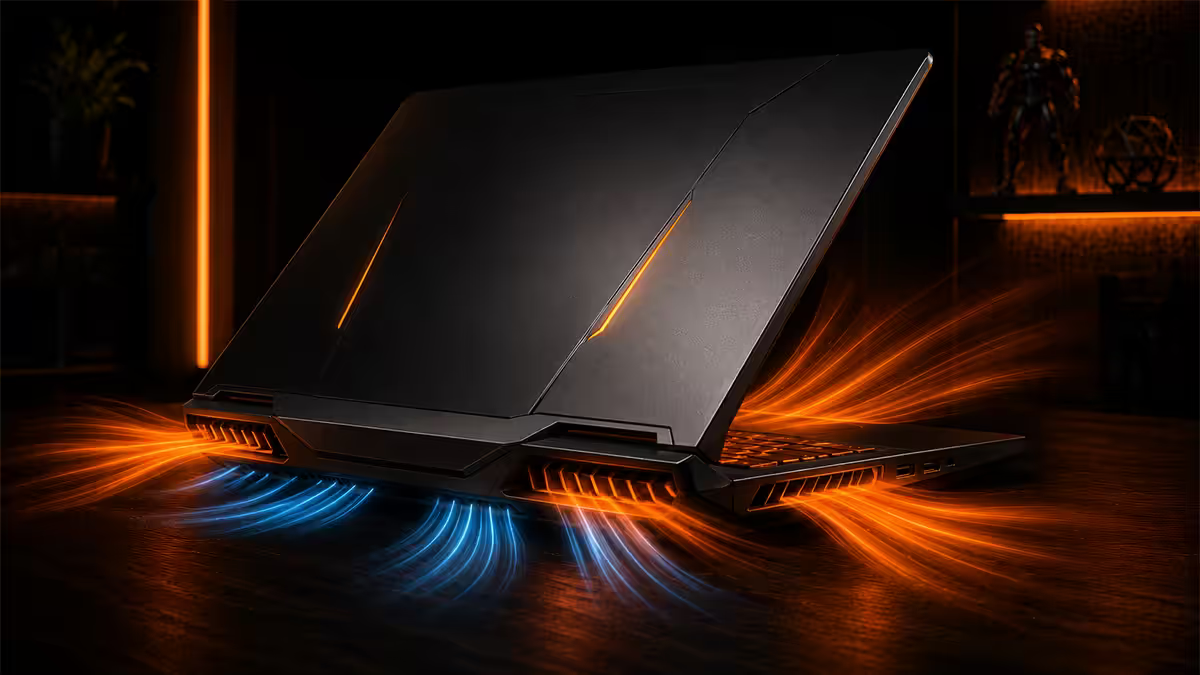
Elevation — the lazy 5°C drop
Gaming laptops draw cool air through bottom-panel intakes positioned directly above the fans. Sit the laptop flat on a desk and the rubber feet give it 4-6mm of airflow gap — barely enough.
Tilt the chassis 20-30 degrees with a passive riser, or sit it on an active cooling pad, and the intake gap becomes 30-50mm. The fans get the cool air they need; CPU and GPU run 4-7°C cooler under load.
Passive risers (R150-R350): bamboo/wood stands like the SAMDI or Rain Design mStand work. Even two small books at the back of the laptop deliver the same physics. Free upgrade if you've got something around to stack.
Active cooling pads (R400-R700): add 80-140mm fans below the chassis. The fan delta over a passive riser is 3-7°C extra — meaningful but smaller than the marketing implies. Best picks for SA: Klim Wind (R450), Kootek (R380), Targus Chill Mat (R550).
| Setup | Typical CPU temp delta | Cost in SA |
|---|---|---|
| Flat on desk (baseline) | 0°C reference | R0 |
| Two books behind back | -3 to -5°C | R0 |
| Wooden passive riser | -4 to -6°C | R150-R350 |
| Active cooling pad | -7 to -12°C | R400-R700 |
| Vacuum cooler (side-clamp) | -10 to -15°C | R450-R800 |
Vacuum coolers like Aopuwn or Llano sit on the rear exhaust and pull hot air out actively. They produce more thermal impact than cooling pads on chassis that exhaust from the rear (most gaming laptops), but they're loud and the clamping mechanism scratches paint. Worth it if you're playing on a desk and don't move the laptop.
Fan curve tuning — louder is colder
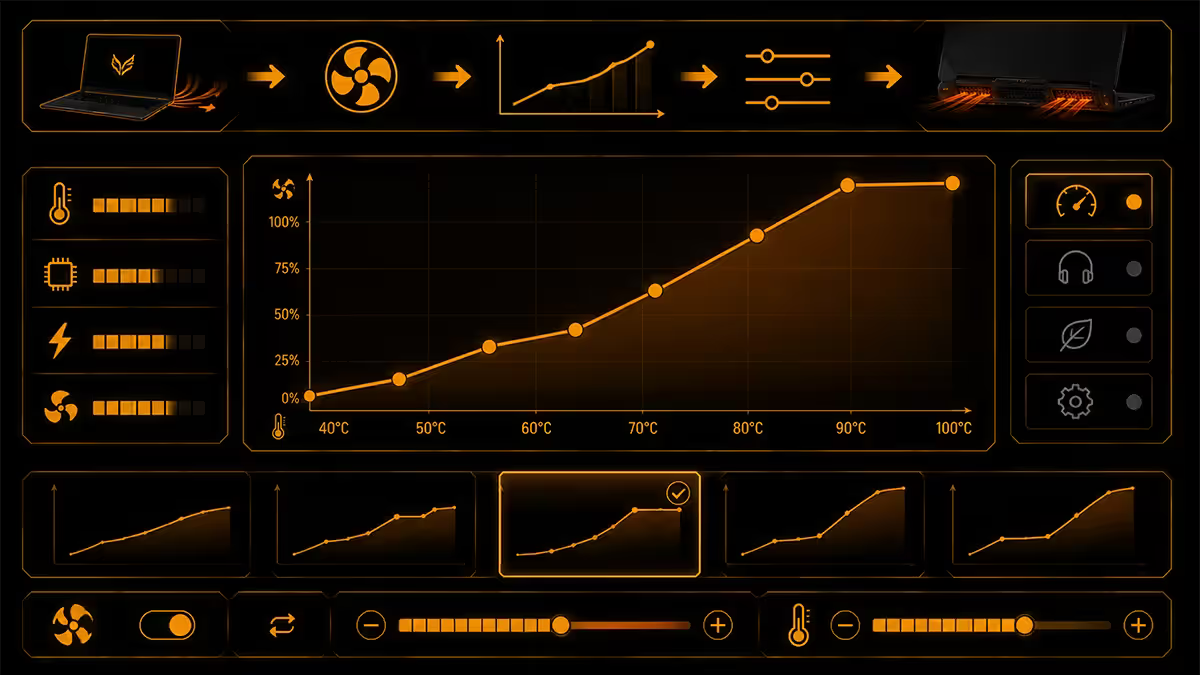
Every gaming laptop ships with a conservative fan curve to keep retail-floor demos quiet. Out of the box, fans run at 30-40% when they should be at 60-70%. The OEM utility lets you change this.
OEM utilities and their performance modes:
| Brand | Utility | Aggressive mode name |
|---|---|---|
| ASUS ROG / TUF | Armoury Crate | Turbo Mode |
| Lenovo Legion | Lenovo Vantage / Legion Toolkit | Performance Mode (Fn+Q) |
| Dell Alienware | Alienware Command Center | Performance Profile |
| HP Omen | OMEN Gaming Hub | Performance Mode |
| Acer Predator / Nitro | PredatorSense / NitroSense | Turbo / Custom |
| MSI Stealth / Raider | MSI Center | Extreme Performance |
| Razer Blade | Razer Synapse | Custom Performance |
For custom fan curves (more aggressive than OEM allows): use the open-source FanControl on Windows. It exposes fan PWM control on most modern laptops. A typical aggressive curve:
- Below 50°C: 30% fan (near silent)
- 60°C: 50% fan
- 70°C: 70% fan
- 80°C: 90% fan
- 85°C+: 100% fan
The trade-off is noise. 90% fan on a gaming laptop sits at 50-55dB — louder than a vacuum cleaner. For headphone gaming this is invisible; for shared spaces it's the spouse-irritant of the year. Pair aggressive curves with closed-back headphones.
Undervolt the CPU — free 5-12°C
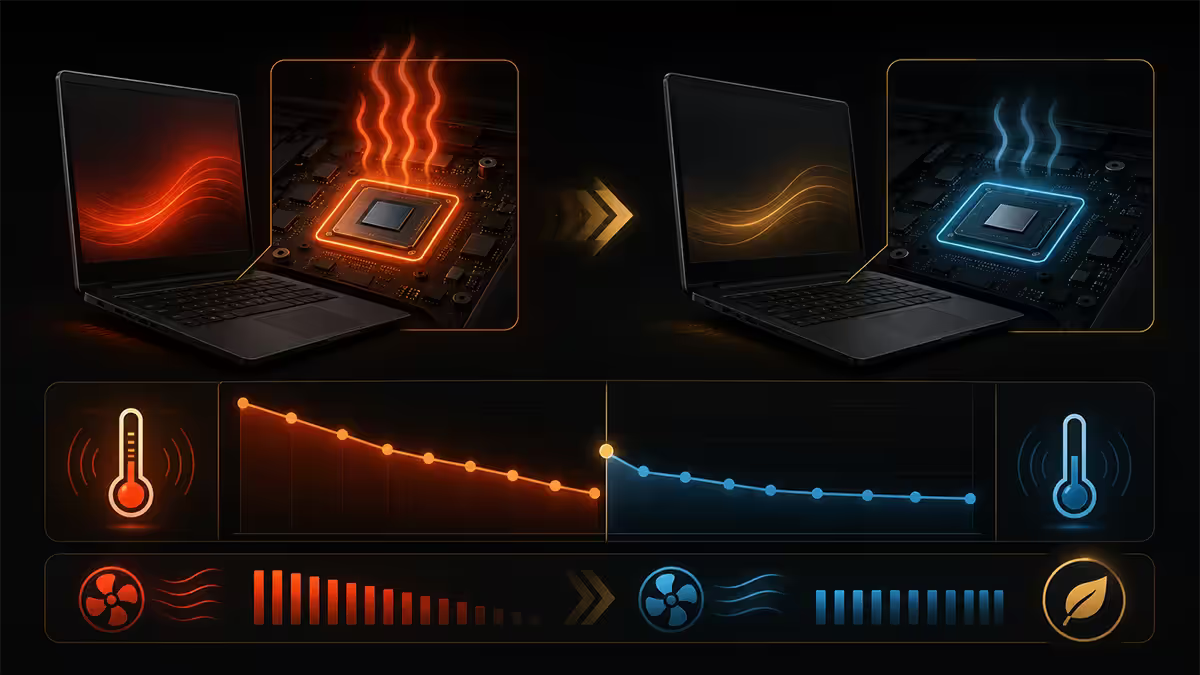
Modern Intel and AMD mobile CPUs are conservatively voltaged from the factory to ensure stability across silicon-quality variance. Most chips can run 50-100mV lower than stock without losing stability — and the temperature drop is substantial.
For Intel CPUs (12th, 13th, 14th gen Core):
- Install ThrottleStop.
- Click FIVR.
- Check "Unlock Adjustable Voltage" for CPU Core and CPU Cache.
- Set "Offset Voltage" to -50mV initially. Apply.
- Test stability with Cinebench R23 for 20-30 minutes.
- If stable, increase offset to -75mV. Re-test.
- Continue in 10-15mV steps until you find instability (BSOD or app crash), then back off 10mV.
For AMD CPUs (Ryzen 6000, 7000, 8000 mobile): use Ryzen Master from AMD. Curve Optimizer (CO) lets you set per-core offsets, typically -10 to -25 on the optimizer scale, drop temps 5-10°C with no clock loss.
What you're trading: nothing, if you stop at a stable offset. The CPU does the same work at a lower voltage, which means lower current, lower heat, lower fan ramp. Some games show 1-3% higher framerates because the CPU stays in turbo longer before thermal throttling.
Repaste with PTM7950 — the modern enthusiast pick
Factory thermal paste degrades. Over 2-3 years of heat cycles, the paste "pumps out" — slowly migrating away from the hot spot under repeated expansion/contraction. The result is a 5-15°C increase in CPU and GPU temps versus new.
Repasting fixes this. Traditional approach uses Thermal Grizzly Kryonaut (R350) or Arctic MX-6 (R250). The modern enthusiast pick is Honeywell PTM7950 — a phase-change thermal pad that solid at room temperature and transitions to liquid at 45°C.
Why PTM7950 over traditional paste on gaming laptops:
- Doesn't pump out over time — 5+ year service life vs paste's 2-3.
- Self-flattens under heat, filling micro-gaps that paste struggles with.
- No risk of pre-spreading wrong — the pad goes on as a sheet.
- Better thermal conductivity than 90% of pastes on the market.
The procedure (high-level — service-manual specifics vary by model):
- Power off, unplug, hold power button 15 seconds to drain.
- Remove bottom panel screws. Disconnect battery before touching anything else.
- Remove heat sink screws in cross-pattern order, lifting straight up.
- Clean old paste off CPU/GPU dies and cold plate with 99% IPA and lint-free cloth.
- Cut PTM7950 to die size (slightly smaller than die). Apply protective film off.
- Re-seat heat sink. Tighten screws in cross-pattern, snug not tight.
- Reconnect battery. Reassemble.
- First boot: run a stress test for 5-10 minutes to fully bed-in the PTM7950 phase change.
What this costs and saves: R350-R500 in PTM7950 + R100 in IPA and applicators. Temp drop is typically 8-15°C on a 2+ year old laptop. Voids the warranty — don't repaste in-warranty machines unless you're prepared for the consequences.
GPU undervolt — quieter is cooler
NVIDIA RTX mobile GPUs are heat constrained, not power constrained. Drop voltage and the GPU sustains higher boost clocks at lower temperatures — same performance, less noise.
Procedure with MSI Afterburner (works for all NVIDIA RTX 30/40/50 series mobile):
- Open Afterburner. Click the Voltage/Frequency curve icon (Ctrl+F).
- Find the point on the curve at your target clock — typically 1800-2100 MHz for laptop GPUs.
- Set the point at, say, 1900 MHz to 900mV. Push the curve flat to the right of this point.
- Apply. Test stability with Furmark for 10 minutes or a 30-minute game session.
- If stable, repeat with lower voltage (875mV, then 850mV) until you find instability.
Typical results: RTX 4070 mobile undervolts from ~1.05V stock to ~0.85V stable at 1900 MHz. GPU temperature drops 8-12°C, fan noise drops 5-8 dB, framerates change by less than 2%. The most cost-free thermal win on a gaming laptop.
SA dust cycle — every six months
South African air carries a higher dust load than US/EU averages. Highveld particulates, Cape Town wind-blown sand, Durban humidity-driven fibre — they all end up in your laptop's heat-exchanger fins.
Dust accumulation chokes the fin array between the fan and the case vent. Within 12 months of heavy use, an uncleaned gaming laptop runs 10-15°C hotter than new at the same workload. Fans ramp louder trying to compensate, but the airflow is already blocked.
The maintenance cycle for SA conditions:
- Every 3 months: compressed air at the intake and exhaust vents, fans spinning gently (hold them in place with a toothpick or finger so airflow blows dust off without the fan motor whirling at 50,000 rpm). 30 seconds per vent.
- Every 6 months: bottom panel off, compressed air directly into the fin array, vacuum (held away from the chassis) to catch lifted dust.
- Every 12 months: full strip-down, heat sink removed, fins inspected and cleaned with a soft brush. Repaste at the same time.
Environment matters more than you think
Ambient air temperature directly affects every gaming laptop. A laptop that runs 75°C in a 20°C air-conditioned office runs 87°C in a 32°C SA summer afternoon — same workload, same fan speed, just hotter air going in.
What this means for SA gamers:
- Summer-afternoon gaming pushes thermal limits hard. Either move the rig to the coolest room, run the air-con, or accept lower frame rates and louder fans.
- Carpet and fabric surfaces block intakes. The bed, couch, lap — all are intake-blockers. Use the laptop on a hard flat surface for any sustained gaming.
- Direct sunlight on the chassis adds 5-10°C internal temp. Move the laptop out of window glare during long sessions.
- Laptop bag carries interrupt cooling. Closing the lid mid-game and tossing the bag is a recipe for sustained high-temp soaking. Properly close the lid into sleep before any transport.
The bag-carry mistake. A common SA scenario: pause a game, snap the lid shut, drop the laptop into a backpack for the commute home. The CPU was just at 90°C; sleeping with the lid closed in a padded bag means the chassis can't shed heat. Internal temps stay high for 30+ minutes. Across hundreds of cycles, this dries out the thermal paste faster than any other usage pattern.
Recommended cooling kit and accessories
| Use case | Pick | SA price |
|---|---|---|
| Passive wooden riser | SAMDI bamboo stand or Rain Design mStand | R150-R450 |
| Active cooling pad (mid) | Klim Wind 4× fan or Kootek 5× fan | R380-R550 |
| Active cooling pad (premium) | Targus AWE81 Chill Mat or Cooler Master NotePal X3 | R650-R900 |
| Vacuum cooler (rear exhaust) | Aopuwn V18 or Llano Vacuum Cooler | R450-R800 |
| Thermal paste (traditional) | Thermal Grizzly Kryonaut or Arctic MX-6 | R250-R380 |
| PTM7950 phase-change pad | Honeywell PTM7950 sheet | R350-R500 |
| Cleaning kit | Compressed air can + 99% IPA + lint-free cloth | R180-R280 |
| Software (undervolt + fan) | ThrottleStop + MSI Afterburner + FanControl | Free |
Key takeaways
- Elevate the chassis 20-30° — R150 riser delivers 70% of a R650 cooling pad's benefit.
- Set OEM utility to Performance/Turbo mode. Use FanControl for aggressive custom curves.
- Undervolt CPU 50-100mV via ThrottleStop (Intel) or Ryzen Master (AMD) for 5-12°C drop.
- Repaste with PTM7950 phase-change pad after warranty for 8-15°C drop, 5+ year service life.
- Clean dust every 6 months in SA conditions. Uncleaned chassis adds 10-15°C within a year.
Frequently asked questions
What temperatures are safe for a gaming laptop?
CPU under 90°C, GPU under 85°C sustained. Brief spikes higher are fine. Persistent 95°C+ CPU or 90°C+ GPU is thermal trouble.Do laptop cooling pads actually work?
Yes — but ~70% of the benefit is from elevation alone. Active fan adds 3-7°C extra. A passive riser gets you most of the way for a fraction of the cost.How do I tune the fan curve on my gaming laptop?
Use Armoury Crate (ASUS), Vantage (Lenovo), Alienware Command Center, OMEN Gaming Hub, Predator Sense or MSI Center. For custom curves, use FanControl on Windows.Should I undervolt my gaming laptop?
Yes if the BIOS allows it. ThrottleStop (Intel) or Ryzen Master (AMD) at -50 to -100mV typically drops temps 5-12°C without performance loss.Is repasting a gaming laptop worth it?
Absolutely after year 2. PTM7950 phase-change pad drops temps 8-15°C with 5+ year service life. Out of warranty only — voids warranty.How often should I clean dust from my gaming laptop?
Every 6 months in South African conditions. Quarterly compressed air on vents, annual full strip-down for fin cleaning.Can a cluttered desk hurt gaming laptop cooling?
Yes — blocked rear exhaust or covered bottom intakes trap heat. Keep 15-20cm clear around the rear; avoid fabric surfaces.What is PTM7950 and why is it better than thermal paste?
A phase-change pad from Honeywell that liquefies at 45°C and self-flattens. Doesn't pump out over time like paste — 5+ year service life vs paste's 2-3.
Get the Evetech app
Exclusive app-only prices, daily flash sales, and free delivery on orders over R4,000 — download the app and start saving.