OS Comparison Guide
macOS vs Windows. — What's different, what's better, what you'll miss.
Three weeks of muscle-memory rewiring. After that, the OS becomes second nature. Here's the honest breakdown of what changes when a Windows user picks up a Mac — including what you'll genuinely miss.
- muscle memory
- Cmd vs Ctrl
- replaces Start
- Spotlight
- replaces Alt-Tab
- Mission Control
The keyboard modifier swap — Cmd vs Ctrl
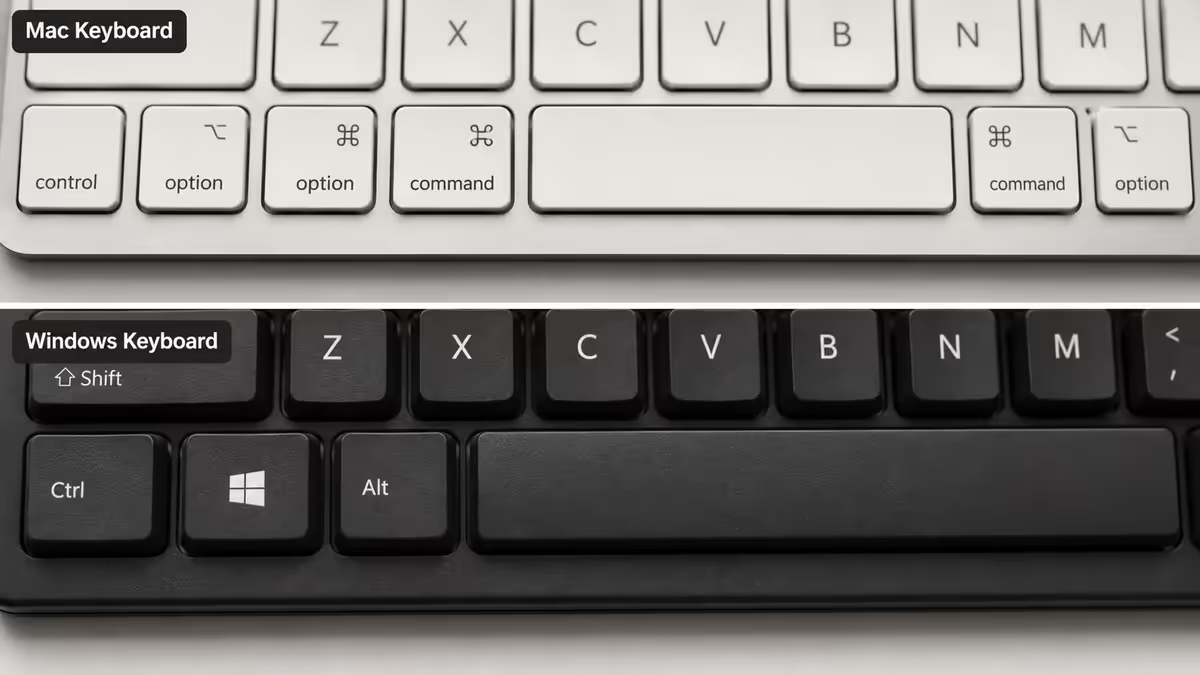
The single biggest adjustment for Windows users: Cmd replaces Ctrl for keyboard shortcuts. The shortcuts you've memorised still work — Cmd+C copies, Cmd+V pastes, Cmd+Z undoes, Cmd+S saves, Cmd+A selects all, Cmd+F opens find. The letters are identical; only the modifier key changes.
Physically, the Cmd key sits where Alt would be on a Windows keyboard — directly next to the spacebar on both sides. Option (⌥) replaces Alt on a Mac. The Control key (Ctrl) still exists but is used far less often — mainly for Unix-style terminal shortcuts and a few system commands.
| Action | Windows | macOS |
|---|---|---|
| Copy / Paste | Ctrl+C / Ctrl+V | Cmd+C / Cmd+V |
| Undo / Redo | Ctrl+Z / Ctrl+Y | Cmd+Z / Shift+Cmd+Z |
| Save | Ctrl+S | Cmd+S |
| Quit application | Alt+F4 | Cmd+Q |
| Switch between apps | Alt+Tab | Cmd+Tab |
| Switch windows within app | Ctrl+Tab (some apps) | Cmd+` (backtick) |
| Open search | Win key | Cmd+Space |
| Screenshot | PrtSc / Win+Shift+S | Cmd+Shift+4 (region) |
Window management — Mission Control replaces Alt-Tab
macOS approaches multiple windows differently from Windows. Most importantly: the green button doesn't maximise the window the way Windows' maximise does. By default it enters full-screen mode (which creates a new Space and hides the menu bar). Hold Option (⌥) when clicking the green button to get true maximise that keeps the window in the current Space.
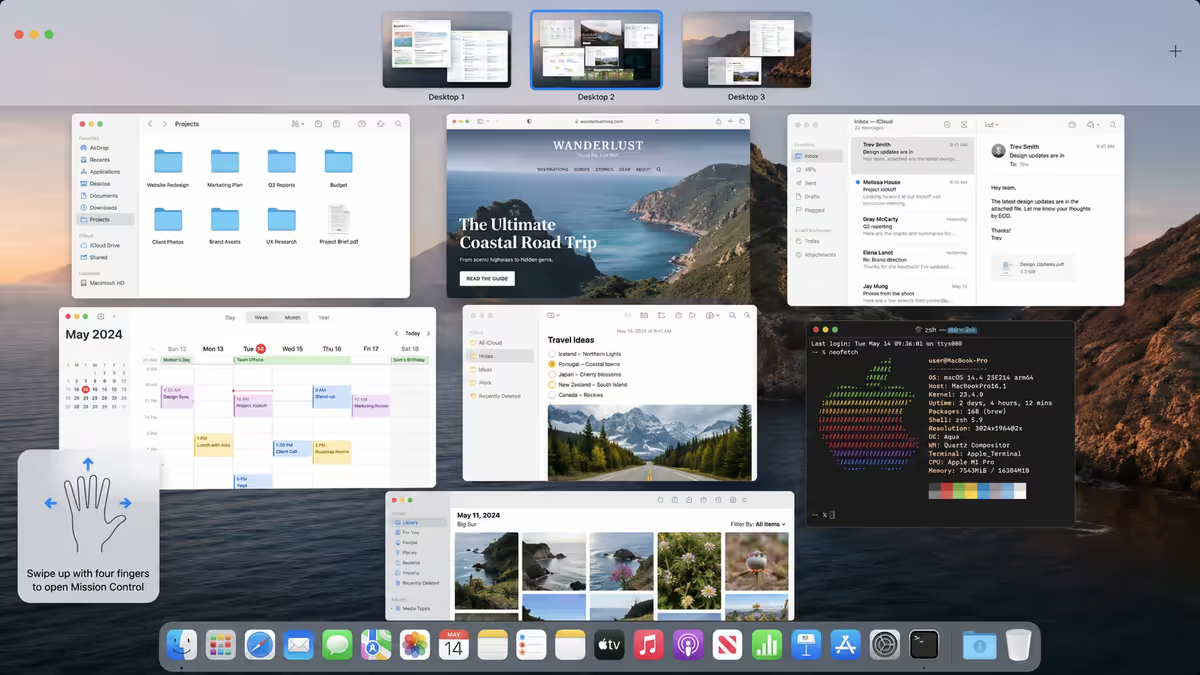
Mission Control (F3 key, four-finger swipe up on trackpad, or Ctrl+Up Arrow) is the heart of Mac window management. It shows every open window across every app and every Space (virtual desktop) at once, on a single screen. Click any window to focus it. It replaces Alt-Tab plus Windows' Task View in one feature.
Spaces are Apple's virtual desktops — accessible via Mission Control or Ctrl+Left/Right arrow. Drag windows to different Spaces to organise by context (work, personal, design, code). Apple Silicon Macs handle 10+ Spaces with no performance penalty.
- Cmd+Tab — switch between apps (not windows)
- Cmd+` (backtick) — switch between open windows of the current app
- F3 / 4-finger swipe up — Mission Control overview
- Ctrl+Left / Ctrl+Right — move between Spaces
- Cmd+M — minimise current window to Dock
- Cmd+H — hide current app (more useful than minimise — reveals what's behind)
Spotlight replaces the Start Menu entirely
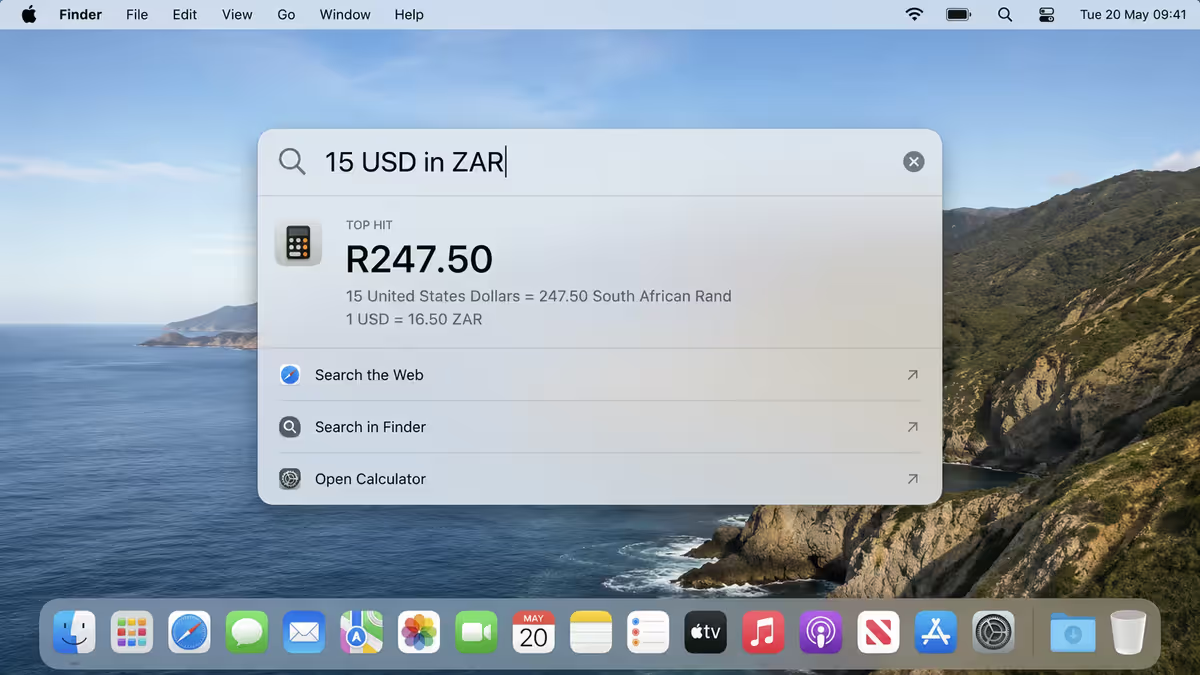
If there's one feature that converts Windows users, it's Spotlight (Cmd+Space). The Start Menu's role of "find and launch things" is replaced by a single floating search bar that does substantially more.
What Spotlight does:
- Launch any installed app (type first few letters, press Enter)
- Search files anywhere on your Mac — by name, content, metadata
- Search the web — top result + suggestions
- Dictionary definitions — type a word, get the definition inline
- Mathematics — type 142 * 17 + 13 and the answer appears
- Unit conversions — 200 lbs in kg, 15 USD in ZAR (live currency exchange)
- Timezone conversions — 4pm London returns SAST equivalent
- Apple ID account search — find emails, contacts, calendar events
- Launch system settings panels by name
Most Mac users open every app via Spotlight rather than clicking Dock or Applications folder icons. Press Cmd+Space, type two or three letters of the app name (e.g. "saf" for Safari, "slk" for Slack), press Enter. Faster than mouse-navigating any menu, and works identically across all Macs.
Finder vs File Explorer
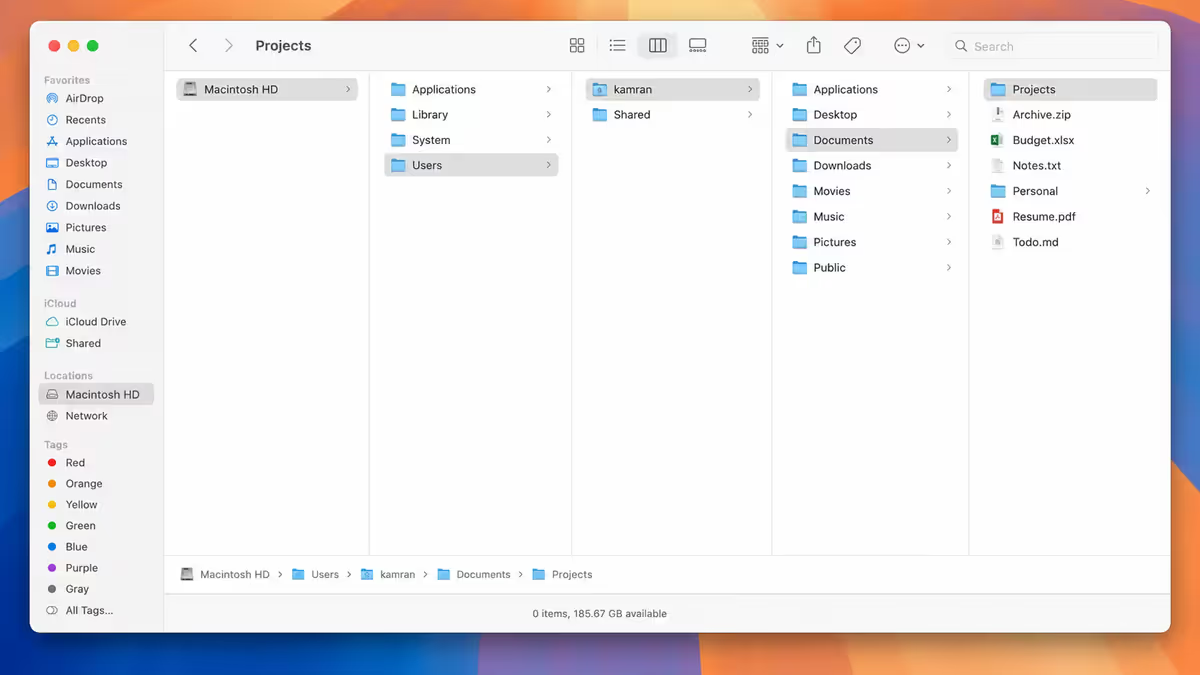
Finder is Apple's equivalent of Windows File Explorer. Most behaviours match — drag-and-drop, tab views, sidebars with favourite locations, search by name. But two features are genuinely Mac-unique:
Column view (Cmd+3) — folders cascade left-to-right in vertical columns. Each click expands a new column to the right showing the contents of the selected folder. You see the full path of where you are at all times. Once you've used column view, Windows' tree view feels claustrophobic.
Quick Look (spacebar) — select any file and press spacebar. A floating preview appears showing the file's contents — works for PDFs, images, videos, audio, code files, Word docs, Excel sheets, almost any format. Press spacebar again to close. The single feature Windows still hasn't replicated 18 years after macOS Leopard introduced it.
A few other Finder behaviours that surprise Windows users:
- No cut for files. You can't Ctrl-X / Cmd-X a file in Finder. To move, drag (or use Cmd+C then Cmd+Option+V to paste-as-move at destination).
- Hidden files toggle — Cmd+Shift+. (period) shows/hides system hidden files.
- Path bar — View → Show Path Bar enables a clickable breadcrumb at the bottom of every Finder window. Click any folder in the path to jump there.
- Tags — colour-code files for cross-folder organisation. macOS-native concept that Windows lacks.
The menu bar lives at the top of the screen
Windows puts menus inside each app's window (File / Edit / View / etc. at the top of each window). macOS puts a single menu bar at the very top of the screen — and the active app populates it. Switch apps, and the menu bar changes to that app's menus.
This is one of those design choices that takes a week to feel natural, then becomes wildly efficient. You always know where the menus are (top of screen). You don't hunt around inside windows looking for File menus. And on multi-monitor setups, each display has its own menu bar — the active app appears on whichever monitor it's running on.
Two shortcuts everyone learns first:
- Cmd+, (comma) — opens Preferences/Settings for the current app, in every app
- Cmd+Q — quits the current app (different from Cmd+W which only closes the current window/tab)
Apple ID is central — iCloud everywhere
macOS assumes you have an Apple ID and integrates it deeply. Sign in once at System Settings → Apple ID, and these things start working automatically:
- iCloud Drive — your Mac's Documents and Desktop folders sync across devices
- iCloud Photos — every photo on your iPhone available in Photos.app on Mac
- iCloud Keychain — passwords saved on iPhone available on Mac (and vice versa)
- Messages — iMessage and SMS sync — text from your Mac, see iPhone messages
- Mail — your iCloud Mail account if you use it; configured email accounts also sync
- Find My — locate the Mac if lost; Activation Lock prevents theft-resale
- Continuity — copy on iPhone, paste on Mac; AirDrop files between devices
- Handoff — start an email on iPhone, finish on Mac (and vice versa)
If you're already in Apple's ecosystem (iPhone + AirPods + iPad), macOS becomes substantially more useful than a standalone Windows PC because the cross-device features are seamless. If you're a non-Apple user otherwise, the iCloud integration is still useful but you'll feel some of it is overkill.
The red dot doesn't quit — Cmd+Q does
This trips up nearly every Windows switcher. The red close button (top-left of each window) closes the window but keeps the app running in the background. The app remains in the Dock with a small dot under its icon indicating it's active. To actually quit the app, press Cmd+Q or right-click the Dock icon and select Quit.
Why? Because Mac apps frequently have multiple windows (multiple Safari windows, multiple Word docs, multiple Slack workspaces). Closing one shouldn't quit them all. Closing all windows of an app still keeps it running so you can quickly open a new window.
Practical impact: if you don't Cmd+Q apps, they keep running. On a Mac with 16GB RAM this rarely matters thanks to macOS's memory management. On a Mac with 8GB RAM (entry-level MacBook Air), background apps can slow things down. Use Activity Monitor (Spotlight → "activity") to see what's actually running, and Cmd+Q apps you're done with.
Software equivalents — what replaces what
Most popular Windows apps have native Mac versions. Where they don't, macOS has built-in alternatives that often work better than the Windows equivalents.
| Windows | macOS equivalent | Notes |
|---|---|---|
| Start Menu | Spotlight (Cmd+Space) | Faster, plus math & unit conversion |
| Task Manager | Activity Monitor | Same role, more detail (network, disk, energy) |
| File Explorer | Finder | Plus column view + Quick Look |
| Notepad | TextEdit / Notes.app | Notes syncs via iCloud |
| Paint | Preview.app (built-in) | Image editing + PDF annotation |
| Snipping Tool | Cmd+Shift+4 / Cmd+Shift+5 | Built-in screenshot tool |
| Disk Management | Disk Utility | Same role, less awkward UI |
| File History | Time Machine | Better — automatic, hourly |
| Settings app | System Settings | Reorganised in macOS Ventura |
| Calculator | Calculator + Spotlight | Spotlight is faster for one-offs |
| Windows Media Player | QuickTime / Music.app | QuickTime for video, Music for audio |
| Cortana | Siri | Most users disable both |
What macOS does genuinely better
Honest list — not a marketing brochure. Things that are objectively better on Mac for most users:
- Trackpad gestures. 18 years of refinement vs Windows' inconsistent touchpad implementations. Three-finger swipe between Spaces, four-finger swipe up for Mission Control, two-finger pinch on Maps. Apple's trackpads alone make MacBooks worth considering.
- Display colour accuracy and scaling. Retina HiDPI scaling works flawlessly; Windows scaling is still buggy across mixed-DPI multi-monitor setups in 2026. Mac displays ship factory-calibrated for sRGB and P3.
- Sleep/wake reliability. Close MacBook lid, open later, instantly resumes. Windows laptops still wake to black screens, miss network connections, or wake during sleep more often than Macs.
- Battery life on portables. Apple Silicon MacBook Air: 14-18 hours real-world. Comparable Windows laptops with Intel: 6-10 hours. Snapdragon X laptops are closing the gap but not there yet.
- Software ecosystem cohesion. Mail, Photos, Notes, Messages, Reminders, Calendar all integrate with iPhone and iPad through iCloud. No equivalent ecosystem story on Windows.
- Fewer driver / hardware compatibility issues. Apple controls hardware and OS — drivers are baked into macOS. No "this device requires a driver download" experience.
- Built-in tools quality. Preview.app does basic image editing + PDF annotation. QuickTime records screen video. Migration Assistant is a one-click setup tool. Windows alternatives often need third-party apps.
What Windows does genuinely better
The other side. Things macOS users honestly miss when they come from Windows:
- Gaming. Vast majority of PC games are Windows-only or run substantially better on Windows. Apple Silicon Macs run a handful of native AAA games (Resident Evil, Death Stranding) but the catalogue is a fraction of Windows. Counter-Strike 2, Valorant, most competitive shooters don't have Mac versions.
- Hardware choice. Windows runs on every imaginable form factor — handheld PCs (Steam Deck, ROG Ally), workstation desktops, ultraportables, tablets, ARM laptops, custom builds. Apple offers about 8 hardware configurations. If you want specific specs (e.g. 192GB RAM, dual 4090 GPUs, six monitor outputs), Windows wins by default.
- App pricing and freedom. Windows ecosystem has more free alternatives, more pirated alternatives, and lower-priced commercial software. Mac App Store apps and curated Mac software tends to cost more.
- Enterprise and business tooling. Active Directory, Group Policy, deep Microsoft 365 integration on Windows. macOS works in enterprise but feels like a second-class citizen in Microsoft-shop environments.
- Price-to-performance for raw compute. A R30,000 gaming desktop outperforms a R50,000 Mac mini at most workloads where you can use multi-core CPU and dedicated GPU. Apple's premium covers ecosystem and build, not raw price/performance.
- Right-click and File menus more discoverable. Windows tradition of in-window menus means new users find features more easily. Mac's shared menu bar takes a week to internalise.
- Touch + pen input. Windows 11 supports touchscreens and stylus natively across all UI. Macs don't ship with touch screens at all in 2026.
Common confusion points
Hunting for the Start Menu. Spotlight (Cmd+Space) is the answer. Stop looking for a menu — it doesn't exist.
The green button "maximise" not maximising. Green button enters fullscreen (creates new Space). Hold Option (⌥) while clicking for true maximise.
Cmd+Tab not switching to a window in another Space. Cmd+Tab switches apps but doesn't follow the app to its current Space. Use Mission Control or Ctrl+Left/Right to navigate Spaces.
Dragging a file doesn't move it across drives. Cross-drive drags copy (don't move). Hold Cmd while dragging to force move, or use Cmd+C then Cmd+Option+V to paste-as-move.
Right-click on the Dock doesn't show options. Right-clicking a Dock icon shows app-specific options (quit, hide, recent files). Two-finger trackpad tap or Ctrl+click also work.
Microsoft Office save dialog confusion. Office for Mac defaults to saving to OneDrive. Change in Word/Excel → Preferences → Save to default to your Mac's local storage if you prefer.
Key takeaways
- Cmd replaces Ctrl for all shortcuts — same letters, different modifier (3 weeks to internalise).
- Spotlight (Cmd+Space) replaces the Start Menu and is the fastest way to do anything on a Mac.
- The red close button closes the window but keeps the app running — use Cmd+Q to fully quit.
- Menu bar lives at the top of the screen and changes based on the active app — Cmd+, opens preferences.
- Mac wins displays + trackpad + battery + ecosystem; Windows wins gaming + hardware choice + enterprise.
Frequently asked questions
How long does it take to get used to a Mac?
~3 weeks for keyboard shortcut muscle memory, ~1 week for window management (Mission Control vs Alt-Tab), ~2 days for Spotlight workflow.Is Cmd the same as Ctrl?
Functionally yes — Cmd+C, V, Z, A, S, F all do the same as their Windows equivalents. Option replaces Alt. The physical key positions differ slightly.What replaces the Windows Start Menu?
Spotlight (Cmd+Space) — launches apps, searches files, does math, converts units (e.g. "15 USD in ZAR"). The single most loved Mac feature for switchers.How do I see all my open windows?
Mission Control — F3 key or four-finger swipe up on the trackpad. Shows every open window across every app and every Space at once.Why doesn't the red X close apps?
The red dot closes the window but keeps the app running. Press Cmd+Q to fully quit. Apps frequently have multiple windows — closing one shouldn't quit them all.Can I install Windows software on a Mac?
Apple Silicon Macs can't run Windows .exe files directly. Options: Parallels Desktop (Windows ARM VM, paid), CrossOver / Wine (free / paid, limited compatibility). Most popular Windows apps have native Mac versions.What does Mac do better?
Trackpad gestures, display colour accuracy and scaling, sleep/wake reliability, battery life, ecosystem cohesion (Mail/Photos/Messages sync iPhone↔Mac), fewer hardware driver issues, built-in tools quality.What does Windows do better?
Gaming compatibility, hardware choice (custom builds, more form factors), app pricing freedom, business / enterprise tooling, raw price-to-performance for desktops, touch + pen input.
Get the Evetech app
Exclusive app-only prices, daily flash sales, and free delivery on orders over R4,000 — download the app and start saving.