WFH / Eye Comfort Guide
Best monitor for eye comfort. — Match the ambient. Then the rest.
The eye-strain conversation is dominated by blue light. The actual #1 cause is brightness — a panel cranked to 100% in a dim room. Get that right and the other things start to matter.
- indoor target
- ~120 nits
- smoother tracking
- 100 Hz+
- break rule
- 20-20-20
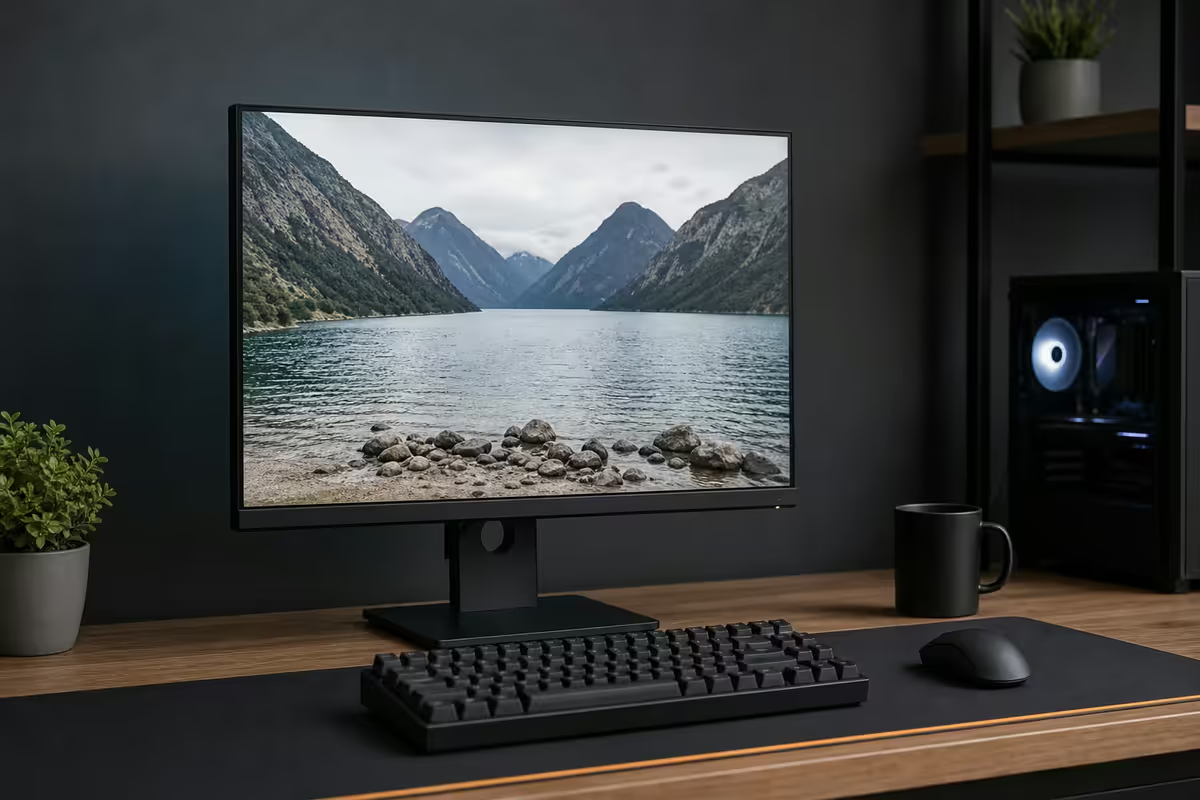
Brightness matching ambient — the #1 strain factor
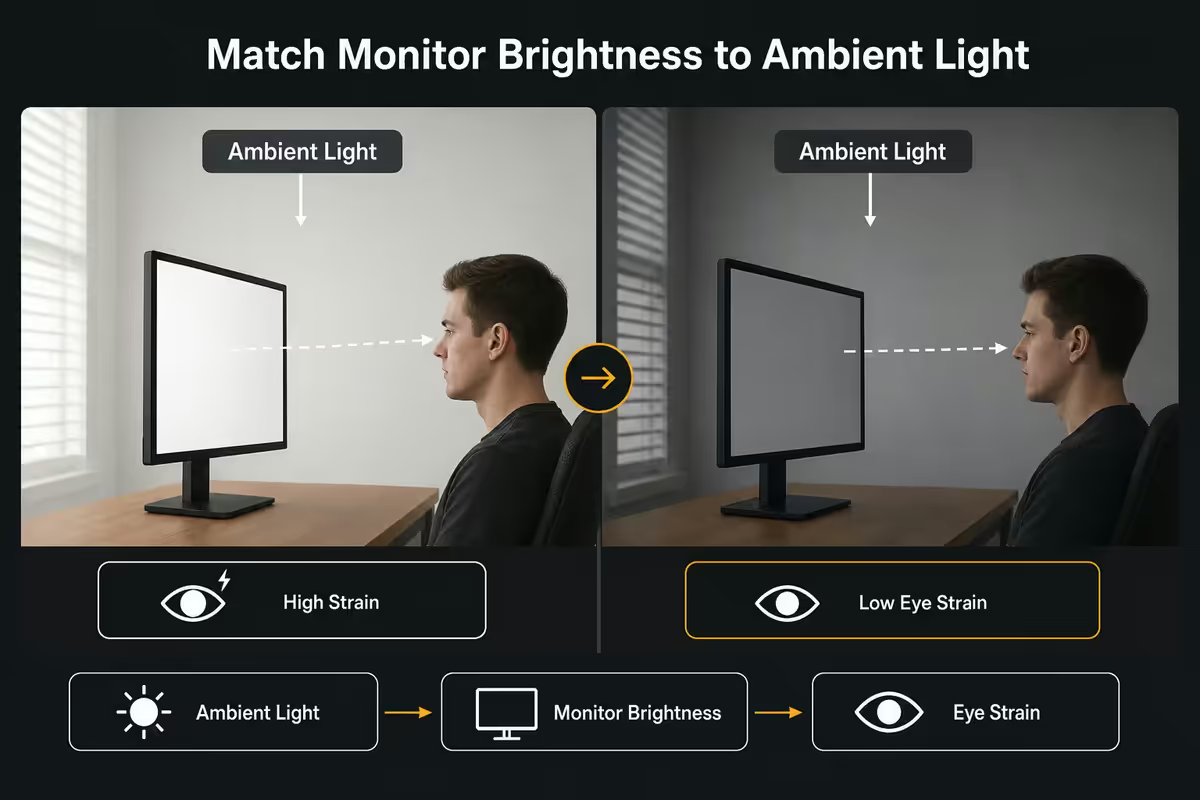
Walk into 100 SA home offices and you'll find 90 monitors set to maximum brightness. The room lighting is dim, the monitor blasts at 300–400 nits, and after 45 minutes the user has a dull ache behind the eyes they blame on "blue light." The actual cause: brightness mismatch.
The eye's iris adjusts to the brightest thing in the visual field. When the monitor is 5–10× brighter than the walls around it, your iris constricts hard to handle the screen — and then everything around it falls into shadow that the eye keeps trying to resolve. The constant pupil adjustment is exhausting over an 8-hour day.
The right brightness: the screen should look like the wall behind it. In a daytime office with bright windows, that's 200–300 nits. In an evening home office with warm lamp light, that's 80–120 nits. In a fully dark room, 50–80 nits. A monitor that goes from 250 down to 50 nits gives you the headroom to match every room state.
Flicker-free PWM — silent headache cause
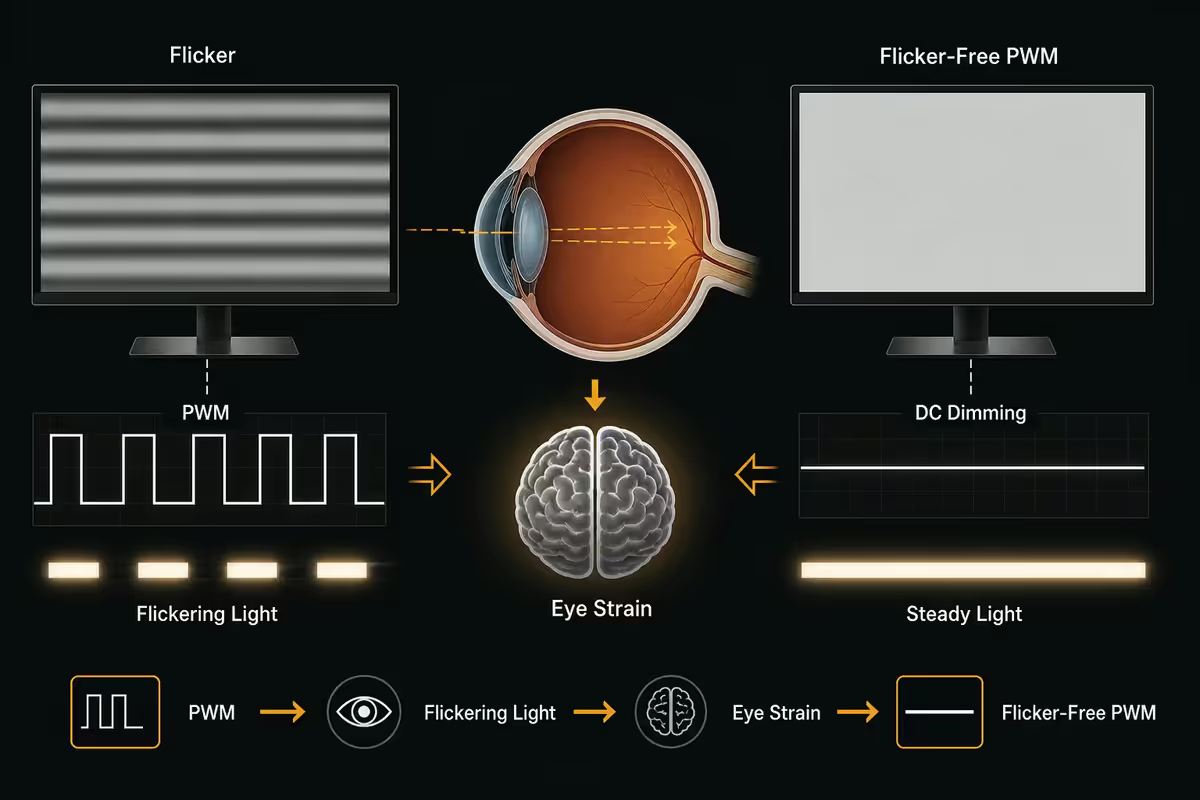
Most LED-backlit monitors dim by turning the backlight on and off rapidly — Pulse Width Modulation, or PWM. At 100% brightness the backlight runs continuously. At 50% it's on half the time, off half the time, cycling at 100–240Hz. Sensitive viewers perceive this cycling at lower brightness as a flicker — even when you can't consciously see it, it can cause headaches and eye fatigue.
Flicker-free monitors use DC dimming (continuous voltage reduction) instead of PWM. The backlight stays on; voltage drops to lower its intensity. No on/off cycling, no flicker, no PWM-induced eye strain regardless of brightness setting.
The certifications to look for:
- TÜV Rheinland Flicker-Free certification — independent third-party verification, usually on the spec sheet under "Eye Care" or "Ergonomics."
- "DC Dimming" mentioned in panel specs — direct technology indicator.
- "Flicker-free" badge from BenQ, ViewSonic, ASUS or Dell — their own certifications, generally trustworthy on productivity-oriented models.
If you've ever had a monitor cause a headache that another monitor didn't, PWM is likely the explanation. Switching to a flicker-free panel resolves it within days.
Low blue light — modestly useful, oversold
Blue light has become the marketing villain of monitors. The reality is more nuanced: there's weak evidence that blue light causes physical eye damage, but warmer screen colour temperatures do feel easier on the eyes during evening work and may help your circadian rhythm.
What blue light reduction actually does: shifts the screen toward warmer colour temperatures (lower Kelvin, more red/yellow, less blue). Below 5000K, the screen looks visibly warmer; below 4000K, distinctly orange. The reduction is real — TÜV Rheinland Low Blue Light certification verifies it — but the daylight-saving-time-and-circadian-rhythm story is the real reason to use it, not eye damage prevention.
| Setting | Colour temperature | Best for |
|---|---|---|
| Standard / sRGB | 6500K | Daytime productivity, colour-correct work |
| Reading / Reader mode | 5500–5800K | Long-form reading sessions |
| Low Blue Light Level 2 | 5000K | Evening productivity, after sunset |
| Low Blue Light Level 4 | 4000K | Pre-sleep wind-down work |
Most modern monitors have presets in the OSD. Use them, just don't expect a miracle.
100Hz+ smooths eye tracking
Refresh rate isn't only a gaming spec. The jump from 60Hz to 100–120Hz for productivity is real — and meaningful. The cursor leaves a clear trail rather than ghosting; scrolling is smoother; window dragging looks fluid; the eye doesn't have to compensate for motion judder.
For colour-critical photo or video work, 100Hz also reduces eye strain on long scrub-and-pan sequences — important if you do timeline editing or large-canvas Lightroom work. Above 144Hz the productivity gains plateau (gaming benefits continue), so a 100–120Hz IPS panel is the productivity sweet spot.
The cost? Maybe R500–R1,000 over a 60Hz equivalent at the same resolution. For an 8-hour-a-day workstation, that's about a R3–R5/day amortised cost for noticeably less eye fatigue over a 3-year ownership.
Matt anti-glare coating
Glossy monitors have better perceived contrast and colour pop — and they reflect every overhead light, the window behind you, your own face. Every reflection is a competing focal target for the eye to resolve. Over 8 hours that adds up.
Matt anti-glare coatings diffuse incident light so reflections become low-contrast haze rather than mirror images. The trade-off is slightly reduced perceived contrast and a "grainy" sparkle on bright backgrounds (most noticeable on high-PPI 4K matt panels).
For productivity: matt every time. For movie watching or content creation in a controlled room: glossy fine. Most productivity monitors are matt by default; OLED gaming monitors increasingly come glossy — be aware before choosing OLED for office use.
IPS for stable colour at every viewing angle
Panel type affects eye comfort in a less obvious way: off-angle colour shift. When you tilt your head slightly while reading, or scoot back from the screen, the colours and brightness shouldn't change. They do on TN (heavy shift) and to a lesser degree on VA (colour wash at angles). IPS panels hold colour steady through 178° viewing angles — your eye doesn't have to recompensate as you move.
OLED is even kinder to the eye for occasional use (perfect blacks, instant pixel response, no PWM concerns when DC-dimmed) but introduces static-element burn-in risk for 8-hour daily productivity. The OLED makers (LG, Samsung) have aggressive pixel-refresh routines and are improving, but a Word document with the same toolbar position for years is exactly the worst case.
Recommendation for all-day productivity: IPS. Save OLED for content consumption / mixed-use displays.
Top SA picks for eye comfort
| Monitor | Why it's great | SA price |
|---|---|---|
| BenQ GW2790QT | 27" 1440p IPS, 100Hz, Eye-Care certified, USB-C with PD | R6,500–R7,500 |
| BenQ EW2780U | 27" 4K IPS, BrightnessIntelligence Plus ambient sensor, HDR400 | R8,000–R9,500 |
| ASUS ProArt PA279CRV | 27" 4K IPS, 99% DCI-P3, Calman verified, USB-C 96W | R9,500–R11,500 |
| Dell U2723QE | 27" 4K IPS Black, KVM, USB-C 90W, daisy chain | R11,000–R12,500 |
| Samsung S27A800 | 27" 4K IPS, value pick, flicker-free, TÜV Eye Comfort | R5,500–R6,500 |
| LG 27UP850N | 27" 4K IPS, 96W USB-C, HDR400, calibrated factory | R8,500–R10,000 |
| Eizo FlexScan EV2785 | 27" 4K IPS premium, EcoView ambient sensor, Paper mode | R18,000+ |
Budget tier — under R7,000
The BenQ GW2790QT is the clear winner at this price. 1440p sharpness without 4K's PPI overkill, 100Hz refresh, full eye-care suite (Flicker-free + Low Blue Light + Brightness Intelligence), USB-C with 65W power delivery for laptop docking. The Samsung S27A800 is the close runner-up if 4K resolution matters more than 100Hz refresh.
Mid-tier — R8,000 to R12,000
The BenQ EW2780U with its automatic ambient brightness sensor is the best fit-for-purpose monitor in this range — the BrightnessIntelligence Plus genuinely makes the right call without intervention. The ASUS ProArt PA279CRV wins if you do photo or design work; the colour accuracy is workstation-grade. The Dell U2723QE is the premium WFH choice with KVM support across two computers and 90W USB-C.
Premium tier — R18,000+
Eizo FlexScan EV2785 is the ergonomics-first answer — automatic ambient adjustment, Paper mode for reading documents, the most refined OSD in the industry, and ergonomic stand with full pivot. Built like industrial equipment, used in medical and design studios worldwide.
Key takeaways
- Brightness matching ambient is the #1 eye comfort factor — bigger than every other setting combined.
- Flicker-free (DC dimming) eliminates PWM-induced headaches at lower brightness levels.
- Low blue light certifications shift colour warmer — modest comfort gain, oversold as eye damage prevention.
- 100Hz+ smooths cursor and scroll motion for sustained reading; matt IPS panel preserves consistent colour.
- BenQ GW2790QT for budget, EW2780U or ASUS ProArt PA279CRV for mid, Dell U2723QE for premium WFH.
Frequently asked questions
What's the most important monitor setting for eye comfort?
Brightness matching the ambient room light. Most users leave brightness at 100% in dim rooms — the cause of most eye strain. The monitor should look like the wall behind it: bright in daylight, dim at night.What is flicker-free PWM?
PWM dims the backlight by rapidly turning it on and off. Flicker-free monitors use DC dimming (continuous voltage adjustment) instead, removing the flicker that causes headaches in sensitive viewers at low brightness.Do low blue light filters actually work?
Yes — modestly. They shift colour temperature warmer, which feels easier on the eyes during evening work and helps sleep timing. The eye-damage prevention claim is weaker than marketing suggests.Does higher refresh rate help eye strain?
100–120Hz noticeably smooths cursor tracking and scrolling for productivity. Beyond 144Hz the productivity gains plateau (gaming gains continue).Why does matt anti-glare coating matter?
Glossy screens reflect lights and faces, adding competing focal targets. Matt anti-glare diffuses reflections so the screen stays the only focal point. Always prefer matt for all-day work.Is IPS the best panel type for eye comfort?
IPS is the right default — stable colour at any viewing angle, no compensation needed as you shift posture. OLED is even easier on the eye but has burn-in risk for static UI elements over 8-hour days.What are the best monitor picks for eye comfort in SA?
BenQ GW2790QT (R6.5k) for budget, BenQ EW2780U or ASUS ProArt PA279CRV for mid-tier (R8–11k), Dell U2723QE for premium WFH with KVM (R11.5k).What about screen distance and posture?
Arm's length (50–70cm), top of screen at or just below eye level, perpendicular to your face. Use a monitor arm or riser. Combine with the 20-20-20 rule: every 20 minutes, look 20 feet away for 20 seconds.
Get the Evetech app
Exclusive app-only prices, daily flash sales, and free delivery on orders over R4,000 — download the app and start saving.