Photo Editing Monitor Guide
Best monitor for photo editing. — Delta-E under 2. Print proof, ready.
Most "creator" monitors fudge the spec sheet. Real photo work needs three things: 99% sRGB minimum, hardware-calibratable LUT, and a Delta-E that holds up after a year. Here's what actually does the job.
- absolute floor
- 99% sRGB
- target accuracy
- ΔE < 2
- SA spend tier
- R12k-R70k
Gamut coverage — what you actually need
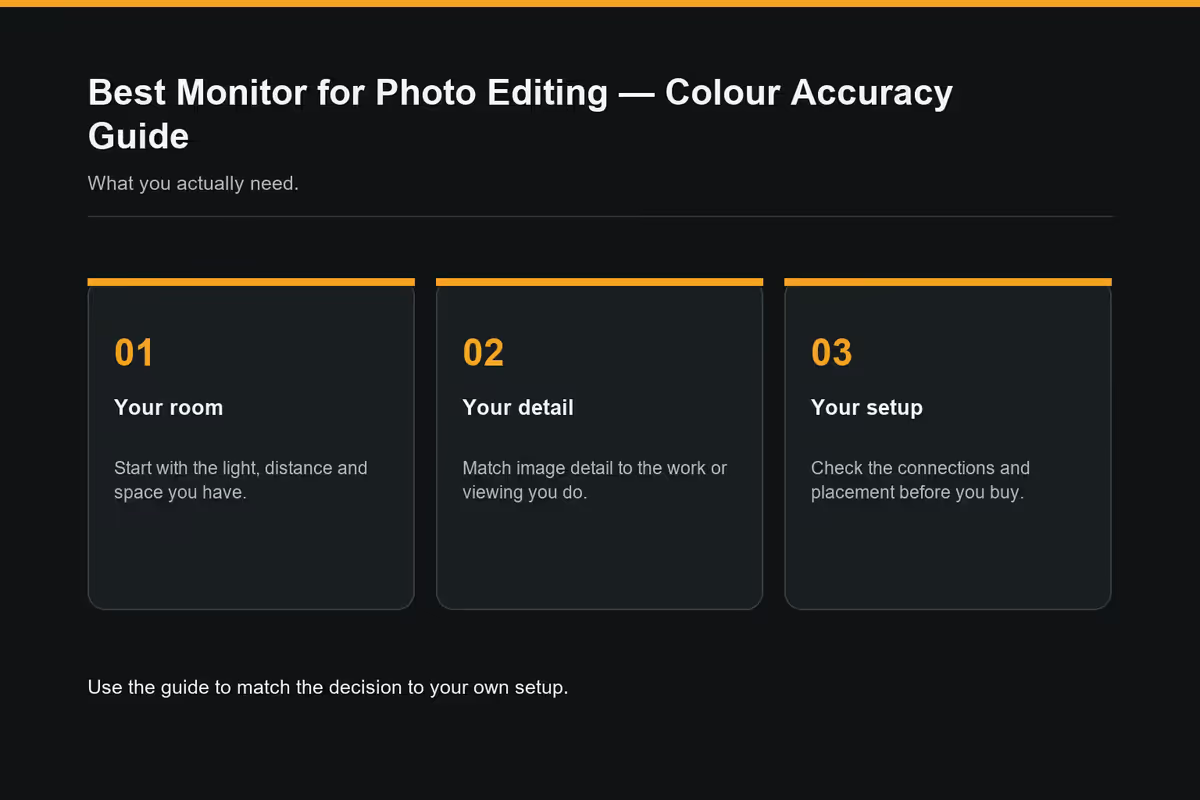
Spec sheets throw three colour spaces at you. Each one targets a different output. Picking the wrong gamut means either overpaying for headroom you'll never use, or under-buying and clipping colours your client expects.
| Colour space | Use case | Coverage target |
|---|---|---|
| sRGB | Web, Instagram, client galleries | 99-100% (floor) |
| DCI-P3 | HDR video, modern phone displays, hybrid print | 95%+ for serious work |
| AdobeRGB | CMYK print, magazine, fine art reproduction | 95%+ non-negotiable |
The biggest mistake first-time buyers make is treating "DCI-P3" as a print upgrade. It isn't. AdobeRGB covers the cyan-green range that CMYK ink reproduces; DCI-P3 doesn't. If your output ends up on a press or fine-art paper, you need an AdobeRGB-capable panel — not a P3 cinema panel rebadged for creators.
For web-only photographers (Instagram, online portfolios, web client deliverables), 99% sRGB on a factory-calibrated IPS is genuinely all you need. Don't let monitor marketing talk you into spending another R15k on AdobeRGB headroom that never leaves the screen.
Hardware vs software calibration
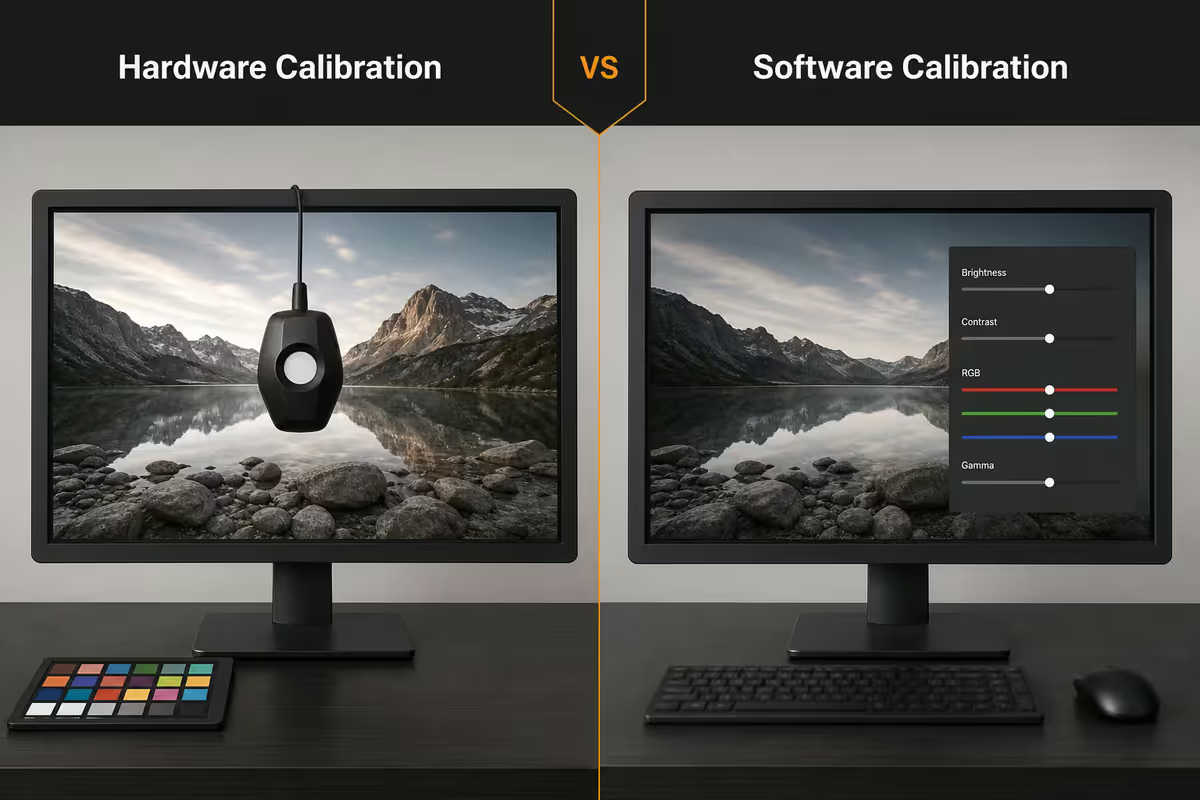
Every photo monitor needs calibration. The difference is where the correction lives.
Software calibration runs through your GPU's 8-bit lookup table. It works on any monitor with any colorimeter. Downside: it resets when you swap computers, change OS, update graphics drivers or even unplug the HDMI cable. The 8-bit LUT also introduces visible banding in skies and skin tones.
Hardware calibration writes the correction directly to the monitor's internal 14-bit or 16-bit LUT. The monitor stays accurate regardless of which machine you plug it into. Available on BenQ SW-series (Palette Master Element), ASUS ProArt (ProArtPreset), Eizo ColorEdge (ColorNavigator) and a few NEC SpectraView panels.
For hobbyist editing, software calibration is fine. For paid client work, hardware calibration eliminates an entire category of "why does this print look different?" frustration.
Size and resolution — 27" 4K is the sweet spot
Pixel density (PPI) matters more than screen real estate for photo work. You want enough density that the on-screen image matches print preview without distortion, but not so dense you can't read interface text at 100%.
- 27-inch 4K (163 PPI) — the photographer's sweet spot. Matches DSLR / mirrorless print preview, fits two A4 pages side-by-side in Lightroom.
- 32-inch 4K (138 PPI) — more workspace, slightly lower density. Good for split Photoshop + Bridge workflows.
- 27-inch 5K (218 PPI) — Apple Studio Display / LG UltraFine territory. Beautiful for retouching at 200%+ zoom.
- 32-inch 6K (224 PPI) — Pro Display XDR / Dell UP3221Q segment. Overkill unless you're a commercial retoucher.
Avoid 27-inch 1440p and 24-inch 1080p for serious editing. The pixel density (109 PPI / 92 PPI respectively) is too low to judge sharpness reliably — what looks crisp on the monitor will look soft on print or a 4K phone screen.
Panel technology — IPS, OLED, mini-LED
For stills photography, panel choice still favours IPS. Here's the honest breakdown:
IPS — uniformly bright across the surface, no auto-brightness-limiter, stable colour for thousands of hours. The standard for photo monitors (Dell UltraSharp, BenQ SW, ASUS ProArt, Eizo ColorEdge).
Mini-LED IPS — local dimming for better HDR, but the dimming zones can cause halo artefacts around bright objects on dark backgrounds (frustrating in night photography editing). Useful for video colour grading more than photo.
QD-OLED / WOLED — incredible contrast and colour saturation, but auto brightness limiter dims the panel when displaying bright white interfaces (Lightroom develop module is mostly white). Burn-in risk on static UI elements over years. Best for video colour, not photo retouching.
Calibrators and tools you need
A monitor without a calibrator is half-bought. Budget R3k-R8k for a colorimeter.
| Calibrator | Best for | SA price |
|---|---|---|
| X-Rite i1Display Pro / Studio | Standard for photo professionals | R4,500-R6,500 |
| Calibrite ColorChecker Display (Plus) | Same sensor, friendlier software | R4,200-R7,000 |
| Datacolor SpyderX Pro / Elite | Budget hobbyist option | R3,000-R5,500 |
| X-Rite i1Pro 3 | Reference-grade spectrophotometer | R28,000+ |
Skip free software calibration utilities (Windows Calibrate Display Color, macOS Display Calibrator Assistant). They calibrate by eye, which defeats the whole point of an accurate monitor.
Recommended photo editing monitors
| Use case | Pick | SA price |
|---|---|---|
| Entry colour-accurate (R12k-R18k) | Dell U2723QE 27" 4K | R14,000-R17,000 |
| Entry alternative | BenQ PD2725U 27" 4K | R15,500-R19,000 |
| Hardware-calibratable (R20k-R35k) | BenQ SW271C 27" 4K | R28,000-R34,000 |
| Hardware-calibratable alt. | ASUS ProArt PA27UCG 27" 4K | R32,000-R38,000 |
| Large-format calibratable | BenQ PD3225U 32" 4K | R36,000-R42,000 |
| Reference print (R50k+) | Eizo ColorEdge CS2740 27" 4K | R55,000-R68,000 |
| Apple ecosystem 5K | Apple Studio Display Nano-texture | R38,000-R44,000 |
| Top-tier retouching | Eizo ColorEdge CG2700X 27" 4K | R85,000+ |
Common photo monitor mistakes
Buying a gaming monitor for "creator" work. Marketing slides with "DCI-P3 95%" don't mean factory calibration or stable Delta-E. Gaming panels are tuned for response time and brightness, not consistency. Even "creator" gaming panels rarely hold ΔE under 3 after a month.
Skipping the colorimeter purchase. A R30k BenQ SW271C without a calibrator drifts to ΔE 4+ within six months. The monitor is half the system; the calibrator is the other half.
Editing in a colour-cast room. Yellow tungsten bulbs warm your perception of the screen's white balance. Match your room lighting to D65 / 6500K for accurate editing. A R600 desk lamp with a 95+ CRI 5000K bulb fixes this instantly.
Chasing HDR for stills. HDR is for video and HDR phone displays. Lightroom and Photoshop don't natively render HDR for stills export. A monitor's HDR1000 rating means nothing for photo editing — it's a peak brightness for video.
Trusting "factory calibration" forever. The included Delta-E report is valid the day the monitor leaves the QC bench. By the time it reaches SA, it's been three months and 4,000 km of vibration. Recalibrate at unbox.
Key takeaways
- 99% sRGB is the floor. 95% DCI-P3 covers HDR/web. 95%+ AdobeRGB is non-negotiable for print.
- Hardware calibration (BenQ SW, ASUS ProArt, Eizo CG) saves your colour from machine swaps and driver updates.
- 27-inch 4K at 163 PPI is the sweet spot. Avoid 27-inch 1440p for serious editing.
- Budget the colorimeter (R4k-R7k) into the monitor purchase. X-Rite i1Display Pro is the standard.
- Recalibrate every 4-6 months. Factory ΔE reports expire fast.
Frequently asked questions
What gamut coverage do I actually need for photo editing?
99% sRGB for web, 95%+ DCI-P3 for HDR/hybrid, 95%+ AdobeRGB for print. AdobeRGB is the only space that covers CMYK's cyan-green range — DCI-P3 doesn't replace it.Do I need hardware calibration or is software calibration enough?
Hardware calibration writes the LUT to the monitor itself, so colours stay accurate across machines and OS updates. Worth it for paid client work. Software calibration via X-Rite/Calibrite is fine for hobby editing.What size monitor is best for photo editing?
27-inch 4K at 163 PPI is the photographer's sweet spot. 32-inch 4K for more workspace. Avoid 27-inch 1440p and 24-inch 1080p for serious work.How much should I spend on a photo editing monitor in South Africa?
R12k-R18k for entry colour-accurate 4K (Dell U2723QE, BenQ PD2725U). R20k-R35k for hardware-calibratable (BenQ SW271C, ASUS ProArt). R50k+ for reference Eizo ColorEdge.Is the Apple Studio Display good for photo editing?
Yes for web/Instagram work — 99% DCI-P3 and factory ΔE under 2. No for print work — it can't be hardware-calibrated and has no AdobeRGB mode.Do I need an OLED monitor for photo editing?
No, not yet. OLED's ABL (auto brightness limiter) dims white-heavy UIs like Lightroom, and burn-in risk on static interface elements still concerns long-term photo use. IPS wins for stills.What is Delta-E and why does it matter?
Delta-E measures colour error. Under 2 is invisible to the eye, 2-5 is detectable side-by-side, over 5 is obvious. Photo monitors target ΔE under 2 out of the box.Will my GPU be a bottleneck for a 4K colour-accurate monitor?
Not for Lightroom/Photoshop. Any modern GPU drives 4K at 60 Hz fine. The real bottlenecks are RAM (32GB+) and NVMe scratch disk speed.
Get the Evetech app
Exclusive app-only prices, daily flash sales, and free delivery on orders over R4,000 — download the app and start saving.