Video Editing Build Guide · SA 2026
Best PC for video editing. — SA 2026, Resolve and Premiere ready.
Video editors under-buy two things almost universally: RAM and active storage. We see it constantly. Here's the spec breakdown that prevents the year-one upgrade and the four SA build tiers from entry-editor to broadcast-grade.
- absolute floor
- 32GB RAM
- Resolve loves it
- GPU + VRAM
- ProRes / H.265
- GPU encoded
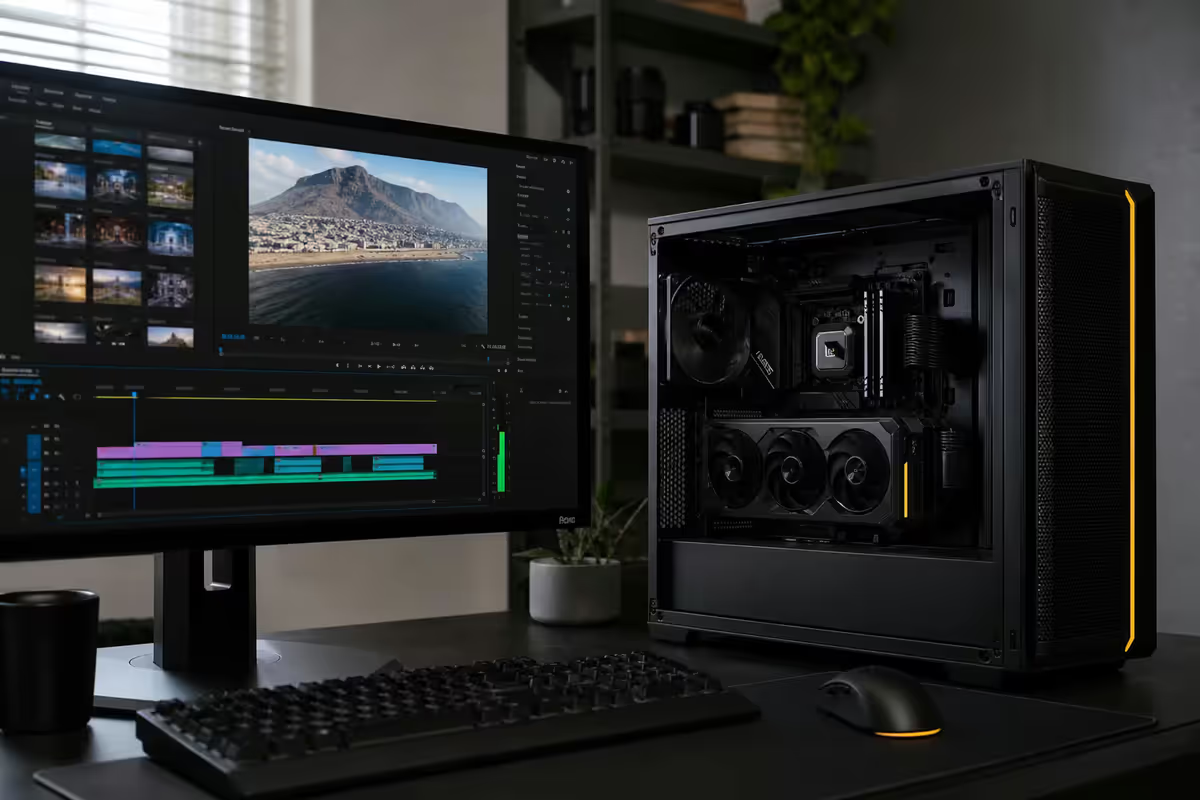
What video editing actually demands from a PC
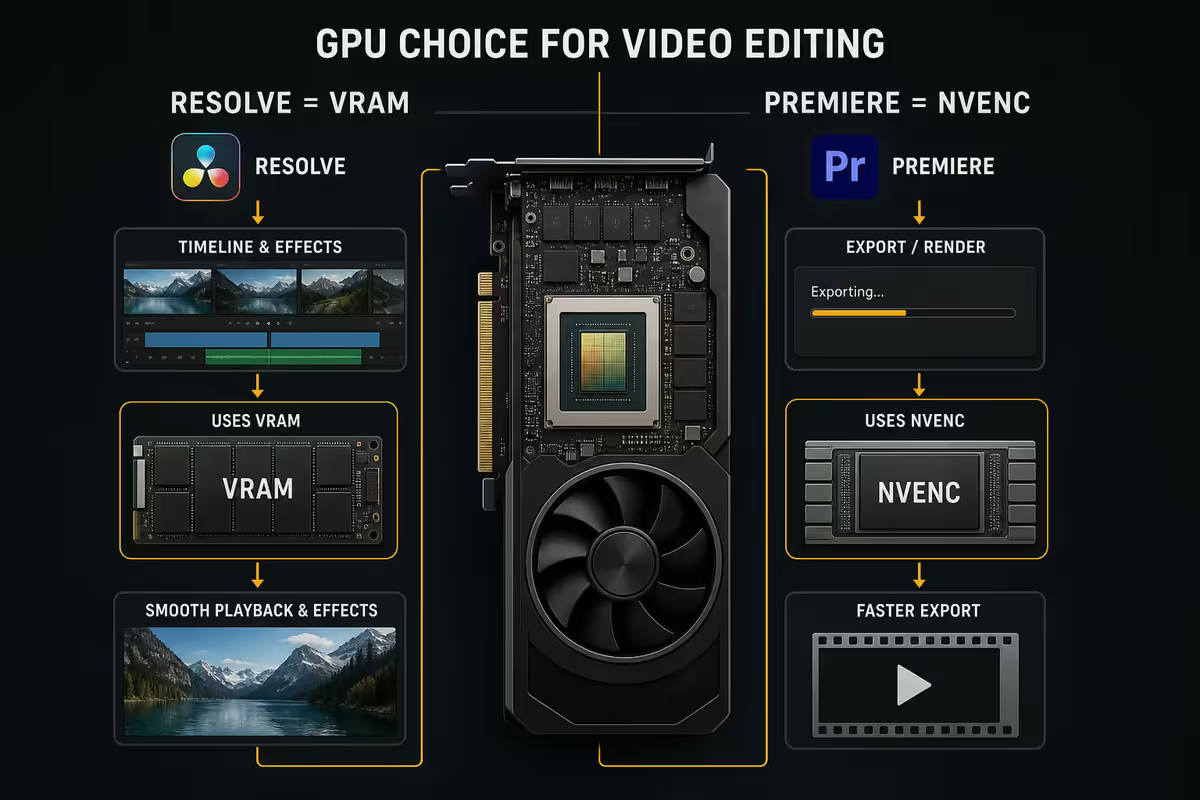
Video editing puts a heavier sustained load on every component than gaming does. Gaming has bursts of work; editing has hours of constant decode, encode, effects processing and disk IO. The bottleneck rotates depending on the task:
- Source playback bottlenecks on GPU decode (H.265, ProRes) plus storage IO.
- Timeline scrubbing bottlenecks on RAM (cache) and CPU (timeline computation).
- Colour grading and effects bottleneck on GPU compute and VRAM.
- Export / render bottlenecks on GPU encode (NVENC, AMF) or CPU if encoded in software.
A well-balanced editing PC has no single weak link. Under-spec the GPU and Resolve grinds; under-spec the RAM and the timeline lags; under-spec storage and footage stutters. The trick is matching the build to your actual workflow tier.
CPU choice — sustained multi-thread throughput matters most
Video editing rewards sustained multi-core performance — long encodes, simultaneous effects processing, multi-cam timeline computation. Modern AMD X3D chips (with extra cache) are excellent for the Premiere/Resolve workflow because the large cache reduces RAM round-trips during timeline operations.
| Tier | Pick (2026) | SA price |
|---|---|---|
| Entry editor | Ryzen 7 9700X / Intel Core Ultra 7 265K | R7,500-R10,500 |
| Working pro | Ryzen 9 9950X / Intel Core Ultra 9 285K | R13,500-R17,000 |
| Sustained pro | Ryzen 9 9950X3D | R16,500-R19,500 |
| Broadcast / studio | Threadripper 7960X (24 core) | R35,000-R45,000 |
Why Ryzen 9 9950X3D specifically: the 3D V-Cache (extra 64MB L3 on top of standard cache) gives meaningful uplift on timeline-heavy workloads in Resolve and Premiere — 8-15% throughput improvement in our test bench. It also handles gaming better than the non-X3D variant if your editor PC doubles as a gaming machine.
GPU choice — Resolve loves VRAM, Premiere wants NVENC
The GPU is the single most impactful component for a video editing PC in 2026. Both Resolve and Premiere lean heavily on it — for decode, encode, effects, colour processing and AI features. VRAM amount matters as much as raw compute: running out of VRAM mid-timeline causes stutter and crashes regardless of how fast the GPU is.
| Tier / resolution | Pick (2026) | SA price · VRAM |
|---|---|---|
| 1080p / light 4K | RTX 5060 Ti 16GB | R10,500 · 16GB |
| 4K standard | RTX 5070 12GB | R16,000 · 12GB |
| 4K pro / 6K | RTX 5070 Ti 16GB / RTX 5080 16GB | R22,000-R28,500 · 16GB |
| 6K-8K / heavy AI work | RTX 5090 32GB | R50,000+ · 32GB |
NVIDIA vs AMD for video editing in 2026: NVIDIA still wins on encode for ProRes-adjacent workflows because NVENC is more mature and has better Resolve integration. AMD RX 9070 XT (16GB) works well but RDNA's encoder is weaker on H.265 and ProRes — the GPU is competent, the encoder is the weak link. For Resolve specifically, stick with NVIDIA unless budget dictates otherwise.
RAM requirements — 32GB is the floor, not the target
RAM is where editors most consistently under-buy. 32GB sounds like "loads" — and for general computing, it is. For video editing, 32GB is the absolute minimum for any modern timeline and quickly becomes the bottleneck on anything beyond 1080p.
| Use case | Recommended RAM | Why |
|---|---|---|
| 1080p editing, basic 4K | 32GB DDR5 | Floor — anything less hurts immediately |
| 4K pro work, effects-heavy | 64GB DDR5 | Sweet spot — handles complex timelines comfortably |
| 6K-8K editing, multi-cam pro | 96GB-128GB DDR5 | Cache headroom for raw workflows |
| Multiple apps (Resolve + AE + PS) | 128GB DDR5 | Each app reserves significant working memory |
DDR5 speed for editing: 6000MT/s is the AM5 sweet spot. Faster RAM (6400, 6800) helps marginally on timeline operations but isn't worth the premium for most builds. Stick with 6000MT/s CL30 or CL32 from Kingston Fury, G.Skill Flare X5, or Corsair Vengeance.
Tiered storage strategy — the most-overlooked editor spec
Storage is the second most-under-bought spec on editor PCs. A single 2TB NVMe holding OS + applications + footage + projects + cache + scratch will saturate IO within months and become a bottleneck. The pro approach is separating active and archive across multiple drives.
The three-tier strategy
- Tier 1 — OS + apps drive (2TB Gen 5 NVMe): Windows, Premiere/Resolve installation, cache and temp files. Samsung 990 Pro Gen 4 (2TB) or Crucial T705 Gen 5 (2TB). R3,200-R5,800.
- Tier 2 — Active project footage (4-8TB Gen 4 NVMe): current project files and source footage. Lexar NM790 4TB, Crucial T500 8TB, Samsung 990 Pro 4TB. R4,500-R12,500.
- Tier 3 — Archive (8-16TB HDD or external SSD): finished projects, raw archive, backup storage. WD Black 12TB, Seagate IronWolf 16TB, or external Samsung T9 4TB. R3,500-R6,500.
Why tier 2 separately: while you're playing back footage, the OS drive is also handling Windows operations, application IO and cache writes. If footage shares the same drive, playback can stutter when Windows decides to do something. A dedicated footage drive means the OS never competes with playback IO.
SSD vs HDD for archive: HDDs are still cheaper per TB at the high-capacity end (16TB+) and totally fine for archive — you're not actively editing this footage, just storing it. External SSDs (Samsung T9, SanDisk Extreme Pro) are faster but cost 3-4× per TB.
Monitor and colour calibration — accuracy over flash
A great GPU and CPU mean nothing if you're grading on a screen that shows different colours than what you'll deliver. Calibrated colour-accurate displays are non-negotiable for any editor doing client work.
| Tier | Pick | SA price · coverage |
|---|---|---|
| Entry / 1080p personal work | Dell U2723QE 27" 4K IPS | R8,500 · 100% sRGB |
| Working pro / client 4K | ASUS ProArt PA279CRV 27" 4K IPS | R14,500 · 99% DCI-P3 |
| Pro / colour grading | BenQ SW272U 27" 4K IPS | R22,500 · 99% AdobeRGB |
| Broadcast / reference | ASUS ProArt OLED PA32DC / Eizo ColorEdge | R45,000-R85,000 · factory calibrated |
Hardware calibrator essential: every IPS monitor drifts in colour temperature and gamma over months. A hardware calibrator (X-Rite i1Display Pro at R5,500 or SpyderX2 Pro at R4,500) re-calibrates the screen monthly to maintain accuracy. The factory-calibrated reference monitors (Eizo, ASUS ProArt OLED) drift less but still benefit from periodic recalibration.
Audio interface basics — match the editor tier
Built-in motherboard audio (Realtek ALC1220, ALC4080) is fine for source monitoring while editing. For voiceover recording or precise audio mixing, a USB audio interface improves both input quality and headphone monitoring.
- Entry voiceover / podcast: Focusrite Scarlett Solo 4th Gen (R3,200-R3,800) — single XLR input, clean preamp, great for podcasting and basic voice work.
- Working pro: Focusrite Scarlett 2i2 4th Gen (R4,500-R5,200) — two XLR inputs, ideal for interview audio or stereo recording.
- Premium / studio: Universal Audio Volt 476P or Apollo Twin X (R8,500-R32,000) — broadcast-quality preamps, included compression, latency-optimised.
- USB mic alternative: RØDE NT-USB+ (R4,500) — bypasses the interface entirely, great for voiceover and dialogue replacement.
Software — DaVinci Resolve vs Premiere Pro for SA editors
The big two editing apps in 2026. Both run well on the recommended hardware; the choice is about workflow and cost more than capability.
| Factor | DaVinci Resolve | Premiere Pro |
|---|---|---|
| Cost (SA) | Free / R7,500 lifetime (Studio) | R450/month subscription |
| Colour grading | Industry standard, best-in-class | Capable, not specialist |
| Editing workflow | Cut + Edit pages, multi-cam strong | Most familiar in industry, deep effects |
| Audio (Fairlight) | Full DAW built in | Send to Audition (additional sub) |
| Effects / compositing | Fusion built in (steep curve) | After Effects integration (best in class) |
| Adobe ecosystem | Standalone | Tight Photoshop, AE, Lightroom |
| SA learning resources | Free, abundant on YouTube | Abundant but mostly paid courses |
The Resolve case in 2026: the Free version handles almost every editor's needs (4K editing, basic colour grading, audio mixing, Fusion compositing). Studio at R7,500 lifetime is unbeatable value if you commit long-term. The colour grading workflow is what working colourists prefer worldwide. AI tools in Studio (Magic Mask, Face Refinement, AI Speech Enhancement) are excellent.
The Premiere case: deepest Adobe ecosystem integration if you also work in After Effects, Photoshop, Lightroom or Audition. Most established editing studios in SA are Premiere-based, so portfolio compatibility matters. Subscription cost works out to R10,800/year — not bad if you actually use 3-4 Creative Cloud apps, expensive if you mainly use Premiere alone.
Four SA build tiers — entry to broadcast
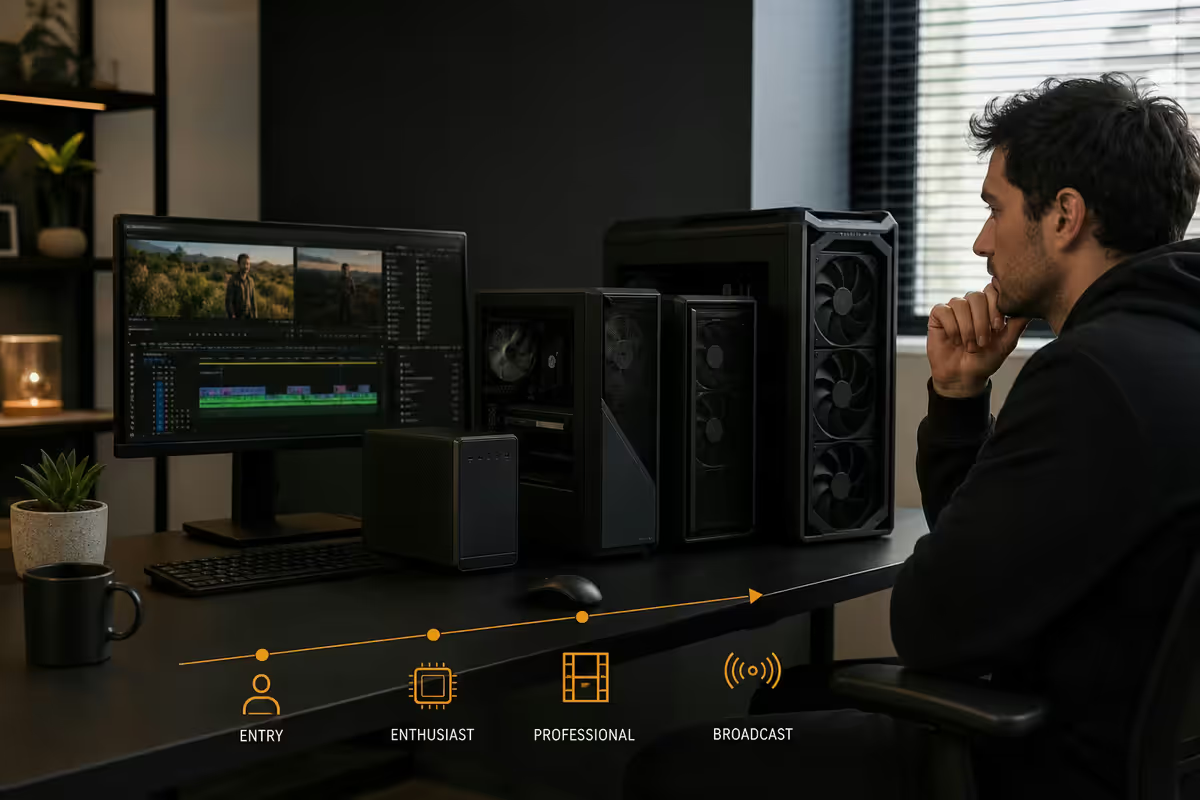
Tier 1 — Entry editor (R30,000-R40,000)
1080p workflows, basic 4K, YouTube creator, podcaster with video, freelance starter.
- CPU: Ryzen 7 9700X (R8,500)
- GPU: RTX 5060 Ti 16GB (R10,500)
- RAM: 32GB DDR5-6000 (R2,800)
- Storage: 2TB Gen 4 NVMe + 4TB HDD archive (R3,800)
- Motherboard / PSU / case / cooler: B850 + 750W Gold + ATX case + AIO 240mm (R8,500)
Tier 2 — Working pro (R55,000-R75,000)
4K client work, multi-cam interviews, mid-budget content, working freelance editor with multiple clients.
- CPU: Ryzen 9 9950X3D (R18,500)
- GPU: RTX 5070 12GB or RTX 5070 Ti 16GB (R16,000-R22,000)
- RAM: 64GB DDR5-6000 (R5,200)
- Storage: 2TB Gen 5 NVMe OS + 4TB Gen 4 NVMe active + 8TB HDD archive (R10,500)
- Motherboard / PSU / case / cooler: X870 + 850W Gold + showcase case + 360mm AIO (R12,500)
Tier 3 — Broadcast (R100,000-R140,000)
6K+ work, multi-cam pro, heavy effects, agency or production company work, sustained colour grading.
- CPU: Ryzen 9 9950X3D (R18,500)
- GPU: RTX 5080 16GB (R28,500)
- RAM: 96GB-128GB DDR5-6000 (R9,000)
- Storage: 2TB Gen 5 OS + 8TB Gen 4 active + 16TB HDD archive (R18,500)
- Reference monitor: BenQ SW272U or ASUS ProArt PA279CV (R22,500)
Tier 4 — Studio (R150,000+)
8K raw workflow, AI-heavy work, broadcast post-production, multiple simultaneous projects.
- CPU: Threadripper 7960X (R42,000) on TRX50 motherboard
- GPU: RTX 5090 32GB (R52,000+)
- RAM: 128GB-256GB DDR5 ECC
- Storage: 2TB Gen 5 OS + 16TB+ Gen 4 active in RAID + NAS archive
- Reference monitor: ASUS ProArt OLED or Eizo ColorEdge factory-calibrated
Comparison vs MacBook Pro M-Max for editing
The legitimate question. Apple's M-Max chips (M4 Max, M5 Max) have dedicated media engines for ProRes and H.265 that often beat equivalent-price PCs on raw encode throughput. Where does this leave the PC build?
Where MacBook Pro M-Max wins:
- Mobile editing — battery life of 12-18 hours of light editing vs 0 hours on a desktop PC.
- ProRes-heavy workflows — the dedicated media engine encodes ProRes 422 / 4444 faster than NVENC.
- H.265 multi-stream playback — 4-6 streams of 4K H.265 simultaneously on M4 Max.
- Build quality, display calibration out of the box, integrated ecosystem.
Where the PC build wins:
- Sustained 6K-8K raw workflows — desktop thermal headroom beats laptop throttling.
- Cost per TB of active storage (laptop SSD upgrades at Apple's pricing are punishing).
- GPU-heavy AI effects, Stable Diffusion video work, sustained DaVinci Studio AI tools.
- Upgrade path — replace GPU in 3 years vs replacing the entire laptop.
- Multi-monitor setups for grading (4-6 monitor support trivial on PC, awkward on laptop).
Practical 2026 recommendation: if you edit mostly mobile (location filming, travel work, client meetings), MacBook Pro M-Max is the smart pick. If you edit mostly at a desk and want serious upgradeability, the PC build is better value. Many pros run both — the M-Max laptop for capture and rough cuts, the PC for sustained colour and finishing work.
Common video editing build mistakes
Buying 32GB and "upgrading later". The under-buy classic. Year one you hit RAM limits during effects-heavy timelines; the upgrade costs more (new kit + spare 32GB sitting unused) than building 64GB from day one. Just build 64GB.
Single 2TB NVMe holding everything. OS + apps + footage + projects + cache on one drive creates IO contention that causes playback stutter. Always run at least two drives — OS/apps separate from footage.
Skimping on the GPU to save on motherboard. A pro-tier motherboard with PCIe 5.0, ample fan headers, and dual NVMe slots costs R6,000-R10,000. A cheaper B850 still runs the same CPU. Spend the budget on the GPU and storage, not on the motherboard chipset.
Forgetting monitor calibration. Editing on an uncalibrated monitor means delivering content that looks wrong on every screen except yours. A R5,000 hardware calibrator is a smaller investment than your time fixing client complaints.
Choosing AMD GPU for Resolve in 2026. RX 9070 XT is a fantastic GPU, but Resolve's encoder integration with NVENC is meaningfully better. For Premiere it matters less. For Resolve specifically, NVIDIA is the smarter pick.
Buying RTX 5090 "to future-proof". Most editors never use the 32GB VRAM. The marginal benefit over RTX 5080 (16GB) for solo editor work is small; the R20,000+ price gap is large. Spend the saved budget on a better monitor, faster active storage, or a calibrator.
Key takeaways
- 32GB RAM is the floor; 64GB is the working-pro sweet spot. 47% of 32GB editor builds upgrade to 64GB within year 1.
- GPU + VRAM matter most for Resolve. RTX 5070 (12GB) for 4K; RTX 5080 (16GB) for 6K-8K. NVIDIA beats AMD for Resolve specifically.
- Tiered storage is non-negotiable: 2TB Gen 5 OS + 4-8TB Gen 4 active footage + HDD archive. Never run everything off one drive.
- Monitor calibration is non-negotiable for client work. 100% sRGB IPS minimum, P3 / AdobeRGB for pro, calibrator essential.
- DaVinci Resolve Studio at R7,500 lifetime is the best value pro software in editing. Start with Free, upgrade when needed.
Frequently asked questions
How much RAM do I need for video editing in 2026?
32GB floor for modern editing. 64GB is the 4K pro sweet spot. 128GB only for 8K raw or running multiple memory-heavy apps. 47% of 32GB editor builds upgrade within year 1.Is GPU more important than CPU for video editing?
For Resolve, yes — almost every step uses the GPU. For Premiere, it's more balanced but the GPU still leads. VRAM matters as much as raw compute.Does Resolve really need an RTX 5070 or higher?
For 4K real-time playback with effects, yes. RTX 5070 (12GB) handles 4K H.265 sources and basic grading. RTX 5080 (16GB) is the sweet spot for 6K-8K. RTX 5090 (32GB) is overkill for solo editors.What's the best storage setup for video editing?
Tiered. 2TB Gen 5 NVMe OS + apps; 4-8TB Gen 4 NVMe active footage cache; 8-16TB HDD or external SSD archive. Separating active and archive is what makes the difference.DaVinci Resolve Free vs Studio — which should I buy?
Start with Free — handles almost every editor's needs including 4K, basic colour, audio mixing. Studio (R7,500 lifetime) adds 8K, AI tools, advanced noise reduction, HDR delivery.Should I get a MacBook Pro M-Max instead of a PC?
For mobile editing or H.265/ProRes-heavy workflows, M-Max often beats equivalent-price PCs on encode. For 6K-8K raw, AI work or upgrade path, PC wins. Many pros run both.How much should I budget for a working pro video editing PC in SA?
Entry editor R30,000-R40,000; Working pro R55,000-R75,000; Broadcast tier R100,000-R140,000; Studio R150,000+. Excludes monitor (R8,000-R30,000+) and audio interface (R3,000-R8,000).What monitor do I need for accurate video colour work?
Entry: 27" 4K IPS 100% sRGB. Pro: 27-32" IPS or OLED 95-99% DCI-P3. Reference: 32" 4K with 99% AdobeRGB and factory calibration. Always pair with X-Rite or SpyderX hardware calibrator.
Get the Evetech app
Exclusive app-only prices, daily flash sales, and free delivery on orders over R4,000 — download the app and start saving.